Contents
Scenario 1. The 5G ODU cannot be adopted as expected
Scenario 2. The 5G ODU needs to operate in Router mode
Scenario 3. The 5G ODU loses Internet or Cloud-based Controller connectivity
Scenario 4. The SIM PIN needs to be configured or changed
Introduction
The 5G ODU differs significantly from the common 4G ODU in terms of usage and typical topology. The 4G ODU typically operates in Router mode, where users complete dial-up, routing, and management directly on the ODU. In contrast, the 5G ODU defaults to operating in IP Passthrough (IPPT) mode, where the routing and management of the entire site rely on the correct configuration of the gateway connected downstream from the ODU. Due to this design change, issues such as adoption failure, network disconnection caused by incorrect configuration, and SIM/PIN management-related problems are more likely to occur. This article will provide a detailed introduction to the potential issues that may arise when using a 5G ODU and offer targeted solutions for each problem.
Requirements
- 5G ODU, with ER701-5G-Outdoor v1.0 used as an example.
Typical network topology
The 5G ODU supports IPPT mode and Router mode.
Router mode
In Router mode, the ODU functions as a regular gateway. The 5G ODU serves as a full-featured routing gateway and provides functions such as NAT, DHCP, and attack defense.
A typical network topology in Router mode is:
Internet → 5G ODU → Switch → EAP
IPPT mode
In IPPT mode, the ODU transparently passes the IP address obtained from the ISP through the SIM card to the downstream gateway.
IPPT mode is designed to integrate a 5G network into an existing LAN. The ODU handles 5G access and modulation and transparently passes the carrier-assigned IP address to the downstream gateway. Routing, NAT, security policies, and other network functions are managed centrally by the downstream gateway.
This design avoids double NAT while preserving the existing network architecture and management control. It is particularly suitable for advanced requirements such as public IP access, VPN establishment, and port forwarding.
The following are four common IPPT topologies.
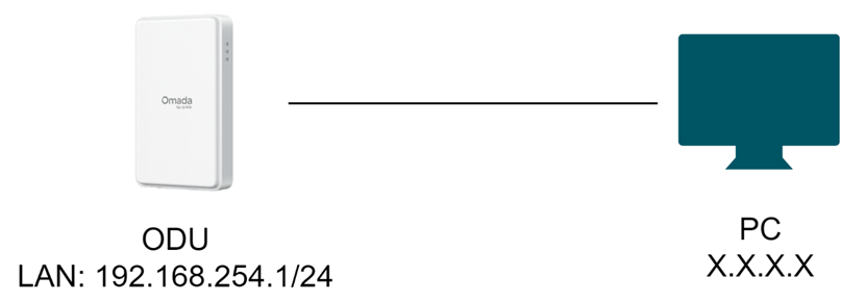
Topology 1. PC directly connected to ODU's LAN port
The ODU assigns the IP address obtained from the SIM card as the LAN-side DHCP IP pool and transparently transmits it to the PC. In this case, the PC, using the SIM card's IP, and the ODU LAN IP, 192.168.254.1, are on different subnets. The ODU LAN serves as an ARP proxy, responding to ARP requests from the PC. This allows the PC to manage the ODU and access the Internet,
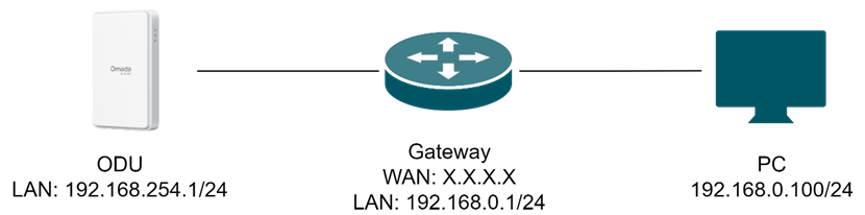
Topology 2. ODU connected to an IDU gateway with the IDU having only this single WAN link
The ODU assigns the IP address obtained from the SIM card as the LAN-side DHCP IP pool and transparently transmits it to the IDU's WAN port. The principle by which the IDU's WAN accesses the ODU is the same as when the PC is directly connected to the ODU in Topology 1.
Topology 3. ODU connected downstream to an IDU gateway, with the IDU having multiple WAN connections but no Link Backup configured
The ODU may serve as either the default WAN or a non-default WAN. In this scenario, the ODU's LAN IP is pushed to the IDU's WAN as the DNS server. The IDU will have a route to the ODU. Under these conditions, the PC can normally access and manage the ODU, and the ODU can access the Internet normally.
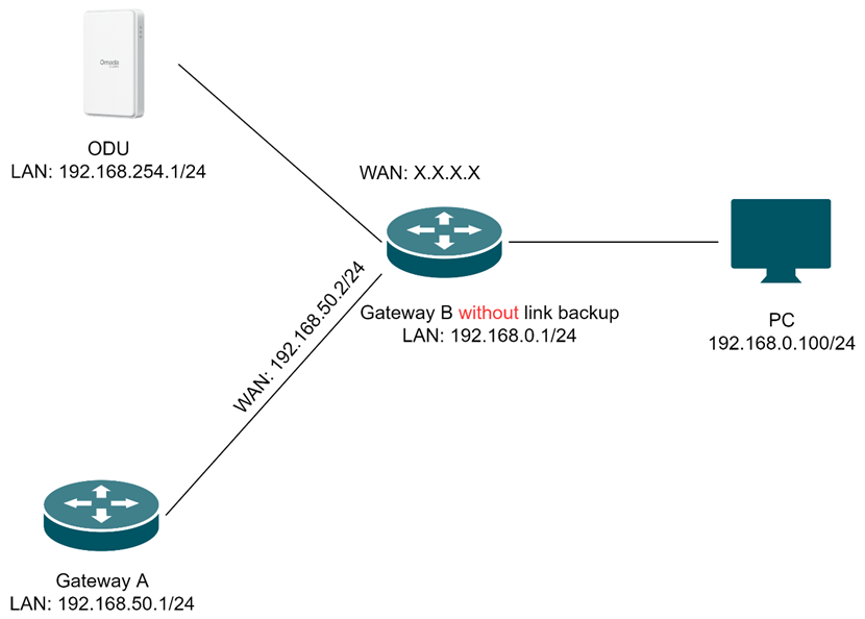
Topology 4. ODU connected downstream to an IDU gateway, with the IDU having multiple WAN connections and Link Backup configured
In this case, the ODU may serve as either the primary WAN or the backup WAN. When the ODU functions as the primary WAN, it can be managed normally. If the ODU acts as the backup WAN and the primary WAN is online, traffic will not be routed through the backup WAN. In this situation, the PC cannot access the ODU, and the ODU itself is unable to connect to the Internet.
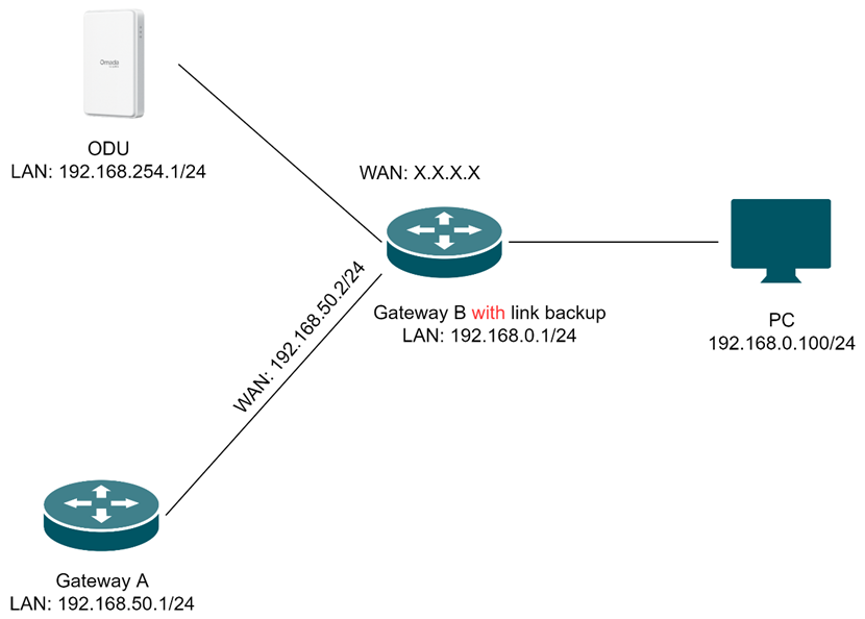
Note: When used in a fixed topology, it is generally unnecessary and not recommended to switch from one mode to the other. If a mode switch is required, it is essential to understand how the ODU operates and connects in both modes.
Troubleshooting
The following scenarios cover common issues related to Controller adoption, operating mode changes, network connectivity, and SIM/PIN management.
Scenario 1. The 5G ODU cannot be adopted as expected
Problem description/Symptoms
The 5G ODU can be managed through a local Controller or an Omada Cloud-based Controller. However, the adoption process differs depending on the operating mode and Controller type. In IPPT mode, the ODU on the WAN side and a local Controller on the LAN side are in different Layer 3 networks, so the adoption process differs from that of a standard gateway. Adoption to the Cloud-based Controller remains the same.
Troubleshooting steps
Step 1. Confirm the operating mode of the ODU.
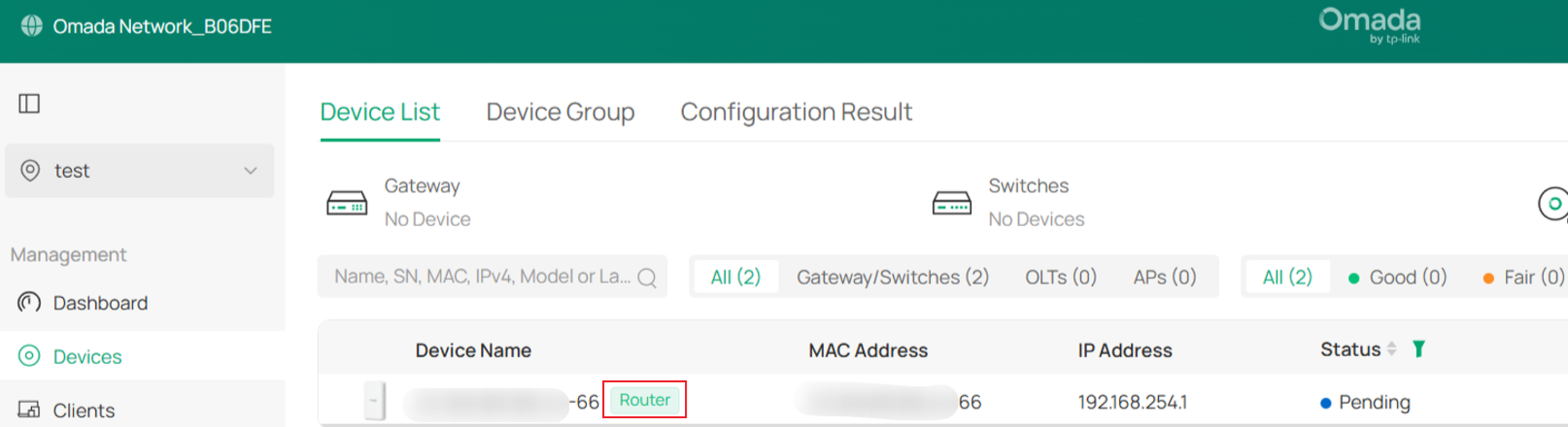
The 5G ODU operates in IPPT mode by default. When managed in Controller mode, the device is displayed as shown below.
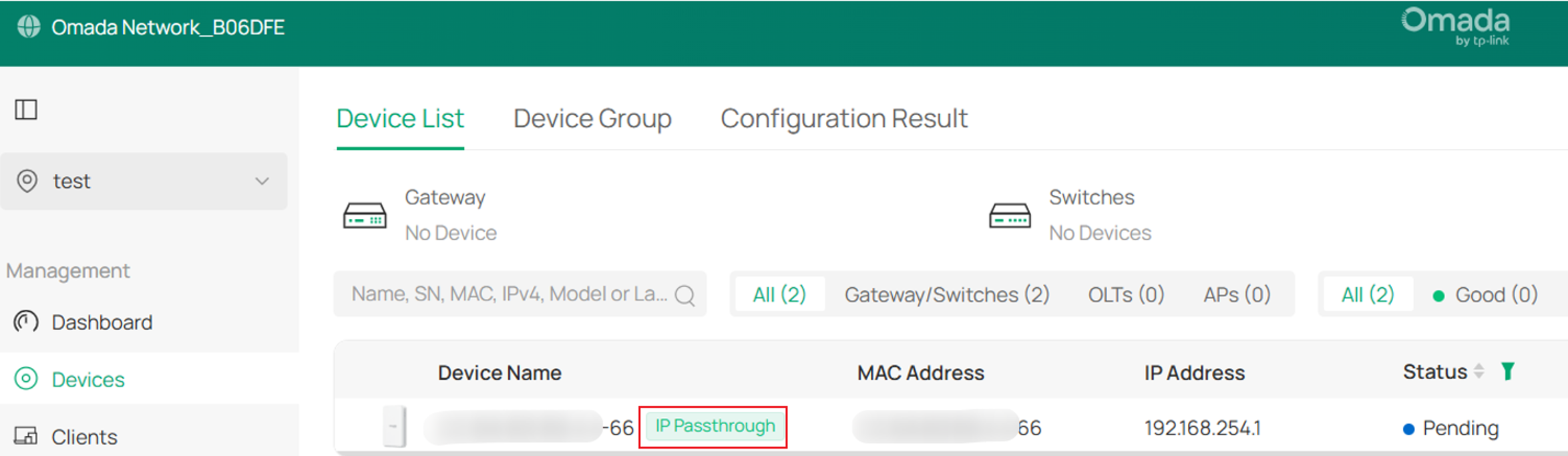
Step 2. Follow the applicable adoption procedure.
For detailed steps and key points on managing the two different modes of the 5G ODU using the two types of Controllers, refer to the following articles:
- How to discover and manage 5G ODU device via Omada Central
- How to discover and manage 5G ODU device via on-premise controller
Scenario 2. The 5G ODU needs to operate in Router mode
Problem description/Symptoms
The 5G ODU operates in IPPT mode by default. To use the ODU as a routing gateway, disable IPPT mode while the device is operating in Standalone mode before Controller adoption. Once the device has been adopted by the Controller, the IPPT mode setting cannot be modified.
Troubleshooting steps
Step 1. Disable IP Passthrough.
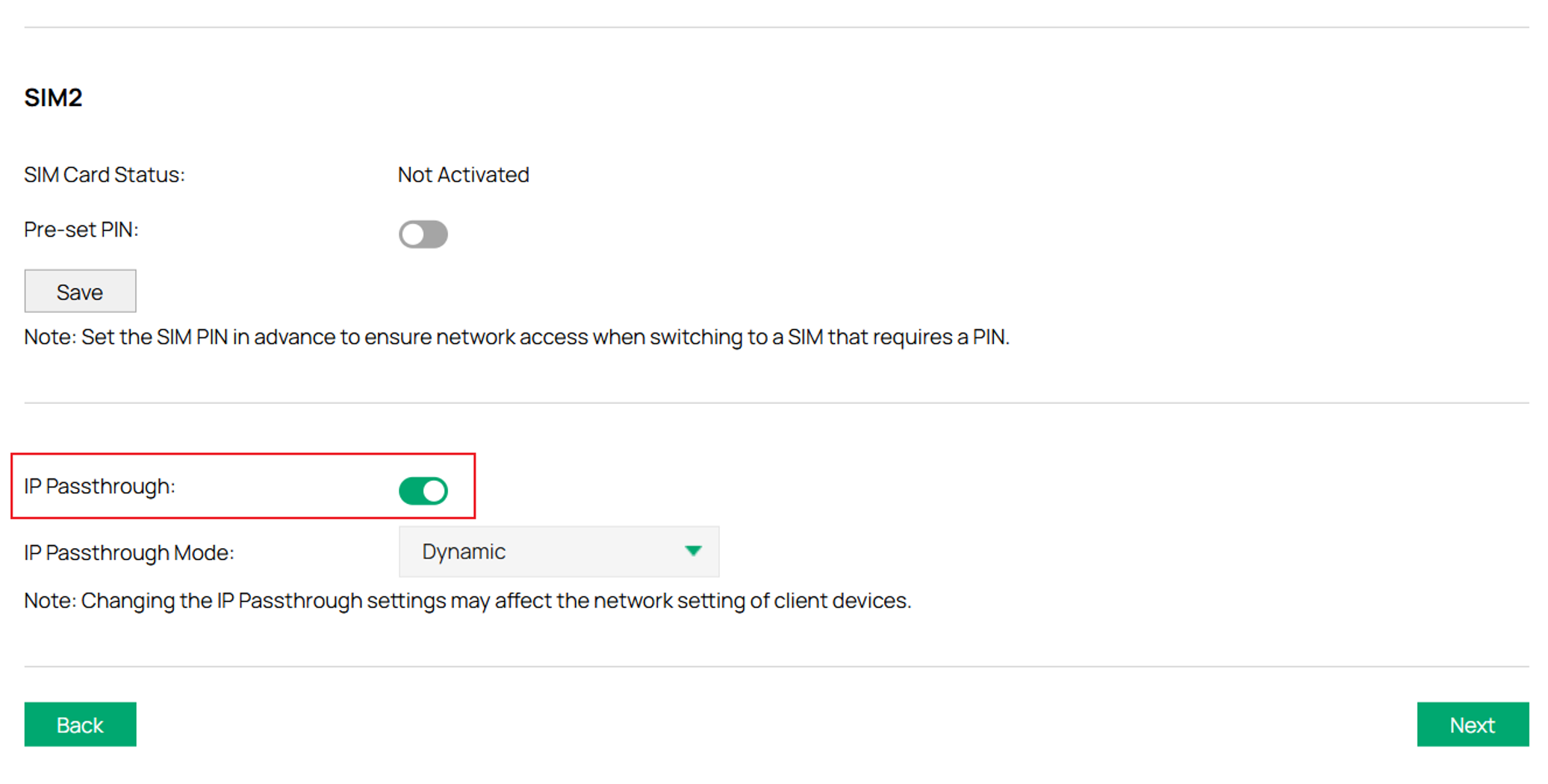
During Quick Setup, IP Passthrough is enabled by default in the WAN Connection Type step and can be disabled if needed.
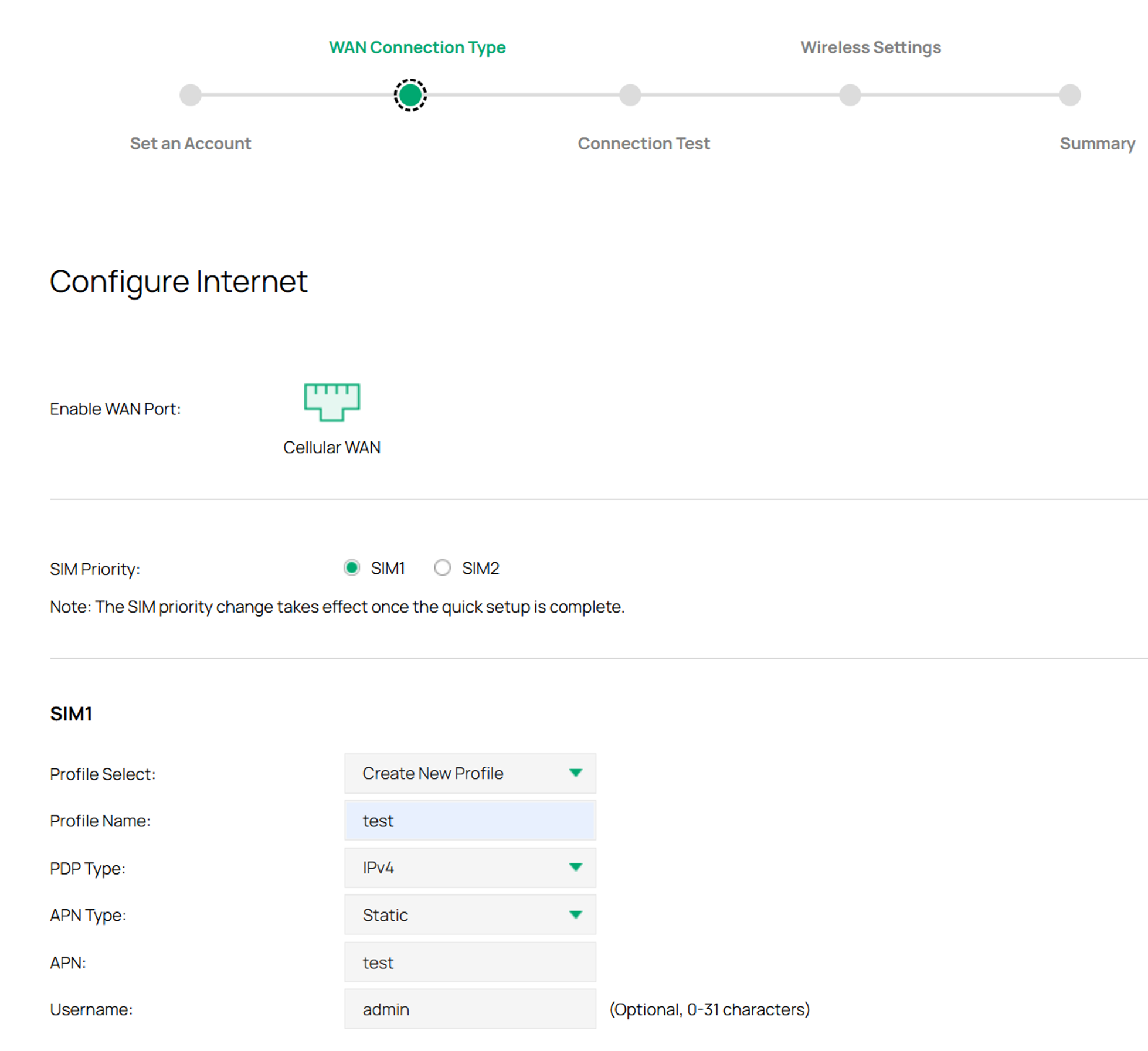
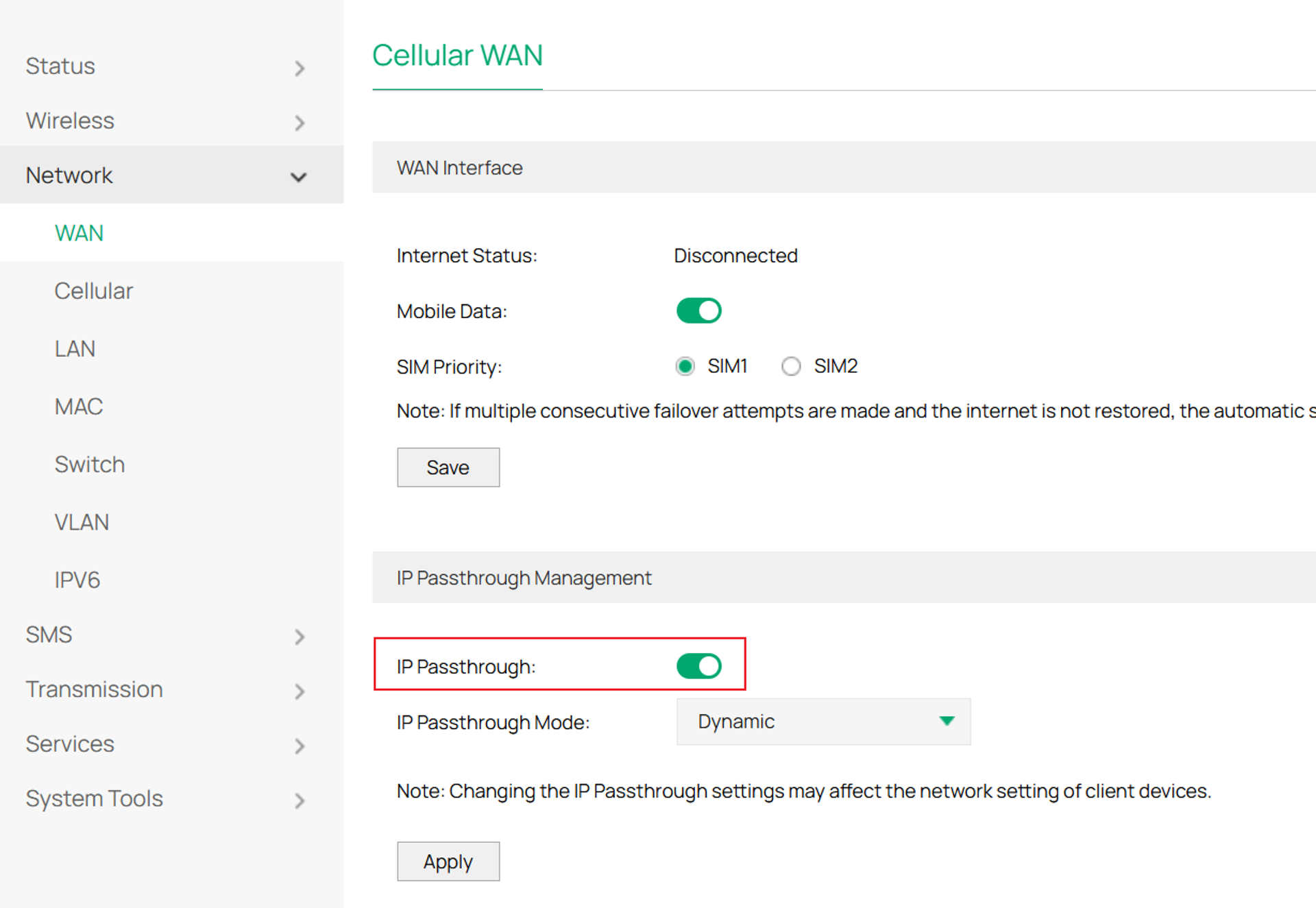
If the device has already been configured, go to Network > WAN > Cellular WAN > IP Passthrough Management and disable IP Passthrough. The device automatically restarts for the change to take effect.
Step 2. Adopt the ODU into the Controller.
After completing the configuration in Standalone mode, enter the device username and password to complete Controller adoption
Verification
Confirm that the 5G ODU is displayed in Router mode in the Controller.
Scenario 3. The 5G ODU loses Internet or Cloud-based Controller connectivity
Problem description/Symptoms
A stable network connection is required to use the Cloud-based Controller. If the ODU loses Internet access or connectivity to the Cloud-based Controller, check the cellular configuration.
Possible causes
- Mobile Data is disabled.
- The SIM card or APN configuration does not meet ISP requirements.
- Automatic switching to the other SIM card may take longer after multiple consecutive failover attempts.
Troubleshooting steps
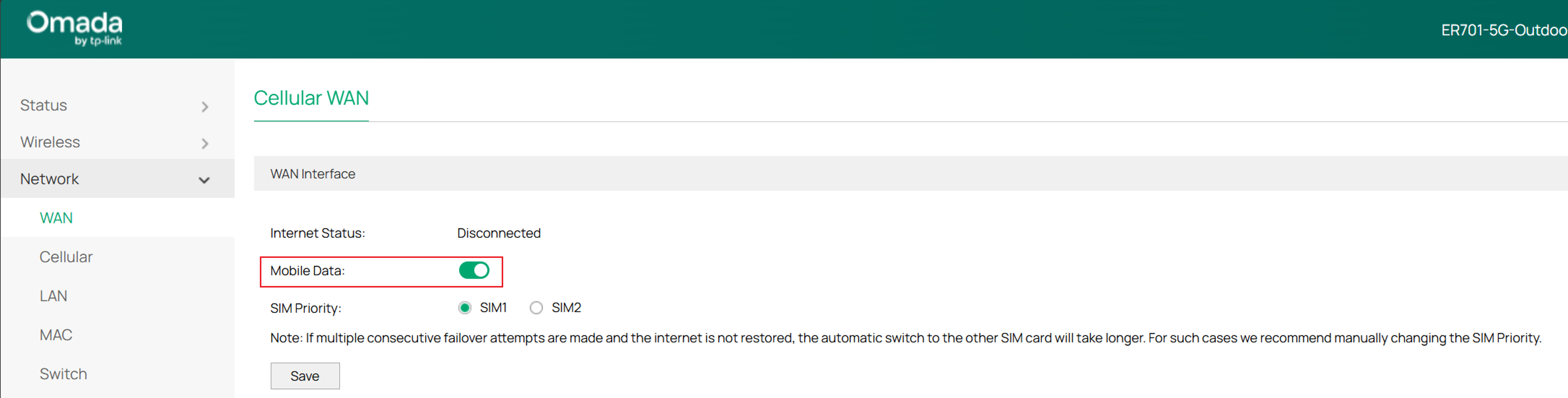
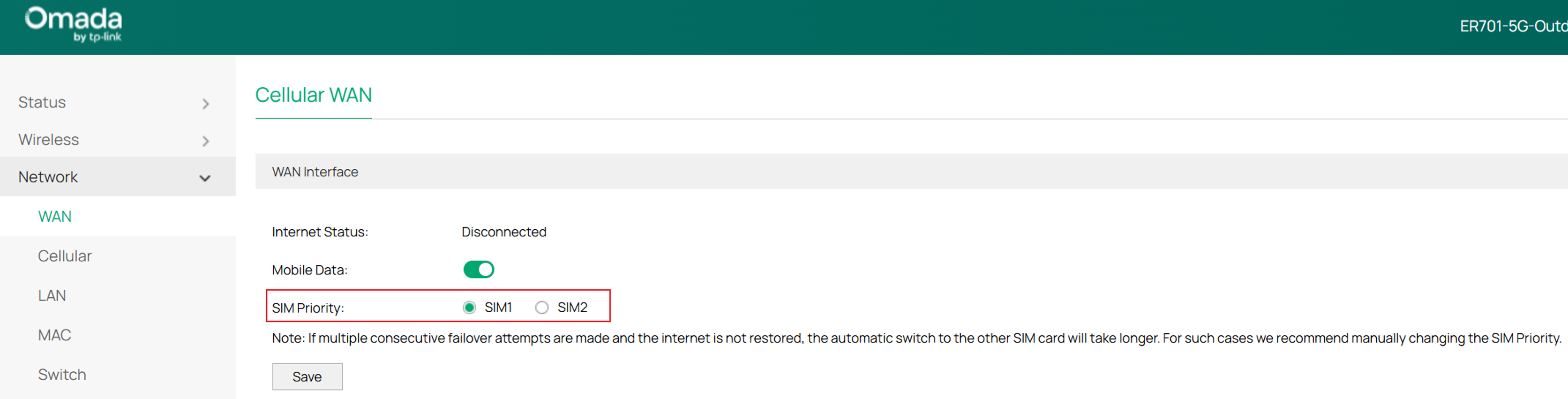
Step 1. Keep Mobile Data enabled.
Mobile Data is enabled by default. If it is disabled, Internet access may be unavailable.
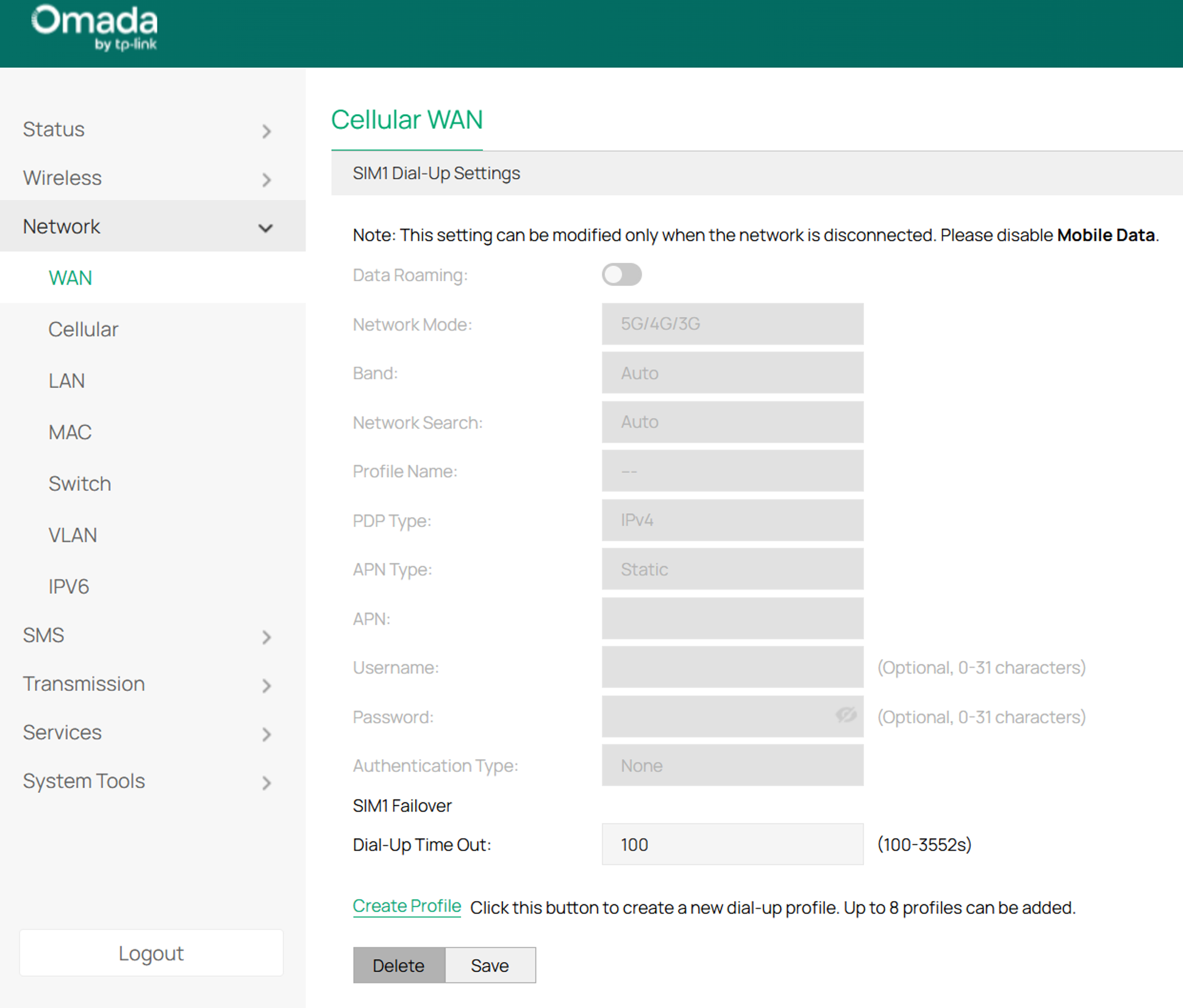
Step 2. Confirm the requirements of the front-end ISP
Confirm whether the SIM card has ISP-specific restrictions or APN requirements. The APN is provided by the ISP. In most cases, the default settings can be retained. If the ISP has specific requirements, set APN Type to Static and manually configure the APN.
Step 3. Check the priority settings of the SIM card.
SIM Priority determines which SIM card is used first. The setting takes effect when the device is powered on and the priority is changed. If only one SIM card is inserted, that SIM card is used by default.
If multiple consecutive failover attempts occur and Internet connectivity is not restored, automatic switching to the other SIM card may take longer. In this case, manually change SIM Priority.
Scenario 4. The SIM PIN needs to be configured or changed
A SIM PIN helps prevent unauthorized use if the SIM card is removed from the outdoor ODU and inserted into another device. A PIN-protected SIM card requires the PIN each time it is inserted into a device. After three incorrect PIN attempts, the PUK code is required. Ten incorrect PUK attempts permanently lock the SIM card.
Troubleshooting steps
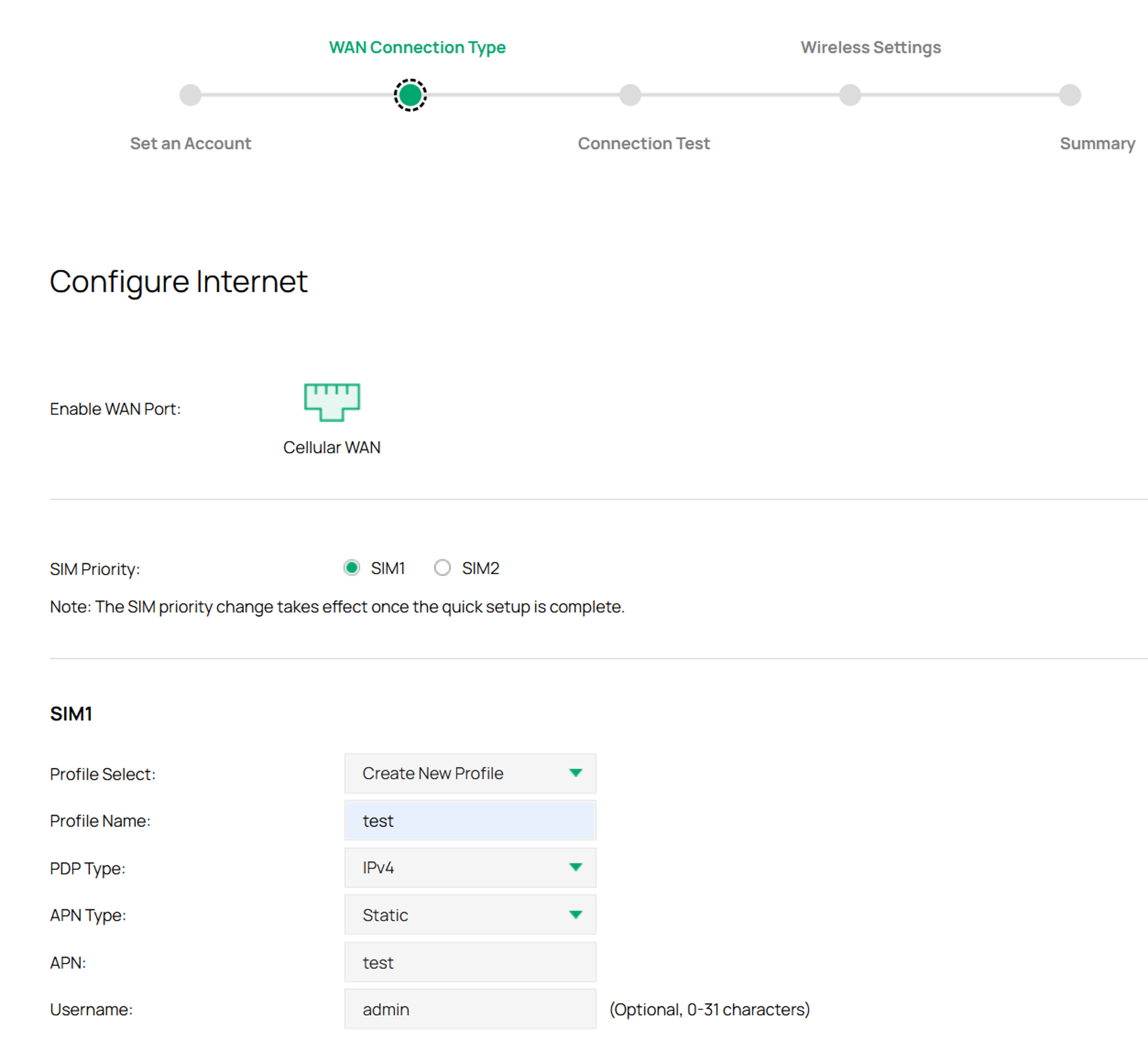
Step 1. Enter the PIN during Quick Setup.
When the ODU is powered on for the first time, it enters Quick Setup. If a PIN-protected SIM card is inserted into SIM slot 1 while SIM slot 2 is empty, enter the PIN for SIM1 to unlock the card. If the SIM card is not PIN-protected, configure the SIM card settings as usual.
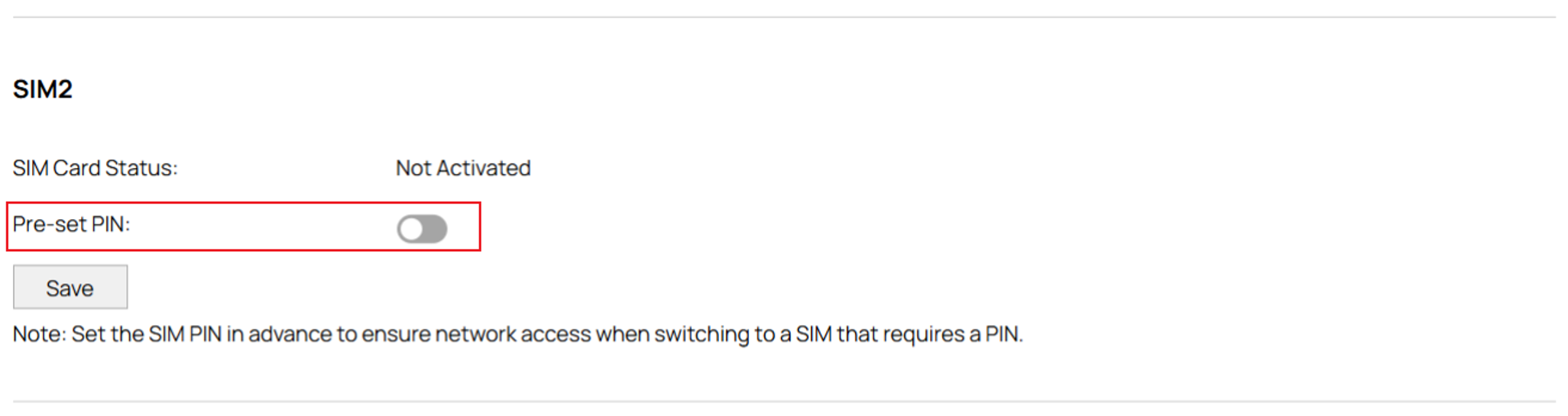
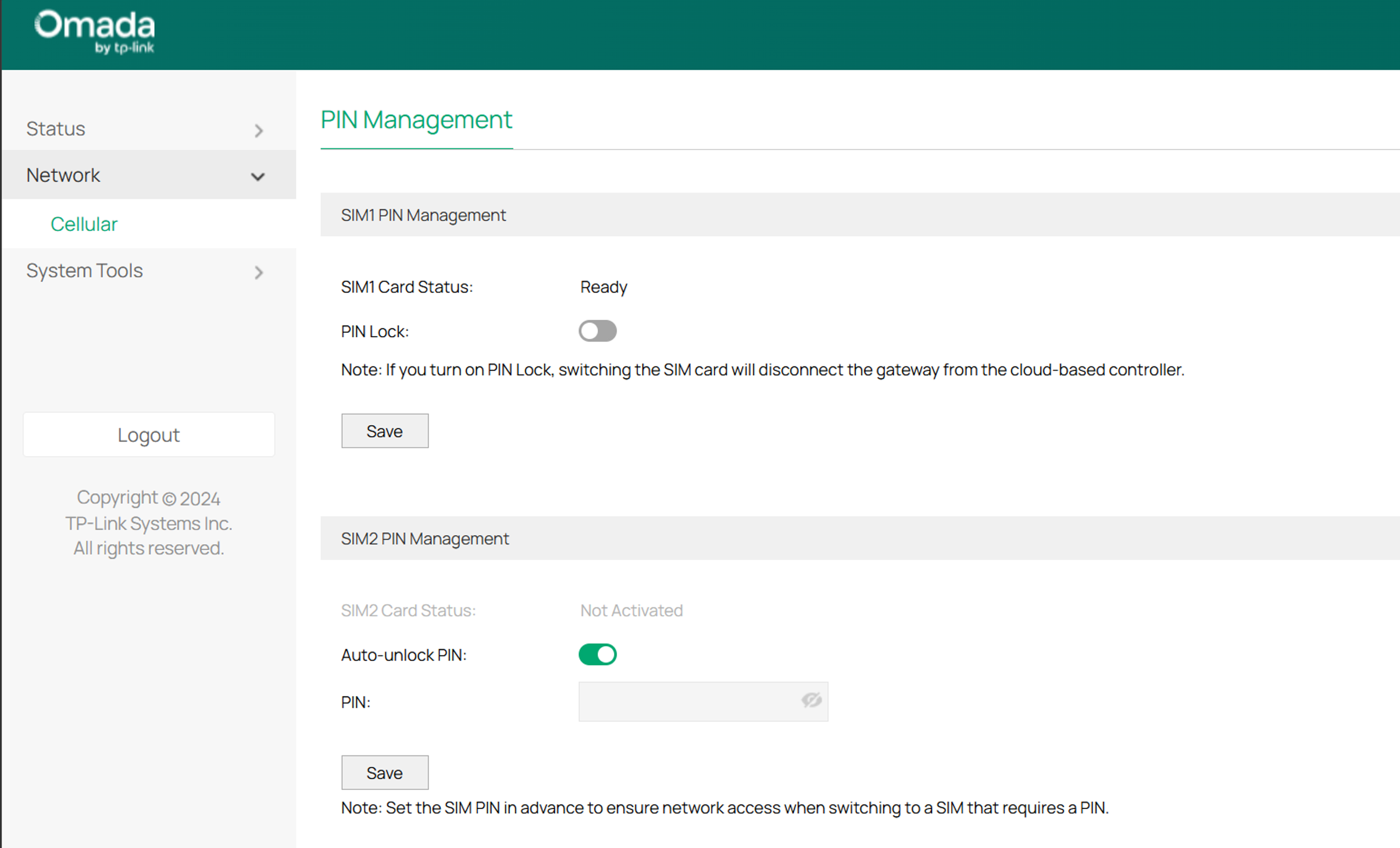
If two PIN-protected SIM cards will be used, pre-set the PIN for the SIM card intended for SIM slot 2 under SIM2 Pre-set PIN to support seamless network switching.
Step 2. Edit SIM card PIN settings in the standalone webUI
After unlocking the SIM card, go to Network > Cellular > PIN Management. The SIM PIN can be modified, or the PIN lock can be disabled.
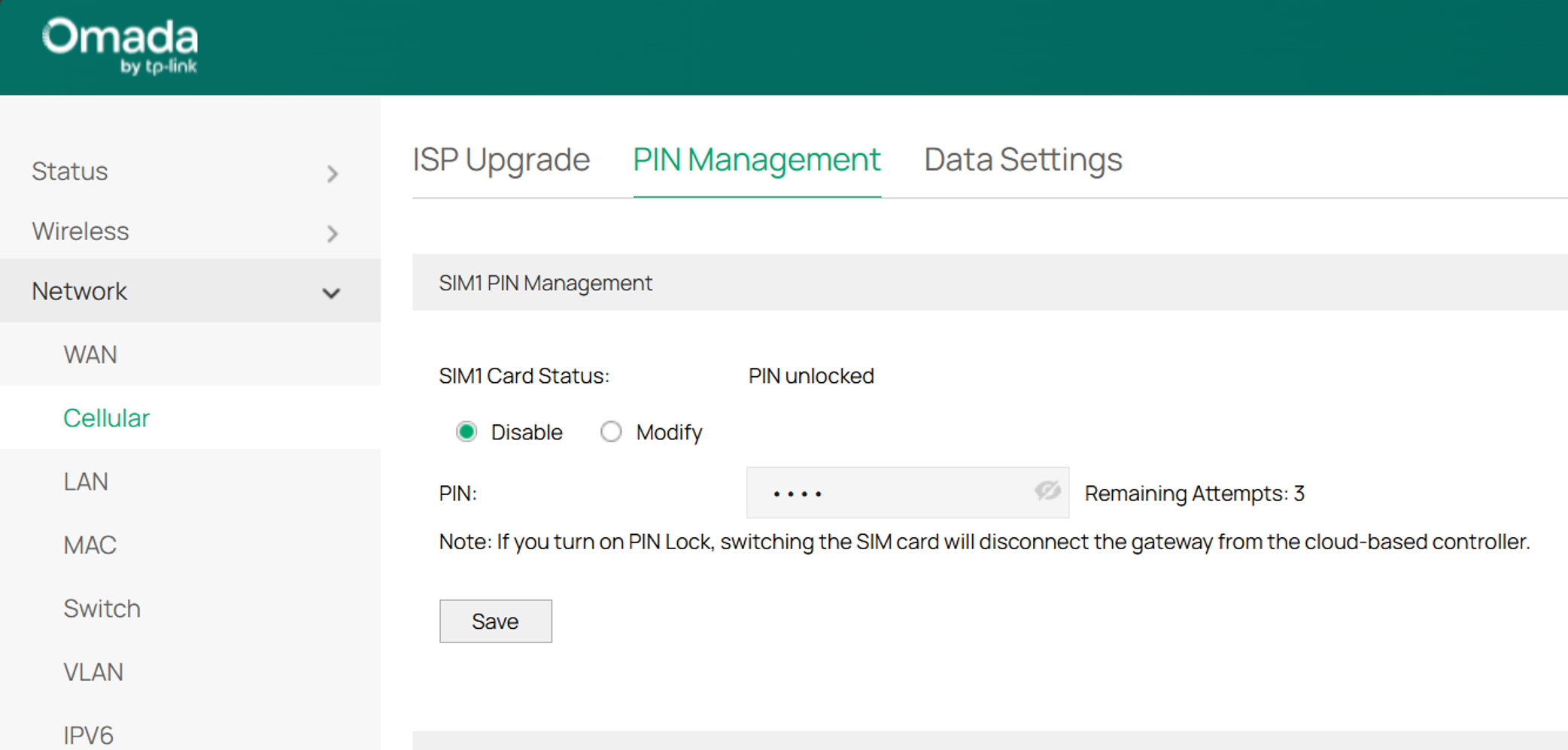
Note: The SIM PIN settings can still be modified through the ODU's web UI after the device has been adopted by the Controller.
Conclusion
This guide covers typical 5G ODU network topologies and common issues related to Controller adoption, switching from IPPT mode to Router mode, connectivity, and SIM/PIN management. Confirm the operating mode and network topology first, then follow the applicable troubleshooting scenario.
To learn more about each function and configuration, please visit Support Home to download or check the manual for your product.
QA
Q1: Why is the SSID on the 5G ODU not detectable?
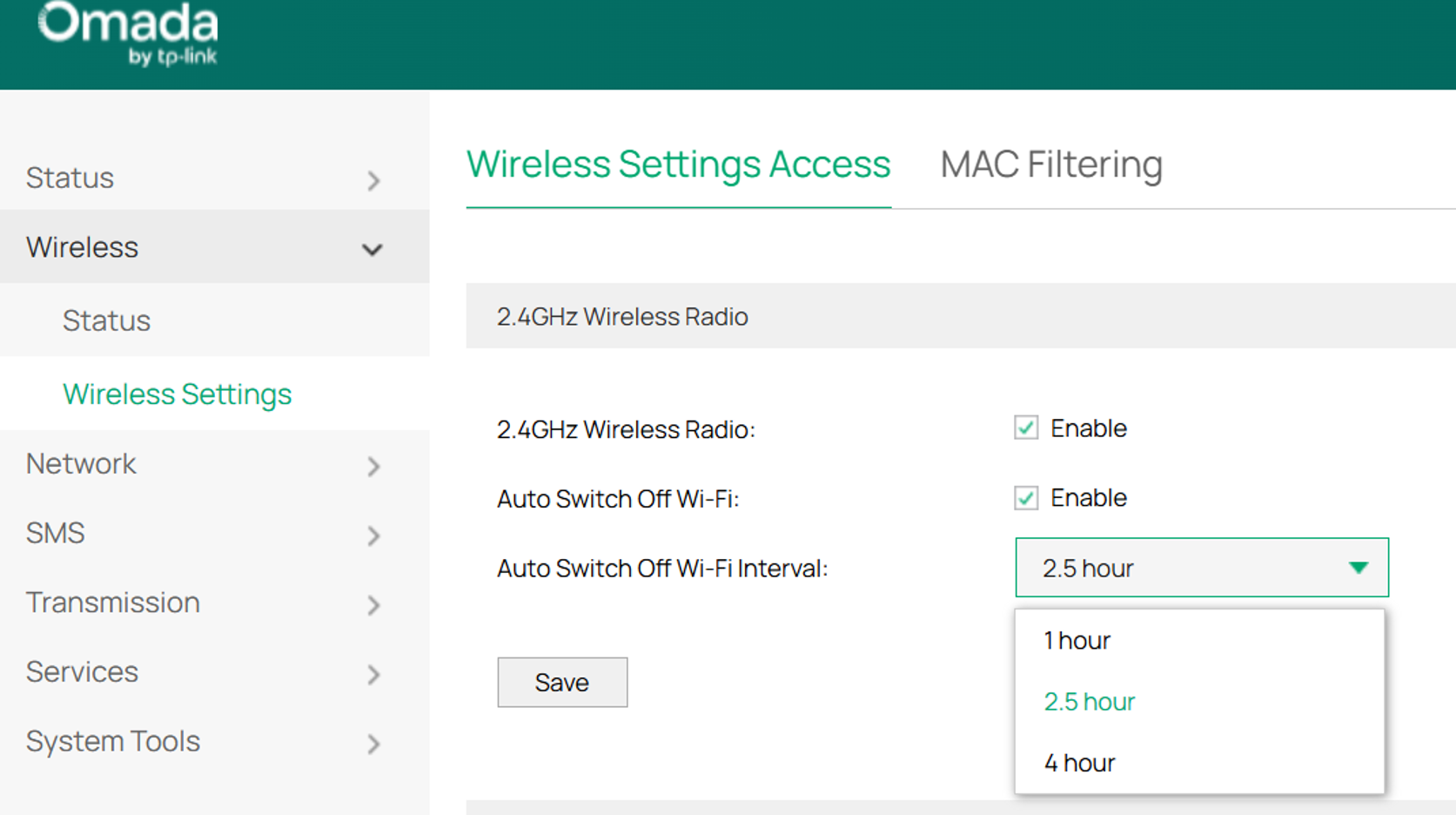
A1: The device has the Auto Switch Off Wi-Fi feature enabled by default, with a default setting of 2.5 hours. This means the Wi-Fi will be automatically turned off by the device after 2.5 hours. If you require the use of the wireless network, you can disable the Auto Switch Off Wi-Fi option.
Q2: How to improve the signal of the ODU after adoption?
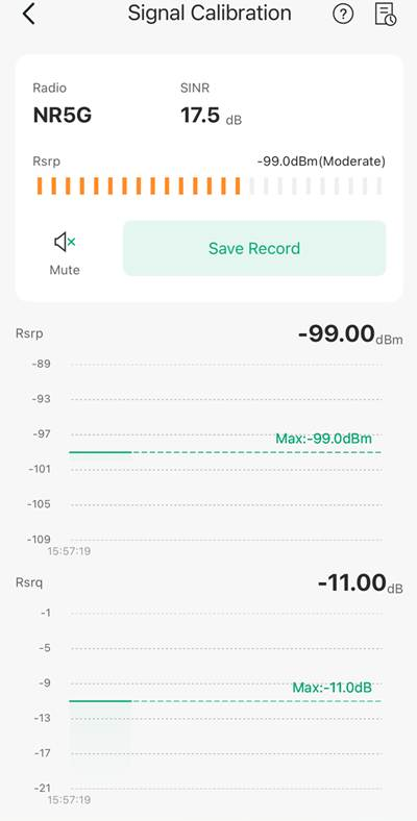
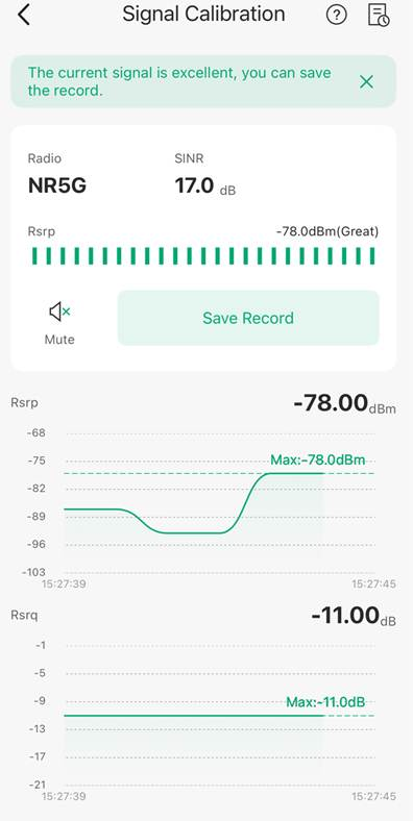
A2: First, you need to enable the wireless network of the ODU according to the steps in Q1. Then, you need to use a phone running the Omada APP to connect to this SSID. At this point, you can go to the Omada APP's personal center interface > Tool kit > Signal Calibration, which displays the real-time signal strength of the ODU.
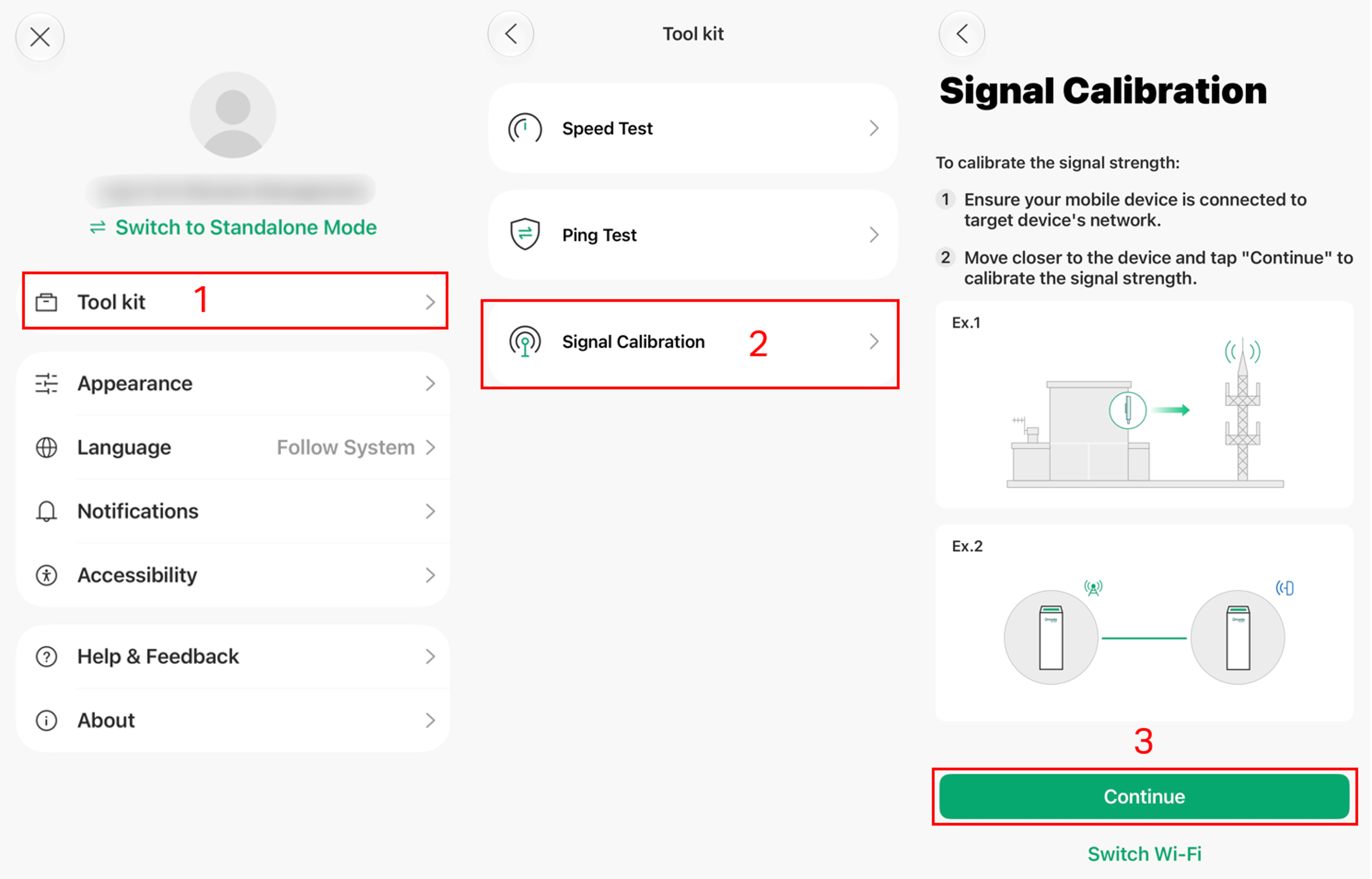
This function makes it easy to align the 5G outdoor gateway with the nearest tower for optimal performance.