


Contents
Requirements
- Ubuntu 20.04, Ubuntu 22.04, Ubuntu 24.04
- Omada Software Controller v5.15.20 and above
- MongoDB
Introduction
On Linux systems, MongoDB is a required dependency for the Omada Software Controller and must be installed manually by the customer. Before upgrading MongoDB, check whether your Omada Software Controller version supports the target MongoDB version.
|
Omada Software Controller Version |
Supported MongoDB Version |
|
Earlier than v5.14.20 |
MongoDB v3.4 to v4.4 |
|
v5.14.20 or later, but earlier than v5.15.20 |
MongoDB v4.4 to v7.x |
|
v5.15.20 or later |
MongoDB v4.4 to v8.x |
This article takes Ubuntu 22.04 as an example and introduces how to upgrade MongoDB from v7 to v8. If your current MongoDB version is earlier than v7, upgrade MongoDB to v7 first according to the following official MongoDB upgrade guide.
How to Upgrade MongoDB from v3.6 to v4.4 | TP-Link
How to upgrade MongoDB from v4.4 to v7 on Linux System | TP-Link
Do not skip major versions during the upgrade. MongoDB has strict inter-version data compatibility requirements, so it must be upgraded one major version at a time.
Upgrade MongoDB from v7 to v8
Step 1. Backup database and uninstall Controller
Use the following commands to uninstall Controller:
sudo dpkg -r omadac
A window will pop up. Choose Yes.
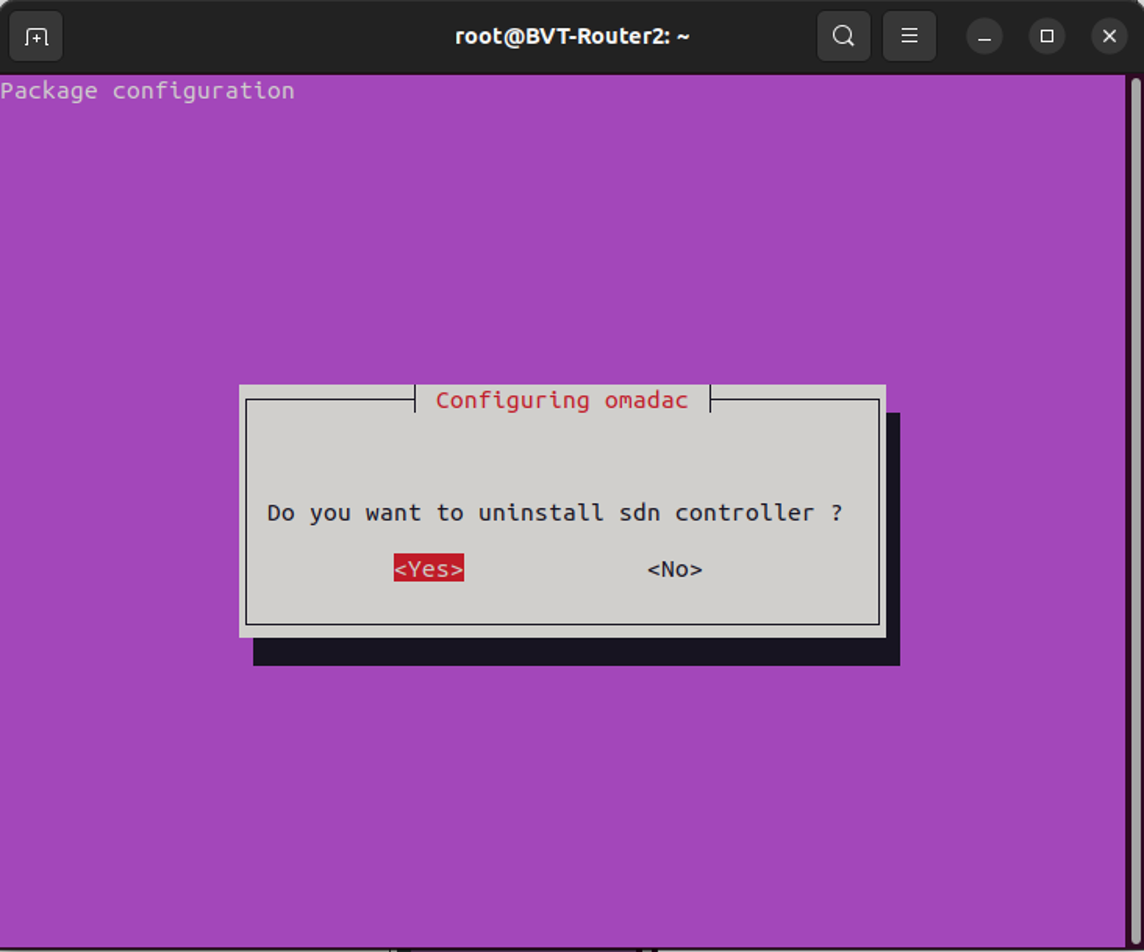
Choose yes
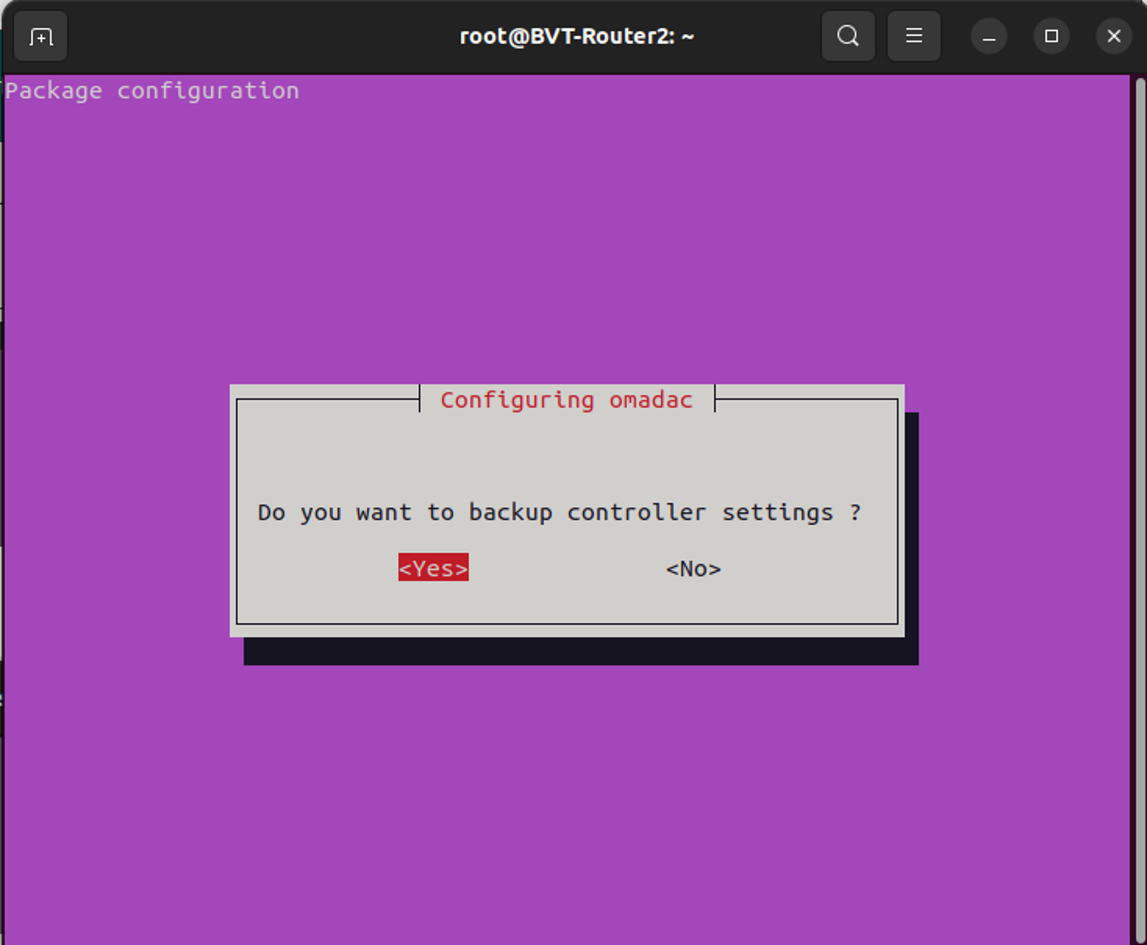
Note: The database backup file will be saved in /opt/tplink/omada_db_backup.

Backup the db.tar.gz file to another folder to restore once a failure happens, here we copy it to the folder /Document/dbbackupv6.

Step 2. Uninstall MongoDB v7
Use the following commands to uninstall MongoDB v7:
sudo apt remove mongodb-*
Type y
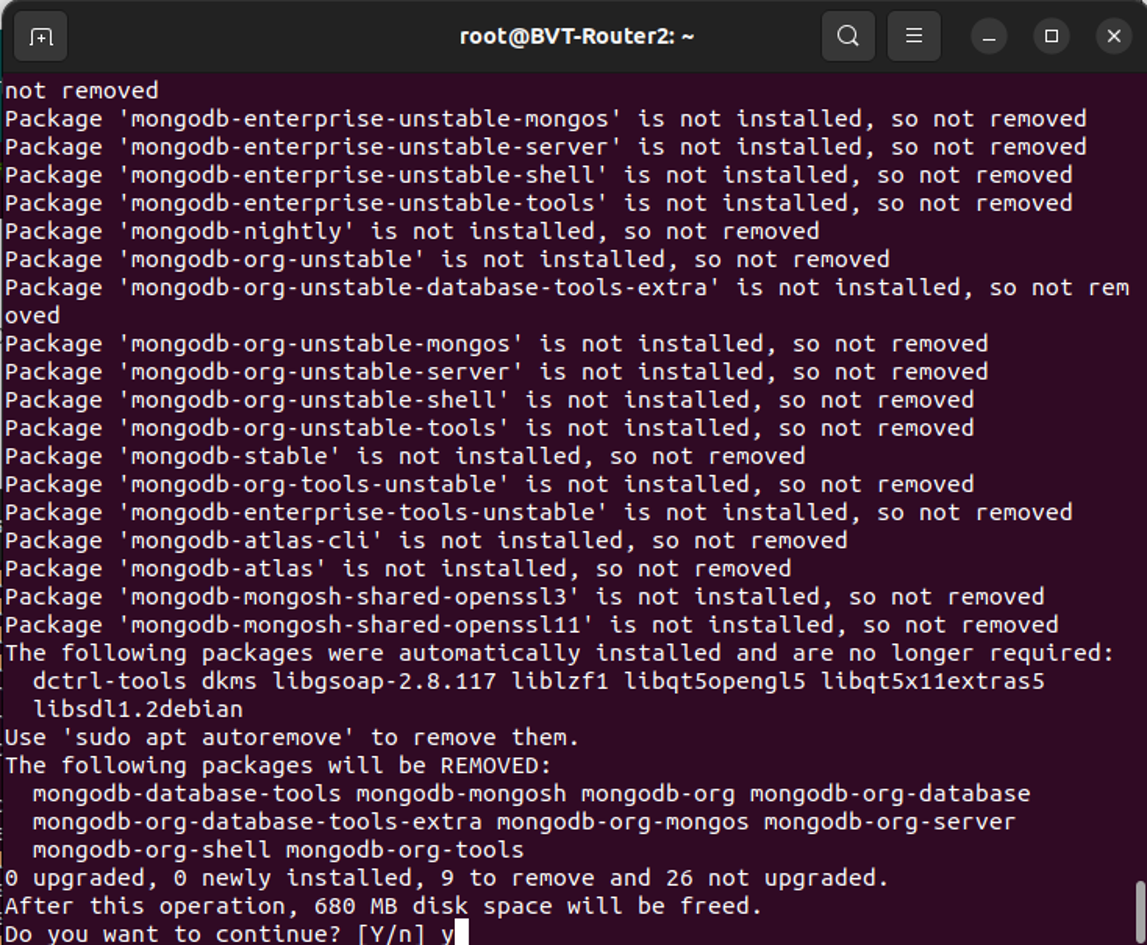
sudo rm /etc/apt/sources.list.d/mongodb-org-7.0.list

Step 3. Install MongoDB v8
Use the following commands to install MongoDB v8:
From a terminal, install gnupg and curl if they are not already available:
sudo apt-get install gnupg curl
To import the MongoDB public GPG key, run the following command:
curl -fsSL https://pgp.mongodb.com/server-8.0.asc | \
sudo gpg -o /usr/share/keyrings/mongodb-server-8.0.gpg \
--dearmor

Create the list file for Ubuntu 22.04 (Jammy):
echo "deb [ arch=amd64,arm64 signed-by=/usr/share/keyrings/mongodb-server-8.0.gpg ] https://repo.mongodb.org/apt/ubuntu jammy/mongodb-org/8.0 multiverse" | sudo tee /etc/apt/sources.list.d/mongodb-org-8.0.list
Issue the following command to reload the local package database:
sudo apt-get update

Install MongoDB Community Server
- To install the latest stable version, issue the following`
sudo apt-get install -y mongodb-org
- To install a specific release 8.0.12, you must specify each component package individually along with the version number.
sudo apt-get install -y \
mongodb-org=8.0.12 \
mongodb-org-database=8.0.12 \
mongodb-org-server=8.0.12 \
mongodb-mongosh \
mongodb-org-shell=8.0.12 \
mongodb-org-mongos=8.0.12 \
mongodb-org-tools=8.0.12 \
mongodb-org-database-tools-extra=8.0.12
Step 4. Reinstall Omada Software Controller
Go to where Omada Software Controller deb file stores, here we take Omada_Network_Application_v6.2.10.17_linux_x64_20260428102045.deb as an example.
sudo dpkg -i Omada_Network_Application_v6.2.10.17_linux_x64_20260428102045.deb
Choose yes, the controller will import the backup db file in /opt/tplink/omada_db_backup.
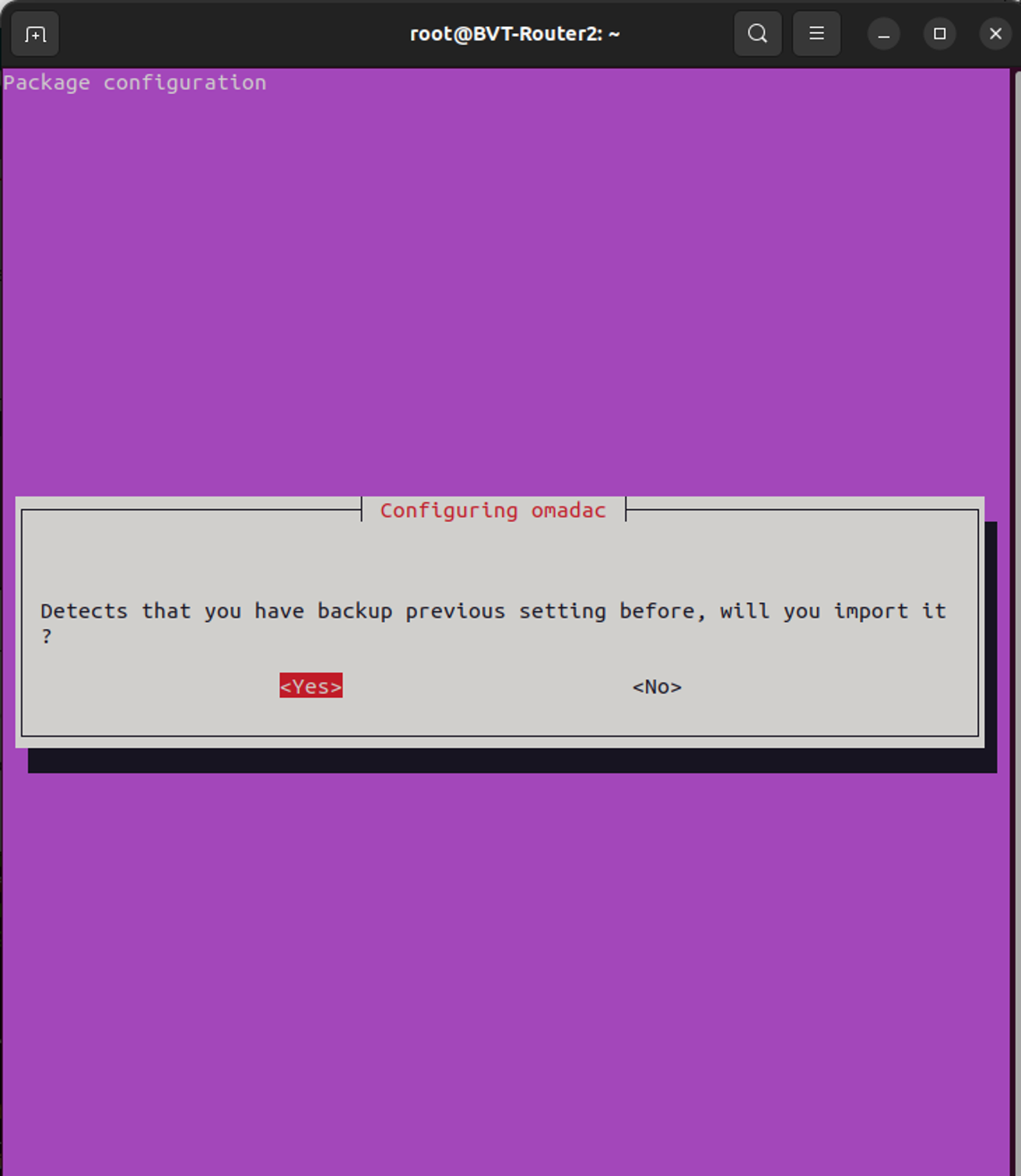
After installation, the Controller will start automatically.
Step 5. Change the FeatureCompatibilityVersion
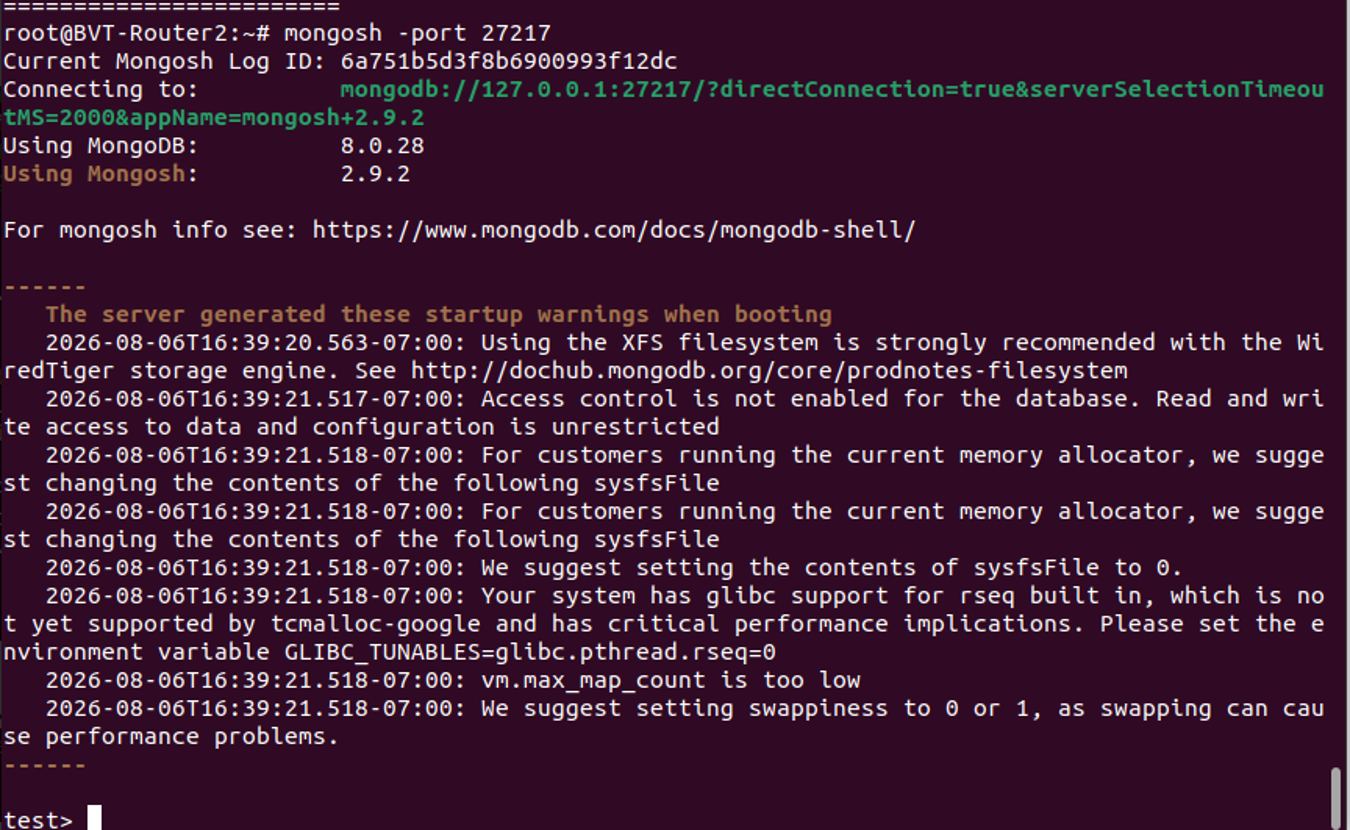
When Controller starts up successfully. Use the following commands to start up Mongo Shell:
mongosh -port 27217
db.adminCommand( { setFeatureCompatibilityVersion: "8.0", confirm: true } )

Verification
After Changing FeatureCompatibilityVersion, you can use the following command to check the result:
db.adminCommand( { getParameter: 1, featureCompatibilityVersion: 1 } )
If you have changed FeatureCompatibilityVersion to 8.0, the result should be:

Conclusion
Now you have successfully upgraded your MongoDB from v7 to v8 on Linux System.
