


Contents
Set up a Public or Private View from the View section
Set up a Public or Private view from the Live View section
Verify SightCast synchronization (optional)
Introduction
Omada Fusion Pro Gateway provides flexible video monitoring capabilities through Omada Guard, allowing camera layouts to be saved as reusable views. These views help streamline daily monitoring, improve operational efficiency, and provide quick access to frequently used camera arrangements.
Depending on deployment requirements, a view can be kept private for individual use, shared with users in the same organization, or synchronized to an Omada SightCast device for centralized display and monitoring. This article explains how to create, manage, and use Public and Private Views on Omada Fusion Pro Gateway.
- Public View: All users in the same organization can see the view. Each user can only see cameras they have permission to access; other cameras in the view remain hidden.
- Private View: Only the creator can see, edit, rename, or delete the view. Other users, including the system owner and super admin, cannot see it.
Requirements
- Omada Fusion Pro Series Gateway
- One or more Omada or VIGI cameras
- Omada SightCast (UN)1.0 (optional; required only for SightCast synchronization)
Configuration
This section describes two ways to create a view. You can create a view from the View section or save the current layout directly from the Live View section.
Set up a Public or Private View from the View section
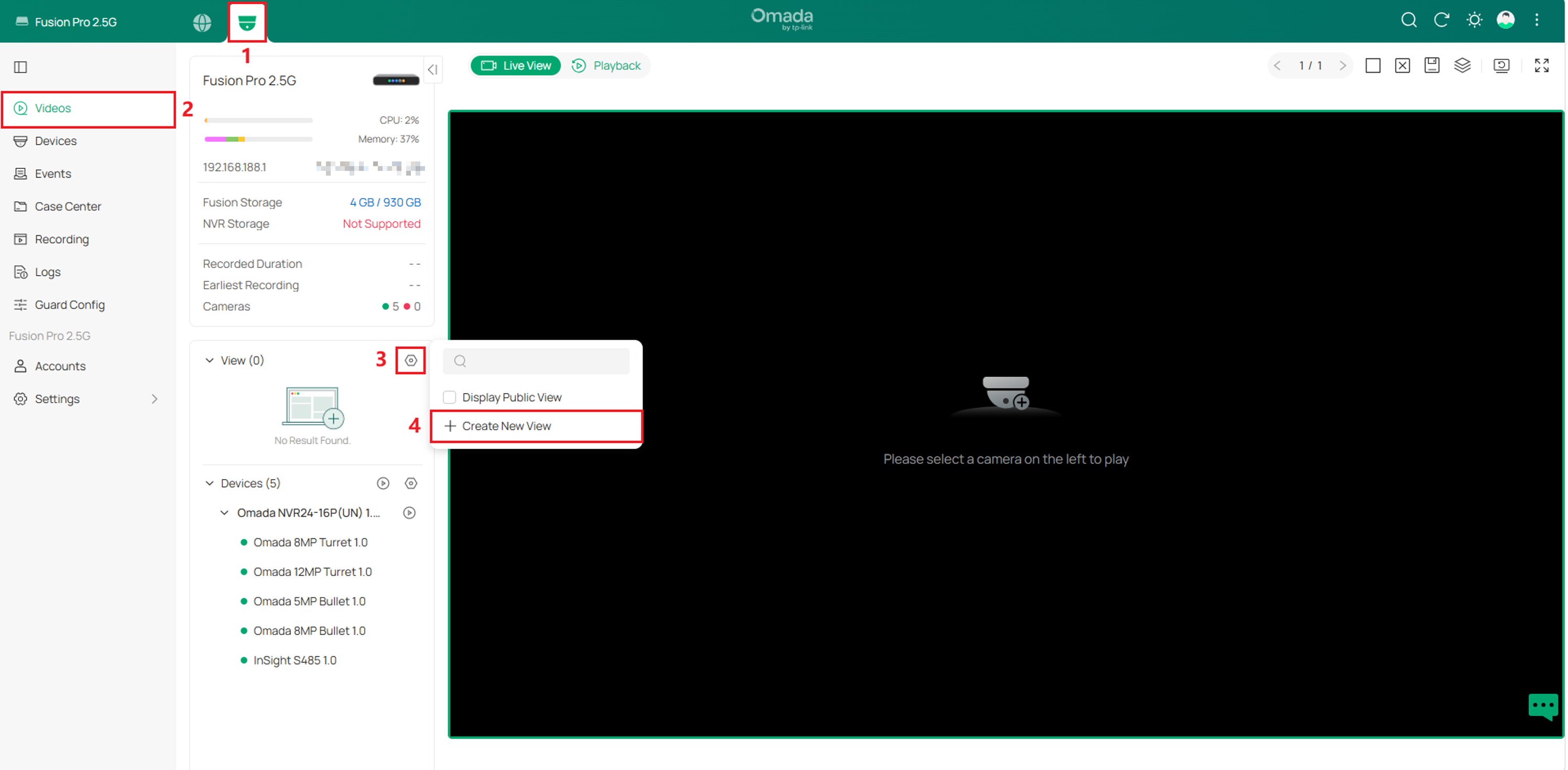
Step 1. Go to Omada Guard > Videos. In the View section, click the Settings icon and select + Create New View.
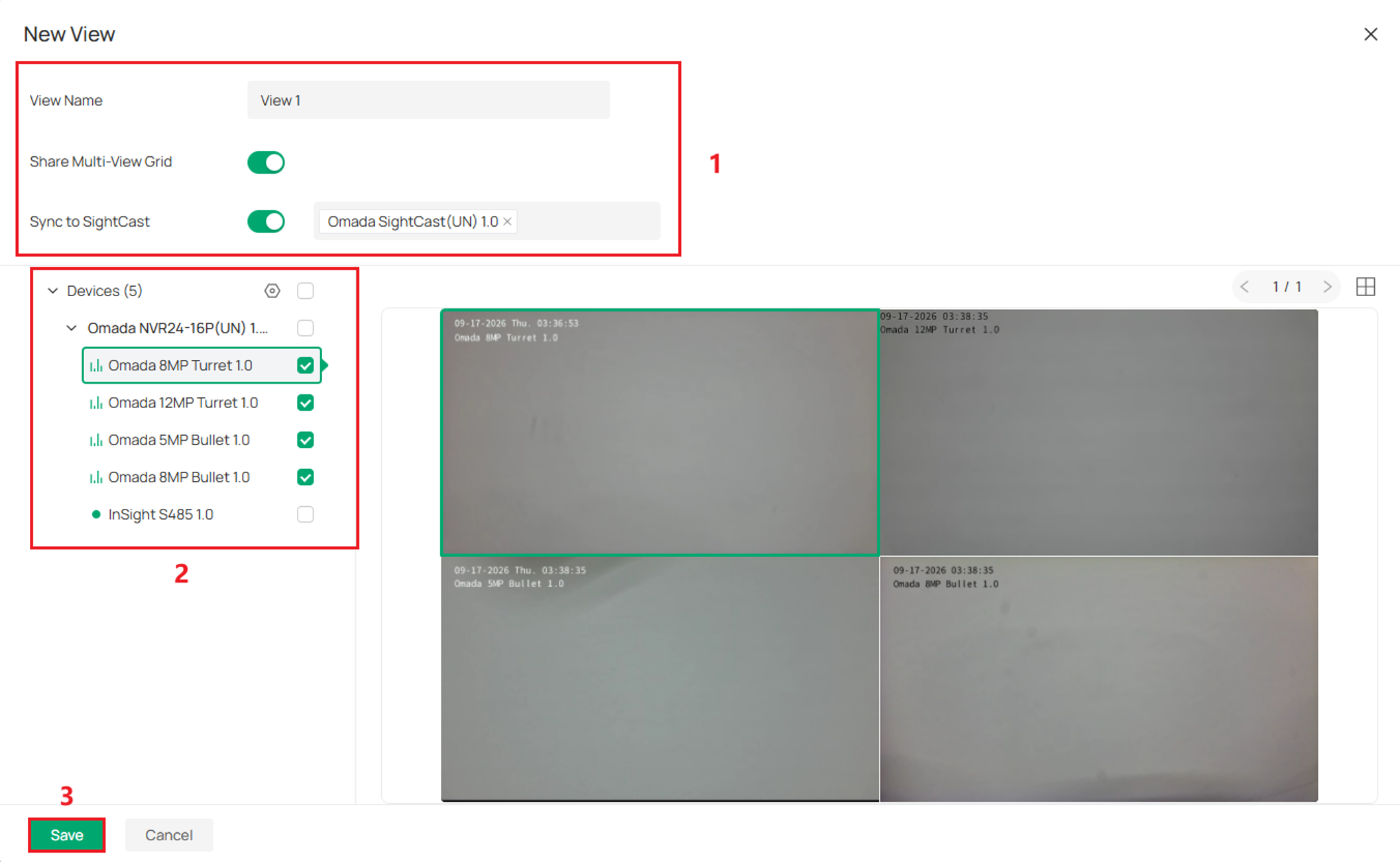
Step 2. Enter a View Name. Enable Share Multi-View Grid to create a public view, or leave it disabled to create a private view. If the view should also be displayed on a SightCast device, enable Sync to SightCast and select the target device.
Select the cameras to include in the view, then click Save.
Note: Only public views can be synced to SightCast.
Set up a Public or Private view from the Live View section
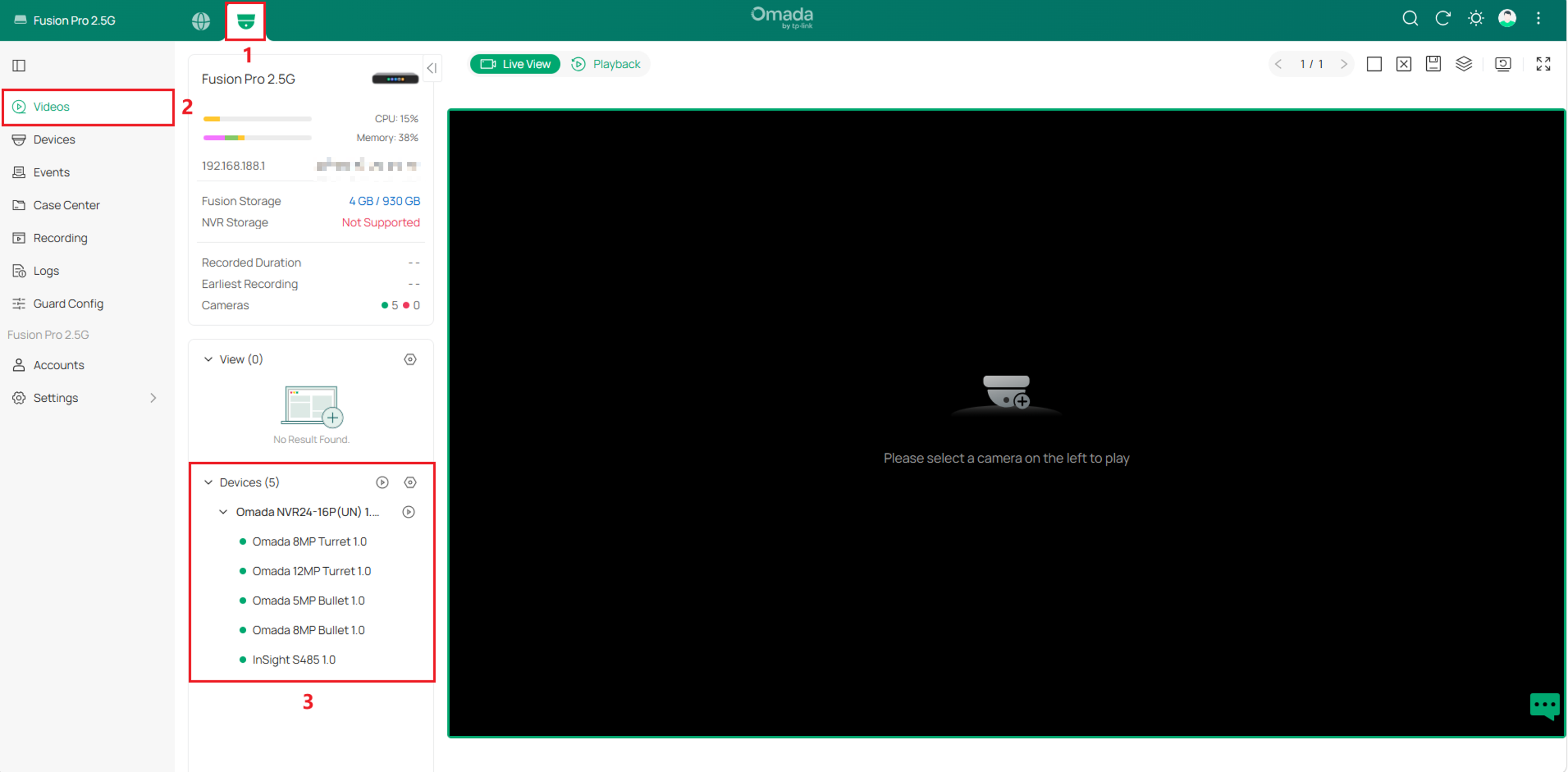
Step 1. Go to Omada Guard > Videos. In the Device section, select the cameras to display and arrange the Live View layout as needed.
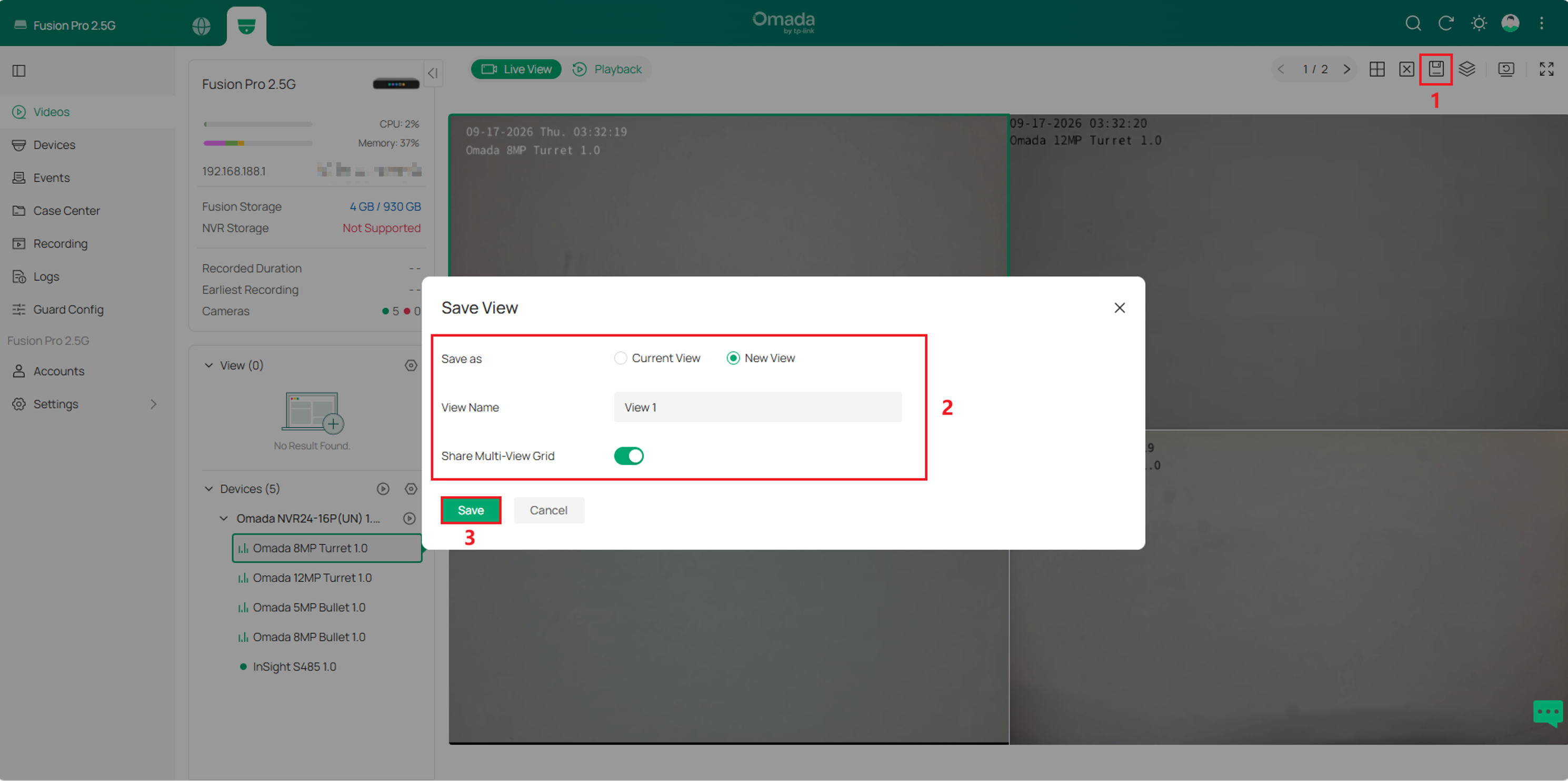
Step 2. Click the Save icon in the upper-right corner of the Live View section.
In the Save View dialog:
- Select New View.
- Enter a View Name.
- Enable Share Multi-View Grid to create a Public View, or leave it disabled to create a Private View.
- Click Save.
Verification
Verify the View
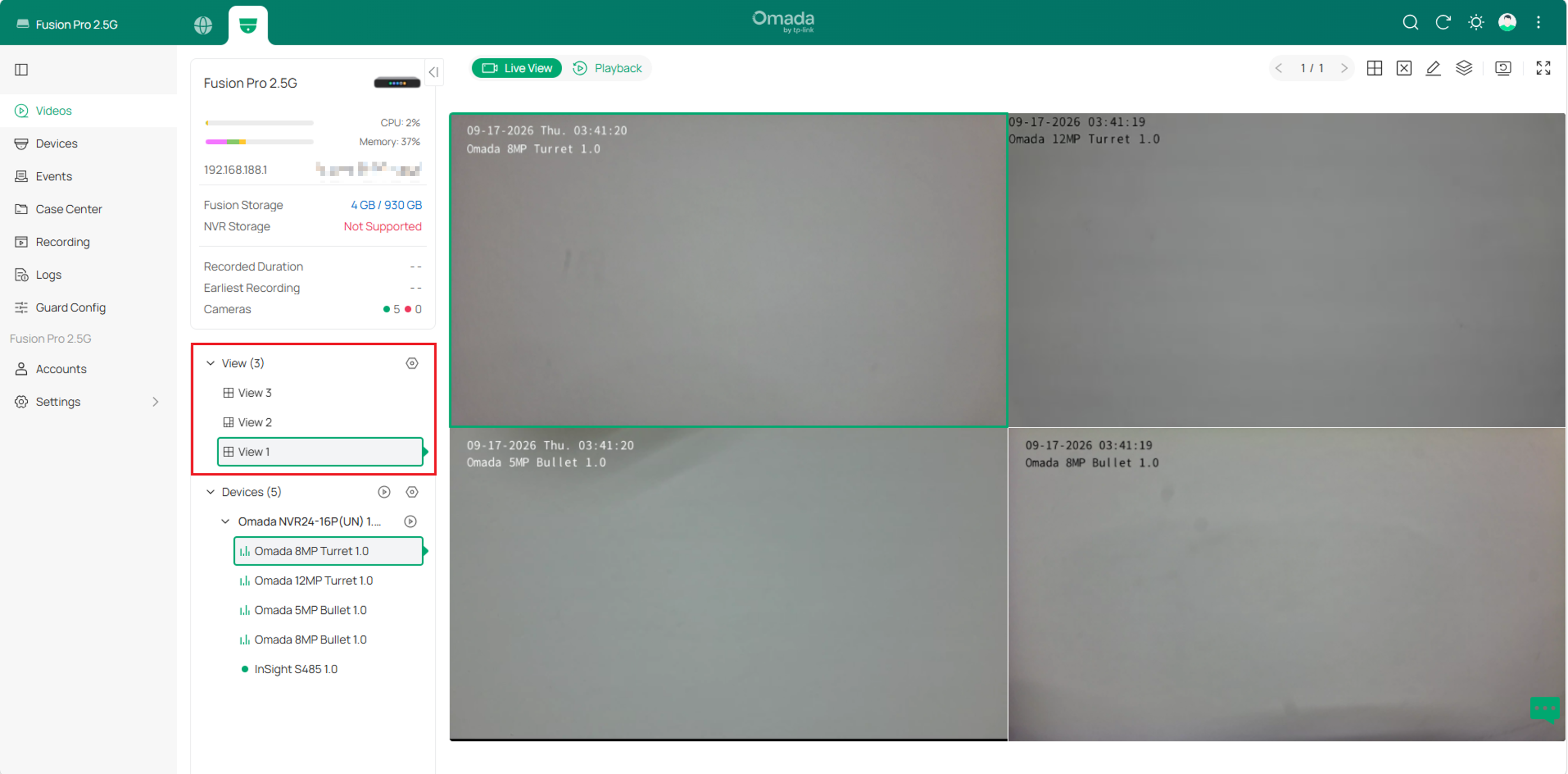
In the View section, confirm that the view is saved successfully. Select the view and verify that the expected cameras and layout are displayed.
Verify SightCast synchronization (optional)
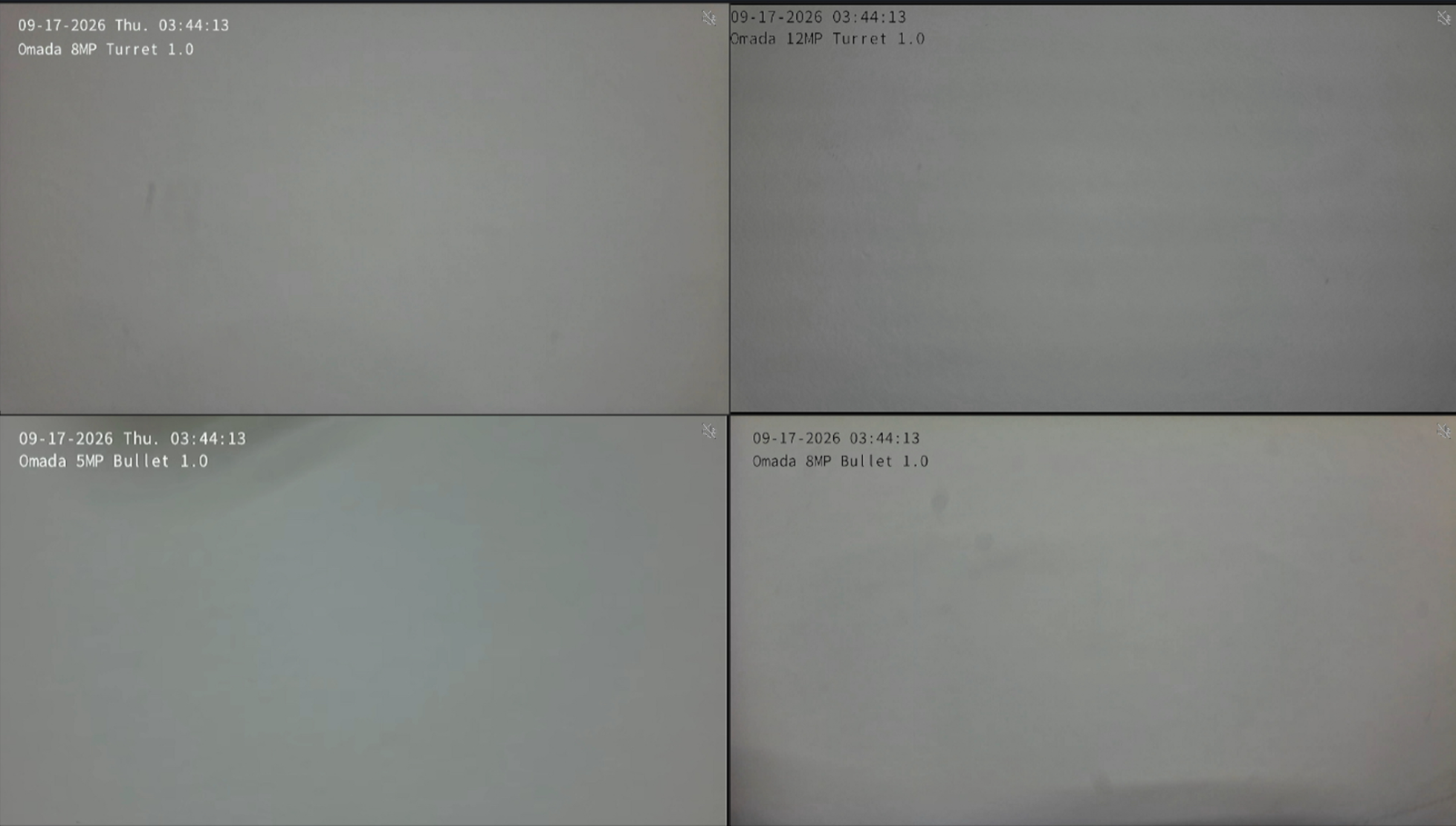
If Sync to SightCast was enabled, verify that the selected SightCast device displays the synchronized view.
Conclusion
Public and Private Views provide a convenient way to organize camera monitoring layouts in Omada Guard. Public Views enable teams to share commonly used monitoring layouts across an organization, while Private Views allow individual users to maintain personalized workspaces. For deployments using Omada SightCast, synchronized views can also be displayed on dedicated monitoring screens, ensuring a consistent viewing experience across both Omada Guard and SightCast devices.
To learn more about each function and configuration, please visit Support Home to download or check the manual for your product.
QA
Q1: What happens to a Public View if its creator is removed from the organization?
A1: The Public View remains available within the organization. Ownership of the view is automatically transferred to the system Owner.
Q2: Can a view created by another user be edited?
A2: No. Only the current owner of a view can edit, rename, or delete it. Private Views are not visible to other users, while Public Views can be viewed by other users according to their camera permissions.
Q3: Can a view be synchronized to a SightCast device?
A3: Yes. When Sync to SightCast is enabled during view creation or modification, the selected camera layout is synchronized to the specified SightCast device for display. Changes made to the view are reflected on the associated SightCast device after the view is saved.
Q4: What is the difference between a Public View and a Private View?
A: A Public View can be accessed by users within the same organization, subject to their camera permissions. A Private View can only be accessed and managed by its creator and is hidden from all other users.
