


How to Use Bridge AP Speed Test on Omada Controller via Omada App


Contents
Introduction
Speed tests are widely used to check home broadband, corporate networks, or mobile data connections. They help users verify whether their network provider delivers the promised bandwidth and diagnose connectivity issues. We have added speed test feature for our bridge AP products via Omada APP. You will learn how to use this feature in this guide.
Requirements
- Omada wireless bridge APs
- Omada APP
Configuration
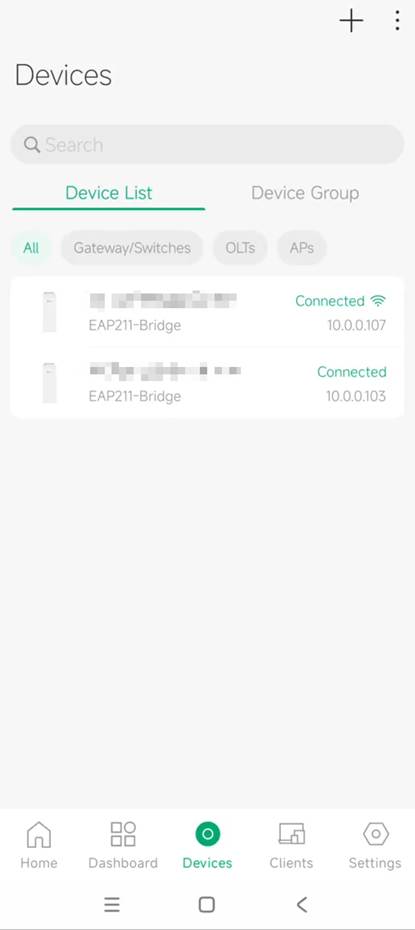
Step 1. First, we enter the management interface of the bridge AP on Omada APP. Go to Device page and click the AP where you want to carry out a speed test.
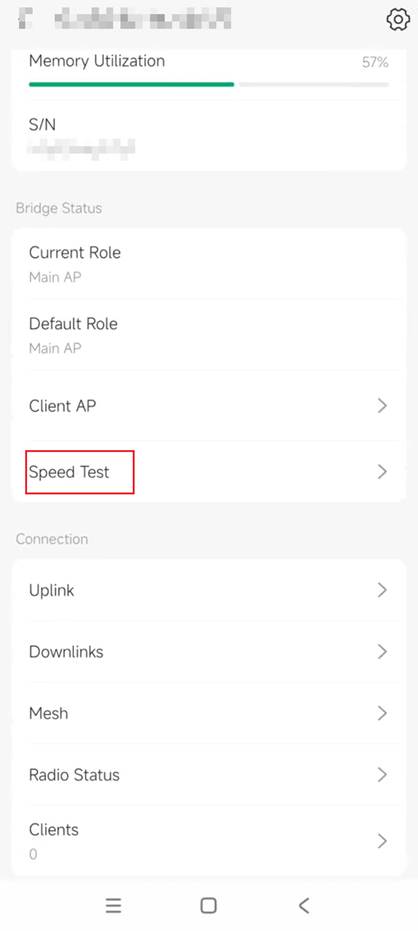
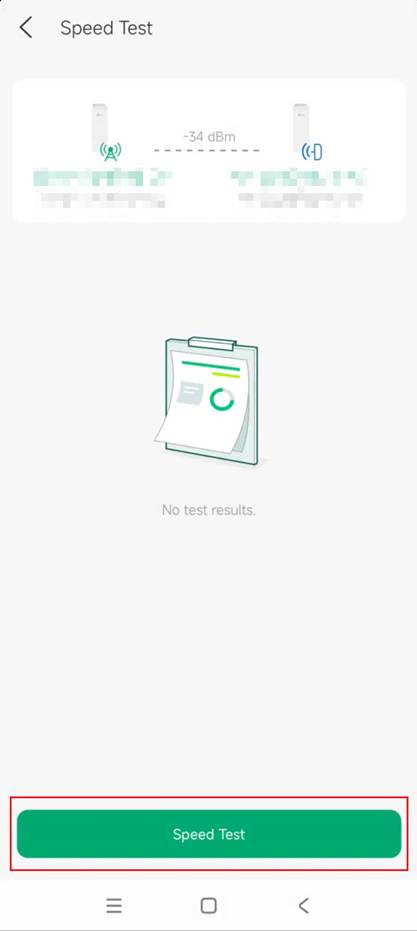
Step 2. Then you will down scroll to until you find the column Speed Test. After entering, click the Speed Test in the bottom to proceed.
Verification
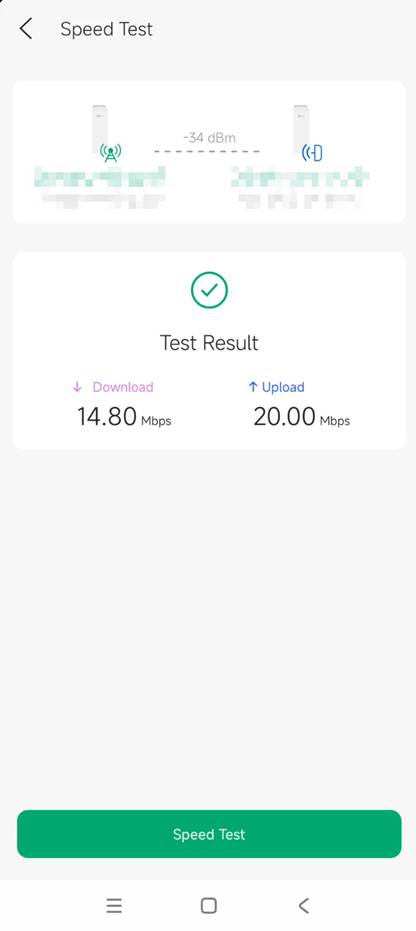
You will find the speed test result shown after a few seconds.
Conclusion
You have now learned how to carry out speed test for Omada bridge AP via Omada APP
To learn more about each function and configuration, please visit Support Home to download or check the manual for your product.
QA
Q1: What should I do if fail to get a speed test result.
A1: Please check the network connection with bridge APs. Make sure they are well connected.
