


How to Configure Port Mirror on TP-Link Smart Switches and L2 Managed Switches


Port Mirror could duplicate the datagram transmitted through Mirrored Port to Mirroring Port. This function allow network administrator to capture datagram of a specific port to monitor the network or troubleshoot.
Now let´s learn how to configure the Port Mirror on Smart Switches and L2 managed Switches by the following example:
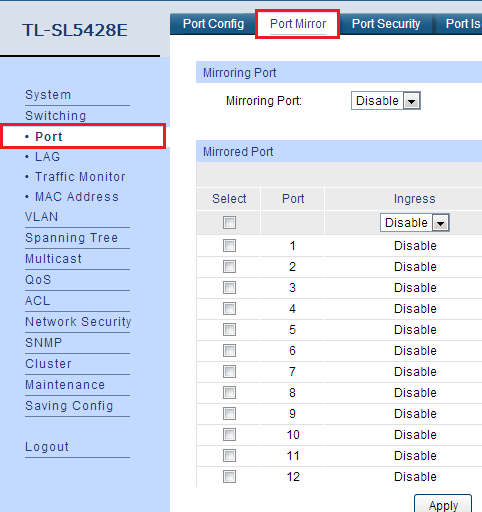
1. Select “Port” in the Switching menu and choose “Port Mirror”:
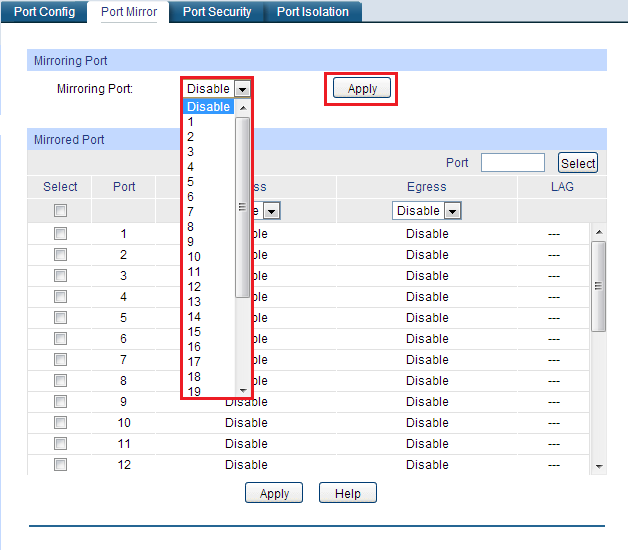
2. Choose a Mirroring Port in the drop-down list and click “Apply” to take effect:
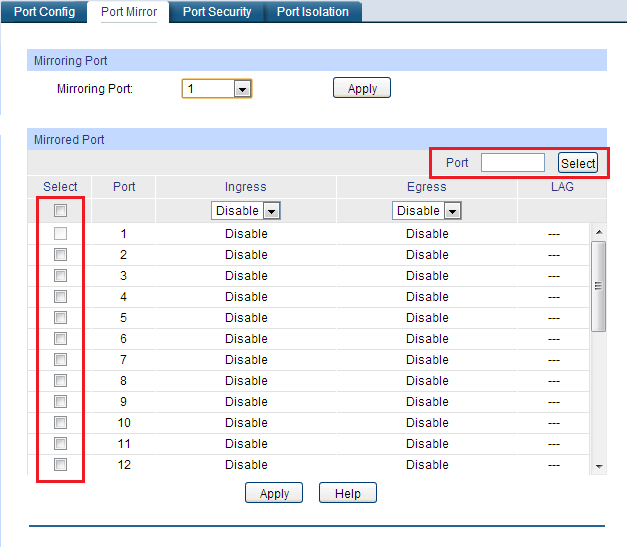
3. You could choose the Mirrored Port by checking the box on the left or typing the port number in the blank upper right and click “Select”, one Mirroring Port could monitor more than one Mirrored Port:
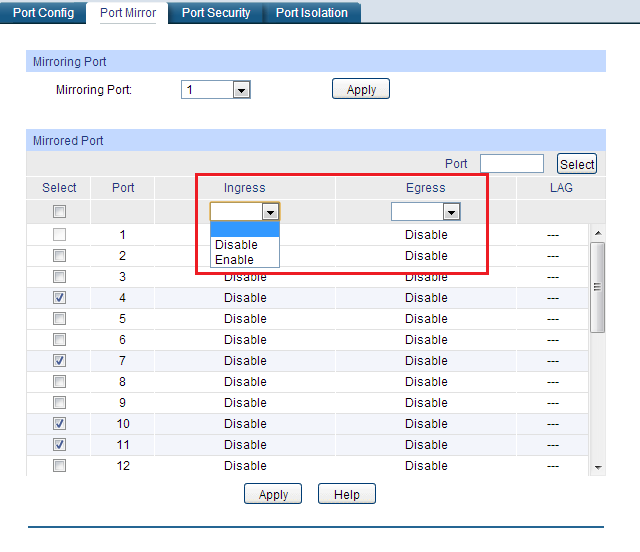
4. Then select Ingress or Egress mode of the Mirrored Port to monitor different directions of data transmission, If a port’s Ingress and Egress mode are both set “Disable”, this port wouldn’t be mirrored:
5. Click “Apply” to finish the settings.
When you finish these steps above, you could achieve the data transmitted through mirrored port on mirroring port.
