


How to Block a Client with a Specific IP Address from Accessing the Network Using TP-Link Managed Switches


Suitable for: TP-Link Smart Switch and L2/L2+/L3 managed switches
Network requirement:
In the network,we want to block the illegal Client whose IP address is 172.30.30.105/24 from getting access to the network,but we do not know which port this illegal client is connecting to the Switch.

Here is one way to configure an extend-ACL rule on TP-Link switch to block the illegal client from getting access to the Local Area Network and the Internet through Gateway Router.In this example,we use TL-SG3424 V1.0 to do Web configuration and CLI configuration.
Web configuration:
Step 1. ACL Config
Create Extend ACL ID ranging from 200 to 299.

In Extend-IP ACL,select the ACL ID created in Step 1,create a Rule with the following parameters:
“Operation”=Deny;
“S-IP”=172.30.30.105 “Mask”=255.255.255.255;

Step 2. Policy Config
In “Policy Config”-”Policy Create”,create an Policy Name,like “block”

Selecting the policy name and ACL ID and click on “Create” to create an Action.

Step3.Policy Binding
Selecting the Policy “block”,the rule will be effective on all of the 24 ports,so for the port range,you should fill in “1-24”.Then click on “Bind”

So far you have finished the Web configuration on TL-SG3424,if you think it is too low to use Web,here is the Command if you want to configure the switch by console or telnet or ssh.
CLI Configuration:
TL-SG3424>
TL-SG3424>en
TL-SG3424#con
TL-SG3424(config)#
TL-SG3424(config)#access-list create 200
TL-SG3424(config)#access-list extended 200 rule 1 deny sip 172.30.30.105 smask 255.255.255.255
TL-SG3424(config)#access-list policy name block
TL-SG3424(config)#access-list policy action block 200
TL-SG3424(config-action)#ex
TL-SG3424(config)#interface range gigabitEthernet 1/0/1-24
TL-SG3424(config-if-range)#access-list bind block
Verification for the experiment:
Here is the IP parameters of the illegal PC,we use ping command to test if this PC can successfully ping the Internet Gateway Router whose IP address is 172.30.30.1.
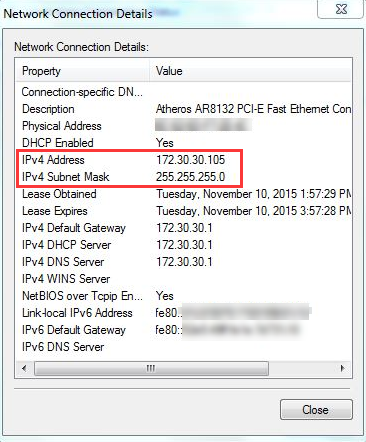

This “Request time out” proved that the ACL rule has taken effect on TL-SG3424 to block the illegal client whose IP address is 172.30.30.105 from getting access to the network.

Note:After the configuration above,Neither the Internet Nor the FTP Server can be visited by 172.30.30.105.
