


Introduction
SSL VPN can set the permissions that each user can access to resources and improve the management of the entire network. This article will guide you to set up an SSL server on the Omada Gateway in standalone mode.
Requirements
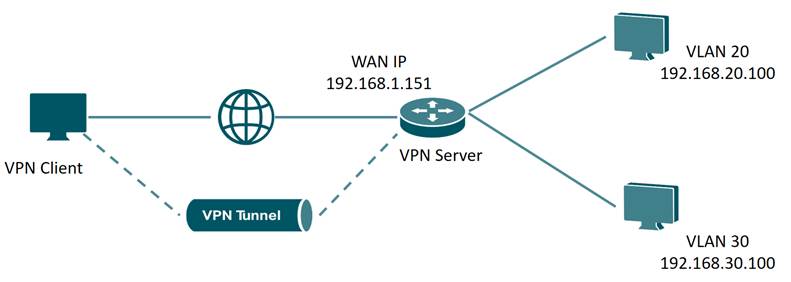
According to the following network topology, create three accounts with different permissions on the SSL VPN server to meet different requirements.
- Account 1: VPN Client implements proxy Internet access through VPN Server;
- Account 2: VPN Client can only access VLAN 20, but cannot access VLAN 30;
- Account 3: The VPN Client and the devices behind the Server can only interact through the ICMP protocol.
Configuration
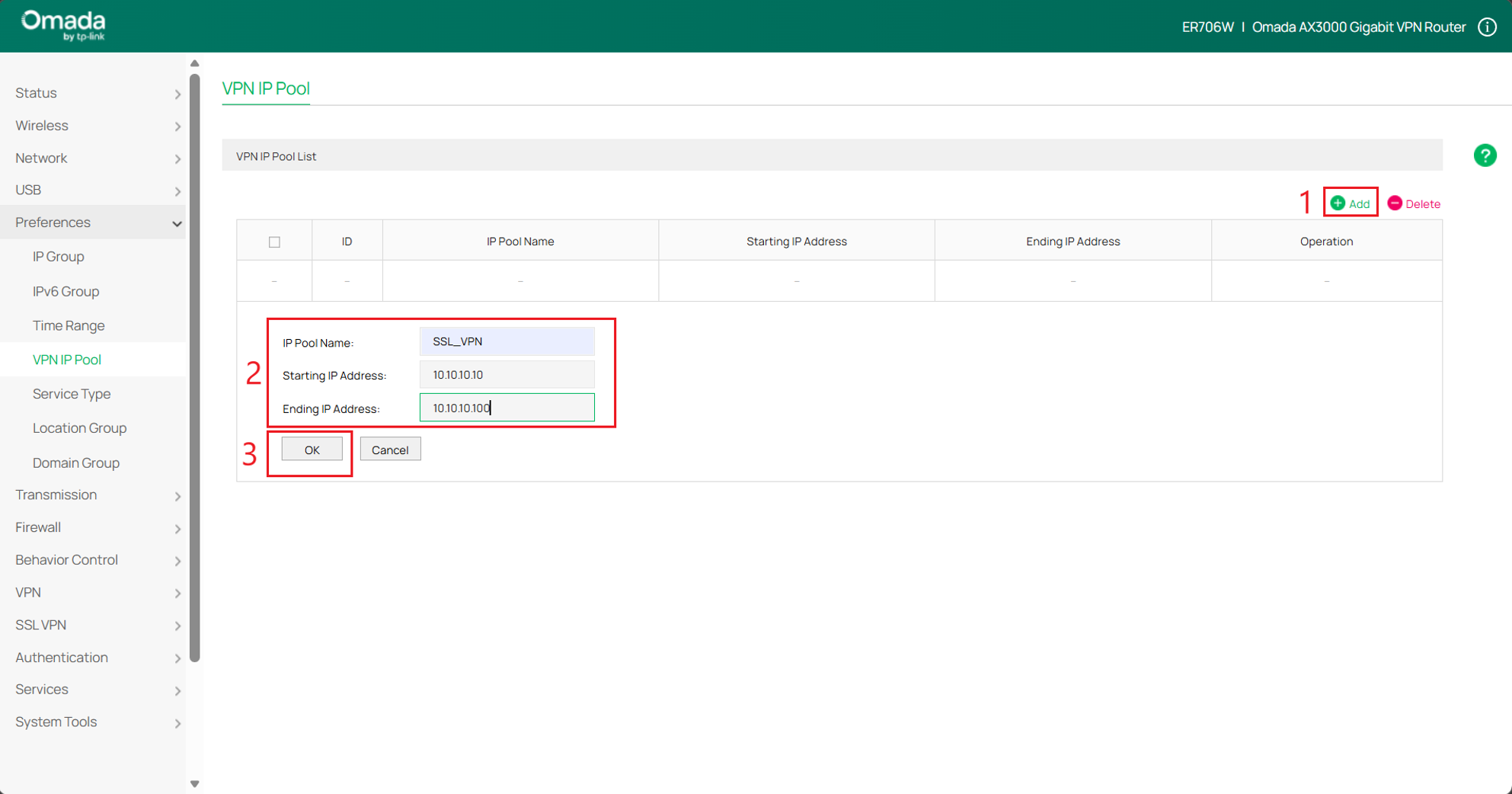
Step 1. Create the VPN IP Pool. Navigate to Prefences > VPN IP Pool, click Add. Here we name the IP Pool Name as SSL_VPN, configure Starting IP Address as 10.10.10.10, Ending IP Address as 10.10.10.100, then click OK to save the settings. You may set the values according to your network.
Make sure the IP Pool range does not conflict with any of the created LANs.
Step 2. Enable the SSL VPN Server. Go to SSL VPN > SSL VPN Server, check Enable. On the pop-up page, choose Service port as WAN/LAN4, choose Virtual IP Pool as SSL_VPN that was created in step 1. Set the Primary DNS as 8.8.8.8 (you can set it according to your demands), then click Save to save the settings.
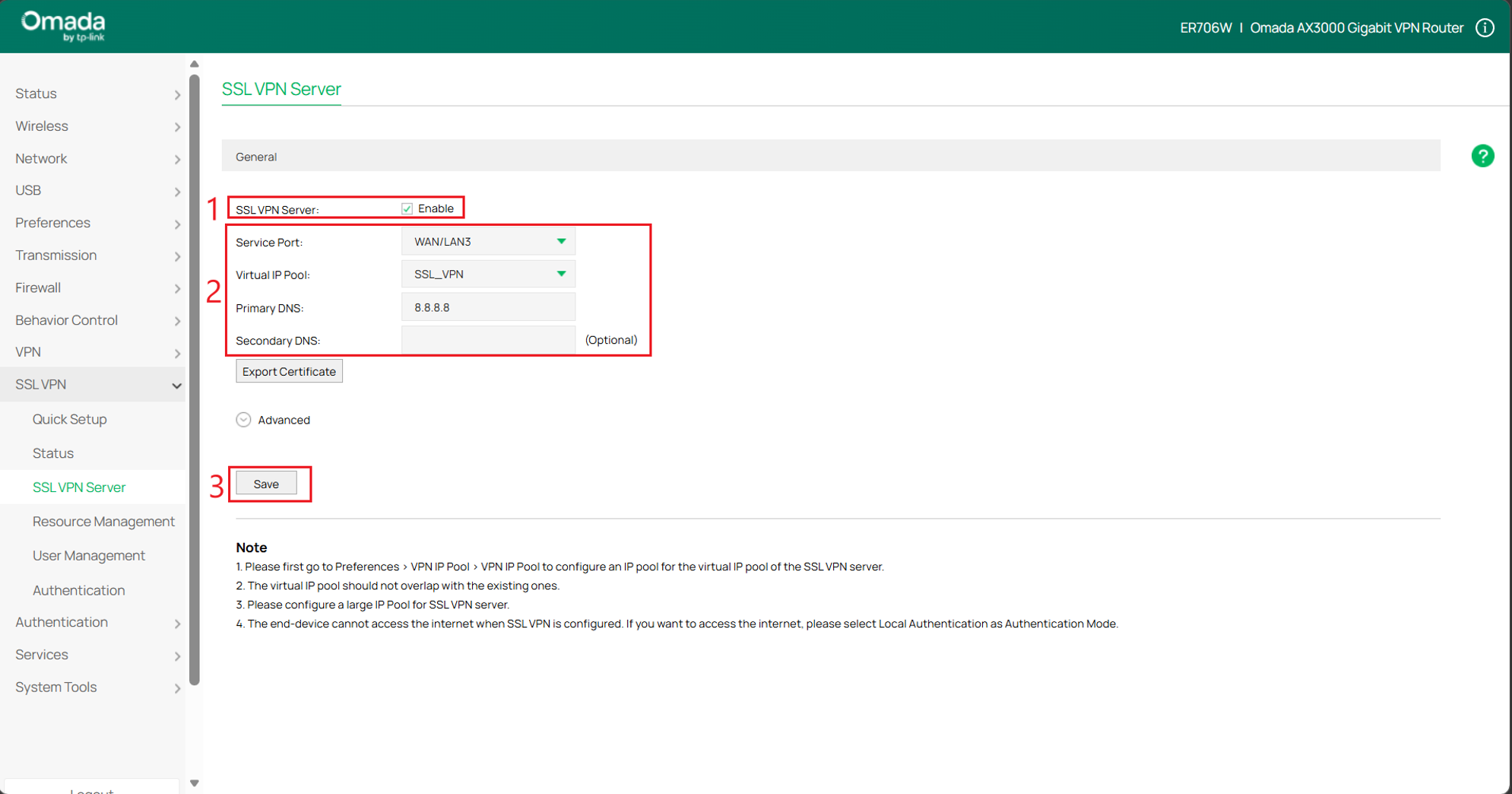
Primary DNS is a preference, here we are using Google’s Public DNS Server.
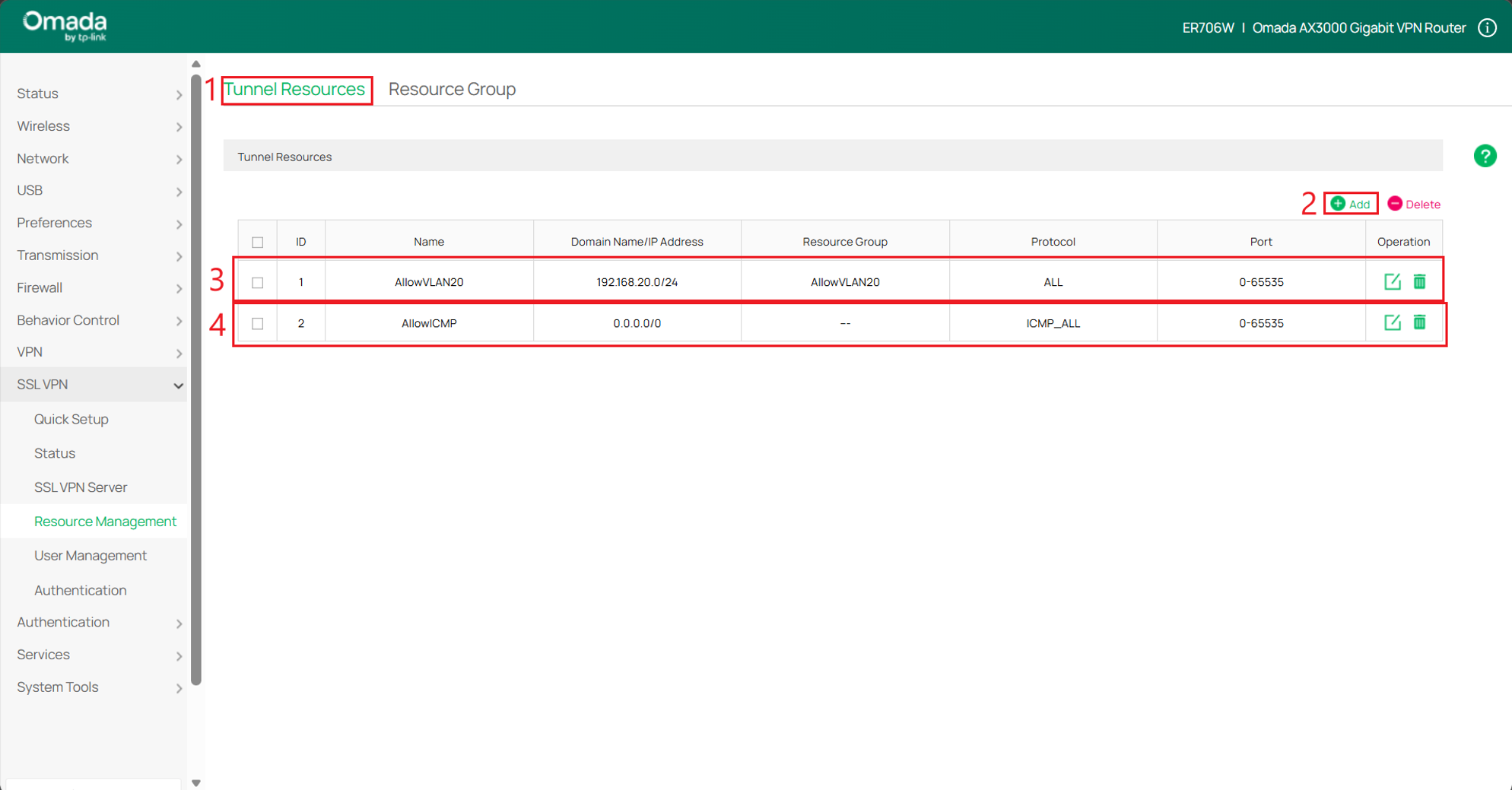
Step 3. Create Tunnel Resources. Go to SSL VPN > Resource Management >Tunnel Resources, click Add to create the following two tunnel resources. On the popup page, Allow VLAN20; AllowICMP uses ICMP Protocol to limit resources.
Step 4. Create Resource Groups. Go to SSL VPN > Resource Management > Resource Group, click Add to apply the two tunnel resources created in step 3 to two different resource groups.
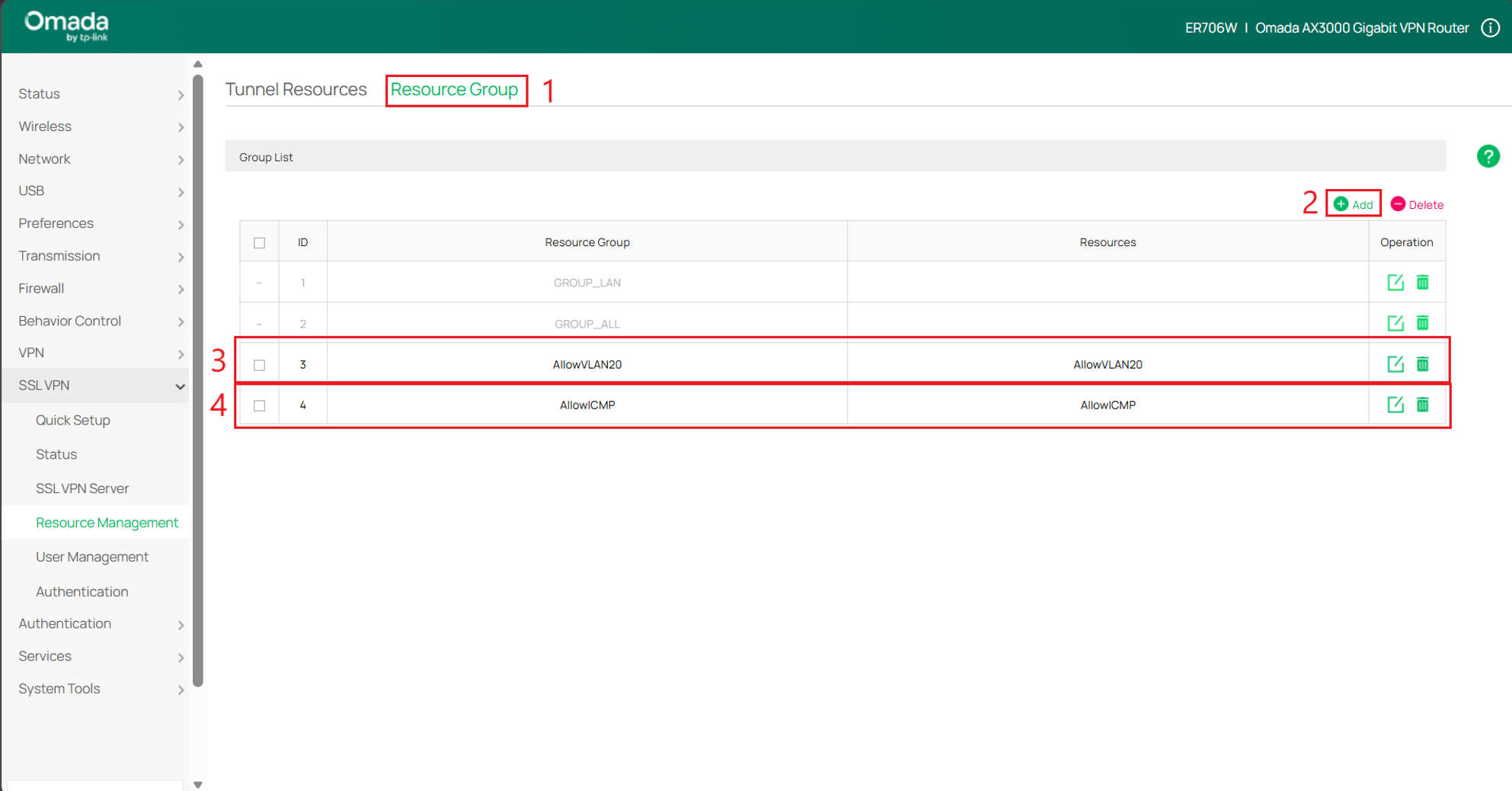
Make sure to set the corresponding Resource to the correct Resource Group.
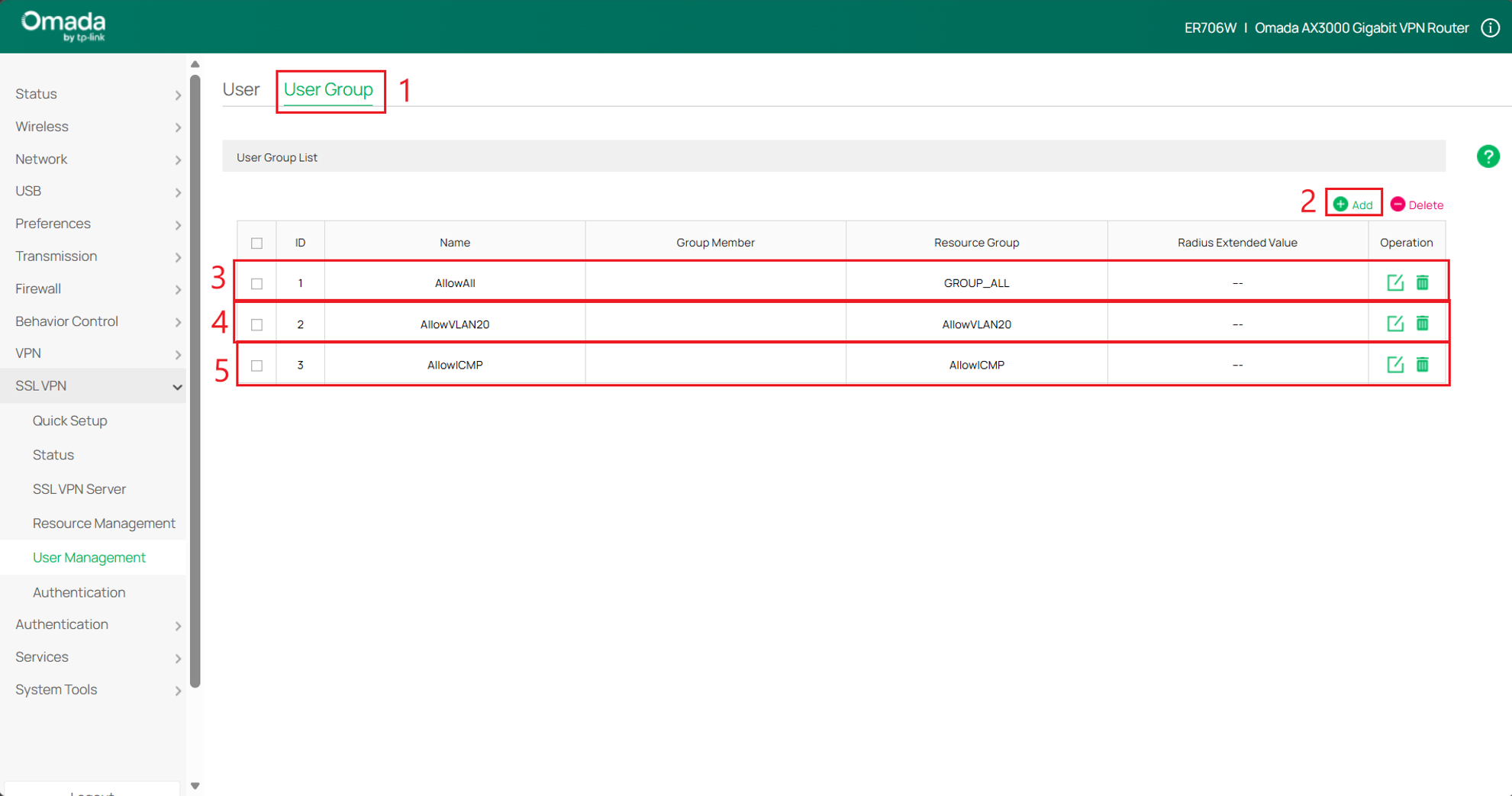
Step 5. Create User Group. Go to SSL VPN > User Management > User Group, click Add to create three user groups. Apply different resource groups to the three user groups according to the different permissions of the three accounts. Please note that if you want to implement the proxy Internet access of the client, please select Group ALL for the resource group.
Step 6. Go to SSL VPN > User Management > User, click Add to create three user accounts. Each account corresponds to a different user group, and you can set the Username and Password according to your demands.
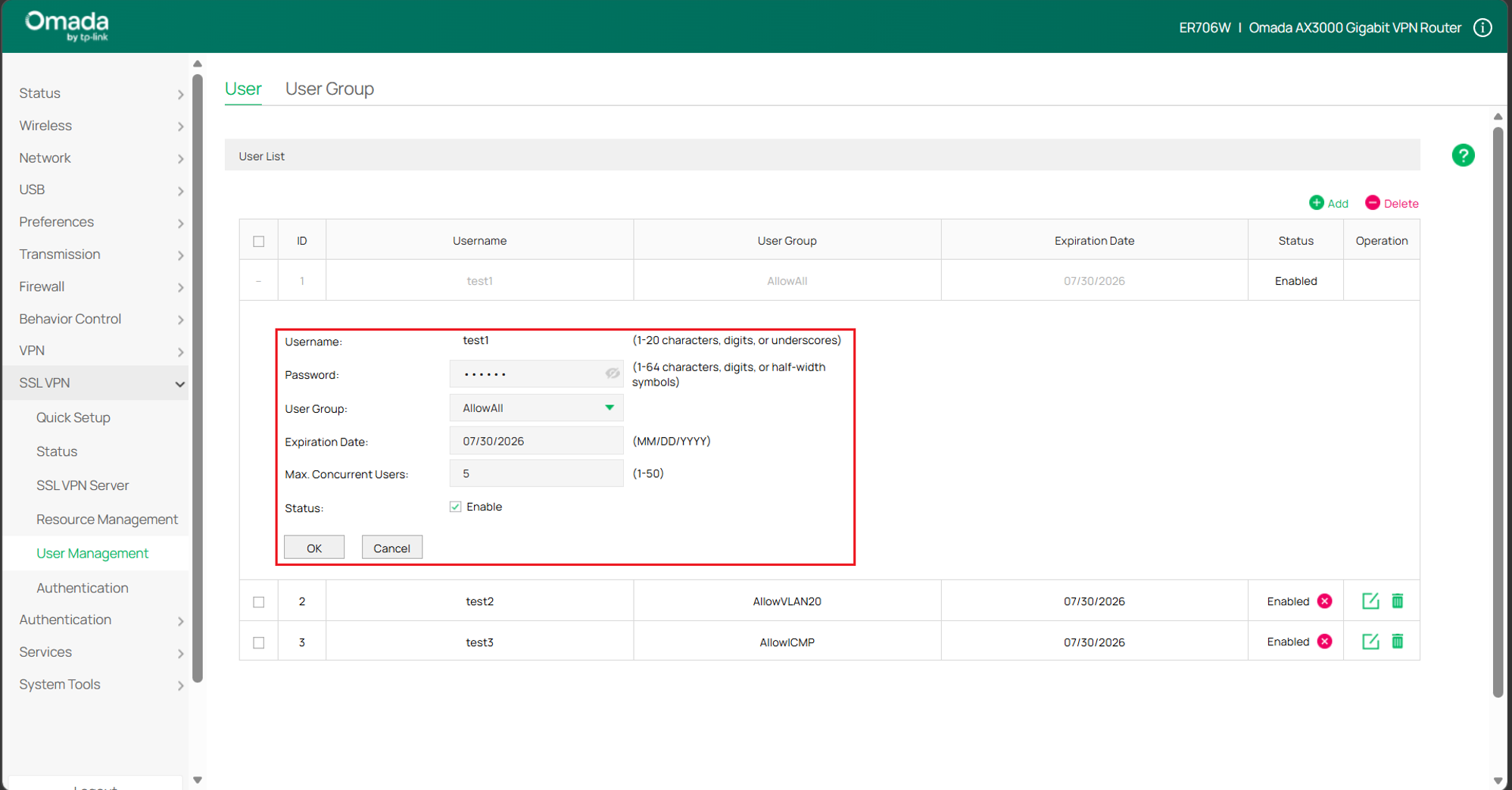
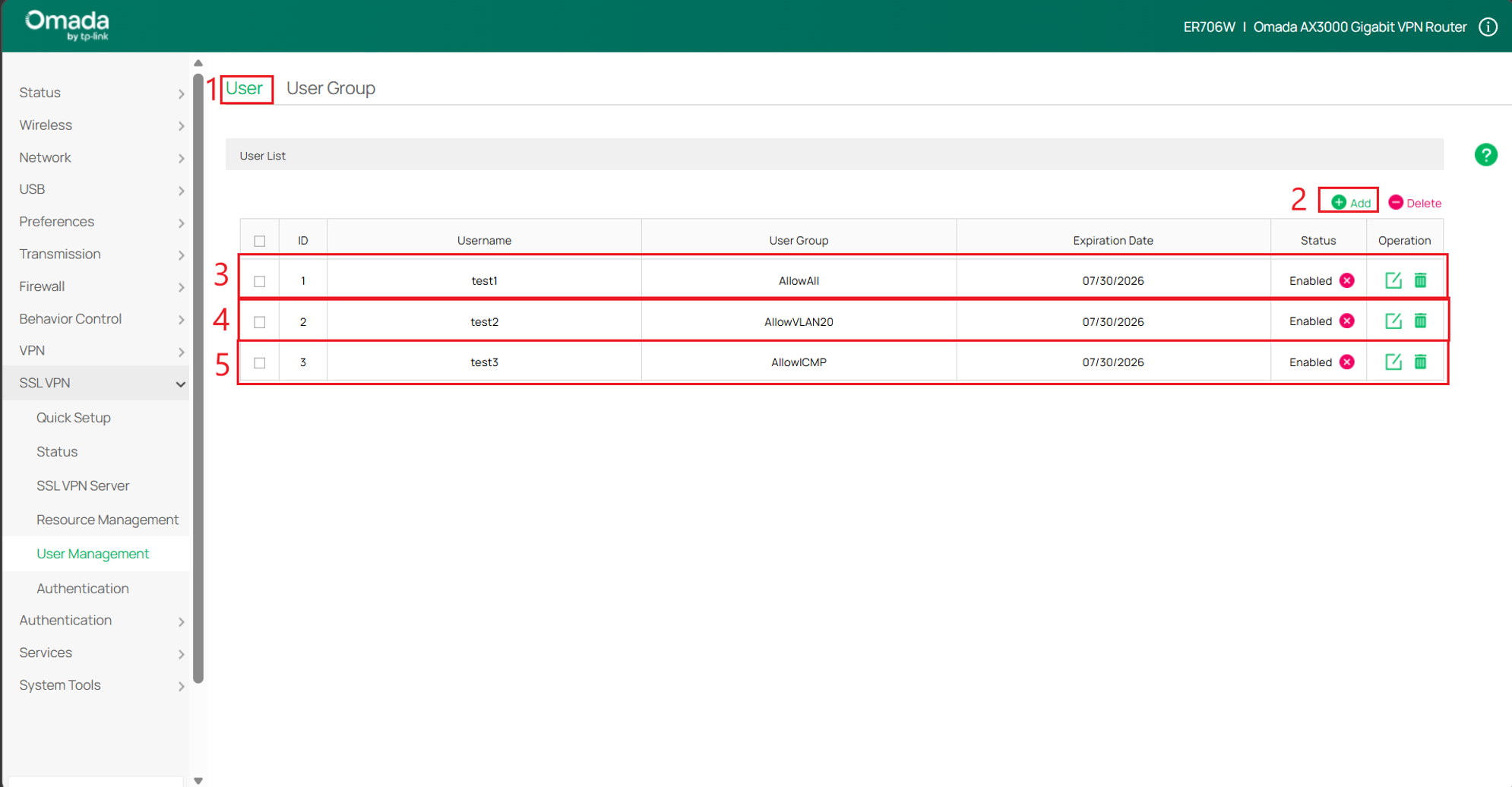
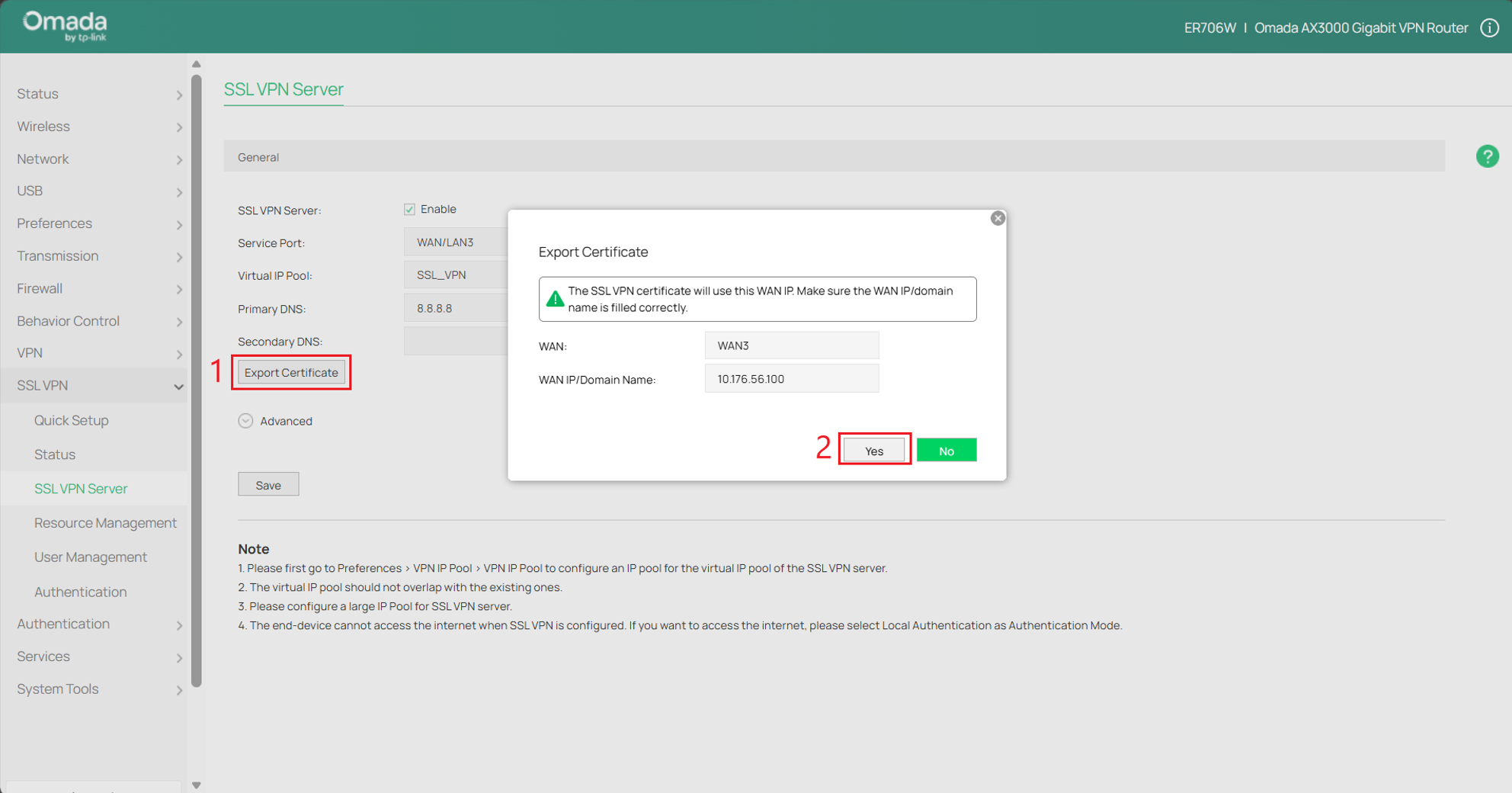
Step 7. Export Certificate. Go to SSL VPN > SSL VPN Server, click Export Certificate to export the configuration file, and the client can connect to the server using this configuration file.
Verification
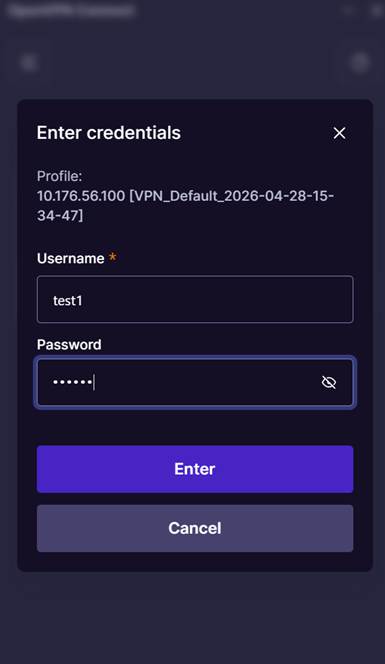
Use the OpenVPN GUI on the client to import the configuration file, enter the corresponding username and password to connect.
Account 1: VPN Client implements proxy Internet access through VPN Server;
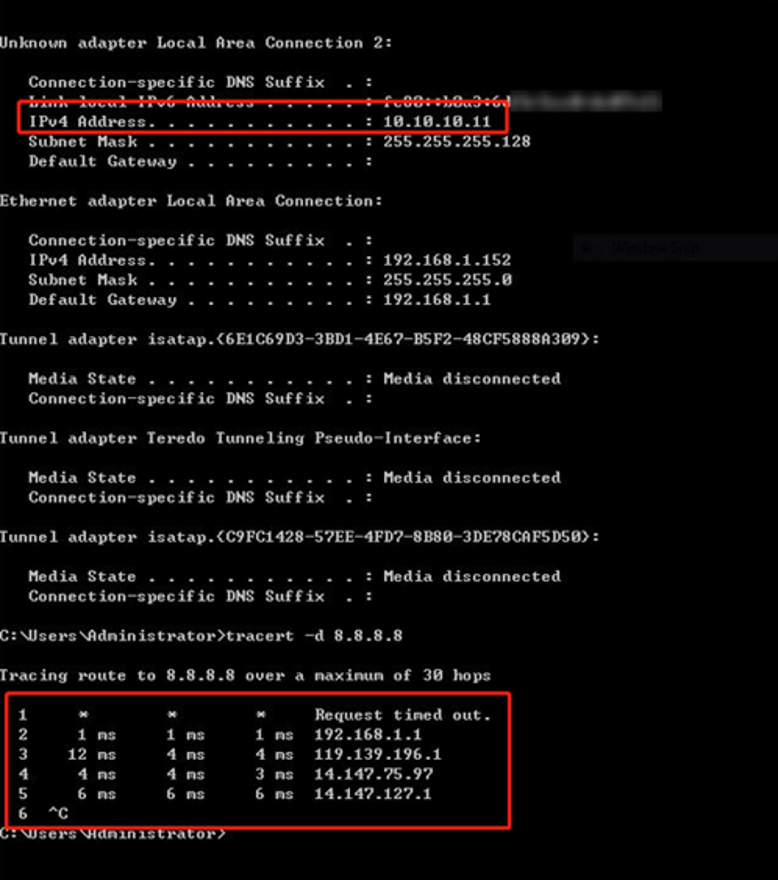
After a successful connection, the server assigns the VPN client an IP address of 10.10.10.11. When the client accesses 8.8.8.8, the first hop is the VPN Tunnel. Because the data is encrypted, the corresponding IP address cannot be resolved. The second hop is the default gateway of the VPN Server, and all data of the client goes through the VPN Tunnel to realize proxy Internet access.
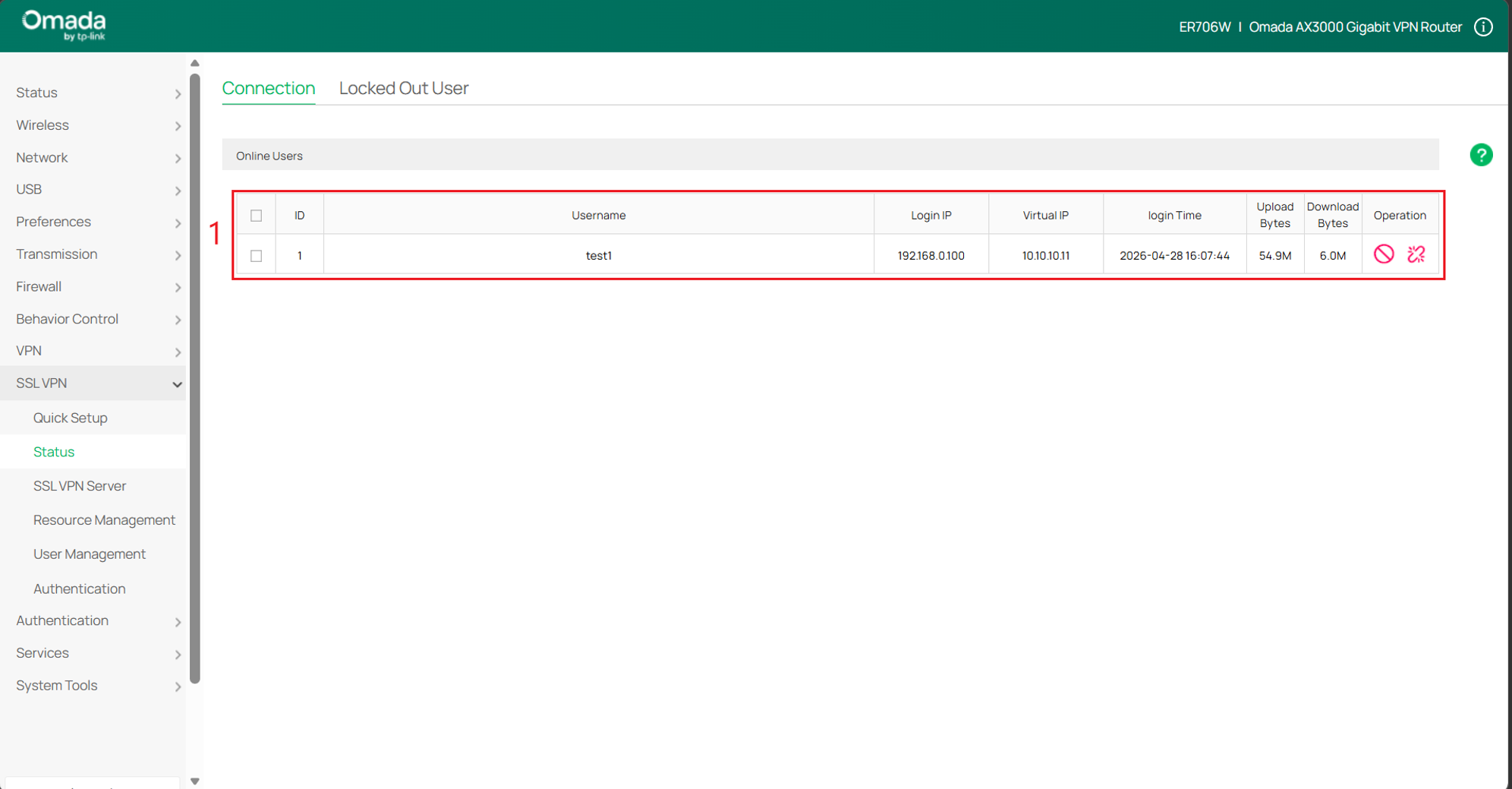
Go to SSL VPN > Status, information about the Client connection will also be displayed here.
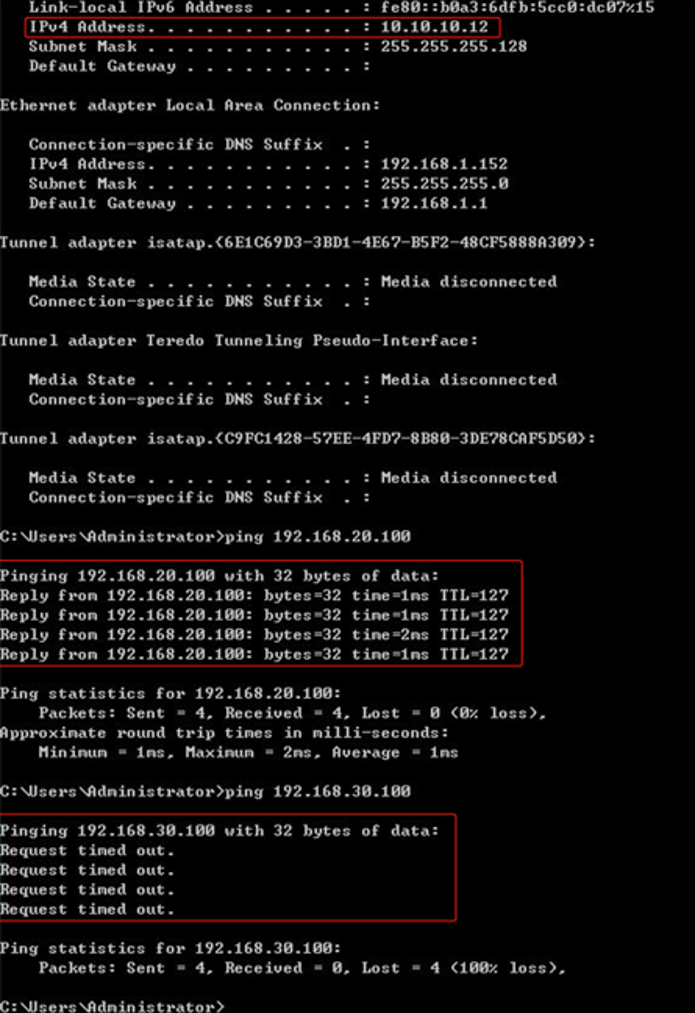
Account 2: VPN Client can only access VLAN 20, but cannot access VLAN 30
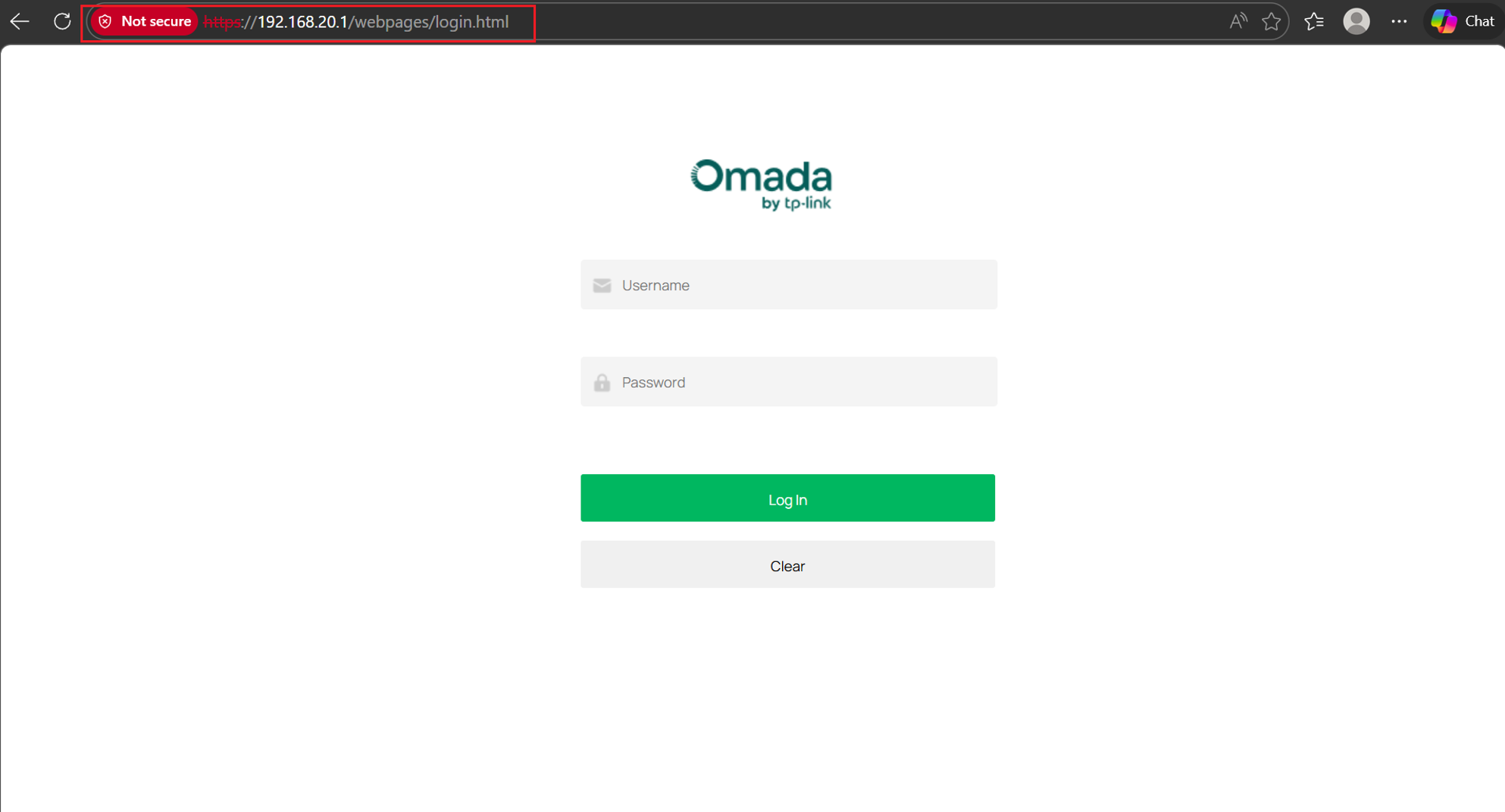
After a successful connection, the server assigns the VPN client an IP address of 10.10.10.12. The VPN client can ping the device in VLAN 20 (192.168.20.100), but cannot ping the device in VLAN 30 (192.168.30.100). At the same time, the management interface of the router can be accessed through 192.168.20.1.
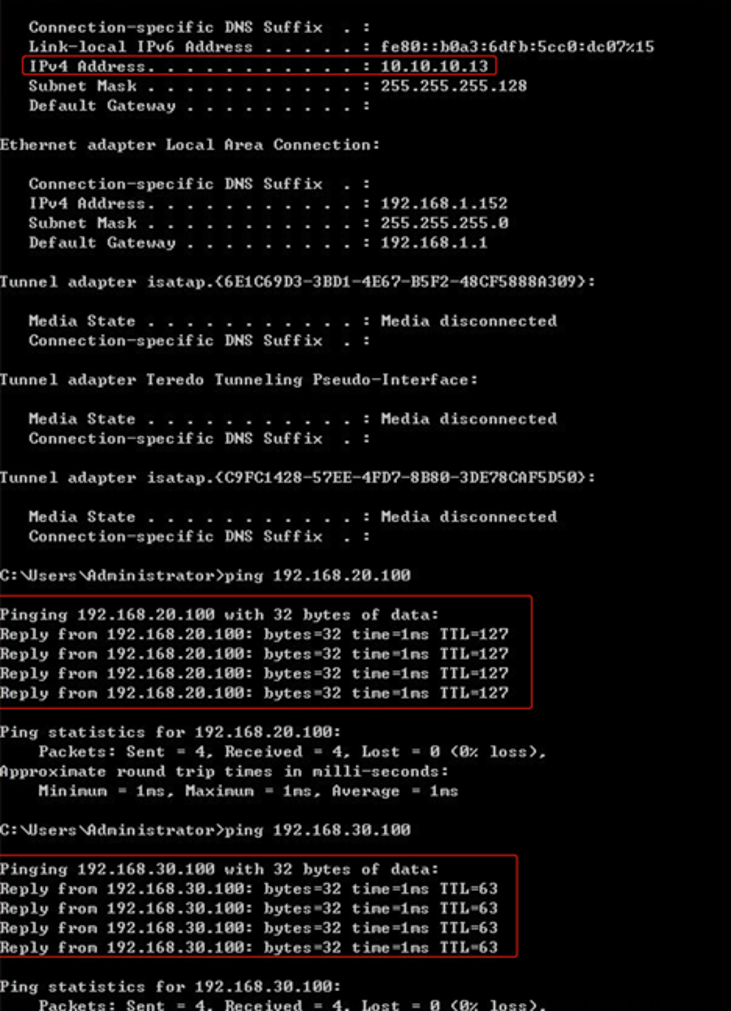
Account 3: The VPN Client and the devices behind the Server can only interact through the ICMP protocol.
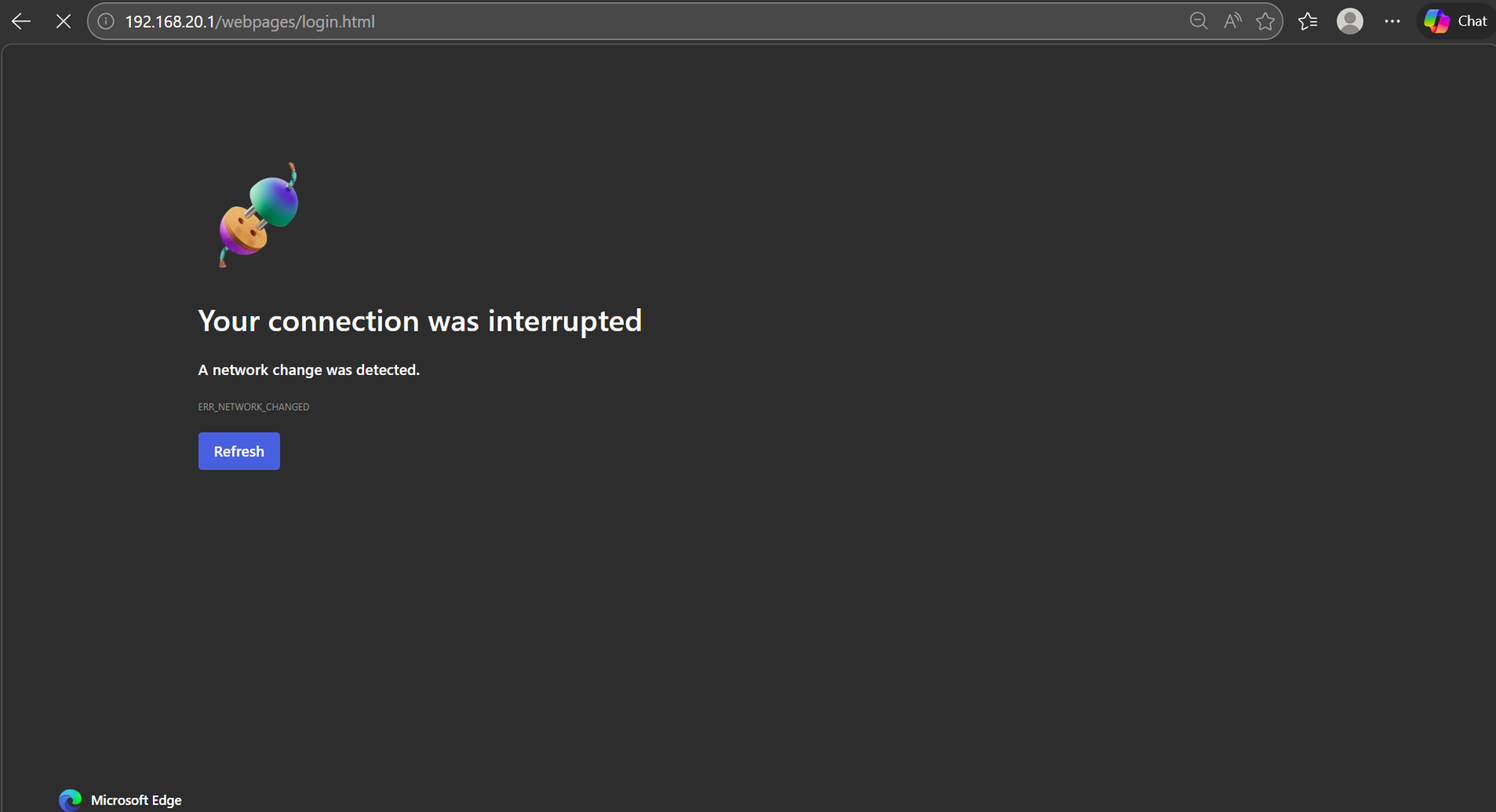
After a successful connection, the server assigns the VPN client an IP address of 10.10.10.13. The VPN client can ping the device in VLAN 20 (192.168.20.100) and the device in VLAN 30 (192.168.30.100). But the management interface of the router cannot be accessed through 192.168.20.1.
Conclusion
This configuration successfully implemented an SSL VPN solution with three distinct user access levels tailored to specific network requirements. One account enables full proxy internet access through the VPN server, another restricts access to only VLAN 20 while blocking VLAN 30, and the third enforces strict ICMP-only communication with internal resources. By combining VPN IP pool allocation, tunnel resources, and user group policies, the setup demonstrates effective role-based access control and improved network security management.
QA
Q1: What should I do if I cannot connect to the SSL VPN?
A1: Check that the server is enabled, confirm the correct service port is selected, and verify that the client is using the correct username, password, and imported certificate file.
Q2: Why can’t the VPN client access certain VLANs?
A2: Ensure the correct resource group and tunnel resources are assigned to the user group. Access restrictions are controlled by these configurations.
Q3: What should I do if I forget a user’s password?
A3: Go to the User Management section, edit the user account, view and or set a new password.
Q4: What should I do if the VPN client cannot access the internet?
A4: Verify that the resource group is set to “ALL” for full access, check DNS settings, and ensure the VPN server’s gateway has internet connectivity.
Q5: Why is the VPN client not receiving an IP address?
A5: Check if the VPN IP Pool is correctly configured and has available IP addresses. Also ensure there are no conflicts with existing LAN subnets.
To learn more about each function and configuration, please visit Support Home to download or check the manual for your product.
