


How to Use Remote Access on Omada Controller


Contents
Configuration under Network Tools
Introduction
When you use the Omada Controller today, troubleshooting issues like device disconnections can be a bit tedious—you often need to export logs, configuration files, and other data, which takes time and slows you down.
To make this easier for you, we’ve added a remote access feature. With it, you can set up a reverse tunnel that lets you remotely reach local services inside your network—like the device’s web interface or SSH. This gives you a faster, more direct way to check, troubleshoot, and configure your devices whenever something goes wrong.
Requirements
- Omada Controller (Software Controller / Hardware Controller / Cloud Based Controller (CBC), V6.2 and above)
Configuration
For different types of Omada devices, each model supports different protocols and provides different options on the Web interface.
|
Device Type |
Supported Protocols |
Web Page Capabilities After Adoption |
Notes |
|
Gateway |
HTTPS, HTTP, SSH |
View device info, reboot/reset, export logs, enable SSH, run network diagnostics |
— |
|
SDN Managed Switch |
SSH, Telnet |
Omada Controller v6.4 enables device decoupling |
- The currently supported protocols (SSH and Telnet) are effective only in the Cloud-Based Controller - v6.3: SSH and Telnet access enabled for Local scenarios - v6.4: HTTP and HTTPS access enabled |
|
Access Point (AP) |
HTTPS, HTTP, SSH |
View device info, reboot/reset, enable/disable SSH |
— |
|
IPC / NVR |
HTTPS |
Web page cannot play video streams but allows most configuration changes |
Access via Select Online Clients in the Custom tab or via Client Details page entry |
|
ES Switch |
— (Not supported at present) |
Not accessible via Device tab or Custom tab |
— |
|
OLT Device |
— (Not supported at present) |
Not accessible via Device tab or Custom tab |
— |
Configuration under Network Tools
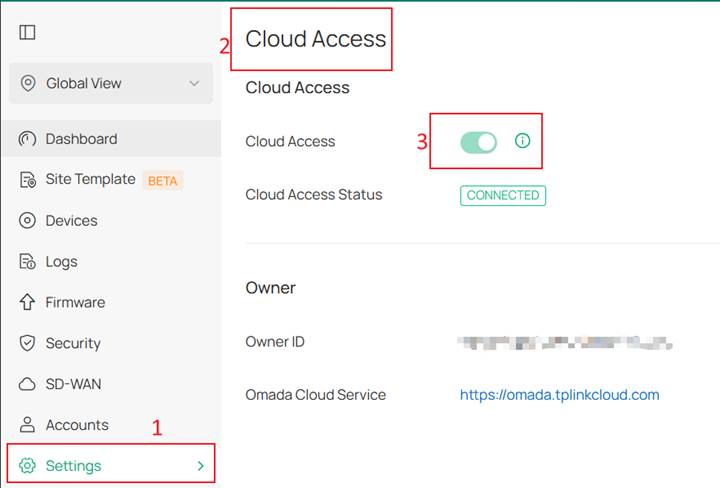
Step 1. We’ll use the local controller as an example. If you want to use the remote access feature, you must first connect to cloud in Cloud Access. Go to Settings > Cloud Access page, Bind your TP‑Link account, and then wait for the status to change to Connected.
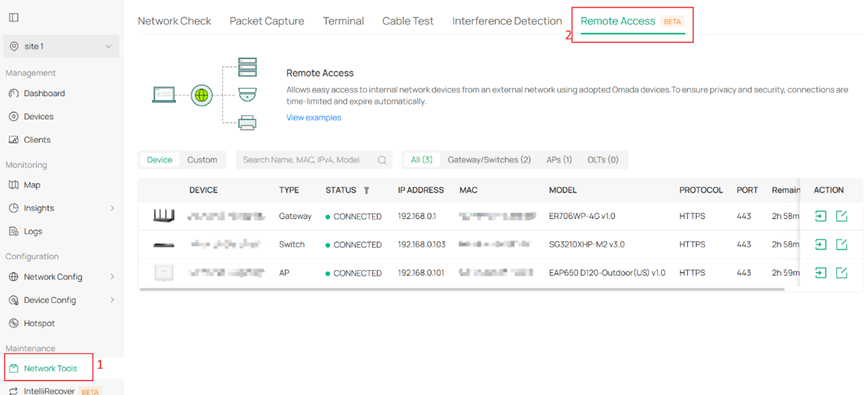
Step 2. Go to Network Tools > Remote Access page. Remote Access is divided into two tabs: Device and Custom.
In the Device tab, devices are automatically populated in the list. The search box enables searches by name, model, IP, MAC, and type. The Device Name column provides sorting capabilities, and the Type and Status columns provide filtering options.
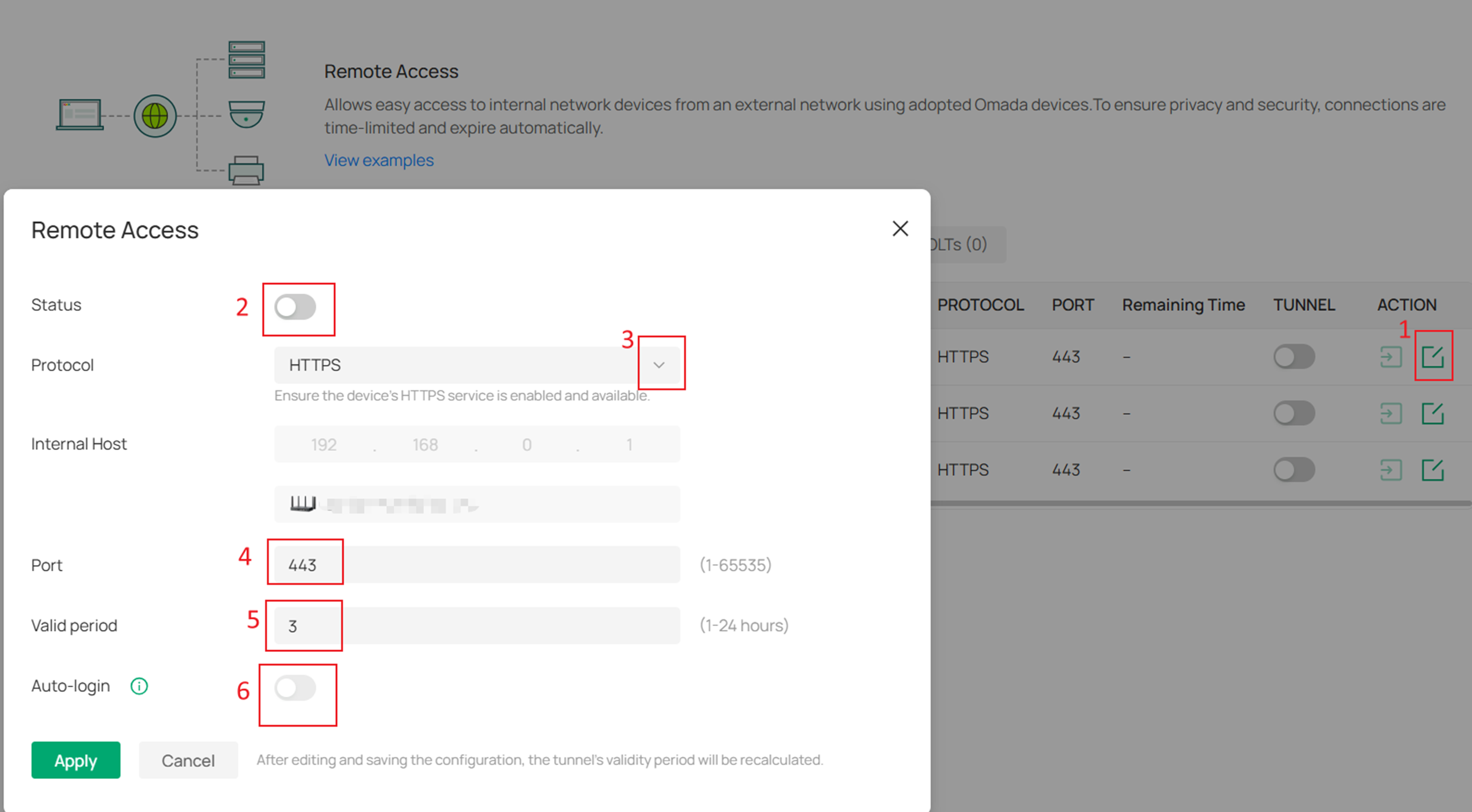
Step 3. Clicking Edit on the right allows you to adjust the tunnel settings. Protocol Type includes HTTP, HTTPS, SSH, and TELNET, each with its own default port, which will be filled in automatically when selected. If the device uses a non‑default port for its protocol, you can manually modify the port value.
By default, a tunnel remains active for 3 hours, but you can set the expiration time anywhere between 1 and 24 hours. The URL redirected through an HTTP/HTTPS tunnel can be copied and shared with others for use as long as the tunnel remains valid. When the tunnel expires, or if the system detects that the tunnel connection has dropped, the tunnel switch will automatically turn off.
An Auto‑Login option is also available. When enabled, it automatically signs you into the device’s interface for remote access.
After the tunnel is created, you can enter the device page directly.
Notes:
1. Only devices in Connected status support “Auto‑Login” feature, and the device must be an adopted Omada device (Gateway, Switch, or AP).
2. Currently, not all Omada models support enabling “Auto‑Login”, as the Controller 6.2 firmware is still being gradually adapted for different devices.
In Controller v6.2, the Local and Cloud Access scenarios currently support only HTTP and HTTPS tunnels, while the Cloud-Based Controller scenario fully supports all four protocols—HTTP, HTTPS, SSH, and Telnet. Support for SSH and Telnet in the Local and Cloud Access scenarios will be added in future versions.
|
Scenario |
Cloud-Based Controller Scenario |
Local Scenario (with Cloud Access) |
|
Supported Protocols |
HTTP / HTTPS / SSH / Telnet |
HTTP / HTTPS |
|
Prerequisites for Local Access |
N/A |
Cloud Access must be enabled |
Step 4. In the Custom tab, a search box is available and supports searching by tunnel name.
Click Add Tunnel to create a tunnel manually. You’ll need to enter the Tunnel Name, toggle the Status, select the Protocol Type, and specify the Internal Host and Port.
By default, the tunnel is enabled and has a 3‑hour validity period.
Internal Host refers to the IP address of the device you want to access through the tunnel. You can also click Select Online Clients to choose from currently online devices. 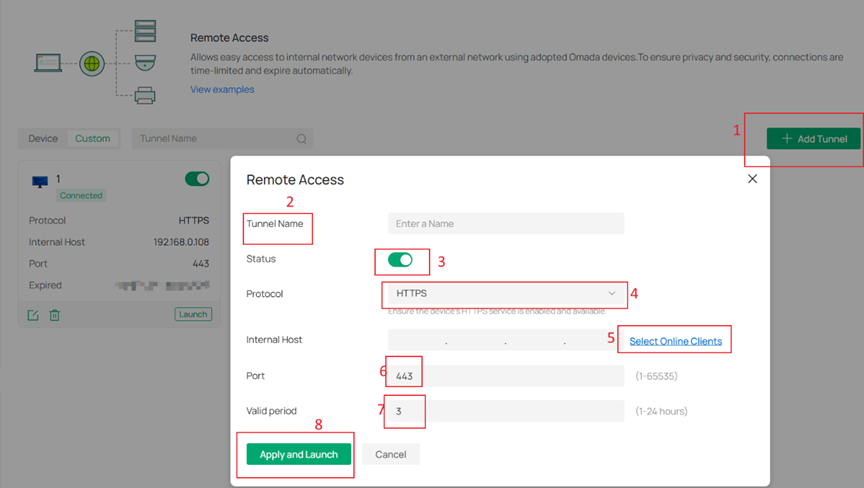
Notes:
The Tunnel feature under both the Device tab and the Custom tab currently does not support the following scenarios:
1. Uploading or downloading large files, such as during firmware upgrades.
2. Accessing web servers that use WWW-Authenticate for authentication, where the browser triggers a pop-up window for entering credentials (for example, SIP servers).
Configuration under Clients
In addition to configuring Remote Access under Network Tools, it can also be configured from the client details page.
However, this method only supports client s identified as IPC/NVR in the client recognition results. For non‑Omada IPC/NVR devices, if they are successfully recognized by the Controller, Remote Access will also be made available.
Step 1. You can go to Clients > device > Network Tools > Remote Access to configure it.
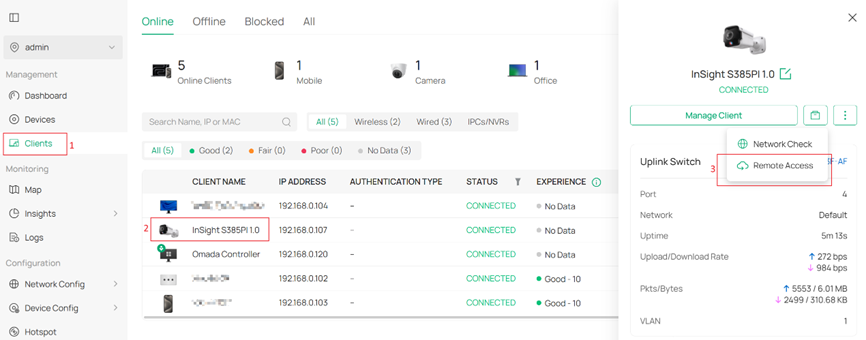
Step 2. The second method is through Manage Client > Tools > Remote Access. The default settings are consistent with those under Network Tools.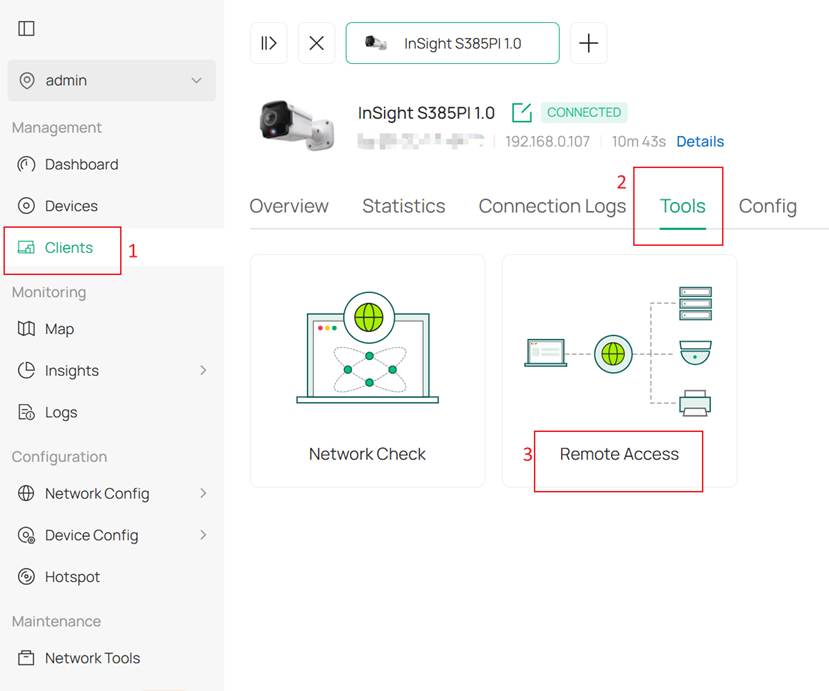
QA
Q1: The tunnel status shows Enabled, but the page does not load after clicking Launch. What could be the cause?
A1: This issue may be caused by one of the following scenarios. In most cases, it can be resolved by disabling the tunnel and then enabling it again.
1. Local Controller scenario: The Controller was rebooted or experienced a network interruption, which caused the tunnel connection to be disconnected. Since Cloud Access was also disconnected, the tunnel status could not be updated accordingly.
2. Target device IP address change: The IP address of the target device has changed, resulting in the route becoming unreachable.
Conclusion
This FAQ mainly explains the purpose of the Remote Access feature, along with its configuration methods in controller mode.
Get to know more details of each function and configuration please go to Download Center to download the manual of your product.
