


How to Find the Model Number and Hardware Version of Your Business Device


Contents
Method 1: Check the device label
Method 2: Check the device management interface
Introduction
Knowing your business device's model number and hardware version is essential when troubleshooting issues, upgrading firmware, requesting technical support, or finding the correct documentation. This article describes two simple ways to check the model number and hardware version of your business device.
Method 1: Check the device label
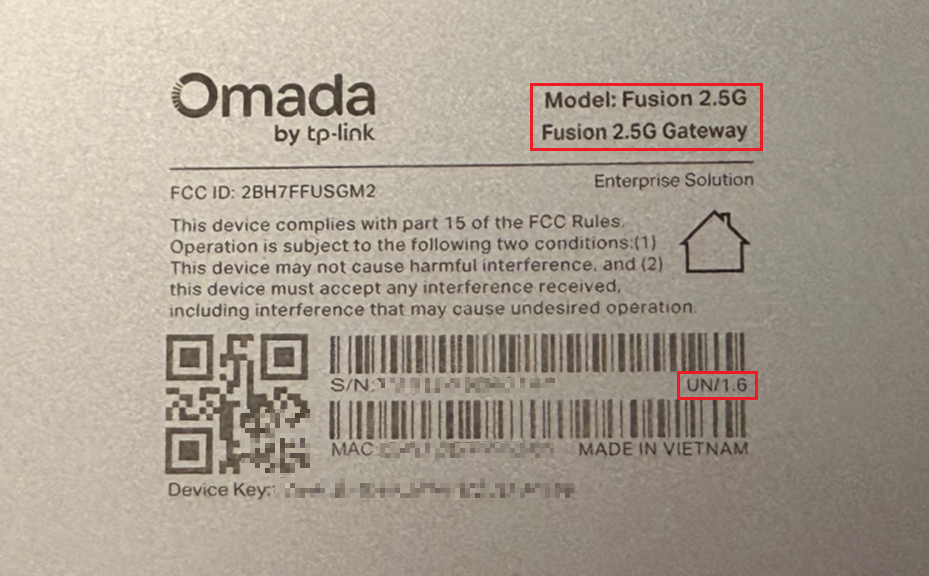
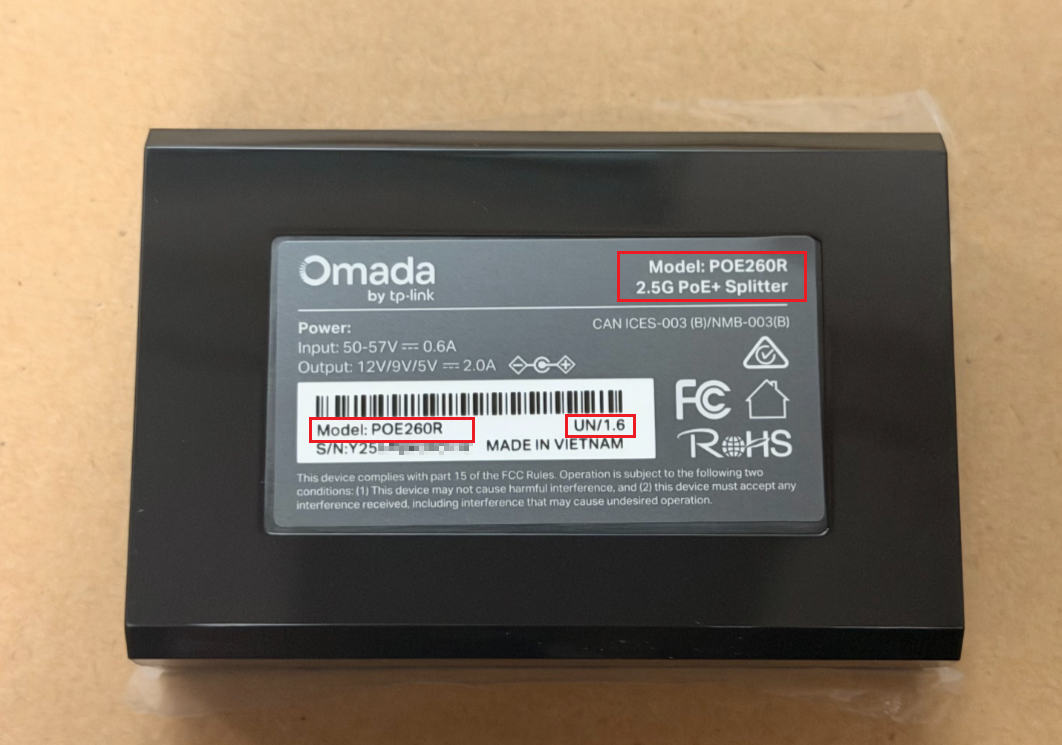
The device label typically includes key information such as the model number, hardware version, MAC address, and certification markings. It is usually located on the bottom of the device. For smaller devices without a device label, this information can be found on the product packaging.
Checking the device label is the quickest way to identify your device's model number and hardware version. The following examples show where to find this information.
Example 1:
Example 2:
Note:
1. Hardware versions may be labeled in different formats, including Ver: X.X, VX, or Country Code/X.X. For example, Ver:1.0, V2, and US/1.6 all indicated the hardware version of the device.
2. If no hardware version is displayed, the product is version 1 (V1) by default.
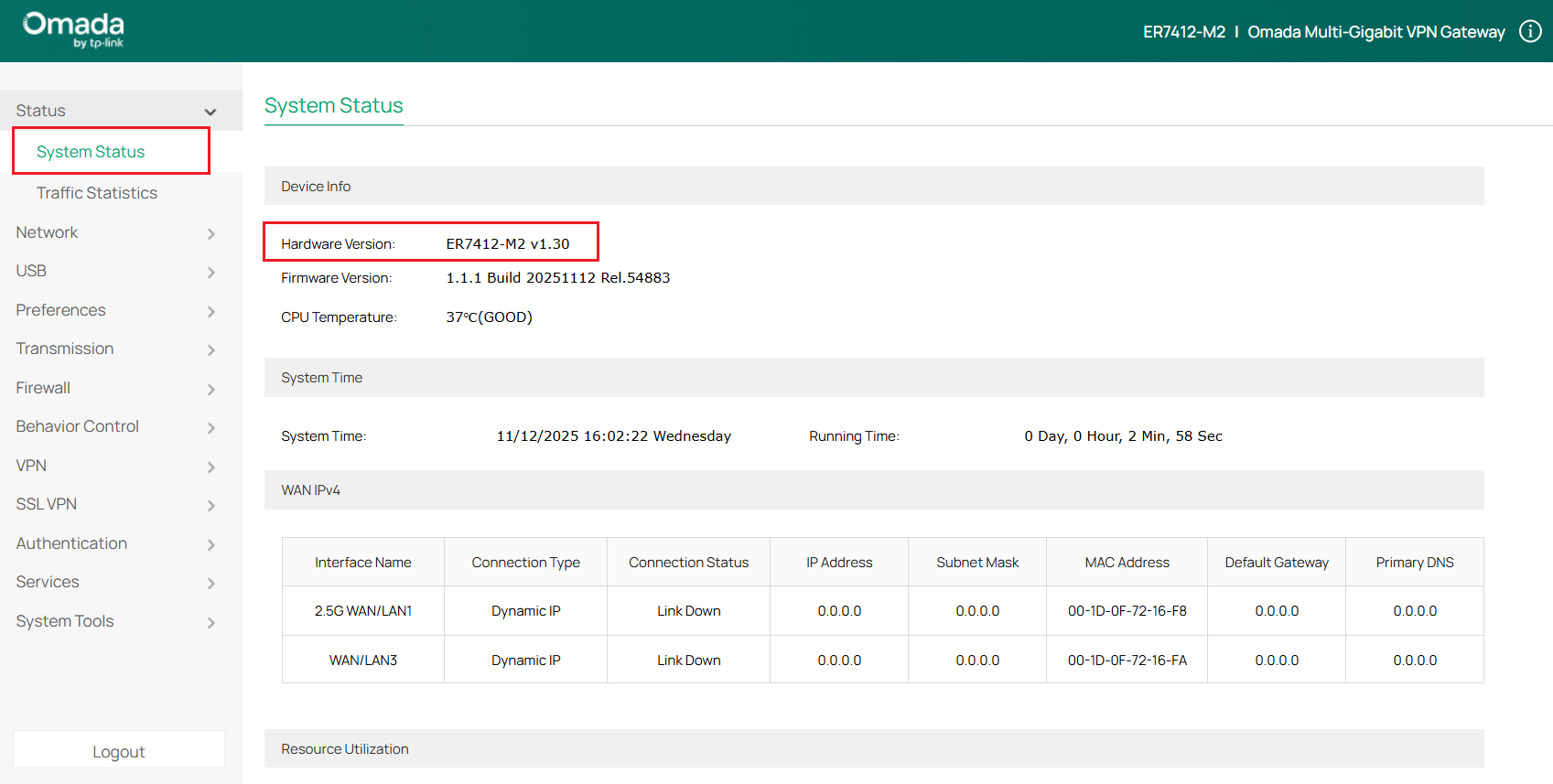
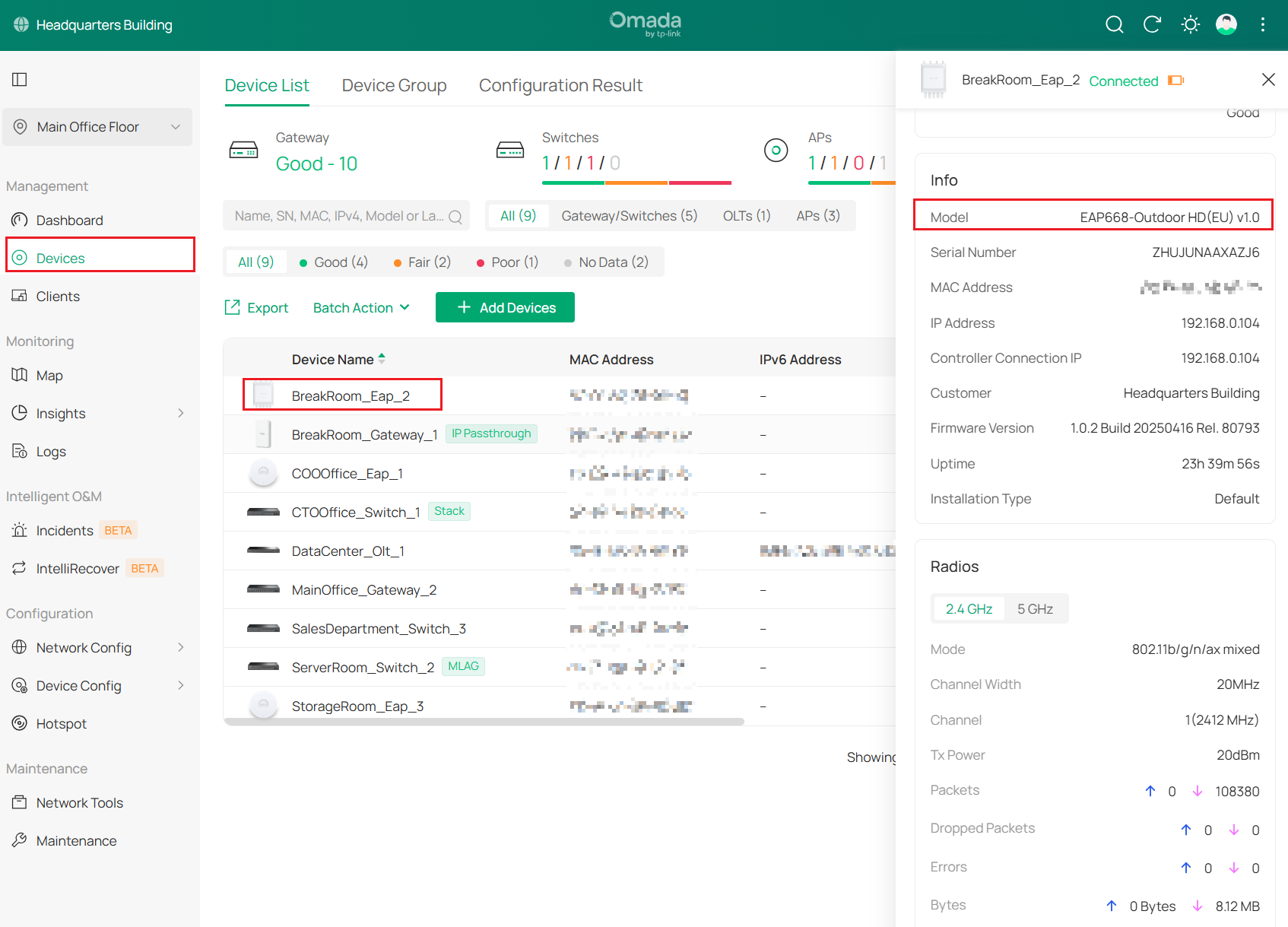
Method 2: Check the device management interface
Example 1: Standalone web interface
Example 2: Omada controller management page
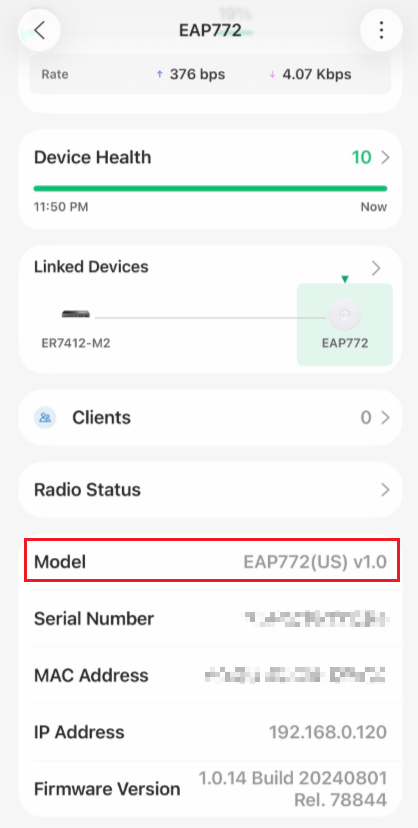
Example 3: Omada app
Conclusion
The model number and hardware version are essential for device management, troubleshooting, and finding compatible firmware or documentation. You can quickly obtain this information from the device lable or throught the device management interface whenever needed.
To learn more about each function and configuration, please visit Support Home to download or check the manual for your product.
QA
Q1: Why does the hardware version shown on the software management page differ from the one on the device label?
A1: The software management page may display the base hardware version instead of the exact version shown on the device label. In this case, you can use the following mapping rules to determine the corresponding hardware version:
- Vx.0 = Vx.6/Vx.8/Vx.9
Example: V1.0=V1.6/V1.8/V1.9
- Vx.x0 = Vx.x6/Vx.x8/Vx.x9
Example: V1.20=V1.26/V1.28/V1.29
- Vx.30 = Vx.32/Vx.33
Example: V3.30=V3.32/V3.33
