


Contents
Supported devices and capabilities
Method 1: Configure Remote Access in Network Tools
Configure a custom tunnel (optional)
Tunnel exception notifications
Method 2: Configure Remote Access from a client entry
Method 3: Configure Remote Access in the Omada App
Introduction
Remote Access in Omada Controller enables secure remote access to supported devices without requiring manual port forwarding. By using NAT traversal and tunnel technology, administrators can remotely access device management interfaces for troubleshooting, maintenance, and configuration. This guide explains the requirements, supported scenarios, and configuration steps for using Remote Access in Omada Controller and Omada App.
Requirements
- Omada Controller (Software Controller / Hardware Controller / Cloud-Based Controller (CBC), v6.2 or above)
- Omada App v5.2.1 or above
- At least one device with firmware compatible with Controller v6.2 or later that can act as a proxy device when required
Supported devices and capabilities
Before configuring Remote Access, review the supported protocols, available management functions, and deployment requirements for each device type.
Device support matrix
|
Device Type |
Supported Protocols |
Web Capabilities (Adopted) |
Web Capabilities (Disconnected) |
Notes |
|
Gateway |
HTTPS, HTTP, SSH |
View device information, reboot/reset, export logs, enable SSH, run network diagnostics |
View device information, reboot/reset, export logs, enable SSH, run network diagnostics, configure WAN settings |
v6.2: SSH/HTTPS/HTTP effective in Cloud-Based Controller; HTTPS/HTTP supported in Local Controller. v6.3: SSH supported in Local Controller deployments. |
|
SDN Managed Switch |
HTTP, HTTPS, SSH, Telnet |
v6.4: Partial configuration available |
Full Web configuration access |
v6.2: SSH/Telnet supported only in Cloud-Based Controller. v6.3: SSH/Telnet supported in Local Controller deployments. |
|
Access Point (AP) |
HTTPS, HTTP, SSH |
View device info, reboot/reset, enable/disable SSH |
View device information, reboot/reset, enable or disable SSH |
v6.2: SSH/HTTPS/HTTP supported in Cloud-Based Controller; HTTPS/HTTP supported in Local Controller. v6.3: SSH supported in Local Controller deployments. |
|
IPC / NVR |
HTTPS |
Configuration available (video playback not supported) |
— |
Accessible through the Custom tab or Client Details page. |
|
ES Switch |
HTTPS, HTTP (HTTP only after adoption) |
Not supported |
Reset device and export configuration file |
Requires a Gateway, Switch, AP (v6.2+), or OLT (v6.4+) acting as a proxy device. |
|
OLT Device |
HTTP, HTTPS, SSH, Telnet |
Before 202502: Access unavailable. |
Same as adopted state |
Requires a Gateway, Switch, AP (v6.2+), or OLT (v6.4+) acting as a proxy device. See OLT native NAT traversal support for Controller v6.4 enhancements. |
Protocol support by deployment scenario
|
Deployment scenario |
Supported protocols |
|
Cloud-Based Controller |
HTTP, HTTPS, SSH, Telnet |
|
Local Controller (with Cloud Access) |
HTTP, HTTPS (V6.2),SSH,TELNET(V6.3+) |
Note: For Local Controller deployments, Cloud Access must be enabled before Remote Access can be used.
OLT native NAT traversal support
Remote Access support for OLT devices varies by firmware version.
- Before October 2026, OLT Remote Access requires a Gateway, Switch, or AP (v6.2+) acting as a proxy device.
- Beginning with OLT firmware supporting Controller v6.4, OLT devices support native NAT traversal and can be accessed directly through Remote Access without requiring a proxy device.
- OLT devices running firmware compatible with Controller v6.4 or later can also serve as proxy devices for other supported devices.
Method 1: Configure Remote Access in Network Tools
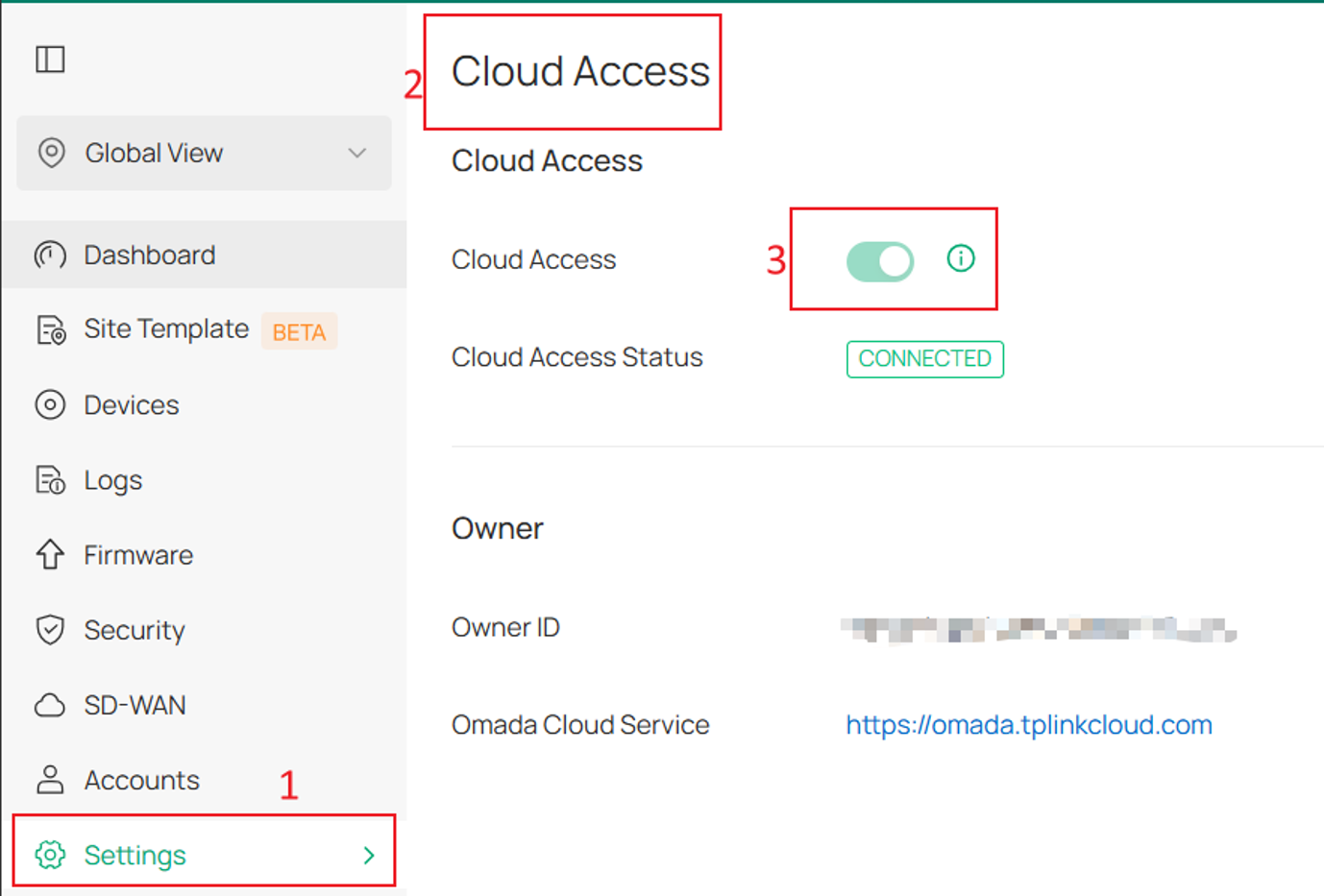
Enable Cloud Access
Step 1. Enable Cloud Access.
For Local Controller deployments, Cloud Access must be enabled before Remote Access can be used.
Go to Settings > Cloud Access, bind a TP-Link ID, and wait until the connection status changes to Connected.
Configure a device tunnel
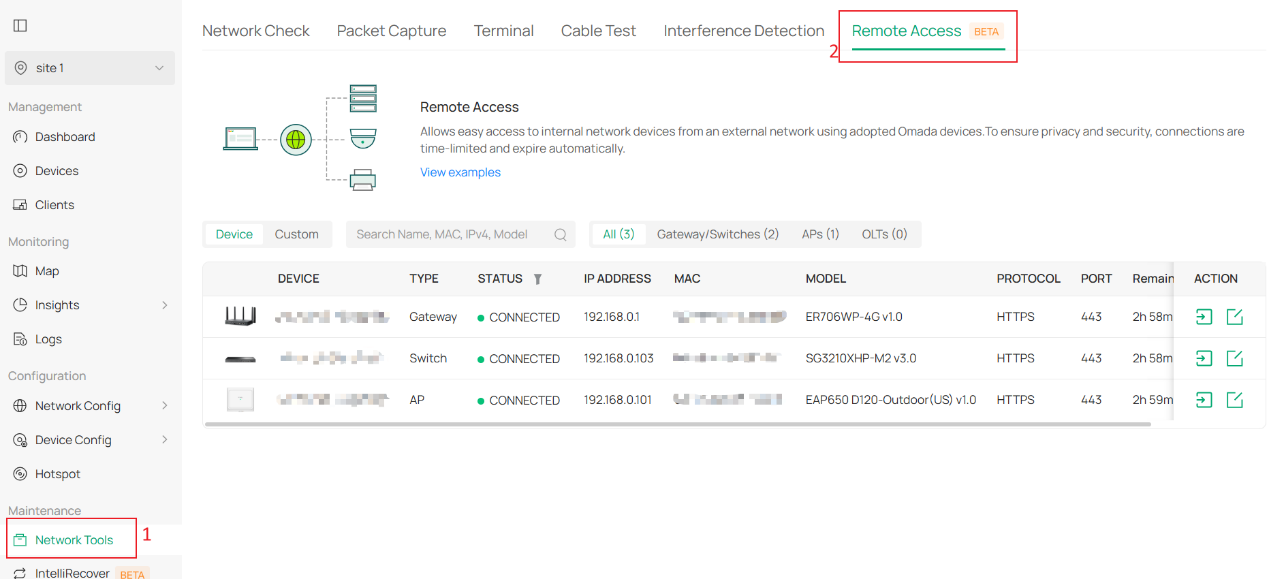
Step 2. Open Remote Access.
Go to Network Tools > Remote Access.
The page contains two tabs:
- Device: Create Remote Access tunnels for managed devices.
- Custom: Create Remote Access tunnels for manually specified hosts.
On the Device tab, supported devices are listed automatically. Devices can be searched by:
- Device name
- Model
- IP address
- MAC address
- Device type
The list can also be sorted and filtered by device type or status.
Step 3. Configure and launch the device tunnel.
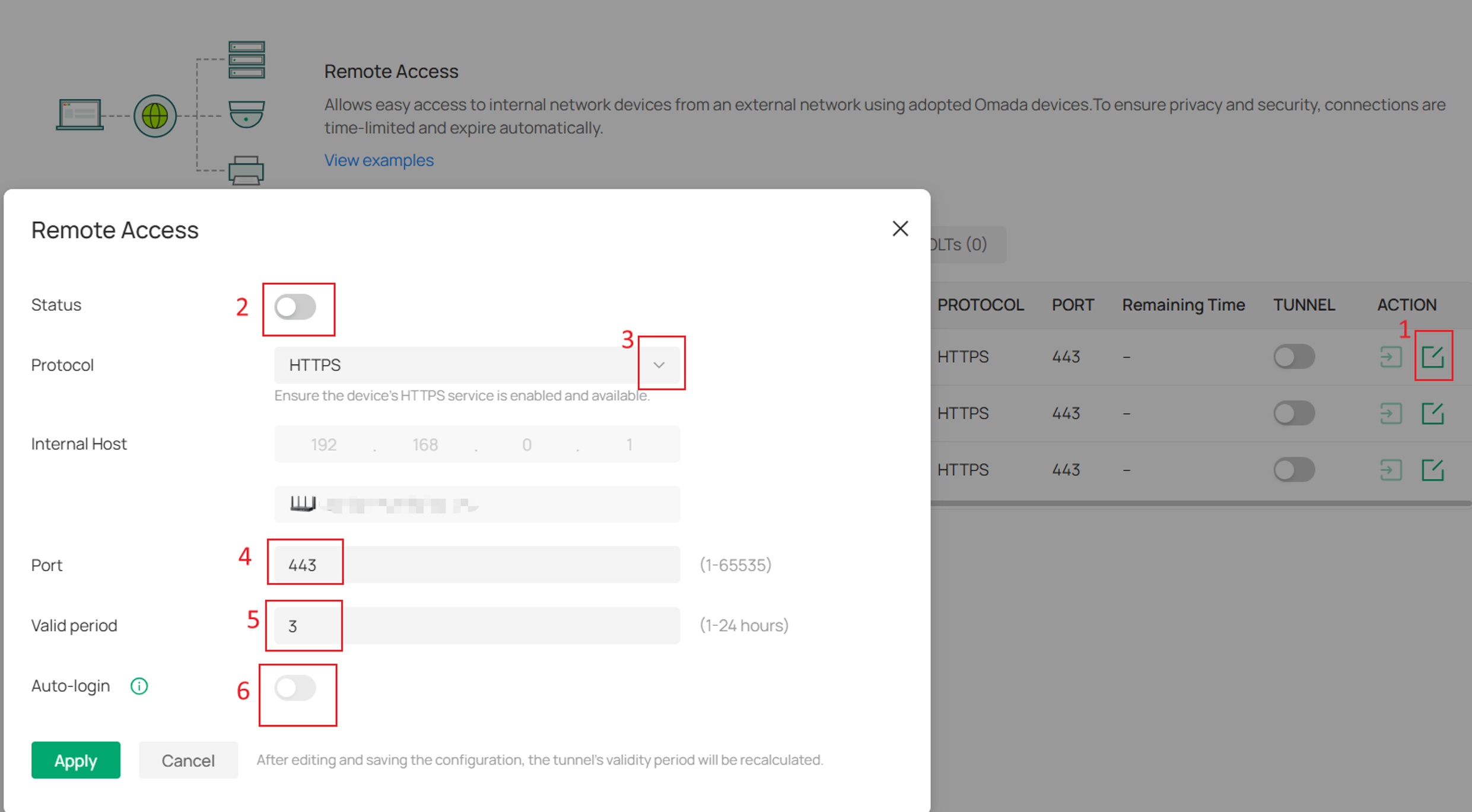
Click Edit for the target device.
Configure the following settings:
- Status
- Protocol Type: HTTP, HTTPS, SSH, Telnet
- Port
- Tunnel validity period
- Auto-Login (if supported)
The default port is populated automatically after a protocol is selected. If the service uses a custom port, enter the corresponding port number.
Set a validity period between 1 and 24 hours. The default is 3 hours.
For HTTP and HTTPS tunnels:
- The generated URL can be copied and shared while the tunnel remains valid.
- The tunnel is automatically disabled when it expires or becomes unavailable.
If Auto-Login is available, enable it to automatically sign in to the device interface when the tunnel is launched.
Enable the tunnel, then click Launch to access the device.
Note:
- Auto-Login is supported only when the device status is Connected.
- The device must be an adopted Omada product.
- Auto-Login availability varies by device model and firmware version.
Configure a custom tunnel (optional)
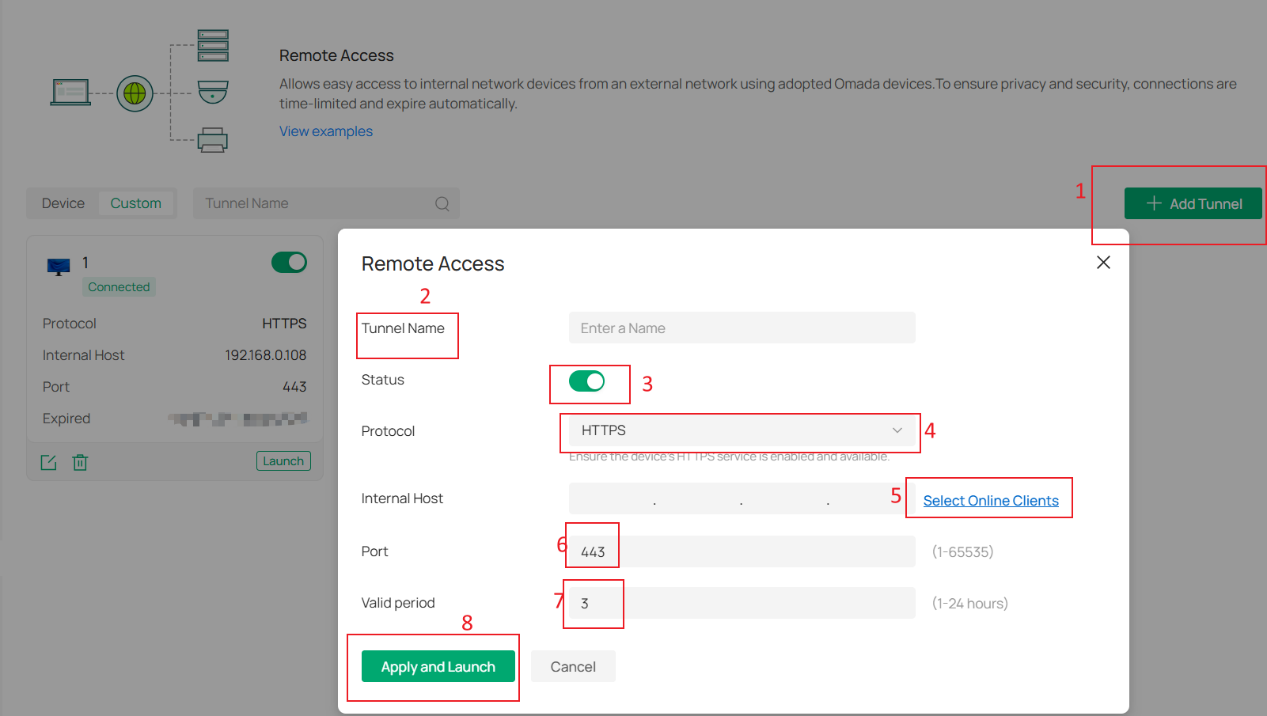
If access to a manually specified host is required, create a custom tunnel.
Select the Custom tab and click Add Tunnel.
Configure:
- Tunnel Name
- Status
- Protocol Type: HTTP, HTTPS, SSH, Telnet
- Internal Host
- Port
- Tunnel validity period
The tunnel is enabled by default and remains active for 3 hours.
The Internal Host specifies the IP address of the destination device.
Alternatively, click Select Online Clients to select a currently detected device.
Note:
The Tunnel feature currently does not support:
- Uploading or downloading large files such as firmware upgrades.
- Web servers that use WWW-Authenticate authentication and require browser credential pop-up windows.
Tunnel exception notifications
Omada Controller provides tunnel exception notifications to help identify and troubleshoot Remote Access issues.
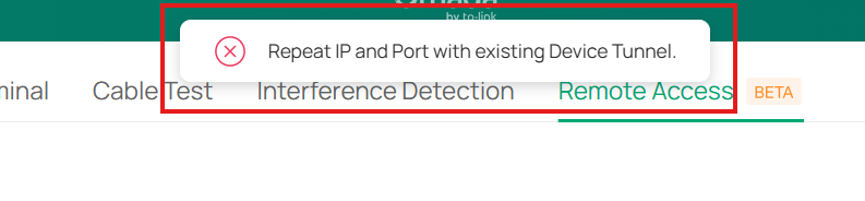
Tunnel creation failure
A notification is displayed when:
- Tunnel creation fails
- Tunnel settings conflict with an existing tunnel
- Other tunnel configuration errors are detected
Tunnel unavailable notification
A notification is displayed when:
- An active tunnel becomes unavailable
- One or more active tunnels are automatically closed

Method 2: Configure Remote Access from a client entry
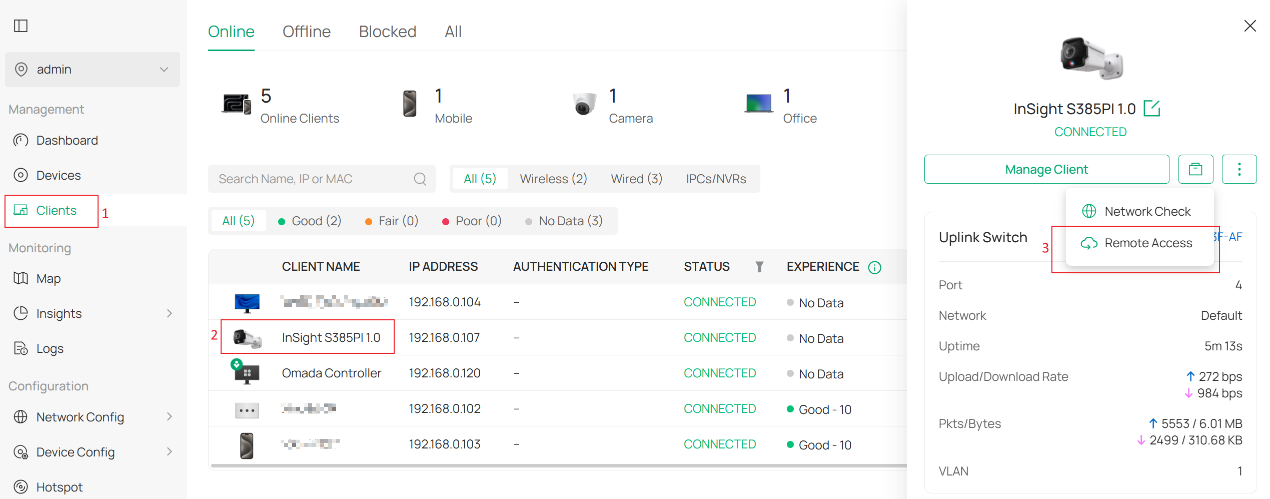
Remote Access can also be configured from the details page of a recognized IPC or NVR.
Beginning with Controller v6.4, Remote Access can also be configured from the details page of supported wired clients.
Step 1. Open the client details page.
Go to:
Clients > Device > Network Tools > Remote Access
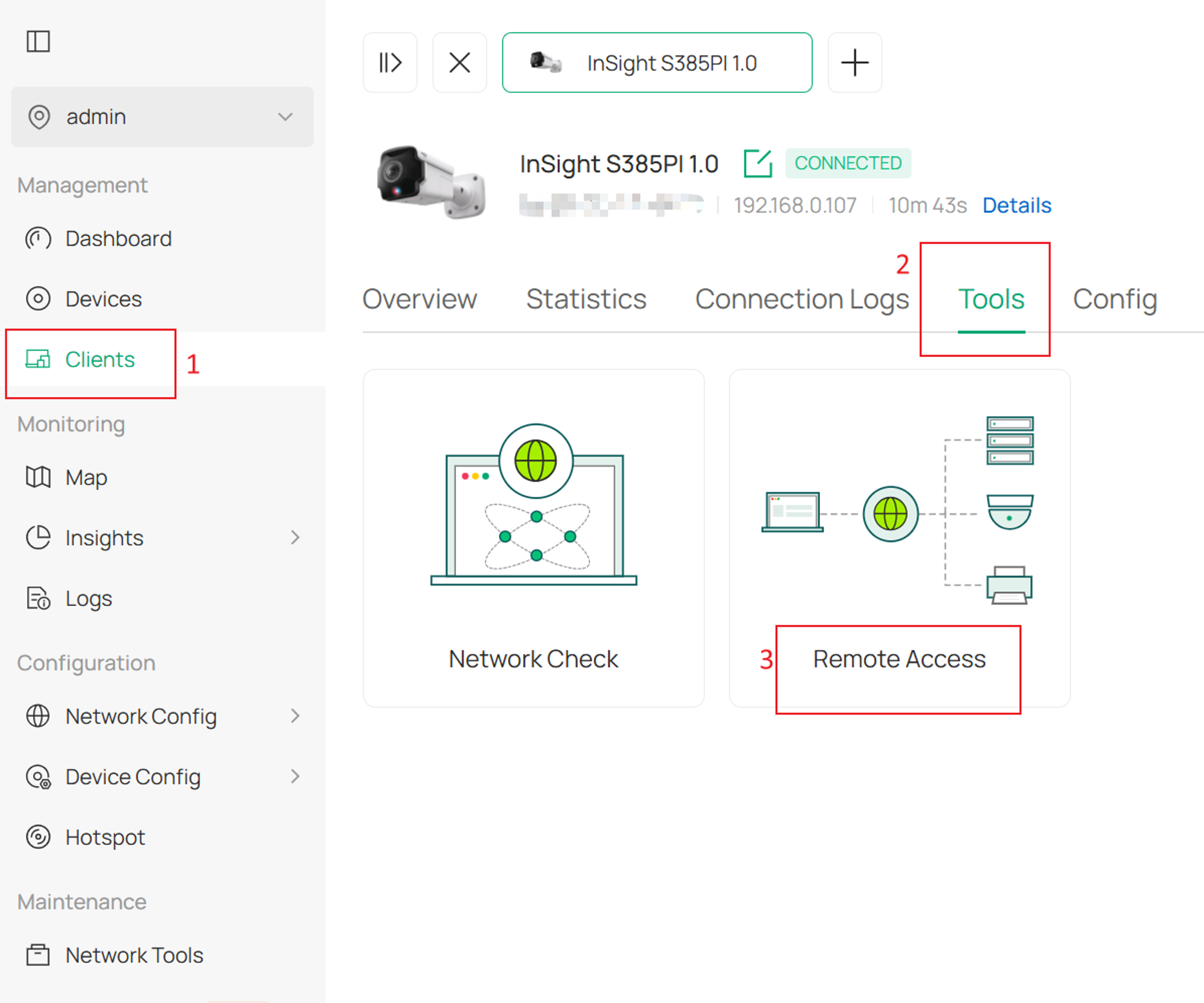
Step 2. Configure and launch the tunnel.
Alternatively, go to: Manage Client > Tools > Remote Access.
The available settings are the same as those under Network Tools.
Method 3: Configure Remote Access in the Omada App
Note: IPC and NVR devices support HTTPS only.
Step 1. Open the client list.
Sign in using a TP-Link ID, open the target controller and site, and navigate to Clients.
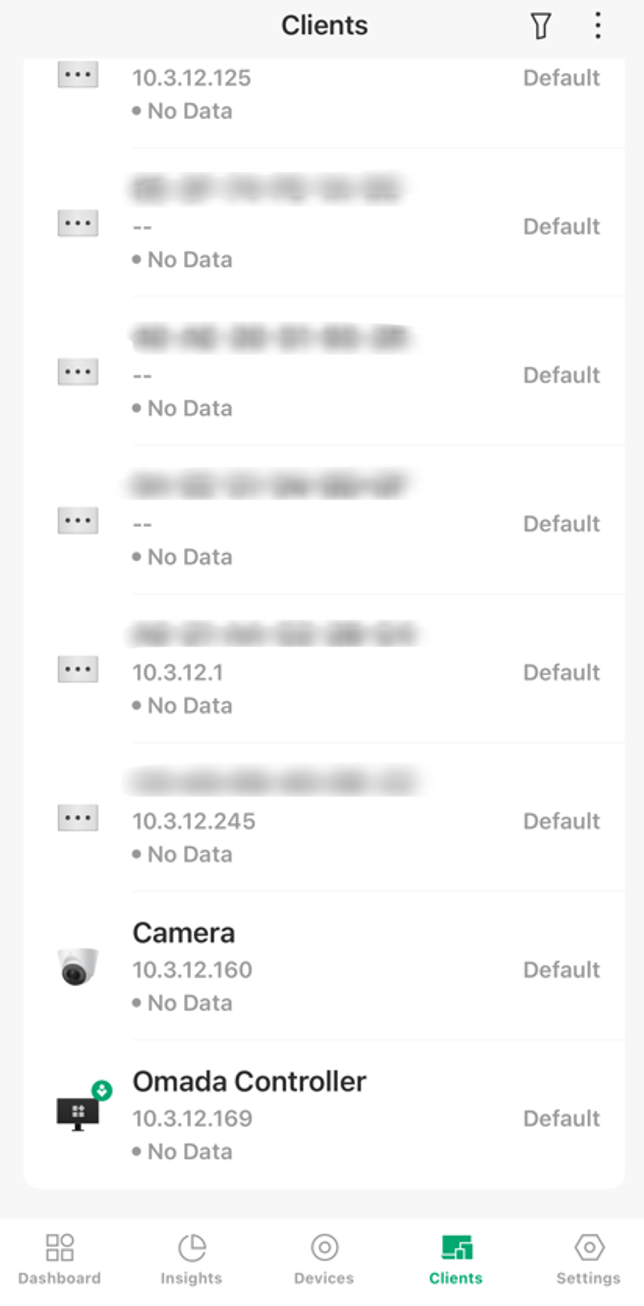
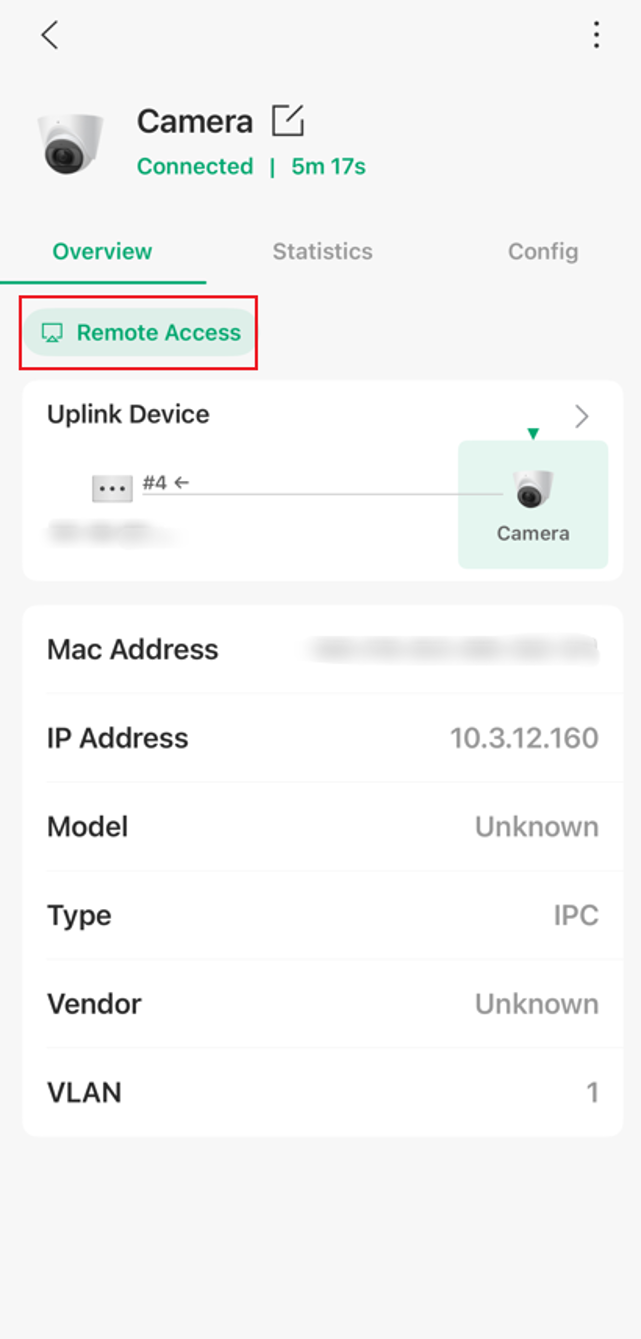
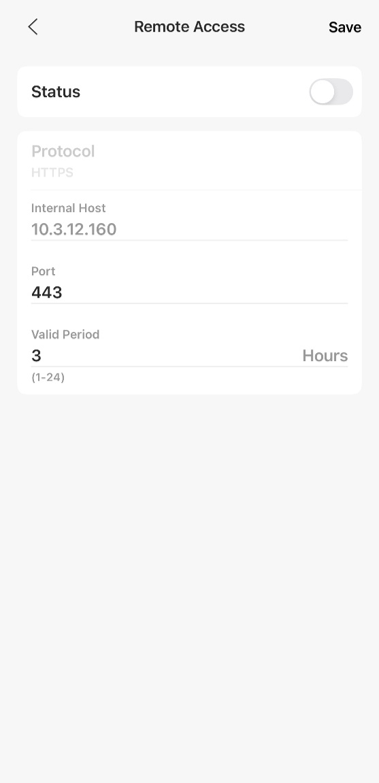
Step 2. Open Remote Access.
Select the IPC or NVR and tap Remote Access.
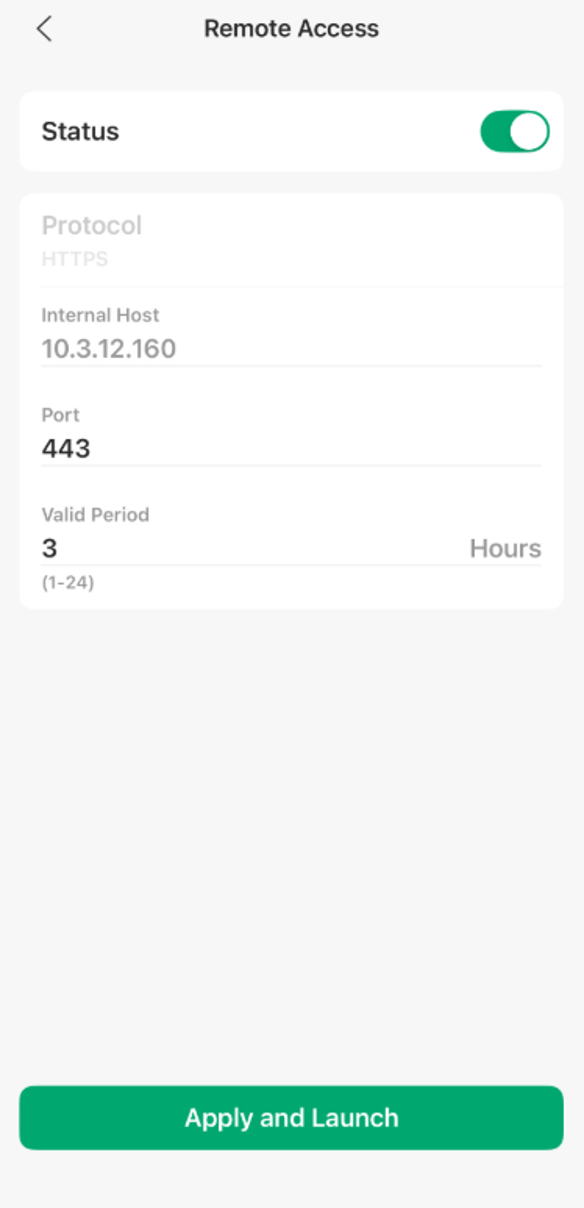
Step 3. Configure the tunnel.
Verify the settings and tap Apply and Launch.
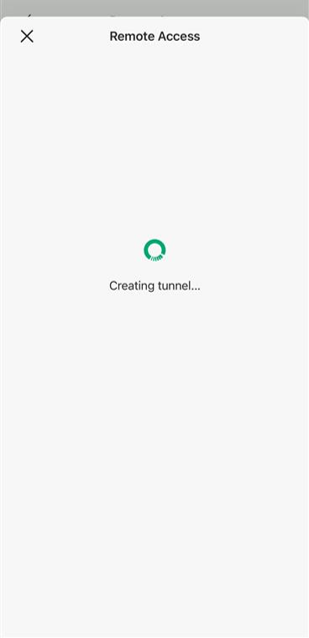
Step 4. Access or share the tunnel.
The tunnel creation process begins. After the tunnel is successfully created, the available access and sharing options are displayed.
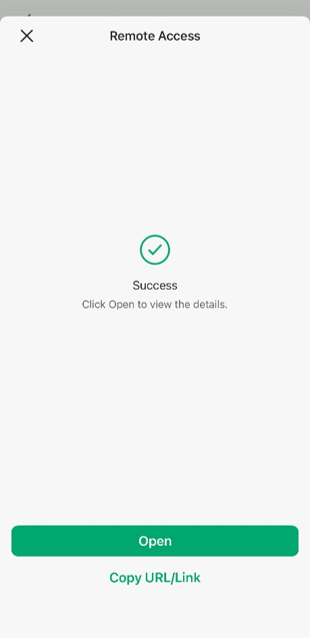
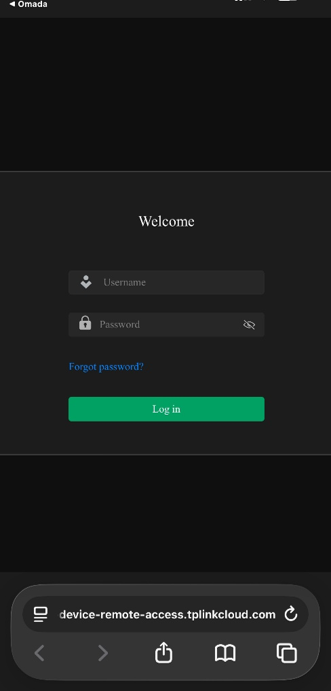
Tap Open to launch a browser and access the device’s web interface.
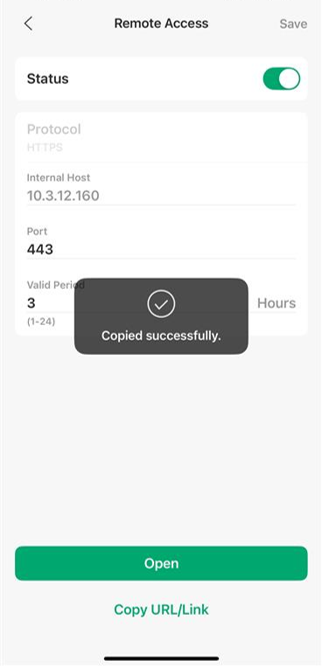
Tap Copy URL/Link to copy the device’s Remote Access URL to the phone.
If tunnel creation fails, perform the following checks, and then try again:
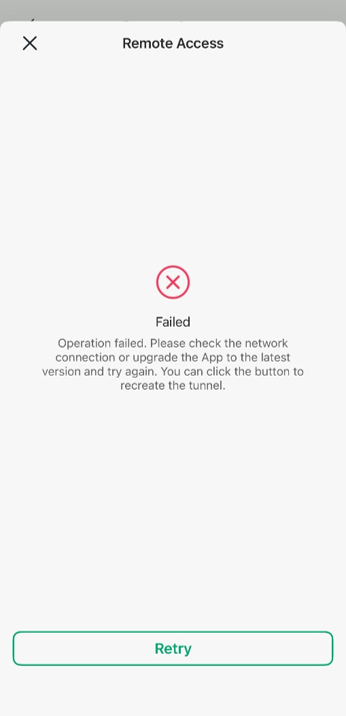
- Check the network connection and confirm that the device status is Connected.
- Update the Omada App to the latest version.
- Update the device firmware to the latest version.
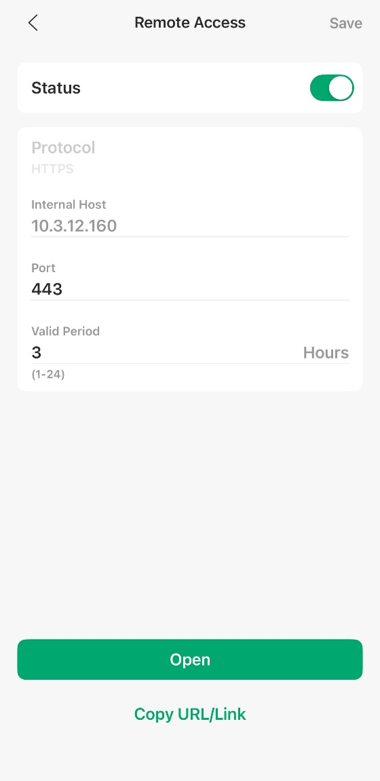
Step 5. Modify or disable Remote Access.
Reopen the Remote Access page to modify the tunnel settings or disable the tunnel.
Verification
After configuration, verify that Remote Access is operating correctly:
- Confirm that the tunnel status is Enabled.
- Launch the tunnel and verify that the target device interface opens successfully.
- Confirm that the required management functions are available.
- For HTTP and HTTPS tunnels, verify that the generated URL remains accessible during the configured validity period.
Conclusion
With Remote Access, administrators can securely manage supported Omada devices from anywhere through Omada Controller and Omada App. Features such as device tunnels, custom tunnels, and tunnel exception notifications help simplify remote troubleshooting and device management across distributed networks.
To learn more about each function and configuration, please visit Support Home to download or check the manual for your product.
QA
Q1: The tunnel status shows Enabled, but the page does not load after clicking Launch. What could be the cause?
A1: This issue may be caused by one of the following scenarios. In most cases, it can be resolved by disabling the tunnel and then enabling it again.
- Local Controller scenario: The Controller was rebooted or experienced a network interruption, which caused the tunnel connection to be disconnected. Since Cloud Access was also disconnected, the tunnel status could not be updated accordingly.
- Target device IP address change: The IP address of the target device has changed, resulting in the route becoming unreachable.
