


Contents
Symptom 1: Multi-screen preview is unavailable
Symptom 2: HD playback is unavailable
Step 1. Verify browser compatibility
Step 2. Verify that hardware acceleration is enabled
Step 3. Check whether the HEVC Video Extension is installed
Step 4. Install the HEVC Video Extension
Step 5. Verify HEVC hardware decoding support
Step 6. Check hardware compatibility
Introduction
Fusion Pro supports multiple live view layouts and high-definition (HD) video playback to enhance video monitoring and management. Under normal conditions, users can switch between different preview layouts during live view and select video quality levels such as AUTO, HD, and SD for playback.
However, in some environments, the Video module may display an HEVC (H.265) support warning, indicating that the browser or client system does not fully support the required HEVC hardware decoding capability. When this occurs, multi-screen preview may be unavailable and video playback may be limited to SD quality only.
This article explains the symptoms, possible causes, browser requirements, and troubleshooting steps to restore multi-screen preview and HD playback functionality.
The following examples show the differences between normal and affected environments.
Requirements
Fusion Pro supports multi-screen preview and HD playback only when the following requirements are met.
Product requirements
- Fusion Pro Series
- Omada Cameras
Browser requirements
|
Browser |
Requirement |
|
Chrome |
Version 107 or later |
|
Microsoft Edge |
Version 107 or later |
|
Safari |
Version 11-12.1 requires macOS High Sierra or later; Version 13 or later is supported |
|
Firefox Stable |
Version 134 or later |
|
Firefox Preview |
Version 120 or later |
|
Opera |
Version 94 or later |
|
Chrome for Android |
Android 5.0 or later |
|
Safari on iOS |
Not Supported |
Symptoms
Symptom 1: Multi-screen preview is unavailable
In a supported environment, the Video module displays the preview layout button, allowing users to switch between different viewport layouts.
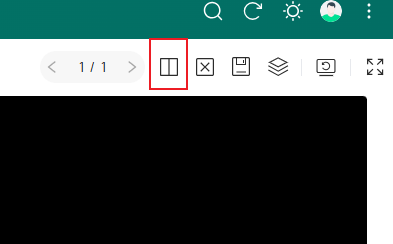
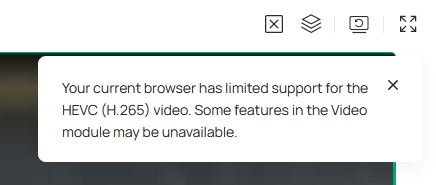
In an affected environment, the Video module displays an HEVC support warning message and the preview layout button is not displayed.
.
Symptom 2: HD playback is unavailable
In a supported environment, users can switch between multiple video quality levels, including AUTO, HD, and SD.
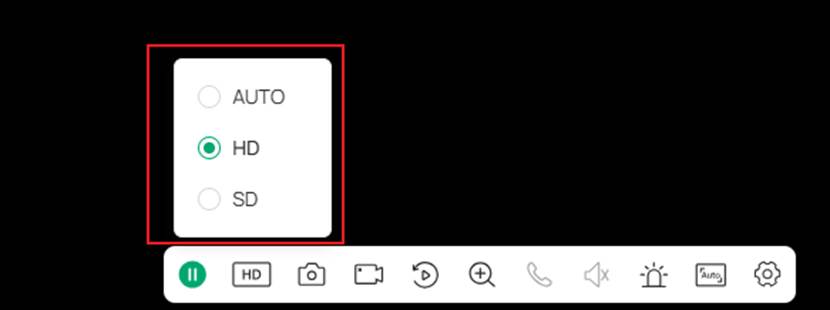
In an affected environment, video quality is locked to SD and higher quality options are unavailable.

Troubleshooting
Step 1. Verify browser compatibility
Ensure that the browser version meets the requirements listed in the Requirements section.
If the browser version is below the minimum supported version, upgrade the browser and test again.
Step 2. Verify that hardware acceleration is enabled
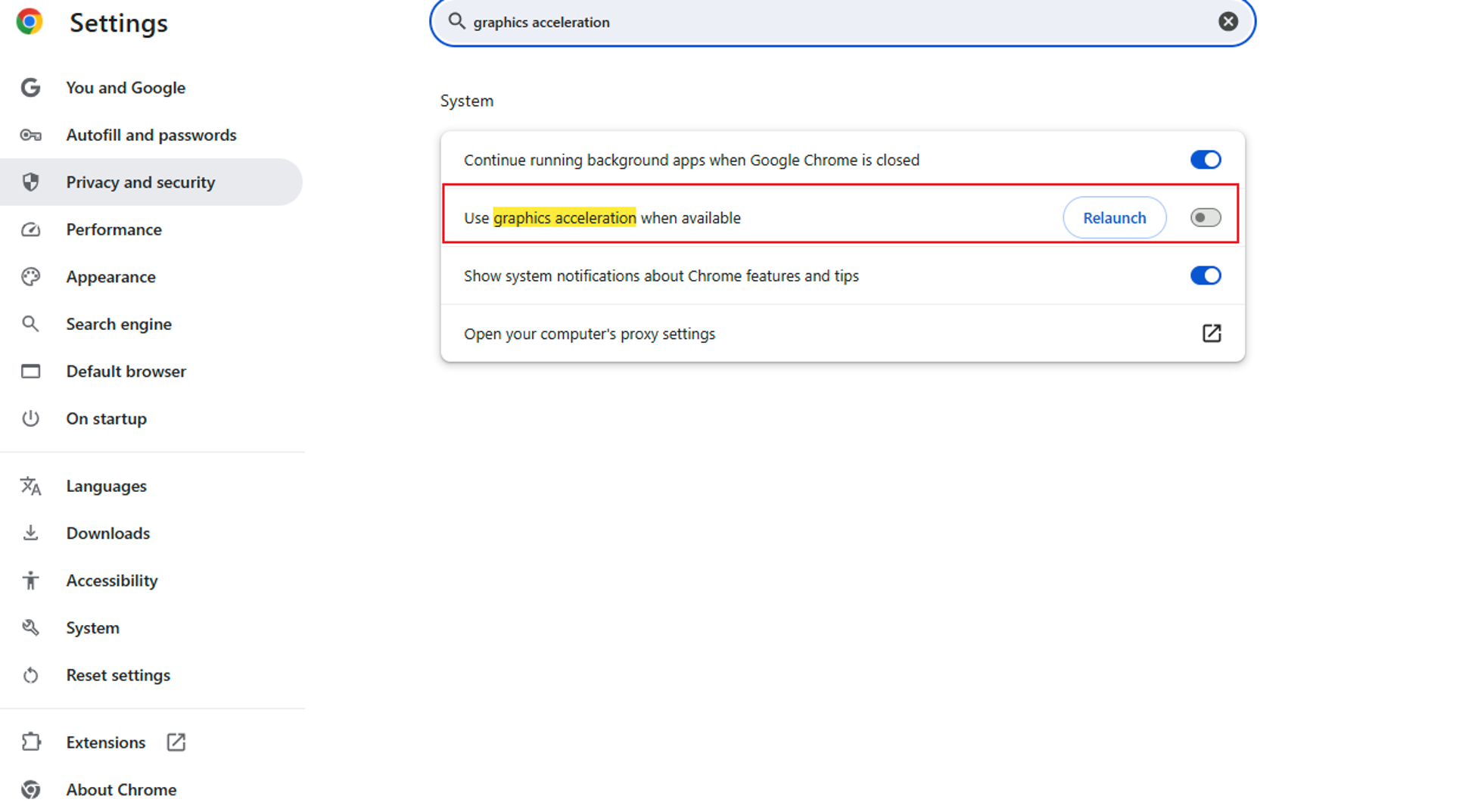
If the browser version meets the requirements, verify that hardware acceleration is enabled.
- Navigate to Settings > System.
- Search for Graphics Acceleration.
- Ensure that Use graphics acceleration when available is enabled.
Step 3. Check whether the HEVC Video Extension is installed
If hardware acceleration is already enabled, check whether the HEVC Video Extension is installed.
Open PowerShell as Administrator and run the following command:
powershell
Get-AppxPackage -AllUsers *HEVC*
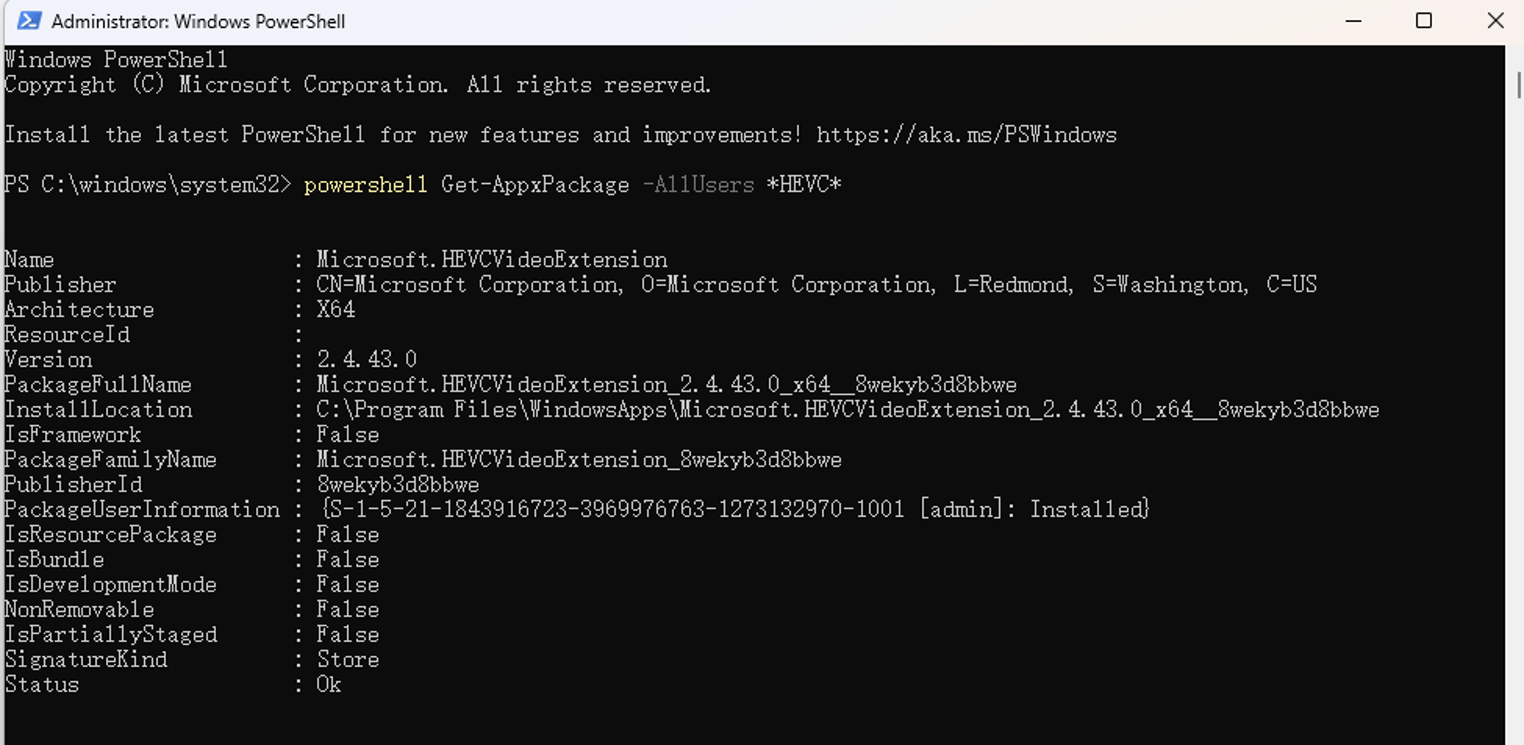
If no result is returned, the HEVC Video Extension is not installed.
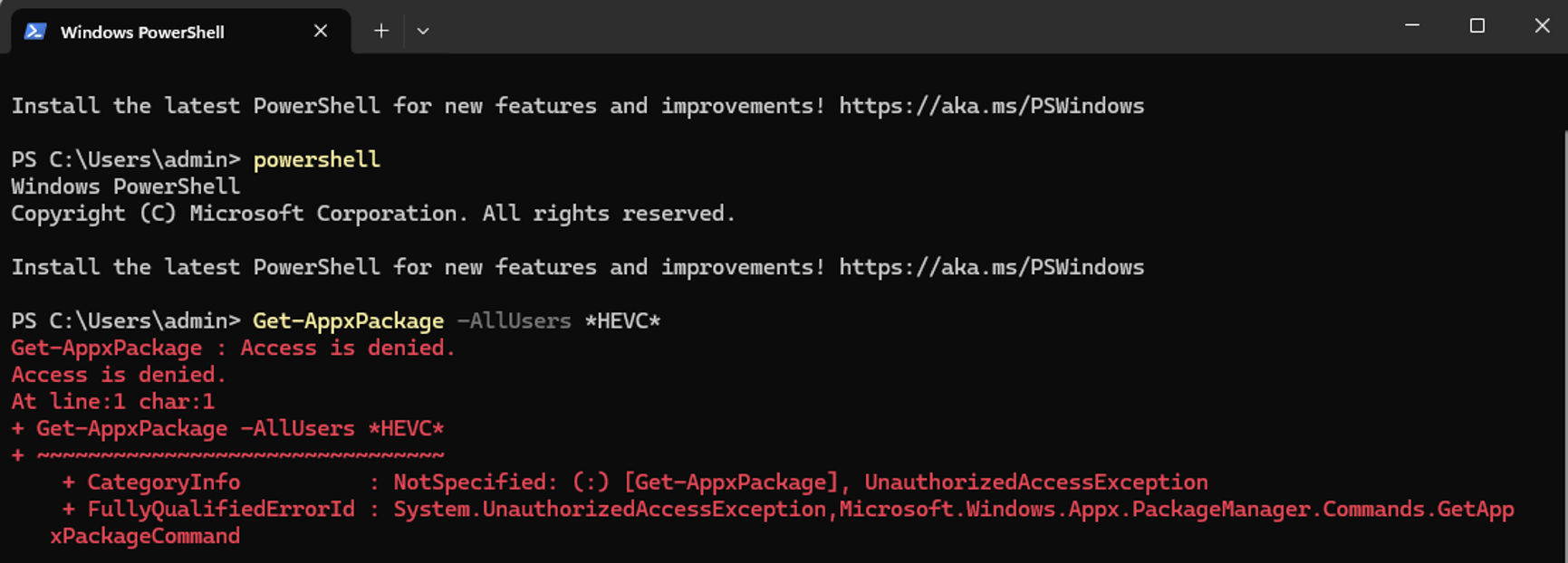
If PowerShell displays an error message such as the following, resolve the PowerShell or permission issue first and then run the command again:
Step 4. Install the HEVC Video Extension
If the HEVC Video Extension is not installed, open Microsoft Store, search for "HEVC Video Extensions", install the extension, and verify that the installation completes successfully.
Step 5. Verify HEVC hardware decoding support
If the HEVC Video Extension is installed, verify that the browser can use HEVC hardware decoding.
For Microsoft Edge:
- Open your browser and enter: edge://gpu
- Search for "HEVC"
- Verify that the following items are present and set to true:
- HEVC installed
- HEVC activable

If both values are true, the browser can use HEVC hardware decoding.
For Google Chrome:
- Open your browser and enter: chrome://gpu
- Search for "HEVC"
- Verify that HEVC decoding capabilities are listed under Video Acceleration Information, such as:
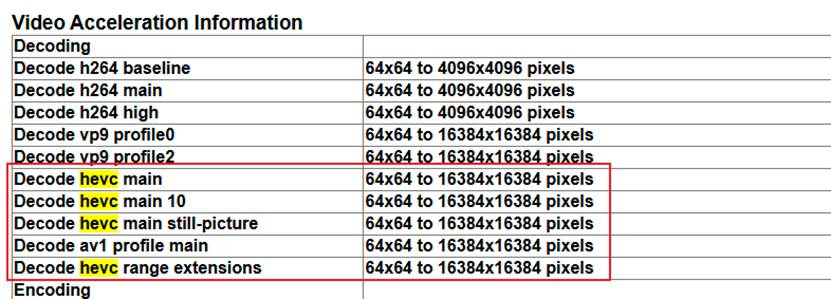
If no HEVC-related decoding capability is displayed, HEVC hardware decoding may not be available in the current browser environment.
Step 6. Check hardware compatibility
If the issue persists after completing the previous steps, the client hardware may not support the required HEVC decoding capabilities.
Possible causes include:
- An older graphics card that does not support HEVC hardware decoding
- An outdated graphics driver
- A monitor that does not support HDCP
- A low-specification HDMI cable
- Other hardware-related limitations affecting video decoding
Upgrade or replace the relevant hardware components and test again.
Conclusion
Fusion Pro relies on HEVC hardware decoding provided by the client browser, operating system, and hardware platform for video preview and playback. If multi-screen preview is unavailable or HD playback cannot be enabled, verify the browser version, hardware acceleration settings, HEVC Video Extension installation status, and HEVC decoding capability. If the issue persists after completing these checks, the client hardware may need to be upgraded or replaced.
To learn more about each function and configuration, please visit Support Home to download or check the manual for your product.
