


What Should I Do if the Omada Controller (v6 or Later) Fails to Adopt Devices?


Contents
Error 1: The Username or Password is incorrect
Error 4: Controller doesn’t get a response from the device
Error 5: Failed to adopt this device because the device is not connected
Error 6: Failed to adopt this device because its state is not pending
Error 7: Adopting... Please wait.
Error 8: Restoring...Please wait.
Error 9: Failed to adopt incompatible devices
Error 10: Device to be adopted doesn’t exist
Error 11: This site does not exist
Error 12: Failed to adopt this gateway because a gateway already exists in this site
Error 13: The primary device is applying configurations. Please adopt the member device later
Error 14: Failed to adopt this device
Introduction
The Omada Software Controller and Omada Hardware Controller provide centralized management for Omada networking products, including access points (EAPs), gateways, and switches.
When an Omada device is discovered by the controller for the first time, it will be displayed on the Devices page with a pending status. After adoption, the device can be centrally configured and managed through the controller.
Below are some common errors and corresponding solutions when the Omada Software Controller or Omada Hardware Controller fails to adopt Omada devices, including EAPs, gateways, and switches.
In addition, it is recommended that the computer running the controller software be connected to the router or modem via a wired Ethernet connection. Wireless connections may be unstable and could lead to device discovery, adoption, or management issues.
Requirements
- Omada Software/Hardware/Cloud-Based Controller v6.0 and above
Credential Issues
Error 1: The Username or Password is incorrect

The default username and password of Omada devices (EAPs, gateways, and switches) are admin/admin.
1. If the device was previously working in standalone mode, the username and password will be the login credentials used for the device’s standalone web management page.
You can click the Retry button and manually enter the username and password.
2. If the device was previously managed by an Omada Software Controller or Omada Hardware Controller, the username and password will be the Device Account configured on the controller. You can check or modify the device account on the controller at: Network Config > Site Settings > Device Account.
If the above solutions do not work, you can reset the device (the username and password will be restored to the default values) and then try to adopt it again.
Error 2: Failed to adopt the device because the username or password is incorrect. Please retry after x seconds
This error occurs when incorrect credentials are entered and a protection mechanism is triggered. Wait for the specified time before retrying with the correct username and password.
Error 3: Failed to adopt the device because the username or password is incorrect. Remaining x attempts
This indicates incorrect login credentials with limited remaining attempts. Ensure the correct credentials are used to avoid device lockout.
Connectivity Issues
Error 4: Controller doesn’t get a response from the device

This error indicates that communication between the Omada device (EAP, gateway, or switch) and the Omada Software Controller / Hardware Controller is blocked.
Please check the following items:
1. The Omada Controller communicates with Omada devices using TCP/UDP ports 29810–29814. Some antivirus software or firewalls may block these ports. For troubleshooting, temporarily disable antivirus software or firewalls on the PC where the Omada Software Controller is installed. Make sure that TCP/UDP ports 29810–29814 are allowed in any firewall or security software.
2. To ensure that the device is reachable, ping the IP address of the device from the PC where the Omada Software Controller is installed.
3. If VLANs are configured in the network, please ensure that the Omada device and the Omada Software Controller / Hardware Controller are in the same VLAN.
4.If you are adopting this device across the internet or between different subnets, please refer to the relevant FAQs for cross-subnet or remote adoption.
How to manage Omada devices at different sites across Internet using Omada Controller
Error 5: Failed to adopt this device because the device is not connected
This error means the controller cannot communicate with the device or the device is offline. Check network connectivity, device status, and possible firewall or port blocking issues.
Device Status Issues
Error 6: Failed to adopt this device because its state is not pending

The device is not ready to be adopted. Its status may not have been refreshed yet.
Please wait patiently for a short period and try again. This issue is rarely encountered.
Error 7: Adopting... Please wait.
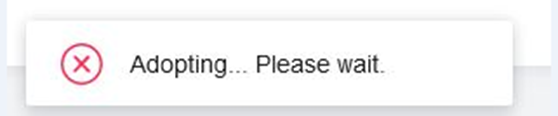
This indicates that the controller is currently in the process of adopting the device.
Please wait for a few minutes until the process is completed.
Error 8: Restoring...Please wait.
This indicates that the controller is performing a restore operation.
1. Please wait for a few minutes and then refresh the device list.
2. If the device you want to adopt is still displayed in the device list but the status shows Pending / Adopt Failed / Managed by Others, please click the Retry button and adopt it again using the username and password that were in use before the restore.
3. If adoption still fails, please reset the device and try to adopt it again.
Compatibility Issues
Error 9: Failed to adopt incompatible devices

If you see this error, please check the Compatibility List to confirm whether your Omada device (EAP, gateway, or switch) is compatible with the current controller version.
If the device is listed as compatible, please follow the Firmware Upgrade Guide to update the device firmware and try adopting it again.
Controller / UI Issues
Error 10: Device to be adopted doesn’t exist

The web page may be expired. Please refresh the management page of the Omada Software Controller / Omada Hardware Controller and try again.
There may be compatibility issues between the web browser and the controller. Please try upgrading the browser or switching to a different browser.
Error 11: This site does not exist

This error means that the site to which the device belongs does not exist on the controller.
Please refresh the page and ensure that the device is displayed in the device list, then try again. If the device disappears after refreshing the page, please refer to FAQ2980 for further troubleshooting.
Configuration Conflicts
Error 12: Failed to adopt this gateway because a gateway already exists in this site
This error indicates that a gateway already exists in the current site. Remove the existing gateway or use a different site before adopting the new one.
Stack / Special Case
Error 13: The primary device is applying configurations. Please adopt the member device later
This means the primary device in a stack is busy applying configurations. Wait until the process is complete and then try to adopt the member device again.
Generic Error
Error 14: Failed to adopt this device
This is a generic error indicating that the device adoption failed without a specific reason. Further troubleshooting is required by checking logs or related error messages.
Conclusion
This FAQ mainly introduces common error causes encountered when adopting Omada devices (including EAPs, gateways, and switches) using the Omada Controller, along with corresponding troubleshooting and solutions.
To learn more about each function and configuration, please visit Support Home to download or check the manual for your product.
