How to configure Omada EAP in Repeater mode

Tudásbázis
Konfigurációs útmutató
10-29-2024
21443

Topology before starting configuration:

Topology of how to set up wireless bridge.

Note:

Before configuring the RE mode, please ensure that your device is set to factory default and connected to the router via an Ethernet cable. Once the configuration is complete, you can disconnect the Omada EAP from the router.

Method One. Via Standalone management page

1. Get your PC to connect EAP’s SSID and login to EAP’s management page: How do I login to the web management page of the EAP Series products (Standalone mode)?

Show login page under standalone mode.

2. Set up a new account then choose to enter RE mode.

Go through quick setup process.

The first step of quick setup is setting up a new account.

Select operation mode as Repeater Mode.

3. Choose your preferred band, click Scan button to find available SSID to join and repeat signal.

Click scan to find available SSID.

Display available SSID list.

4. Join the target SSID then customize repeater SSID of EAP610-Outdoor.

Join the target SSID by entering its password.

Successful connected to the target SSID.

Configure wireless settings of your outdoor EAP.

Check the summary settings from the previous steps.

5. Finish setup and enjoy Wi-Fi with the extended coverage.

Finish quick setup process by clicking Done button.

Display the completion interface.

Method Two. Via Omada APP

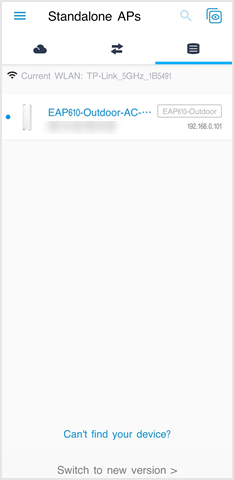
1. Get your wireless device connected to default SSID of EAP610-Outdoor, open Omada APP, go to Standalone APs page and click the EAP610-Outdoor.

Connect to default SSID of EAP610-outdoor.Show EAP appearing in the APP.

2. Set up a new account then choose to enter RE mode.

Go through Quick Setup process on phone. Set up a new account first.Select operation mode as Repeater Mode.

3. Choose your preferred band, click SSID item in the below to start scanning to find and join available SSID for repeating.

Choose a preferred band to extend.Choose a network and enter the password.Show connection success page.

4. Customize repeater SSID of EAP610-Outdoor.

Customize repeater SSID of EAP610-outdoor.Displays the summary information of the previous steps of configuration

5. Finish setup and enjoy Wi-Fi with the extended coverage.

After clicking confirm, the settings will be applied to your EAP unit.Display Omada APP pages when you wait for applying settings.

Kérjük, értékelje ezt a dokumentumot

Kapcsolódó dokumentumok

How to configure Management VLAN in Standalone mode for EAP

Konfigurációs útmutató
Vlan
Standalone
02-21-2023
15920

How to configure MAC filtering for EAP in Controller mode

Konfigurációs útmutató
Vezérlő
02-21-2023
16881

How to configure Link Aggregation for EAP

Konfigurációs útmutató
10-02-2025
5661

How to configure an EAP Mesh Network in Standalone Mode via Omada App

Konfigurációs útmutató
Mesh
App
Standalone
04-05-2024
20189

How to configure QoS on Omada Switches in Standalone Mode

Konfigurációs útmutató
09-15-2025
9309