


How to Prevent Network Loops with STP and Loopback Detection on Omada Devices


Contents
Configuration in controller mode
Configuration in standalone mode
Introduction
Network loops occur when there are multiple paths between two devices in a network, resulting in an infinite loop of data transmission, which in turn leads to broadcast storms, MAC table instability, and a significant degradation in overall network performance, even a complete crash.
There are several techniques to prevent and resolve Ethernet network loops, such as Spanning Tree protocol (STP), Loopback Detection (LBD), ERPS, etc. Omada SDN Solution incorporates two key mechanisms: STP and Loopback Detection. Loopback detection is a feature that identifies loops in the network. When a loop is detected, the system can automatically block certain ports to break the loop and maintain network stability. STP is a network protocol designed to prevent network loops in Ethernet networks. It creates a spanning tree within a network of connected layer-2 bridges (typically Ethernet switches) and disables all other links that are not part of the spanning tree, thereby preventing loops.
We recommend enabling STP only between the linking ports of switches and LBD only on all edge ports.
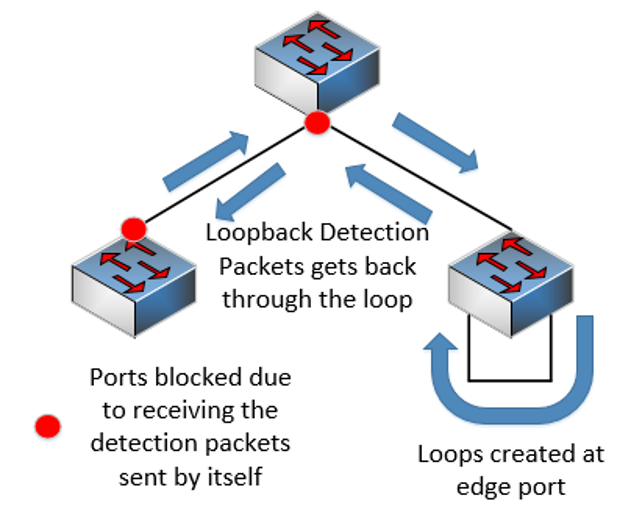
Using only Loopback Detection may cause the upper switch to incorrectly block the port, which has an expanded impact on the network. What LBD does is that each port with LBD enabled will periodically broadcast the loop detection packets and check if the packet sent will be received again on this port later; if so, this port will be blocked due to a loop being detected.
As shown in the topology below, usually if there’s no redundant link set between the switches, the loop will most likely be mistakenly formed between the edge ports by end users, they may be connecting two ports together with a wire, or some wireless devices may form a loop due to wireless backhaul or something else. In this case, the best action is to block this edge port only and the loop will be gone, however, if you enable LBD on all ports, the uplink port, even the ports of core switches will also send the detection packets, and these packets also have a chance to go all the way around the whole network and go back to this port through the loop on the edge. Then this port will be blocked; if this is the uplink port of a core switch, it could cause the entire network to go down, which is unacceptable.
Additionally, LBD has another limitation: its detection mechanism relies on sending probe packets for each VLAN. When a large number of VLANs are configured, the switch must generate and process more detection traffic, which increases system load and puts additional pressure on the device.
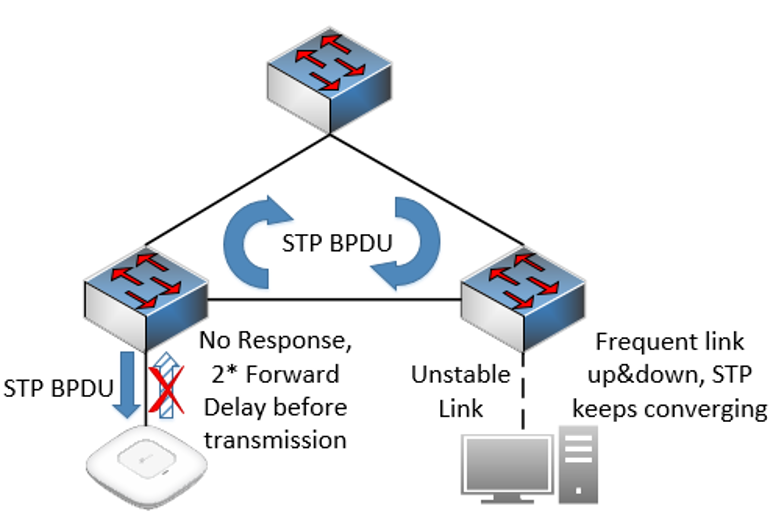
Using STP only may lead to two problems, as explained below by text and figure.
Problem 1: Most end devices like APs, PCs, and IoT devices will not respond to the STP BPDU. In this case, the STP will have to wait for 2*Forward Delay, which is 30s by default, before starting the transmission on this port according to the IEEE protocol, which will be a long wait.
Problem 2: Usually, the devices connected to edge ports will be plugged and unplugged frequently, and also if the ethernet cable isn’t of good quality, this port will be linked up and down frequently. Every time a port is linked up or down, the whole STP system will need to calculate and reconverge, causing a waste of system resources.
Due to these limitations of STP, Omada switches now use RSTP by default. RSTP supports automatic edge port detection, allowing ports to transition to the forwarding state quickly (typically within ~3 seconds). In addition, edge port flapping does not impact the overall STP topology, improving network stability. Therefore, in modern Omada deployments, RSTP is recommended.
Finally, enabling LBD on access ports is important for the following reasons:
End devices typically do not support STP BPDU processing, so enabling STP on these ports provides limited value and is mainly useful for detecting self-loops. LBD can effectively replace STP for loop detection in such scenarios.
There is also a risk of BPDU spoofing attacks from end devices. Although BPDU Security can mitigate this risk, LBD provides an additional layer of protection at the edge.
So, by combining these two features, network loops can be effectively avoided and resolved at all levels of the network topology, and the impact of topology changes on the network can be minimized, typical topology as below:
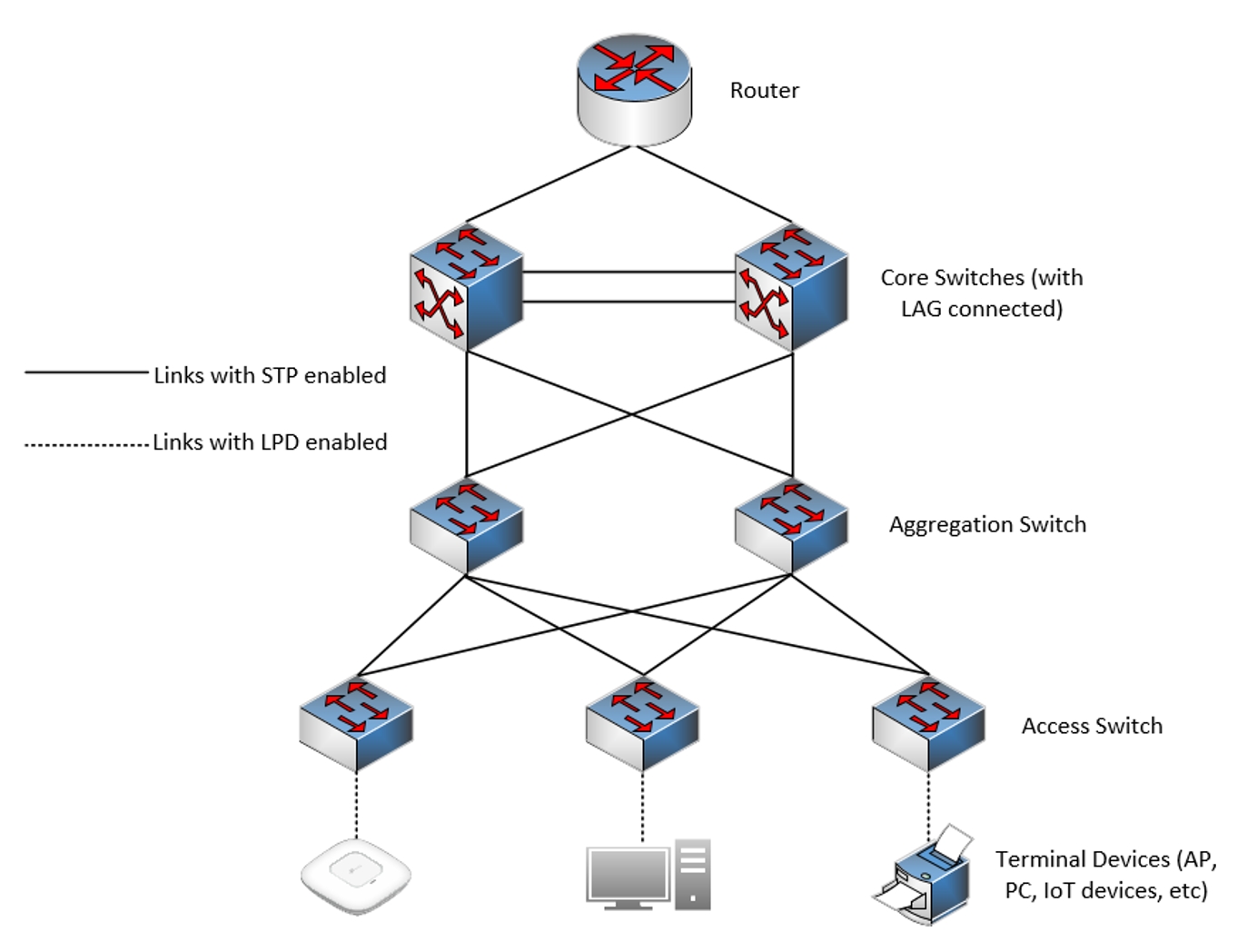
Omada SDN Solution recommends configuring the STP feature on the trunk switch ports between switches, and the Loopback Detection feature on the access switch ports connected wired clients like wireless APs and IoT devices. Take the network topology above as an example, the switch ports used to connect to other switches to make the redundancy network topology are trunk ports, the switch ports used to connect to Omada EAPs, IP cameras, and other clients are access ports.
Requirements
- Omada Access, Access Plus, Access Pro, Access Max, Aggregation, Campus Switch
- Omada Controller (Software Controller / Hardware Controller / Cloud Based Controller, v6.0 and above)
Configuration
Configuration in controller mode
Step 1. About how to configure STP on trunk ports, please refer to How to Configure Spanning Tree on Omada Controller, a similar network topology is introduced to realize redundancy and loop-free by STP.
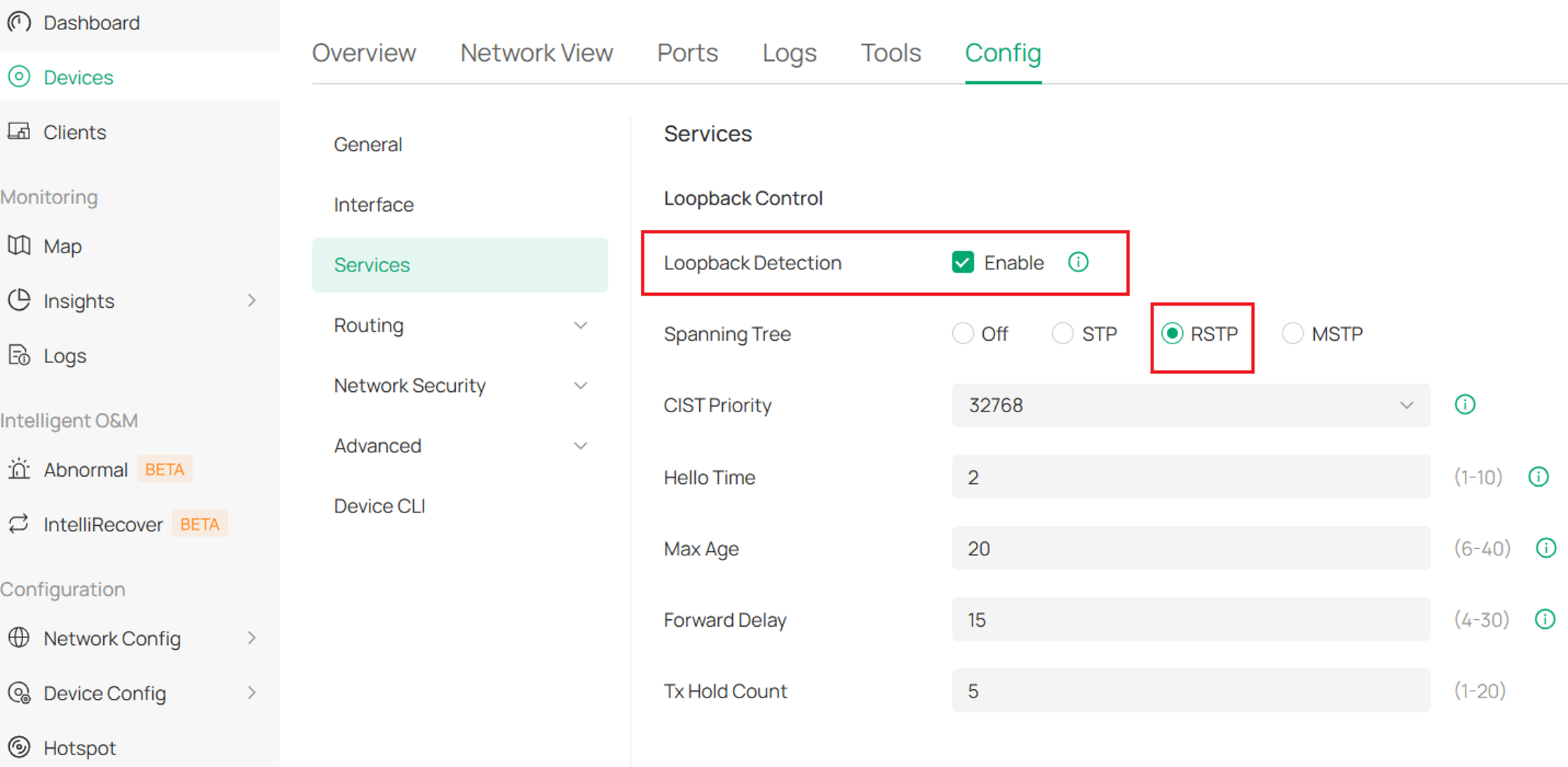
You can go to Manage Device > Config > Services to view the global Loopback Control settings. By default, Loopback Detection is enabled, and Spanning Tree is set to RSTP mode.
Step 2. To configure Loopback Detection on access ports, go to Device Config > Switch Ports > Port Profile, add or edit the profile to be applied to access ports, and select Loopback Detection mode for Loopback Control.
After enabling loopback detection on the port profile, the feature is automatically enabled on the access ports with the profile bound.
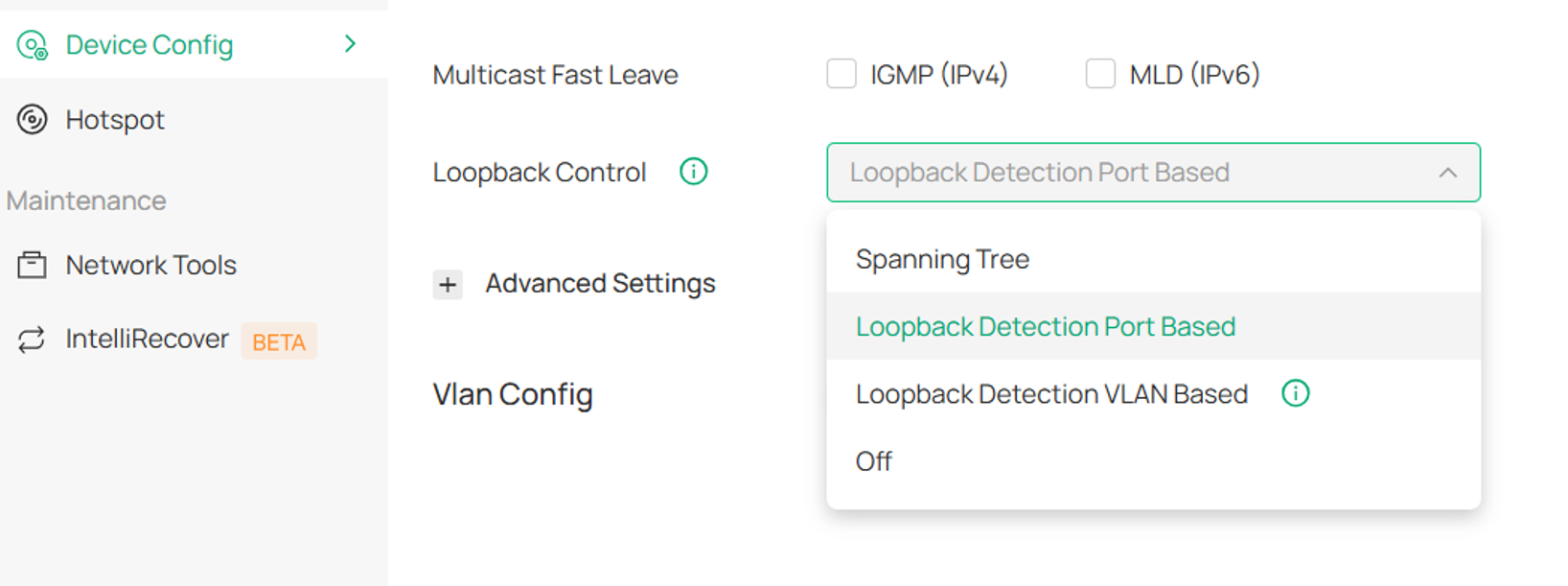
Loopback Detection Port Based: when a loop is detected on a port, the port will be blocked, which is commonly used;
Loopback Detection VLAN Based: when a loop is detected on a VLAN, the VLAN will be blocked;
Spanning Tree: STP will be enabled on the port, choose this mode for trunk ports.
You can also enable the feature by port profile overrides. Go to Devices, click a switch then Ports, edit a switch port, or batch edit some switch ports, check “Profile Overrides”, select “Loopback Detection Port Based”, and then click Apply to make the feature take effect on the ports.
Configuration in standalone mode
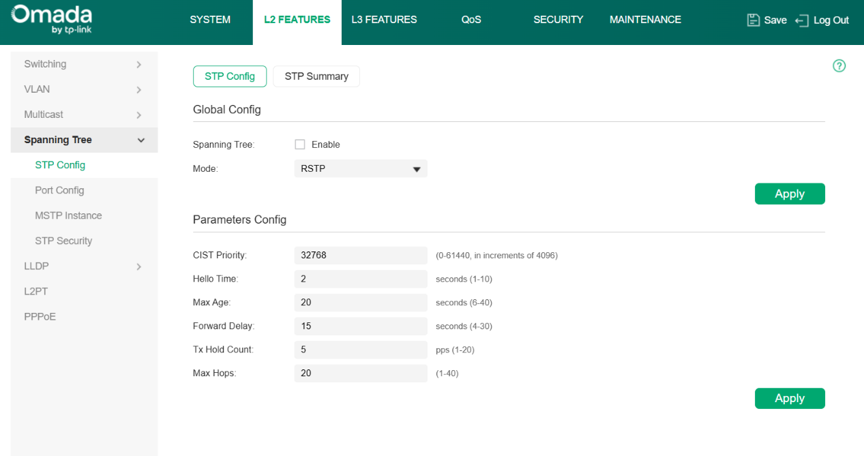
In the management web page, go to L2 FEATURES > Spanning Tree > STP Config.
Step 1. Tick the Spanning Tree option to enable it globally, for the mode, usually we use RSTP, for the CIST priority, and other parameters, just keep the default, you can also set the priority higher (Please note that the smaller number means higher priority, for example, 4096 is higher than 32768) on the core switches to make sure their ports won’t be blocked. After the configuration, don’t forget to click Apply.
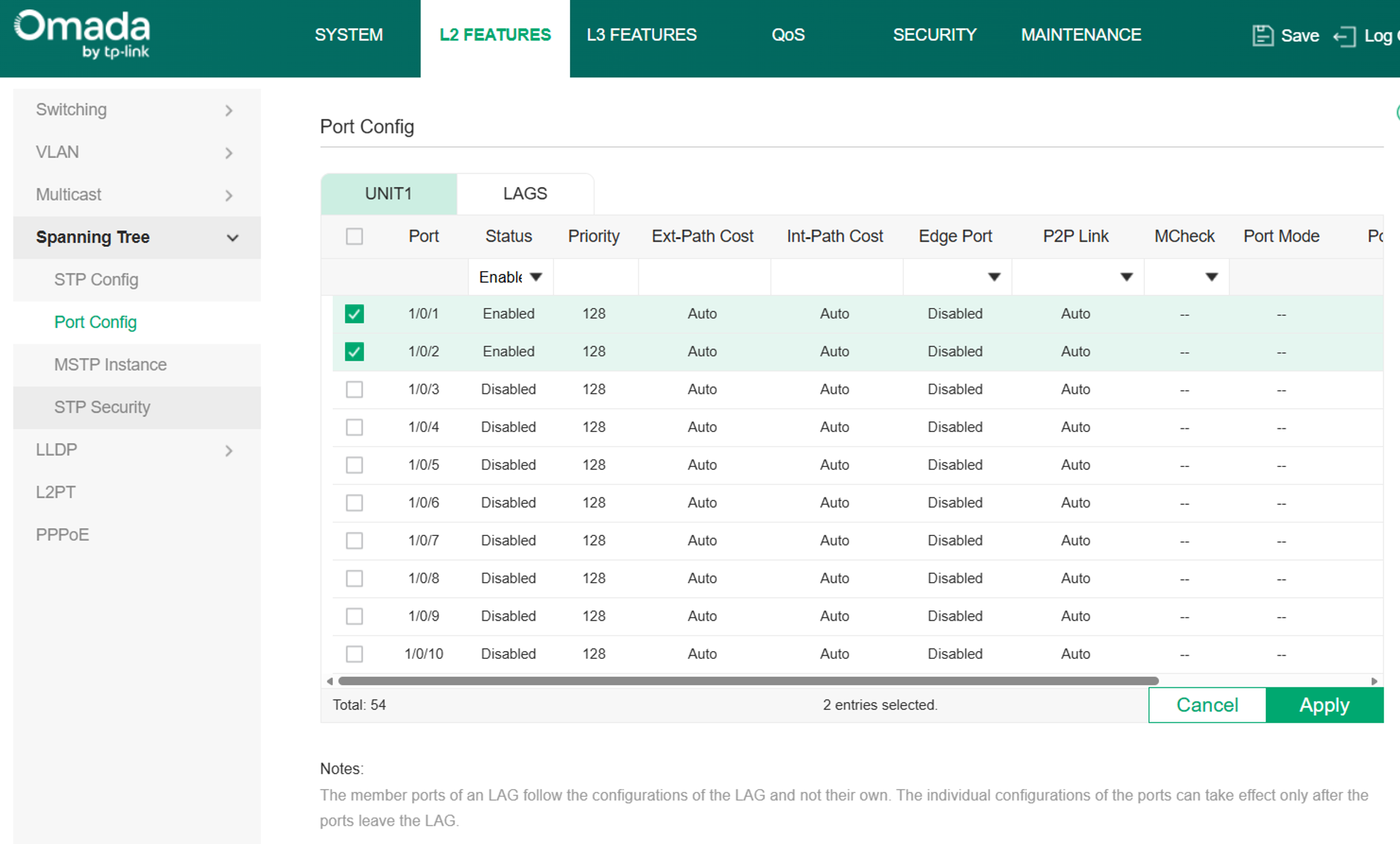
Step 2. Go to Port Config, and enable it on the uplink ports of this switch. Click Apply after configuration.
Step 3. Go to L2 FEATURES > Switching > Port > Loopback Detection, first, tick the Loopback Detection Status to enable it globally, and enable it on all edge ports that you need to enable LBD.
Configure the Operation Mode as needed (by default, it is Alert, which only generates a warning when a loop is detected and does not remove the loop; you can change it to Port Based to block the port or VLAN Based to block the corresponding VLAN).
Keep other parameters as default and don’t forget to click Apply to save these configurations.
![Shows where LBP[a14] is enabled in standalone mode.](https://static.tp-link.com/upload/faq/image_20260629235329v.png)
Here, we have introduced the recommended plan for preventing loops in wired networks and the configuration method. For more detailed introduction and CLI commands, please check the User Guide and CLI Guide.
Conclusion
To prevent network loops, Omada SDN recommends enabling STP on inter-switch trunk ports and Loopback Detection (LBD) on access ports, combining both to improve stability and minimize performance impact. LBD should use “Port-Based” mode and be applied only to edge ports to avoid mistakenly blocking core or uplink connections.
To learn more about each function and configuration, please visit Support Home to download or check the manual for your product.
