


How to Troubleshoot No Internet Issue on Omada Switch


Contents
Objective
This article will list a few simple steps on how to do a check on the switch when the switch has no Internet access, and try to solve the problem.
Requirements
- Omada switches
Introduction
There are many factors causing the switch cannot access the Internet. Here we will list some common factors in this article.
Troubleshooting Steps
Step 1. Check LED lights on switch.
Power light and port lights should be on. If LED lights are abnormal, please refer to the article below to do some basic troubleshooting:
What can I do if the Ethernet LED indicators on the Unmanaged Switch are off?
Step 2. Replace the switch with a PC using the same cable and check the PC's IP address.
For how to check the PC’s IP address, please refer to:
How to find IP address on your devices
There are three possibilities after checking the PC’s IP address:
- PC has no Internet access. Please go check the settings of your router and contact ISP.
- PC has Internet with a public IP. Please double-check your network topology; the switch needs to be connected behind the router to work.
Note: If the switch is connecting to the modem directly, the phenomenon is likely to be that only one device can access the Internet, but others cannot.
- PC has Internet with a private IP. Please proceed to Step 3.
Step 3. Recover the topology to Router---switch---PC and check the PC’s IP again.
- Case 1: PC has an invalid IP. Please follow the Ping tests listed below.
- Case 2: PC has a valid IP but cannot access the Internet. Please ping 8.8.8.8 and check the result. If the Ping result is "Request timed out" or’ Destination Unreachable’, etc., please check the Internet source of your router; otherwise, proceed to step 4.
For case 1, do the following tests:
Test 1:
Connect two PCs to the switch by cable as following picture (also disconnect the PCs and the switch from anything else)----set up static IP Address for both PCs in the same local network, for example, one as 192.168.10.10 and another one as 192.168.10.20. For the instruction, please refer to: How to Configure Static IP on the Computer.
Disable the anti-virus software and firewall temporarily in both PCs in case the software interrupts our next troubleshooting step, and then start to Ping PC2 from PC1. You can enable the firewall and anti-virus after finishing the test.
For how to use Ping command, please refer to: How to Use the Ping Command

Ping result analysis:
- If the Ping result is "Request timed out" or’ Destination Unreachable’ etc, please skip Test 2 and go to Step 4.

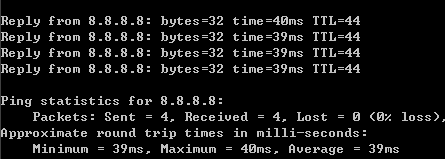
- A successful Ping will result in a response of "Reply from" followed by the IP address, then please go to Test2. (You shall Ping PC2’s IP address in Ping Test1, not 8.8.8.8; the picture below is just an example for a ‘successful Ping result ‘)
Test 2:
Connect PC1 to the switch by cable and set up a static IP address in the same local network(in this example, the local network is 192.168.10.X) with the router and PC2. Then, disable the anti-virus software and firewall in both PCs, and try to Ping PC2 from PC1.

Ping result analysis:
- If the Ping result is "Request timed out" or’ Destination Unreachable’, etc., please proceed to step 4.
- A successful Ping will result in a response of "Reply from" followed by the IP address, which means the switch is working properly. Then, please contact your router’s support, because there might be some special settings in the router that stop the communication between the switch and the PCs.
Step 4. Check if there are some advanced settings on the switch.
Some switch settings will affect Internet access, such as ACL and VLAN. If you are unsure whether you have correctly configured the ACL and VLAN, please collect the relevant information and contact Omada support.
Conclusion
Till here, we have introduced a few steps of troubleshooting when the switch cannot access the Internet, if the problem still exists after these steps, please contact Omada support team for further help.
To learn more about each function and configuration, please visit Support Home to download or check the manual for your product.
