


How to Add Third-Party Cameras to Omada NVR via ONVIF


Contents
Configuration using Devices Added list
Configuration using Add Manually
Introduction
ONVIF (Open Network Video Interface Forum) is an industry-standard protocol that enables interoperability between IP-based security devices such as cameras, recorders, and video management systems. By adhering to ONVIF specifications, devices from different manufacturers can communicate, stream video, and share control functions without requiring proprietary integration.
This compatibility makes it possible to use cameras and network video recorders (NVRs) from different brands within the same system, provided they support the same ONVIF profiles.
The following FAQ outlines the steps required to add a third-party ONVIF-compatible camera to a TP-Link Omada NVR, along with key considerations to ensure proper configuration and reliable operation.
Requirements
- An Omada NVR
- An ONVIF-compatible IP camera
Configuration
Before a camera can be added via ONVIF, some models require initial setup. This typically includes completing the camera’s first-time configuration process and enabling ONVIF within its settings. Only after these steps are completed can the camera be successfully added to an Omada NVR using ONVIF.
Make sure the third-party camera is connected to the same network as the Omada NVR. Log into the NVR Web Interface by entering its IP address in a web browser.
Configuration using Devices Added list
Third-party cameras discovered by the Omada NVR may automatically appear in the Devices Added list. Follow the steps below when the camera is already displayed.
Step 1. After logging into the Omada NVR WebUI, go to Camera, find the device, and select Edit.
Note: When Plug and Play is enabled, the IP camera is automatically added to the Devices Added list. Plug and Play is enabled by default. If the IP camera does not appear in this list, check the Devices Found tab. Add the IP camera, then check the Devices Added list again.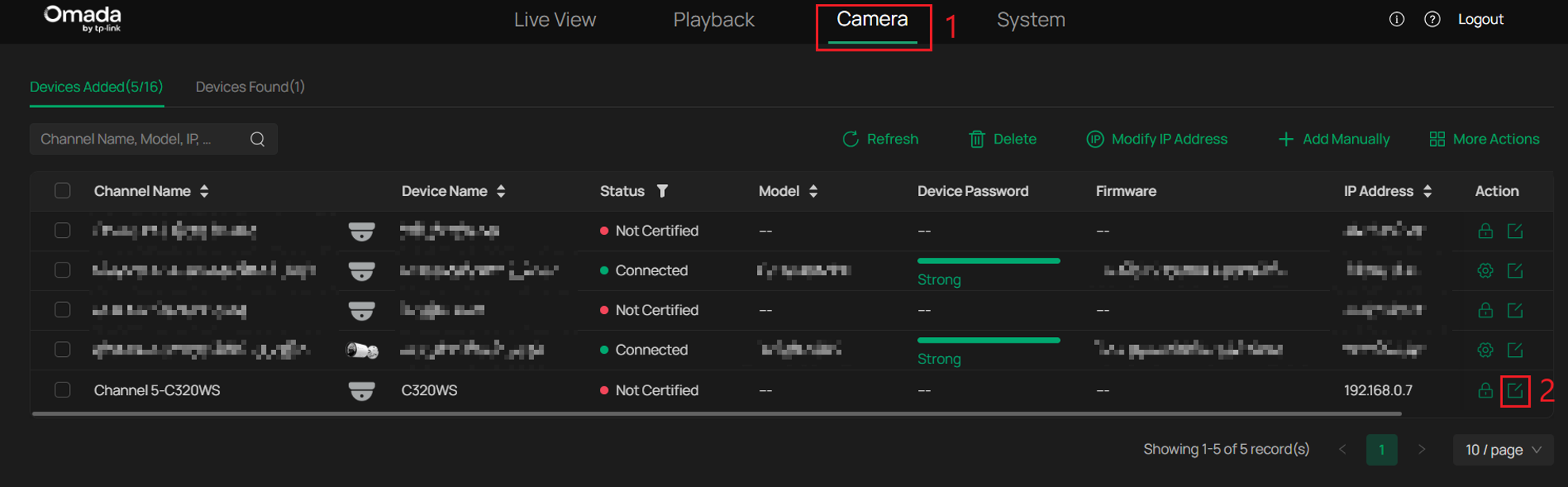
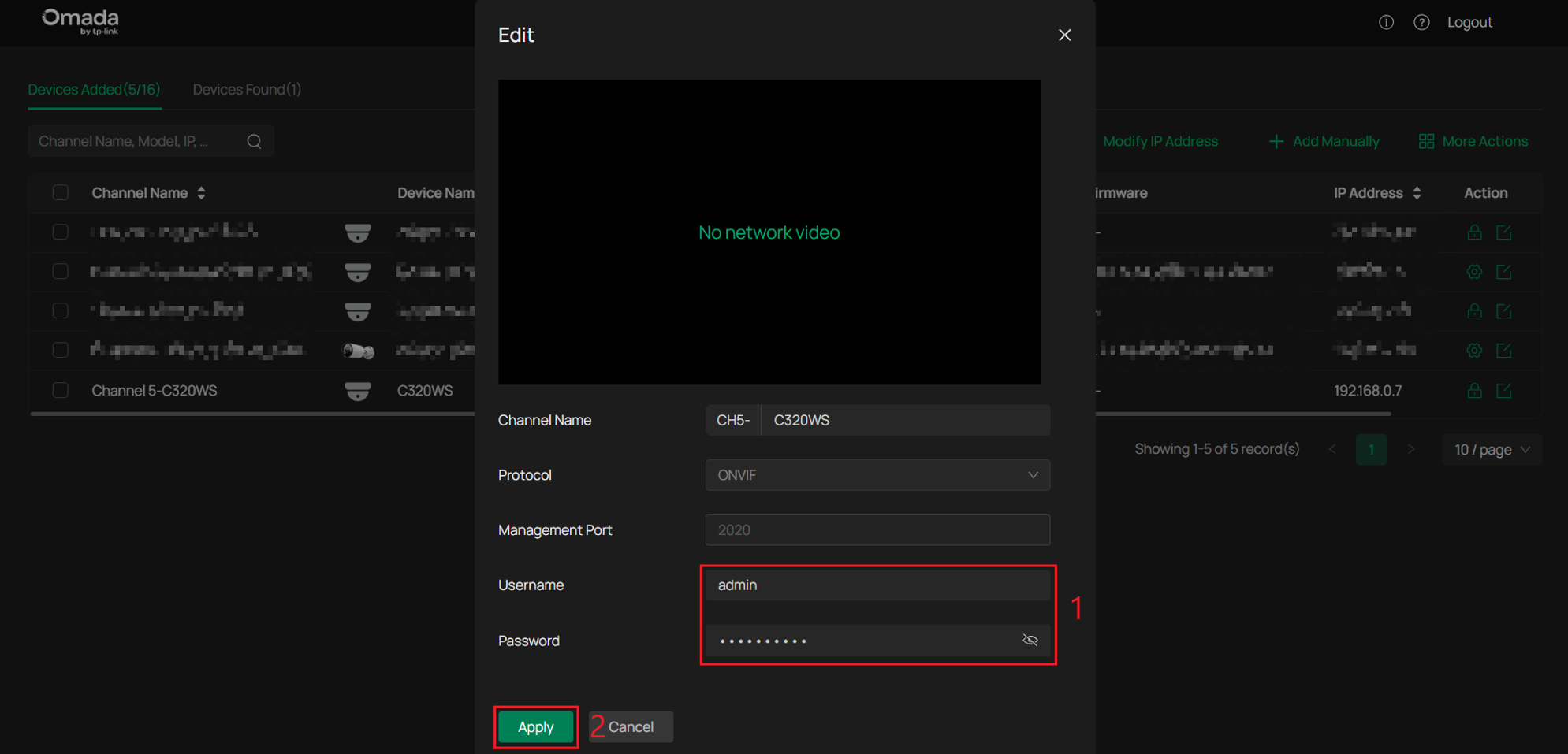
Step 2. Enter the Username and Password of the IP camera. This will authenticate the IP camera. Click Apply.
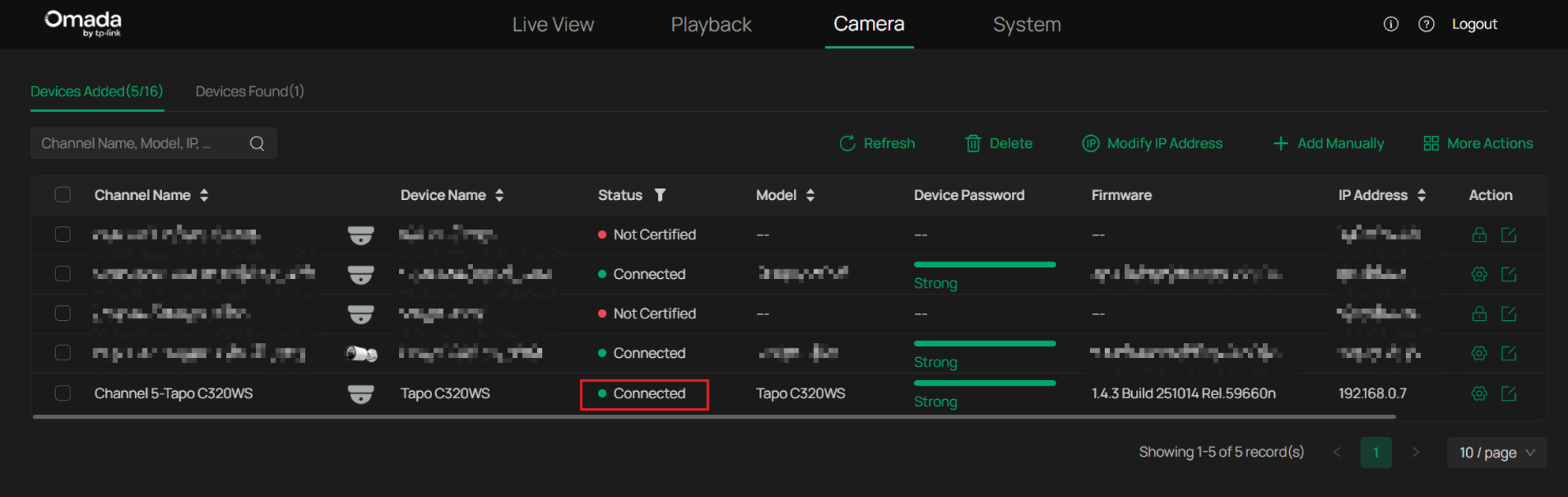
The IP camera will now show a Connected status.
Configuration using Add Manually
If the IP camera does not appear on the Devices Added list, the Add Manually option can be used to add the IP camera.
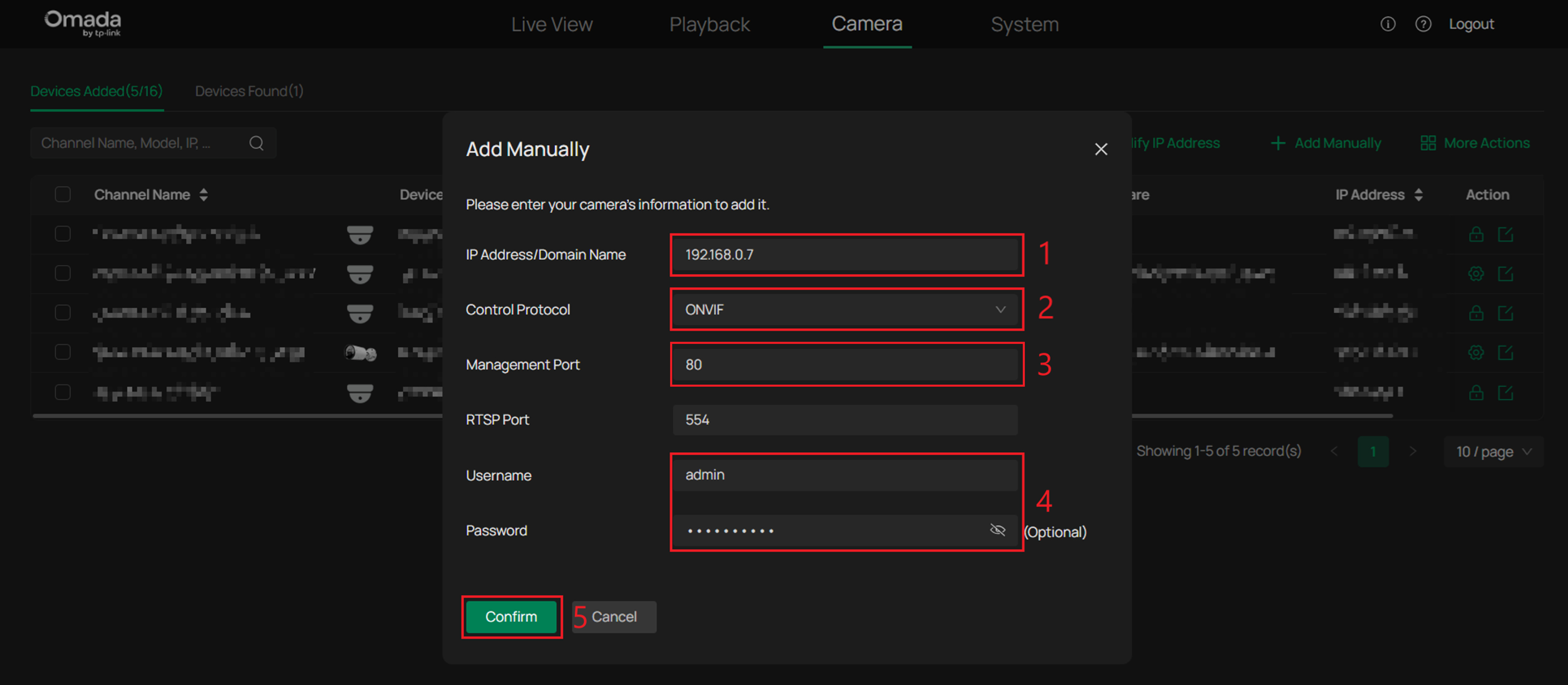
Step 1. Go to Camera > Add Manually.
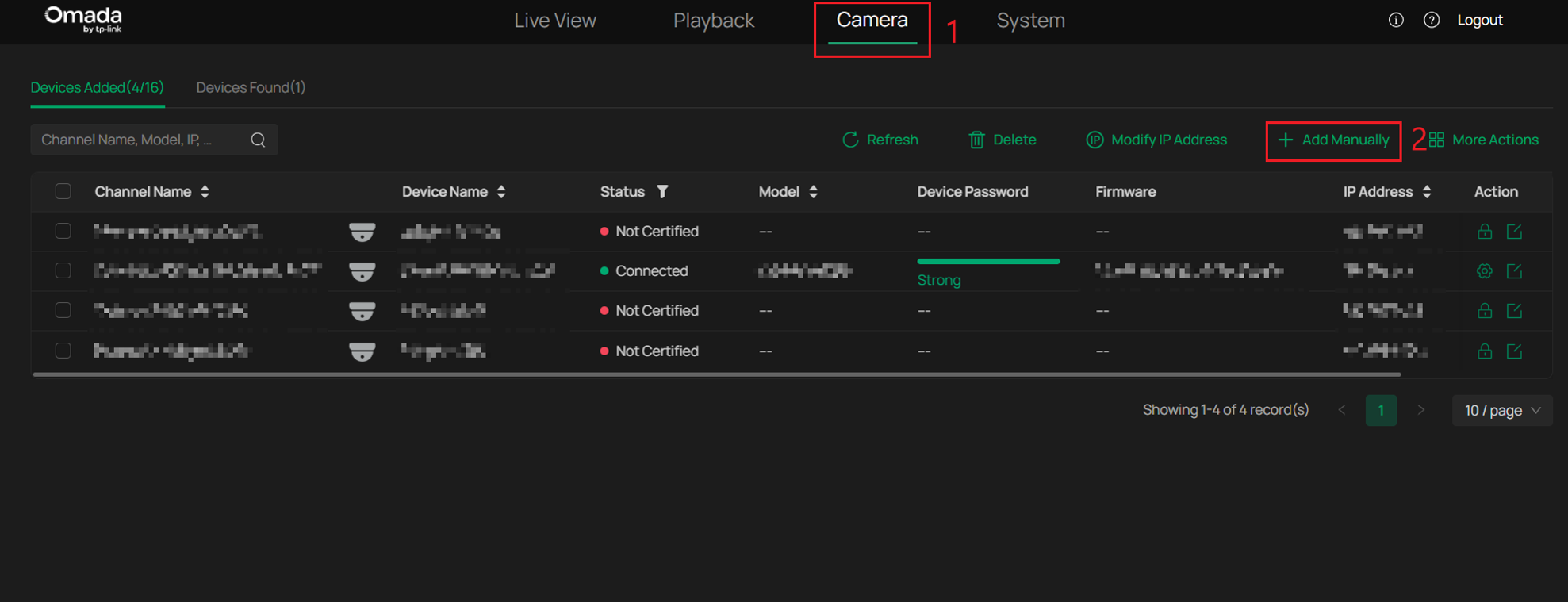
Step 2. In the Add Manually window, enter the IP camera's current IP Address, set Control Protocol to ONVIF, enter the Management Port, and enter the camera's Username and Password. Select Confirm.
Note: Some third-party IP cameras may use a Management Port other than 80. Check the camera's management page or documentation to confirm the correct port.
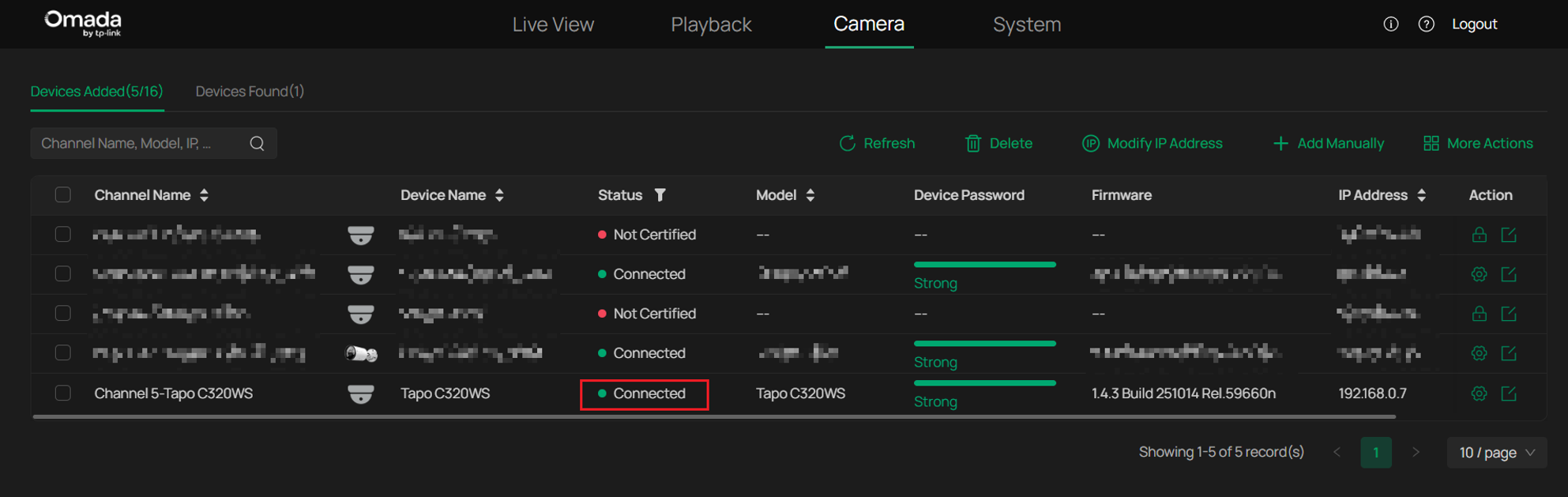
The camera will now show a Connected status.
Verification
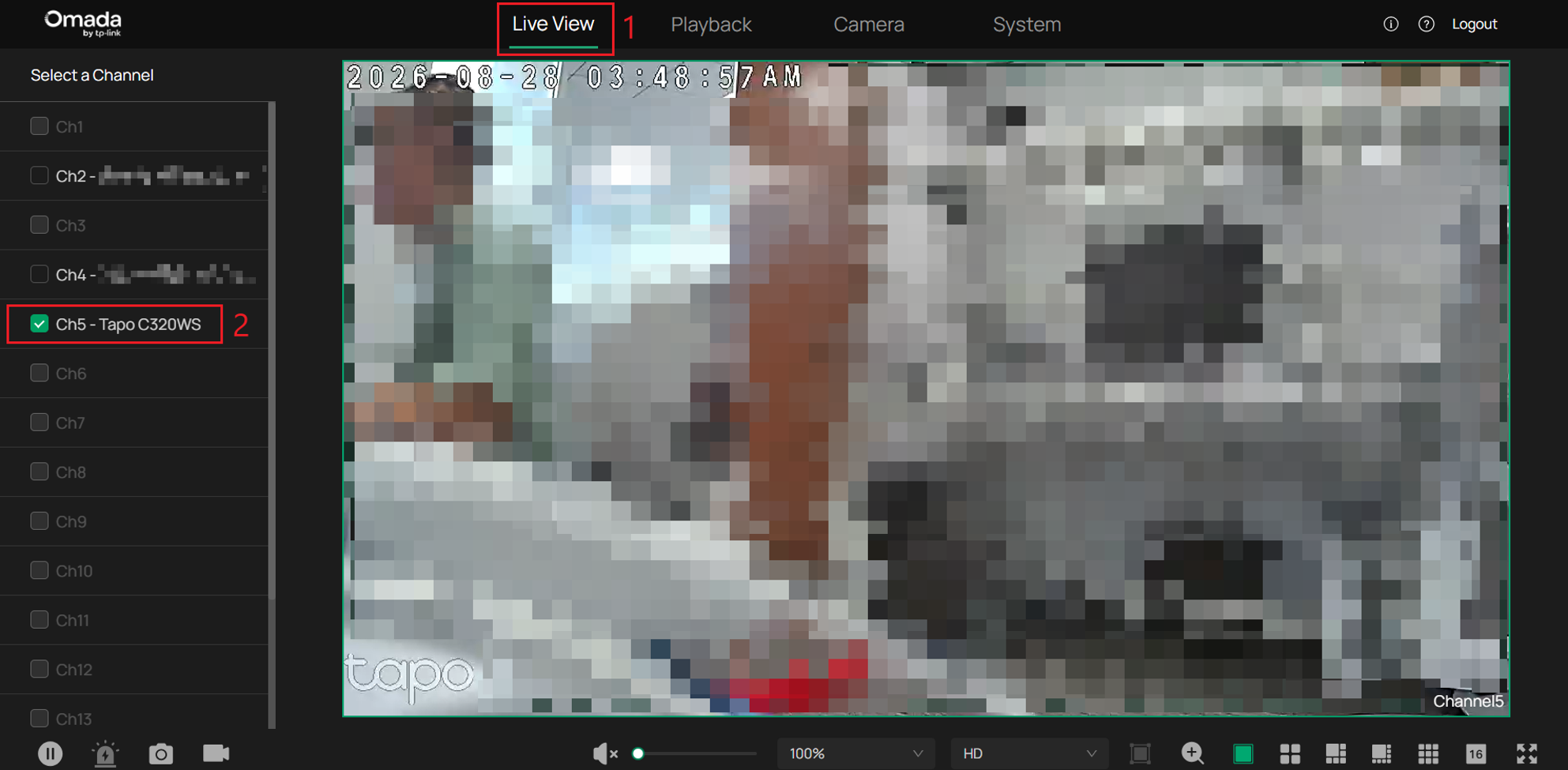
Go to Live View, then select the channel to view the camera footage.
Conclusion
You have now successfully added a third-party ONVIF-compatible camera to the Omada NVR. Once connected, verify that the camera shows a Connected status and that its video stream is available through Live View.
To learn more about each function and configuration, please visit Support Home to download or check the manual for your product.
QA
Q1: Why does my third-party camera not appear in the Devices Added list?
A1: Ensure the camera is powered on, connected to the same network as the Omada NVR, initialized, and has ONVIF enabled. If it is still not discovered, use Add Manually.
Q2: Why does the camera not connect after I enter the username and password?
A2: Verify that you are using the camera's correct username and password. These are the camera credentials, not the Omada NVR login credentials.
Q3: What information is required when adding a camera manually?
A3: Enter the camera's current IP address, select ONVIF as the Control Protocol, and enter the camera's username and password.
Q4: Why can the Omada NVR not discover a third-party camera connected directly to an NVR PoE port?
A4: When Network Isolation is enabled, cameras connected to the NVR PoE ports may be isolated from the LAN. A third-party camera using DHCP may not obtain an IP address on the NVR's internal network, preventing discovery. A camera using a static IP address on a different subnet may also not be detected or added.
Q5: Can Network Isolation prevent a third-party ONVIF camera from being added?
A5: Yes. Network Isolation is designed to separate cameras connected to the NVR PoE ports from the LAN. Third-party ONVIF cameras may not be discoverable when connected through an isolated PoE network.
Q6: Why is a camera with a static IP address not detected by the Omada NVR?
A6: Verify that the camera's IP address is in a network that the Omada NVR can reach. A camera using an IP address from a different subnet may not be discovered or added.
Q7: Why is the camera connected but no video appears in Live View?
A7: Confirm that the correct channel is selected and that the camera provides an ONVIF-compatible video stream. Third-party camera functionality can vary depending on its ONVIF implementation.
Q8: Why are some camera features unavailable after adding it through ONVIF?
A8: ONVIF provides standardized interoperability, but supported features vary between manufacturers. Some advanced detection, AI, or proprietary functions may not be available on third-party cameras.
Q9: Does the third-party camera need to be configured before it is added?
A9: Yes, some cameras require initial activation, password creation, and ONVIF enablement before another device can connect to them through ONVIF.
