


How to Capture Packets Using Wireshark on Omada Gateway and Switches in Standalone Mode


Contents
Objective
This article describes how to capture packets using wireshark on Omada gateway and managed switch under standalone management.
Requirements
- Omada gateway/managed switch
- One PC installed Wireshark software
Introduction
Packets capture and analysis are very important for us to troubleshoot when some problems occur such as the gateway can’t obtain IP from ISP, the client can’t receive multicast packets, etc. This document will introduce how to capture packets using Wireshark on Omada gateway and switch under standalone management.
Configuration
Step 1. Download and install Wireshark (Available at https://www.wireshark.org, a free and powerful sniffing and analyzing software) on your PC.
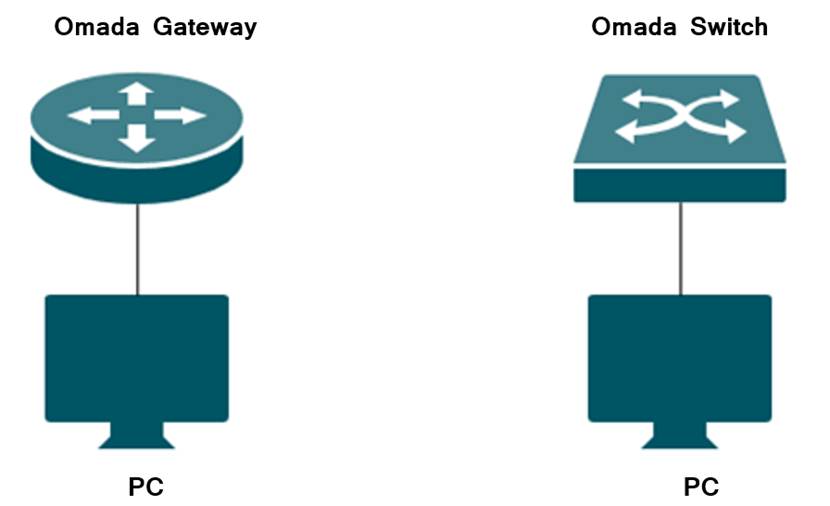
Step 2. Connect PC to the Omada gateway or switch directly.
Step 3. Set Port Mirror for PC and the port you want to capture packets.
- For Omada Gateway.
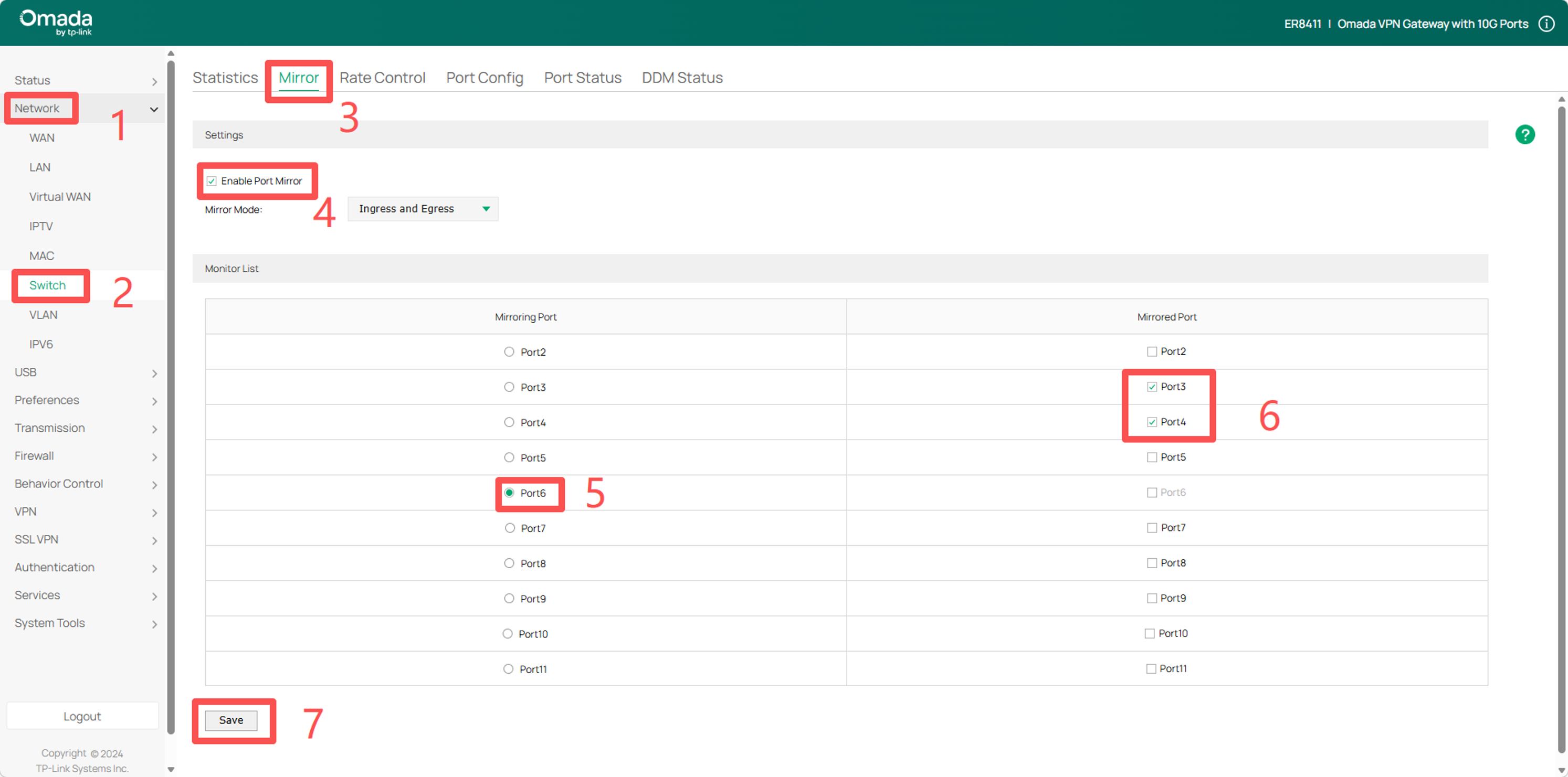
Input the IP address to the address bar in the web browser and you will visit the GUI of the Omada gateway. After logging into the page, go to Network > Switch > Mirror, enable Port Mirror, select the port connecting to your PC in the Mirroring Port and the port you want to capture packets in the Mirrored Port, click Save.
- For Omada Switch
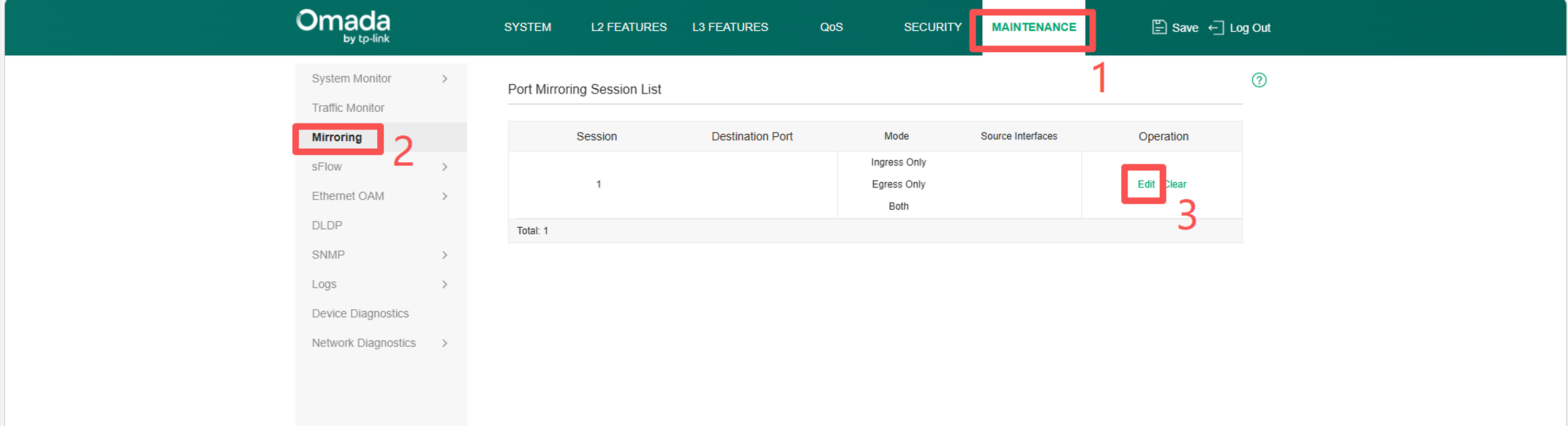
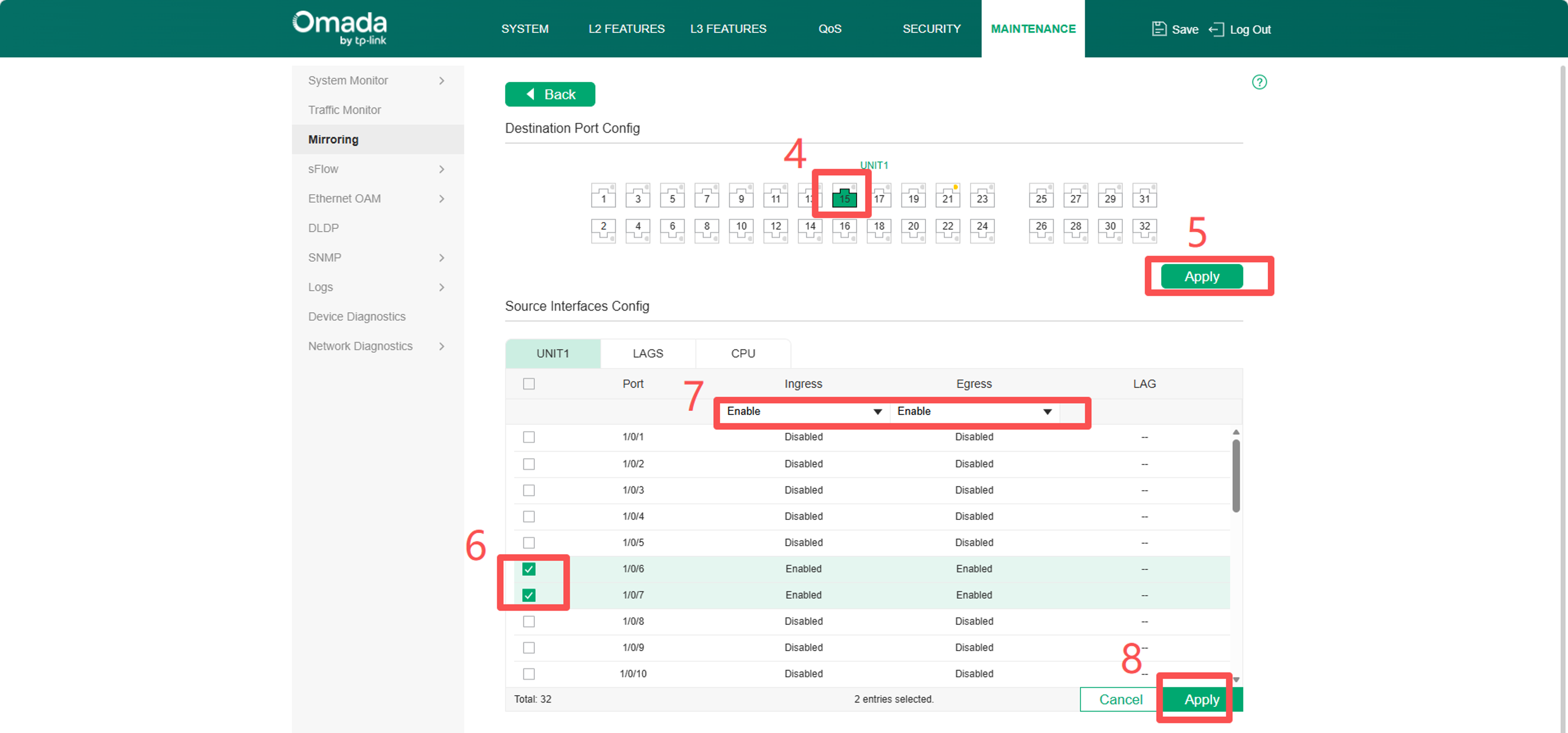
Input the IP address to the address bar in the web browser and you will visit the GUI of the Omada switch. After logging into the page, go to MAINTENANCE > Mirroring, click Edit, select the port connecting to your PC in Destination Port Config and enable Ingress and Egress option in the port you want to capture packets in Source Interface Config, click Apply.
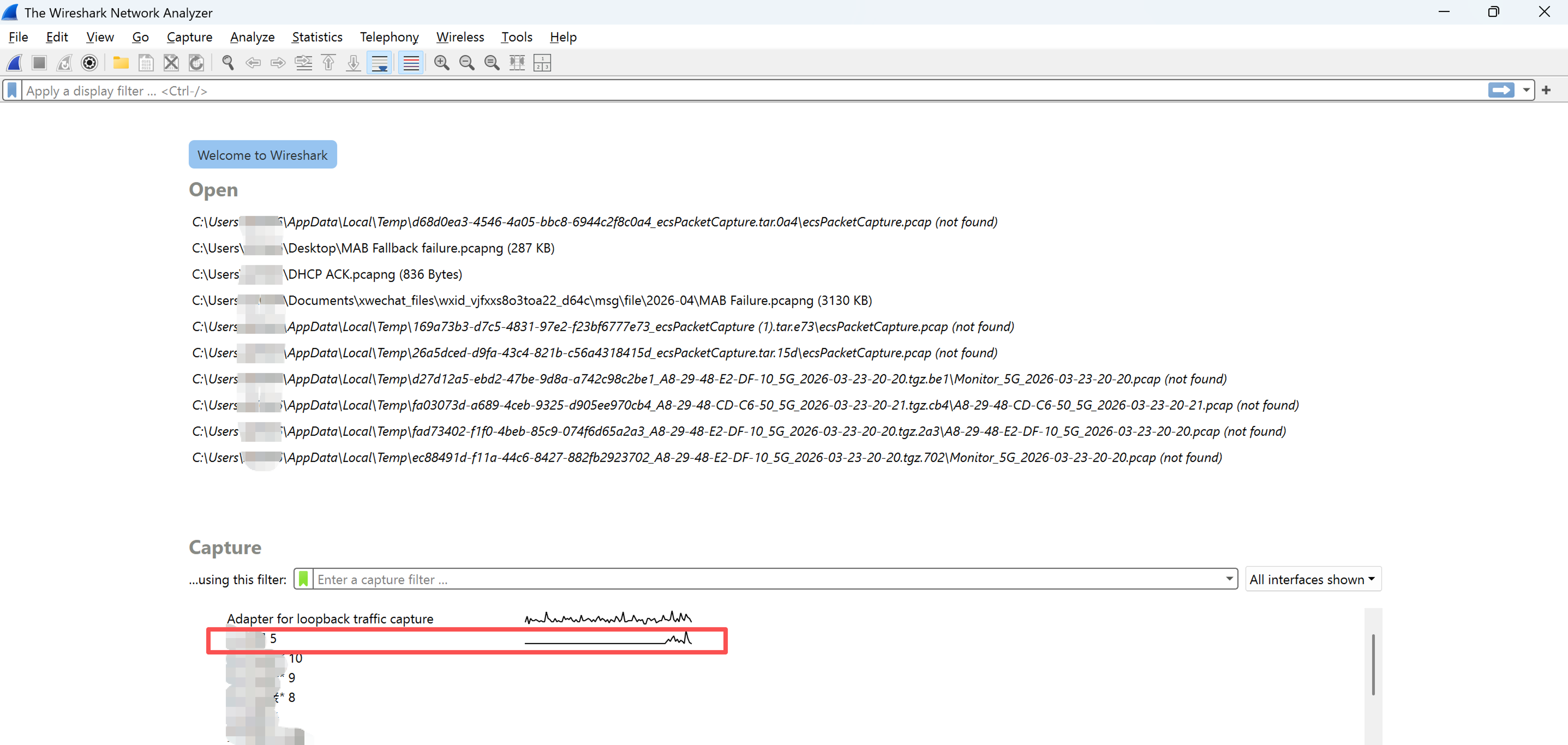
Step 4. Run Wireshark, select the interface you connect to Omada gateway or switch.
Step 5. Apply the display filter. Since the gateway/switch is forwarding packets constantly, we may need to apply some display filter to filter out the packets we are interested in. For example,
- IP address: ip.addr==192.168.0.1, 8.8.8.8, etc.
- UDP port: udp.port==29810, 4500, etc.
- TCP port: tcp.port==443, 53, etc.
- Protocol: IGMP, DHCP, ISAKMP, etc.

Conclusion
By following the steps above, you have successfully completed all the setups needed for packet capture on Omada gateway and switch.
To learn more about each function and configuration, please visit Support Home to download or check the manual for your product.
