


Contents
Introduction
Omada Gateways support SNMP and expose standard MIB objects that can be used to monitor interface status and traffic statistics. By querying interface-related OIDs, network administrators can retrieve real-time information such as WAN/LAN link status, received (RX) traffic, and transmitted (TX) traffic. This article explains how to identify the corresponding interface OIDs and use SNMP to monitor link health and traffic counters on Omada Gateways.
Requirements
- An Omada Gateway
- A PC with an SNMP tool installed and the required MIB files loaded
Configuration
Step 1. Check the children's OID for WAN or LAN interfaces.
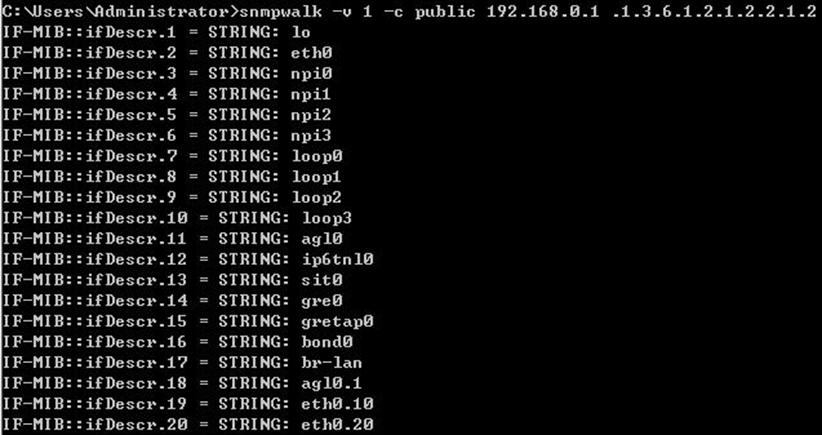
SNMP Walk ifDescr (.1.3.6.1.2.1.2.2.1.2) to display the children's OIDs of the interfaces. The OIDs of the dual-WAN router are obtained via the tool named Snmpwalk, as shown below. Most of the interfaces are for internal communication, and no need to be concerned. Among them, “ifDescr.17 = br-lan” indicates that 17 is the child OID for LAN. If you go to the router page – Network – VLAN, you will find the VLAN IDs of WAN1 and WAN2 are 10 and 20, respectively. Then “ifDescr.19 = eth0.10” indicates the children OID for WAN1 is 19, and that for WAN2 is 20.
If you are using a router with more WAN ports, you can check the VLAN ID of each port, then you will know the correspondence.
Step 2. Check the link status.
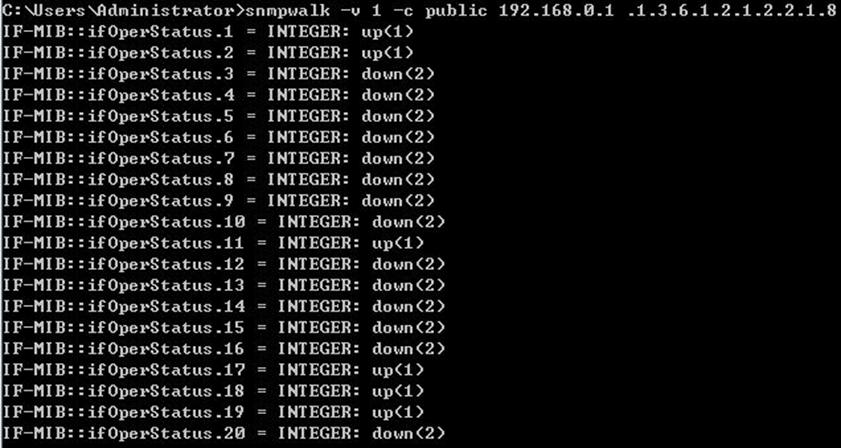
You already know that 17, 19, and 20 corresponds to LAN, WAN1, and WAN2, respectively. To check the link status, SNMP Walk ifOperStatus (.1.3.6.1.2.1.2.2.1.8). As shown in the figure below, WAN1 is linked up, WAN2 is linked down. You can also directly SNMP Get ifOperStatus.19 (.1.3.6.1.2.1.2.2.1.8.19) to obtain the link status of WAN1.
Step 3. Check the data traffic statistics.
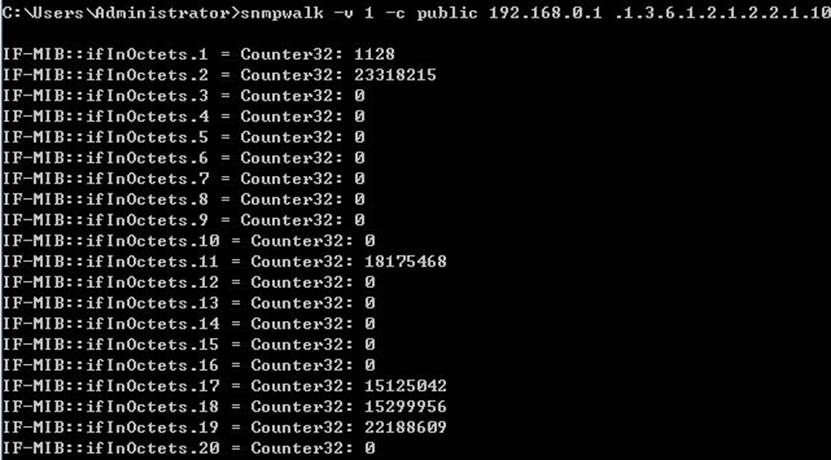
- Receiving (RX): SNMP Walk ifInOctets (.1.3.6.1.2.1.2.2.1.10). The values of .17, .19, and .20 correspond to the RX statistics, in bytes, of LAN, WAN1, and WAN2 (linked down), respectively. You can also use SNMP Get ifInOctets (.1.3.6.1.2.1.2.2.1.10.19) to obtain the RX bytes of WAN1.
- Transmitting (TX): SNMP Walk ifOutOctets (.1.3.6.1.2.1.2.2.1.16). The values of .17, .19, and .20 correspond to the TX statistics, in Byte, of LAN, WAN1, and WAN2, respectively.
Conclusion
With SNMP, you can easily monitor the status and traffic activity of Omada Gateway interfaces. By identifying the interface index through ifDescr, you can use standard interface MIBs to verify connectivity with ifOperStatus and gather traffic counters through ifInOctets and ifOutOctets. These metrics can be integrated into SNMP-based monitoring platforms to help track network availability, utilization, and performance.
To learn more about each function and configuration, please visit Support Home to download or check the manual for your product.
