


Contents
Introduction
GRE (Generic Routing Encapsulation) VPN is a Layer 3 tunneling protocol designed to establish a virtual point-to-point connection between two geographically separated networks over a public network. It features robust encapsulation capabilities, supporting multiple Network Layer protocols as well as multicast and broadcast traffic, making it commonly used for running dynamic routing protocols or connecting heterogeneous networks. However, since GRE itself lacks built-in encryption and authentication mechanisms, data is transmitted in plaintext, posing security risks. Therefore, in practical deployments, it is often combined with IPsec (GRE over IPsec), thereby retaining GRE's low overhead and high flexibility while leveraging IPsec to ensure the confidentiality and integrity of data transmission.
Requirements
- 2 x Omada Gateways
Configuration
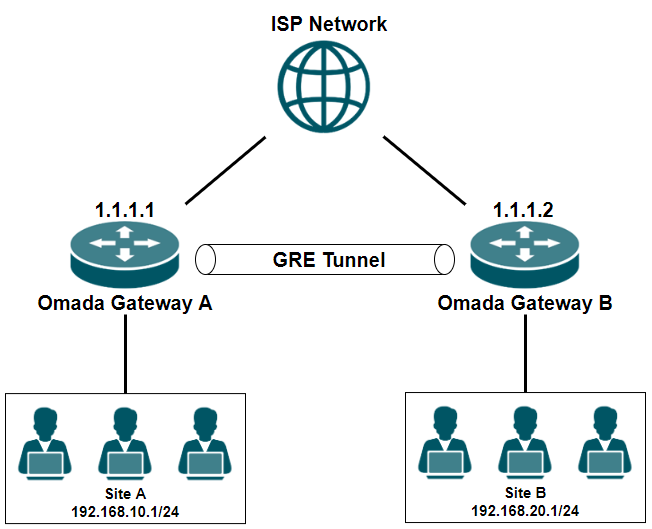
In the following sections, we will guide you through configuring a GRE VPN connection between two sites, as shown in the topology below.
Step 1. Configure GRE VPN on the Omada Gateway A of Site A.
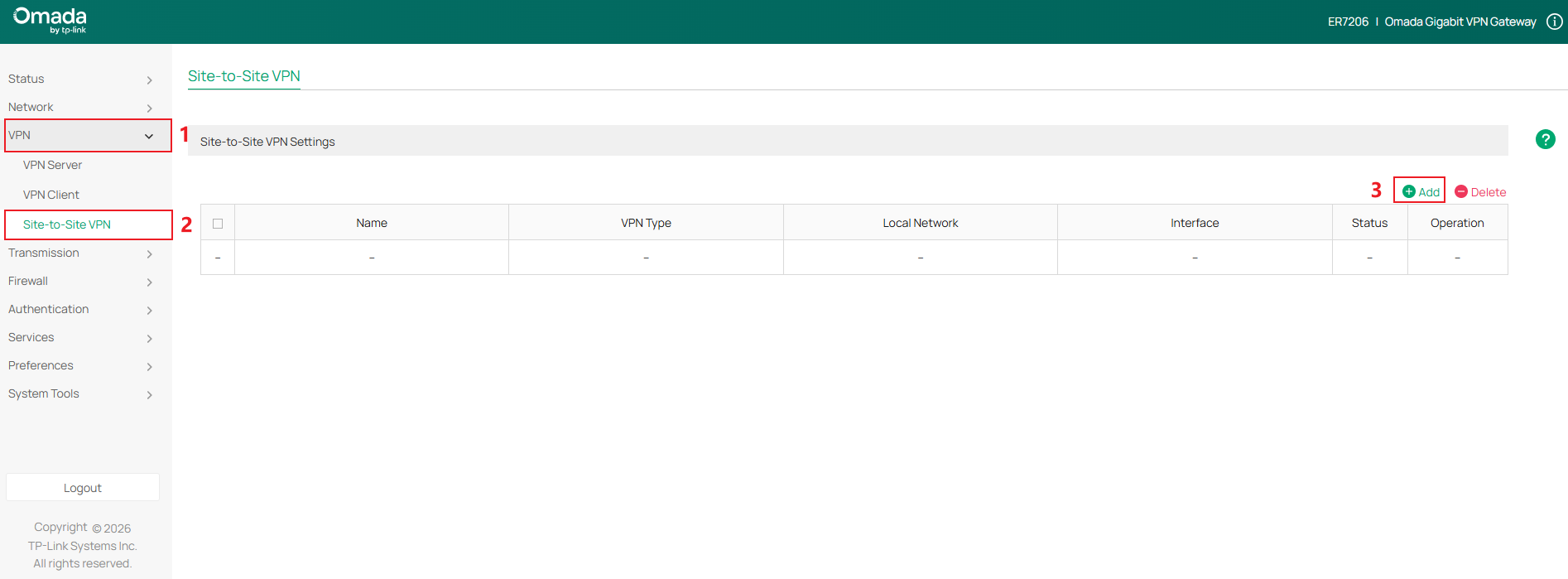
Go to VPN > Site-to-Site VPN, click Add to start configuring a new site-to-site VPN policy.
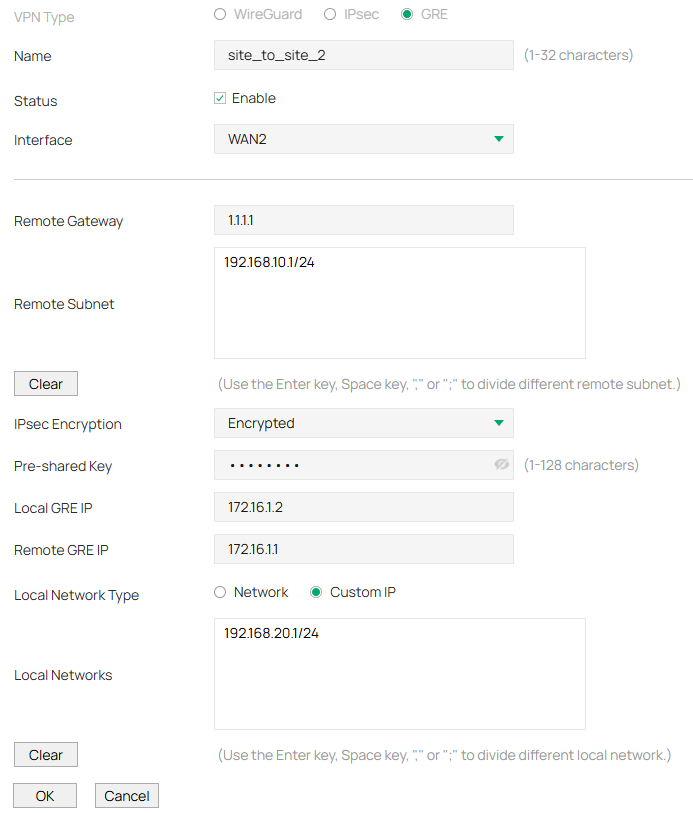
Select the VPN Type as GRE. And refer to the picture below for configuration instructions.
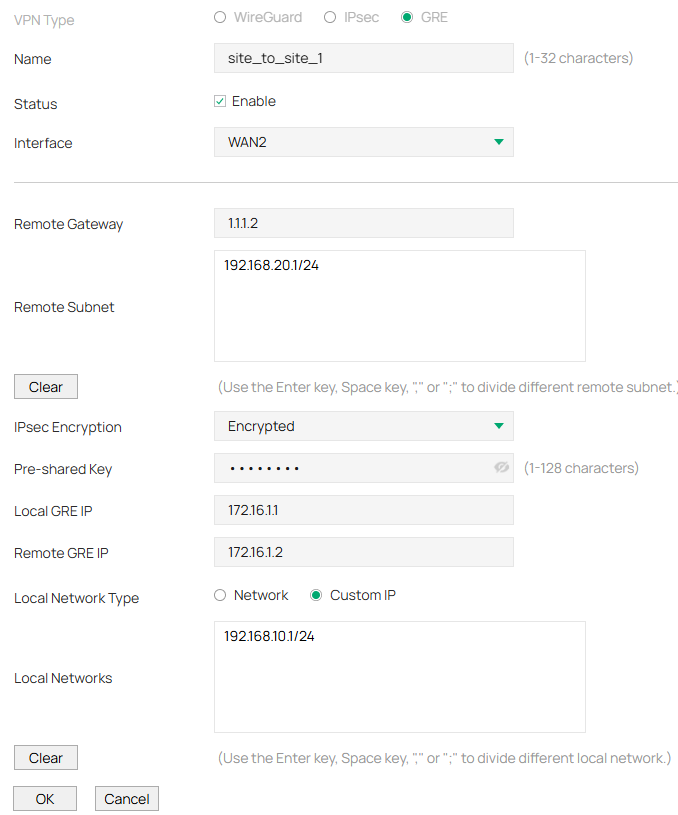
- Name: Enter a name to identify the VPN policy.
- Status: Check the box to enable the VPN policy.
- Interface: Select the WAN interface on which you want to create the VPN policy.
- Remote Gateway: Enter an IP address as the remote gateway.
- Remote Subnet: Specify the remote network. It’s always the IP address range of the LAN on the remote peer of the VPN tunnel. It’s formed from the IP address and subnet mask. Only the traffic to the remote subnet will be forwarded through the VPN tunnel.
- IPsec Encryption: Specify whether to enable encryption for the tunnel. If enabled, the GRE tunnel will be encrypted by IPsec (GRE over IPsec).
- Pre-shared Key: When the IPsec Encryption is configured as Encrypted, specify the Pre-shared Key for IKE authentication.
- Interface: Specify the WAN port on which the GRE tunnel is established.
- Local GRE IP: Specify the local virtual IP address for the GRE VPN. The IP should not be the same as the remote gateway IP, nor should it be in the local subnet or remote subnet.
- Remote GRE IP: Specify the remote virtual IP address for the GRE VPN. The IP should not be the same as the remote gateway IP, nor should it be in the local subnet or the remote Subnet.
- Local Network Type: Select the type to set the local network for VPN Policy, there are two types: Network and Custom IP
- Local Networks: Select the local networks to apply the VPN Policy. The VPN Policy will only apply to the selected or filled local network.
Click OK to apply the policy.

Step 2. Configure GRE VPN on the Omada Gateway B of Site B.
Go to VPN > Site-to-Site VPN, click Add to start configuring a new site-to-site VPN policy.
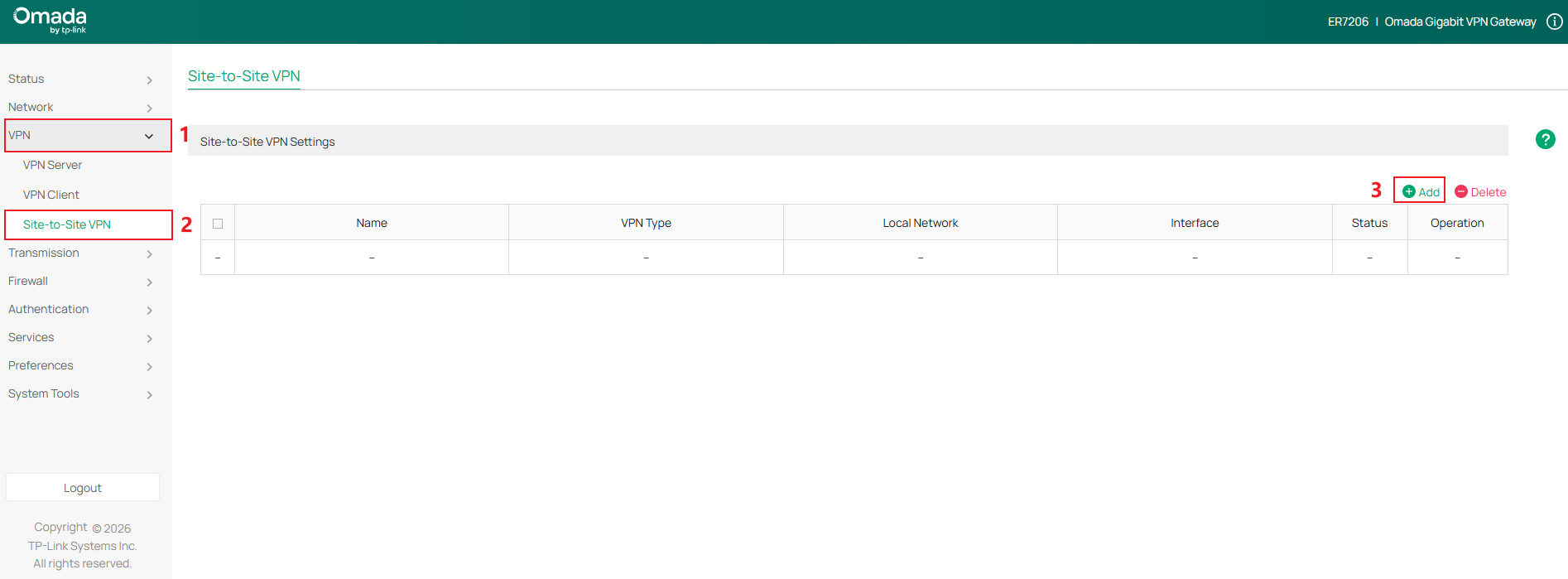
Select the VPN Type as GRE. And refer to the picture below for configuration instructions.
Click OK to apply the policy.

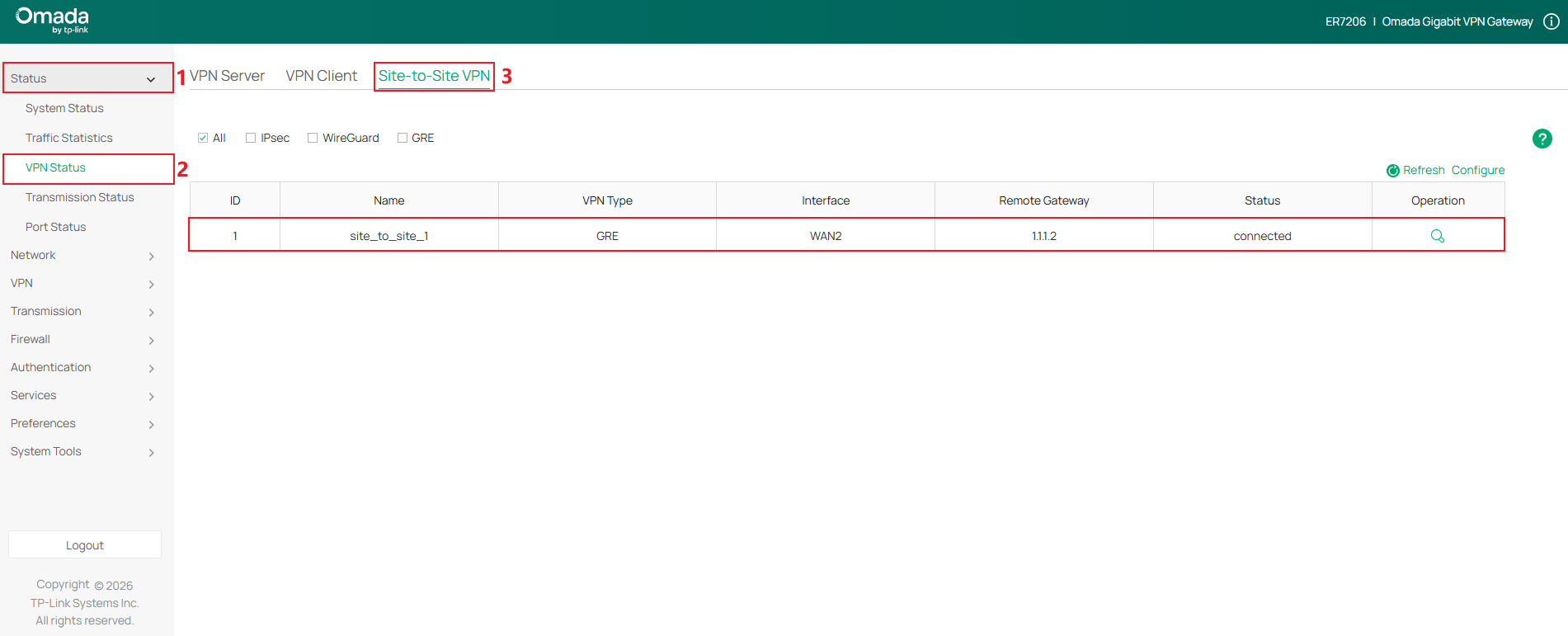
Step 3. Go to Status > VPN status > Site-to-Site VPN, check whether the VPN tunnel has been successfully established.
Conclusion
We have now gone through how to establish a GRE VPN tunnel between two sites.
Get to know more details of each function and configuration please go to Download Center to download the manual of your product.
QA
Q1: What should I do if I fail to establish the VPN tunnel?
A1:
Step 1. Check whether the WAN ports on both sites are online.
Step 2. Check whether the network connectivity between the two sites is fine.
Step 3. Check for configuration errors in the VPN policy.
