


If you have not yet registered your product you can click How to register a product on TP-Link Product Registration System for steps on how to register it.
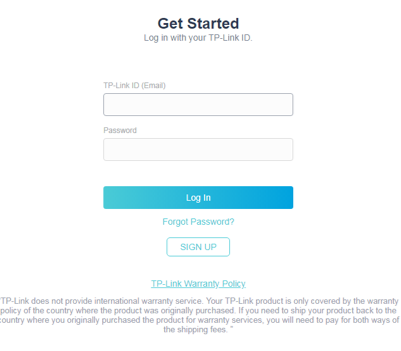
Step 1. Open a web browser (Chrome, Edge, Safari), and browse to https://myproducts.tp-link.com. Then log in with your TP-Link ID.

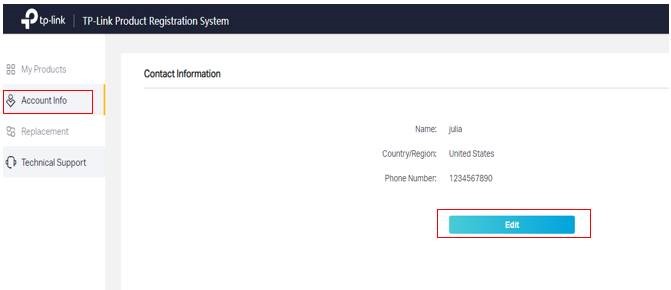
Step 2. Go to Account Info, then click the Edit icon in the middle of the page.
Step 3. Fill in your physical shipping address, click Save Address and then click Submit.
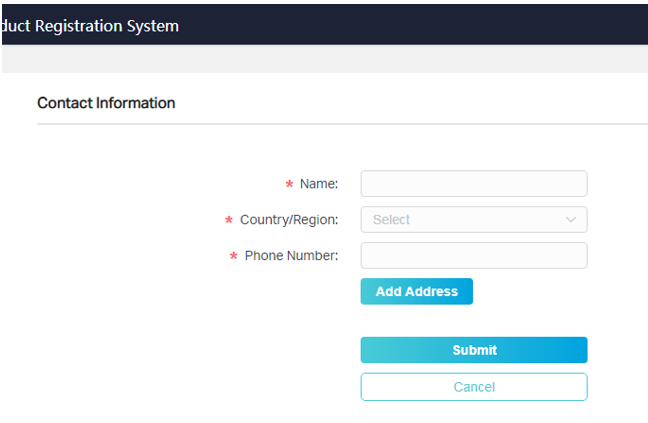
Note: TP-Link cannot ship to PO Box address. Addresses must be a physical address.
Step 4. Contact TP-Link technical support to troubleshoot your product. If technical support confirms your product is defective and still under warranty, they will create an RMA request for your product.
Step 5. Click on Replacement on the left sidebar. You will see RMA case for the defective product.
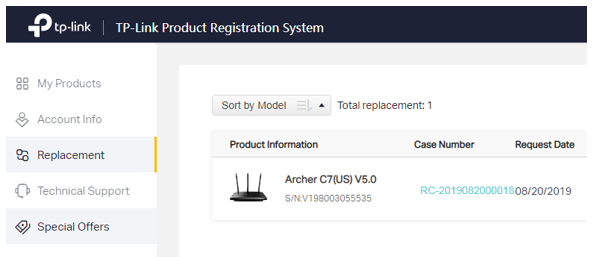
Step 6. Click on Shipping Method.
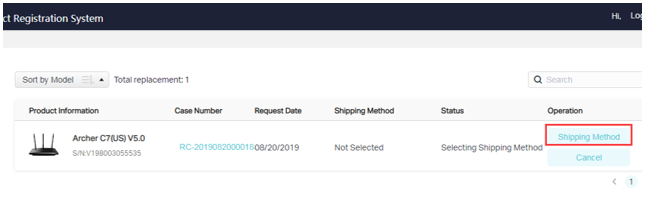
Step 7. Select your shipping address and chose your RMA shipping method, if you have no shipping address on file, click + New Address to add one.

Note: For an explanation of our shipping methods click TP-Link Shipping Methods and Advanced RMA Fees Explained.
Step 8. After you submit the RMA request, you will see a case summary like below:

Note: The Non-return Product will appear as a hold charge and will only be processed should the defective unit not be returned within 25 days of the RMA being submitted. For more detailed information about Advanced RMA, please click TP-Link Shipping Methods and Advanced RMA Fees Explained.
Step 9. Once Submitted, if applicable click Pay to be redirected to PayPal to complete the payment process.
Note: If nothing happened when click Pay, please refer to doesn’t it allow me to pay when I submit an RMA?
.bmp_1594005856957w.jpg)
Note: You can either sign in to your PayPal account or complete the Guest Form.
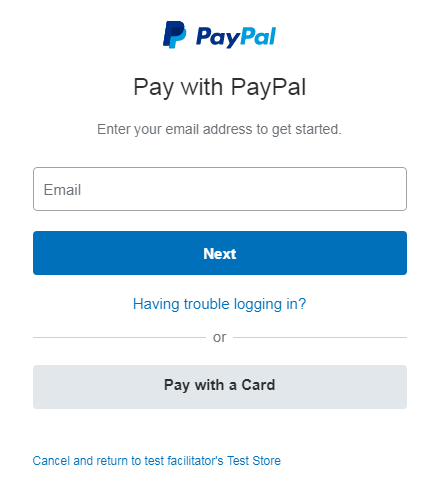
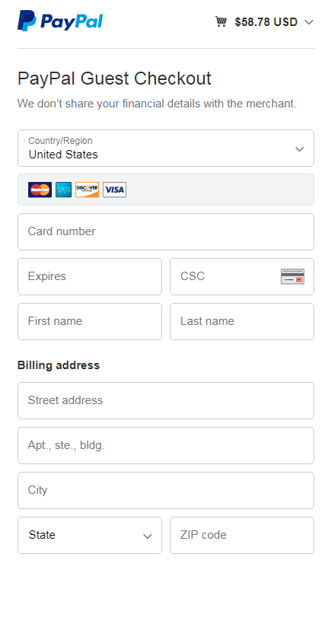
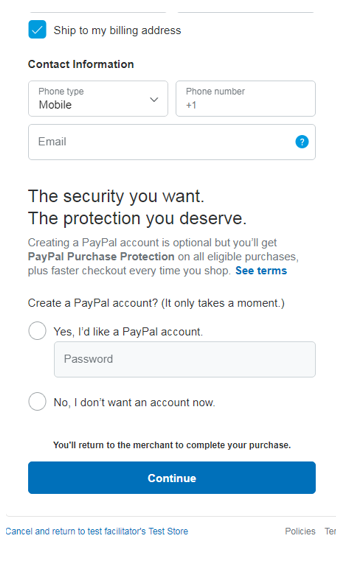
Step 10. Once you have completed the payment form you will be redirected back to the Product Registration System, where you can view the status under Replacement page.

