


Содержание
Ошибка 1: Неверное имя пользователя или пароль
Ошибка 4: Контроллер не получает ответа от устройства
Ошибка 5: Не удалось принять это устройство, так как устройство не подключено
Проблемы со статусом устройства
Ошибка 6: Не удалось принять устройство, так как его состояние не "ожидает"
Ошибка 7: Принятие... Пожалуйста, подождите.
Ошибка 8: Восстановление... Пожалуйста, подождите.
Ошибка 9: Не удалось принять несовместимые устройства
Проблемы с контроллером / интерфейсом
Ошибка 10: Устройство для принятия не существует
Ошибка 11: Этот сайт не существует
Ошибка 12: Не удалось принять этот шлюз, поскольку шлюз уже существует на этом сайте
Ошибка 13: Основное устройство применяет конфигурации. Пожалуйста, примите устройство-участник позже
Ошибка 14: Не удалось принять это устройство
Введение
Программный контроллер Omada и аппаратный контроллер Omada обеспечивают централизованное управление сетевыми продуктами Omada, включая точки доступа (EAP), шлюзы и коммутаторы.
Когда устройство Omada впервые обнаруживается контроллером, оно отображается на странице «Устройства» со статусом «Ожидает». После принятия устройством можно централизованно управлять и настраивать его через контроллер.
Ниже приведены некоторые распространенные ошибки и соответствующие решения, когда программный контроллер Omada или аппаратный контроллер Omada не могут принять устройства Omada, включая EAP, шлюзы и коммутаторы.
Кроме того, рекомендуется, чтобы компьютер, на котором работает программное обеспечение контроллера, был подключен к маршрутизатору или модему через проводное Ethernet-соединение. Беспроводные соединения могут быть нестабильными и могут привести к проблемам с обнаружением, принятием или управлением устройствами.
Требования
- Программный/аппаратный/облачный контроллер Omada версии V6.0 и выше
Проблемы с учетными данными
Ошибка 1: Неверное имя пользователя или пароль

Имя пользователя и пароль по умолчанию для устройств Omada (EAP, шлюзов и коммутаторов) — admin/admin.
1. Если устройство ранее работало в автономном режиме, имя пользователя и пароль будут соответствовать учетным данным, использовавшимся для входа на веб-страницу управления устройством в автономном режиме.
Вы можете нажать кнопку «Повторить» и ввести имя пользователя и пароль вручную.
2. Если устройство ранее управлялось программным контроллером Omada или аппаратным контроллером Omada, имя пользователя и пароль будут соответствовать учетной записи устройства, настроенной на контроллере. Вы можете проверить или изменить учетную запись устройства на контроллере по адресу: Конфигурация сети (Network Config) > Настройки сайта (Site Settings) > Учетная запись устройства (Device Account).
Если вышеуказанные решения не работают, вы можете сбросить устройство (имя пользователя и пароль будут восстановлены до значений по умолчанию), а затем попробовать принять его снова.
Ошибка 2: Не удалось принять устройство из-за неверного имени пользователя или пароля. Повторите попытку через x секунд
Эта ошибка возникает, когда введены неверные учетные данные и срабатывает механизм защиты. Подождите указанное время, прежде чем повторить попытку с правильными именем пользователя и паролем.
Ошибка 3: Не удалось принять устройство из-за неверного имени пользователя или пароля. Осталось x попыток
Это указывает на неверные учетные данные для входа с ограниченным количеством оставшихся попыток. Убедитесь, что используются правильные учетные данные, чтобы избежать блокировки устройства.
Проблемы с подключением
Ошибка 4: Контроллер не получает ответа от устройства

Эта ошибка указывает на то, что связь между устройством Omada (EAP, шлюзом или коммутатором) и программным/аппаратным контроллером Omada заблокирована.
Пожалуйста, проверьте следующее:
1. Контроллер Omada взаимодействует с устройствами Omada через порты TCP/UDP 29810–29814. Некоторые антивирусные программы или брандмауэры могут блокировать эти порты. Для устранения неполадок временно отключите антивирусное программное обеспечение или брандмауэры на ПК, где установлен программный контроллер Omada. Убедитесь, что порты TCP/UDP 29810–29814 разрешены в любом брандмауэре или программном обеспечении безопасности.
2. Чтобы убедиться, что устройство доступно, выполните ping IP-адреса устройства с ПК, на котором установлен программный контроллер Omada.
3. Если в сети настроены VLAN, пожалуйста, убедитесь, что устройство Omada и программный/аппаратный контроллер Omada находятся в одной VLAN.
4. Если вы принимаете это устройство через интернет или между разными подсетями, пожалуйста, обратитесь к соответствующим инструкциям для принятия между подсетями или удаленного принятия.
Как управлять устройствами Omada на разных площадках через Интернет с помощью контроллера Omada
Ошибка 5: Не удалось принять это устройство, так как устройство не подключено
Эта ошибка означает, что контроллер не может связаться с устройством или устройство не в сети. Проверьте сетевое подключение, состояние устройства и возможные проблемы с брандмауэром или блокировкой портов.
Проблемы со статусом устройства
Ошибка 6: Не удалось принять устройство, так как его состояние не "ожидает"

Устройство не готово к принятию. Возможно, его статус еще не обновился.
Пожалуйста, терпеливо подождите некоторое время и повторите попытку. Эта проблема возникает редко.
Ошибка 7: Принятие... Пожалуйста, подождите.
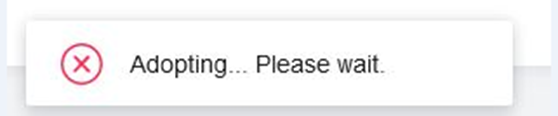
Это указывает на то, что контроллер в настоящее время находится в процессе принятия устройства.
Пожалуйста, подождите несколько минут, пока процесс не завершится.
Ошибка 8: Восстановление... Пожалуйста, подождите.
Это указывает на то, что контроллер выполняет операцию восстановления.
1. Пожалуйста, подождите несколько минут, затем обновите список устройств.
2. Если устройство, которое вы хотите принять, по-прежнему отображается в списке устройств, но статус показывает «Ожидает» / «Ошибка принятия» / «Управляется другим», нажмите кнопку «Повторить» и примите его снова, используя имя пользователя и пароль, которые использовались до восстановления.
3. Если принятие по-прежнему не удается, сбросьте устройство и попробуйте принять его снова.
Проблемы совместимости
Ошибка 9: Не удалось принять несовместимые устройства

Если вы видите эту ошибку, пожалуйста, проверьте Список совместимости, чтобы подтвердить, совместимо ли ваше устройство Omada (EAP, шлюз или коммутатор) с текущей версией контроллера.
Если устройство указано как совместимое, пожалуйста, следуйте Руководству по обновлению прошивки, чтобы обновить прошивку устройства, и попробуйте принять его снова.
Проблемы с контроллером / интерфейсом
Ошибка 10: Устройство для принятия не существует

Веб-страница могла устареть. Пожалуйста, обновите страницу управления программного контроллера Omada / аппаратного контроллера Omada и повторите попытку.
Возможны проблемы совместимости между веб-браузером и контроллером. Попробуйте обновить браузер или переключиться на другой браузер.
Ошибка 11: Этот сайт не существует

Эта ошибка означает, что сайт, которому принадлежит устройство, не существует на контроллере.
Пожалуйста, обновите страницу и убедитесь, что устройство отображается в списке устройств, затем повторите попытку. Если устройство исчезает после обновления страницы, обратитесь к FAQ 2980 для дальнейшего устранения неполадок.
Конфликты конфигурации
Ошибка 12: Не удалось принять этот шлюз, поскольку шлюз уже существует на этом сайте
Эта ошибка указывает на то, что шлюз уже существует на текущем сайте. Удалите существующий шлюз или используйте другой сайт перед принятием нового.
Стек / особый случай
Ошибка 13: Основное устройство применяет конфигурации. Пожалуйста, примите устройство-участник позже
Это означает, что основное устройство в стеке занято применением конфигураций. Дождитесь завершения процесса, а затем попробуйте снова принять устройство-участник.
Общая ошибка
Ошибка 14: Не удалось принять это устройство
Это общая ошибка, указывающая на то, что принятие устройства не удалось без указания конкретной причины. Требуется дальнейшее устранение неполадок путем проверки журналов или связанных сообщений об ошибках.
Заключение
В этой статье рассматриваются распространенные причины ошибок, возникающих при принятии устройств Omada (включая EAP, шлюзы и коммутаторы) с помощью контроллера Omada, а также соответствующие методы устранения неполадок и решения.
Чтобы узнать более подробную информацию о каждой функции и настройке, пожалуйста, перейдите в Центр загрузок, чтобы загрузить руководство пользователя для вашего продукта.
