


How to Configure 802.11r to Speed Up the Roaming Process


Contents
Objective
This article introduces how to configure 802.11r to speed up the client roaming process.
Requirements
-
Omada Controller (Software Controller / Hardware Controller / CBC, v6.2 and above)
- Omada AP
Introduction
The 802.11r protocol defines a fast roaming mechanism that allows clients to complete pre-authentication with a candidate AP before roaming. In this way, the client can directly associate with the AP without re-authentication during the actual roaming process, thereby speeding up the roaming process. This roaming mode is called Fast BSS Transition and is commonly referred to as 802.11r roaming.
802.11r can only be configured in Controller mode. This article uses Omada Software Controller v6.2 as an example to demonstrate how to configure 802.11r.
Configuration
Step 1. Log in to the Controller, go to Network Config > Network Settings > WLAN, and click Create New Wireless Network. 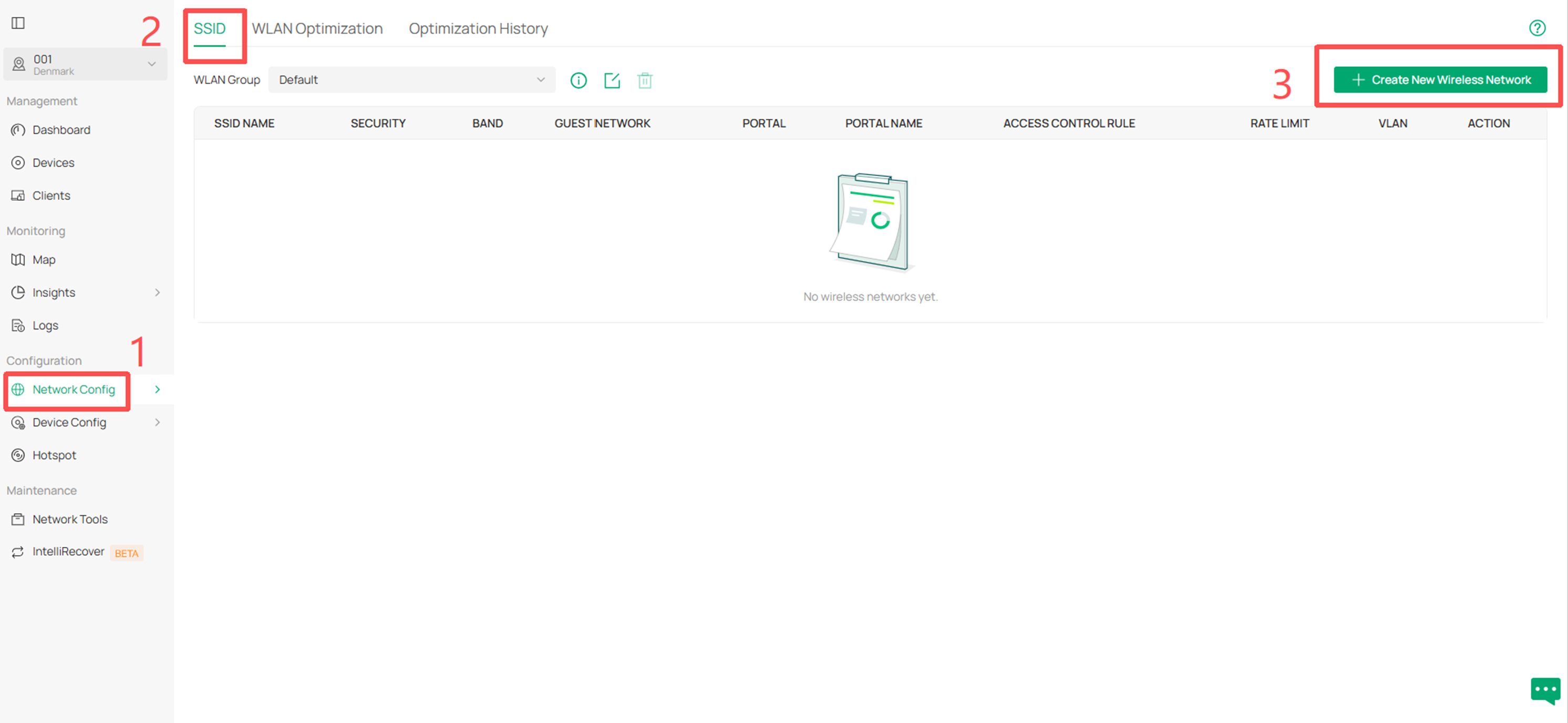
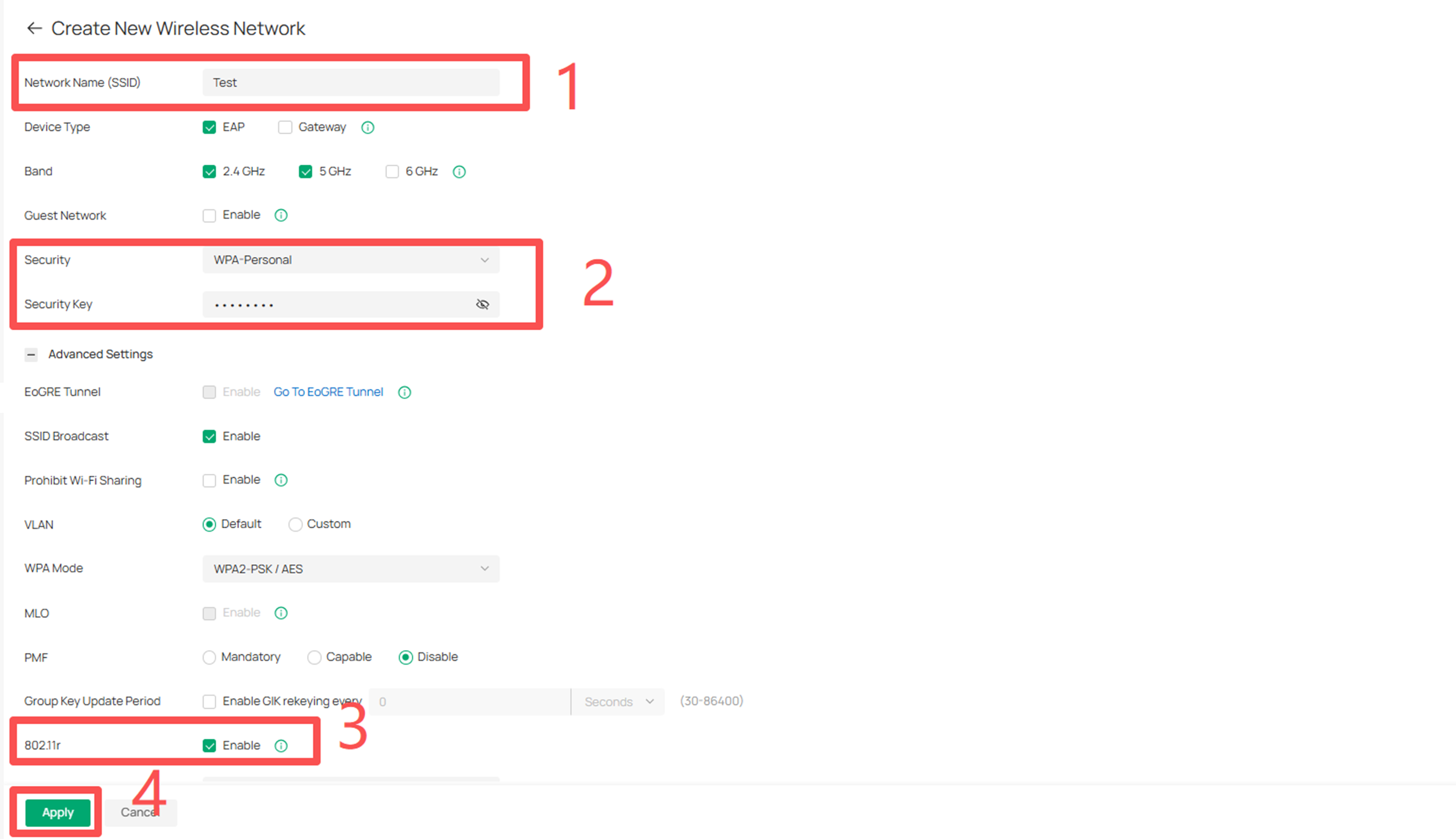
Step 2. Custom the Network Name (SSID), select a Security method and enter the Security Key. In Advanced Settings, check the box to enable 802.11r and click Apply to save the settings.
Note:
- Currently, 802.11r can be enabled for the following encryption methods:
|
Security |
WPA Mode |
|
WPA-Personal |
WPA2-PSK/Auto |
|
WPA2-PSK/AES |
|
|
WPA/WPA2-PSK/Auto |
|
|
WPA/WPA2-PSK/AES |
|
|
WPA2-PSK/WPA3-SAE/AES |
|
|
WPA-Enterprise |
WPA2-Enterprise/Auto |
|
WPA2-Enterprise/AES |
|
|
WPA/WPA2-Enterprise/Auto |
|
|
WPA/WPA2-Enterprise/AES |
|
|
WPA3-Enterprise/Transition Mode-CCMP-128 |
|
|
WPA3-Enterprise/Only Mode-CCMP-128 |
|
|
WPA3-Enterprise/Only Mode-GCMP-256 |
|
|
WPA3-Enterprise/192-Bit Mode-GCMP-256 |
|
|
PPSK without RADIUS |
WPA2-PSK/Auto |
|
WPA2-PSK/AES |
|
|
WPA/WPA2-PSK/Auto |
|
|
WPA/WPA2-PSK/AES |
|
|
PPSK with RADIUS |
WPA2-PSK/Auto |
|
WPA2-PSK/AES |
|
|
WPA/WPA2-PSK/Auto |
|
|
WPA/WPA2-PSK/AES |
- If you encounter frequent disconnection and reconnection issues with older terminals during roaming, you may be experiencing compatibility issues with 802.11r. You can try turning off 802.11r to troubleshoot and resolve such connection issues.
Conclusion
By following the steps above, you have enabled 802.11r for the specific SSID. After connecting to the SSID, clients can directly associate with the AP without re-authentication during roaming, thereby speeding up the roaming process.
To learn more about each function and configuration, please visit Support Home to download or check the manual for your product.
