


Contents
What is the Timing mode Link Backup and how to set it?
What is the Failover mode Link Backup and how to set it?
Introduction
Load Balance enables TP-Link routers to support multi-WAN access. It distributes traffic across multiple WAN connections to reduce congestion, increase aggregate outbound bandwidth, and enhance overall performance. If a WAN connection fails, the router automatically redirects all new sessions to the remaining active WAN links, thereby improving network reliability.
Building on this capability, Link Backup allows more granular control over multi-WAN usage through Timing or Failover modes. Under normal conditions, only the designated primary WAN(s) handle data forwarding. The backup WAN(s) remain on standby and are activated automatically when a predefined condition is met, such as a scheduled time or a change in link status.
In summary, both features enhance network redundancy. Load Balance actively uses all available WAN links simultaneously, while Link Backup reserves specific WAN links as backups and activates them only according to your configuration.
What is the Timing mode Link Backup and how to set it?
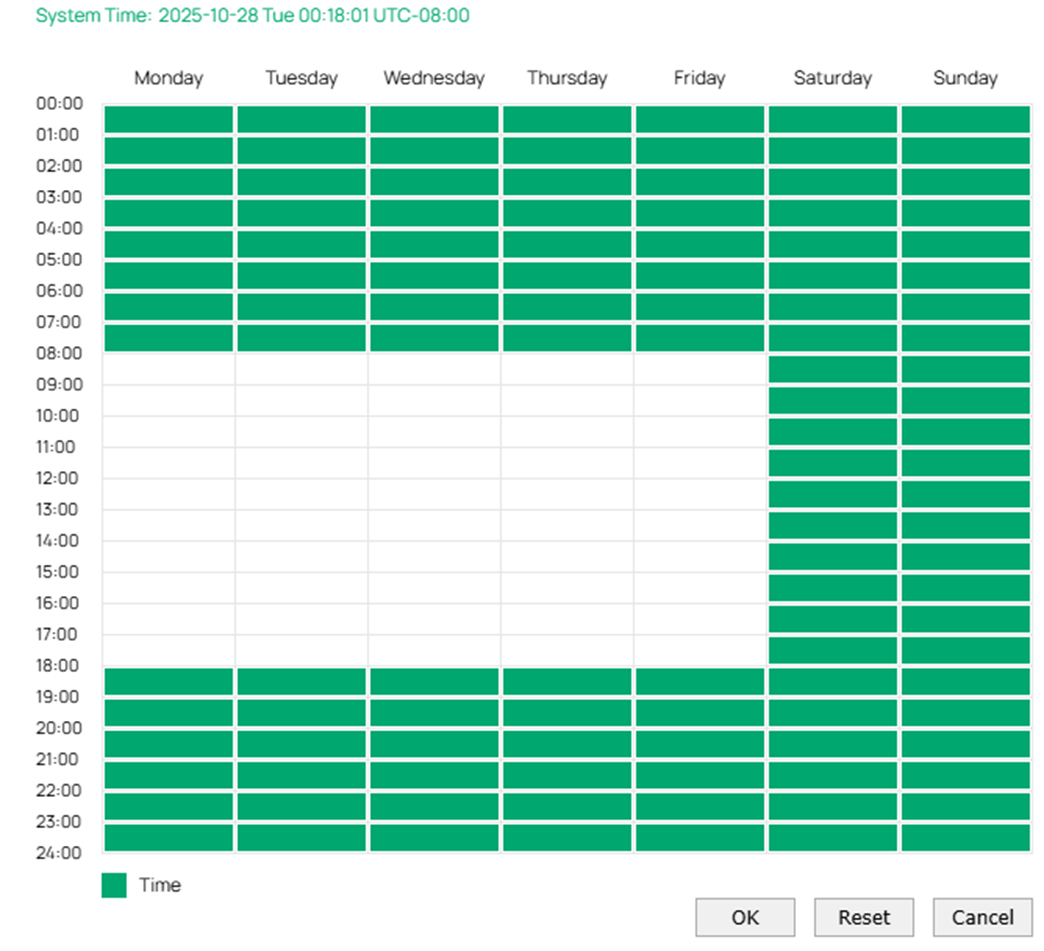
For example, a customer has an ER8411 with two WAN ports connected to the Internet. He wants to use WAN1 during working hours and WAN/LAN4 after work. The working time is from Monday to Friday, 8:00–18:00.
Link Backup in Timing mode can help him fulfill these needs.
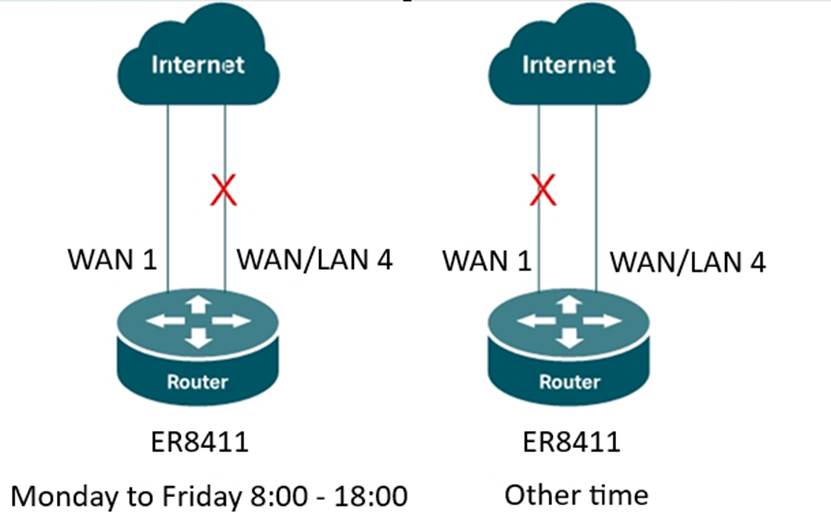
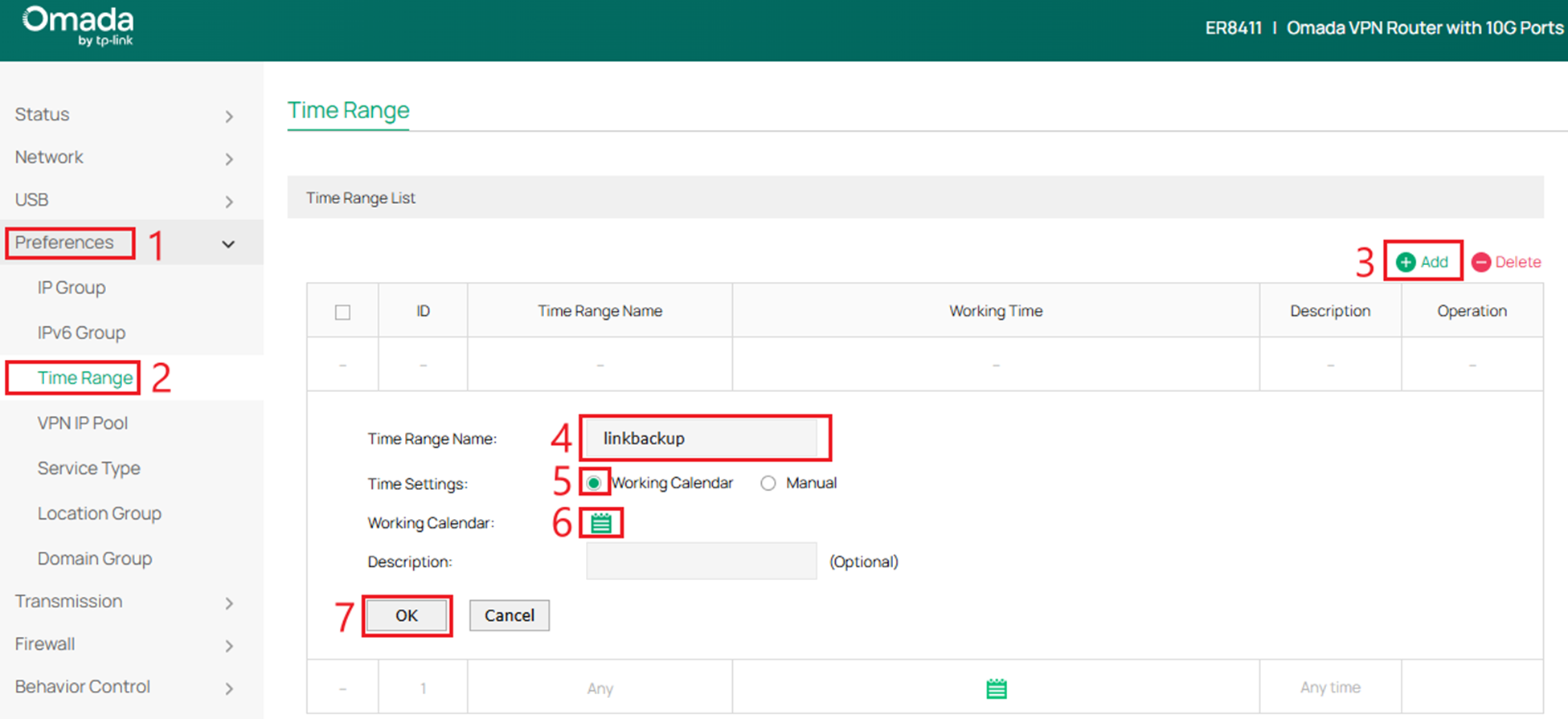
Step 1. Set up the Time Range for the Backup WAN effective time.
Go to Preferences > Time Range to define the time range entries on this page.
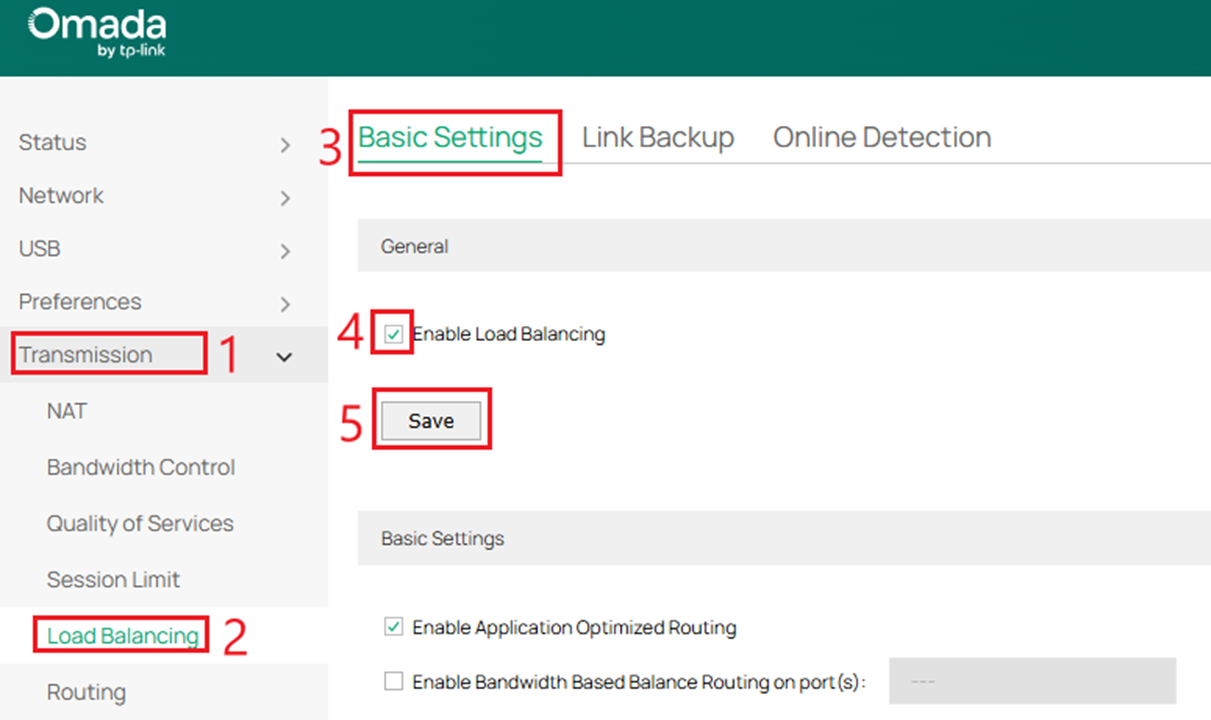
Step 2. Enable Load Balancing.
Go to Transmission > Load Balancing > Basic Settings. Check Enable Load Balancing. Please note that Enable Load Balancing must be checked if you want to configure link backup. Otherwise link backup won’t work normally.
Step 3. Choose the Primary WAN and Backup WAN.
Go to Transmission > Load Balancing > Link Backup. Set up Primary WAN as WAN1 and Backup WAN as WAN/LAN4 in this example.
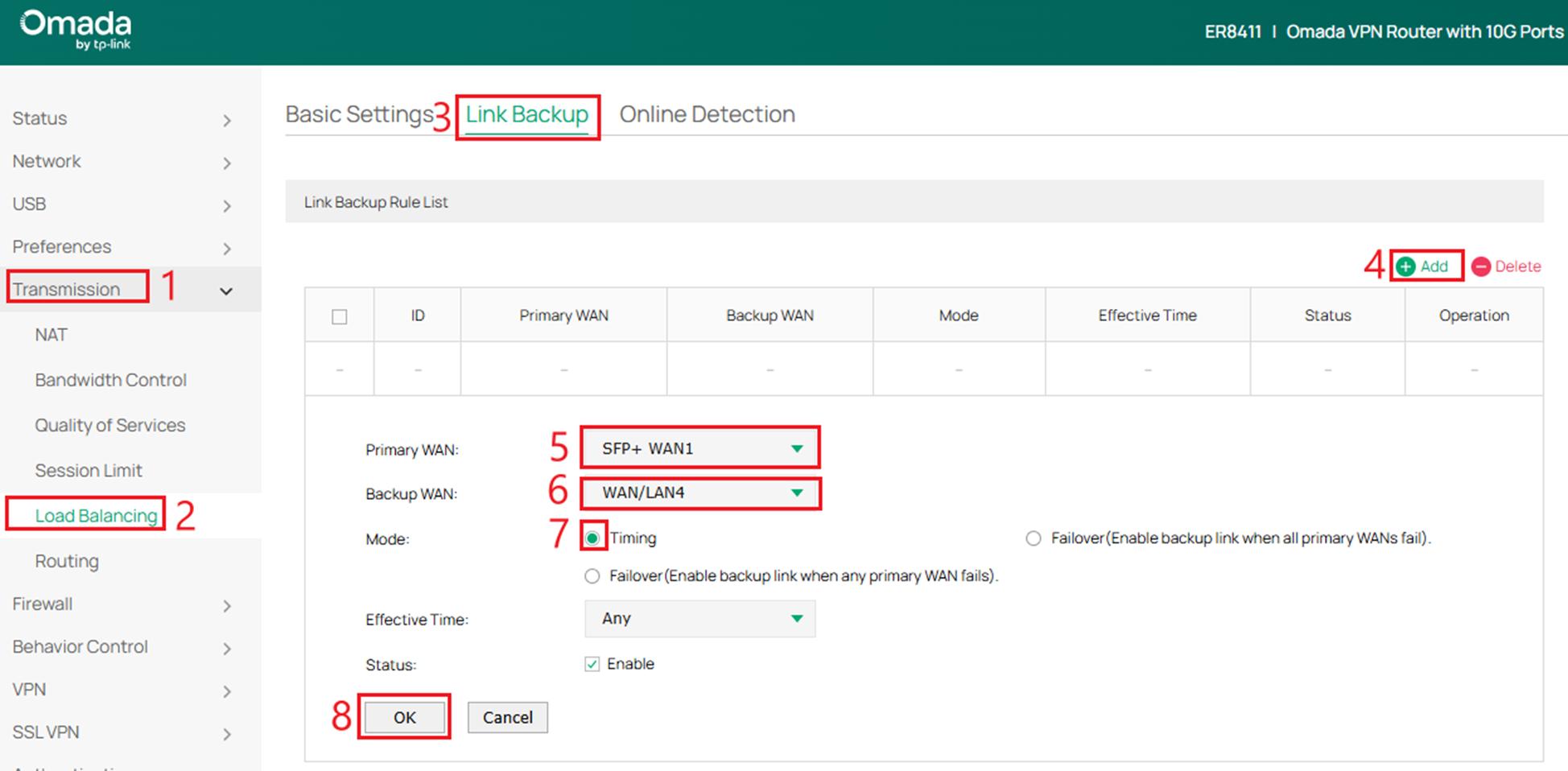
When two or more primary WANs are configured, the behavior differs between the two failover options.
Failover (Enable backup link when any primary WAN fails)
The backup link is activated when any single primary WAN goes down.
Failover (Enable backup link when all primary WANs fail)
The backup link is activated only when all primary WANs are down.
During the effective time period, the Backup WAN remains online while the Primary WAN(s) are offline. Outside of the effective time period, the Primary WAN(s) remain online while the Backup WAN is offline.
Note: If an online WAN fails, an offline WAN remains offline.
What is the Failover mode Link Backup and how to set it?
For example, a customer has an ER8411 with two WAN ports connected to the Internet. WAN1 uses a fiber-optic connection, while WAN/LAN4 is connected to an expensive satellite service. In this scenario, WAN1 is preferred for normal operation, and WAN/LAN4 is used only when WAN1 is detected as offline.
Failover mode meets this requirement by automatically switching traffic to WAN/LAN4 when WAN1 becomes unavailable, thereby improving network reliability while significantly reducing operational costs.
Step 1. Enable Load Balancing.
Go to Transmission > Load Balancing > Basic Settings. Check Enable Load Balancing. Please note that Enable Load Balancing must be checked if you want to configure link backup. Otherwise link backup won’t work normally.
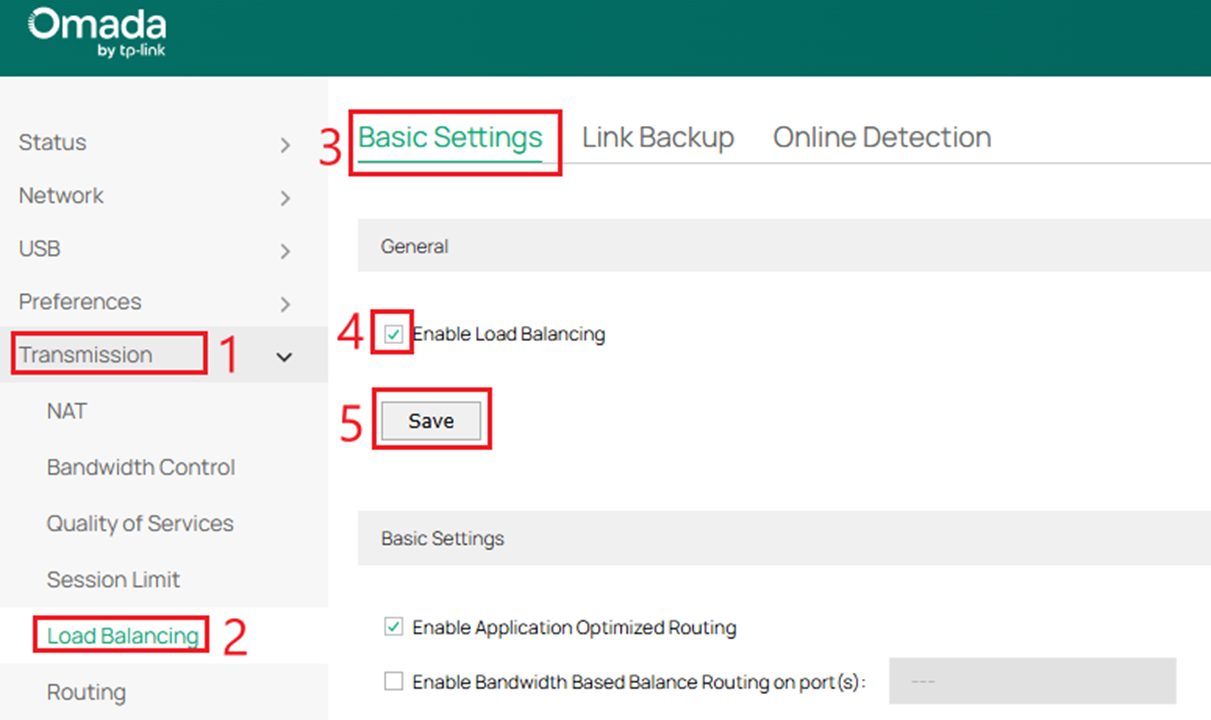

Step 2. Choose the Primary WAN and Backup WAN.
Go to Transmission > Load Balancing > Link Backup. Configure WAN1 as the Primary WAN and WAN/LAN4 as the Backup WAN. When WAN1 is online, all traffic is forwarded through WAN1. Once WAN1 is detected as offline, WAN/LAN4 becomes active and all sessions are forwarded through WAN/LAN4.
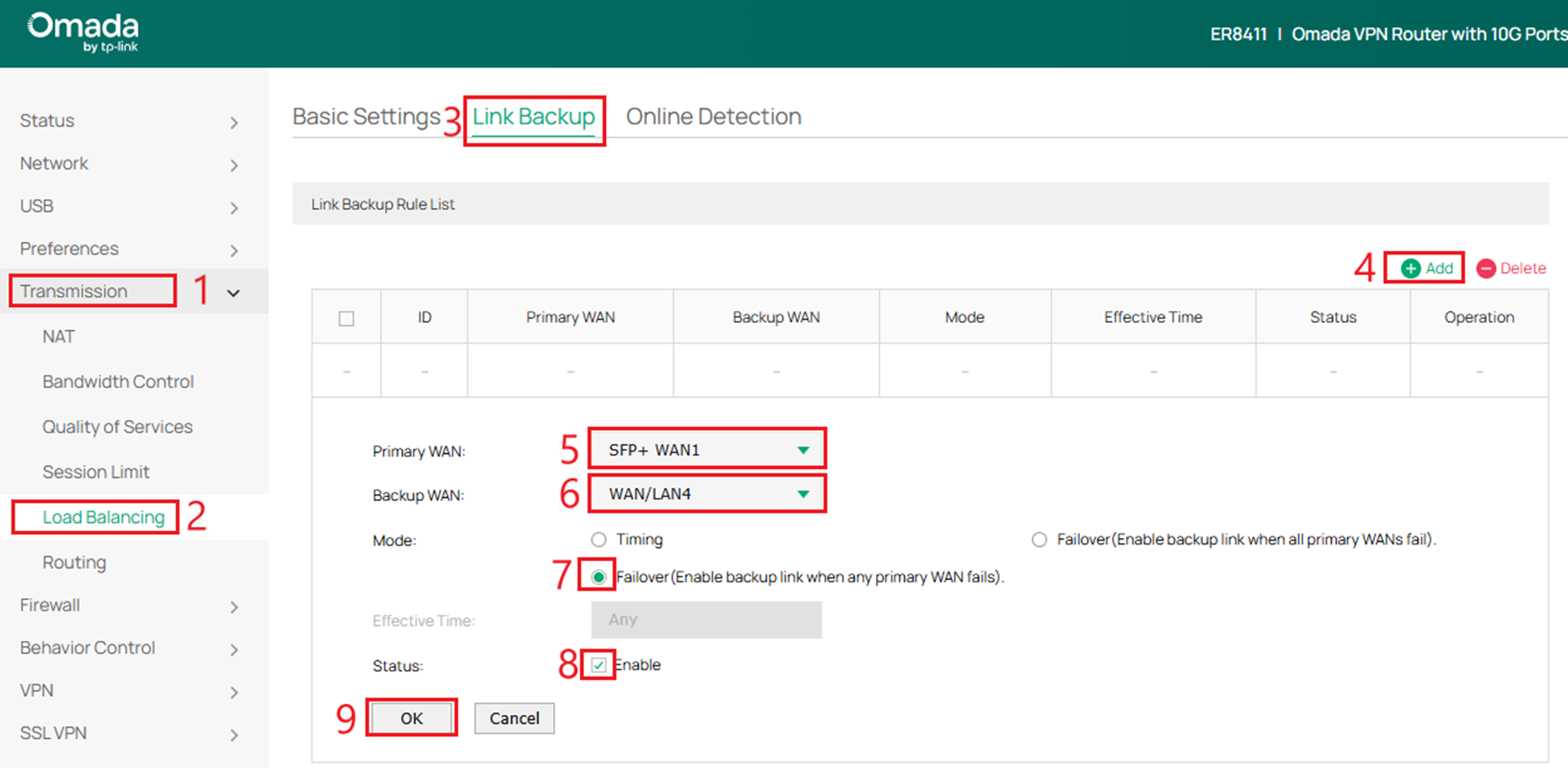
When two or more primary WANs are configured, the behavior differs between the two failover options.
Failover (Enable backup link when any primary WAN fails)
The backup link is activated when any single primary WAN goes down.
Failover (Enable backup link when all primary WANs fail)
The backup link is activated only when all primary WANs are down.
Step 3. Setup Online Detection
Choose the menu Transmission > Load Balancing > Online Detection.
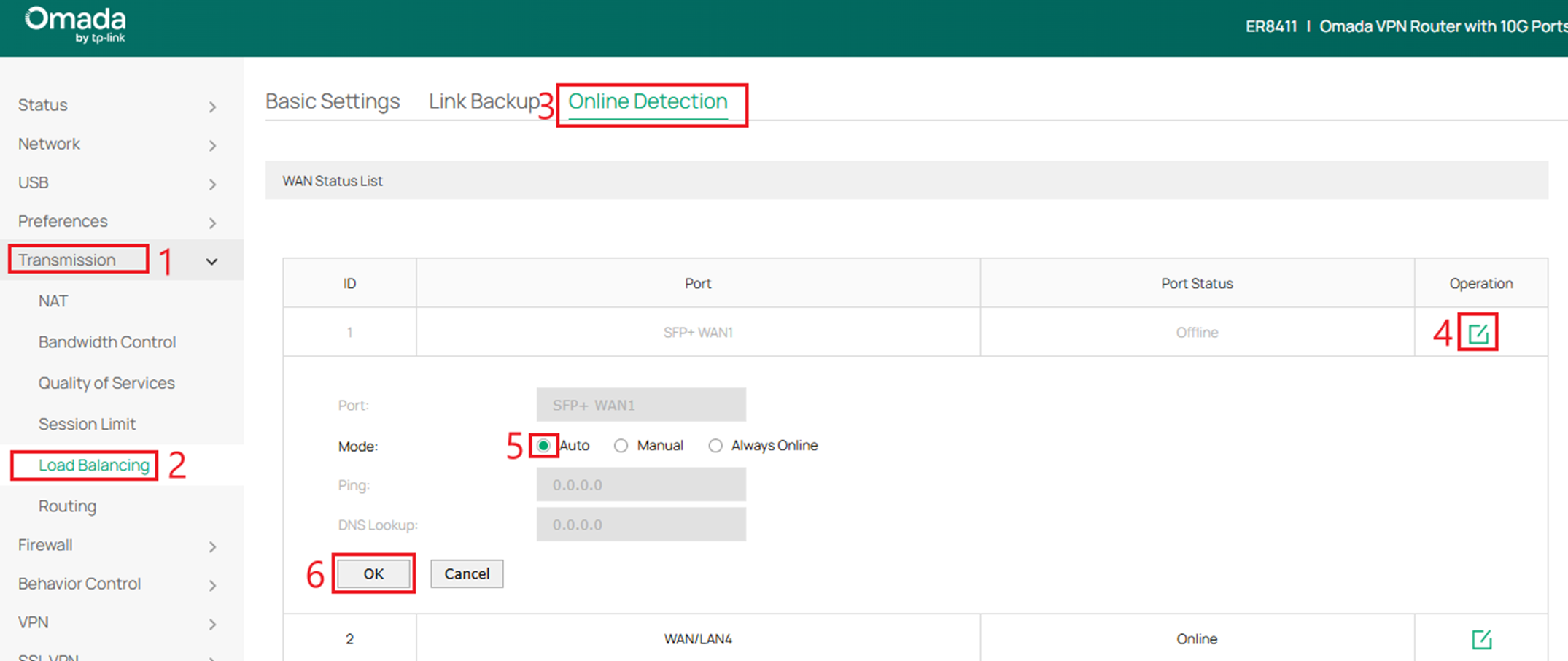
The Link Backup feature operates based on Online Detection. In Auto mode, DNS lookup is used to detect the route to the gateway of the WAN port. If specific route detection is required, Manual mode can be selected to customize the destination IP addresses used for Ping and DNS lookup.
Conclusion
Both examples use two WANs; however, all available WAN interfaces can be used as needed. Once logged into the management interface, the configuration process is straightforward, so further details are not provided here.
For more details on each function and configuration, please visit the Download Center to download the manual.
