


Contents
Objective
This article shows you how to configure Lock to AP function to bind certain wireless clients to the specific APs on Omada Controller.
Requirements
- Omada Controller (Software Controller / Hardware Controller / CBC, v5.9 and above)
- Omada AP (All included except EAP110 v4, EAP110-Outdoor v3/v4, EAP115 v5, EAP115-Wall v1/v2, EAP115-Bridge v1, EAP211-Bridge v1, EAP215-Bridge v1, EAP225-Wall v2 , and EAP690E HD v1)
Introduction
Lock to AP function is used to bind the currently or previously connected wireless clients to specific APs. This article takes EAP673 v1 as an example to introduce how to configure the Lock to AP function.
Configuration
Here uses Omada controller v6n as a demonstration.
Step 1. Log in to the Controller, adopt the APs, and connect the target client wirelessly to them.
Note: Since wireless gateways also support this feature, the feature name has changed to Lock to Wireless Device from controller v6.
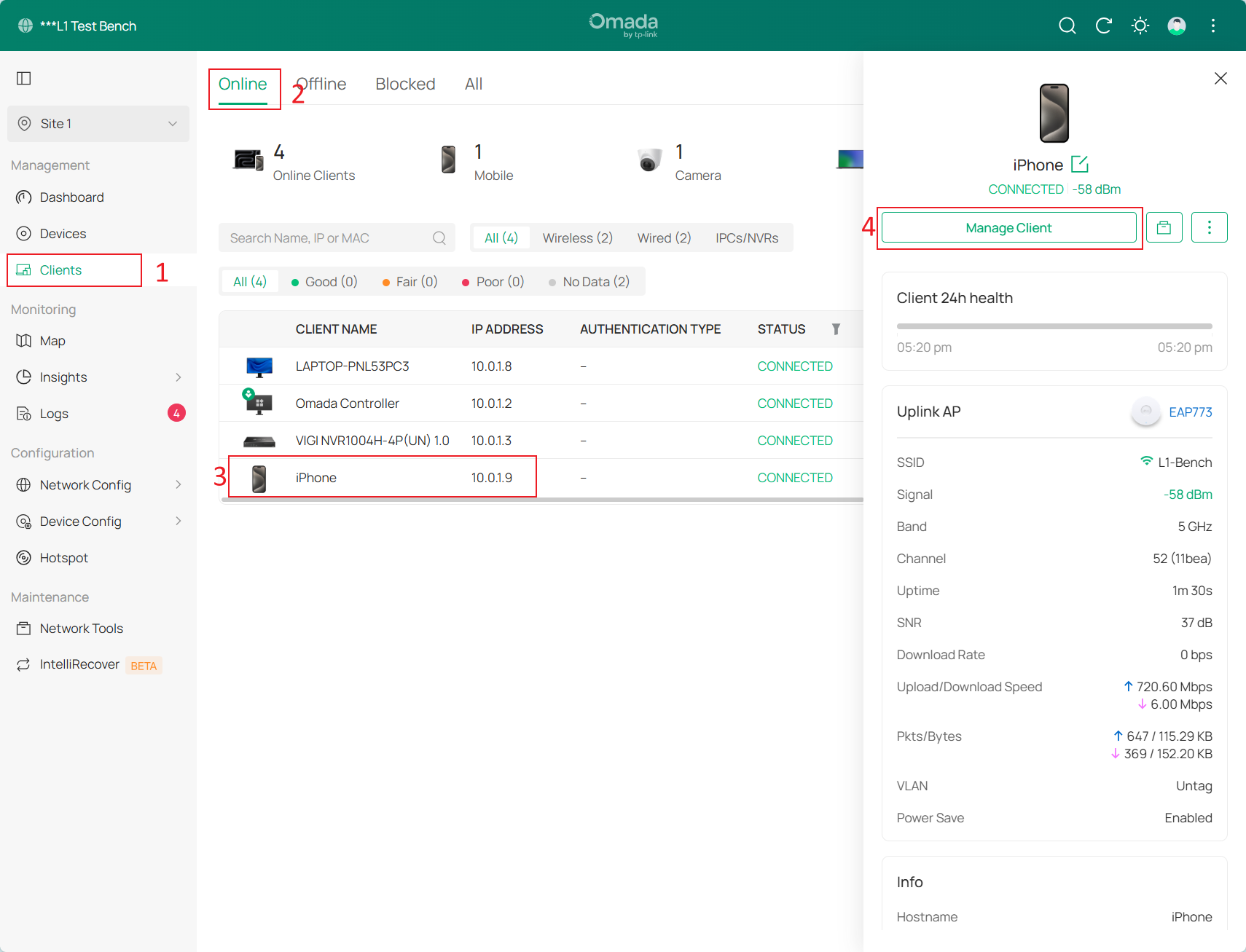
Step 2. Select the wireless client to be configured. There are two ways to find the client for which you want to set Lock to Wireless Device function:
- Go to Clients > Online page: This page shows all currently connected clients.
- Go to Devices > Overview page: This page will show Current Clients connected to the chosen device.
The configuration step of the second way is the same as that of the first way, the only difference is the location of the Clients page and the Devices > Overview page. You can choose the appropriate option based on your needs.
Here we take the first way as an example to show how to configure the client you want to set Lock to AP/Wireless Device function. Go to Clients page. Choose the target client and click on Manage Client to open the properties window.
Step 3. Go to Config page. Enable Lock to Wireless Device option and select the target wireless device. Then Save the settings.
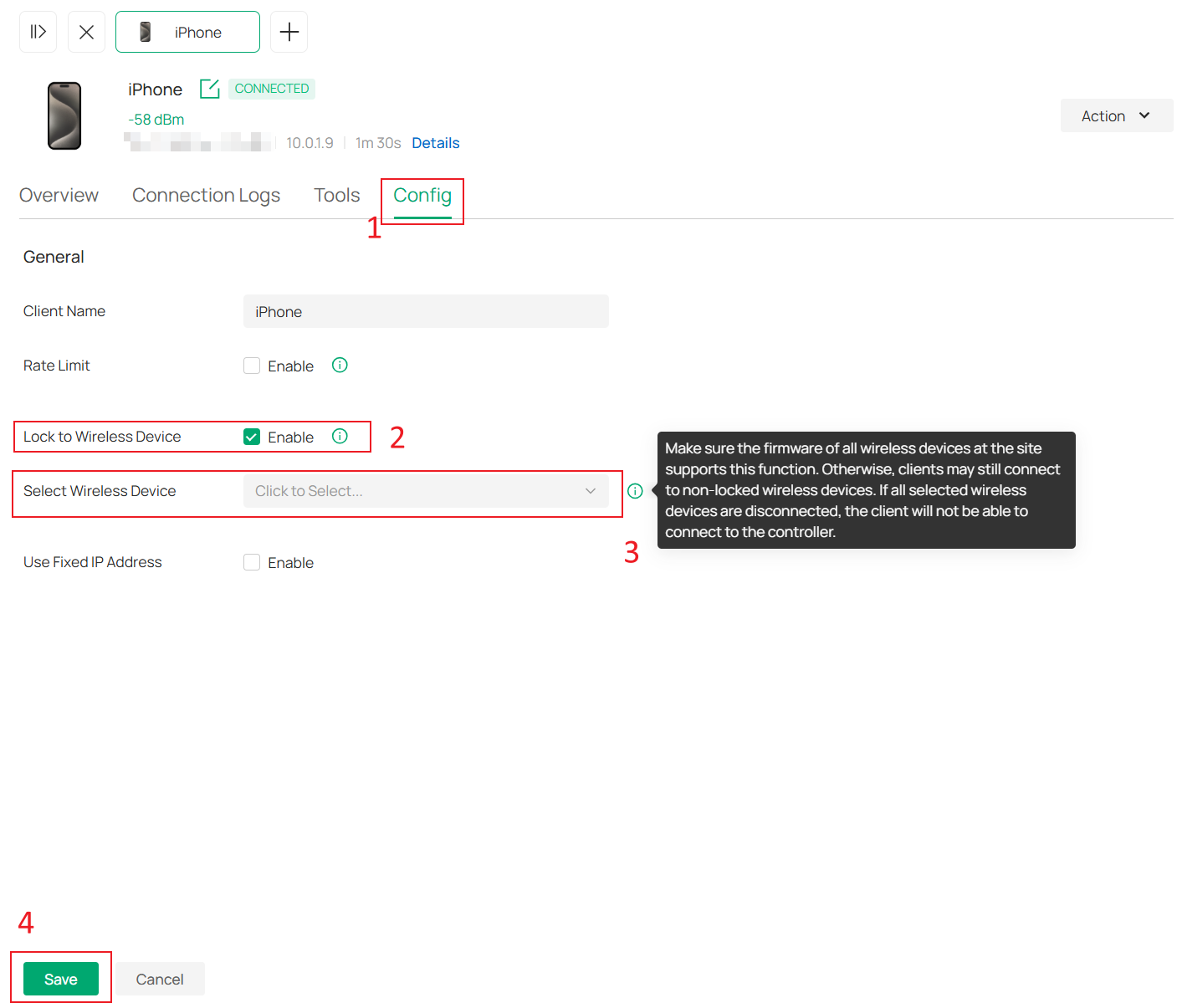
Note: When Lock to Wireless Device is enabled, you can lock the device to a specific wireless device for a stable connection. To use this function, ensure your device is using the device MAC rather than a random MAC. Otherwise, the function may not take effect. Only 11ac and above products support this function.
Verification
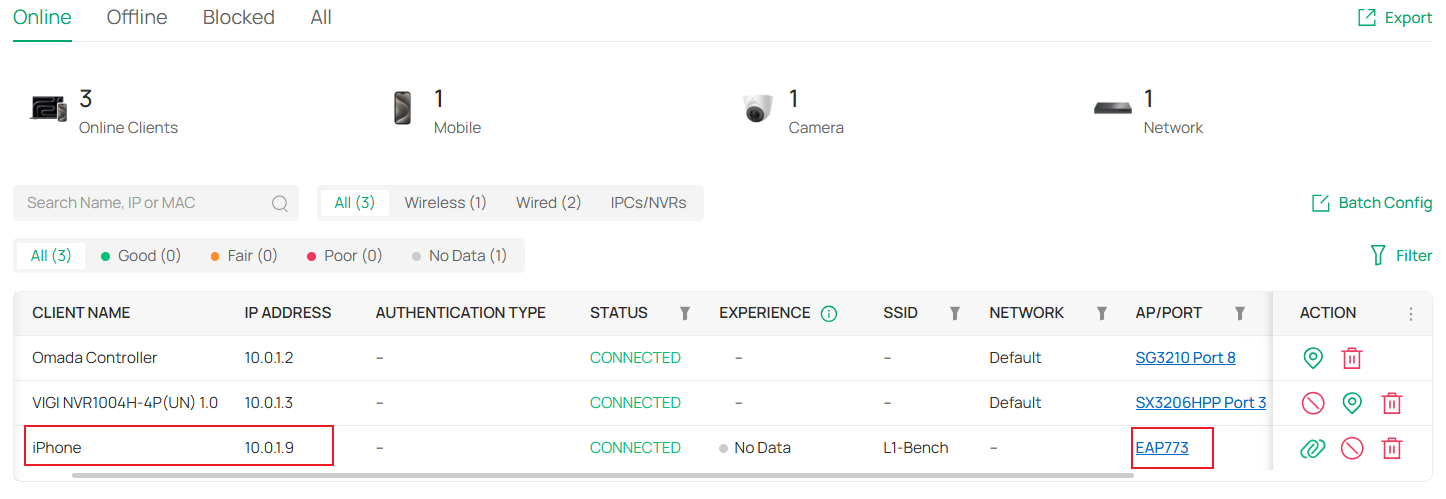
Let’s see how the Lock to AP/Wireless Device function works. As shown in the figure below, the client would be automatically connected to the AP that was configured beforehand.
Conclusion
The content above is the complete configuration and verification process of Lock to AP function.
Get to know more details of each function and configuration please go to Download Center to download the manual of your product.
QA
1. Why still are the APs not in connected status displayed on the Select Wireless Device list?
Re: The APs not in connected status that are previously adopted can still be configured on Omada Controller. However, it should be noted that if the APs selected are all not in connected status, the client will fail to connect to the whole wireless network.
2. Can I configure the Lock to Wireless Device function even if my client is disconnected?
Re: Yes, you can still go to Clients > Offline to find and configure this function for the disconnected clients. After the clients reconnect to the wireless network, the Lock to AP configuration for them will be updated automatically.
