


How to configure remote management on Omada Gateway


How to configure remote management on Omada Gateway
Introduction
Remote Management lets you manage the router remotely when you are not on the router's local network. It provides convenience for network management.
Requirements
- Omada Gateway
Configuration
In this example, there is an ER8411 at a remote site. The user is rarely at that site and would like to access the router remotely. Follow the steps below to remotely manage your Omada Gateway.
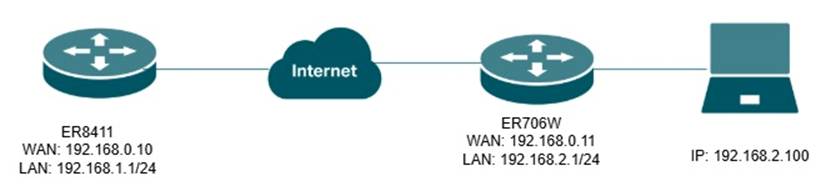
Step 1. Set Up Remote Management
Choose the menu System Tools > Admin Setup > Remote Management, set up the IP Address for the peer WAN IP.
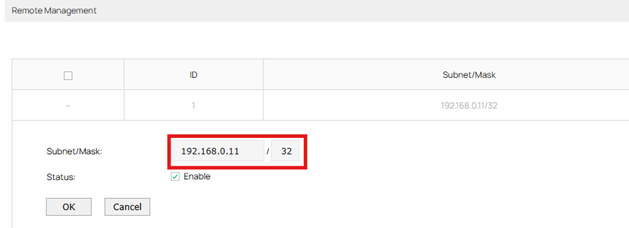
Note: Mask is used to specify which bits of an IP address need to match exactly. For example, 192.168.0.11/32 means only the device whose IP address is 192.168.0.11 can manage the router. 0.0.0.0/0 allows all remote hosts to access the router, which may result in an attack on the device.
Step 2. Set up HTTP/HTTPS server port. (Optional)
The default HTTP server port is 80 and default HTTPS server port is 443. If you want to use other specified ports to manage the router, you can configure as follows.
Choose the menu System Tools > Admin Setup > System Setting, set up HTTP/HTTPS server port.
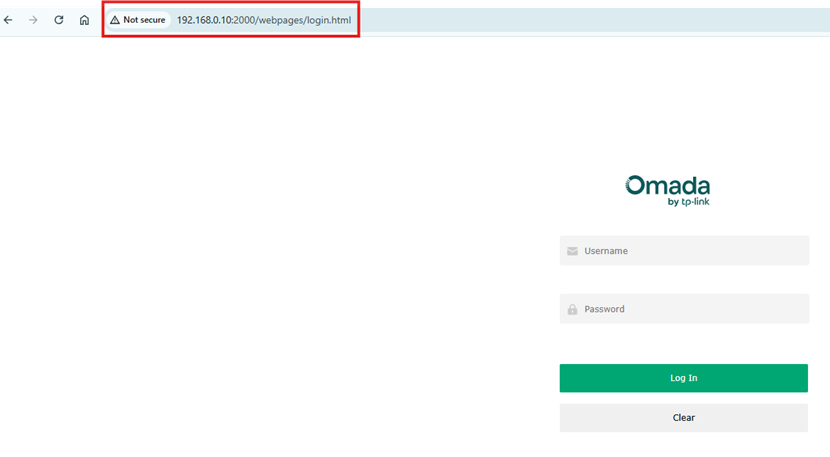
According to the configuration, you can access http://192.168.0.10:2000 or https://192.168.0.10:3000 to manage the router.
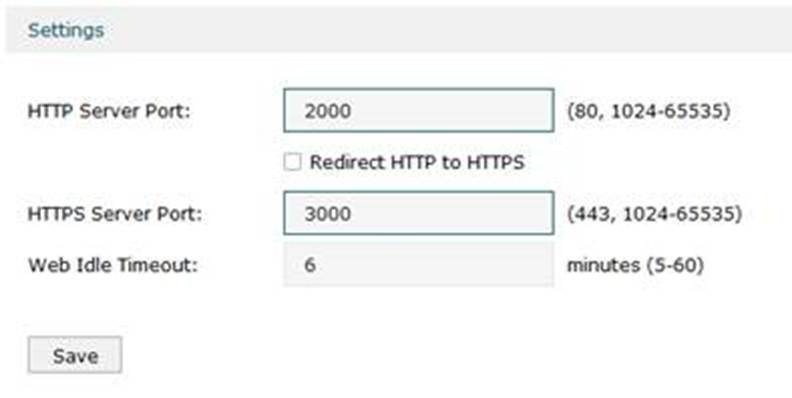
Note: If the router is behind a NAT device or not reachable from the local WAN, we need to open the HTTP and HTTPS ports on the NAT device. Then, access the WAN IP of the NAT device and the HTTP/HTTPS port to manage the router
Verification
To verify the configuration, you can type the router's WAN IP into the remote device connected to the whitelisted router.
Conclusion
After correctly configuring remote management, your remote device will be able to manage the router out of the local network.
Get to know more details of each function and configuration please go to Download Center to download the manual of your product.
QA
Q1: What should I do if fail to connect to the remote gateway.
A1: Confirm your public IP address is in the whitelist.
