


How to Adopt WAN-Side Devices on Omada Fusion Gateways


Contents
Supported products and capabilities
Port requirements for WAN-side device adoption
Ports for WAN-side network devices
Ports for WAN-side surveillance devices (Fusion Pro only)
Verify WAN-side network device adoption
Verify WAN-side surveillance device connectivity
Introduction
Omada Fusion Gateways can automatically discover and adopt devices connected to the LAN-side network. However, WAN-side devices are located in a different network segment and cannot directly communicate with the Omada Controller or Guard Application running on the gateway.
To enable WAN-side device adoption, the required service ports must first be exposed through NAT port forwarding. For network devices, this includes the controller ports used for device discovery, adoption, management, firmware upgrades, and diagnostics. For surveillance devices such as IP cameras and NVRs, the required Guard Application ports must be forwarded to support device discovery, adoption, management, and media streaming.
This article explains how to configure NAT port forwarding on an Omada Fusion Gateway and how to adopt WAN-side network devices, IP cameras, and video recorders using an Inform URL or Guard Application connection.
Supported products and capabilities
|
Capability |
Applicable Models |
|
WAN-side network device adoption |
Omada Fusion Gateways |
|
WAN-side network device management |
Omada Fusion Gateways |
|
WAN-side IP camera adoption |
Omada Fusion Pro Gateways |
|
WAN-side NVR adoption |
Omada Fusion Pro Gateways |
|
Guard Application-based surveillance management |
Omada Fusion Pro Gateways |
Note: WAN-side surveillance device adoption requires the Guard Application and is currently supported only on Omada Fusion Pro Gateways.
Port requirements for WAN-side device adoption
Ports for WAN-side network devices
When adopting WAN-side network devices through an Inform URL, configure NAT port forwarding rules for the following Omada Controller ports.
|
Port |
Protocol |
Purpose |
|
29810 |
UDP |
Device discovery. |
|
29811 |
TCP |
Device management (Omada Controller v4 compatibility). |
|
29812 |
TCP |
Device management through Omada Discovery Utility (Omada Controller v4 compatibility). |
|
29813 |
TCP |
Firmware upgrades for devices compatible with Omada Controller v4. |
|
29814 |
TCP |
Device management for devices compatible with Omada Controller v5. |
|
29815 |
TCP |
Device information, DPI statistics, and packet capture uploads (introduced in v5.9). |
|
29816 |
TCP |
Remote terminal access (introduced in v5.9). |
|
29817 |
TCP |
Device data collection and reporting (introduced in v6.0). |
|
8043 |
TCP |
Controller management and manual firmware uploads. |
|
8044 |
TCP |
Firmware upgrade service. |
Note: Forward each port from the WAN interface of the Fusion Gateway to the Controller's LAN-side IP address. Use the same value for both the source and destination ports.
Ports for WAN-side surveillance devices (Fusion Pro only)
IP cameras and video recorders are managed through the Guard Application rather than the network application.
To adopt and manage WAN-side surveillance devices, configure NAT port forwarding rules for the following ports.
|
Port |
Protocol |
Purpose |
|
10122-10123 |
TCP |
10122: Device discovery port used when IP cameras obtain the Guard Application address through DHCP Option 138. 10123: Long-lived connection between IP cameras and the Guard Application for device adoption, live view, and remote management. |
|
6000 |
TCP |
Long-lived management connection used by Fusion Pro to manage IP cameras. |
|
6005 |
TCP |
Long-lived media streaming connection used by IP cameras to deliver video streams to Fusion Pro. |
Note: Forward each port from the WAN interface of the Fusion Gateway to the Guard Application's LAN-side IP address.
Configure NAT port forwarding
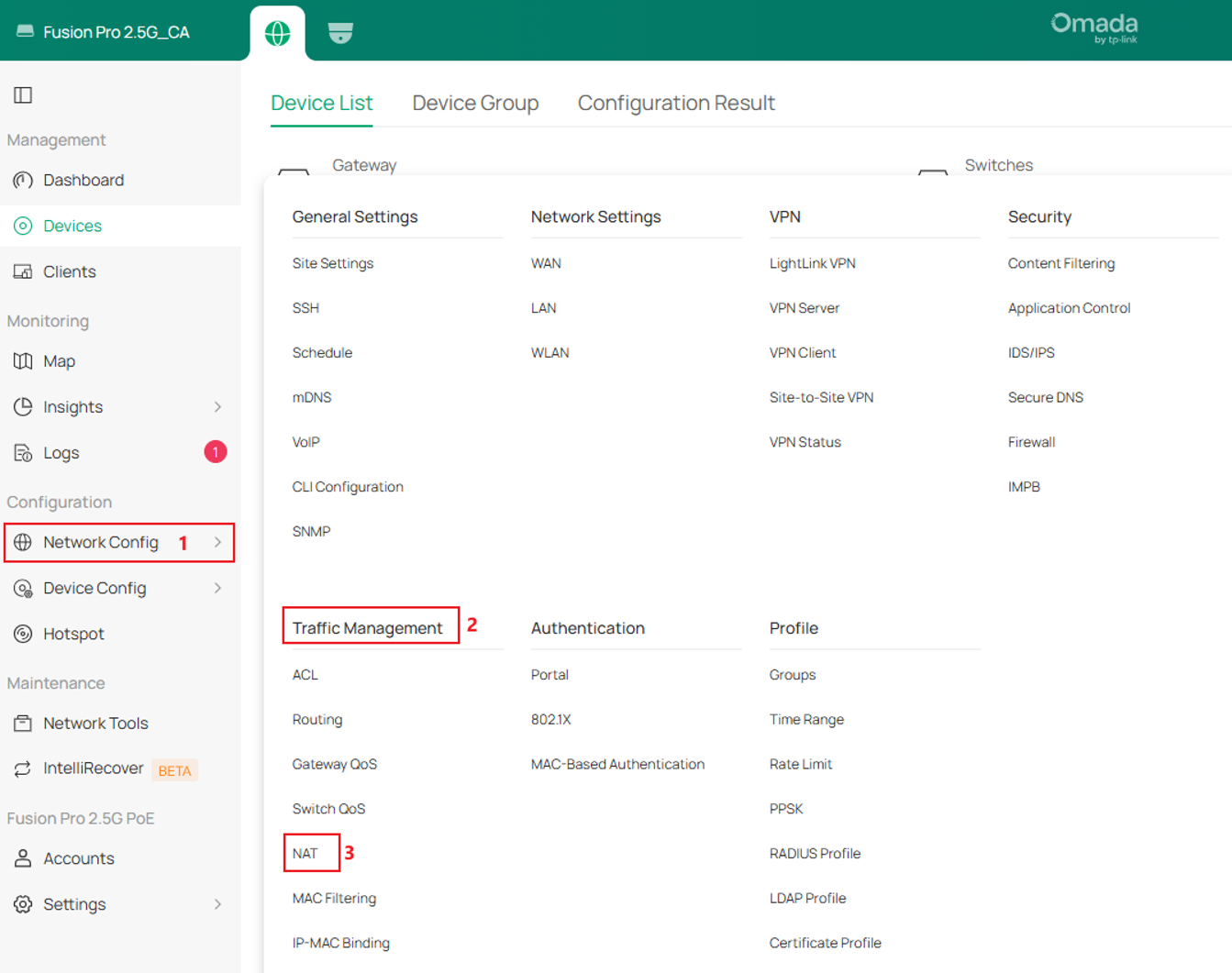
Step 1. Open the NAT configuration page.
Log in to the Omada Controller and navigate to Configuration > Network Config > Traffic Management > NAT.
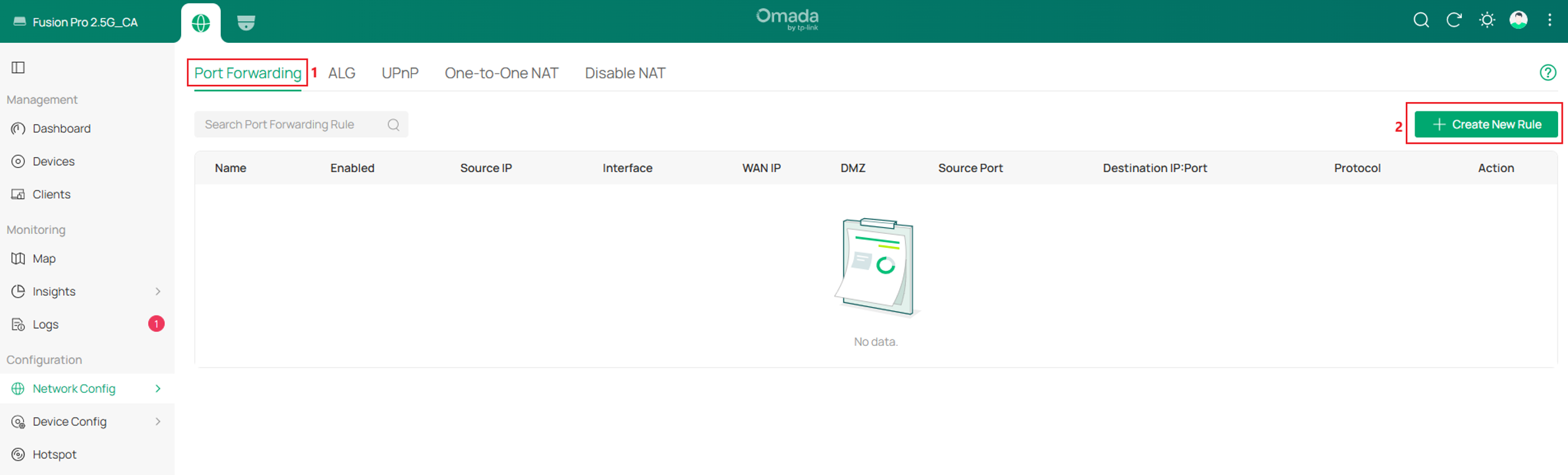
Step 2. Create a port forwarding rule.
On the Port Forwarding tab and click Create New Rule.
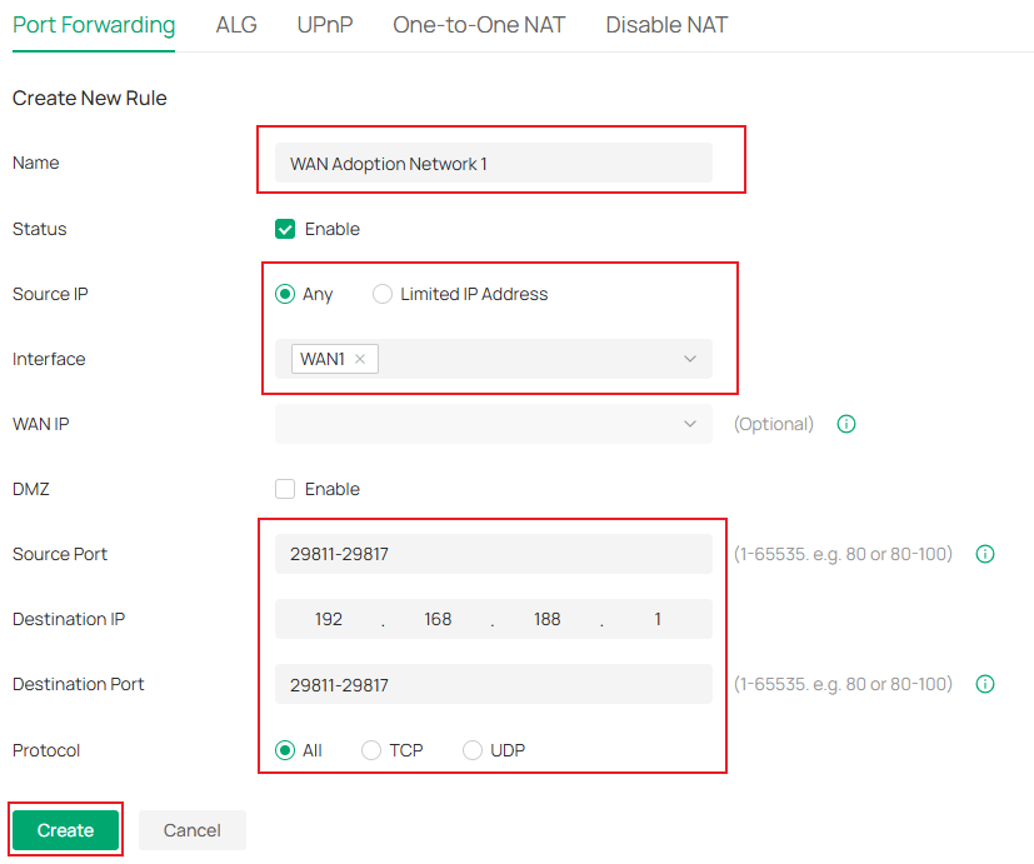
Step 3. Configure the port forwarding rule.
Configure the following settings:
- Name: Enter a descriptive name such as WAN Device Adoption.
- Status: Enabled.
- Source IP: Any or Limited IP Address as required.
- Interface: Select the WAN interface connected to the WAN-side device.
- Source Port: Enter the required port or port range.
- Destination Port: Enter the same value as the source port.
- Destination IP: Enter the LAN-side IP address of the Controller or Guard Application.
- Protocol: Select All by default so both TCP and UDP are supported.
Click Create.
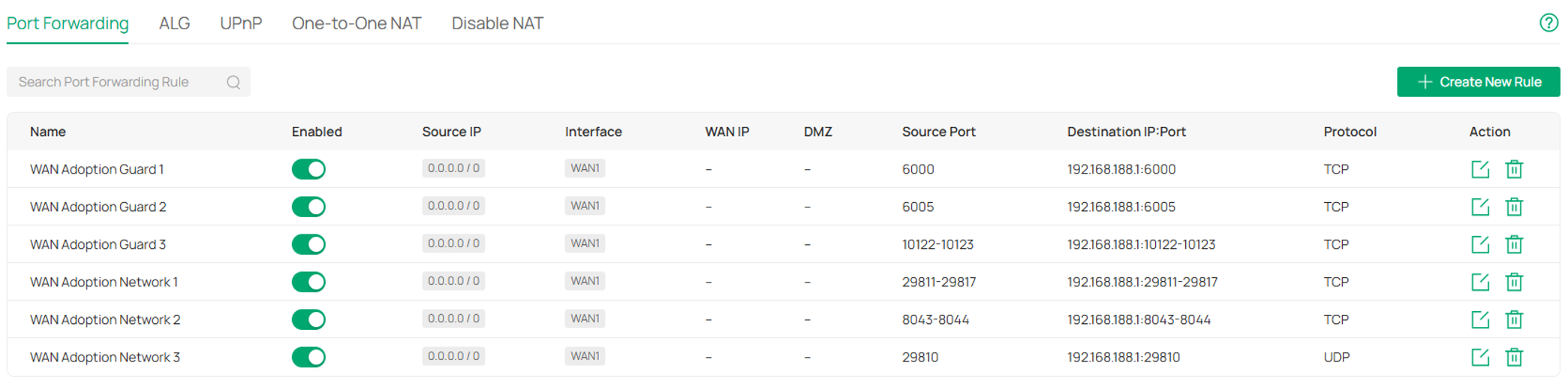
Step 4 Create additional rules for the remaining ports.
Repeat the procedure for all required ports.
Note: Each port forwarding rule supports only one protocol. Create separate rules for TCP and UDP ports when necessary.
Verify device adoption
Verify WAN-side network device adoption
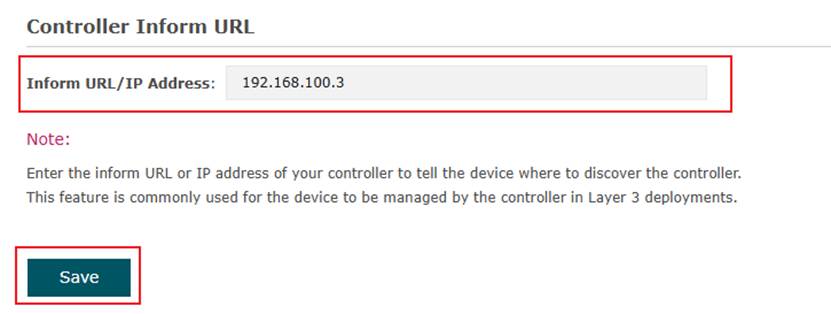
- Open the device's Inform URL/IP Address setting.
- Enter the WAN IP address of the Fusion Gateway.
- Save the configuration.
The device will initiate communication with the gateway's WAN interface, and the NAT rules will forward the traffic to the Controller.
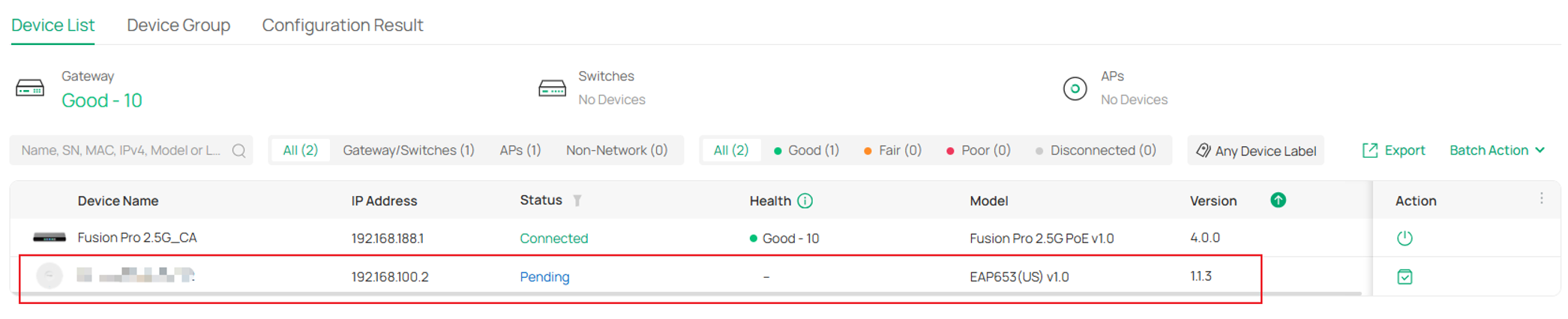
- Navigate to Devices on the Omada Controller.
- Confirm that the device appears with a status of Pending.
- Click Adopt.
Verify WAN-side surveillance device connectivity
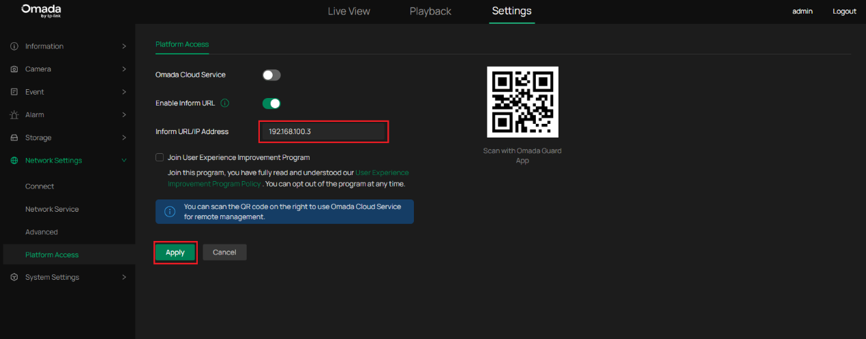
After the required Guard Application ports have been forwarded, verify that the IP camera ornetwork video recorder successfully establishes communication with the Guard Application and appears online for adoption and management. The procedure is the same as introduced in Verify WAN-side network device adoption.
Conclusion
By configuring NAT port forwarding on the Fusion Gateway, WAN-side devices can securely reach the Omada Controller or Guard Application across network boundaries. After the required ports are forwarded and the appropriate connection settings are configured, WAN-side network devices, IP cameras, and NVRs can be successfully discovered, adopted, managed, upgraded, and monitored through the platform.
If additional NAT devices exist between the WAN-side device and the Fusion Gateway, ensure that the same ports are forwarded on each device along the communication path. Once end-to-end connectivity is established, WAN-side devices can be managed in the same way as devices deployed on the local network.
To learn more about each function and configuration, please visit Support Home to download or check the manual for your product.
QA
Q1. What IP address should be configured as the Destination IP in the NAT rule?
A1: Configure the LAN-side IP address of the Controller or Guard Application. This is where the forwarded traffic is delivered.
Q2. What IP address should be configured in the Inform URL?
A2: Configure the WAN IP address of the Fusion Gateway. WAN-side devices cannot directly reach the Controller's LAN-side IP address, so communication must first reach the gateway's WAN interface and then be forwarded internally through NAT rules.
Q3: What if another NAT device is deployed in front of the Fusion Gateway?
A3: The upstream NAT device must also forward the same ports to the WAN IP address of the Fusion Gateway. Each NAT device along the communication path requires corresponding port forwarding rules.
Q4. Which ports are required for WAN-side device adoption?
A4:
Network Devices:
- UDP 29810
- TCP 29811-29817
- TCP 8043-8044
Surveillance Devices:
- TCP 10122-10123
- TCP 6000
- TCP 6005
