


Contents
Failed to Upload Floor plan (DXF file)
Lagging during Simulation and CPU utilization gradually rises to 100%
Introduction
The Omada Design Hub is a browser-based application that provides floor plan editing and simulation functions. Different browsers have varying levels of support for SVG rendering, which may cause functionality or performance issues.
If any issues arise, it is recommended to try switching to another browser first, preferably Google Chrome.
This article also introduces solutions to other specific known issues with different browsers, including Firefox, Chrome, and Edge.
Failed to Display Floor Plan (after uploading DXF file)
Please check if the format and content are correct, and then try to upload it via Google Chrome browser.
Floor Plan unavailable
Please check and upgrade the driver of your graphics device and make sure your browser version is also up to date.

If the issue persists, please check the graphics configuration in your browser accordingly:
Firefox
1. Make sure the browser version is up to date.
2. Go to about:config and search webgl in the search bar:

3. Check these configurations accordingly.

1. Make sure the browser version is up to date.
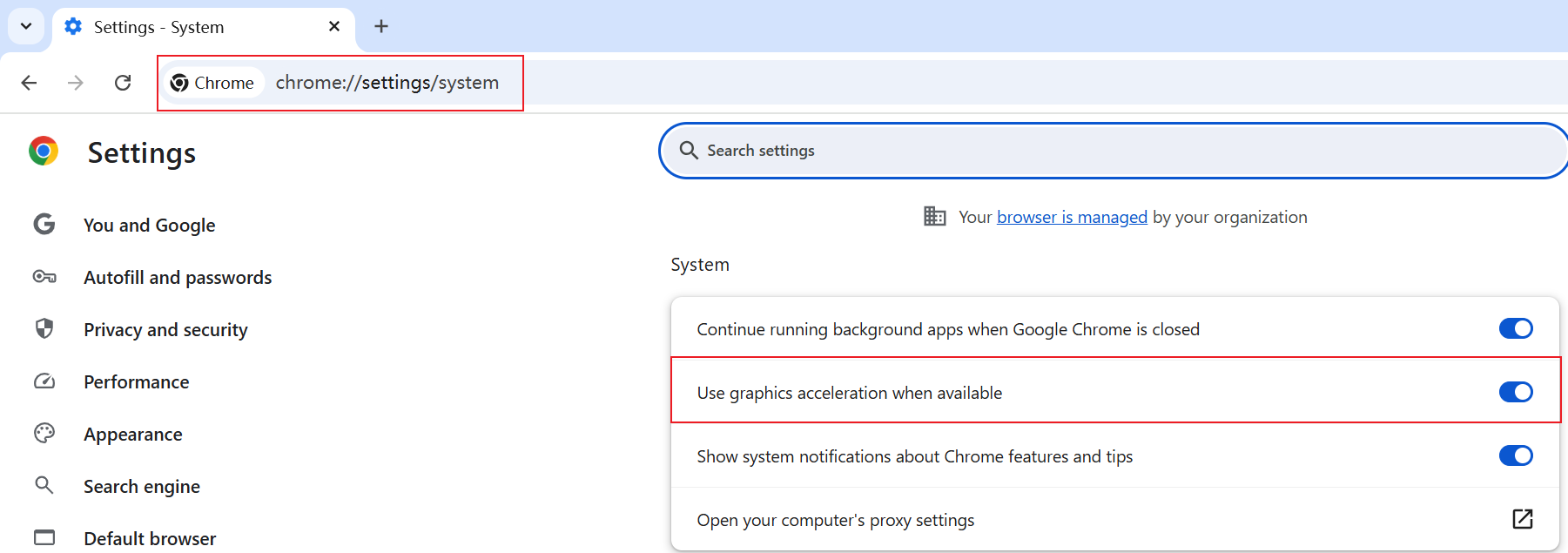
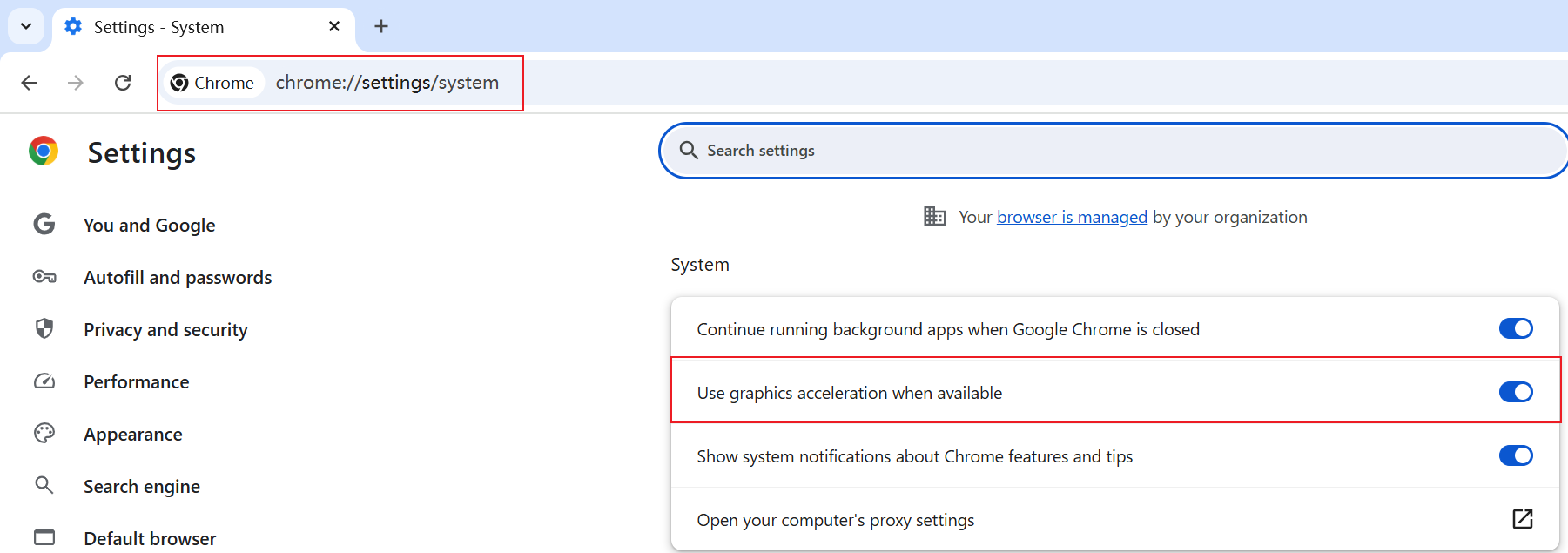
2. Go to chrome://settings/system to enable Use graphics acceleration when available.
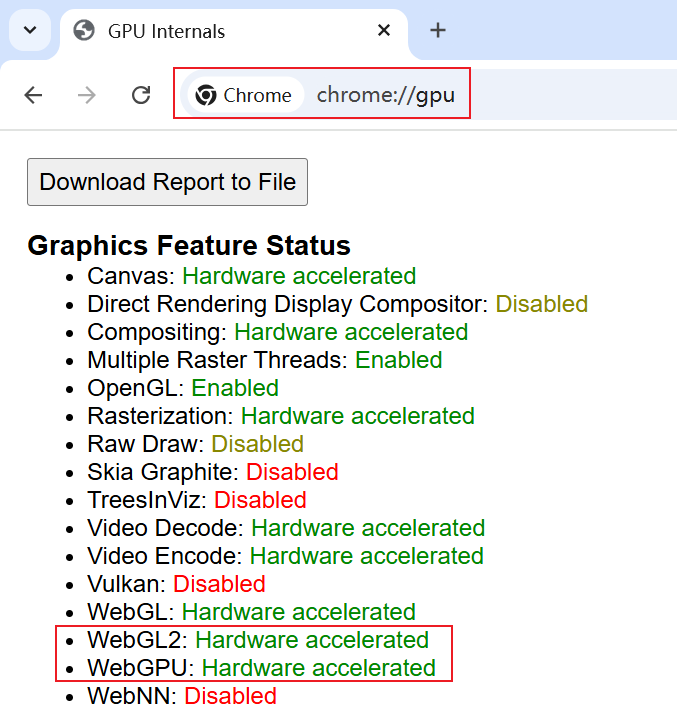
3. Go to chrome://gpu/ to confirm WebGL2 and WebGPU is “Hardware accelerated”
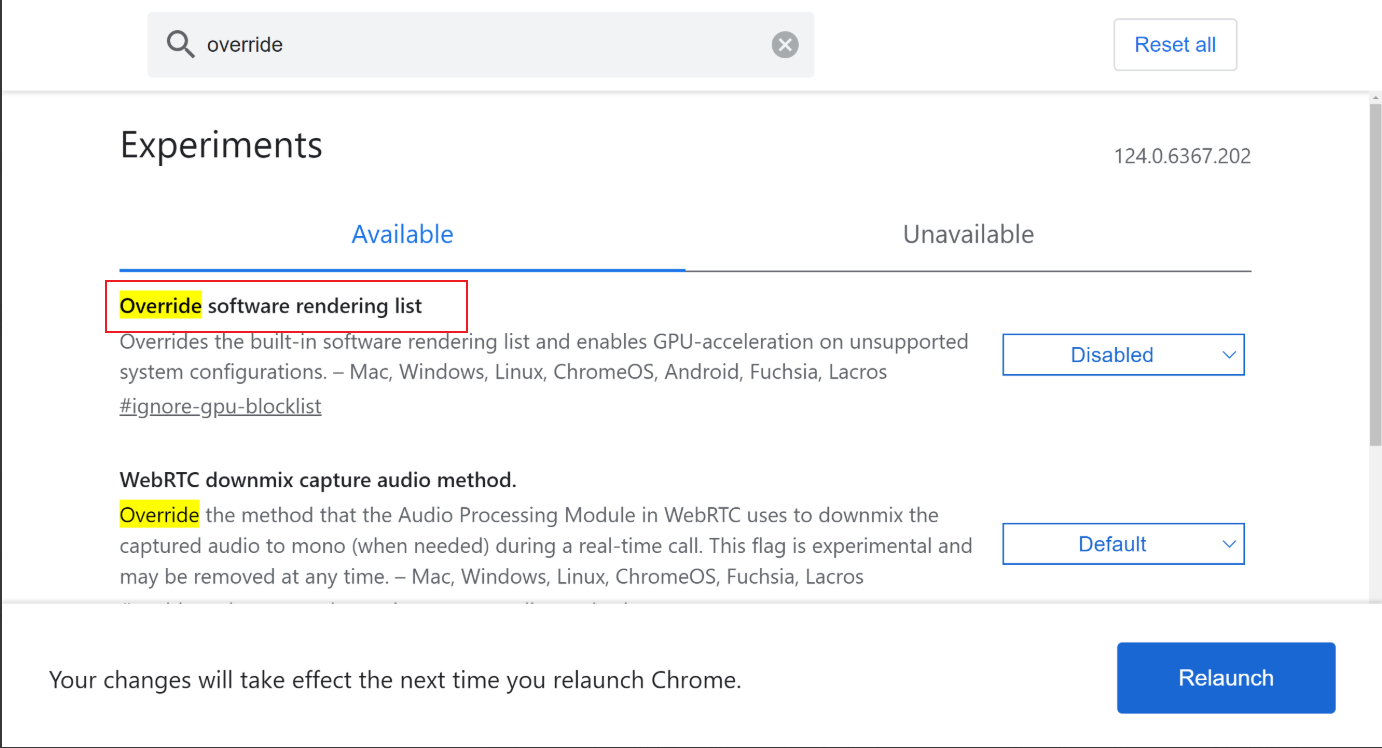
4. Go to chrome://flags/, search and enable “Override software rendering list”, “WebGL Developer Extensions”, “WebGL Draft Extensions”, then click relaunch to save the configuration:

Edge
1. Make sure the browser version is up to date.
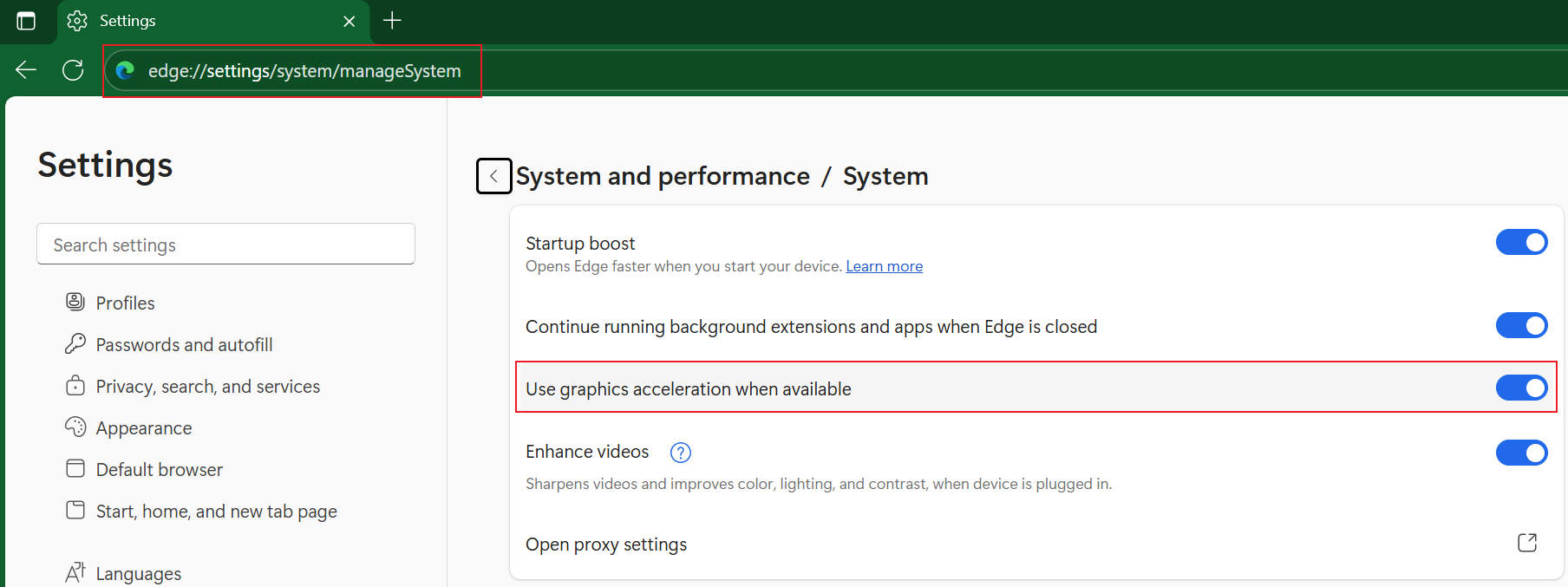
2. Go to edge://settings/system/manageSystem to enable Use graphics acceleration when available.
3. Go to edge://gpu/ to confirm WebGL2 and WebGPU is “Hardware accelerated”
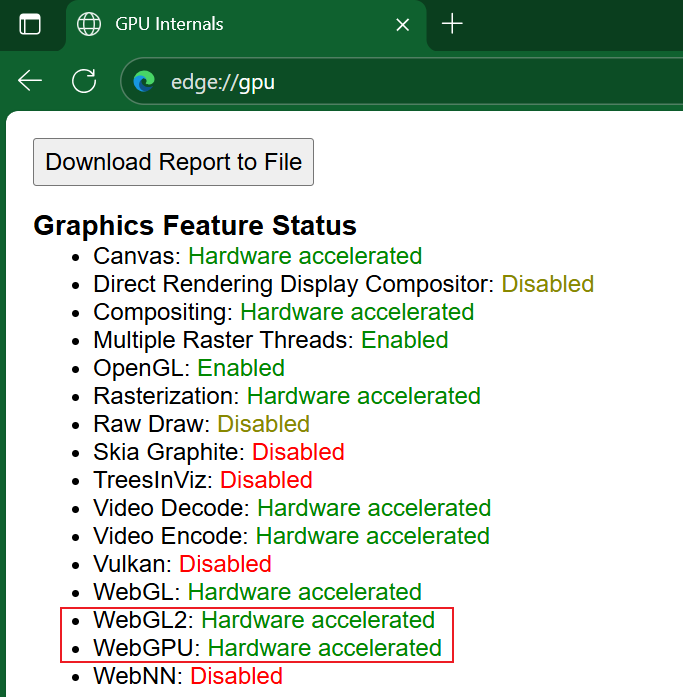
4. Go to edge://flags/ to enable “Override software rendering list” and “WebGL Draft Extensions”
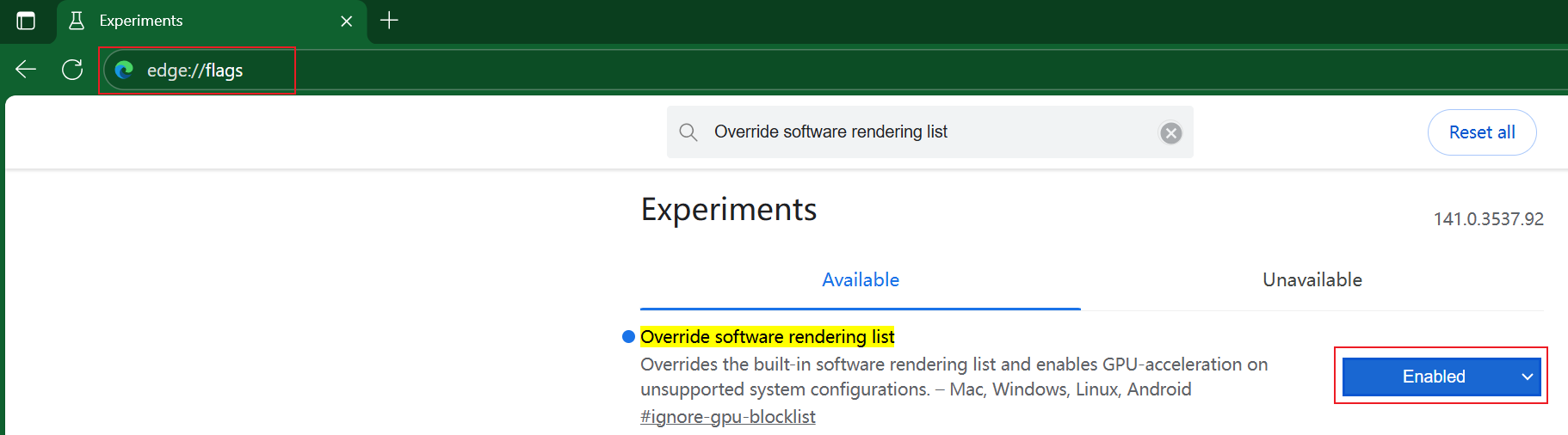
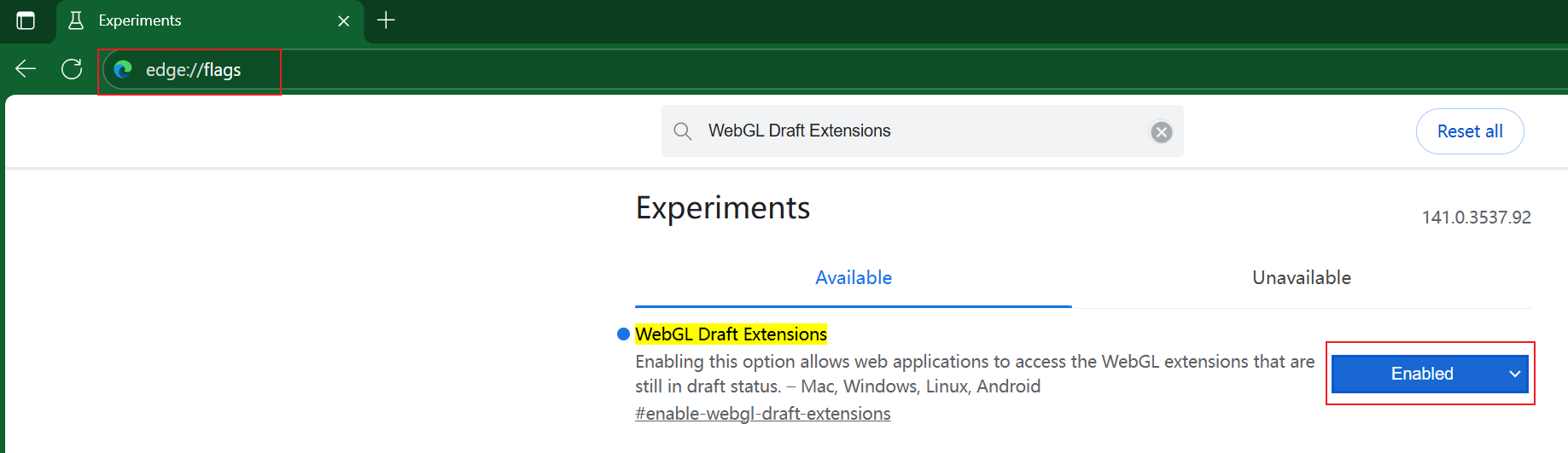
Lagging during Simulation and CPU utilization gradually rises to 100%
This is mainly because hardware acceleration is not enabled, so there is too much pressure on the CPU, and closing the browser should resolve the issue.
Here, we introduce how to enable hardware acceleration in Firefox, Chrome, and Edge.
Firefox
Go to about:preferences and disable Use Recommended performance settings, then Use hardware acceleration should be enabled.

Chrome
Go to chrome://settings/system to enable Use graphics acceleration when available.
Edge
Go to edge://settings/system/manageSystem to enable Use graphics acceleration when available.

Get to know more details of each function and configuration please go to Download Center to download the manual of your product.
