


Contents
Cloud Access (On Premise Systems and Fusion Systems)
Direct access to the Software/Hardware Controller
Introduction
Omada Controllers come in many different forms. This article helps you find the webpages of different Controllers.
Requirements
- Omada Controller (Cloud-Based Controller, Hardware Controller, Intergrated Gateway, Fusion Gateway, Software Controller included)
- Omada APP
- PC with network access
Configuration
Cloud-Based Controller
Step 1. Please visit Omada Cloud and log in to your account.
Step 2. If you have already created a Cloud-Based Controller, you can filter for Cloud Based Systems in the top left corner. Otherwise, you need to create one according to the prompts.
Step 3. Click the organization card or Omada Network System icon to access the Controller page.
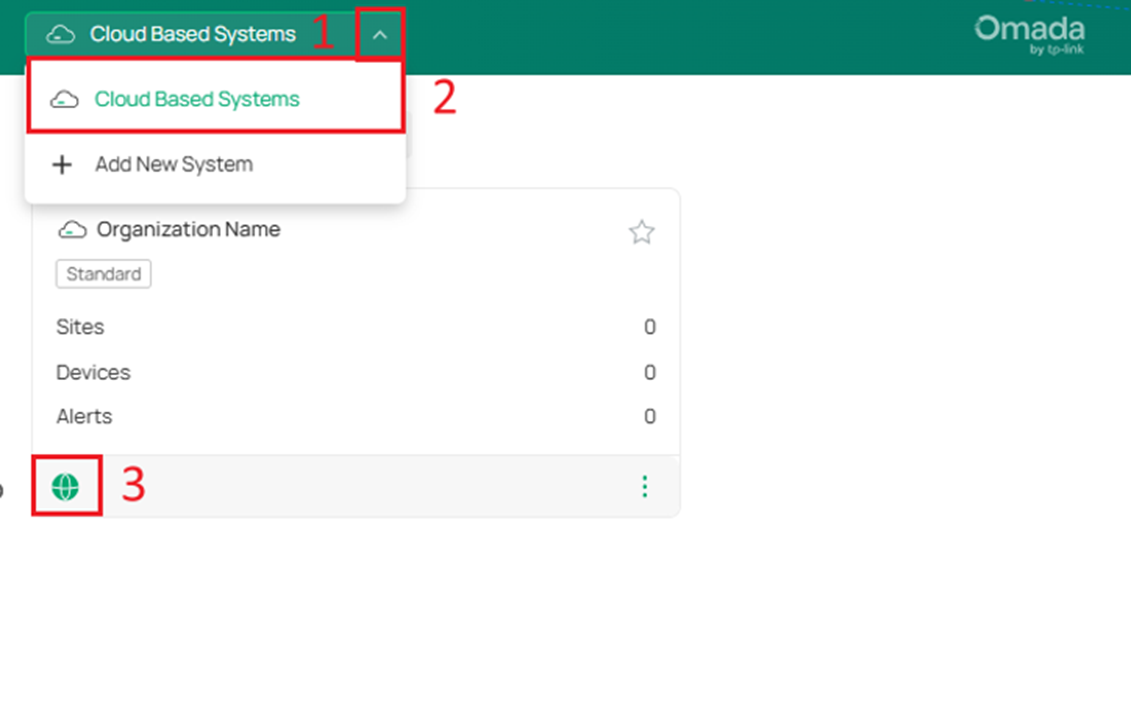
Cloud Access (On Premise Systems and Fusion Systems)
Aside from Cloud-Based Controller, all other types of Controllers have Cloud Access functionality, allowing for easy access from the public internet. If you have enabled Cloud Access, please refer to the following instructions.
Step 1. Please visit Omada Cloud and log in to your account.
Step 2. You can filter for On Premise Systems in the top left corner. If your Controller has Cloud Access enabled and can access the internet normally, you will see your Controller here.
Step 3. Click the organization card or Omada Network System icon to access the Controller page.
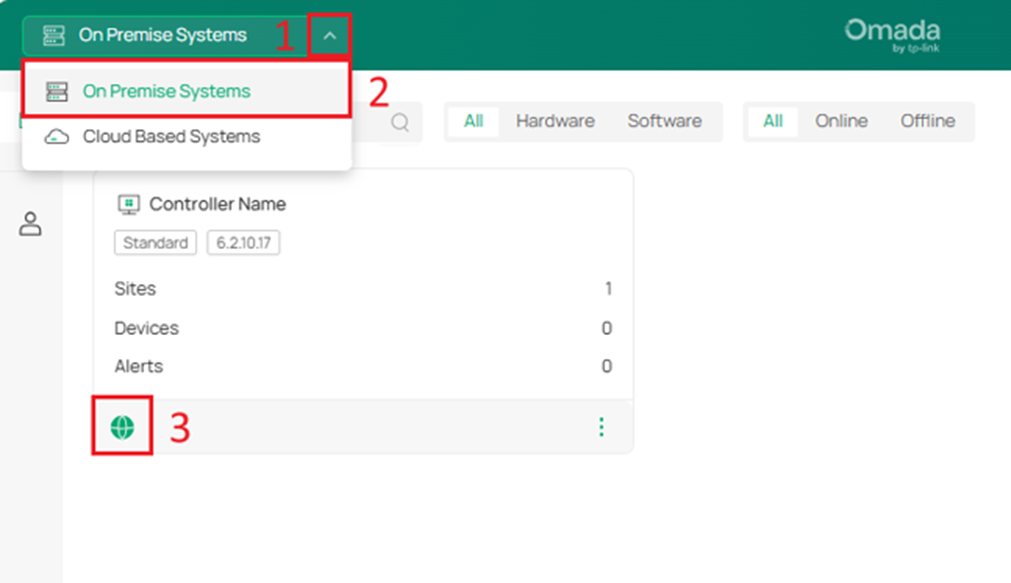
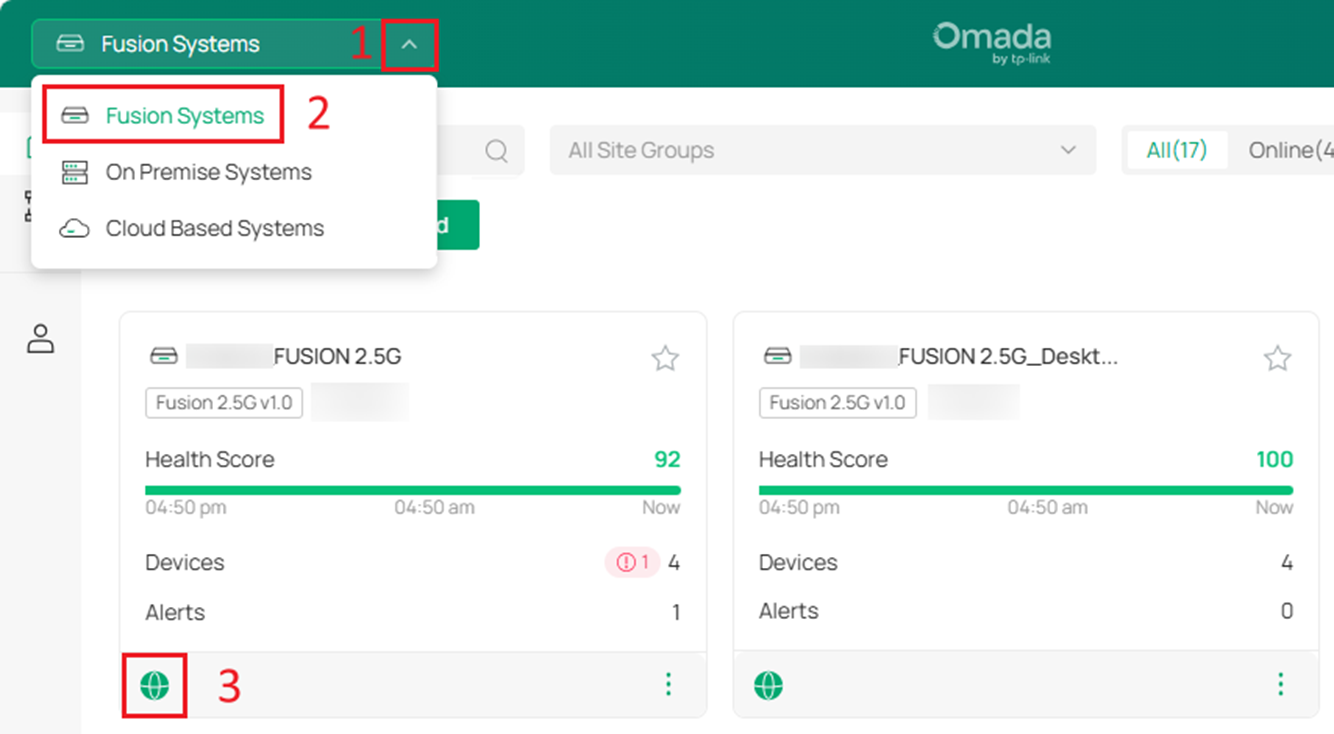
Direct access to the Software/Hardware Controller
- Access via browser
Step 1. Locate the Controller's IP address.
If it's a Software Controller, the IP address is the IP address of the PC/Server on which the Controller is installed. The OC usually automatically obtains an IP address via DHCP. If there's no DHCP server, it defaults to 192.168.0.253.
Finding the Controller's IP address can be very easy or very difficult, especially if you don't have access to the physical machine, the IP address has changed over time, or you've lost the record of a static IP address. Here are some practical methods for your reference based on your specific situation.
- A common approach is to look up the IP address on the DHCP server. However, this becomes inconvenient when you do not know the device’s MAC address, or when there are a large number of devices to sift through—especially if the DHCP Client List uses MAC addresses as identifiers.
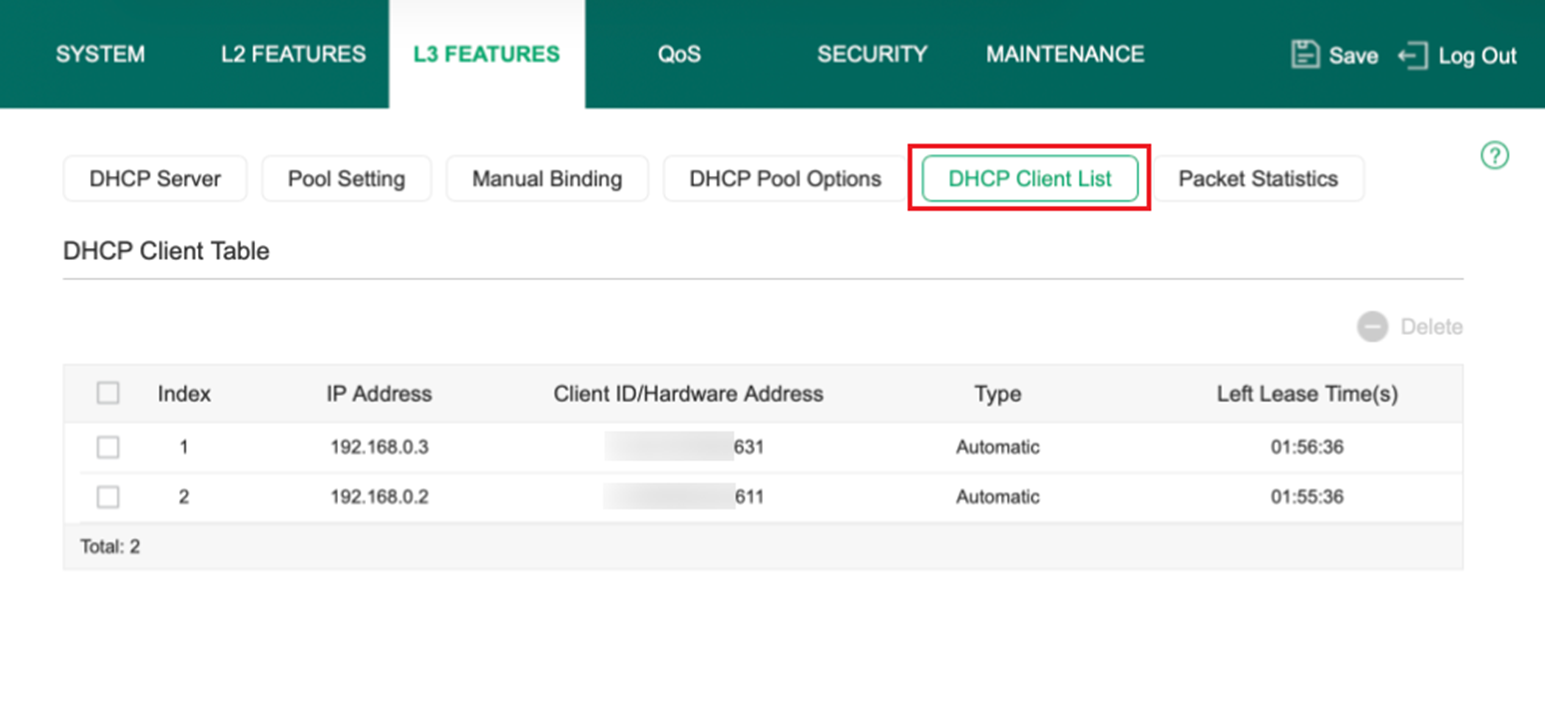
- If it's a Software Controller, you can of course directly enter commands like “ipconfig / ifconfig / ip a” on the machine to check its IP address, if you have easy access to the machine.
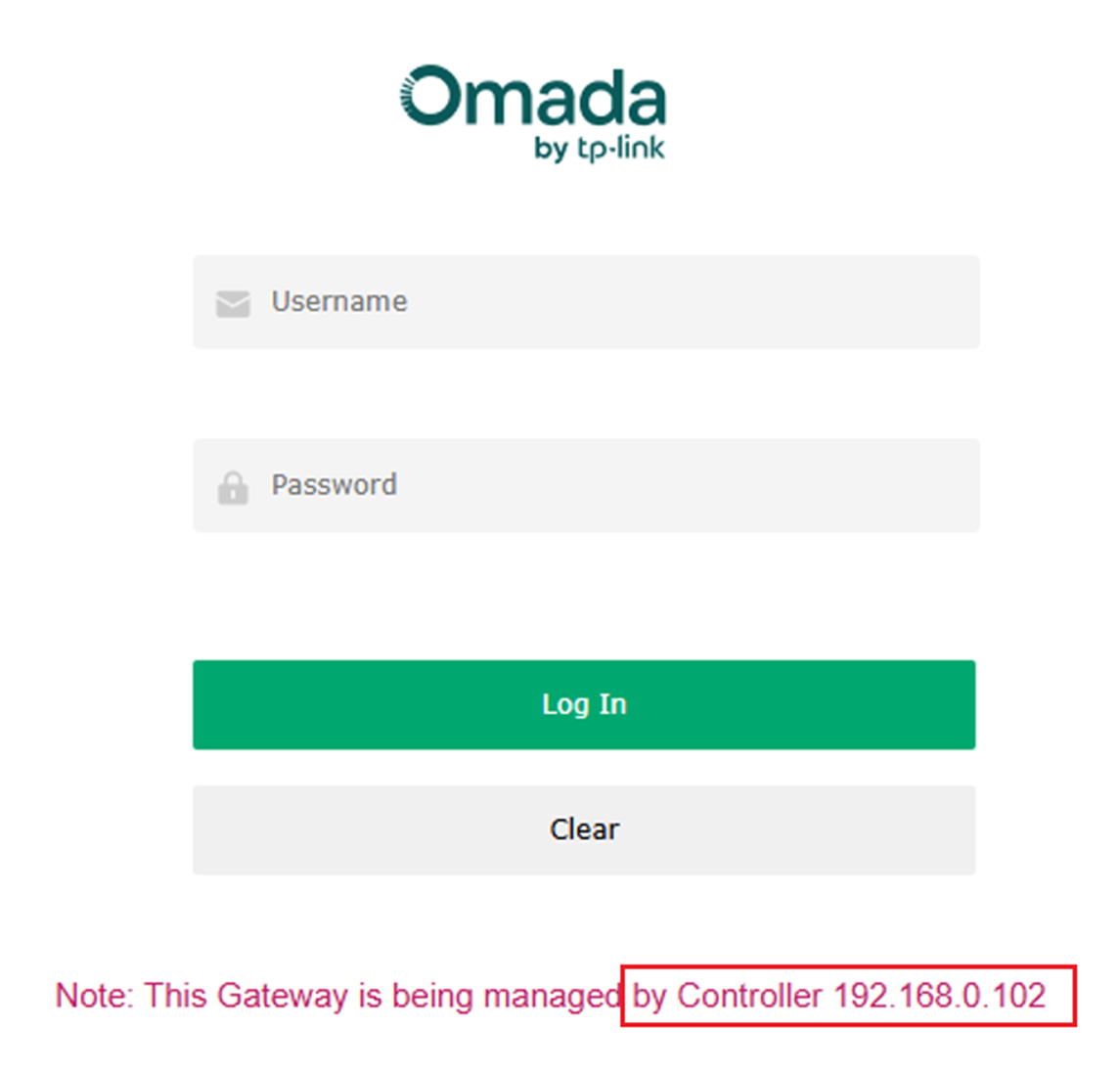
- You can access the Standalone management page of the Gateway/AP/Switch in the network. If they are adopted by the Controller, there will be a prompt here, and the Controller's IP address will be displayed.
- If you have a PC and your Controller in the same broadcast domain, you can also try checking the PC's ARP table to determine the Controller's IP address. Of course, you'll need to know the MAC address of the machine hosting the Controller.

- If you still cannot determine the Controller’s IP address, tools such as Wireshark and Nmap can be used as a last resort. The exact approach depends on your network environment. This method is most applicable when you have physical or administrative access to network devices such as access points (APs) or switches, but the Controller itself is unknown or unreachable. One approach is to capture and analyze network traffic. If certain features (for example, device provisioning, heartbeat, or configuration updates) rely on communication with the Controller, you can inspect packets to identify the destination IP address associated with these interactions. Another approach is to infer a likely IP range for the Controller (based on your network design, DHCP scope, or VLAN layout) and perform targeted scans using tools like Nmap to identify hosts with relevant open ports or services.
Note: Always ensure that you comply with your organization’s policies and applicable regulations before performing network scans. Active scanning (such as with Nmap) may trigger alerts or be considered intrusive by network administrators.
Step 2. Access the Controller directly via IP address in the browser.
Once you have the Controller's IP address, you can access the Controller through your browser. However, there are a few things to keep in mind.
- For Hardware Controller and various models with built-in Controllers, you can directly access them by entering their IP address. As shown in the image below, OC200 can be accessed directly via its IP address.
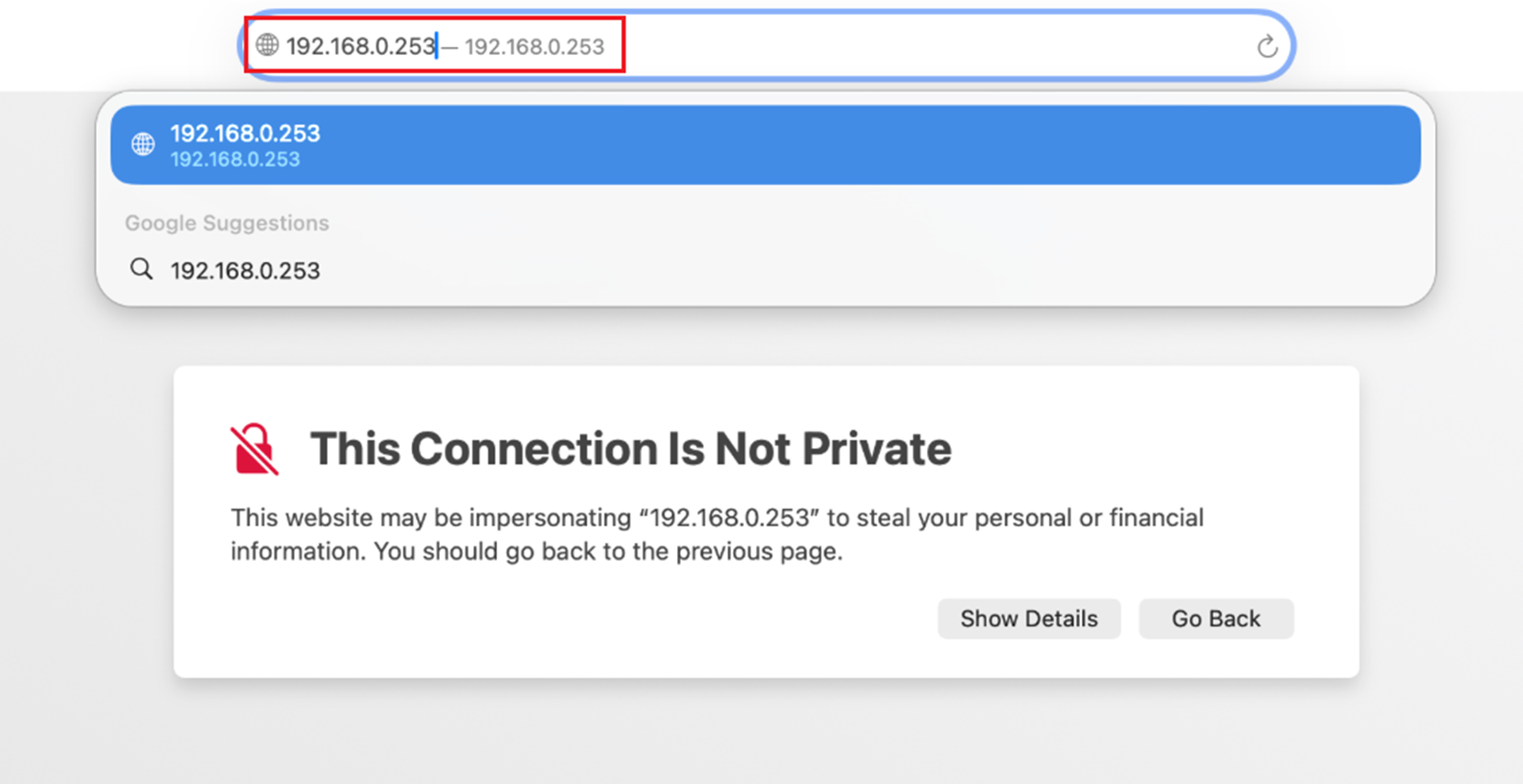
- For Software Controllers, since they are usually deployed on servers, the Controller does not occupy well-known ports such as 80 or 443, so the port number needs to be manually specified to access it. Accessing the Controller might require a method similar to this. https://your Controller IP:8043. Note the port number used in the diagram, access via HTTPS, and use port 8043.

- Access via Omada App
Step 1. Download the Omada app and connect to your network via wired or wireless connection.
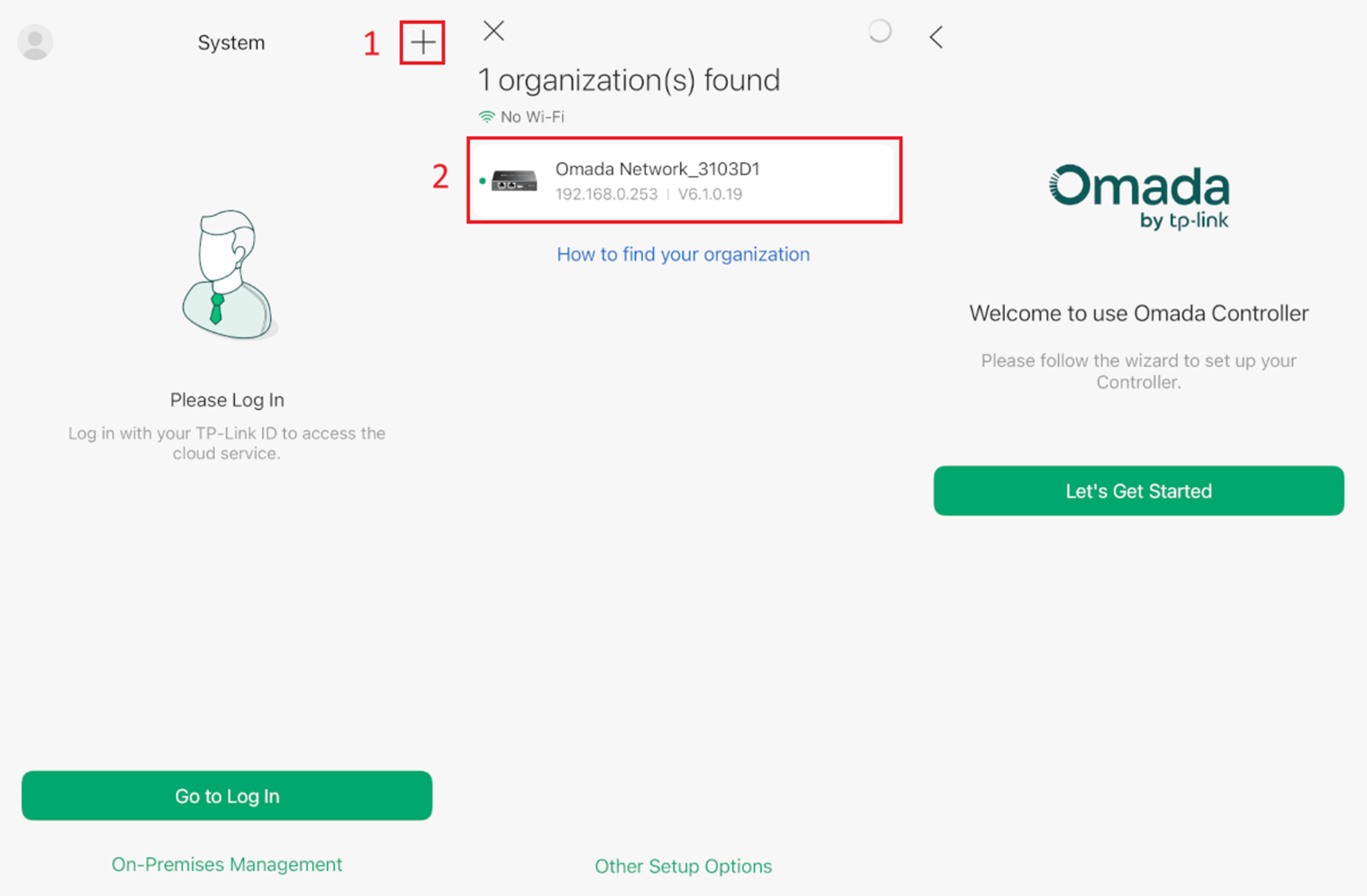
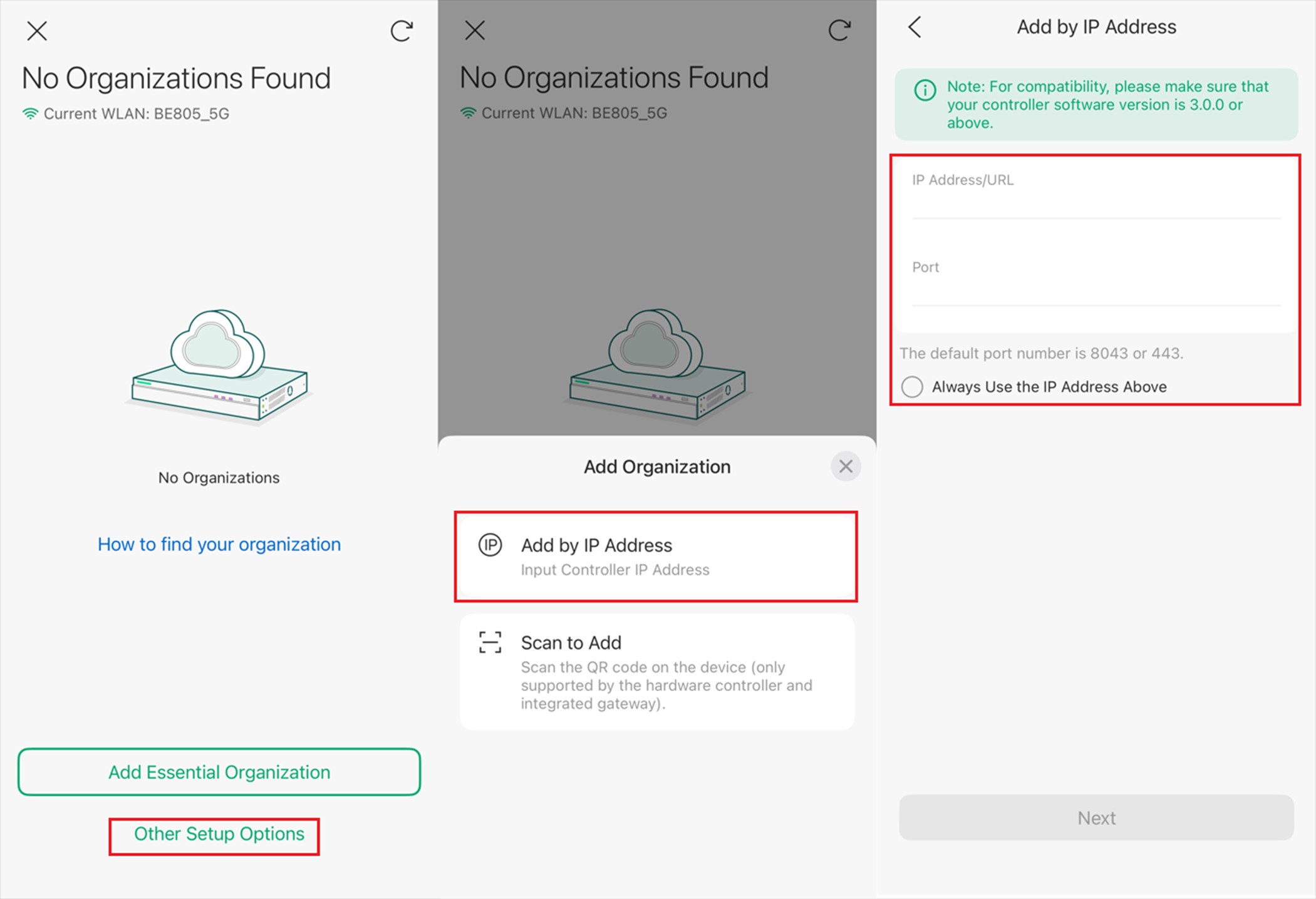
Step 2. On the homepage, click Add Organization or the “+” in the upper right corner. It will automatically scan for Controllers under the same broadcast domain. Of course, if your Controller and app are not on the same subnet, you may need to manually enter the IP address to access it.
Conclusion
The above are the methods for accessing the Controller page.
To learn more about each function and configuration, please visit Support Home to download or check the manual for your product.
