


Contents
Introduction
IntelliRecover monitors supported PoE-powered devices and automatically power-cycles them when they remain offline for a specified period. This helps restore offline devices automatically and reduces the need for manual intervention.
Requirements
- Omada Network 6.3
- Omada Fusion 2.5G PoE, Omada Fusion Pro 2.5G PoE or Omada Managed PoE Switches
Configuration
IntelliRecover monitors the online status of configured devices. If a device remains offline longer than the configured Auto Reboot Timeout, IntelliRecover power-cycles the PoE port and retries according to the configured Retry Interval and Max Retry Times. You can configure IntelliRecover from the IntelliRecover page or add a device to IntelliRecover from its device configuration interface.
Scenario 1. Configure IntelliRecover from the IntelliRecover Page
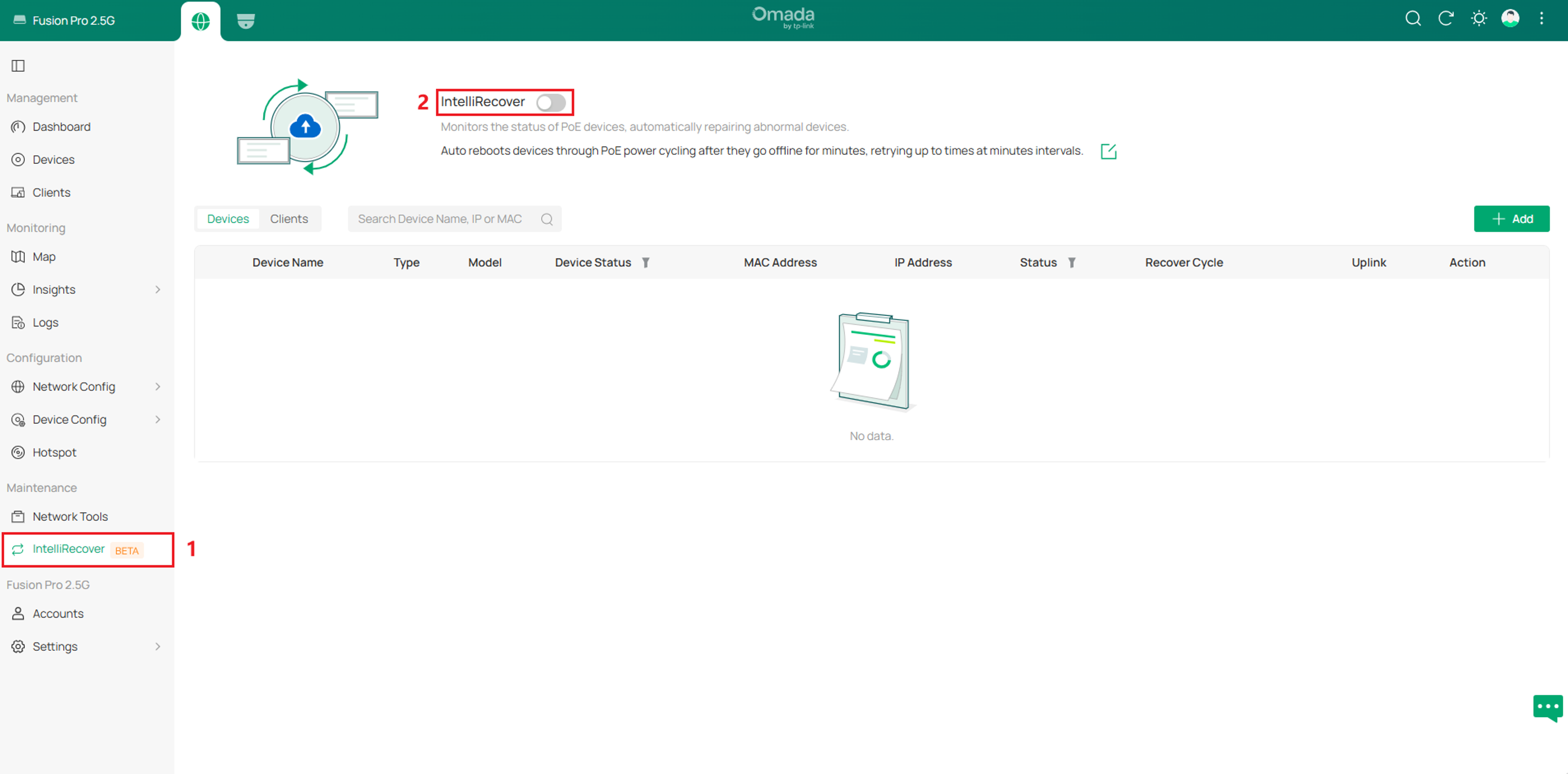
Step 1. Go to Maintenance > IntelliRecover, and click on the Enable button.
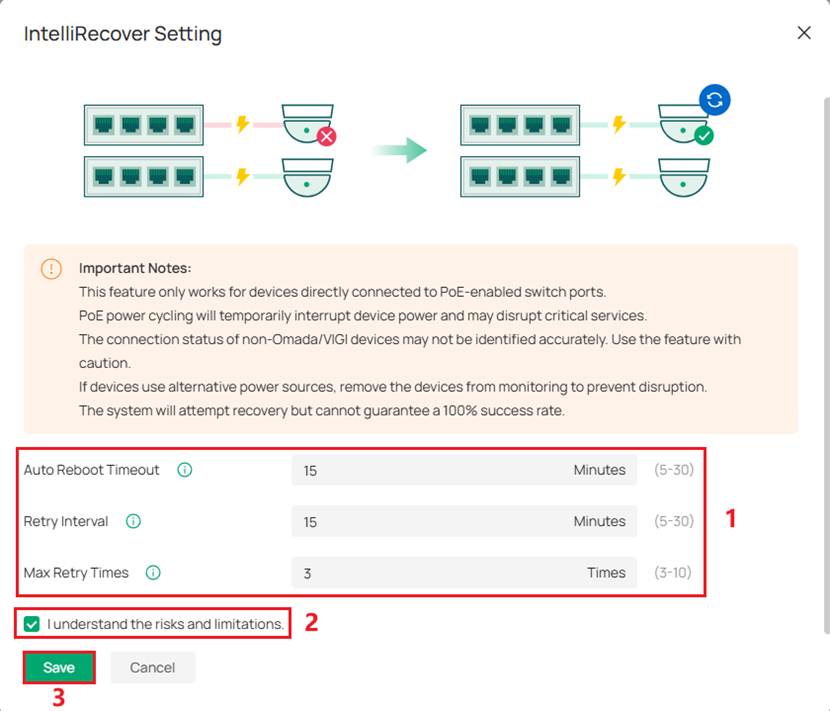
Step 2. Configure the Auto Reboot Timeout, Retry Interval, and Max Retry Times as needed. Then select ‘I understand the risks and limitations’ and click Save. For example, if you set Auto Reboot Timeout to 15 minutes, Retry Interval to 15 minutes, and Max Retry Times to 3, IntelliRecover power-cycles the PoE-powered device after it remains offline for 15 minutes and retries up to three times at 15-minute intervals.
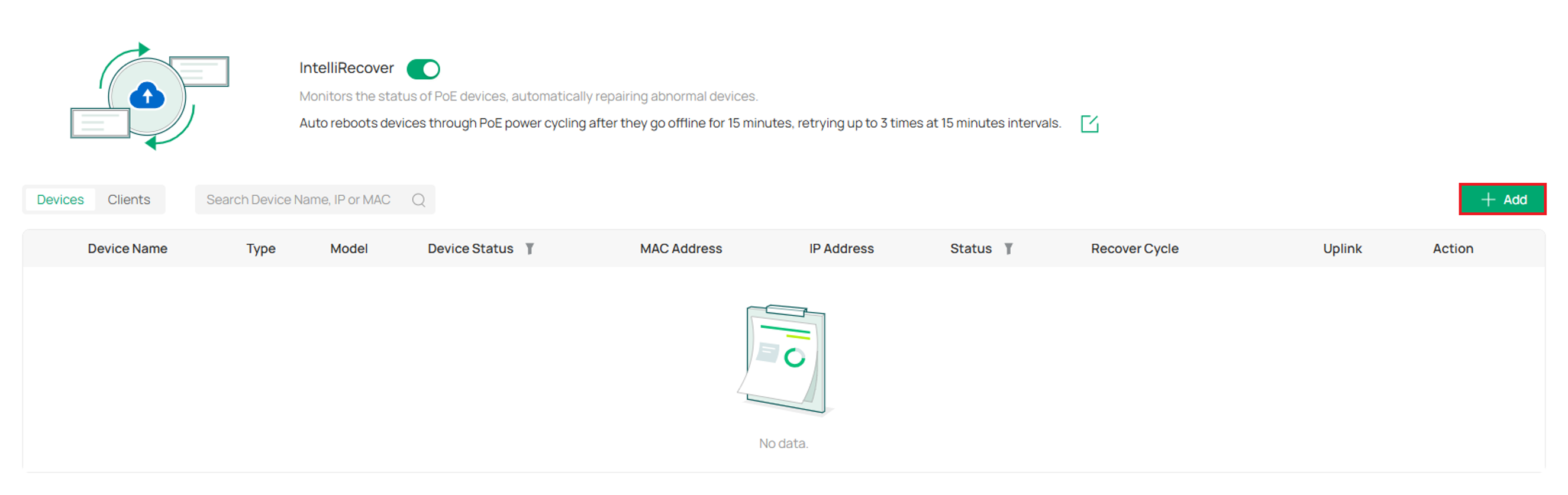
Step 3. Click Add to add the monitored devices.
Here, you can choose which devices to monitor—such as APs and IPCs—or select monitoring clients, such as Omada hardware controllers.
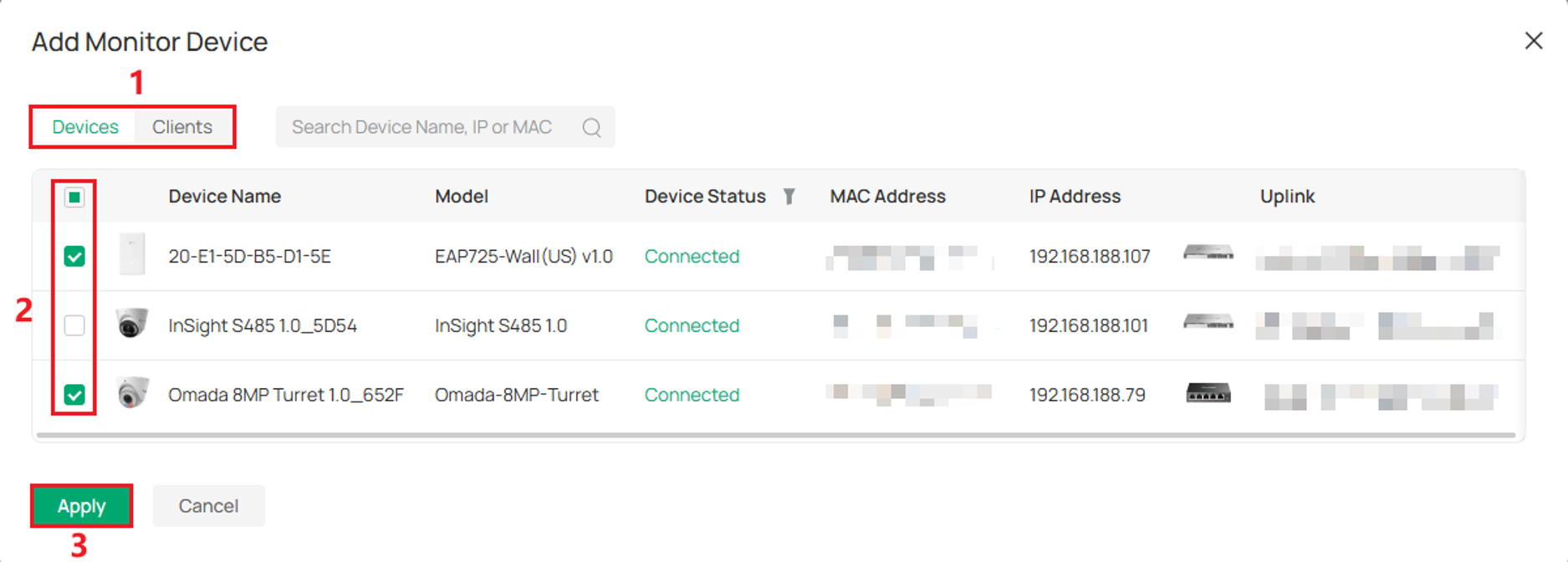
Note: Only devices like Omada EAPs, Omada IP Cameras, VIGI IP Cameras, and clients PoE-powered by Omada Fusion 2.5G PoE or Omada Fusion Pro 2.5G PoE or adopted Omada Managed PoE Switches will be displayed here. Devices powered by a PoE NVR, as well as gateways and switches that are themselves PoE-powered, will not be displayed here.
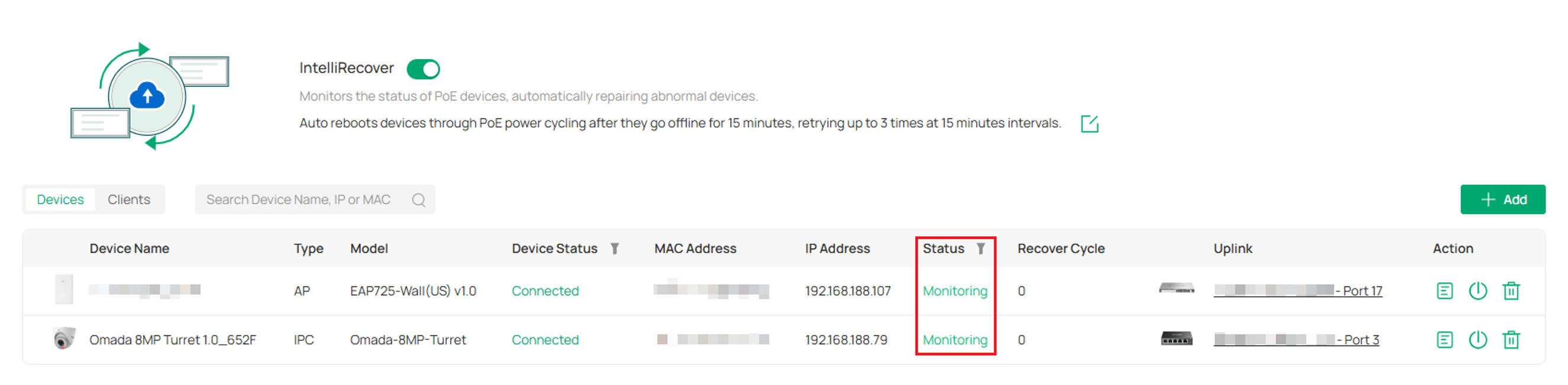
Step 4. View the operating status of IntelliRecover.
Scenario 2. Add a Device from Its Configuration Interface
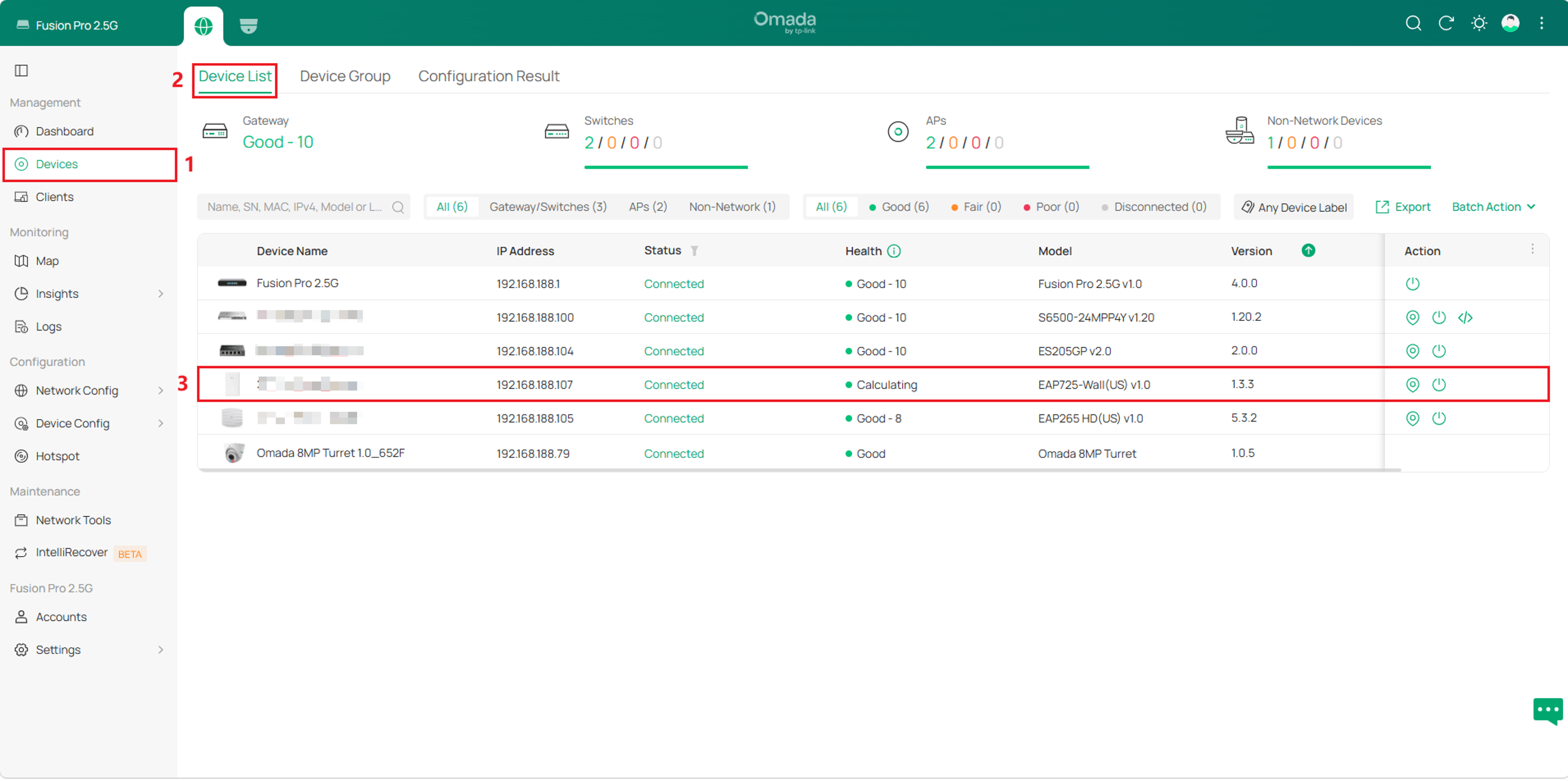
Step 1. Go to Devices > Device List, and click the target IP camera or access point.
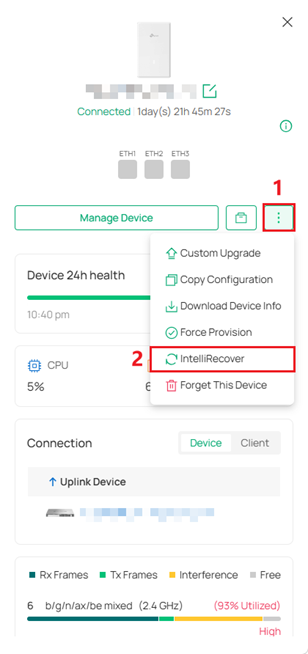
Step 2. Click on the three-dot button and select IntelliRecover.
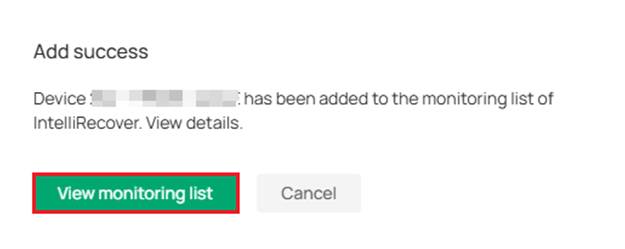
Step 3. After the device is added successfully, click View monitoring list to view its IntelliRecover status.
Conclusion
You have now configured IntelliRecover to monitor PoE-powered devices and automatically power-cycle them when they remain offline according to the configured recovery settings.
To learn more about each function and configuration, please visit Support Home to download or check the manual for your product.
