


Contents
Requirements
- TP-Link Omada Mobile App
- Omada Controller with devices adopted to it
Introduction
The Omada App allows you to easily monitor and manage all devices connected to your Omada Controller . Through features such as the device list display, category filtering, condition sorting, search, and status description, you can quickly view device information, organize equipment by type or condition, locate specific devices, and understand their real-time status. These tools make it simple to maintain visibility and control over your entire Omada network anytime, anywhere.
Device List Display
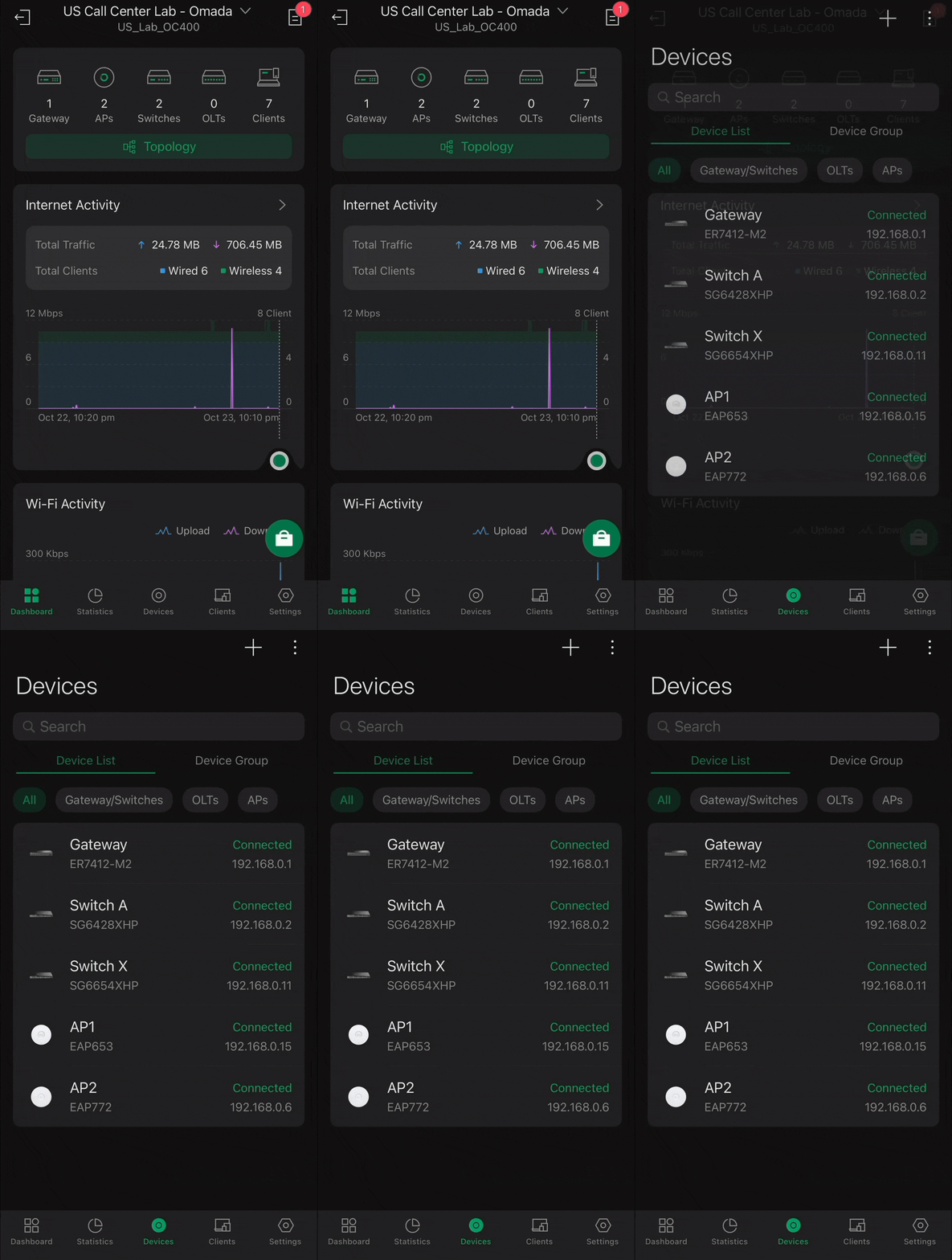
The Omada App’s Device List feature allows users to view, organize, and manage all Omada devices connected to their Controller in one convenient dashboard. It displays key details such as each device’s model name, connection status, and firmware version by default. Users have the option to sort devices by type or condition, search for specific equipment, and easily identify devices that require action, such as pending adoption or firmware updates, through the device list display.
In short, the Omada App Device List provides a clear overview and complete control of all connected devices, helping maintain visibility and streamline network administration.
To navigate to the Device List, you would go to the Omada Mobile App>Controller Mode Screen>Select Your Desired Controller>Devices
Category Filtering
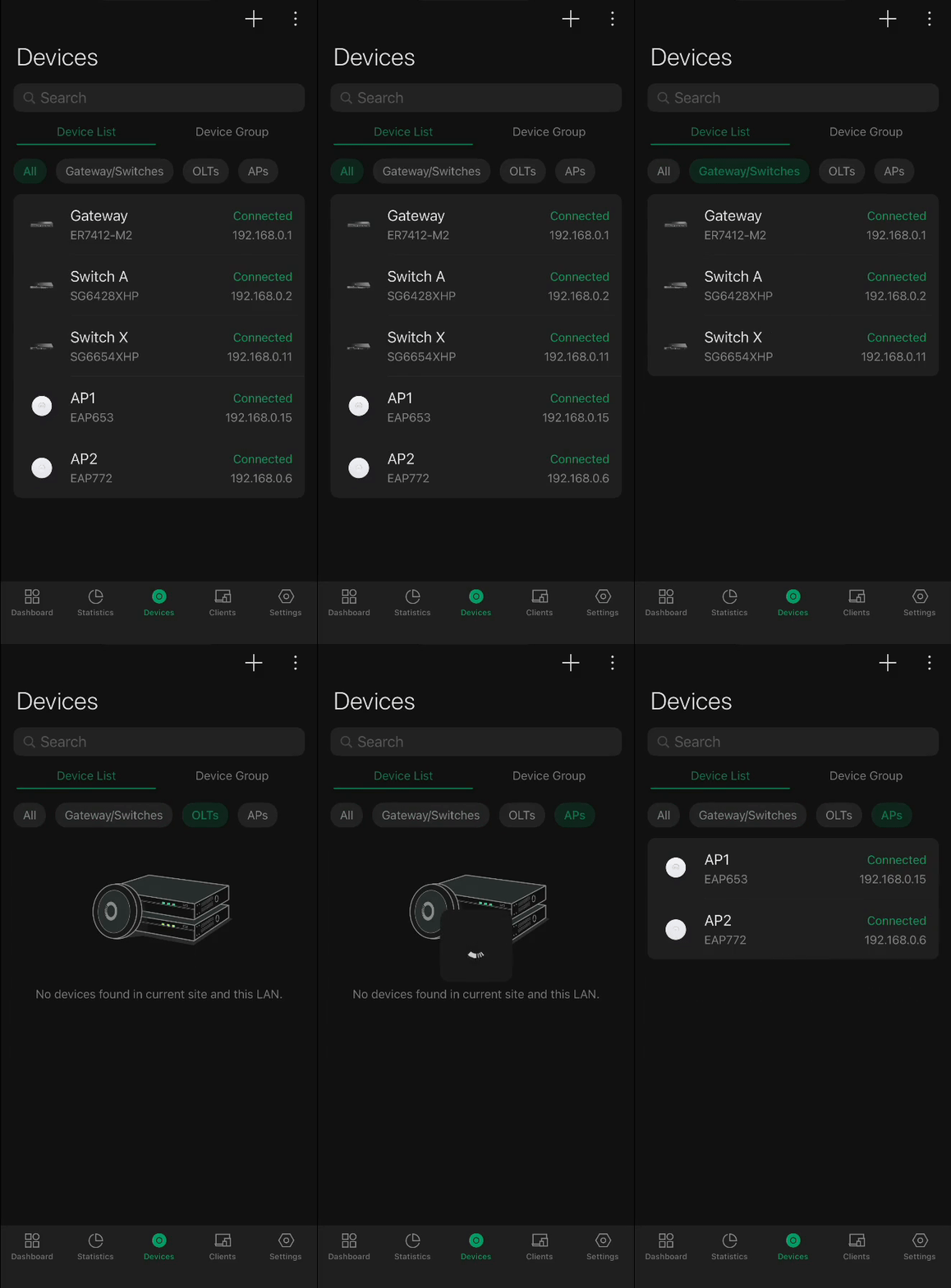
The Category Filtering feature in the Device List allows users to efficiently view, organize, and manage all devices connected to their network through a single easy-to-navigate interface. It enables filtering by device type, such as routers, switches, or access points, and by device group, which is particularly useful for managing bridge configurations or large-scale deployments.
In short, Category Filtering provides a structured overview of your network, helping you quickly locate specific devices, monitor performance, and streamline overall network management within the Omada SDN Controller.
To sort devices by category, you would go to: Omada Mobile App>Controller Mode Screen>Select Your Desired Controller>Devices>Device List>Tap the Desired Device Category to Filter Devices by Category
Device List Sorting
The Omada App’s Device List Sorting feature allows users to easily organize and manage all Omada devices connected to their Controller from the Device List interface. Users can sort devices by key parameters such as device status, name, model, IP address, MAC address, uptime, firmware version, and the number of connected clients.
Each column can be sorted in either ascending or descending order, making it simple to quickly locate devices based on performance, configuration, or operational status. This flexibility provides a clear and customizable overview of the network, allowing administrators to identify specific devices or conditions at a glance.
In short, the Device List Sorting feature in the Omada App helps streamline device management by allowing users to sort and view network information in the most efficient and meaningful way for their workflow.
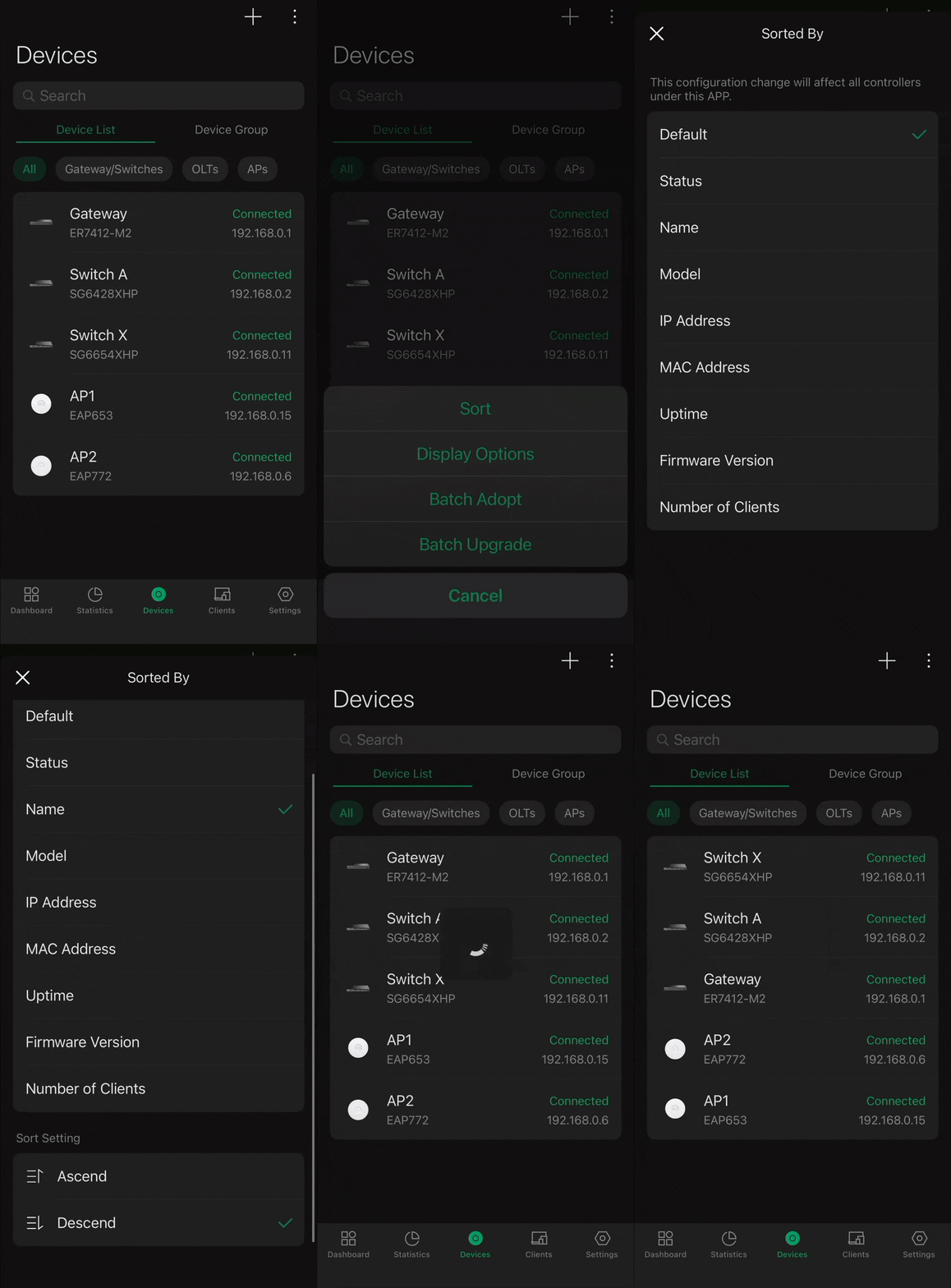
The GIF showcases how to sort by Device Name in Descending Order, the Omada App’s Device List allows you to sort by Ascending or Descending Order for the Status, Name, Model, IP Address, MAC Address, Uptime, and Number of Clients for the devices in the Device List.
To Sort through the Device List you would go to: Omada Mobile App>Controller Mode Screen>Select Your Desired Controller>Devices>Device List>Tap the “3 Dot Menu” on the Top Right>Sort by Desired Type
Device List Search
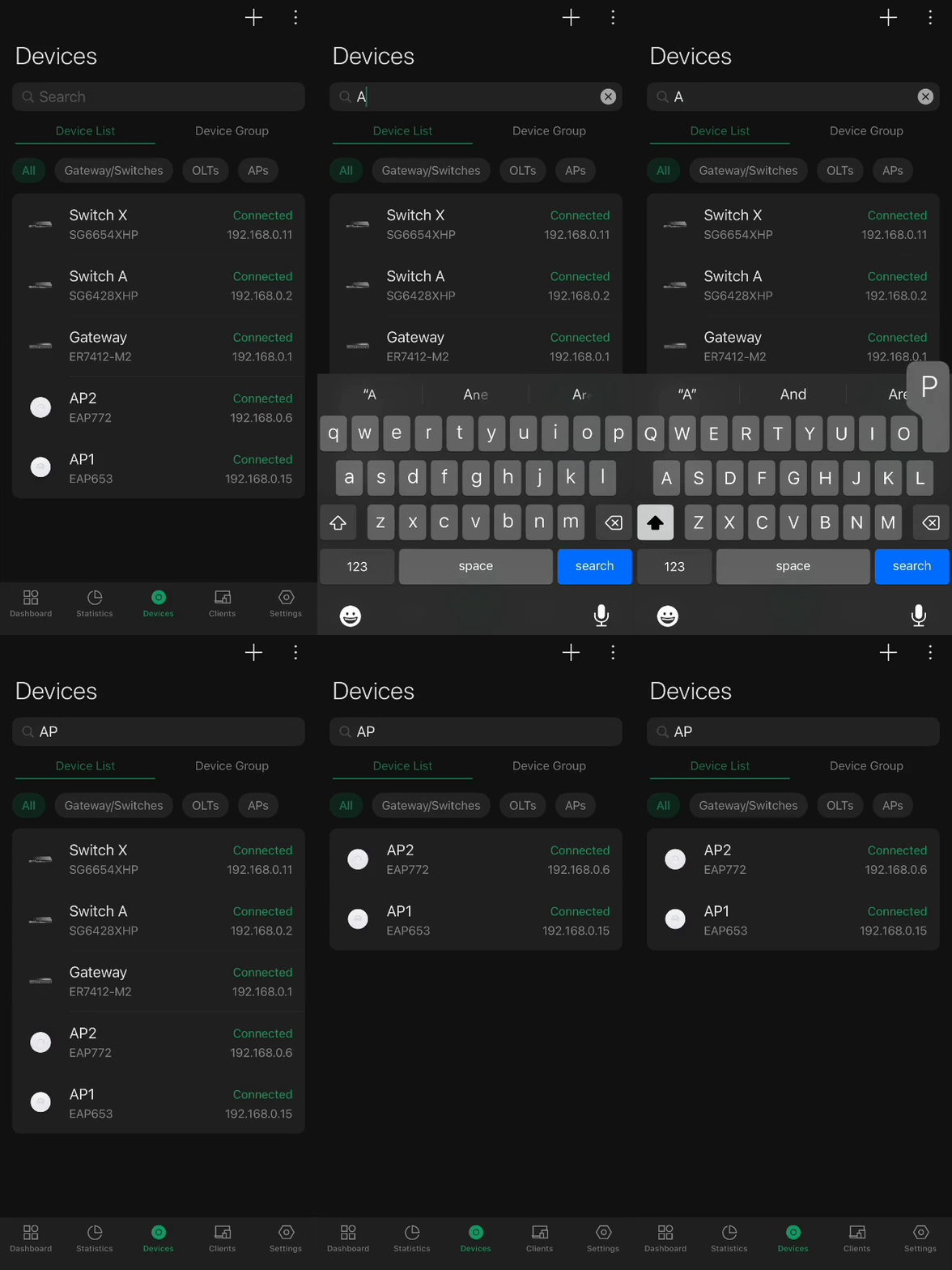
The Omada App’s Device Search feature allows users to quickly locate any Omada device connected to their SDN Controller from the Device List interface. Within the Device List, users can type keywords such as the device name, IP address, or model to instantly filter and display only the relevant equipment. This feature streamlines network management by removing the need to scroll through long device lists and allows users to immediately find and manage the device they need.
In addition to basic search capabilities, the feature supports dynamic filtering, meaning results update in real time as you type. This makes it especially convenient when managing larger networks or troubleshooting specific devices.
In short, the Device Search tool within the Omada App provides a fast and precise way to locate network devices, improving efficiency and helping administrators maintain full visibility and control over their managed environments anytime, anywhere.
To search for specific devices in the Omada App’s Devices Menu, you would go to:: Omada Mobile App>Controller Mode Screen>Select Your Desired Controller>Device List>Type in the Top Search Bar in the Devices Screen
Conclusion
The Omada App provides a convenient way to monitor and manage all devices connected to your Omada Controller. With features like the device list display, category filtering, condition sorting, search, and status description, you can easily view device information, group equipment by type or condition, locate specific devices, and check their real-time connection status. These tools give you complete visibility and control of your Omada network anytime and anywhere.
Get to know more details of each function and configuration please go to Download Center to download the manual of your product.
QA
Q1: What is the Omada App used for?
The Omada App allows users to monitor and manage all devices connected to their Omada SDN Controller. It provides tools like device list display, category filtering, sorting, search, and status monitoring to help maintain full visibility and control over the network.
Q2: What do I need to use the Omada App?
You’ll need the TP-Link Omada Mobile App and an Omada Controller. The devices you wish to manage must already be adopted to the controller.
Q3: How can I view all my Omada devices?
Go to the Omada Mobile App>Controller Mode Screen> Select your desired Controller>Devices > Device List. This shows all adopted devices with details like model name, connection status, and firmware version.
Q4: What is the Category Filtering feature used for?
Category Filtering allows you to view and manage devices by type (router, switch, access point) or by device group. This helps you quickly locate specific devices and manage large or bridge-based networks efficiently.
Q5: How can I filter devices by category in the Omada App?
Navigate to Omada Mobile App>Controller Mode Screen>Select your Controller>Devices > Device List >|Tap the desired device category to filter.
Q6: How does Device List Sorting work?
The Device List Sorting feature lets you organize your devices by various parameters such as status, name, model, IP address, MAC address, uptime, firmware version, and number of connected clients. Each column can be sorted in ascending or descending order.
Q7: How do I sort my devices in the Omada App?
Go to Omada Mobile App → Controller Mode Screen → Select your Controller → Devices → Device List → Tap the three-dot menu in the top-right corner → Sort by your preferred parameter.
Q8: What does the Device Search feature do?
The Device Search feature helps you instantly locate specific devices within the Device List by typing keywords like device name, IP address, or model. The list updates dynamically as you type, which is helpful for large networks.
Q9: How do I use the search function in the Omada App?
Go to Omada Mobile App → Controller Mode Screen → Select your Controller → Device List → Type your keyword into the top search bar to filter results in real
