


Contents
Common Point-to-Multipoint Topologies Using Omada Bridge Devices
Scenario #1: Sector Bridge 5 Main AP + Flex Bridge 5 Client AP(Recommend)
Scenario #2: Flex Bridge 5 Main AP + Flex Bridge 5 Client AP(Recommend)
Scenario #3: Sector Bridge 5 Main AP + EAP-Bridge Kit Client AP
Scenario #4: Flex Bridge 5 Main AP + EAP-Bridge Kit Client AP
Scenario #5: EAP-Bridge Kit Main AP + EAP-Bridge Kit Client AP(Recommend)
Introduction
This article describes how to configure a point-to-multipoint (PtMP) wireless connection with the Omada Sector Bridge 5, Flex Bridge 5, and EAP-Bridge Kits.
Requirements
- Sector Bridge 5
- Flex Bridge 5
- EAP-Bridge Kit
Common Point-to-Multipoint Topologies Using Omada Bridge Devices
Here are some common scenarios of point-to-multipoint topologies using Omada bridge devices.
Scenario #1: Sector Bridge 5 Main AP + Flex Bridge 5 Client AP
The Sector Bridge 5 as Main AP supports up to 32 Flex Bridge 5 Client APs up to 3.1 mi (5 km) with a broad 120-degree horizontal beamwidth.
Network Topology
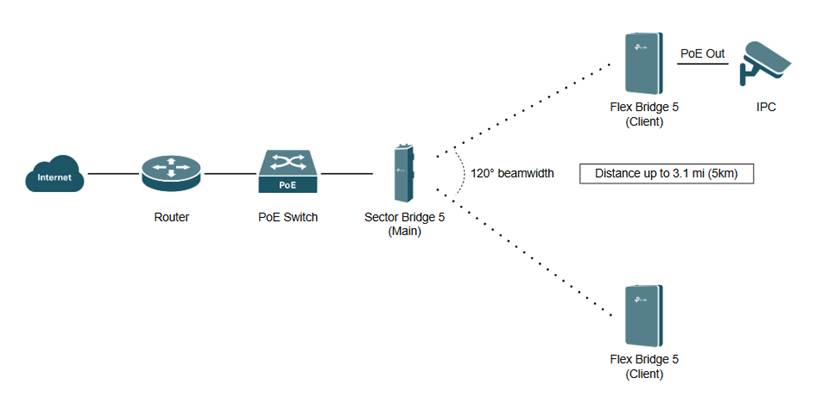
This topology involves using the Sector Bridge 5 as the Main AP and the Flex Bridge 5 devices as Client APs in a long-distance wireless bridge network.
Scenario Suitable For:
This scenario is designed for large-scale, wide-area Point-to-Multipoint (PtMP) networks where data from multiple locations must be centralized.
Beamwidth and Distance:
The Sector Bridge 5 operates as the core hub, leveraging a broad 120° wide horizontal beamwidth with a distance up to 3.1 mi (5 km).
Client Limitation:
Supports multipoint deployments of up to 32 connected Flex Bridge 5 clients.
Edge Connection:
At the network edge, the Flex Bridge 5 clients can directly power downstream devices such as IP surveillance cameras using 2x PoE Out ports.
Configuration:
Deployment complexity is minimized through the use of a 4-bit Pairing DIP Switch to achieve rapid, seamless hardware-level pairing between the main Sector Bridge 5 and client Flex Bridge 5 devices.
The Sector Bridge 5 and Flex Bridge 5 can be managed in both Standalone and Controller mode:
- How to Pair Sector Bridge 5 and Flex Bridge 5 via Pairing DIP Switch
Scenario #2: Flex Bridge 5 Main AP + Flex Bridge 5 Client AP
The Flex Bridge 5 as Main AP supports up to 8 other Flex Bridge 5 Client APs up to 3.1 mi (5 km).
Network Topology
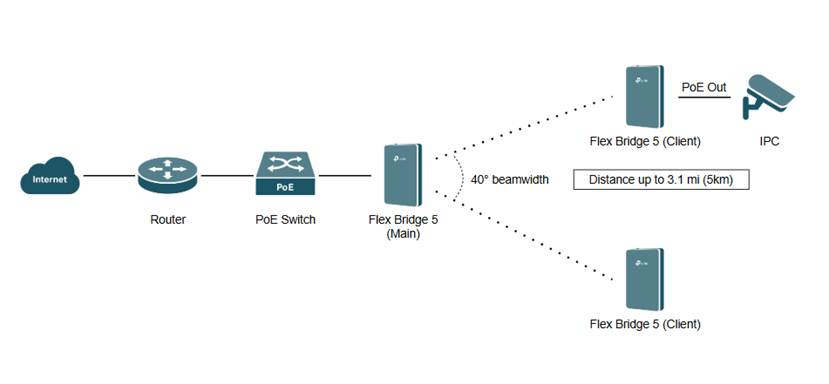
This topology involves using the Flex Bridge 5 as the Main AP and the Flex Bridge 5 devices as Client APs in a long-distance wireless bridge network.
Scenario Suitable For:
This scenario is designed for high-performance Point-to-Multipoint (PtMP) networks where dedicated long-range connectivity is needed.
Beamwidth and Distance:
The Flex Bridge 5 leverages a 40° wide horizontal beamwidth with a distance up to 3.1 mi (5 km).
Client Limitation:
The Flex Bridge 5 operates as the main AP for up to 8 connected Flex Bridge 5 clients.
Edge Connection:
At the network edge, the Flex Bridge 5 clients can directly power downstream devices such as remote IP surveillance cameras using 2x PoE Out ports.
Configuration:
Deployment complexity is minimized through the use of an integrated Role Switch and a 4-bit Pairing DIP Switch to achieve rapid, seamless hardware-level pairing between the main and client Flex Bridge 5 devices.
The Flex Bridge 5 can be managed in both Standalone and Controller mode:
- How to Pair Sector Bridge 5 and Flex Bridge 5 via Pairing DIP Switch
Scenario #3: Sector Bridge 5 Main AP + EAP-Bridge Kit Client AP
The Sector Bridge 5 as Main AP supports up to 32 EAP-Bridge Kit Client APs up to the longest distance provided by the EAP-Bridge Kit Client AP.
Network Topology
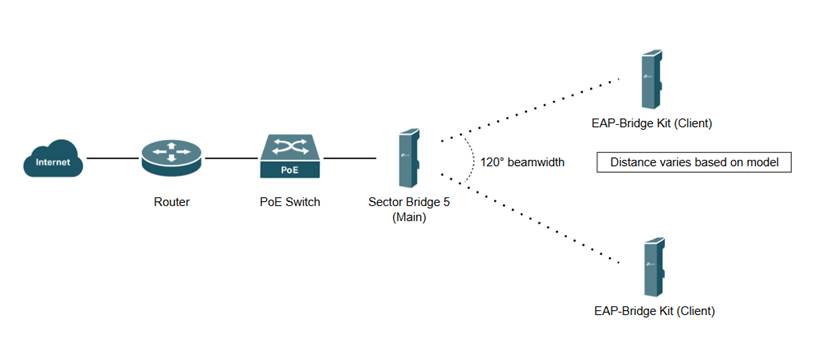
This topology involves using the Sector Bridge 5 as the Main AP and EAP-Bridge Kit Client APs in a long-distance wireless bridge network.
Scenario Suitable For:
This scenario is designed for high-performance Point-to-Multipoint (PtMP) networks where dedicated long-range connectivity is needed, making it ideal for expanding existing sites that already have an EAP-Bridge Kit set up.
Beamwidth and Distance:
The Sector Bridge 5 leverages a 120° wide horizontal beamwidth with a varying distance based on EAP-Bridge Kit Client model.
Client Limitation:
The Sector Bridge 5 operates as the main AP for up to 32 connected EAP-Bridge Kit clients.
Edge Connection:
At the network edge, the EAP-Bridge Kit clients provide high-speed physical network handoffs to downstream devices using 100Mbps or 1Gbps Ethernet ports depending on model.
Configuration:
Deployment complexity is minimized because the Sector Bridge 5 is fixed as the main AP, while the EAP-Bridge Kit features an integrated Role Switch that should be set to client mode.
The Sector Bridge 5 and EAP-Bridge Kit can be managed in both Standalone and Controller mode:
- How to Pair and Configure EAP Bridges
Scenario #4: Flex Bridge 5 Main AP + EAP-Bridge Kit Client AP
The Flex Bridge 5 as Main AP supports up to 8 EAP-Bridge Kit Client APs up to the longest distance provided by the EAP-Bridge Kit Client AP.
Network Topology
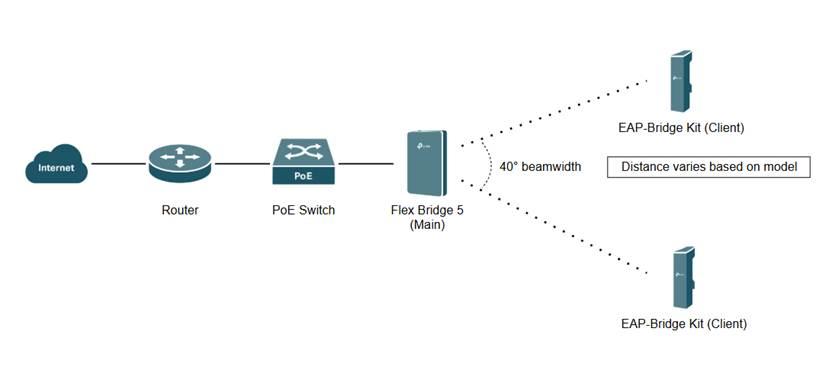
This topology involves using the Flex Bridge 5 as the Main AP and EAP-Bridge Kit Client APs in a long-distance wireless bridge network.
Scenario Suitable For:
This scenario is designed for high-performance Point-to-Multipoint (PtMP) networks where dedicated long-range connectivity is needed, making it ideal for expanding existing sites that already have an EAP-Bridge Kit set up.
Beamwidth and Distance:
The Flex Bridge 5 leverages a 40° wide horizontal beamwidth with a varying distance based on EAP-Bridge Kit Client model.
Client Limitation:
The Flex Bridge 5 operates as the main AP for up to 8 connected EAP-Bridge Kit clients.
Edge Connection:
At the network edge, the EAP-Bridge Kit clients provide high-speed physical network handoffs to downstream devices using 100Mbps or 1Gbps Ethernet ports, depending on the model.
Configuration:
Deployment complexity is minimized through the use of an integrated Role Switch between the main Flex Bridge 5 and client EAP-Bridge Kit devices.
The Flex Bridge 5 and EAP-Bridge Kit can be managed in both Standalone and Controller mode:
- How to Pair and Configure EAP Bridges
Scenario #5: EAP-Bridge Kit Main AP + EAP-Bridge Kit Client AP
The EAP-Bridge Kit Main AP supports up to 4 EAP-Bridge Kit Client APs up to the longest distance provided by the EAP-Bridge Kit Client AP.
Network Topology
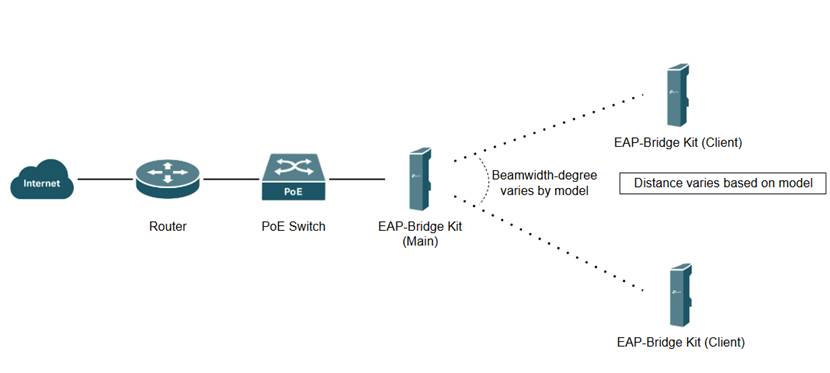
This topology involves using the EAP-Bridge Kit Main AP and EAP-Bridge Kit Client APs in a long-distance wireless bridge network.
Scenario Suitable For:
This scenario is designed for short-to-medium-range Point-to-Multipoint (PtMP) wireless bridge networks where simple connectivity is required.
Beamwidth and Distance:
The EAP-Bridge Kit Main AP has a varying wide horizontal beamwidth with a varying distance based on EAP-Bridge Kit Client model.
To check the beamwidth and distance for a specific model, you can find the model shere: Omada Wi-Fi Bridges
Client Limitation:
The EAP-Bridge Kit Main AP can connect to up to 4 EAP-Bridge Kit Client APs.
For EAP215-Bridge, EAP211-Bridge and EAP115-Bridge, their V1 can only work with another V1, not V2 or V3. However, their V2 and V3 can used be together.
The EAP100-Bridge Kit only supports up to 3 EAP-Bridge Kit Client APs.
Edge Connection:
At the network edge, the EAP-Bridge Kit Client AP can provide high-speed physical network handoffs to downstream devices using 100Mbps or 1Gbps Ethernet ports depending on model.
Configuration:
EAP-Bridge Kits of the same or different models can form a point-to-multipoint network, and can also be quickly networked with one-click pairing.
The EAP-Bridge Kit can be managed in both Standalone and Controller mode:
- How to Pair and Configure EAP Bridges
Conclusion
We have successfully configured a point-to-multipoint (PtMP) network using the Omada Sector Bridge 5, Flex Bridge 5, and EAP-Bridge Kit Devices.
QA
Q1: What is the difference between connecting a Flex Bridge 5 and an EAP-Bridge KIT to a network built with the Bridge KIT?
A1: When Flex Bridge 5 joins the network as a Client AP, it can only be added by scanning and adding it from the Main AP within the Bridge KIT, or by scanning the Main AP and entering credentials. For the EAP-Bridge KIT, units within the same package will automatically build a network upon power-up. Client APs from other packages can jolin the network via scanning. The latest version of the Bridge KIT also supports a one-click pairing feature for convenient network access.
Q2: How should the DIP switches on the Flex Bridge 5 be configured?
A2: When the Flex Bridge 5 acts as the Main AP, move the Role DIP switch to M; when it acts as a Client AP, move it to C. Since EAP-Bridge does not support pairing codes, the pairing code switch does not affect network setup between the Flex Bridge 5 and the EAP-Bridge kit.
Q3: When building a network with other EAP-Bridges, does Flex Bridge 5 require additional attention?
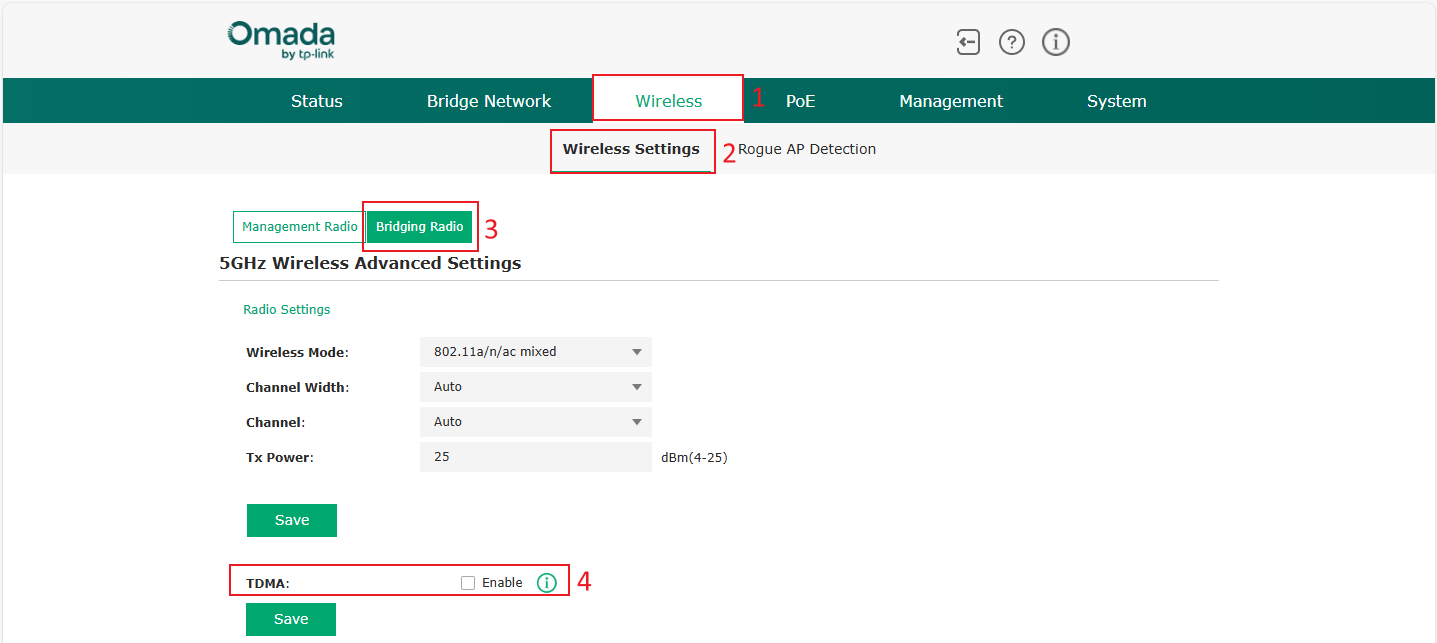
A3: When Flex Bridge 5 acts as the Main AP, TDMA should be disabled to prevent the network configuration failures caused by Client APs that may not support it. When used as a Client AP, it can connect directly to the network.
Note: TDMA is disabled by default.
Q4: Why are my bridge devices not pairing?
A4: Possible reason 1: Differences in hardware version (applies to EAP-Bridge Kit). For EAP215-Bridge, EAP211-Bridge, and EAP115-Bridge, V1 can only work with another V1, not V2 or V3. However, V2 and V3 can be used together.
Possible reason 2: AP role mismatch (applies to EAP-Bridge Kit v3 and Flex Bridge 5).
Possible reason 3: DIP Switch code mismatch (applies to Flex Bridge 5 and Sector Bridge 5).
To learn more about each function and configuration, please visit Support Home to download or check the manual for your product.
