


Contents
Introduction
This article introduces how to use the Omada AI Sales assistant on the Omada Design Hub.
Requirements
- Omada Design Hub
- TP-Link ID on the whitelist
Configuration
Note: This feature is being gradually rolled out via a whitelist. Currently, only users on the whitelist can see and use the AI Sales assistant. Other users will not see it for now, but it will be gradually made available in the future.
Step 1. To access Omada Design Hub, please visit https://design.tplinkcloud.com/ and log in with your TP-Link ID.
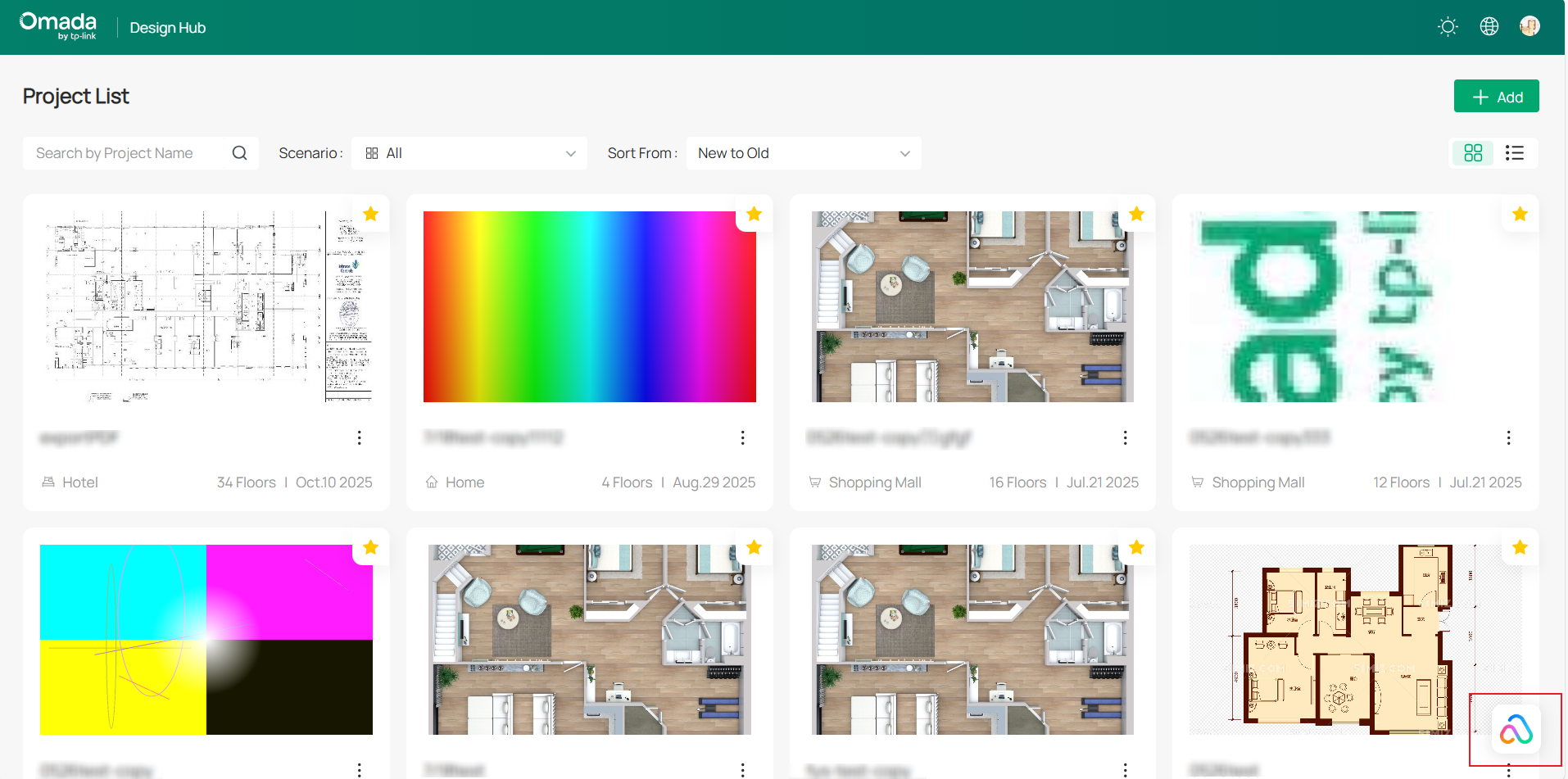
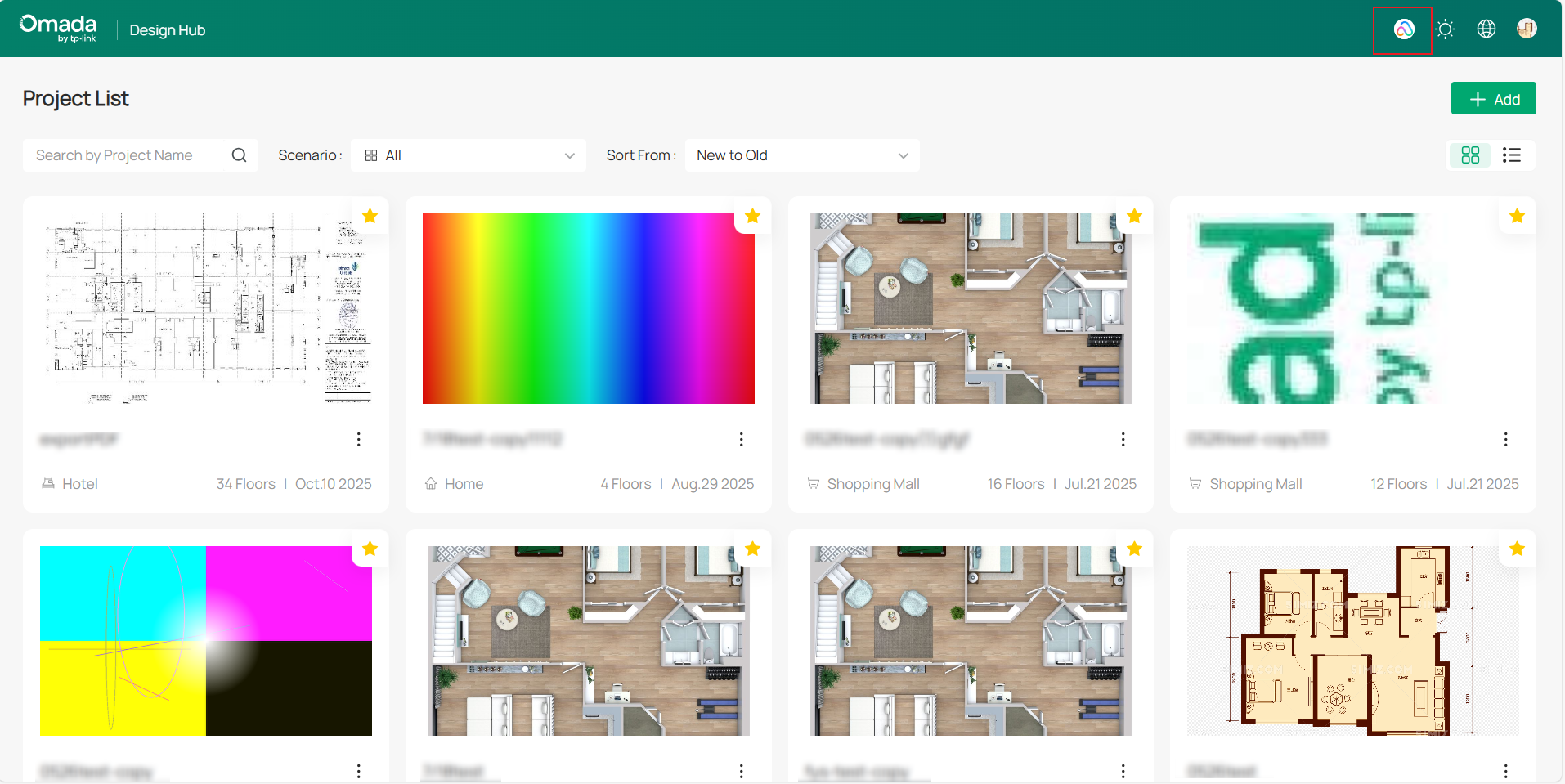
Step 2. The AI Sales assistant icon will appear in the bottom right corner of the page, and you can also drag the icon to the top menu bar of the page. If you drag the icon out again, it will automatically snap to the side of the screen. Click the AI Sales assistant icon to activate it.
Note:
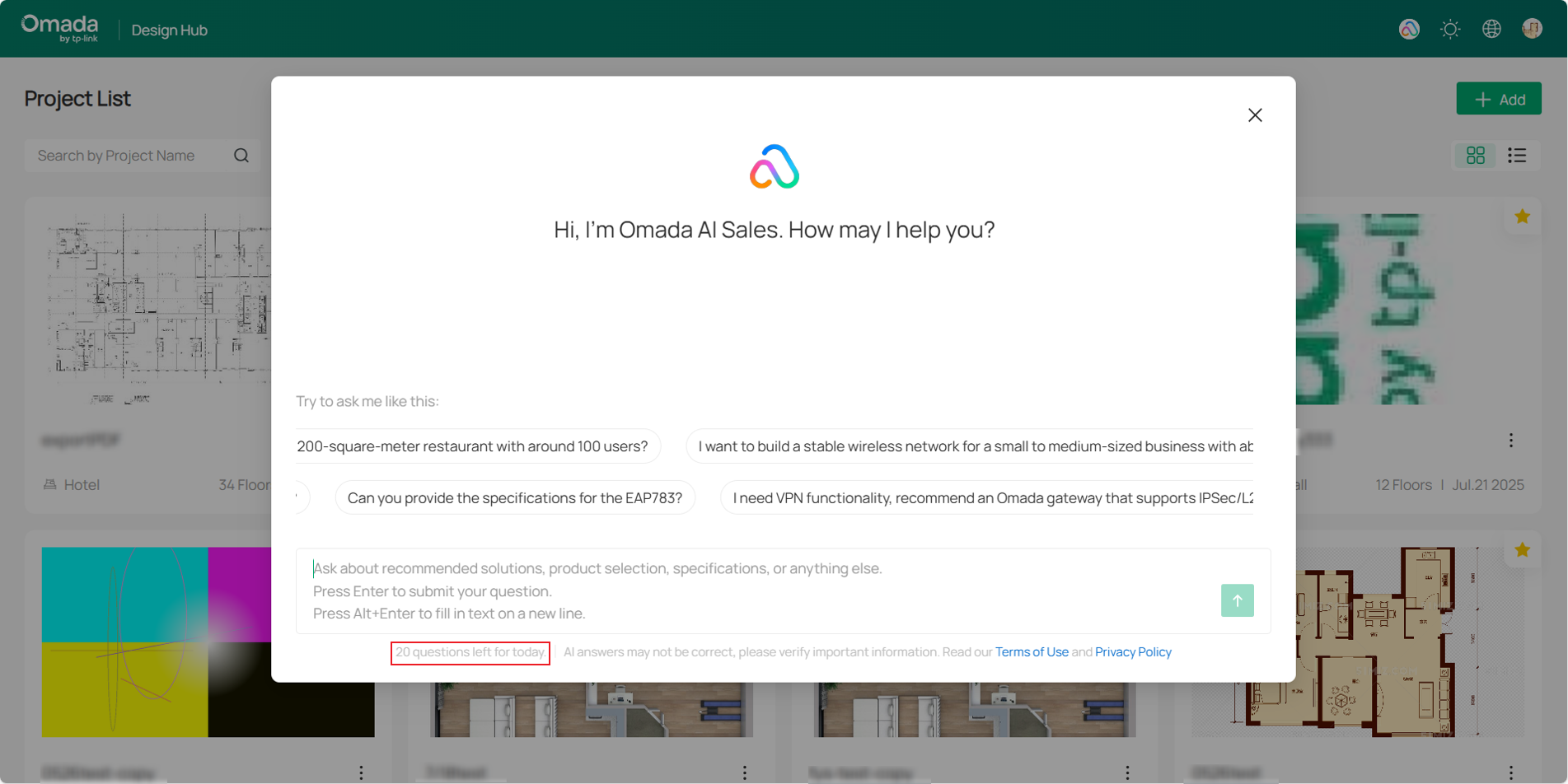
Omada AI Sales assistant supports asking 20 questions per day.
The AI Sales assistant only supports answering questions within its functional scope and will be unable to respond if questions exceed this scope.
Scope of supported functionalities:
Solution Recommendations: It can generate suitable Omada network solutions tailored to your usage scenarios, number of users, network load, budget, technical requirements, and more.
Product Selection: As an intelligent product selection assistant, it helps filter products by features, specifications, deployment methods, and more. It also supports product comparison to help you quickly find the right Omada model.
Specification Lookup: With access to a comprehensive product specification database, simply enter a model number to retrieve detailed technical specifications.
Step 3. Enter the question you want to ask, for example:
1. Can you recommend a cost-effective network solution for a 200-square-meter restaurant with around 100 users?
2. I want to build a stable wireless network for a small to medium-sized business with about 50 employees. What Omada solutions do you recommend that are as budget-friendly as possible?
3. I need access points that support Wi-Fi 7. Which Omada AP models do you recommend?
4. Which Omada outdoor AP models are available? Do they support waterproof and dustproof features?
5. What are the differences between the EAP783 and EAP650?
The AI Sales Assistant will provide corresponding answers based on the questions.
Note: The AI Sales assistant's answers are for reference only, and it is recommended to make judgments based on the actual situation.
Function Introduction
- Chat with Omada AI Sales
The homepage will scroll through questions you might want to ask. Click on a question bubble to chat with the Omada AI Sales.
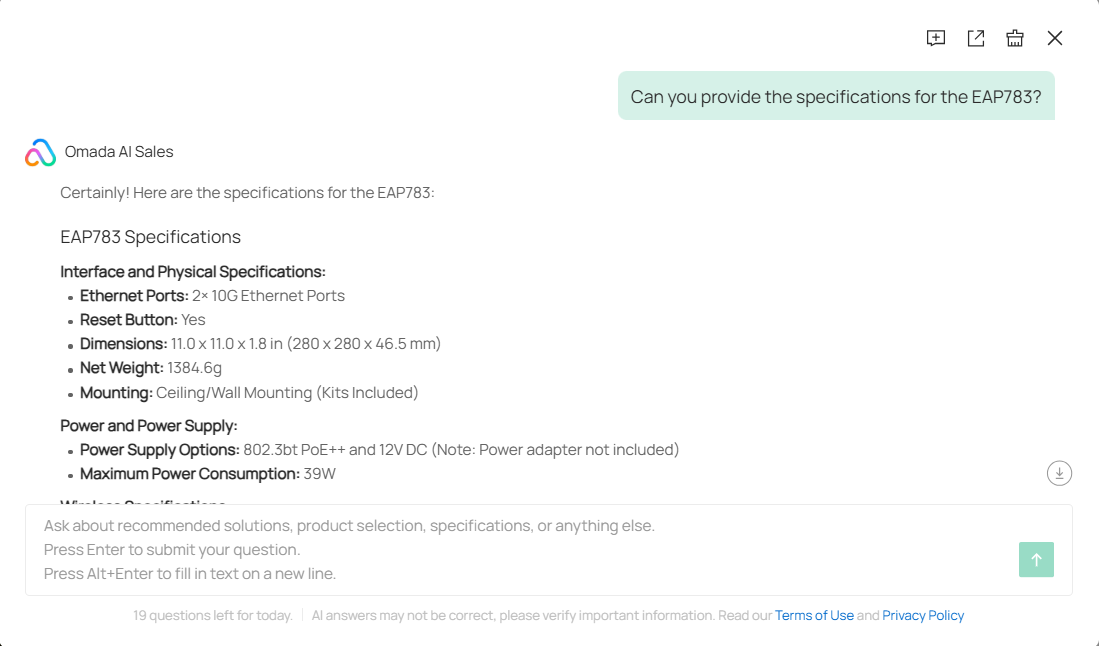
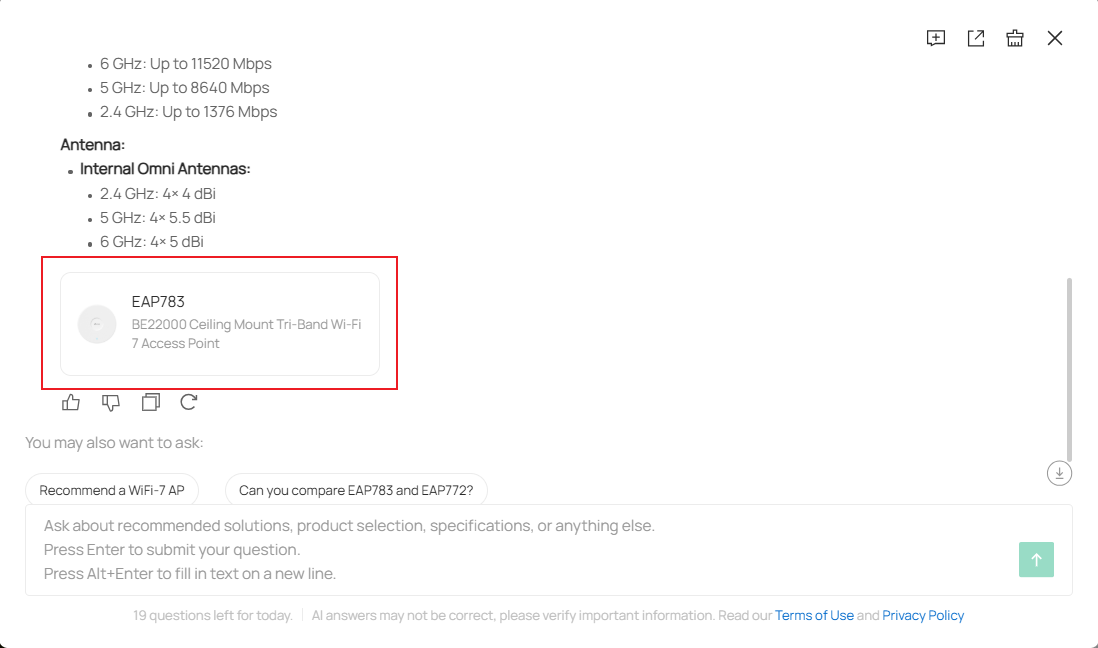
Clicking on a recommended product card within the response will redirect you to the product page on the official website, where you can view detailed information about the product.
- New Chat and History
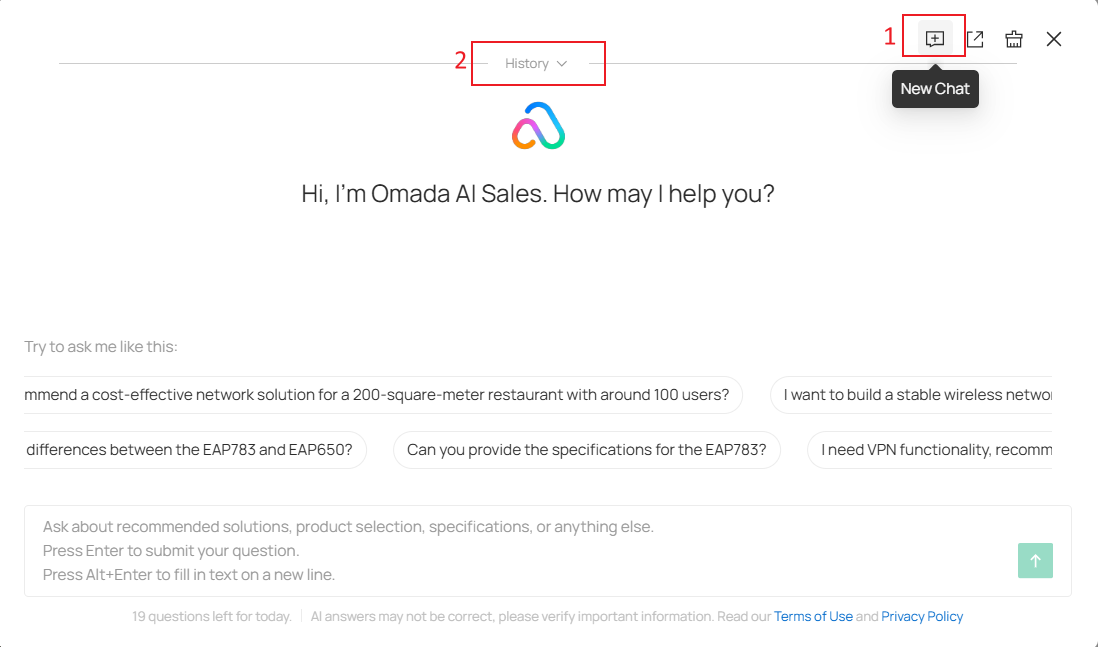
The Omada AI Sales' response will reference the context. If you do not want to continue the current conversation, click the "+" icon at the top right corner to start a new conversation.
At this time, previous conversations will be collapsed at the top. Clicking the History dropdown button will expand and show the previous responses.
- Export
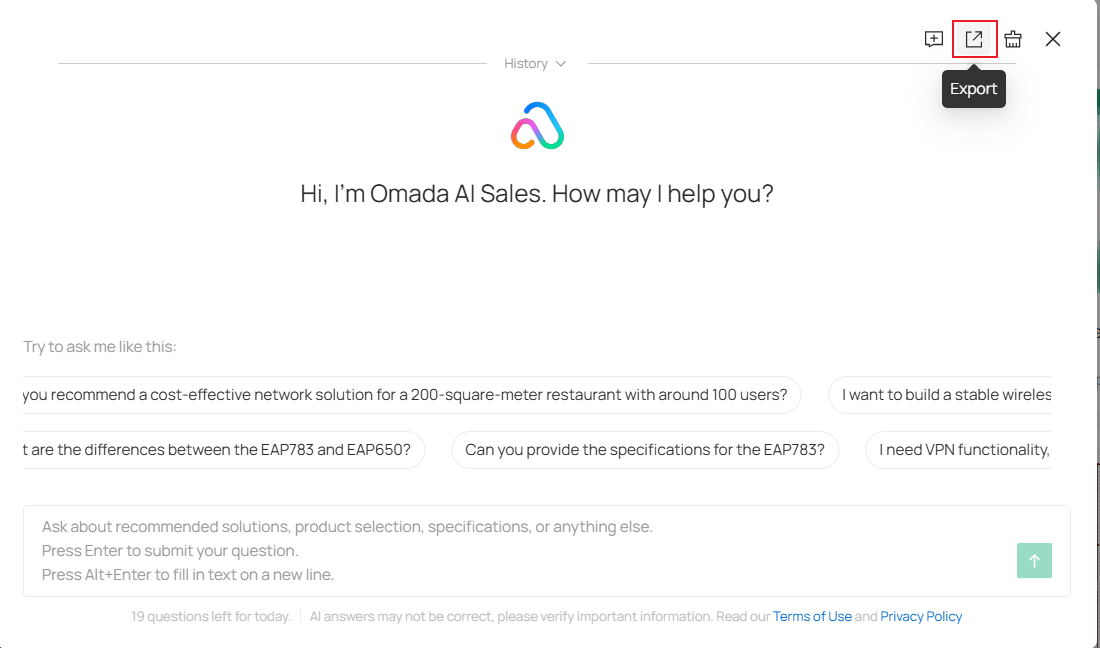
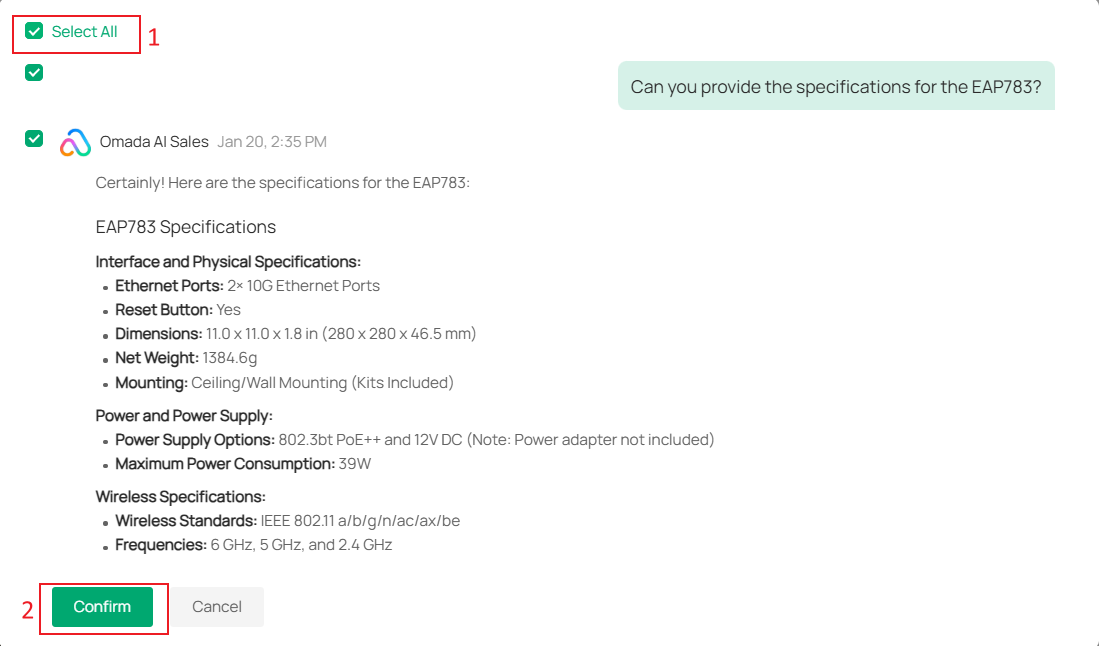
Click the Export button, select the conversations you want to export or Select All, then click Confirm to export. The exported file will be in .md (Markdown) format.
- Clear Chats
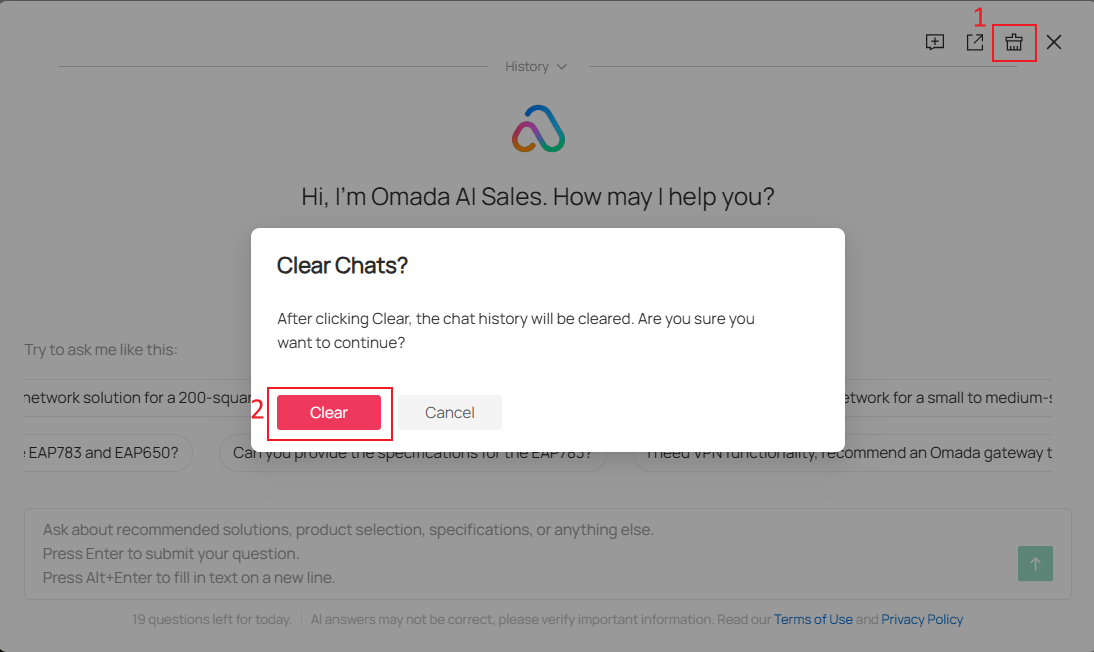
Click Clear Chats, then click the Clear button to delete all previous conversations. Once cleared, the chat history will no longer be retained.
- Feedback
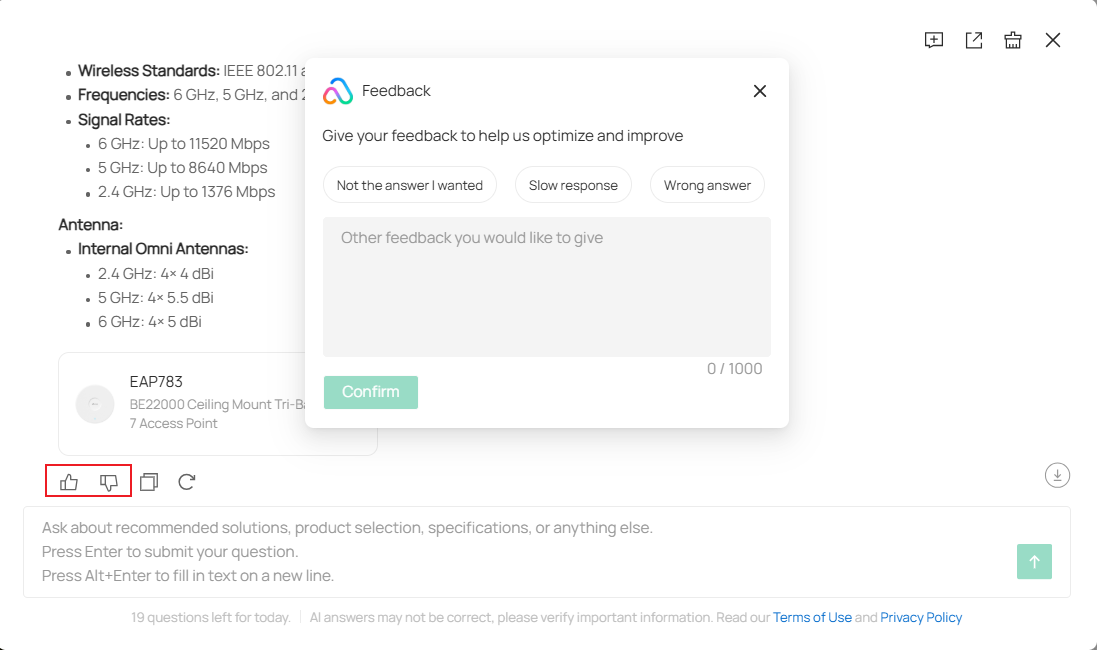
To help us better collect user feedback and improve our product, you can click the Helpful or Unhelpful button. If the answer did not meet your expectations, we would greatly appreciate it if you could leave your valuable feedback.
- Copy, Try Again and Edit
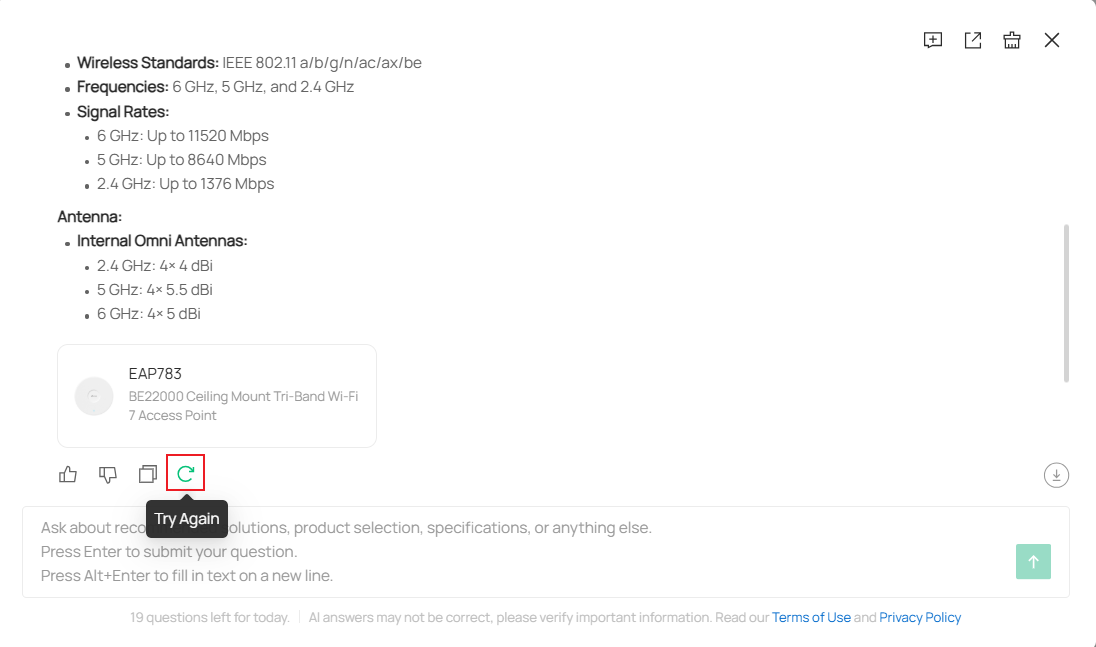
Click the Copy button to copy the generated answer.
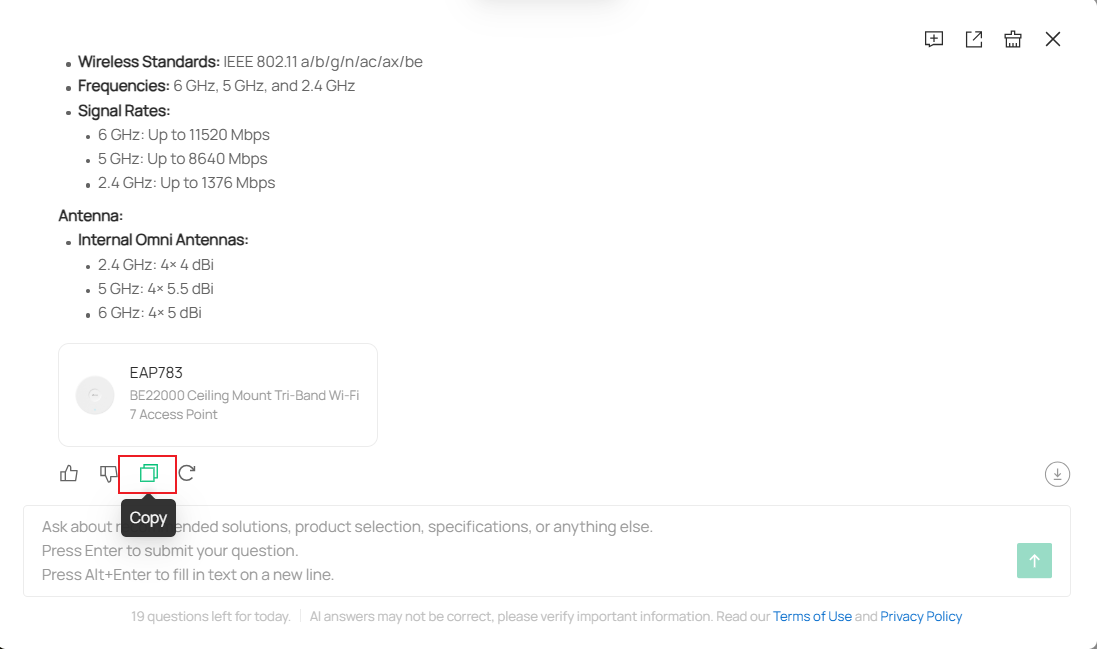
If you're not satisfied with the response, you can click Try Again to get a new answer.
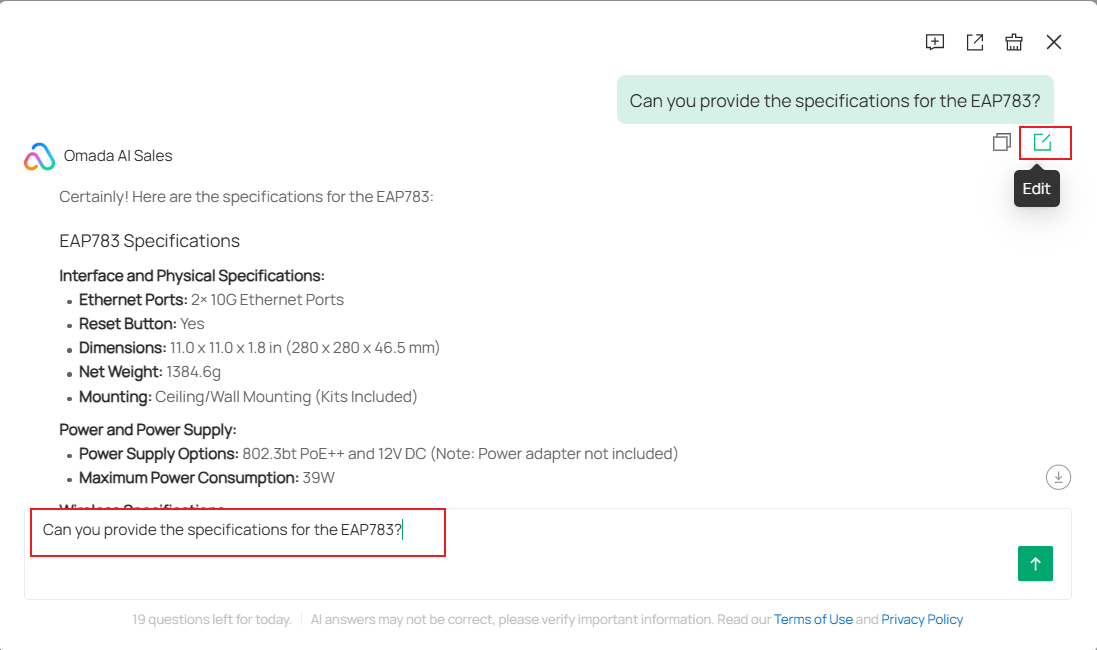
You can also click Edit to modify your question and ask again.
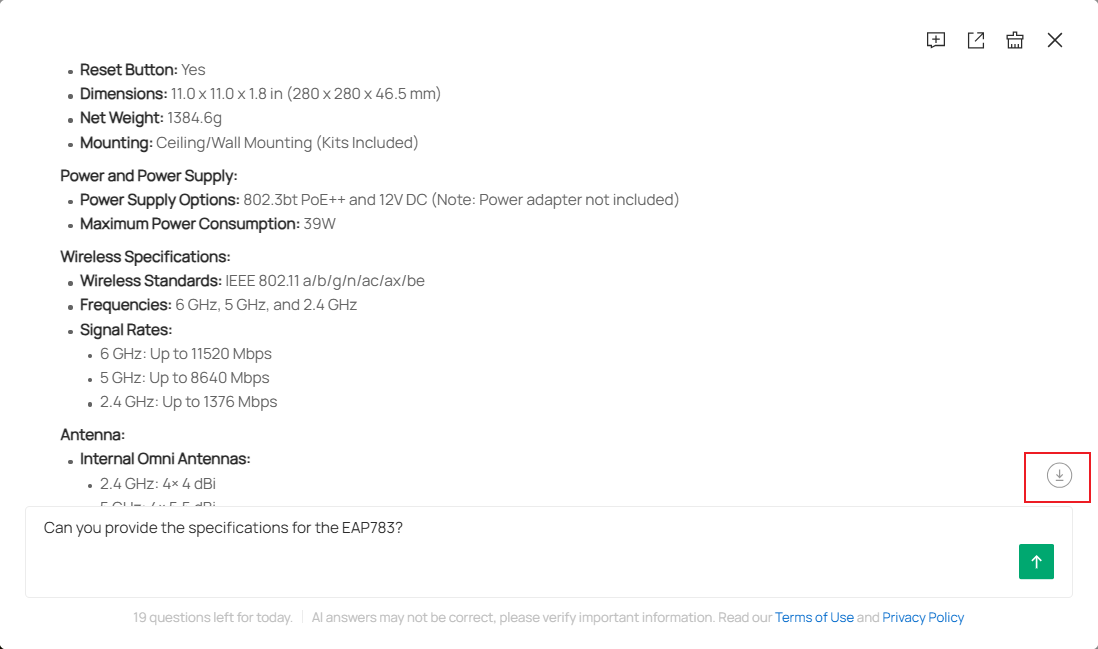
- Scroll to Bottom Button
Click the Scroll to Bottom button to scroll the chat window to the bottom.
Conclusion
Now, you can use the Omada AI Sales Assistant on Omada Design Hub according to your needs.
Get to know more details of each function and configuration please go to Download Center to download the manual of your product.
