


Introduction
With the rapid adoption of smart devices and Internet of Things (IoT) devices in residential, enterprise, and small-to-medium business (SMB) environments—including wireless cameras, sensors, access control systems, smart lighting, and environmental monitoring devices—customers increasingly require a solution that enables IoT devices to connect to existing Wi-Fi networks securely, reliably, and efficiently.
The Enhanced IoT Connectivity feature provides a one-click IoT SSID configuration in the Omada Controller, specifically designed for IoT devices. It automatically optimizes wireless settings to ensure that IoT devices can connect to Wi-Fi networks reliably, securely, and effortlessly.
By introducing Enhanced IoT Connectivity, Omada addresses common IoT deployment challenges, including the widespread use of 2.4 GHz-only devices, limited compatibility with advanced Wi-Fi features, and relatively weak device security. This enables administrators to deploy an optimized IoT network with a single click, eliminating the need to manually configure multiple wireless parameters and significantly reducing IT deployment and maintenance effort.
Requirements
- Omada Controller v6.3 or above
- Omada AP
Configuration
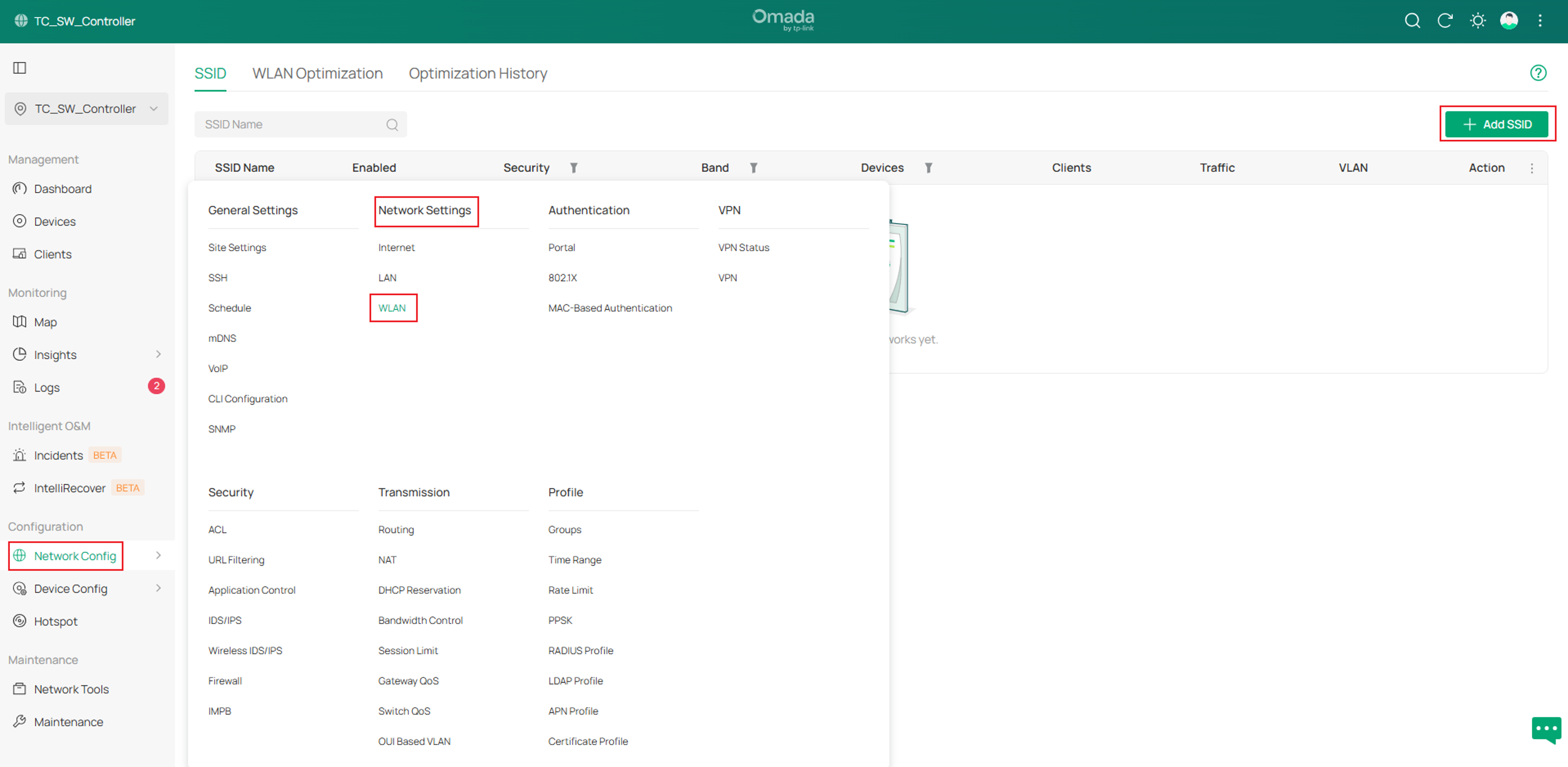
Step 1. Open the controller and access a site. Go to Network Config > Network Settings > WLAN, then click + Add SSID on the right side to create a new SSID.
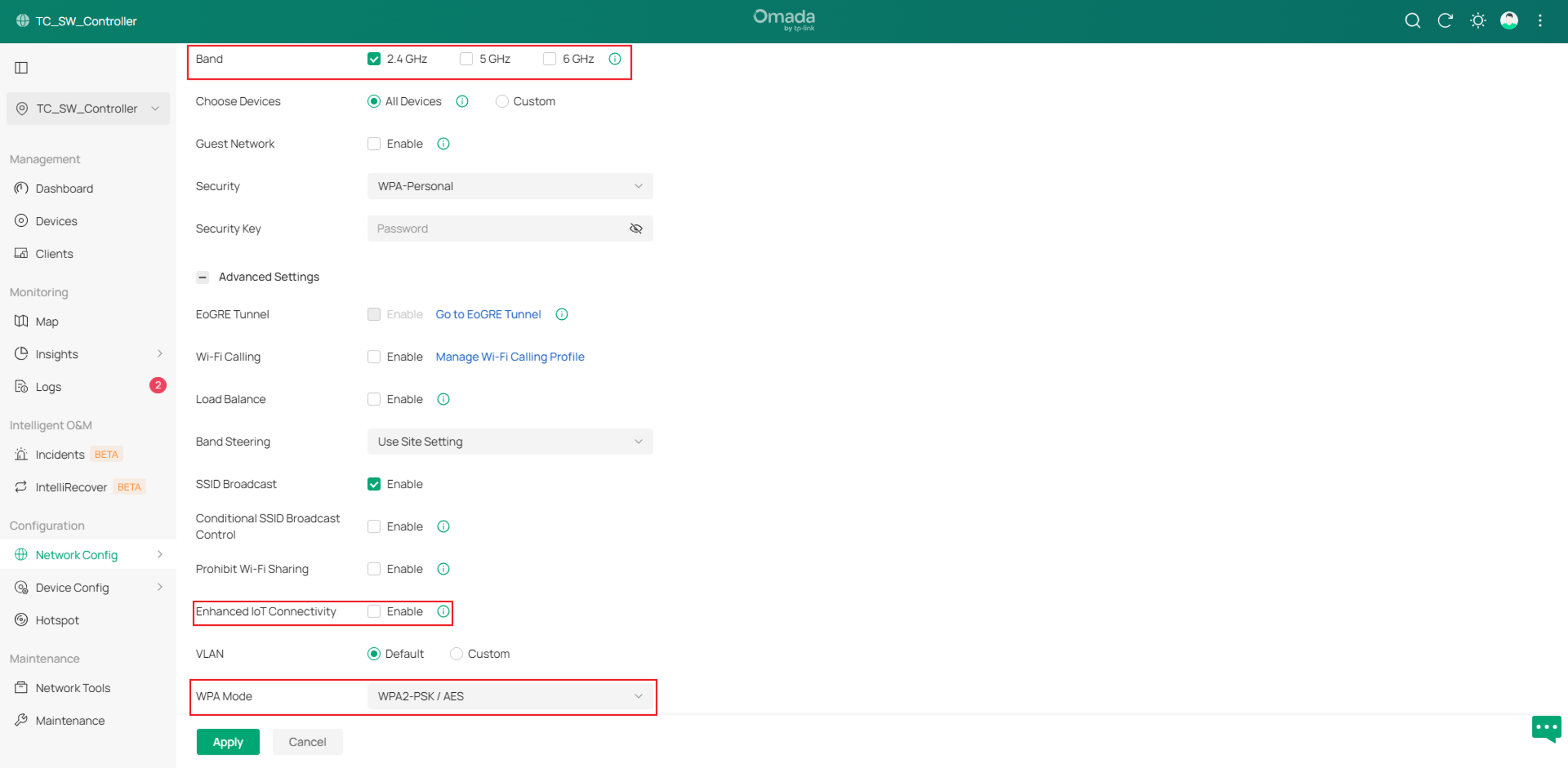
Step 2. Deselect 5GHz and 6GHz bandwidth, keep 2.4GHz alive as it’s the band that most IoT devices work on. If encryption is enabled with WPA3, no matter personal or enterprise, it is required to change encryption type from WPA3 to one that IoT devices are compatible with. (The compatible encryption includes: WPA, WPA2, WPA/WPA2)
Then, enable Enhanced IoT Connectivity.
Be aware that enabling Enhanced IoT Connectivity will disable and lock configuration page with the following features under this SSID, including:
Hotspot, 5 GHz and 6 GHz bands, WPA3 encryption, Band Steering, ARP-to-Unicast Conversion, Group Key Update Period, MLO, Load Balance, 802.11r, and PMF.
Besides, Fast Roaming setting under Site Settings will not take effect for this IoT SSID
These features, which most IoT devices do not use or support, will increase the disconnection risk for incompatibility reasons.
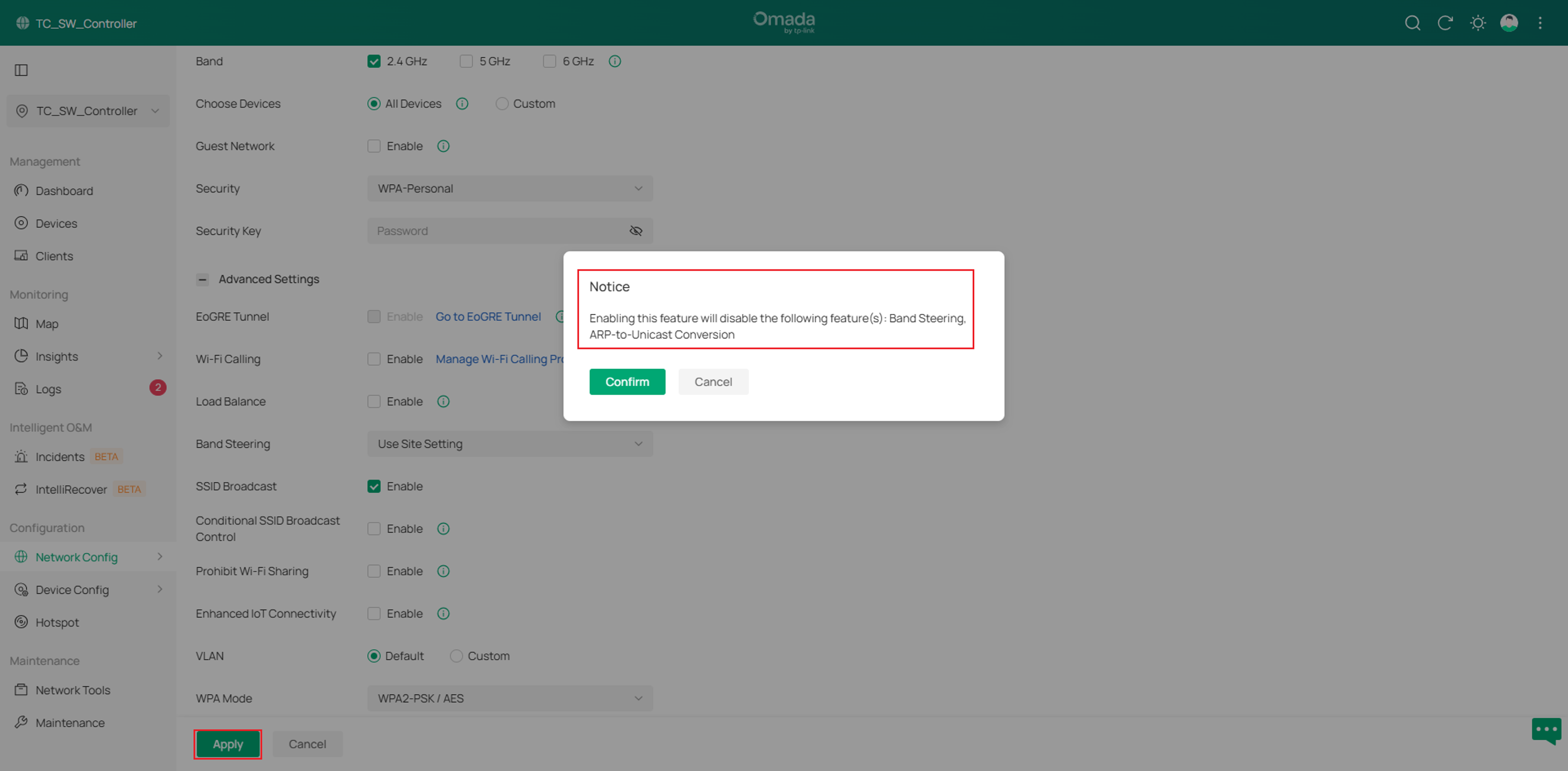
When finished, click Apply to complete the Enhanced IoT Connectivity configuration.
Conclusion
The above is the guide for configuring Enhanced IoT Connectivity on the Omada Controller.
QA
Q1: Why could Enhanced IoT Connectivity not be enabled on an existing wireless network?

A1: Please check if this wireless network is working on 5GHz or 6GHz band, or is configured with WPA3 feature, as these are contradictory configurations with Enhanced IoT Connectivity.
To learn more about each function and configuration, please visit Support Home to download or check the manual for your product.
