


How to Configure Gateway Rules for Content Filtering on Fusion Gateway


Contents
Configuration for Gateway Rules
Introduction
Omada Fusion Gateway provides content filtering that enables customers to manage websites and online content based on security and usage policies. The feature supports multiple filtering methods, including category-based filtering, domain allow/block lists, and Ad blocker. The built-in Ad Blocker uses DNS-level domain filtering to block advertising and tracking domains, helping reduce intrusive ads and enhance the overall browsing experience. Filtering rules can be applied to specific networks, IP groups, or individual client devices.
Requirements
- Omada Fusion Gateway
Configuration
Configuration for Gateway Rules
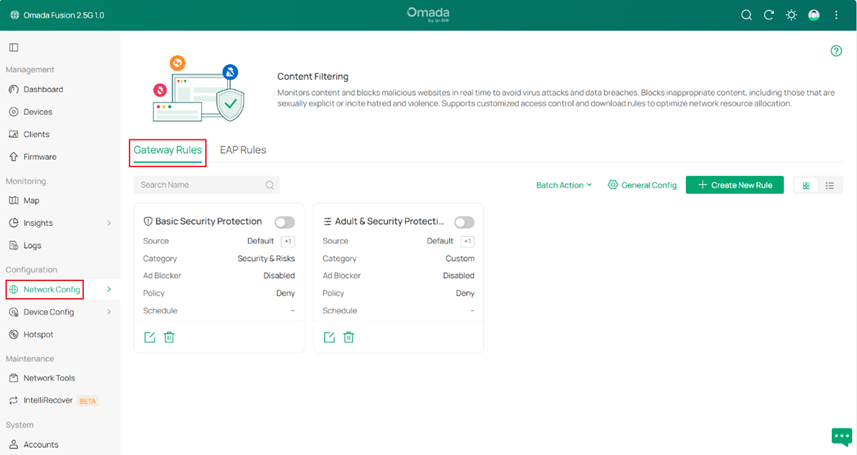
Step 1. Navigate to Configuration>Network Config > Security > Content Filtering, then go to Gateway Rules.
By default, two example rules (Basic Security Protection and Adult & Security Protection) are provided to help quickly apply common security and content filtering policies.
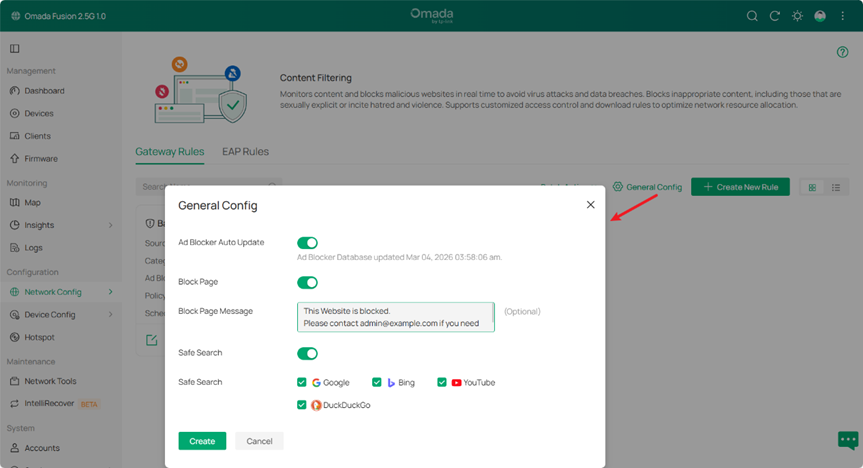
Step 2. Click the gear icon to open General Config. After completing the parameter settings, click Create to save the configuration.
- Ad Block Auto Update: When enabled, the Ad Blocker database is updated automatically. The timestamp below shows the last update time of the Ad blocker database.
- Block Page: When enabled, users who attempt to access blocked websites will be redirected to a block page indicating that access is restricted.
- Block Page Message: Customize the message displayed on the block page when users try to access blocked websites. This message can remind users to follow network usage policies. The message length should not exceed 90 characters. The value cannot contain the following characters: ${} & | ( ) ; < > " ' \.
- Safe Search: Enforces Safe Search on supported search engines, including Google, Bing, YouTube, and DuckDuckGo, to filter sensitive or inappropriate content from search results. This feature is suitable for family networks, schools, and other environments where safer browsing is required.
Step 3. Click Create New Rule to open the rule configuration page. After completing the configuration, click Apply to save the rule.
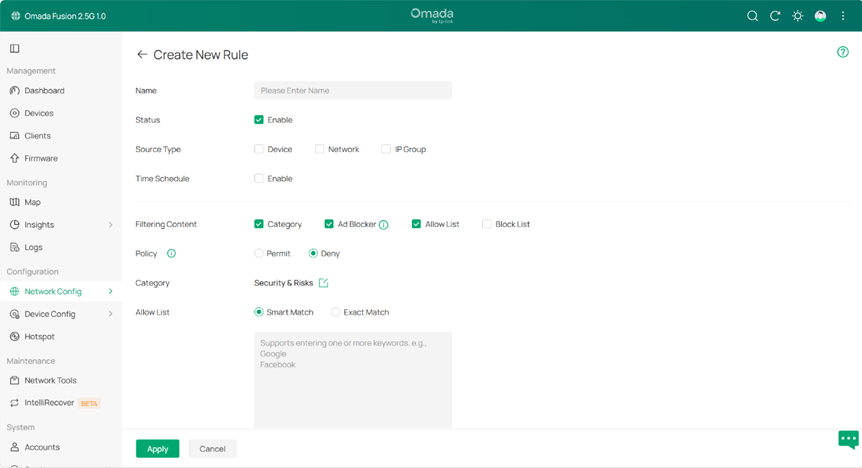
On the Create New Rule page, configure the rule parameters to define how content filtering is applied.
- Name: Specifies the name of the rule for identification and management.
- Status: Enables or disables the rule. When enabled, the rule takes effect immediately after being applied.
- Source Type: Defines the source of the traffic to which the rule applies. The rule can be applied to a Device, Network, or IP Group.
- Device: Applies the rule to specific clients/devices connected to the network.
- Network: Select a LAN network from the drop-down list. The gateway filters traffic originating from the selected network. If no custom networks have been created, the default LAN network can be selected, or a new network can be created under Network Config > Network Settings > LAN.
- IP Group: Select a predefined IP Group from the drop-down list. The gateway checks whether the source IP address of the traffic belongs to the selected group and applies the rule accordingly. If no IP groups exist, click + Create New IP Group on this page or go to Network Config > Profile > Groups to create one.
- Time Schedule: Specifies whether the rule is active only during a defined time period.
- Filtering Content: Fusion gateway supports Category, Ad Blocker, Allow List, and Block List, which can be used individually or combined to control access to online content in different scenarios.
- Category Filtering: Controls access to websites based on predefined content categories.
Policy: Defines the action applied to the selected category. It does not affect Allow List, Block List, or Ad Blocker behavior.
- Permit: Allows access to websites in the selected category.
- Deny: Blocks access to websites in the selected category.
Category: Specifies the website categories to which the policy applies. The gateway identifies domains based on the built-in category database and applies to the configured policy accordingly.
- Ad Blocker: Blocks online advertisements using a DNS-based Ad blocker database.
- Allow List: Allows access to specified domains. Within the same rule, it takes precedence over Category Filtering.
- Block List: Blocks access to specified domains. Within the same rule, it takes precedence over Category Filtering.
Note:
Allow List / Block List support two matching methods:
Smart Match – Matches domains containing the specified keyword. For example, entering google matches google.com, mail.google.com, and other related domains.
Exact Match – Matches only the exact domain specified. For example, entering google.com only matches google.com.
Filtering Scenarios
Category Filtering Scenarios
- Security & Risk:
Provides a predefined category set for common security protection scenarios.
The preset categories vary depending on whether Permit or Deny is selected, helping administrators quickly apply the appropriate filtering policy. - Custom:
Allows administrators to manually select categories based on their requirements.
With this mode, administrators can define which categories to Permit or Deny for more flexible content control.
Ad Blocker Scenarios
Ad Blocker can be enabled to block domains using an Ad blocker database. This helps reduce intrusive ads on websites and applications, providing a cleaner browsing experience and reducing unnecessary network traffic.
Allow List and Block List Scenarios
Allow List and Block List are used for precise control of specific websites.
- Within the same rule, Allow List ensures that important or trusted websites remain accessible, even if they match other filtering conditions.
- Block List can be used to block specific websites that should not be accessible within the network.
Example Configuration: Restrict Non-Work Websites During Working Hours
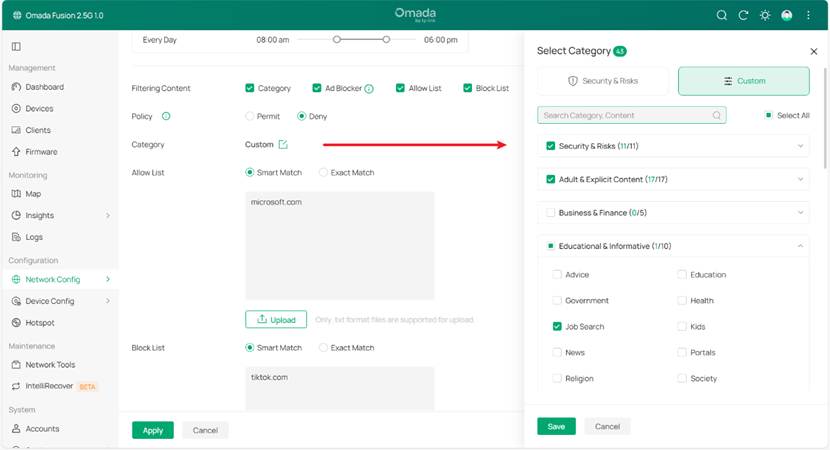
In an enterprise network, the administrator wants to use a Gateway Rule to restrict access to non-work-related websites during working hours and block job search websites. This helps improve employee productivity and reduce unnecessary network traffic.
Rule Applied To
- Device: for example, Financial Manager’s Computer
- IP Group: for example,Finance_Servers
- Network: for example,Office_Workstation_VLAN
Effective Time:
The rule is applied only during working hours on weekday: 08:00 AM – 06:00 PM
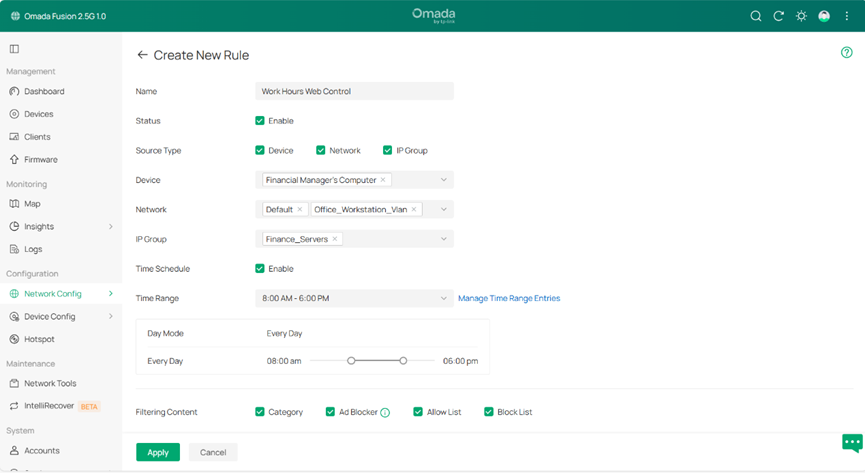
Filtering Policy
Category:
Enable Category and set the policy to Deny.
Select the following category: Educational & Informative → Job Search. This blocks access to job search websites such as: linkedin.com,indeed.com. This prevents employees from browsing job search platforms during working hours.
Ad Blocker:
Enable Ad Blocker to block advertising and tracking domains, which helps to reduce webpage advertisements, decrease unnecessary traffic and improve browsing experience.
Allow List:
Add the following domain to the Allow List: microsoft.com. This ensures Microsoft services (such as Office, Teams, and OneDrive) remain accessible even when other filtering rules are applied.
Block List:
Add the following domain to the Block List: tiktok.com This prevents access to video streaming websites that may consume bandwidth.
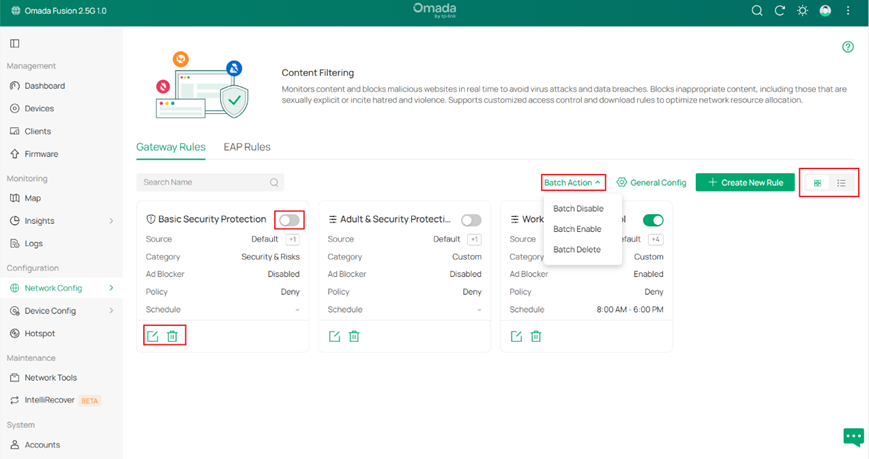
Step 4. Managing Gateway Rules. After a rule is created, it can be managed in the Gateway Rules page.
- Enable or Disable Rule – Use the toggle switch to enable or disable a rule.
- Edit Rule – Click the edit icon to modify the rule settings.
- Delete Rule – Click the delete icon to remove the rule.
- Batch Operations – Click Batch Action to enable, disable, or delete multiple rules at once.
- Adjust Rule Order – Drag and drop the rule cards (Card View) or rows (List View) to change the rule order.
Note:
Rule priority is determined by the rule order. When multiple rules are matched, the first matched rule takes effect.
• In List View, rules are applied from top to bottom.
• In Card View, rules are applied from left to right, then top to bottom.
By default, rules are ordered by creation time. If the order is manually adjusted, the gateway processes rules based on the updated order.
Verification
After the rule configured in Step 3 (Example Configuration) in the Configuration section is applied and clearing the DNS cache on both the PC and browser, verify the following results:
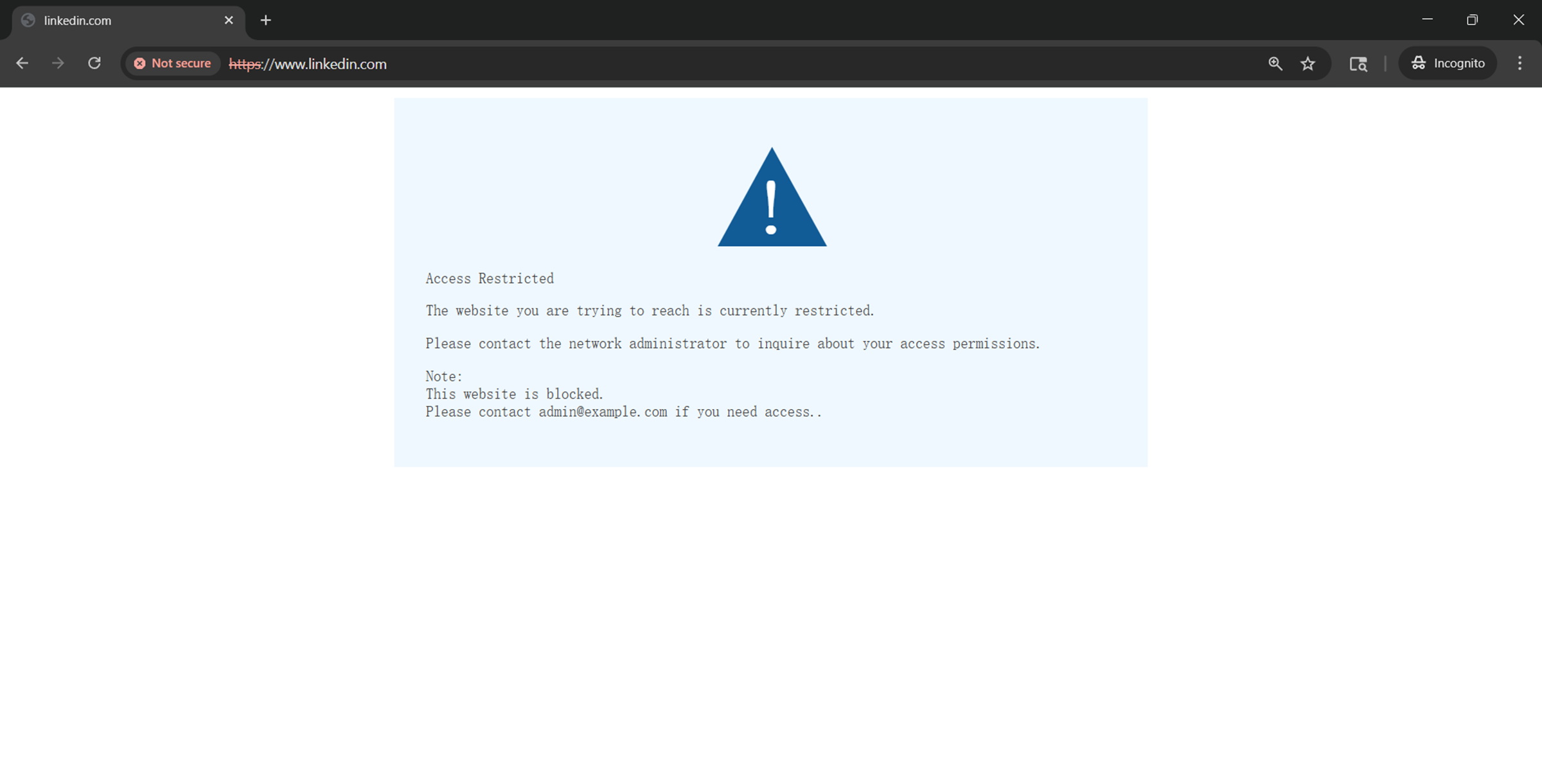
1. Category Filtering:
Access to linkedin.com is blocked for the specified devices, networks, or IP groups, confirming that the configured Job Search category filtering is working correctly.
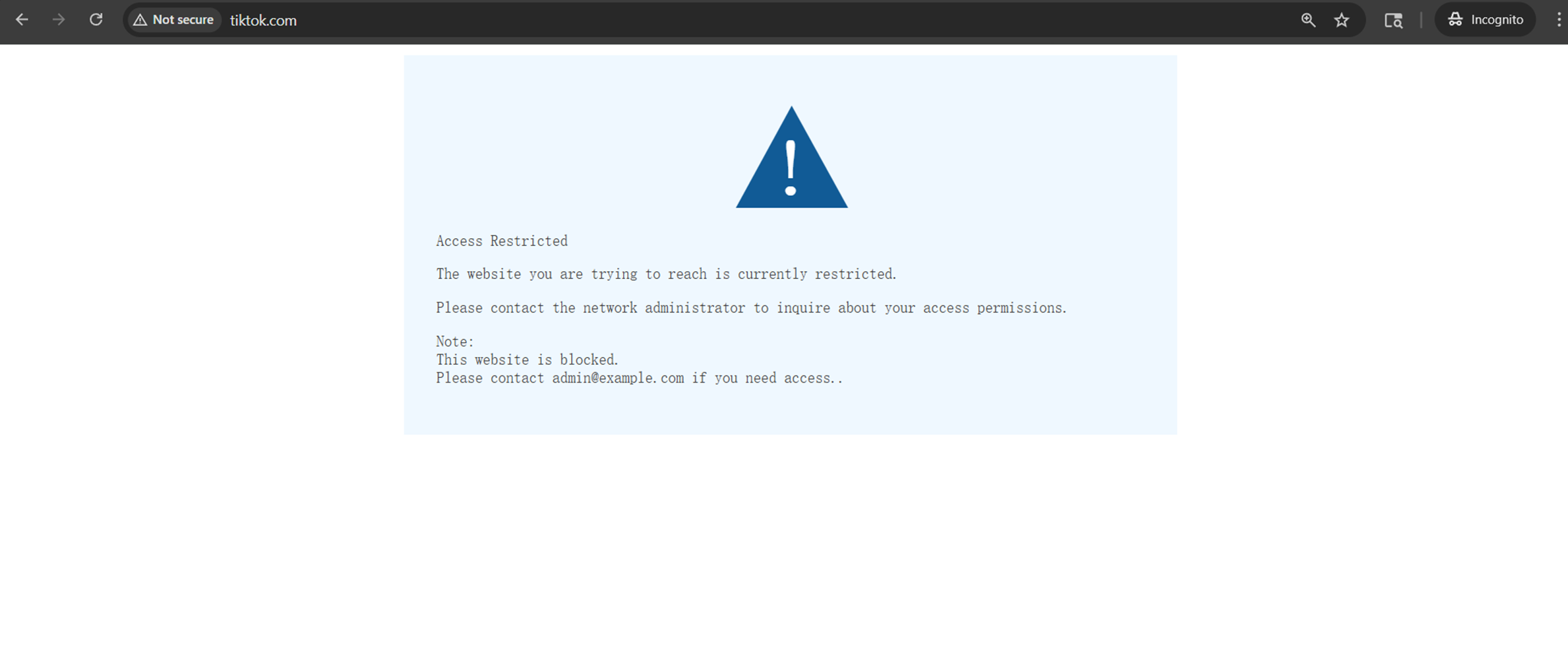
2. Block List:
Access to tiktok.com is blocked as expected, confirming that domains added to the Block List are successfully restricted.
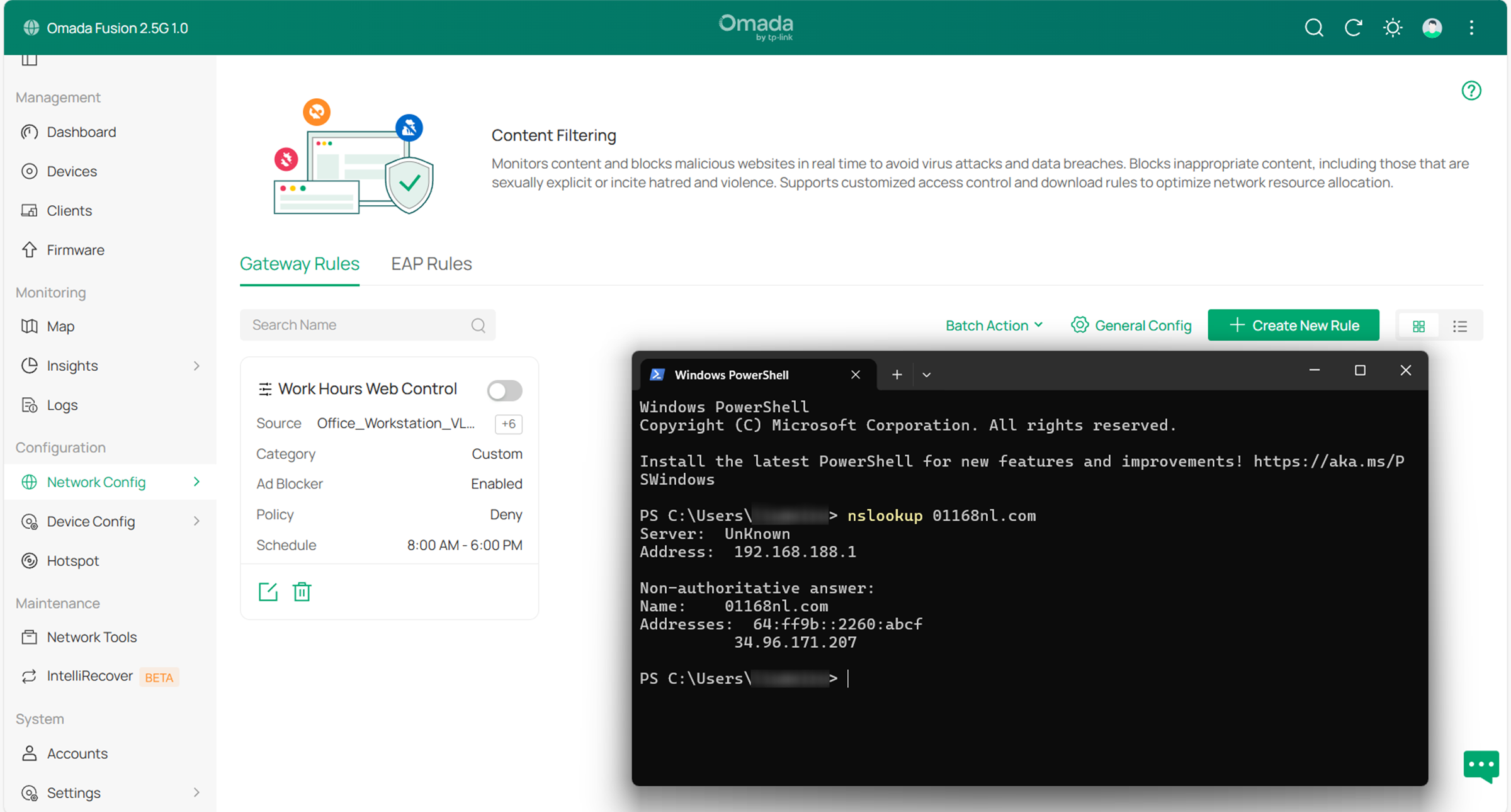
3. Ad Blocker:
After enabling Ad Blocker, DNS queries for known advertising domains are blocked or return no valid resolution.
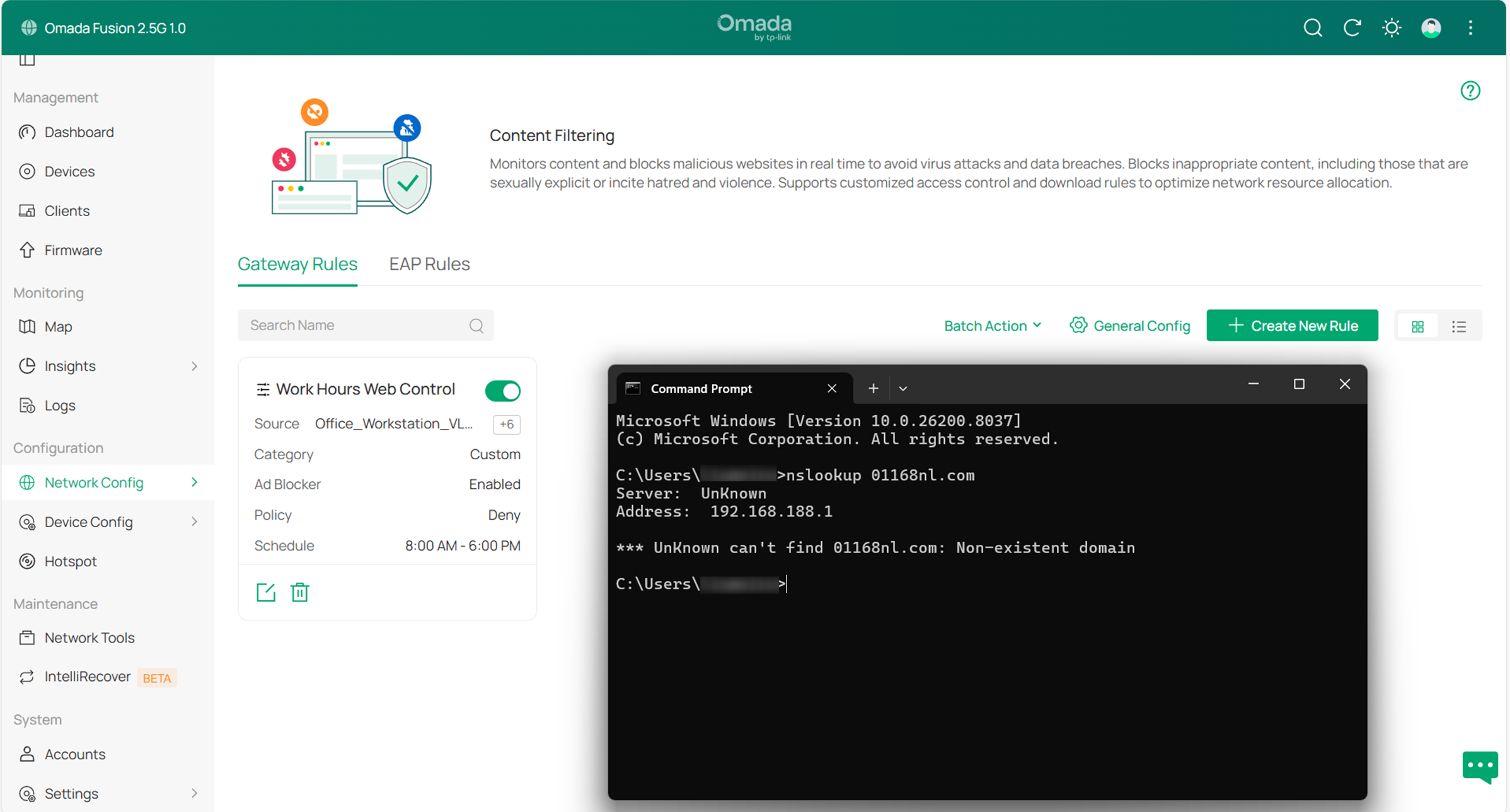
When the Ad Blocker switch is disabled, the same domains can be resolved normally again. This confirms that the Ad Blocker feature is functioning as expected.
Conclusion
By following the steps in the Configuration section, Gateway Rules can be configured in Content Filtering to control website access by category, ad blocker and allowlist/blocklist[XT28] [ML29] policies. The rules can be applied to devices, networks, or IP groups, providing flexible and centralized access control across the network.
Get to know more details of each function and configuration please go to Download Center to download the manual of your product.
QA
Q1: What should I do if clients can still access a specific website after configuring a Category filtering rule?
A1: If the rule schedule and filtering policy are configured correctly, but the website is still accessible, the domain may not be included in the current category database. In this case, it is recommended to use the Block List together with category filtering. Category filtering can cover most URLs within a category, while the Block List can be used to block specific websites that are not included in the category database.
Q2: How does priority work when having multiple Gateway Rules?
A2: Gateway Rules are applied based on the rule order. In List View, rules are applied from top to bottom. In Card View, rules are applied from left to right, then top to bottom.
When a client matches multiple rules, the gateway applies the first matched rule, and subsequent rules are not evaluated. The rule order determines which rule takes effect.
Note: A rule only applies if the client matches its source settings (such as device, network, or IP group). If a client matches multiple rules, the first matched rule in the rule order takes effect.
Q3: What is the priority between Category, Allow List, and Block List?
A3: When multiple filtering methods are configured within the same rule, Allow List and Block List take precedence over Category. This means that specific domains on the Allow List will always be accessible, any domains on the Block List will be blocked, and all remaining traffic will then be subject to filtering based on the selected categories.
