


How to Use the Omada AI Assistant on Omada Design Hub


Contents
Step 1. Log in to Omada Design Hub
Step 2. Open the Omada AI Assistant
Introduction
The Omada AI Assistant is an intelligent assistant integrated into Omada Design Hub. It helps users obtain network solution recommendations, select suitable Omada products, compare product specifications, and access technical information through a conversational interface.
This article explains how to access and use the Omada AI Assistant in Omada Design Hub.
Requirements
- Omada Design Hub
- TP-Link ID on the whitelist
Note: The Omada AI Assistant is being rolled out gradually through a whitelist program. Only users included in the current whitelist can access this feature. Availability will be expanded to additional users in future releases.
Access the Omada AI Assistant
Step 1. Log in to Omada Design Hub
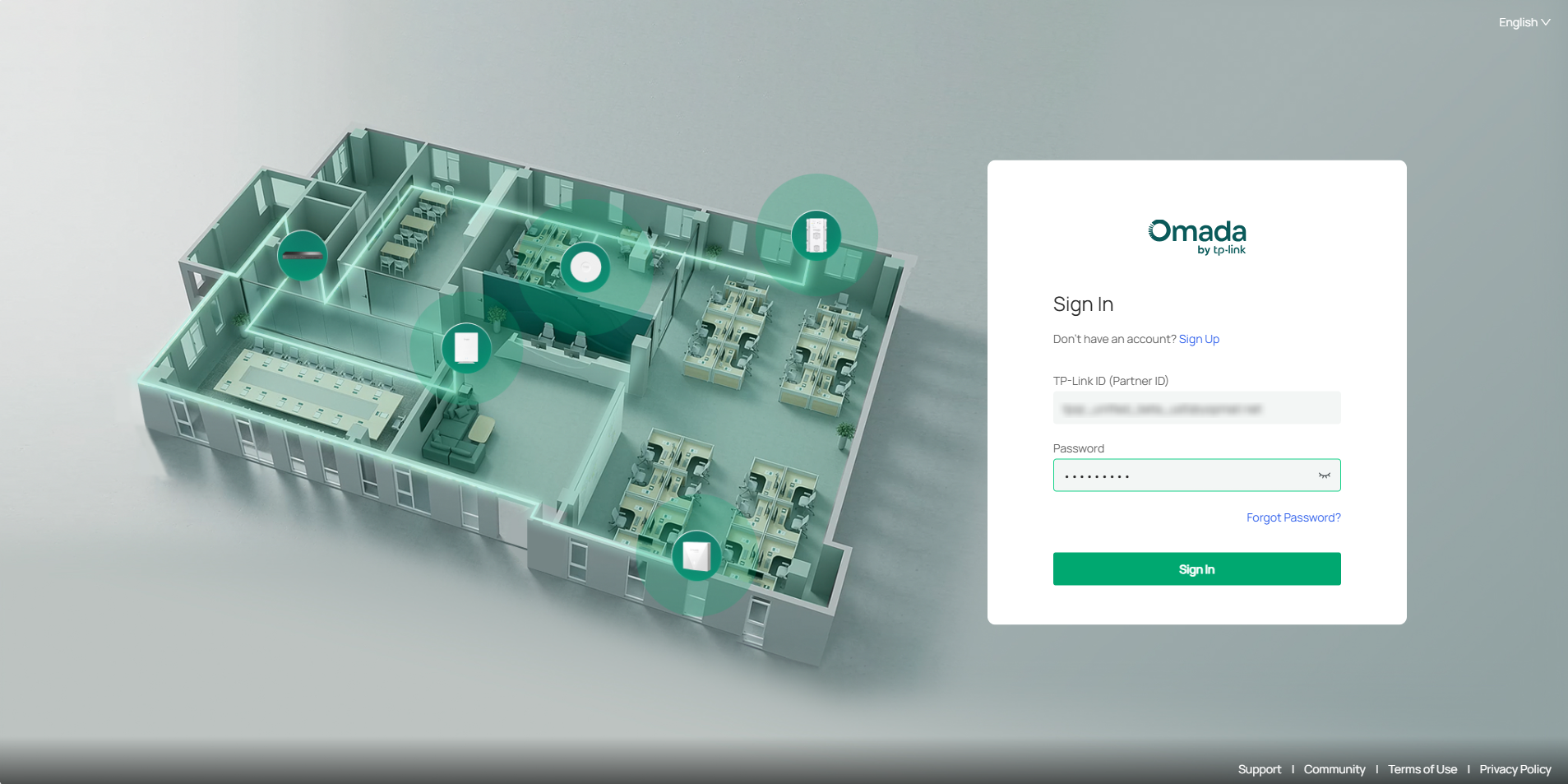
Visit the Omada Design Hub Website and sign in using your TP-Link ID.
Step 2. Open the Omada AI Assistant
After logging in, the Omada AI Assistant icon appears in the lower-right corner of the page.
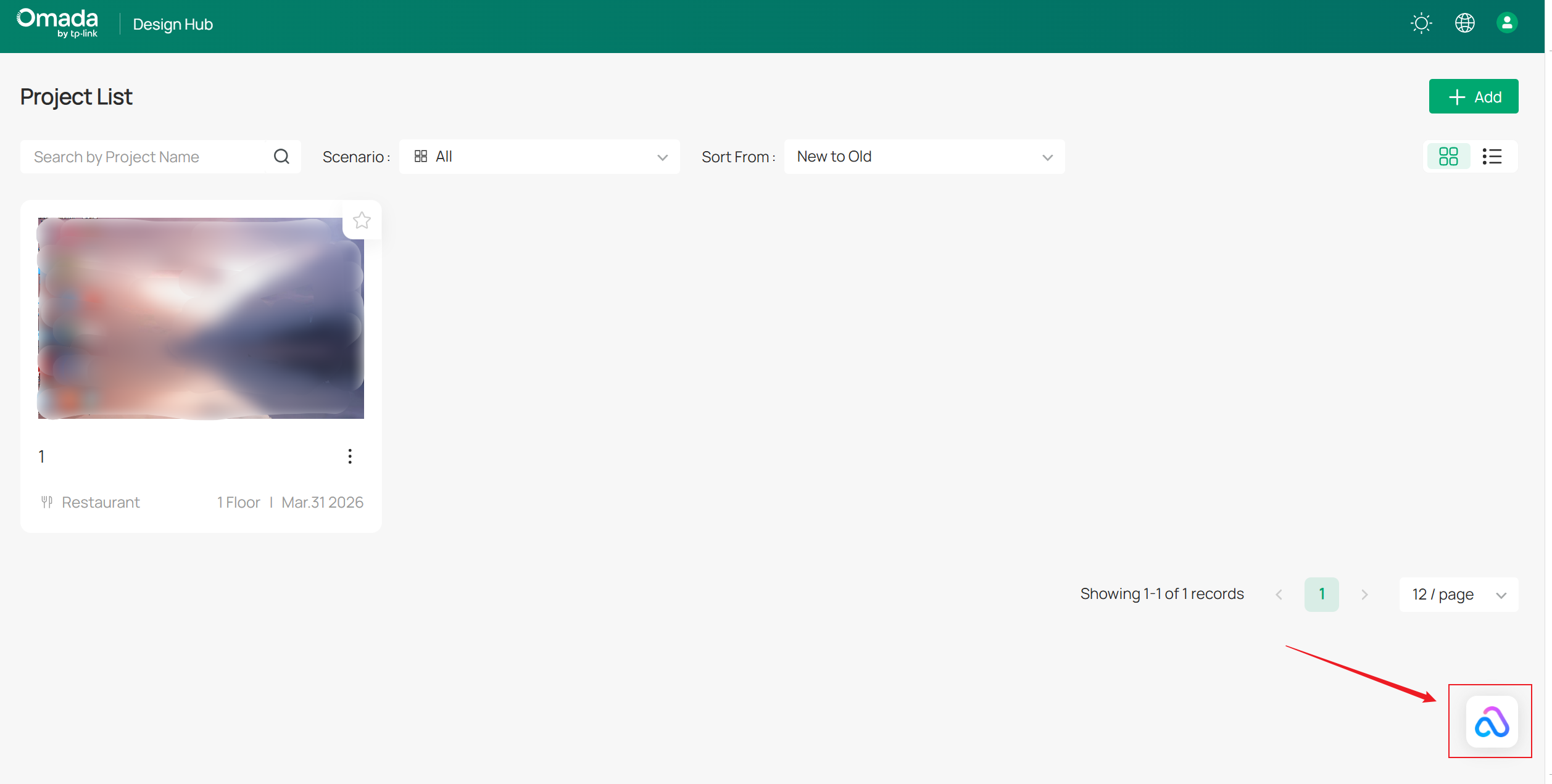
Click the Omada AI Assistant icon to open the chat window.
The number of questions remaining for the current day is displayed in the lower-left corner of the chat window.
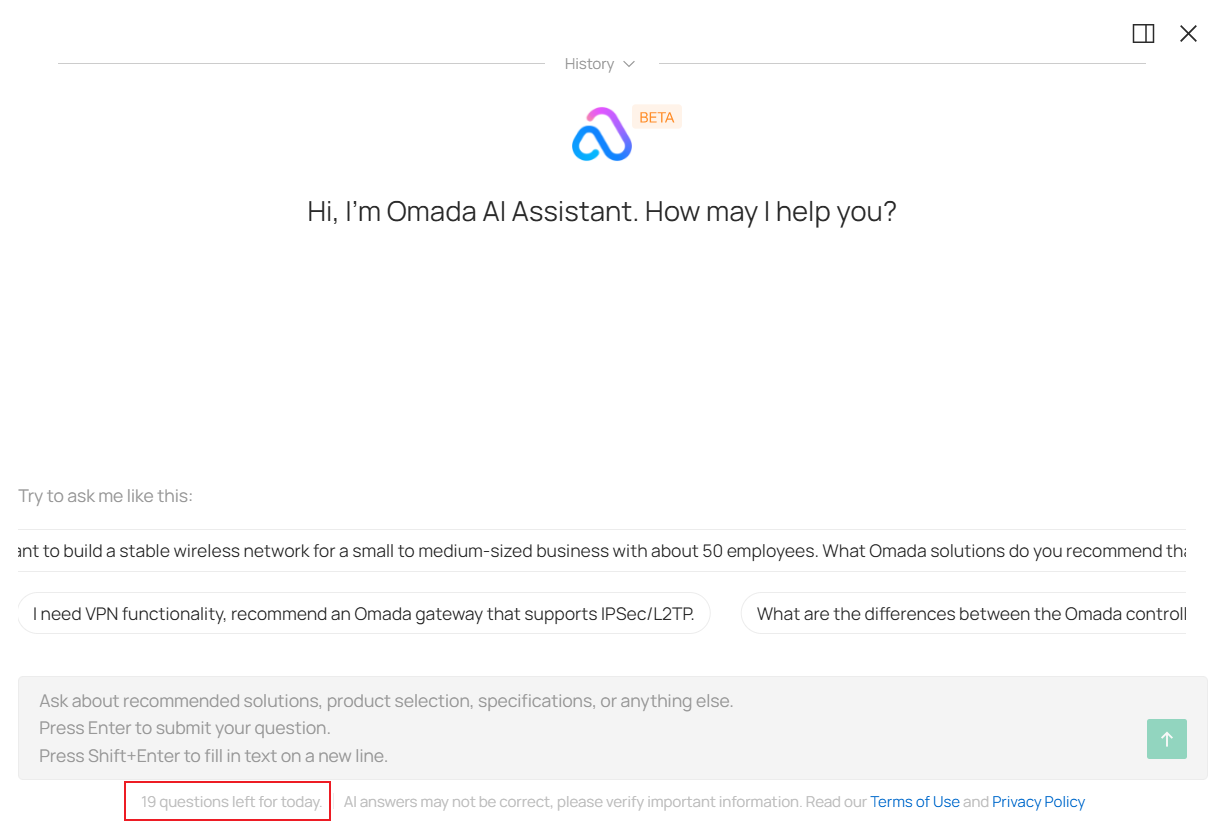
Note: Omada AI Assistant supports asking 20 questions per day.
The AI Assistant only supports answering questions within its functional scope and will be unable to respond if questions exceed this scope.
Customize the chat window
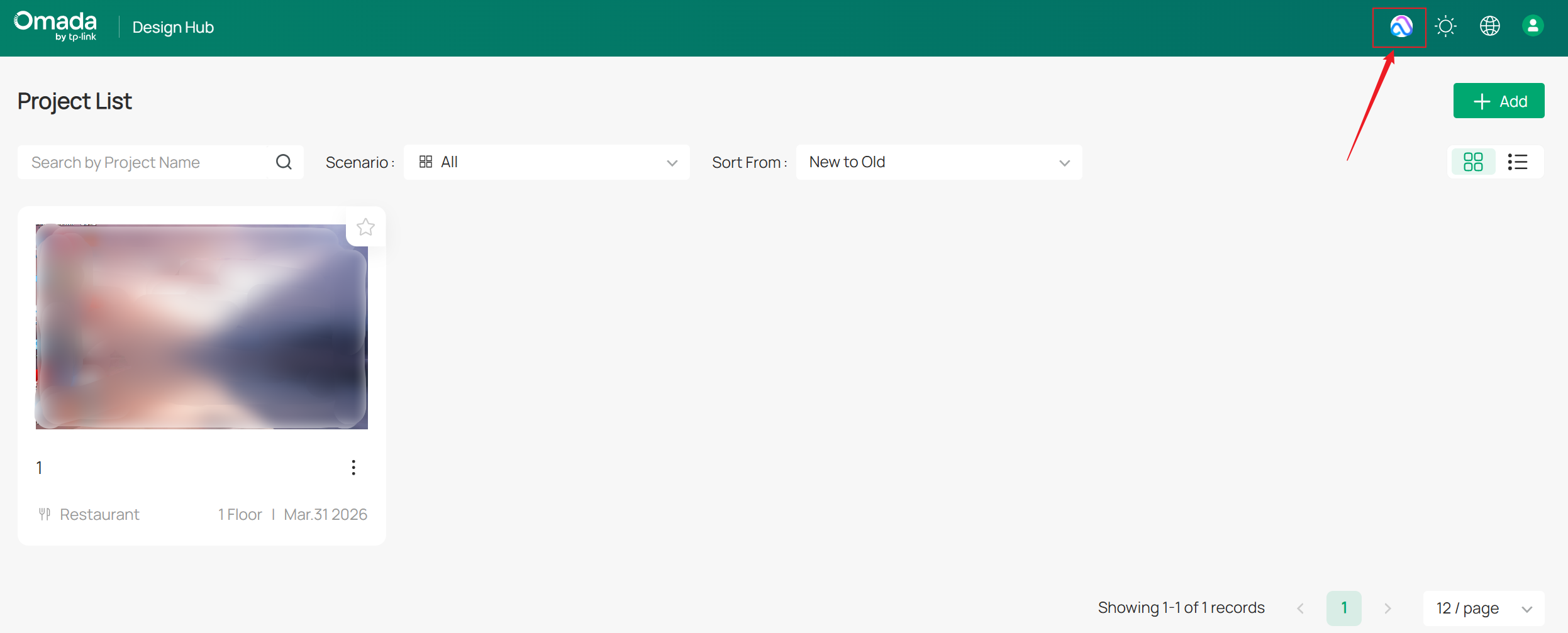
The AI Assistant icon can also be dragged to the top navigation bar. When moved away from the navigation bar, it automatically snaps to the edge of the screen.
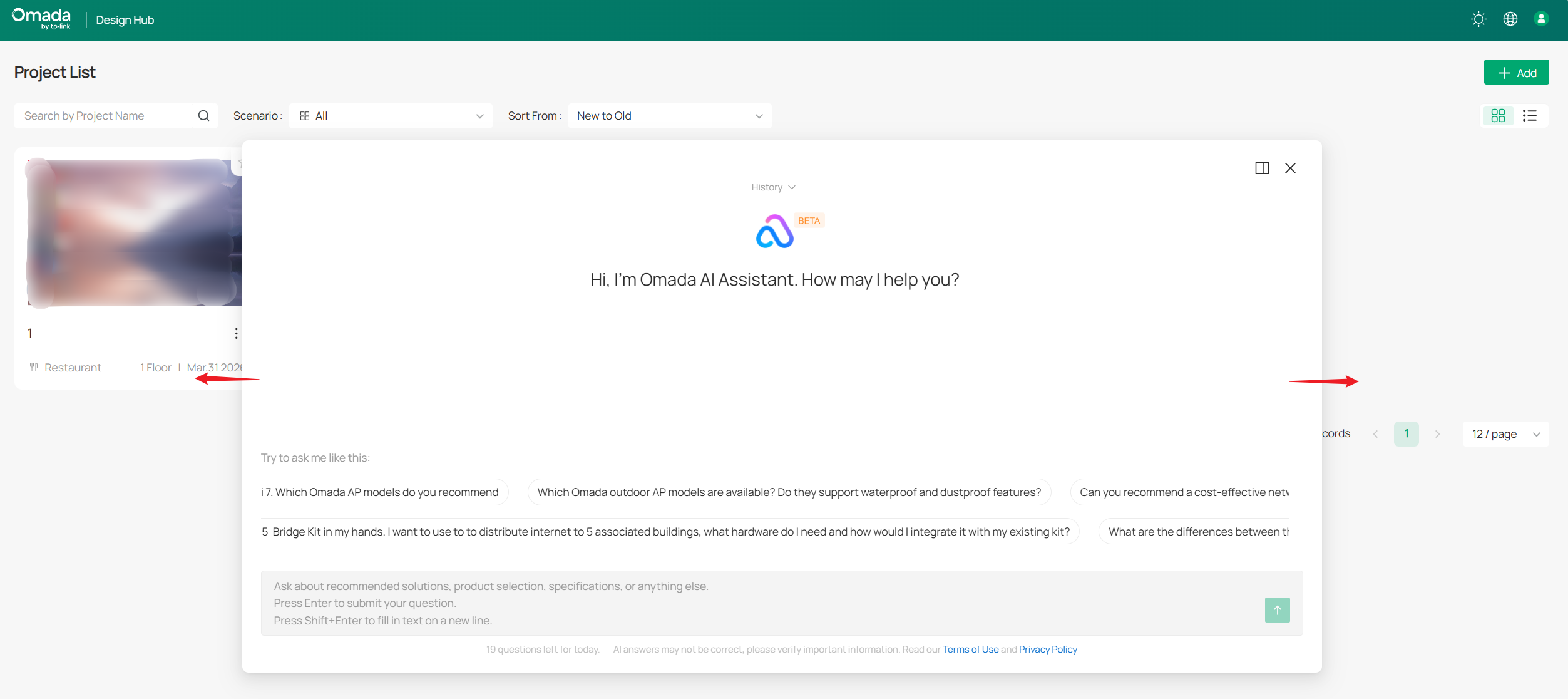
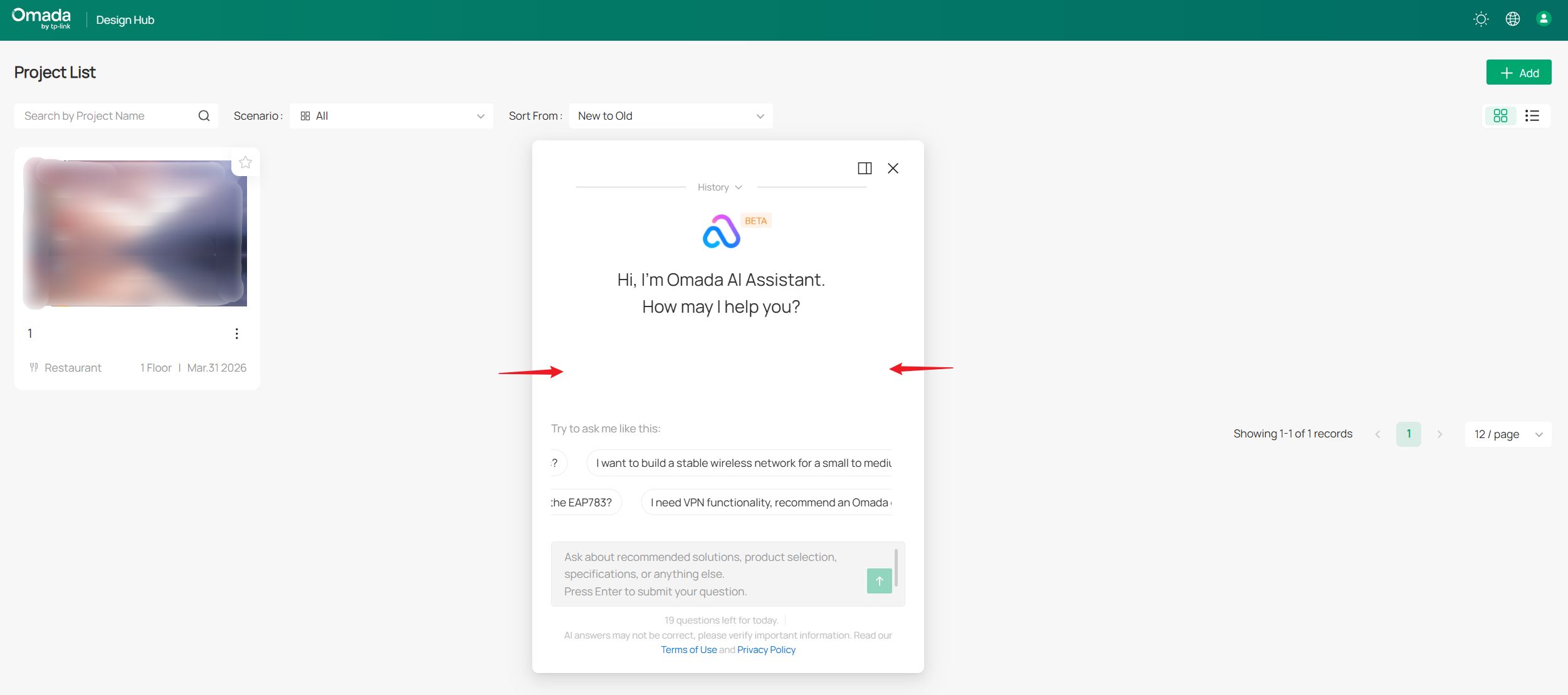
The AI chat window can be resized by dragging its border.
Enlarged view
Reduced view
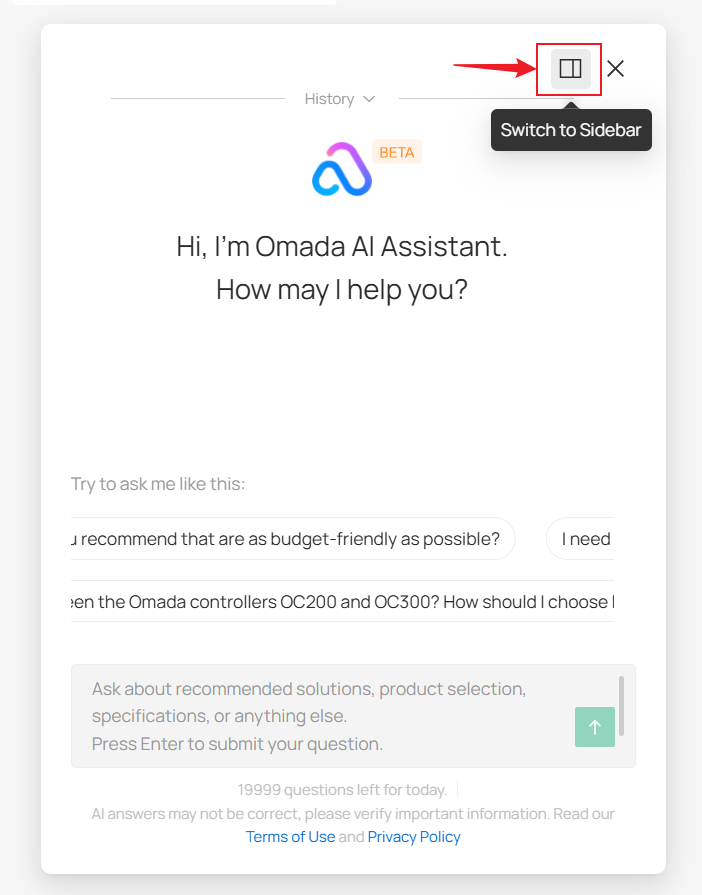
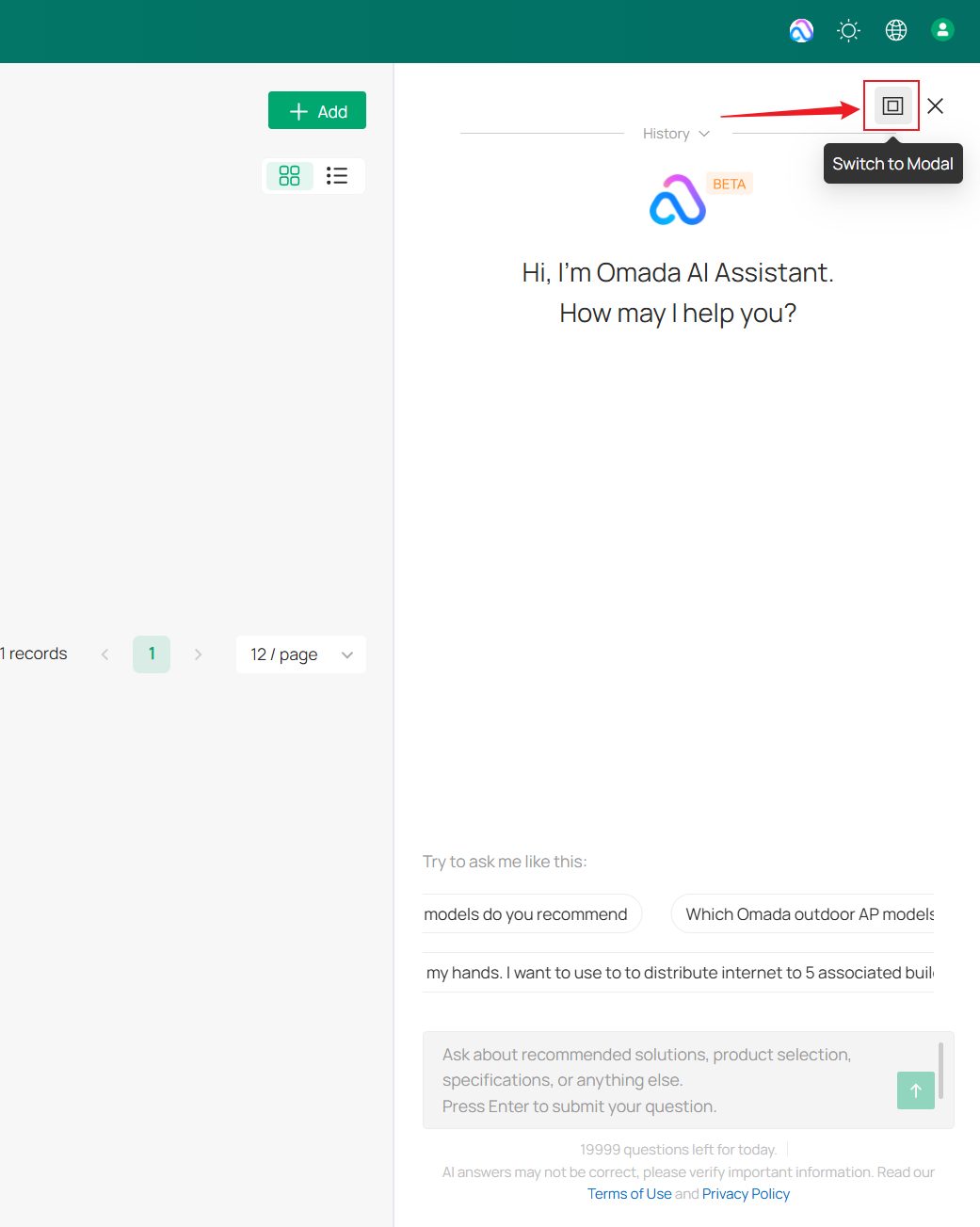
Switch display modes
Click Switch to Sidebar in the upper-right corner of the chat window to display the assistant in sidebar mode.
To return to the standard dialog window, click Switch to Modal.
Key capabilities
Solution recommendations
The Omada AI Assistant can generate network solution recommendations based on:
- Deployment scenarios
- User count
- Coverage requirements
- Network scale
- Technical requirements
It can also provide deployment and architecture recommendations tailored to specific networking requirements.
Product selection
The Omada AI Assistant can:
- Recommend suitable Omada products
- Filter products based on features and specifications
- Compare product models
- Identify devices that meet deployment requirements
Specification lookup
The Omada AI Assistant can:
- Retrieve detailed product specifications
- Provide model-specific information
- Answer questions about Omada product capabilities
- Compare specifications across different models
Ask questions
Enter a question in the chat window and submit it.
Example questions include:
- Can you recommend a network solution for a 200-square-meter restaurant with approximately 100 users?
- What Omada solution is recommended for a small business with around 50 employees?
- Which Omada access points support Wi-Fi 7?
- Which Omada outdoor access points are available, and what protection ratings do they support?
- What are the differences between the EAP783 and EAP650?
The Omada AI Assistant will generate responses based on the submitted question.
Note: Responses provided by the Omada AI Assistant are for reference only and should be evaluated based on actual deployment requirements.
Manage conversations
Start a new chat
The Omada AI Assistant generates responses based on the current conversation context.
To start a new conversation, click the "+" icon in the upper-right corner of the chat window.
View chat history
Previous conversations are automatically saved in the conversation history.
Click History to expand and view previous chats.
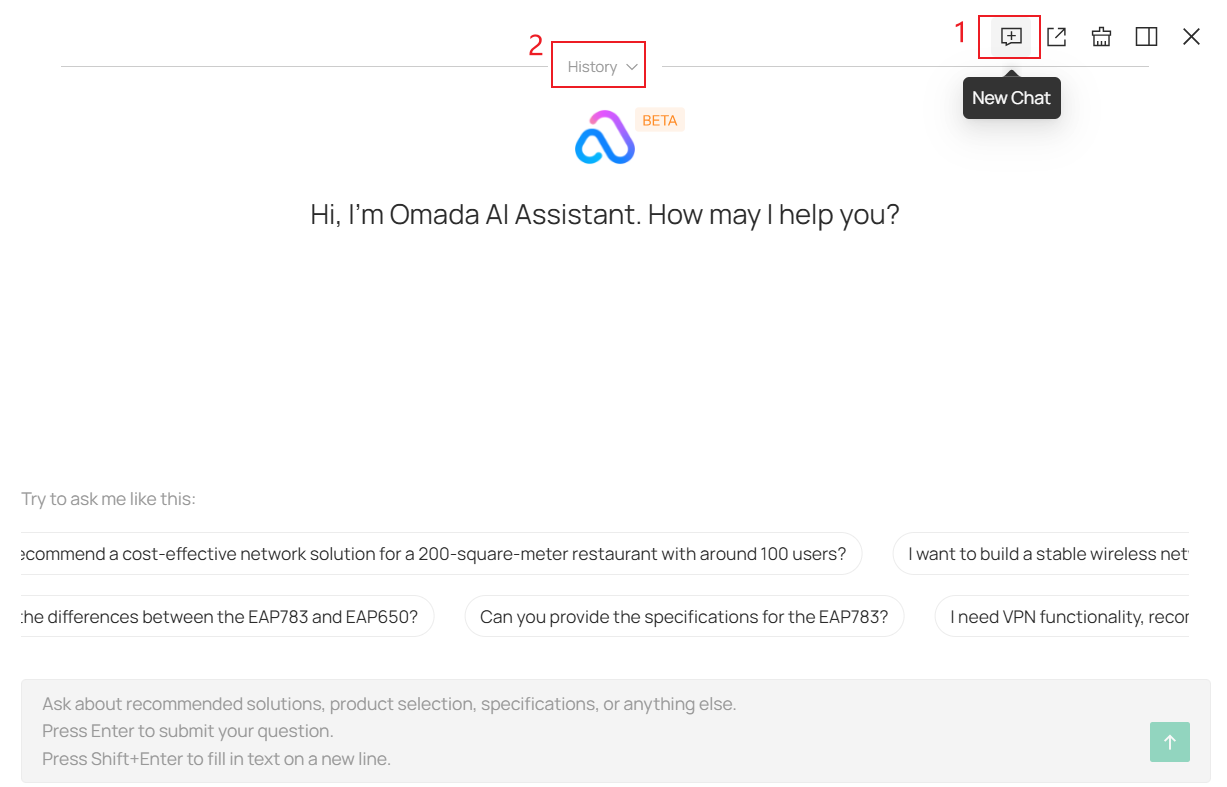
Note: The History option is only displayed when chat history is available. If no conversations exist or all history has been deleted, the History option will not appear.
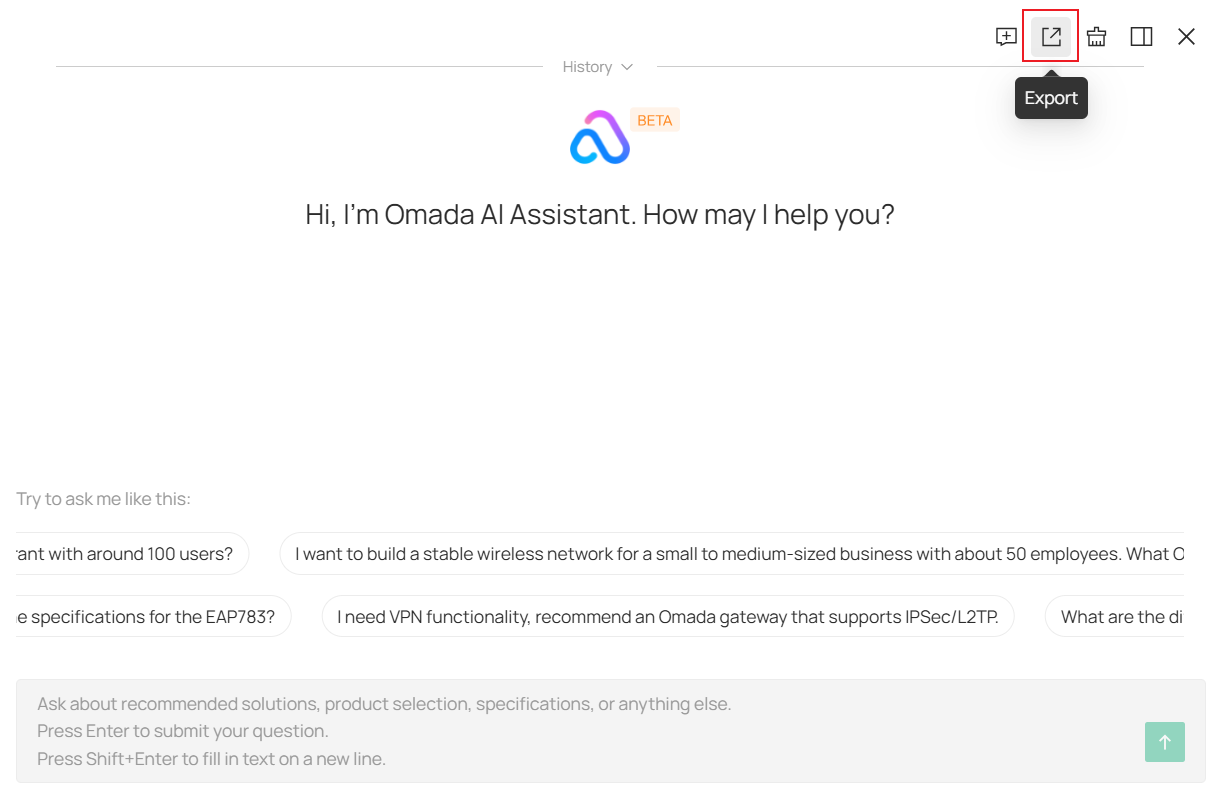
Export conversations
Click Export.
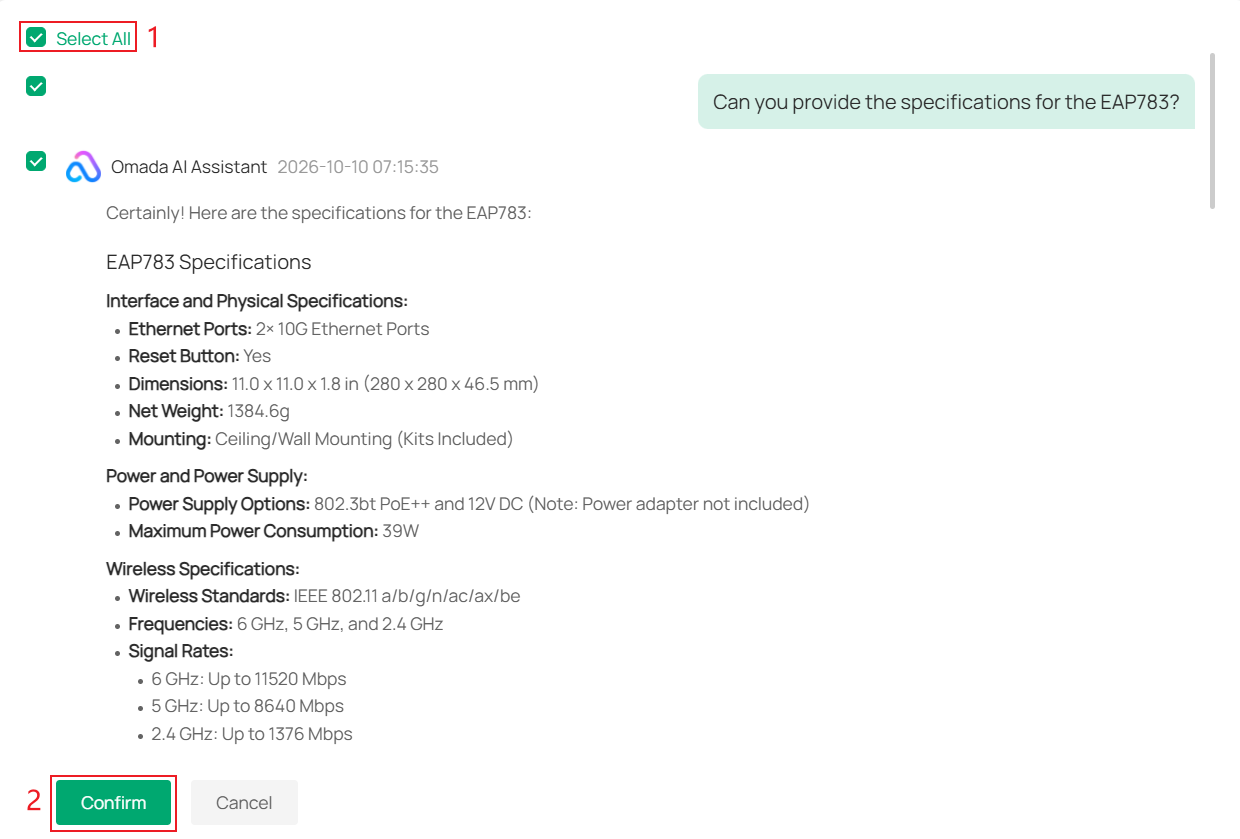
Select the conversations to export, or click Select All.
Click Confirm to export the selected conversations.
Exported files are saved in .md (Markdown) format.
Clear chats
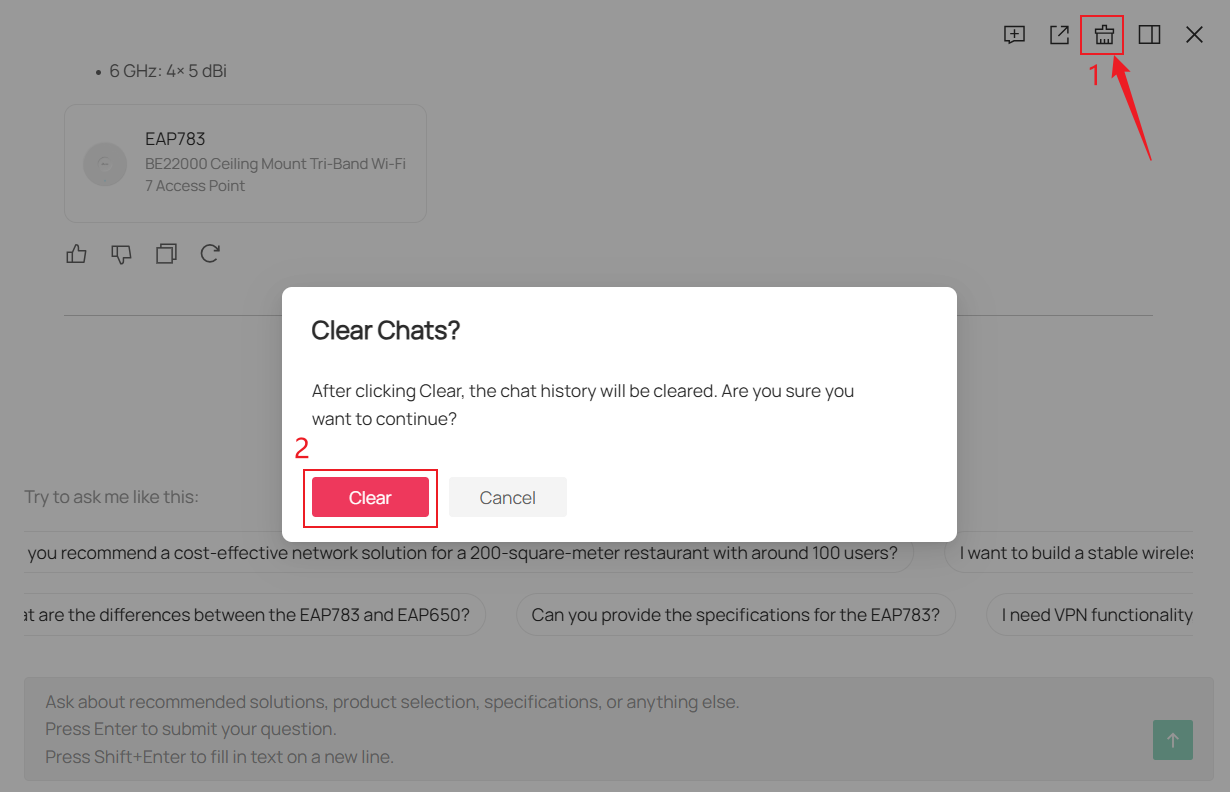
Click Clear Chats and then select Clear to remove all conversation history.
Note: After chat history is cleared, it cannot be recovered.
Additional features
Product cards
The home page displays rotating example questions that can be selected as conversation starters.
Click a question bubble to begin a conversation.
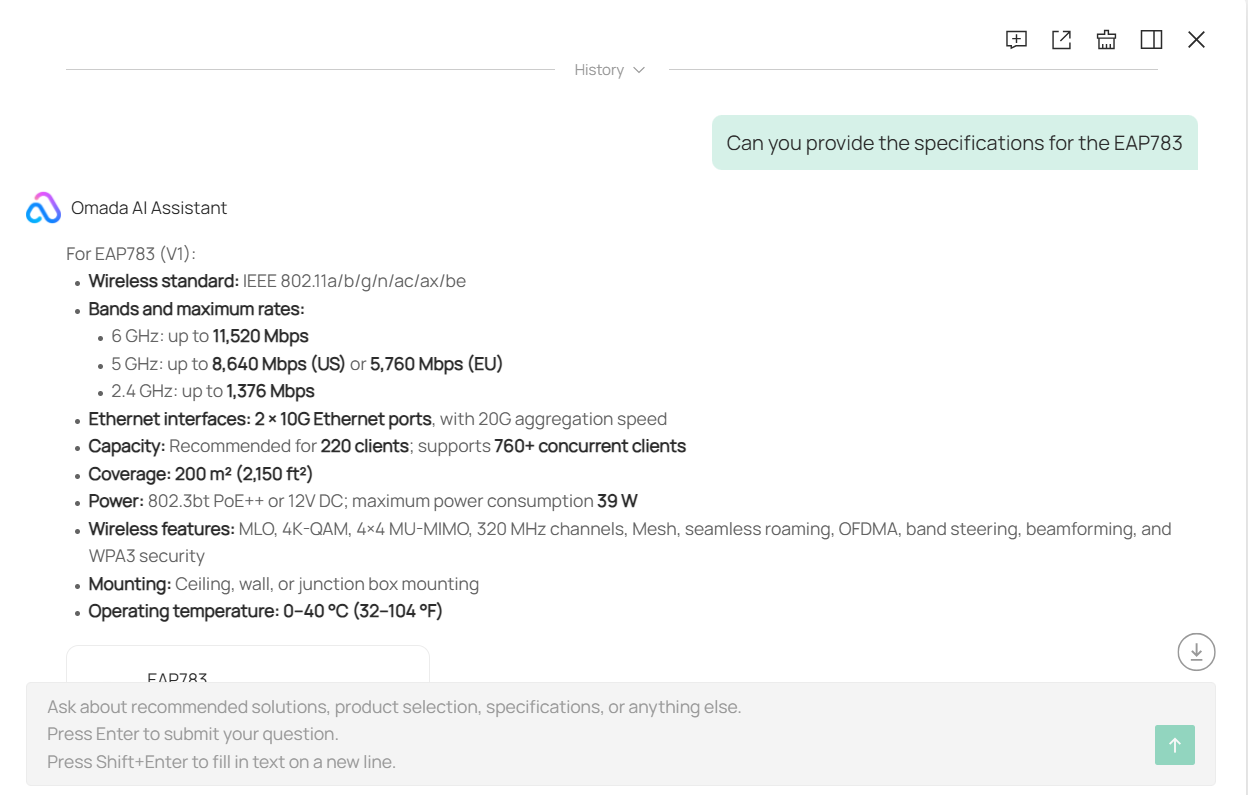
Some responses include product Information/Parameters cards.
Click a product card to open the corresponding product page and view additional product information.
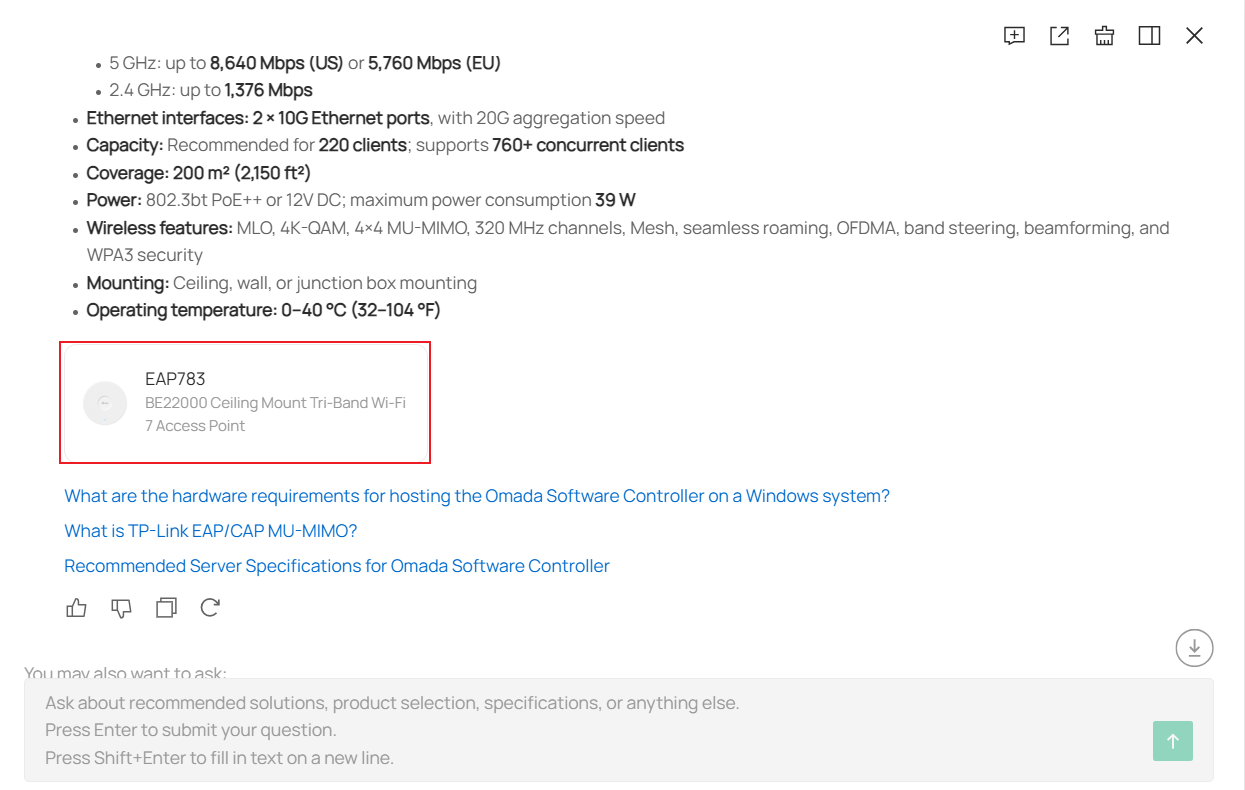
Feedback
Click Helpful or Unhelpful to provide feedback on a response.
Feedback helps improve answer quality and user experience.
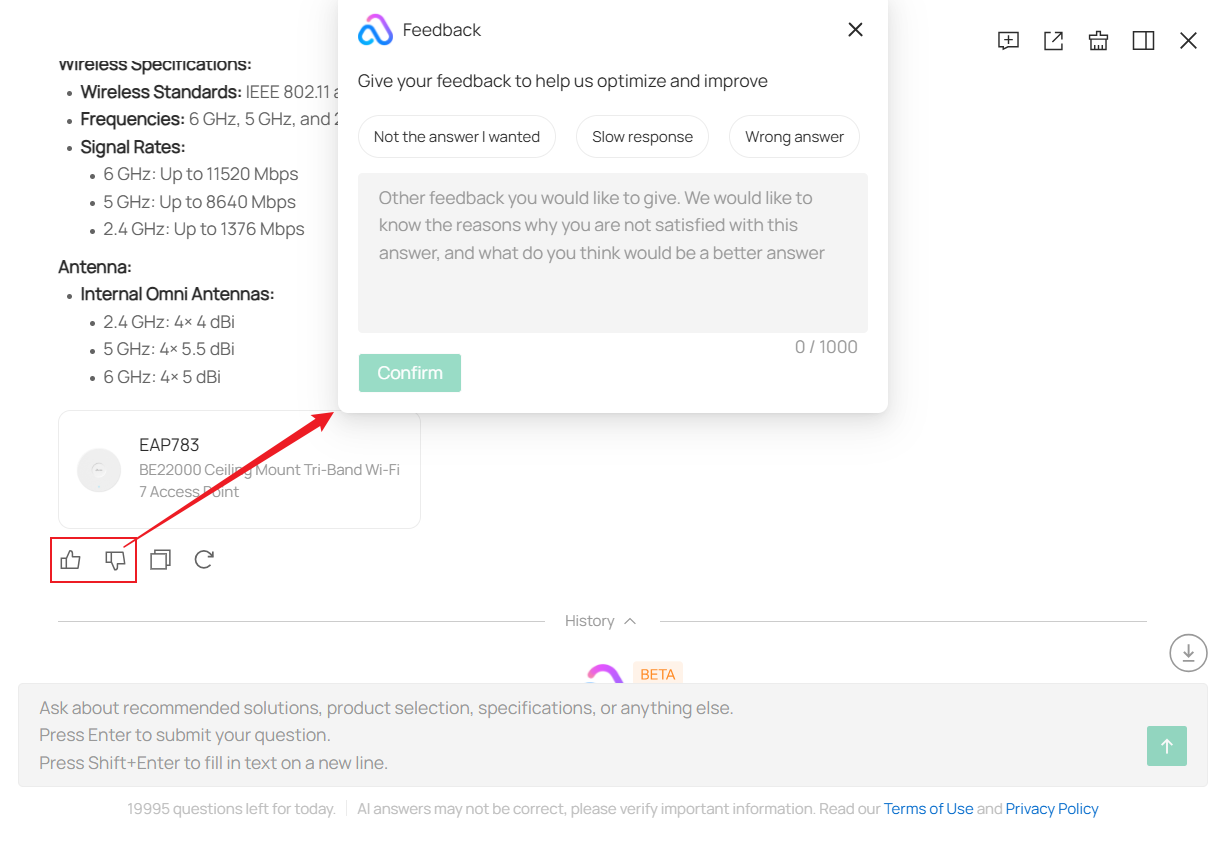
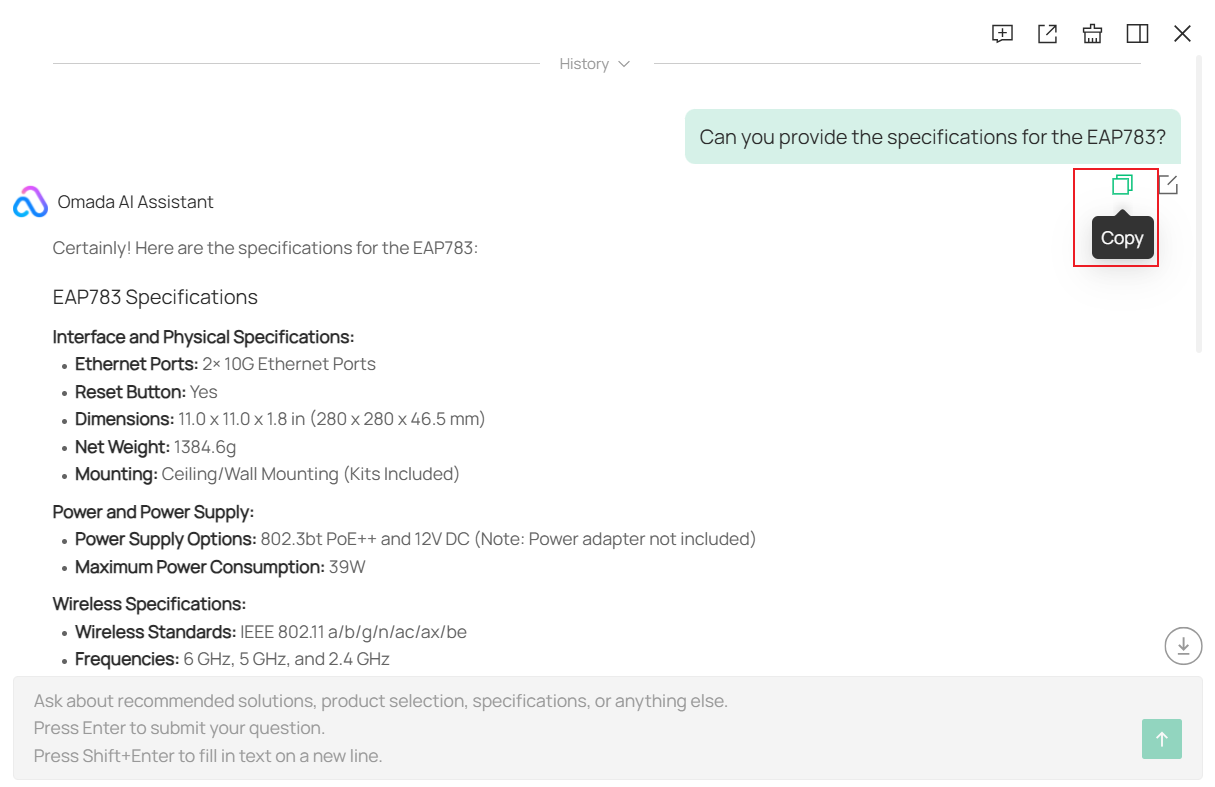
Copy responses
Click the Copy button to copy the generated responses.
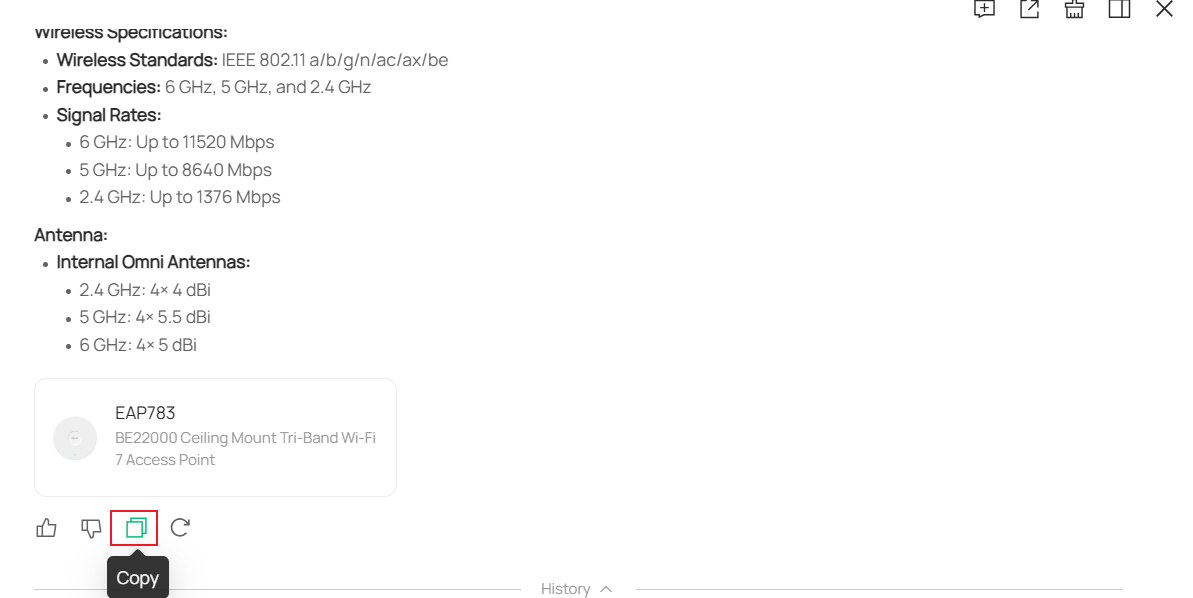
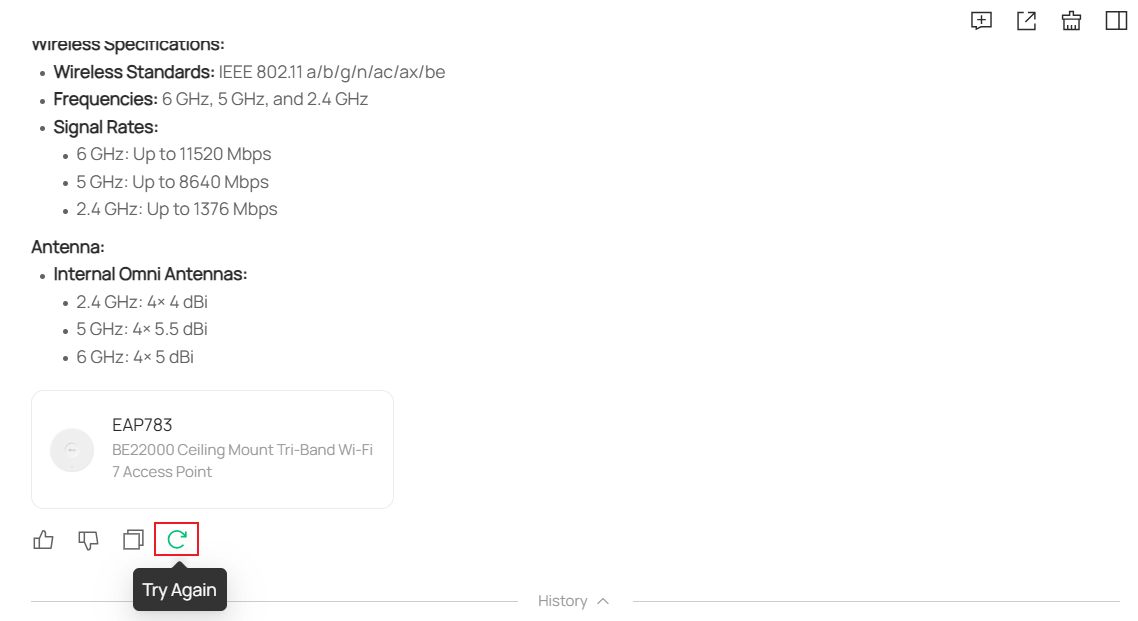
Regenerate responses
Click Try Again to generate a new response for the same question.
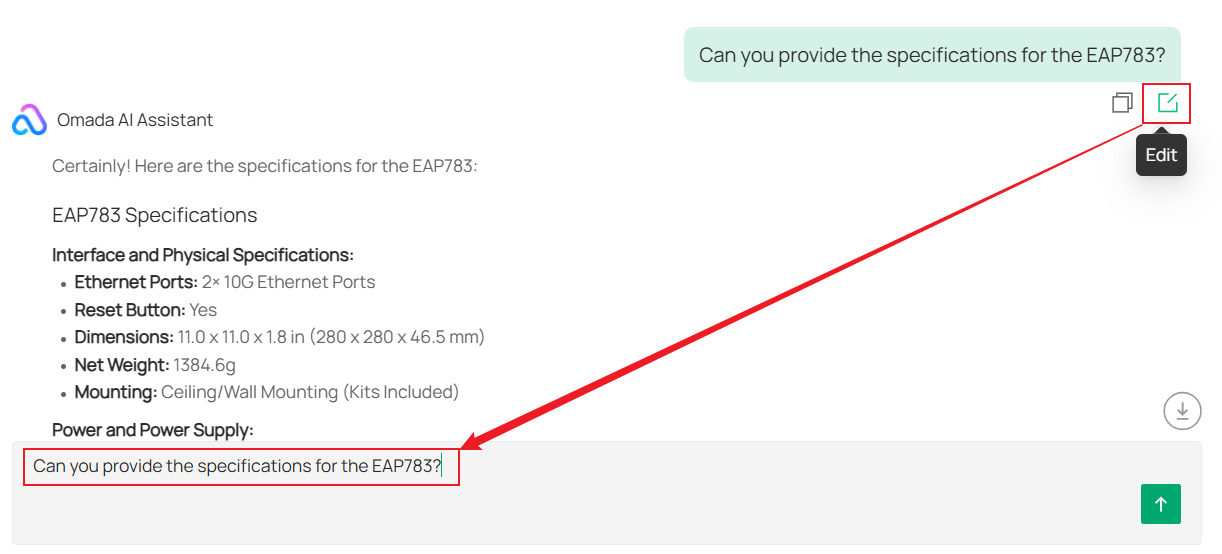
Edit questions
Click Edit to modify the question and submit it again.
The question text can be copied by clicking the Copy button.
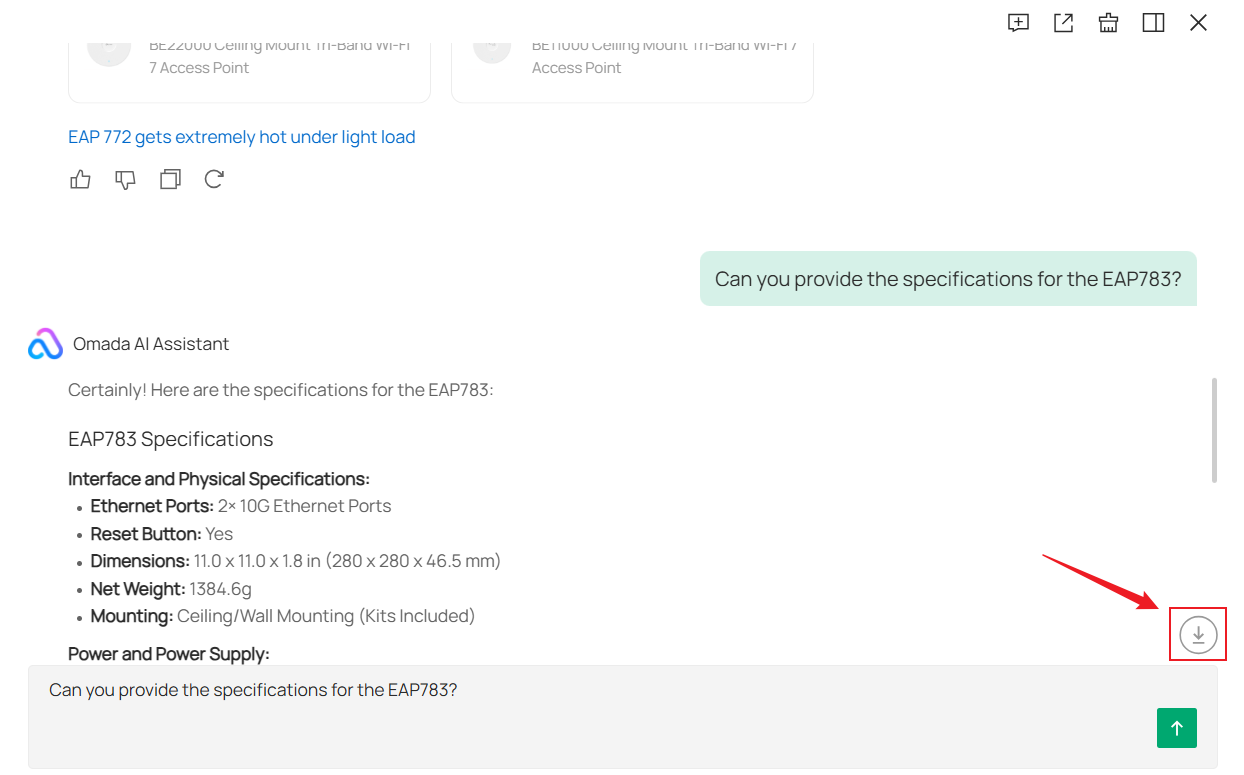
Scroll to the latest message
Click the Scroll to Bottom button to quickly navigate to the latest message in the conversation.
Usage notes and limitations
- The Omada AI Assistant currently supports up to 20 questions per day.
- The assistant only supports questions within its supported capability scope.
- Responses generated by the Omada AI Assistant are intended for reference purposes only.
- Recommendations should be evaluated based on actual deployment requirements and business needs.
Conclusion
The Omada AI Assistant provides AI-powered assistance within Omada Design Hub for solution recommendations, product selection, and specification lookup. By using the features described in this article, users can efficiently obtain networking guidance and product information through a conversational interface.
To learn more about each function and configuration, please visit Support Home to download or check the manual for your product.
