How do I upgrade the firmware of my EAP device via web browser?


Notice:
- It is recommended to back up the current settings so that you can restore the settings after the upgrade.
- It is recommended to upgrade the firmware with Chrome and Firefox.
- Do NOT turn off the power or cut down the Ethernet cable during upgrade process.
Follow the steps below to upgrade the firmware of your EAP device:
Step 1 Go to the website https://www.tp-link.com and search your EAP model. Download the proper firmware file on the support page of the EAP. Use decompression software, such as WinZIP or WinRAR to extract the firmware file to a folder. The firmware file is a .bin file.

Step 2 Power on the EAP and connect to the SSID of the EAP wirelessly.
Note:
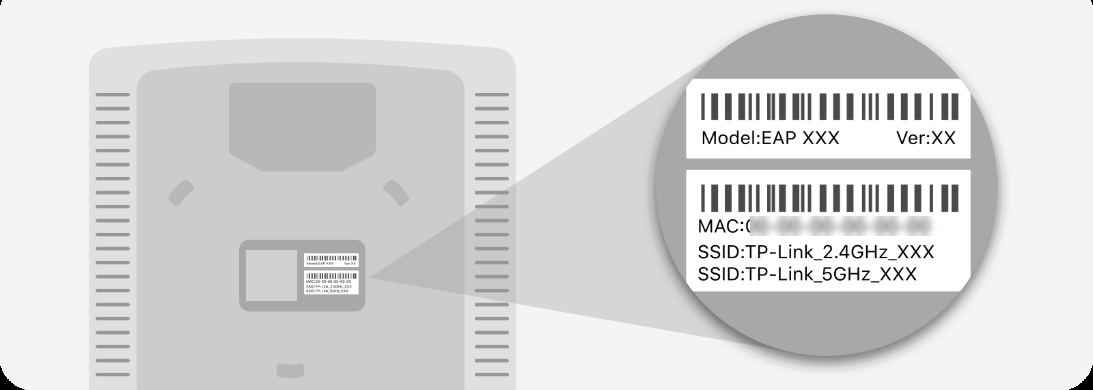
If your EAP is a brand new EAP, use the default SSID (format: TP-Link_2.4GHz/5GHz_XXXXXX) printed on the product label.
Step 3 Launch a web browser and enter http://tplinkeap.net in the address bar.

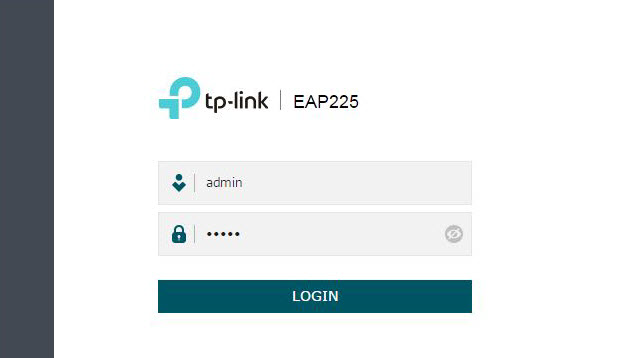
Step 4 Enter the username and password of your EAP to log in.
Note:
If your EAP is a brand new EAP, use the default username and password that are both admin.
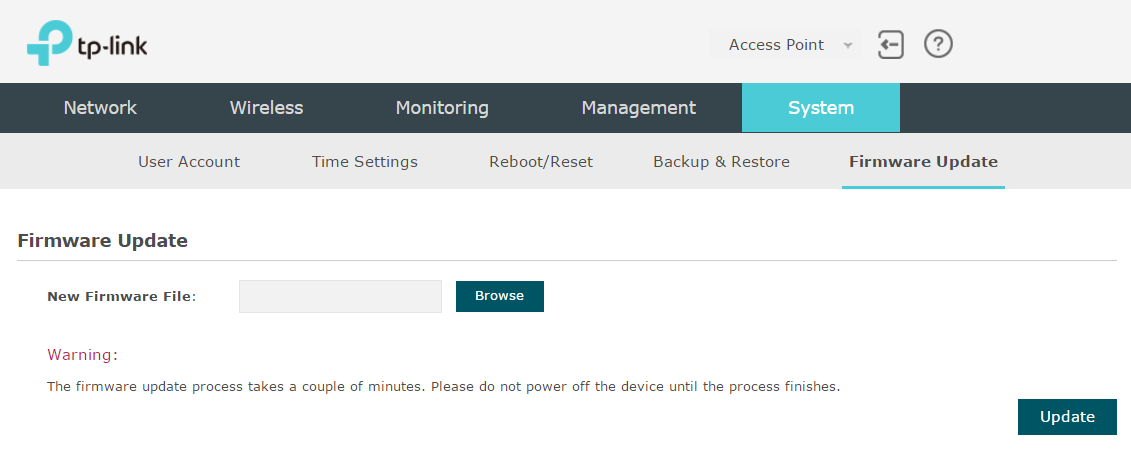
Step 5 Go to the System > Firmware Upgrade page. Click the  button, locate and choose the correct firmware file from your host. Then click the
  button to update the firmware of the EAP. After upgraded, the EAP will be rebooted automatically.