


How to set up DHCP Reservation for clients on Omada Gateway in Controller mode


Contents
Introduction
This article outlines the procedure for configuring DHCP reservations on an Omada Gateway operating in Controller mode. DHCP reservations enable the assignment of persistent IP addresses to specific network clients.
Requirements
- Omada Gateway
- Omada Controller (Software Controller / Hardware Controller / Cloud-based Controller)
Configuration
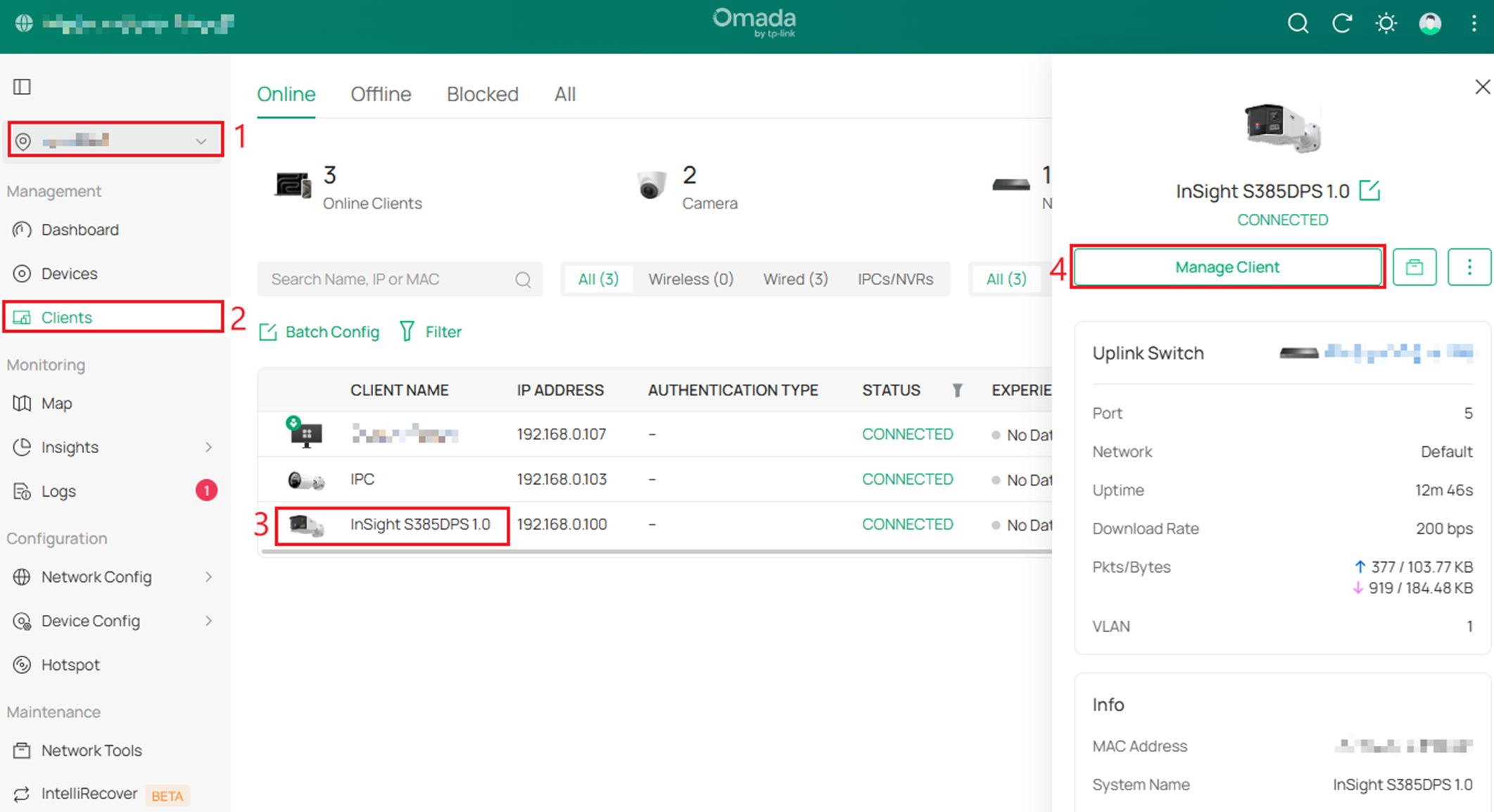
Step 1. In Site view, go to Clients, find the client you would like to give a DHCP reservation and go to Manage Client.
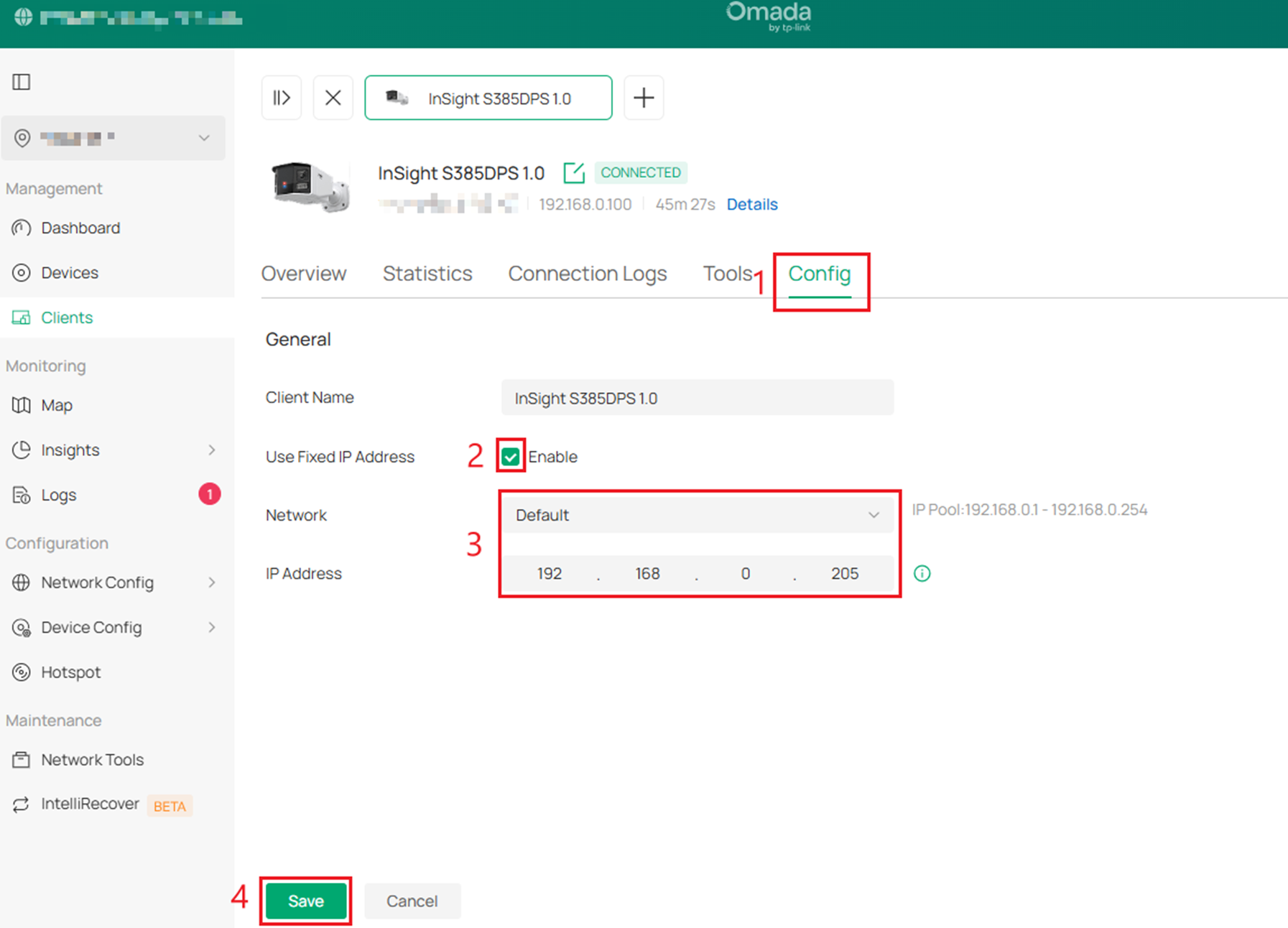
Step 2. Within the Client Configuration, Go to Config and check Enable for Use Fixed IP Address. Choose Network and the IP Reserved Address. Click Save when settings are configured.
Verification
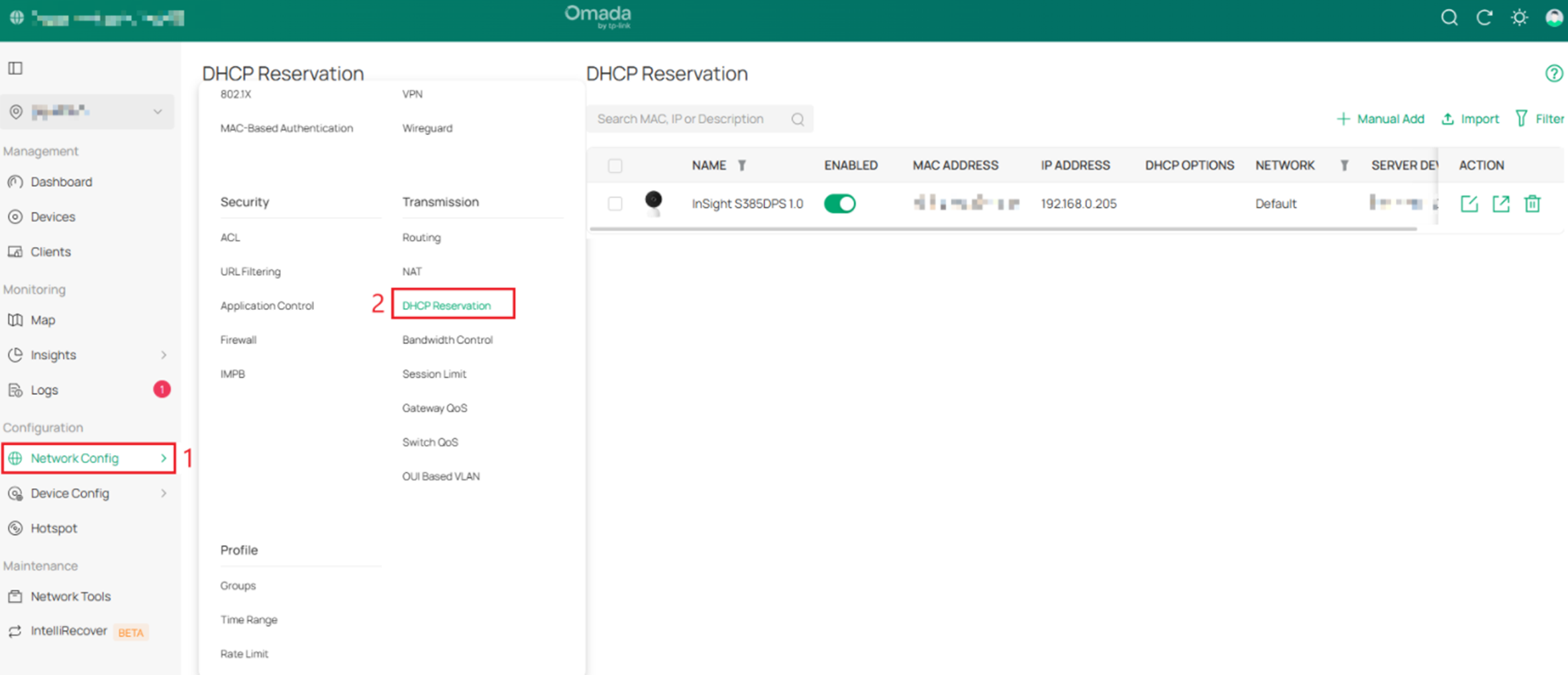
To check DHCP Reservations, go to Network Config > DHCP Reservation. The Device will be on this list, with its Reserved Address listed.
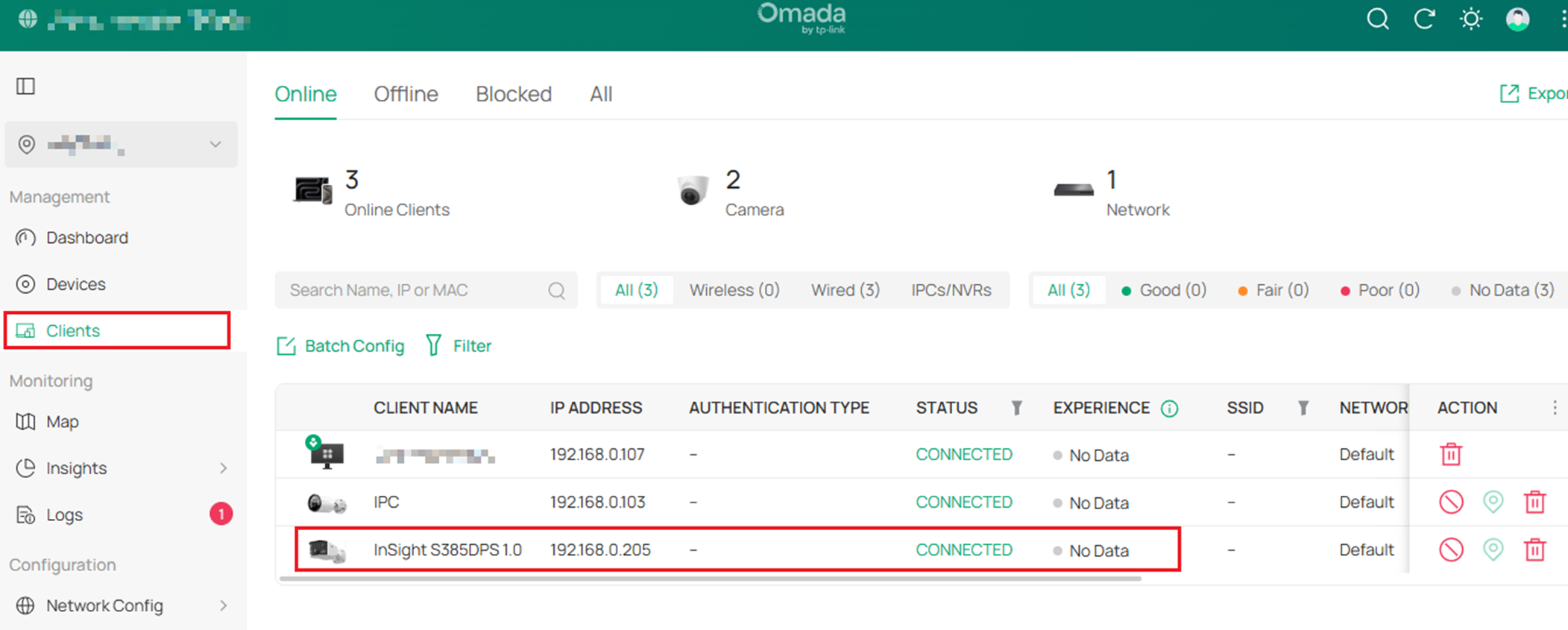
The device will also be listed on the Client List.
Note:
1. Omada Gateway should act as the DHCP server.
2. From the 5.0.29 controller, the reserved IP addresses can be set out of the DHCP range. For the below version controller, the reserved IP addresses should be in the DHCP range. If not, the clients will still obtain a dynamic IP address.
3. If assigning a different IP address from the current one, please re-plug the Ethernet cable for wired clients, re-enable Wi-Fi for wireless clients, or reboot the IoT clients to update.
4. If the client device is not rebooted, the reserved IP address will be assigned automatically during the next DHCP lease renewal.
5. Omada Controller, including OC200 and OC300, will be listed on the Clients page.
For more details on each function and configuration, please visit the Download Center to download the manual.
QA
Q1: Why is the DHCP reservation not taking effect immediately?
A1: The client may still be using its active DHCP lease. The reserved IP address will be applied during the next lease renewal or after the client device is rebooted or reconnected to the network.
Q2: Does the reserved IP address need to be within the DHCP range?
A2: For Omada Controller versions below 5.0.29, the reserved IP address must be within the configured DHCP range. Starting from version 5.0.29, reserved IP addresses can be set outside the DHCP range.
Q3: Can I configure a DHCP reservation if the Omada Gateway is not acting as the DHCP server?
A3: No. DHCP reservations can only be configured and enforced if the Omada Gateway is operating as the active DHCP server for the network.
Q4: What happens if I assign a different reserved IP address than the client’s current IP?
A4: The client will continue using its current IP address until it renews its lease. To apply the new reserved address immediately, reconnect the network interface or reboot the client device.
Q5: How can I verify that the DHCP reservation has been successfully applied?
A5: Navigate to Network Config > DHCP Reservation to confirm the reserved address is listed. The updated IP address should also appear in the Clients page after lease renewal.
