


Introduction
Conditional SSID Broadcast Control is designed to ensure that wireless networks are only visible and accessible when the underlying network connectivity is functioning properly. In traditional deployments, an AP may continue broadcasting its SSID even when the uplink or internet connection is down, allowing client devices to connect but leaving them without actual network access, which can lead to poor user experience, unnecessary troubleshooting cases, inefficient radio resource usage, and potential security risks such as exposing internal SSIDs.
By introducing conditional control logic on the controller or AP, this feature dynamically links SSID broadcasting to network status, automatically disabling the SSID when an uplink or internet outage is detected and restoring it once connectivity recovers, thereby preventing invalid connections and ensuring a more reliable, secure, and user-friendly wireless environment.
Requirements
- Omada Controller (Software Controller / Hardware Controller / Cloud-Based Controller, v6.3 and above)
- Omada EAP (Firmware should be fully compatible with Omada Controller v6.3)
Configuration
The following section explains how to configure the Conditional SSID Broadcast Control feature in Omada Controller v6.3.
Step 1. Enter the SSID interface in the Network Config > WLAN section of the site.
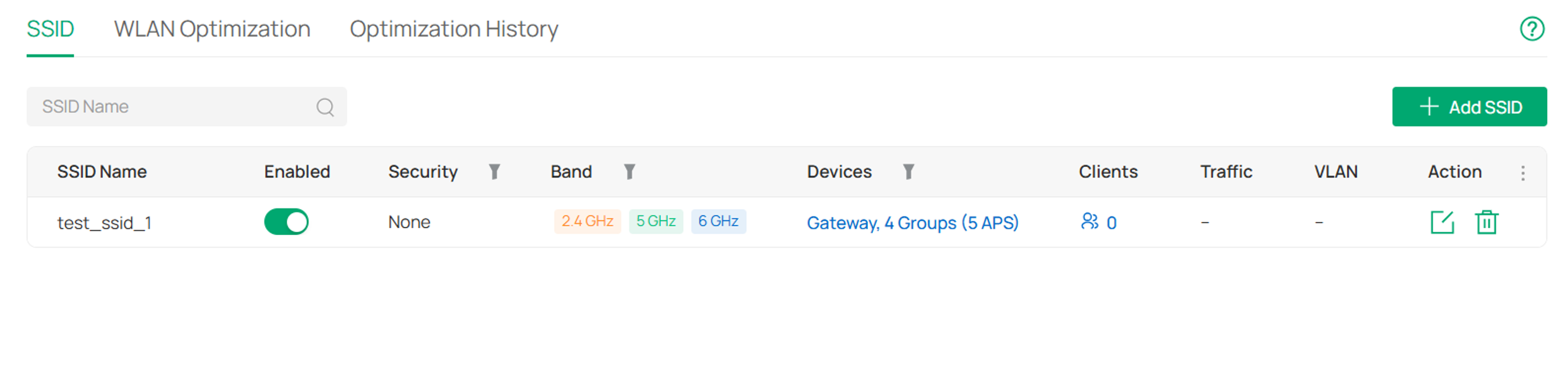
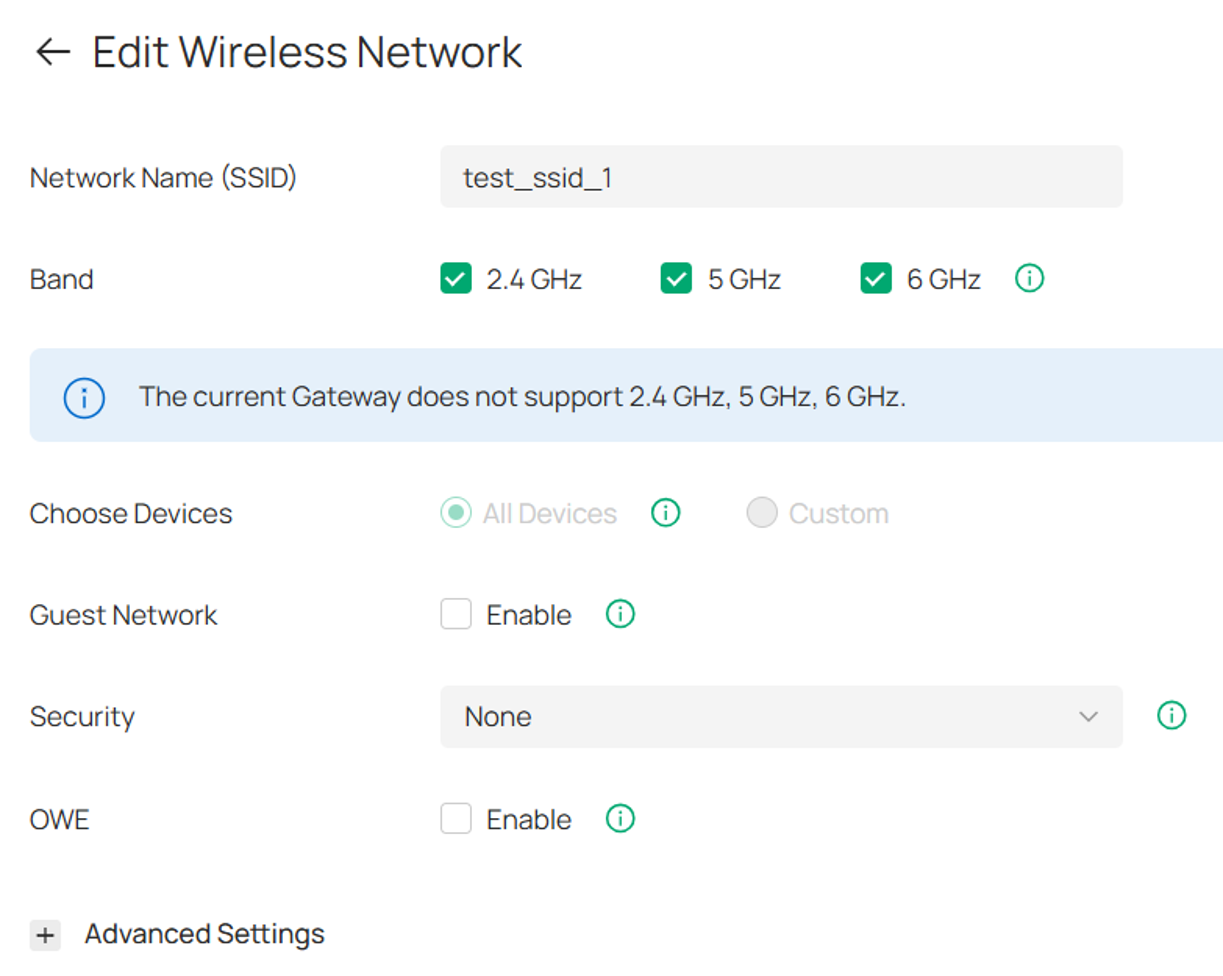
Step 2. Enter the SSID configuration interface by the Add SSID or Edit SSID action.
Step 3. Go to Advanced Settings and enable Conditional SSID Broadcast Control feature. Select Uplink/Internet as the detection condition, then configure the related parameters as needed. Parameter details are described below. In most cases, the default settings are recommended.
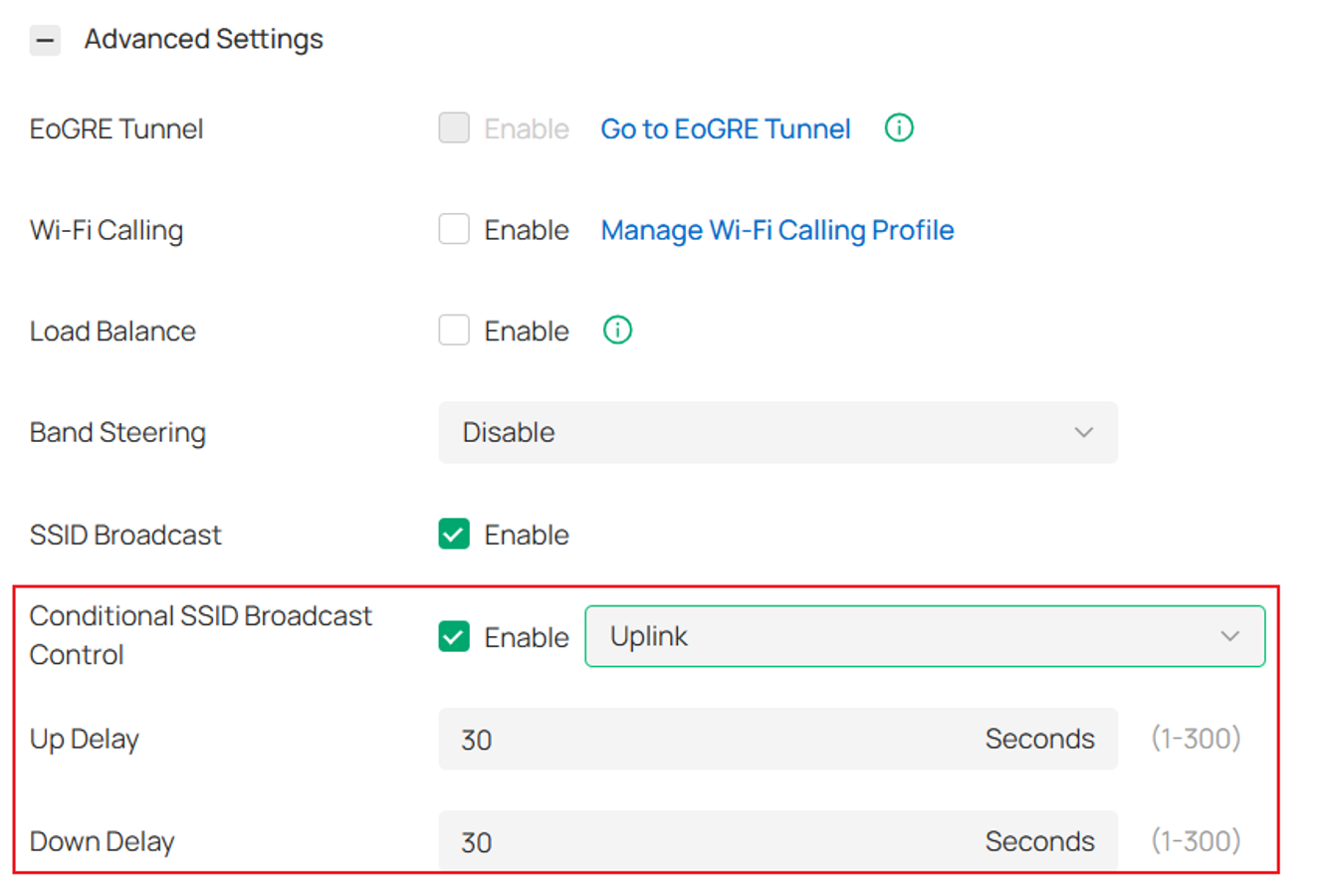
Dependent conditions for SSID broadcast: Uplink/Internet
Uplink: Checks whether the communication path between the AP and the gateway is reachable, helping detect issues such as Ethernet disconnection or upstream device failures.
Internet: Checks overall internet connectivity, helping identify scenarios where clients can connect to Wi‑Fi but cannot access the internet.
Delay settings
Up Delay (1–300 seconds, default: 30 seconds):
After the AP enters the “Up” state and remains stable for the configured delay period, it will trigger a recovery broadcast for the specified SSID.
Down Delay (1–300 seconds, default: 30 seconds):
After the device enters the “Down” state and remains stable for the configured delay period, it will stop broadcasting the specified SSID.
Notes:
1. This feature only applies to SSIDs that are in an active (enabled) state on the AP. If a you have manually disabled an SSID on the AP private management page, then after configuring Conditional SSID Broadcast Control for that SSID, neither the automatic disabling nor recovery actions will take effect.
2. The enabling and disabling of SSID broadcasting is applied on a per-AP basis: when a specific AP determines that the trigger condition is met, only that AP will stop broadcasting the SSID; once the same AP detects that the link has recovered and stabilized, only that AP will resume broadcasting the SSID.
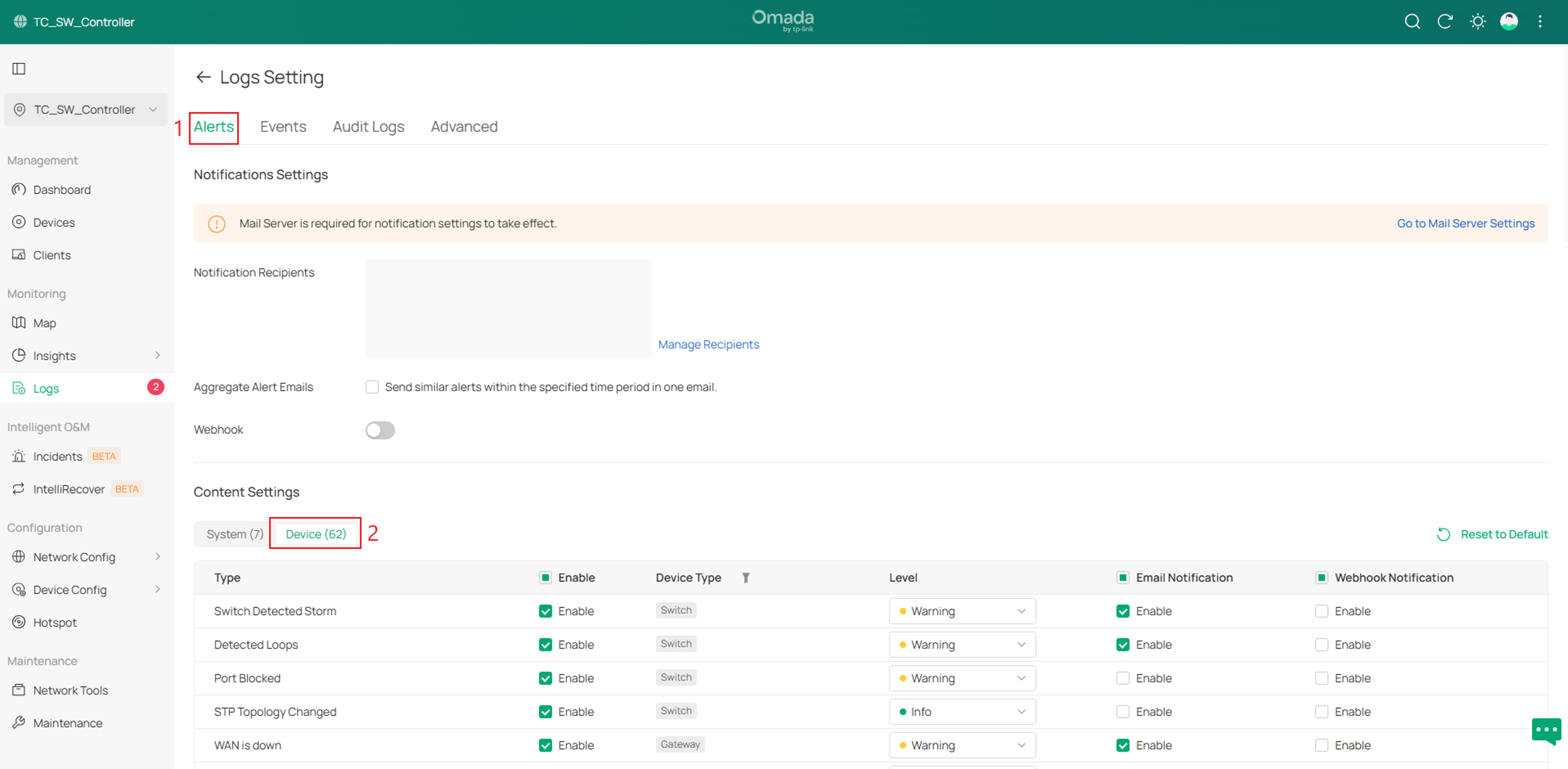
Step 4(Optional). The relevant logs can be configured in the Logs>Setting section.
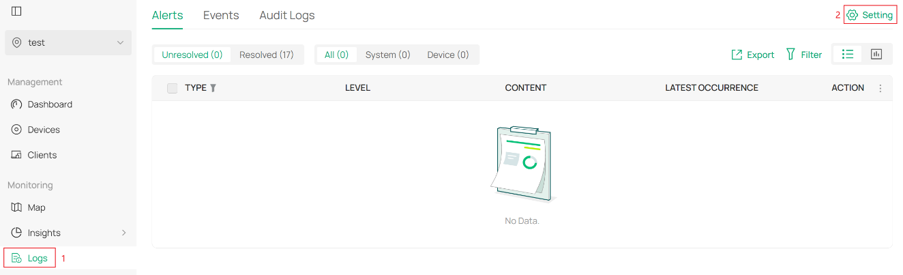
Then go to the Alerts>Device section and edit the log.

Verification
You can check in the logs whether the SSID broadcast control function is taking effect. The relevant logs can be viewed in the following two locations.
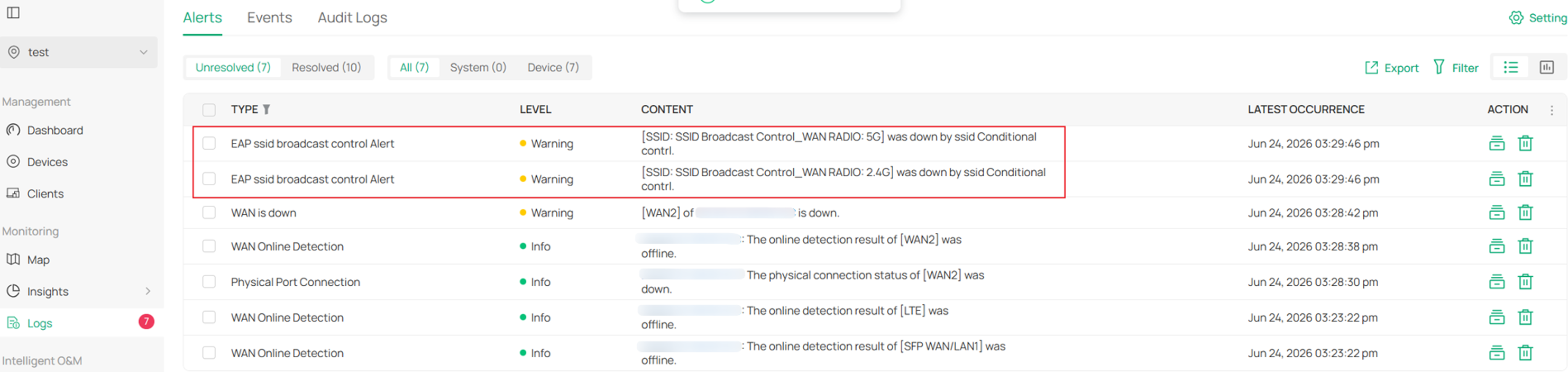
You can check under Logs > Alerts to see that the SSID has been disabled by the SSID Conditional Control feature. The log will also display the SSID name and the corresponding frequency band that was affected.
When a previously down SSID comes back online, the corresponding alert in the logs will be automatically marked as resolved.
The Unresolved section displays SSIDs that are still currently in a down state.
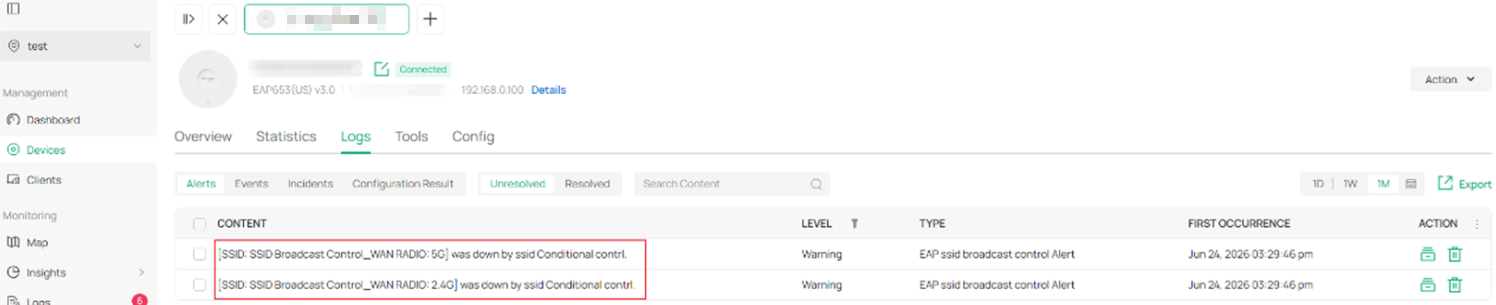
You can also access the device’s private management interface and check the relevant logs for SSID Conditional Control under the Logs section.
Conclusion
This article introduces the newly added Conditional SSID Broadcast Control feature in Omada Controller v6.3. This feature can stop broadcasting the SSID when the Internet or uplink fails, preventing users connected to the SSID from being unable to access the Internet.
QA
Q1: Does the Omada Wi-Fi Gateways support the Conditional SSID Broadcast Control feature?
A1: This feature is currently not supported on Omada Wi-Fi gateways. Please refer to the official website for future firmware updates.
To learn more about each function and configuration, please visit Support Home to download or check the manual for your product.
me continuously, this AP device will execute the "stop broadcasting" operation for the specified SSID.
