


Contents
Configuration in Controller mode
Configuration for WPA-Personal
Configuration for WPA-Enterprise
Configuration in Standalone mode
Configuration for WPA-Personal
Configuration for WPA-Enterprise
Introduction
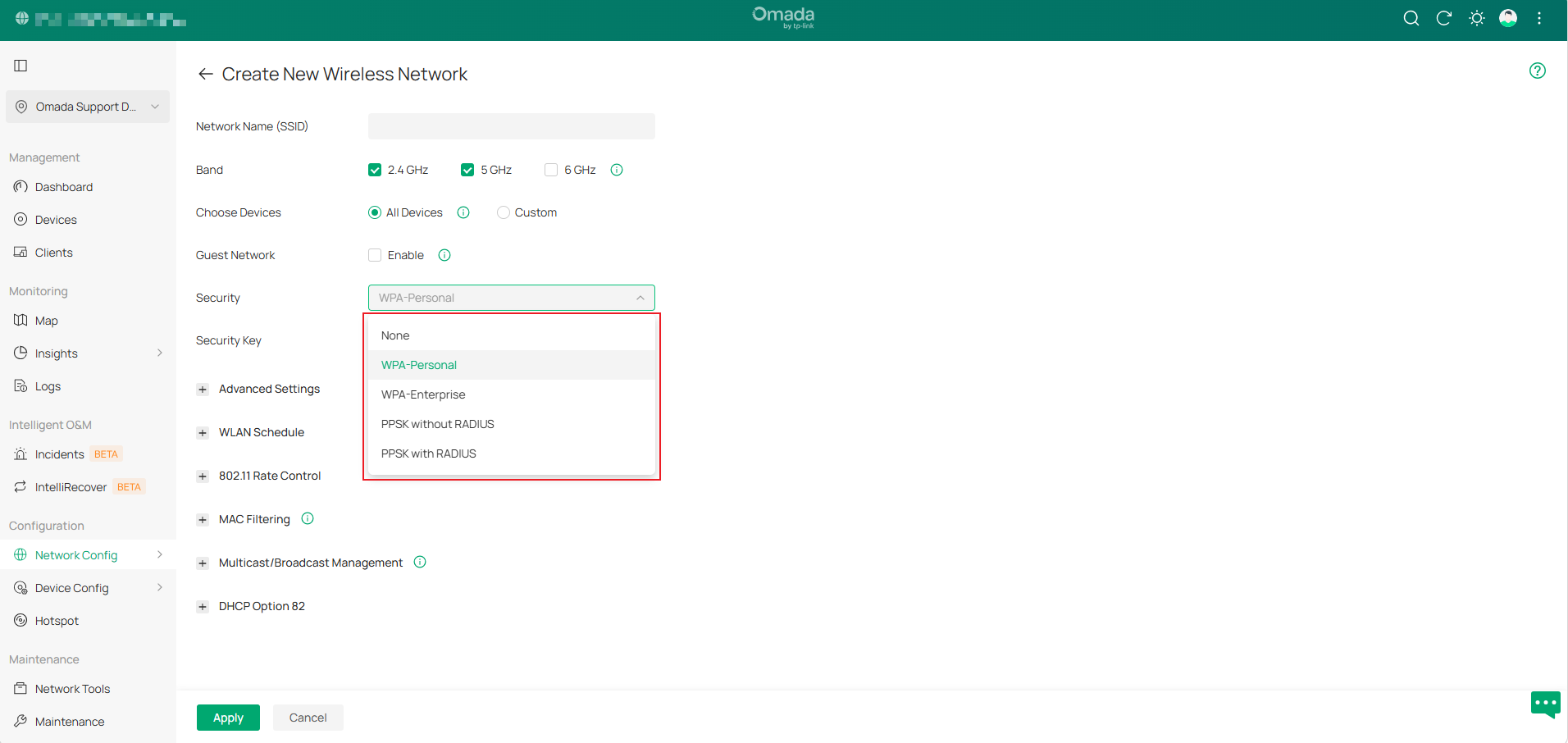
This article introduces five different encryption methods available in Omada Controller for a new wireless network: None, WPA-Personal, WPA-Enterprise, PPSK without RADIUS, and PPSK with RADIUS.
Users can choose different encryption types based on their needs. Below are the application scenarios for each encryption method:
None:
Suitable for public spaces or environments requiring an open network. In this scenario, the network can be accessed without a password, allowing users to connect quickly. However, this type of encryption lacks security and is not recommended for transmitting sensitive information.
WPA-Personal:
It is ideal for small offices or home networks that require basic security and have a limited number of connected users. WPA-Personal uses a pre-shared key (PSK) for encryption, which is suitable for small networks that do not require complex authentication mechanisms.
WPA-Enterprise:
Designed for enterprise and organizational environments that require strong security, centralized authentication, and scalable user management. WPA-Enterprise uses 802.1X and a RADIUS server to authenticate each user or device individually, enabling centralized credential management, identity-based access control, and credential revocation. It is particularly suited for medium- to large-scale enterprise deployments.
PPSK with RADIUS:
Applicable for enterprise networks that require enhanced security, centralized authentication, and fine-grained client access control. Each user is assigned a unique pre-shared key (PPSK), while authentication and access policies are centrally managed through a RADIUS server.
PPSK without RADIUS:
Suitable for small to medium-sized enterprise networks that require enhanced security and granular access control without the complexity of deploying a RADIUS server. Each user or device is assigned a unique pre-shared key, simplifying credential management.
Note: PPSK with RADIUS and PPSK without RADIUS are available only in Controller Mode. They are not supported when the EAP operates in Standalone Mode.
Requirements
- Omada EAP
- Omada Software Controller / Hardware Controller / Cloud-Based Controller (V5.14 and above)
Configuration
Configuration in Controller mode
Step 1. Log in to the Controller, select a site, then navigate to WLAN > SSID and click Add SSID to create an SSID. 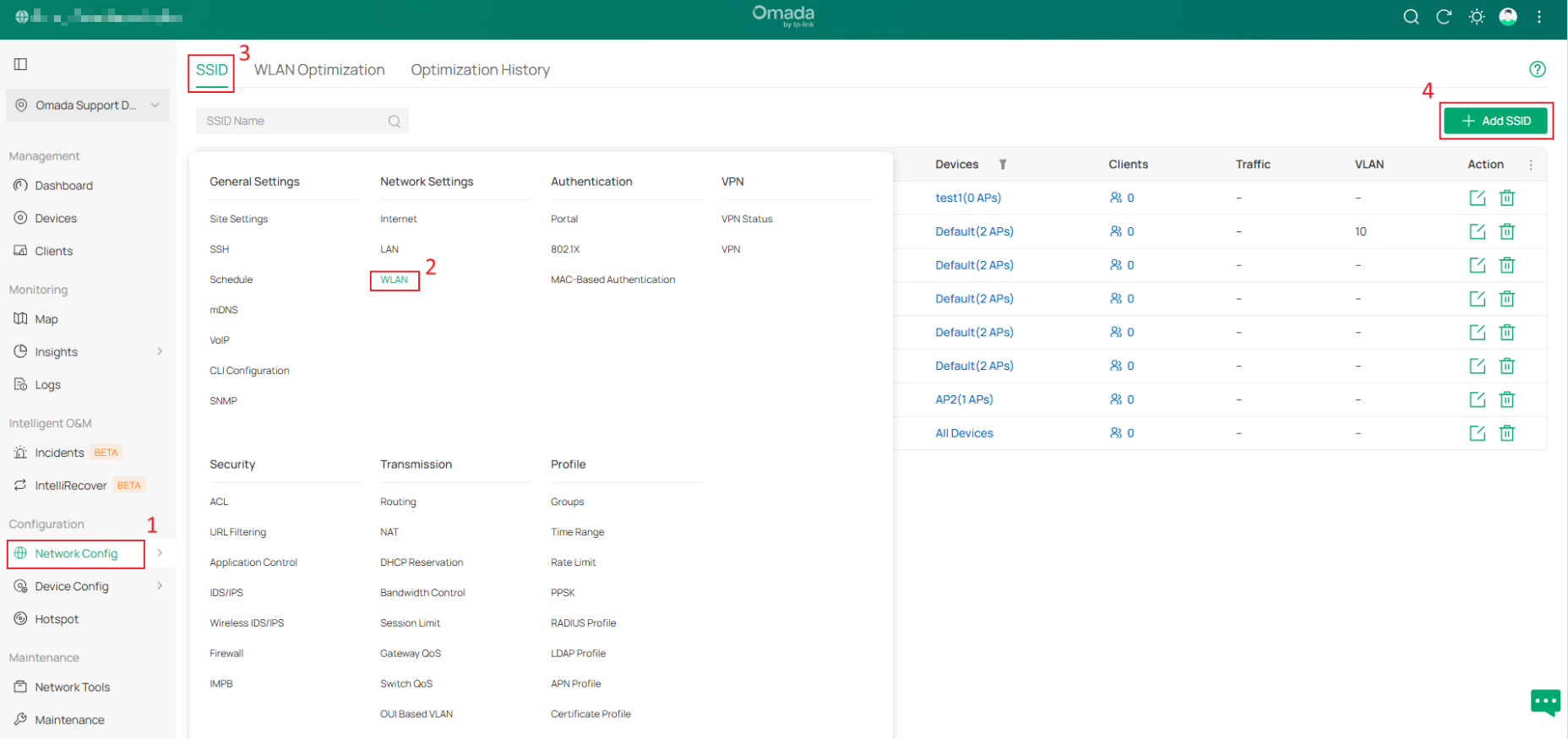
Step 2. Select a Security mode from the drop-down list.
Configuration for None
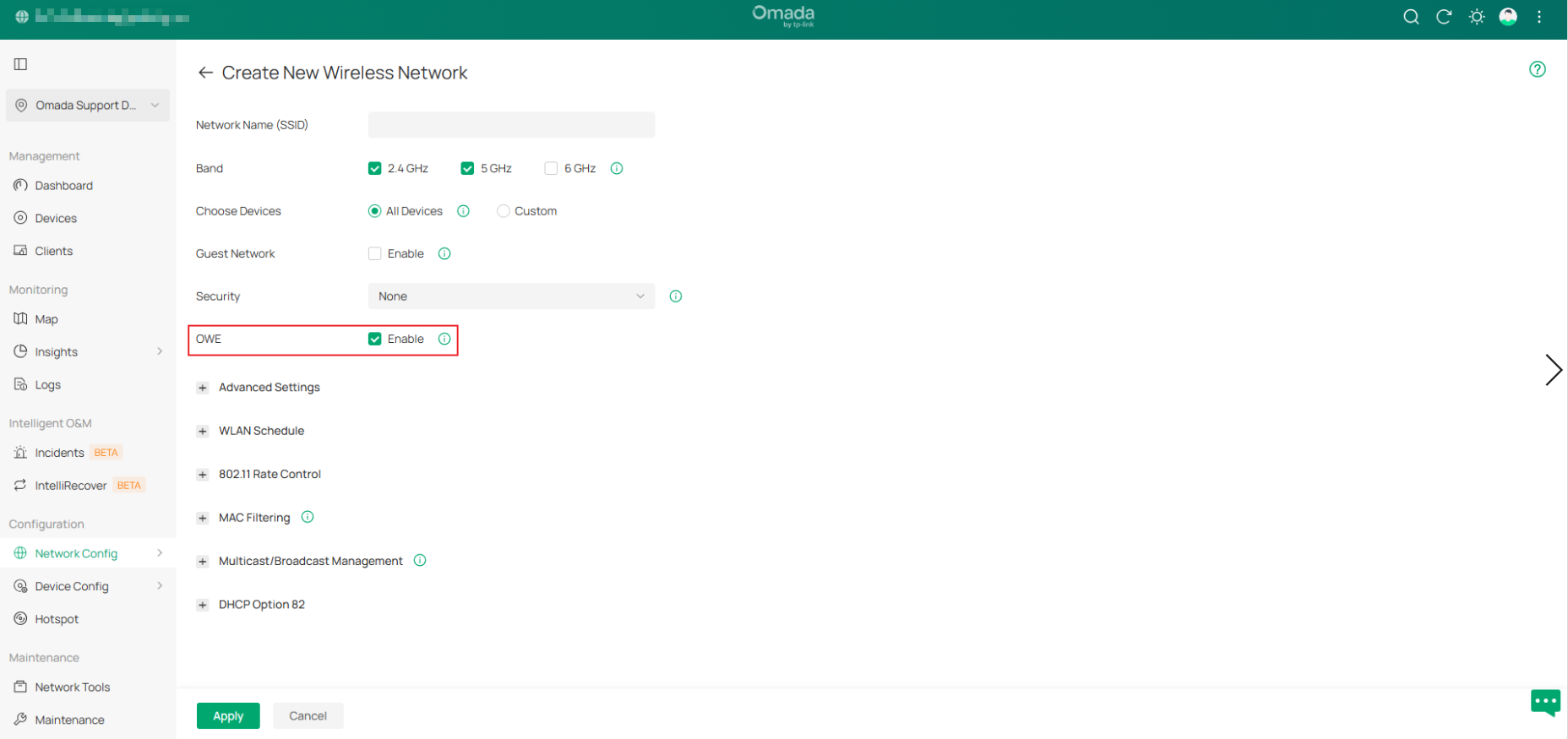
Step 1. Select None as the encryption method. When None is selected, client devices can connect to the wireless network without requiring a password.
Step 2. With None as the encryption method, you can choose whether to enable Opportunistic Wireless Encryption (OWE), with which data transmitted in this wireless network will be encrypted. OWE can protect your data without a password.
Note:
1. OWE is available only on 2.4 GHz and 5 GHz networks. For 6 GHz networks, Enhanced Open encryption is built into the standard and does not require OWE configuration.
2. On Wi-Fi 6 APs, an SSID with OWE enabled will be counted as two SSID entries if it contains the 2.4 GHz and/or 5 GHz bands: one Enhanced Open (OWE) SSID and one Open SSID for compatibility with clients that do not support OWE. As a result, a maximum of four OWE-enabled SSIDs per band can be created.
3. On Wi‑Fi 7 APs, OWE SSIDs support only Enhanced Open mode. Therefore, only one Enhanced Open SSID is broadcast, and clients without OWE support may be unable to connect to the SSID.
4. OWE support requires compatible EAP firmware and Omada Controller version 5.14 or above. Please refer to the EAP firmware release notes for compatibility details.
Configuration for WPA-Personal
Step 1. Select WPA-Personal as the encryption method and enter a password that ranges from 8 to 63 ASCII characters. 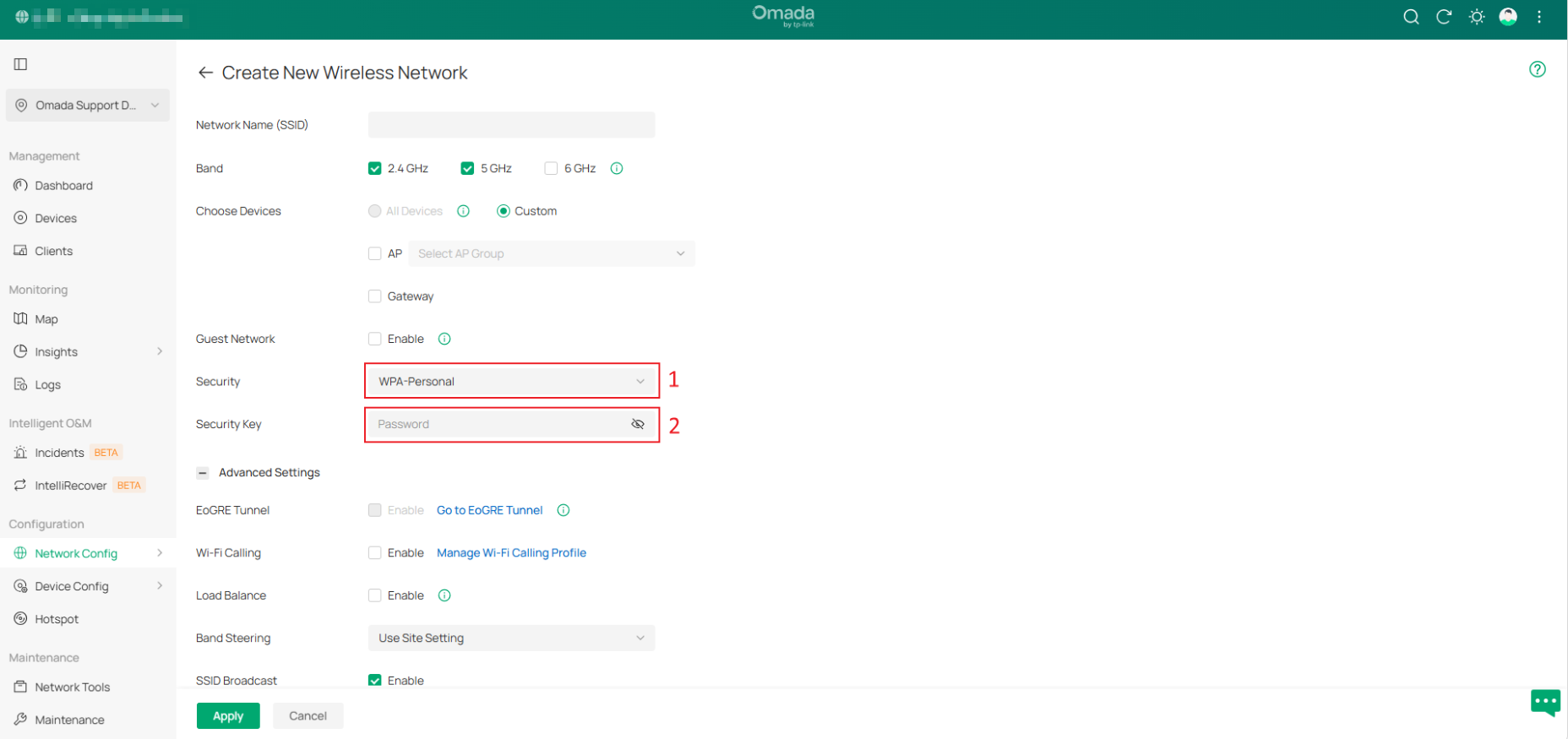
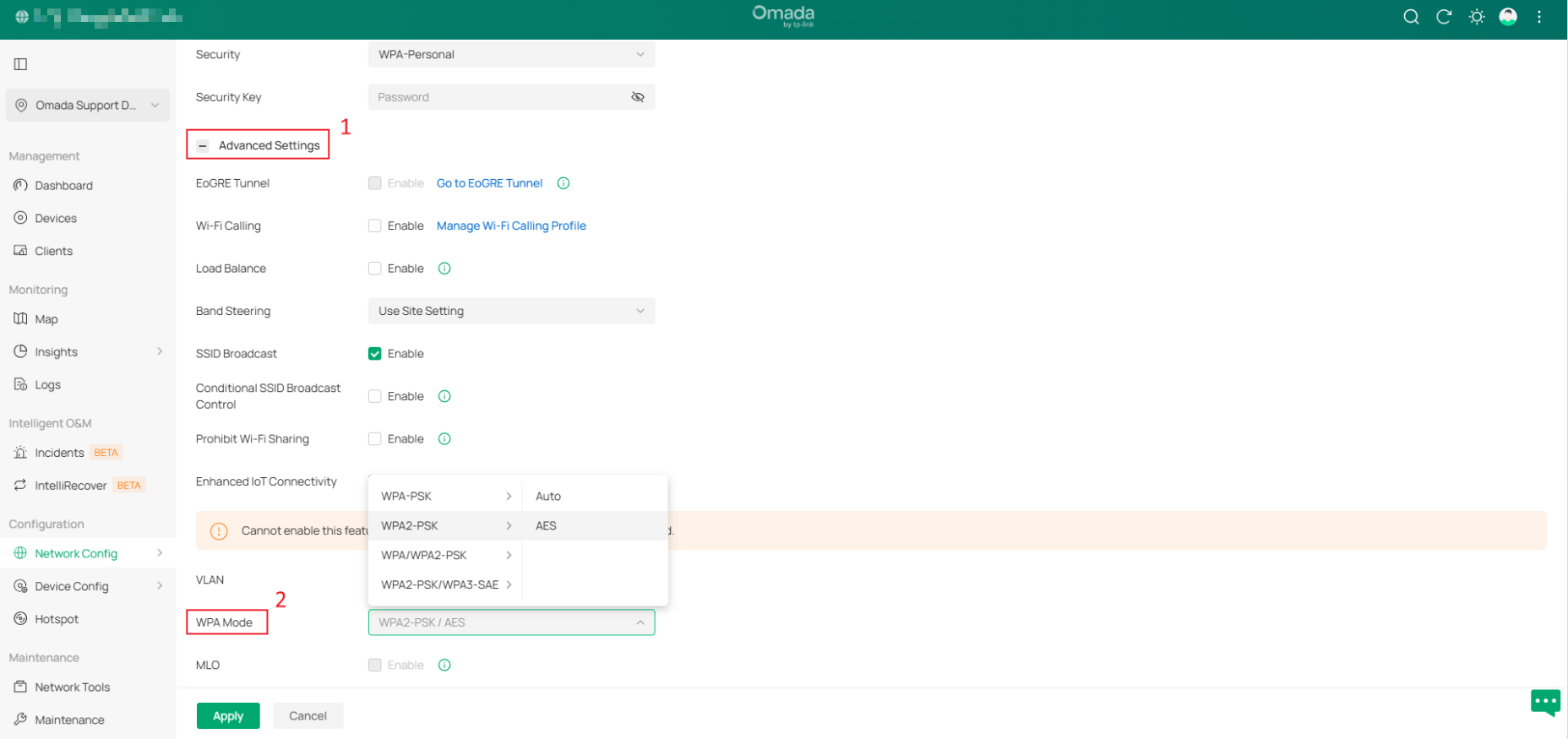
Step 2. Click Advanced Settings. In the WPA Mode, you can choose different modes:
For 2.4 GHz & 5 GHz networks, the following options are available:
WPA-PSK: Applicable for devices or network adapters that only support WPA.
WPA2-PSK: Suitable for most home and enterprise networks.
WPA/WPA2-PSK: Allows WPA and WPA2 clients to connect simultaneously, making it suitable for networks with both legacy and modern devices.
WPA2-PSK/WPA3-SAE: Allows WPA2 and WPA3 clients to connect simultaneously, providing improved security while maintaining compatibility with WPA2 devices.
For 6 GHz networks, WPA3-Personal Only (WPA3-SAE) is the only available WPA-Personal option, providing enhanced wireless security. This option is not available on 2.4 GHz or 5 GHz networks.
Configuration for WPA-Enterprise
Step 1. Select WPA-Enterprise as the encryption method.
Step 2. Select the existing RADIUS Profile or create a new RADIUS Profile.
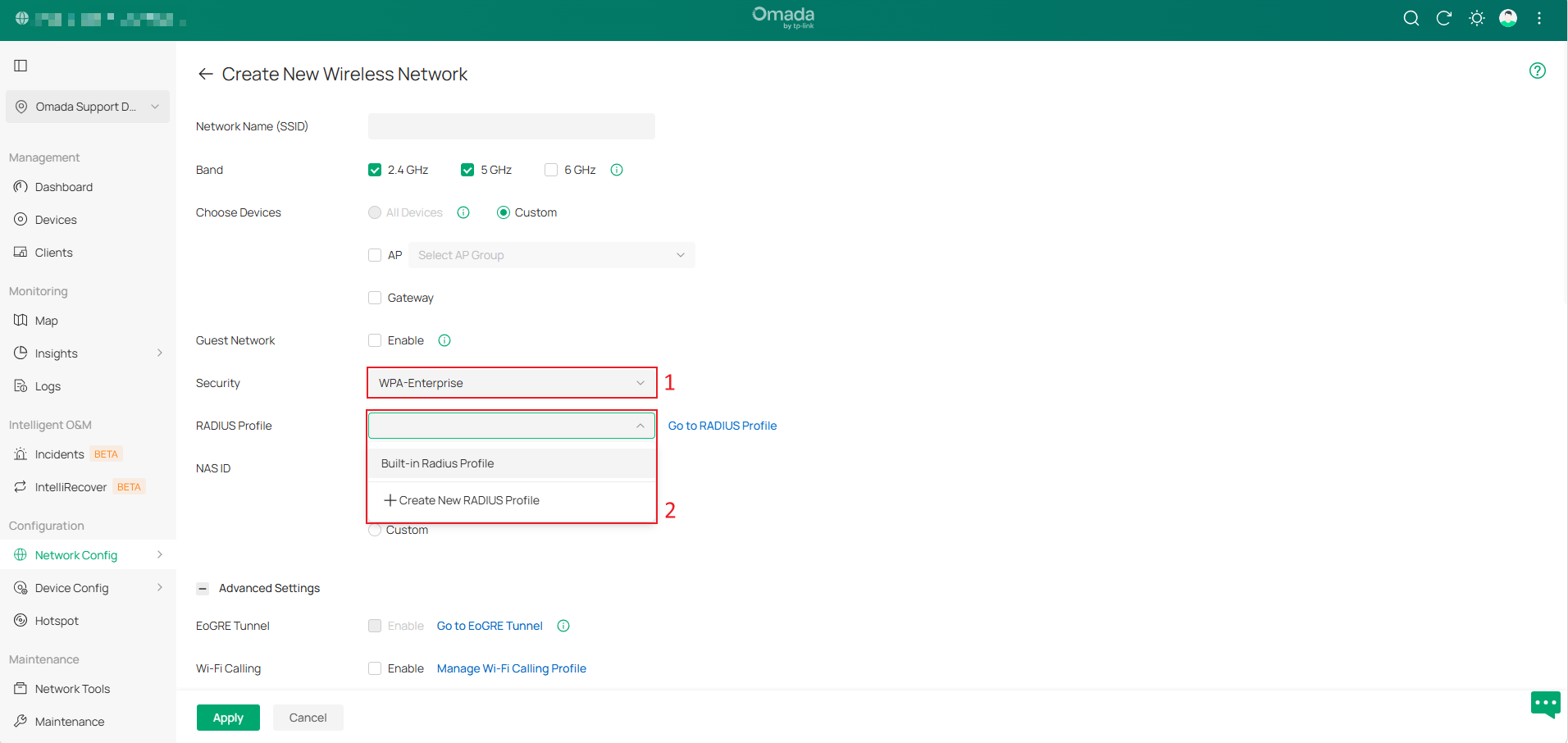
Note: The RADIUS Profile can also be created in Settings > Profiles > RADIUS Profile.
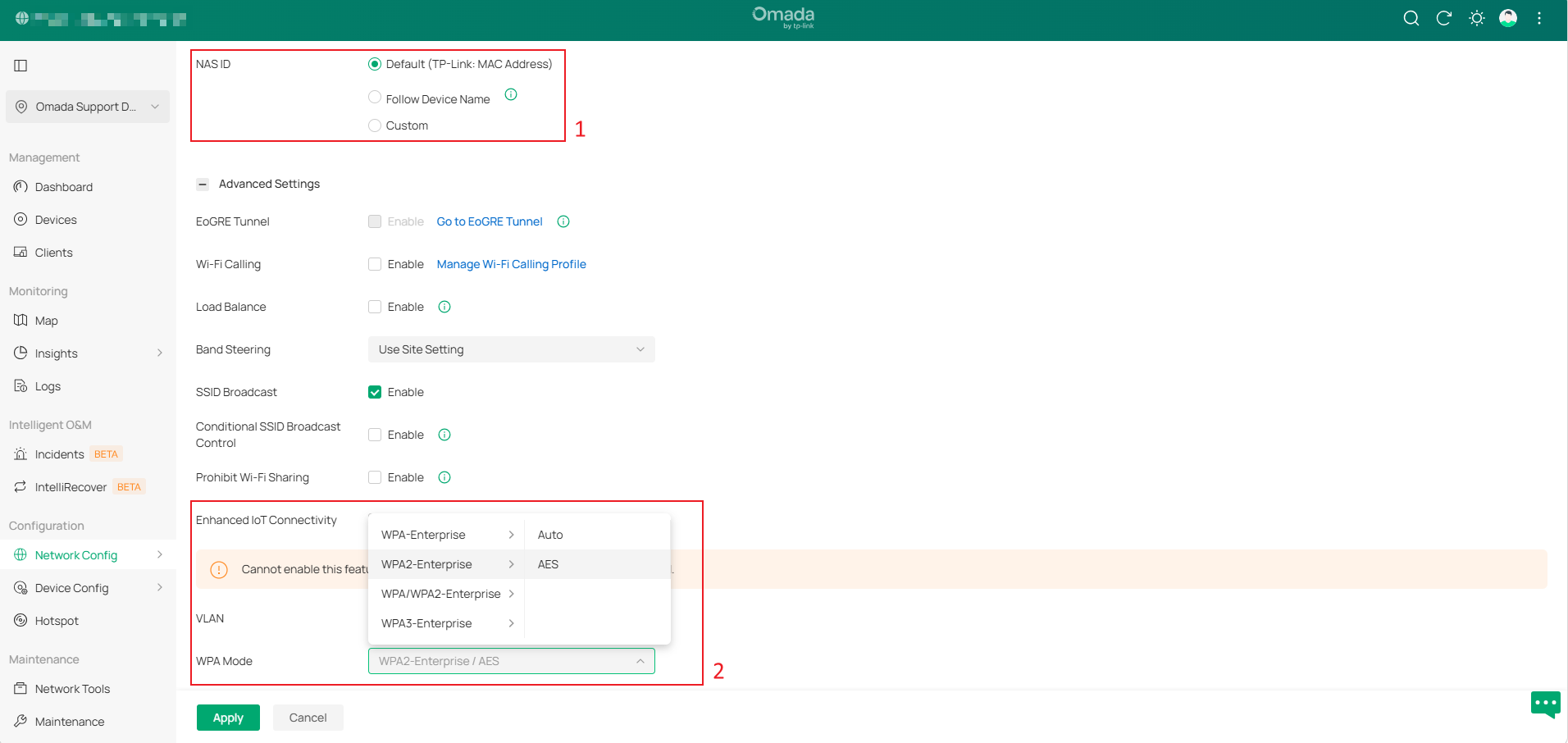
Step 3. Select a NAS ID, which is used to identify different network service providers during the RADIUS authentication process.
Step 4. Select a WPA Mode in Advanced Settings according to your network scenario.
Configuration for PPSK
For 2.4 GHz and 5 GHz networks, refer to the PPSK Configuration Guide for instructions on configuring PPSK without RADIUS and PPSK with RADIUS.
For 6 GHz networks, refer to the PPSK with RADIUS (Unbound MAC) for 6 GHz Networks Guide for configuration instructions.
Note: PPSK with RADIUS (Unbound MAC) on 6 GHz networks requires Omada Controller v6.2.10 or later, a supported Wi‑Fi 7 AP, WPA3-capable clients, and a compatible RADIUS server.
Configuration in Standalone mode
Step 1. Log in to the Web GUI of the EAP.
Step 2. Choose the menu Wireless > Wireless Settings and select the wireless band for which you would like to modify the security settings. Then click the Edit icon or the Add button to configure the SSID Settings.
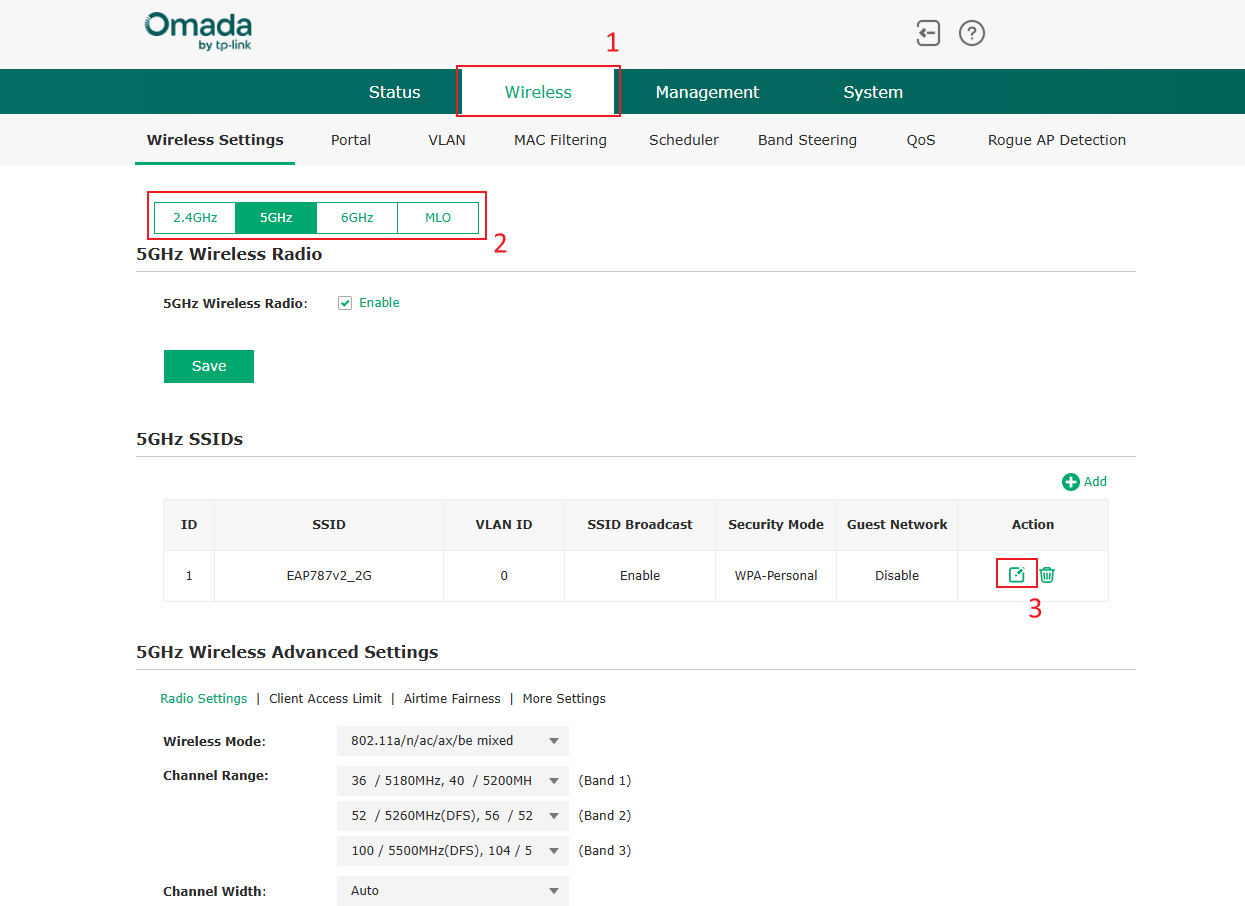
Step 3. Select a Security Mode from the drop-down list.
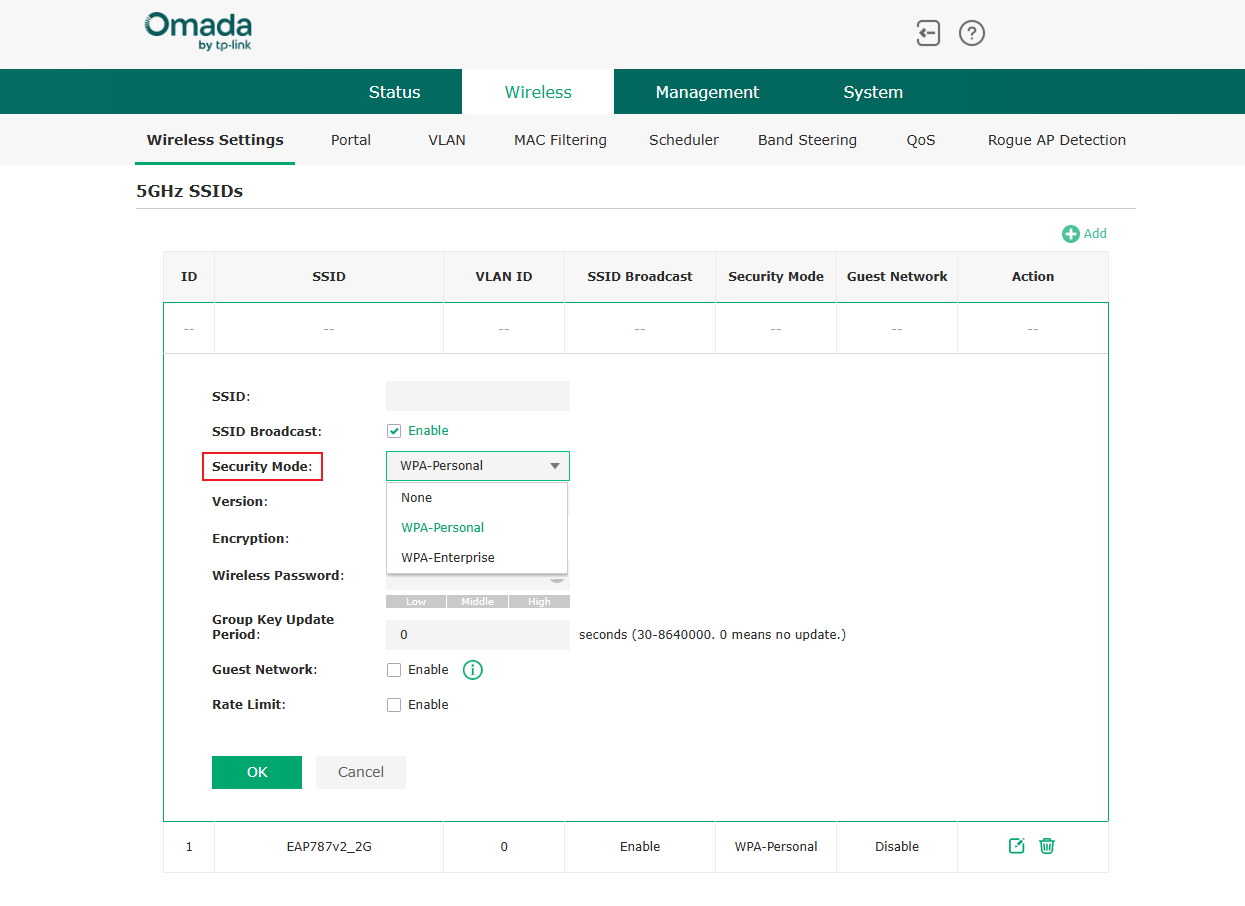
Note: The Wi-Fi security authentication and encryption protocols supported by different Omada AP models may vary. Please refer to the specifications of the corresponding EAP model for detailed information.
Configuration for None
Step 1. Select None as the encryption method. When None is selected, the wireless network operates as an open network, allowing client devices to connect without entering a password.
Step 2. With None as the encryption method, you can choose whether to enable Opportunistic Wireless Encryption (OWE), with which data transmitted on this wireless network will be encrypted. OWE can protect your data without a password.
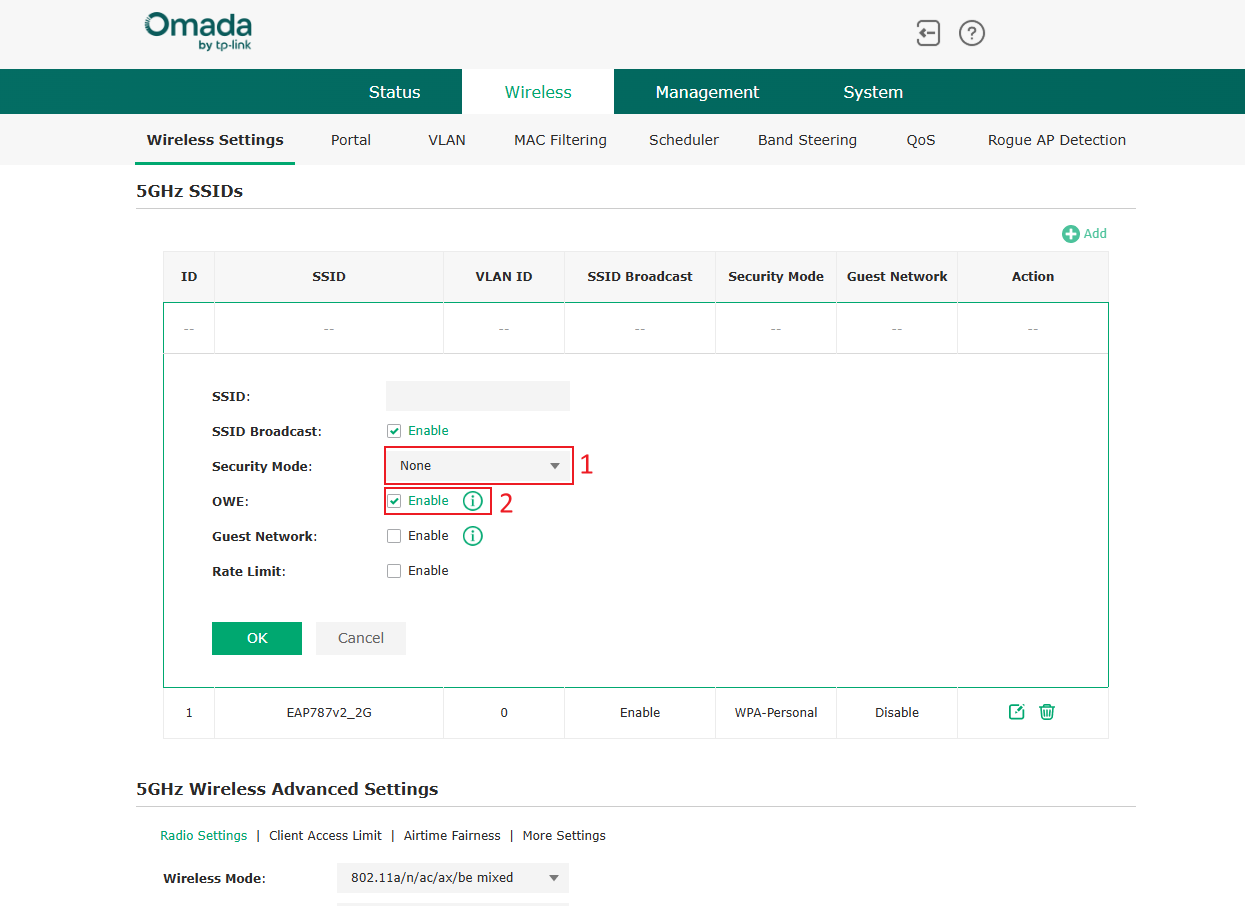
Note:
1. OWE is available only on 2.4 GHz and 5 GHz networks. For 6 GHz networks, Enhanced Open encryption is built into the standard and does not require OWE configuration.
2. On Wi-Fi 6 APs, an SSID with OWE enabled will be counted as two SSID entries if it contains the 2.4 GHz and/or 5 GHz bands: one Enhanced Open (OWE) SSID and one Open SSID for compatibility with clients that do not support OWE. As a result, a maximum of four OWE-enabled SSIDs per band can be created.
3. On Wi‑Fi 7 APs, OWE SSIDs support only Enhanced Open mode. Therefore, only one Enhanced Open SSID is broadcast, and clients without OWE support may be unable to connect to the SSID.
Configuration for WPA-Personal
Step 1. Select WPA-Personal as the Security Mode and select the WPA version.
For 2.4 GHz & 5 GHz networks, the following options are available:
WPA-PSK: Applicable for devices or network adapters that only support WPA.
WPA2-PSK: Suitable for most home and enterprise networks.
WPA/WPA2-PSK: Allows WPA and WPA2 clients to connect simultaneously, making it suitable for networks with both legacy and modern devices.
WPA2/WPA3-Personal: Allows WPA2 and WPA3 clients to connect simultaneously, providing improved security while maintaining compatibility with WPA2 devices.
For 6 GHz networks, WPA3-Personal Only (WPA3-SAE) is the only available WPA-Personal option, providing enhanced wireless security. This option is not available on 2.4 GHz or 5 GHz networks.
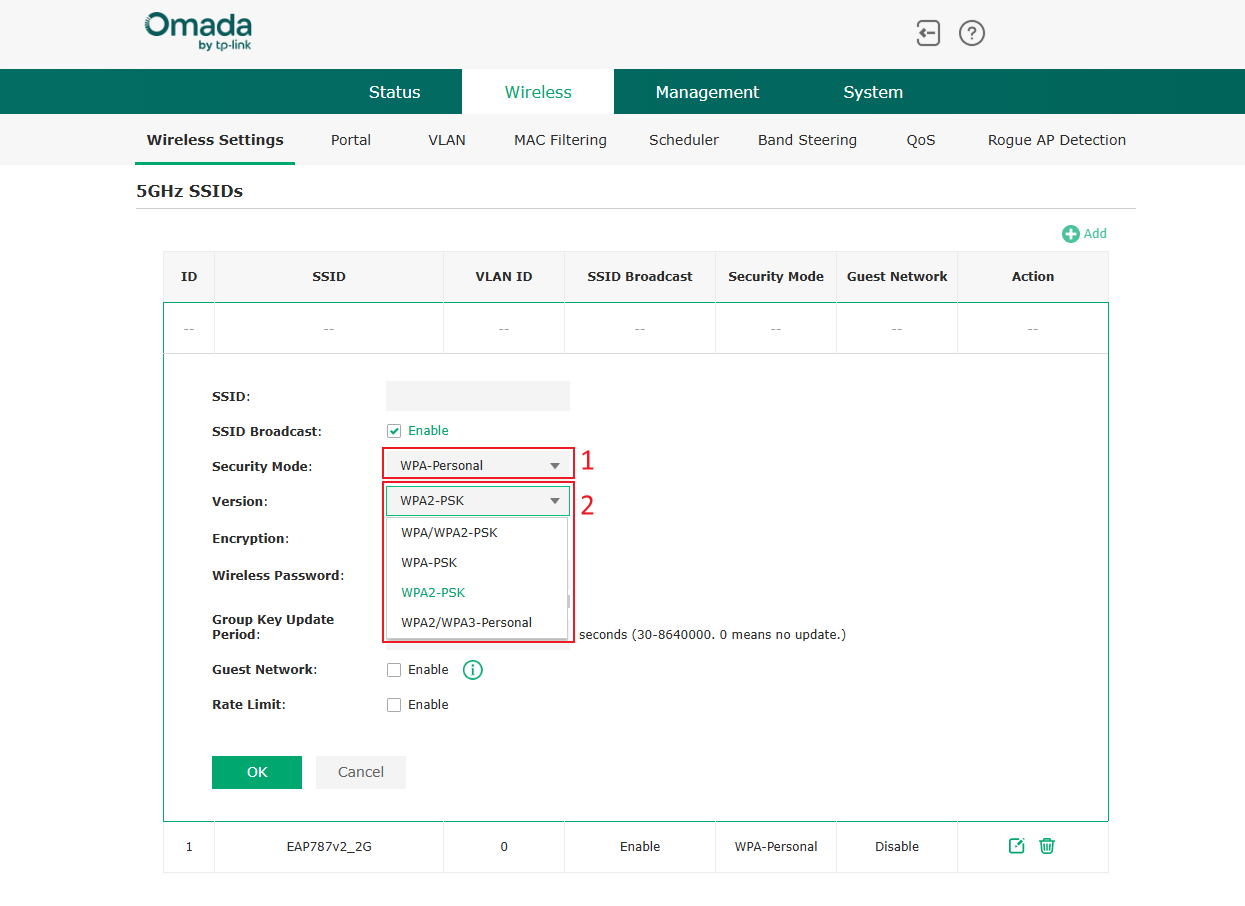
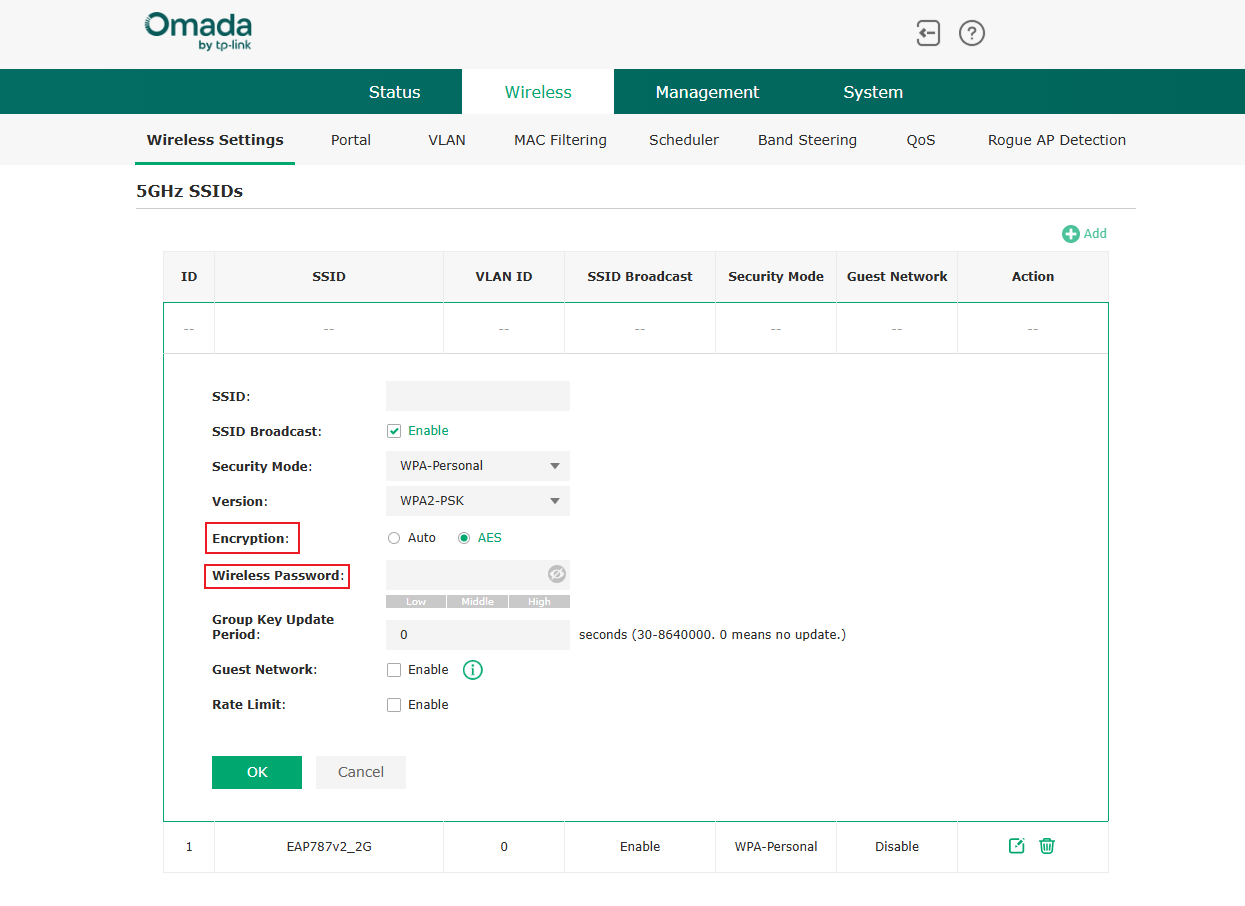
Step 2. Enter a password that ranges from 8 to 63 ASCII characters. For some security modes, you can also select the Encryption type (Auto or AES). Auto allows the EAP to automatically negotiate a compatible encryption method with client devices, which may improve compatibility with certain legacy devices. AES provides stronger security and is recommended for most modern devices and deployments.
Configuration for WPA-Enterprise
Step 1. Select WPA-Enterprise as the Security Mode and choose the WPA Version. 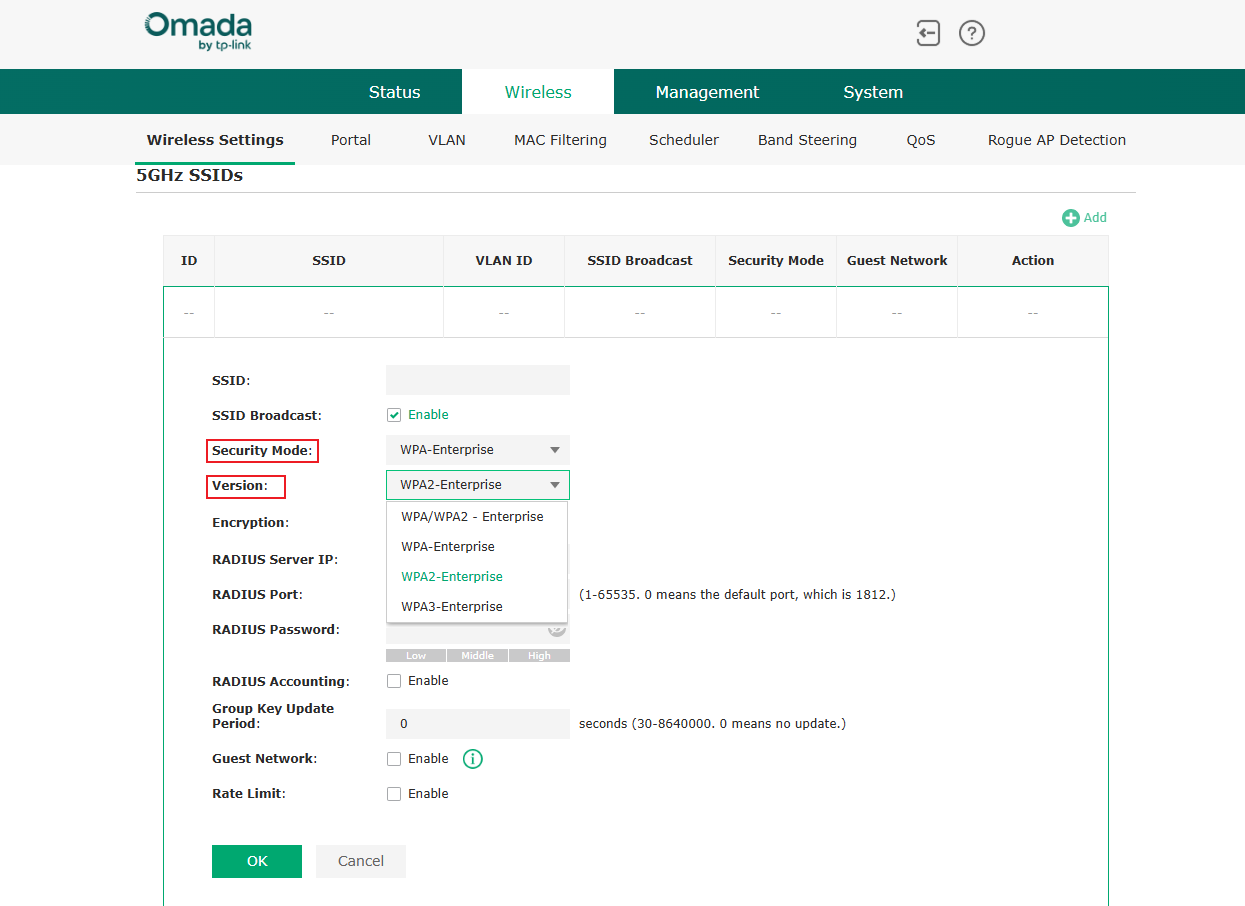
Step 2. If WPA3-Enterprise is selected, you can manually specify the Encryption method.
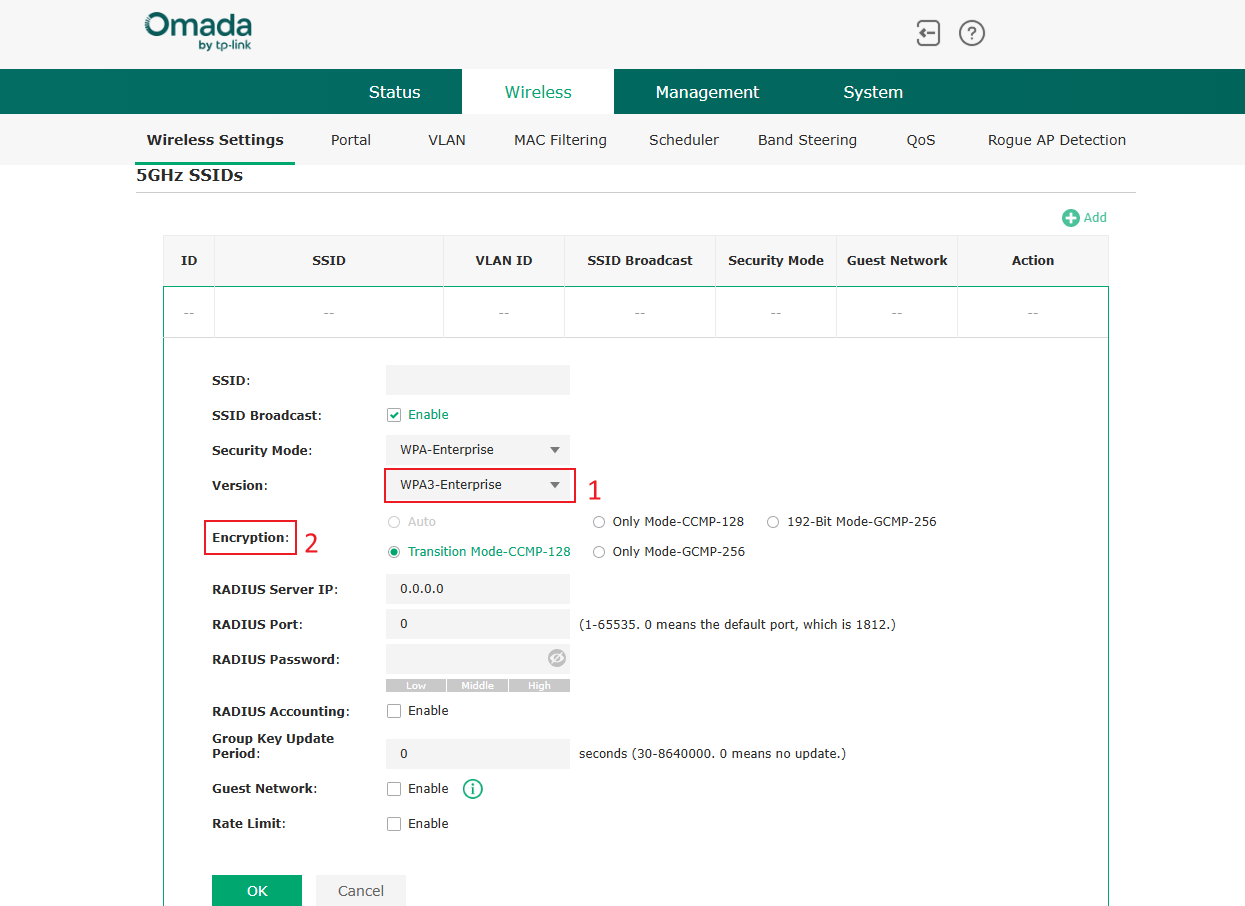
Step 3. Enter the required RADIUS Server configuration parameters on this page.
Conclusion
You have successfully selected a proper encryption method for the SSID in Standalone mode and Controller mode.
To learn more about each function and configuration, please visit Support Home to download or check the manual for your product.
