


Contents
Objective
This article introduces how to install Java Runtime Environment (JRE) for Omada SDN Controller on Windows.
Requirements
- Omada Controller
- Windows PC
Introduction
Omada SDN Controller relies on the Java Runtime Environment (JRE) and this article will guide you through the installation of it on your Windows PC.
For the installation guide on the Linux system, please refer to How to install Omada Software Controller on Linux system | Omada Network Support
Configuration
Step 1. Select the JRE version.
Omada SDN Controller supports both Oracle Java 8 and above, as well as OpenJDK 8 and above, from Version 5.0.15 onwards, whereas Version 4.4.6 and previous versions only support Oracle Java 8.
For commercial use, since Oracle Java SE Subscriptions are required for the use of Oracle Java, we recommend that you can choose OpenJDK, refer to Chapter 2 to download and install OpenJDK.
For personal use, you can choose either OpenJDK or Oracle Java
Step 2. Download and install OpenJDK.
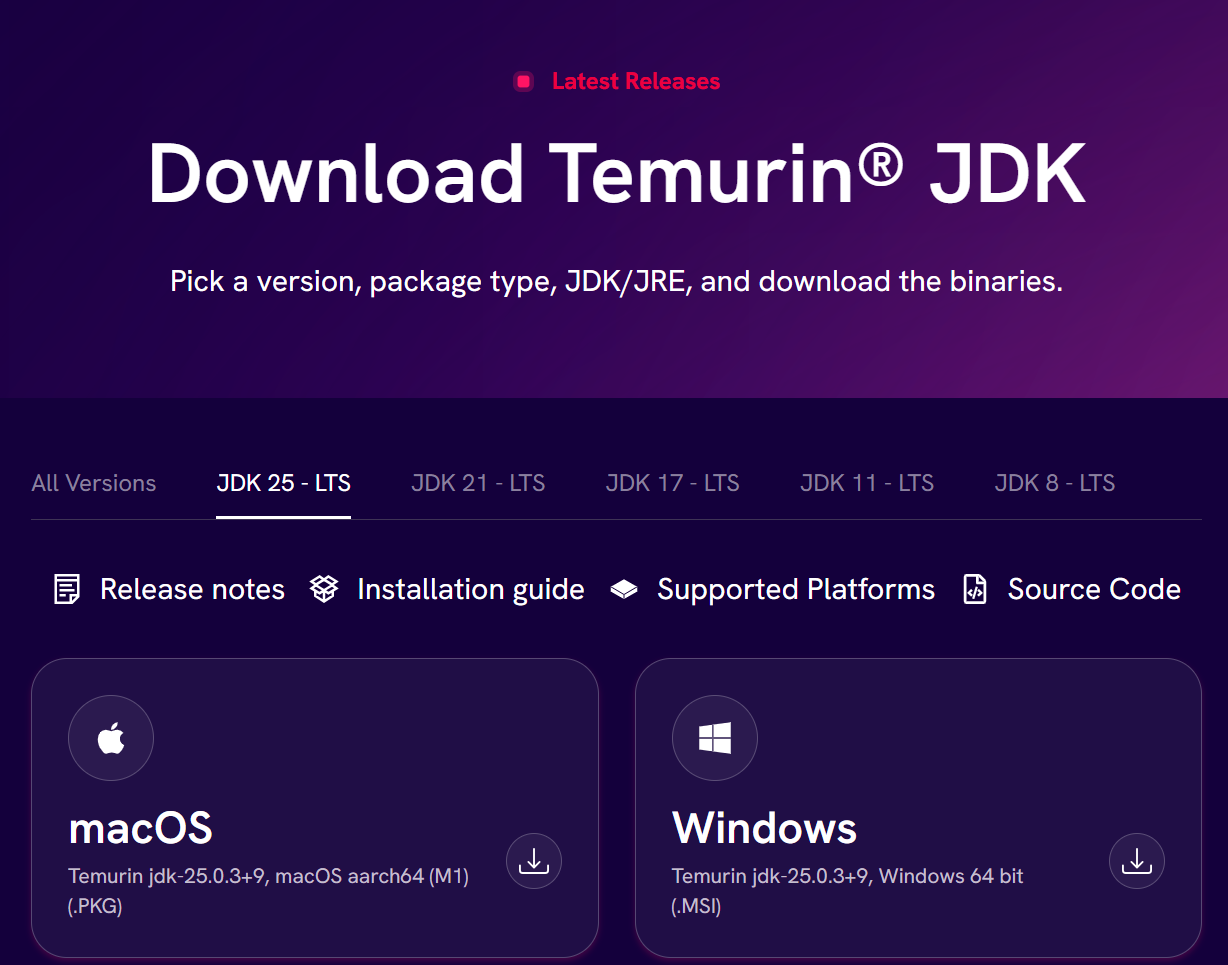
OpenJDK has stopped providing Windows installers for some versions such as Java 8 and 11. We recommend that you can use the Adoptium version. Note to download and install 64-bit version.
1) Go to Adoptium website, select Windows, x64, JRE, Version 8 or other from the drop-down menu, and click to download the installer of the .msi version.
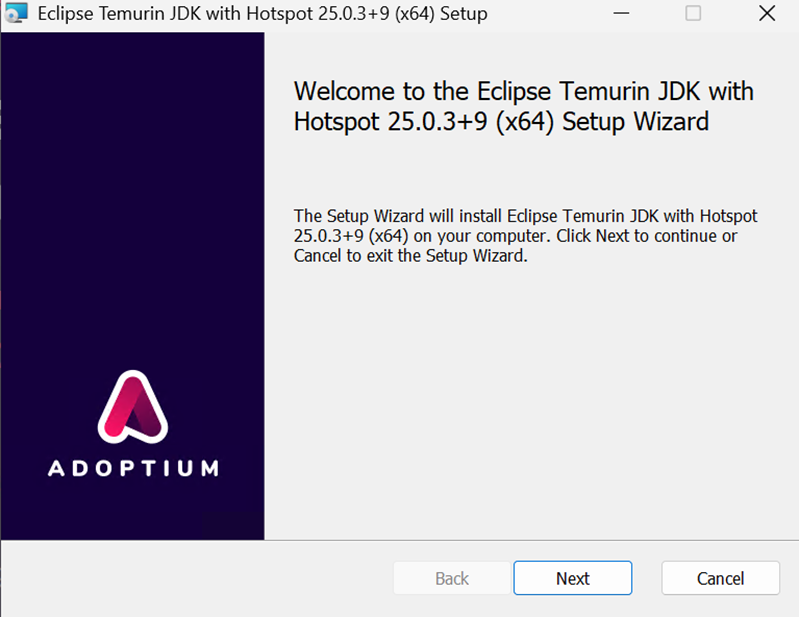
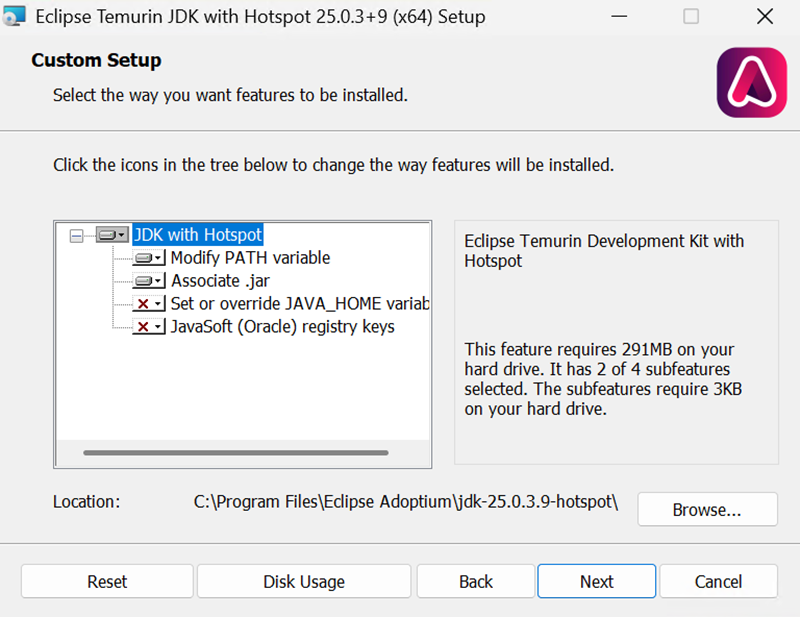
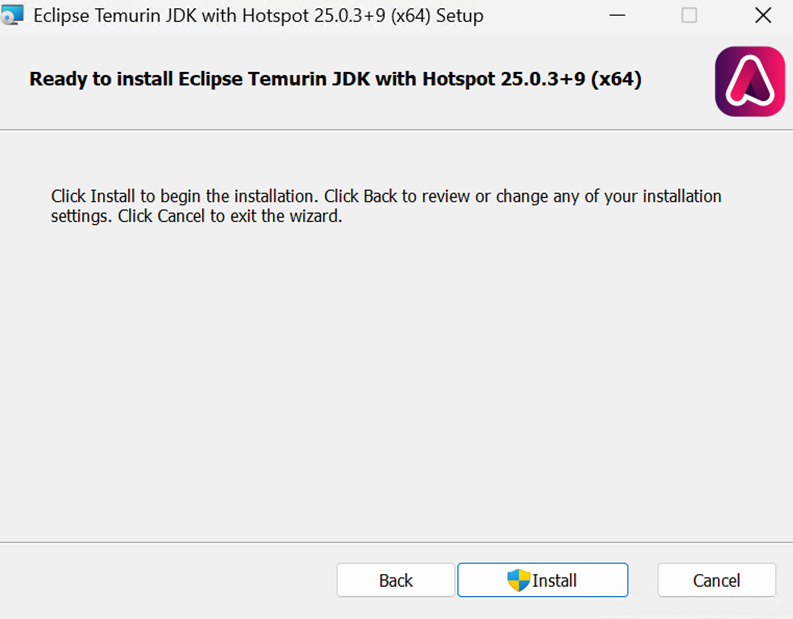
2) Once the download is complete, double click on the .msi installer, click “Next” and ”Install”, and wait for the installation to complete.
Step 3. Download and Install Oracle Java.
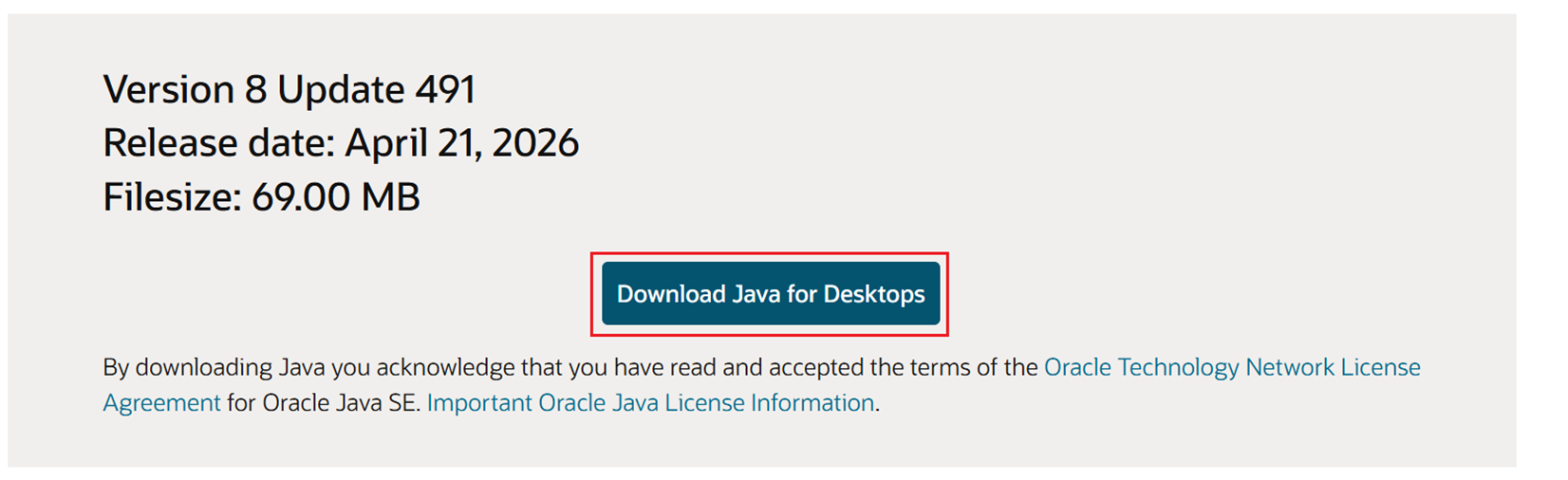
1) Go to the Oracle Java website, and click “Agree and Start Free Download” to download the installer of Java 8. Java website provides the corresponding Java installer depending on whether you are using a 32-bit or 64-bit browser. If you are using a 32-bit browser, or if the name of the download file contains “x86”, be sure to choose to download the 64-bit version of java.
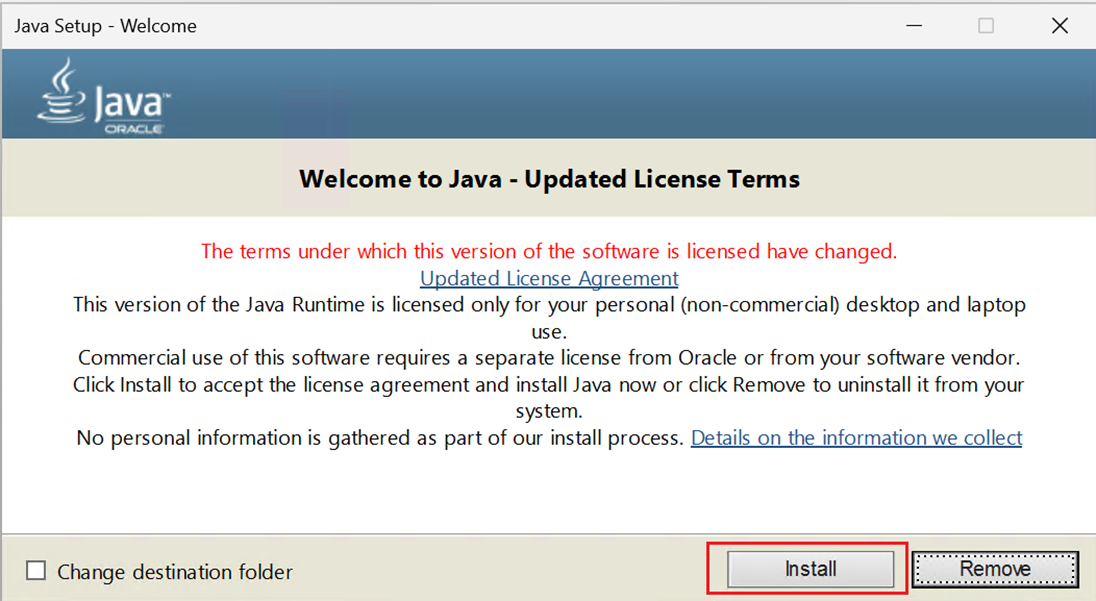
2) Once the download is complete, double click on the installer, click “Install” and wait for the installation to complete.
Verification
1) Press the Windows  and R keys on the keyboard at the same time to open the Run dialog box.
2) Type “cmd” and click “OK” to open the cmd window.
3) Type the command “java -version”, press enter and you should see some information about java, as follows.

