


Contents
Step 1. Access Omada Design Hub
Step 6. Add Additional Floors (Optional)
Step 9. Review the Equipment List and Estimate Costs
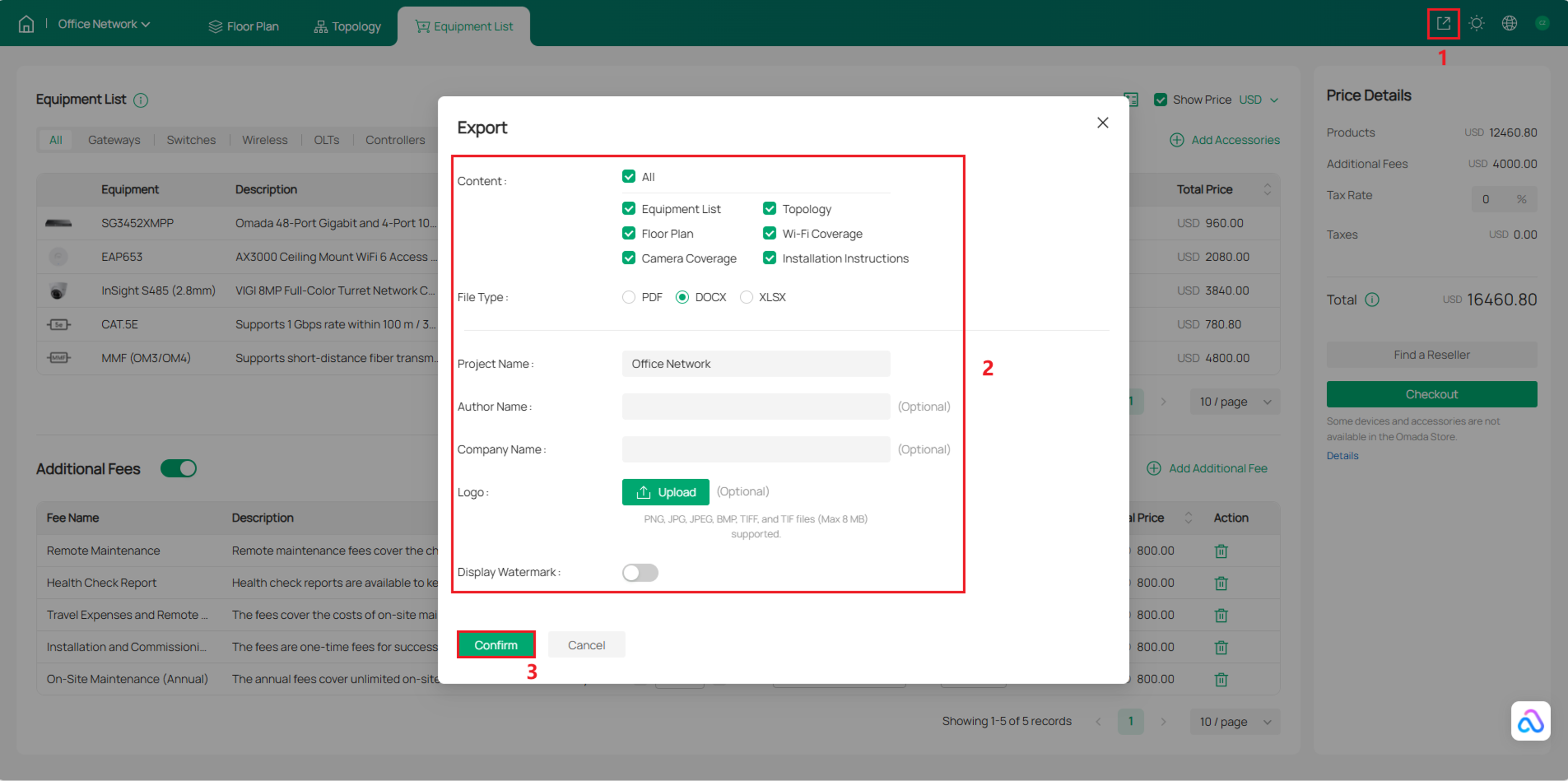
Step 10. Export Network Design Report
Introduction
Omada Design Hub is a visual planning and design platform for network and video surveillance deployments. It helps you create floor plans, plan the placement of network devices and surveillance equipment, simulate wireless coverage and camera fields of view, design cabling, and generate design reports.
This guide uses a small office scenario to demonstrate how to plan an integrated network and video surveillance deployment with Omada Design Hub.
Requirements
The following requirements must be met to access and use Omada Design Hub:
- Internet Access – Internet access is required to visit and use Omada Design Hub at https://design.tplinkcloud.com.
- TP-Link ID – A TP-Link ID is required to sign in to Omada Design Hub. If you do not have one, visit https://id.tplinkcloud.com to create an account.
Configuration
Follow the steps below to create a network design, deploy devices on the floor plan, plan cabling, review the topology and equipment costs, and export the design report.
Step 1. Access Omada Design Hub
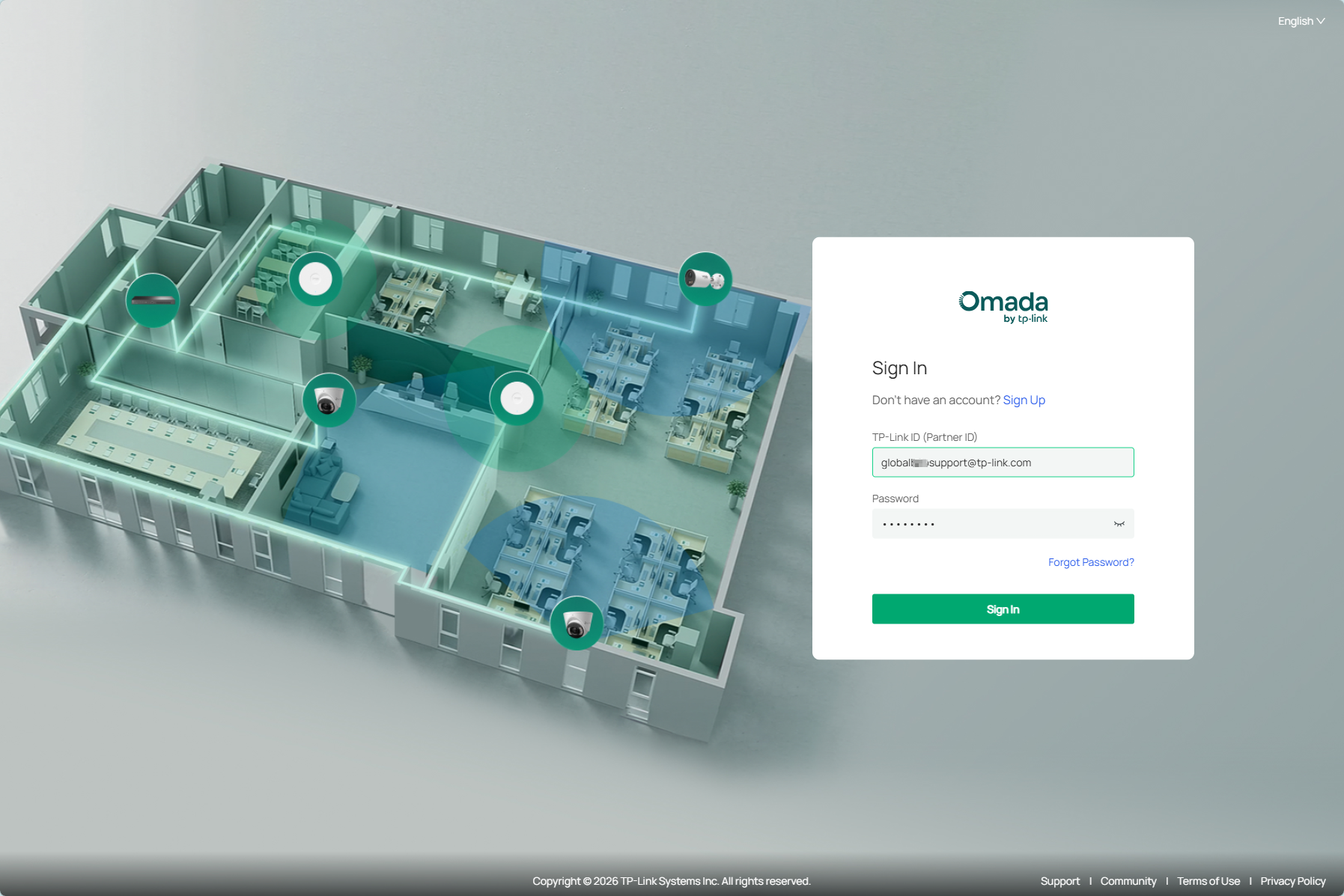
To access Omada Design Hub, visit https://design.tplinkcloud.com and sign in with your TP-Link ID.
Step 2. Create a New Project
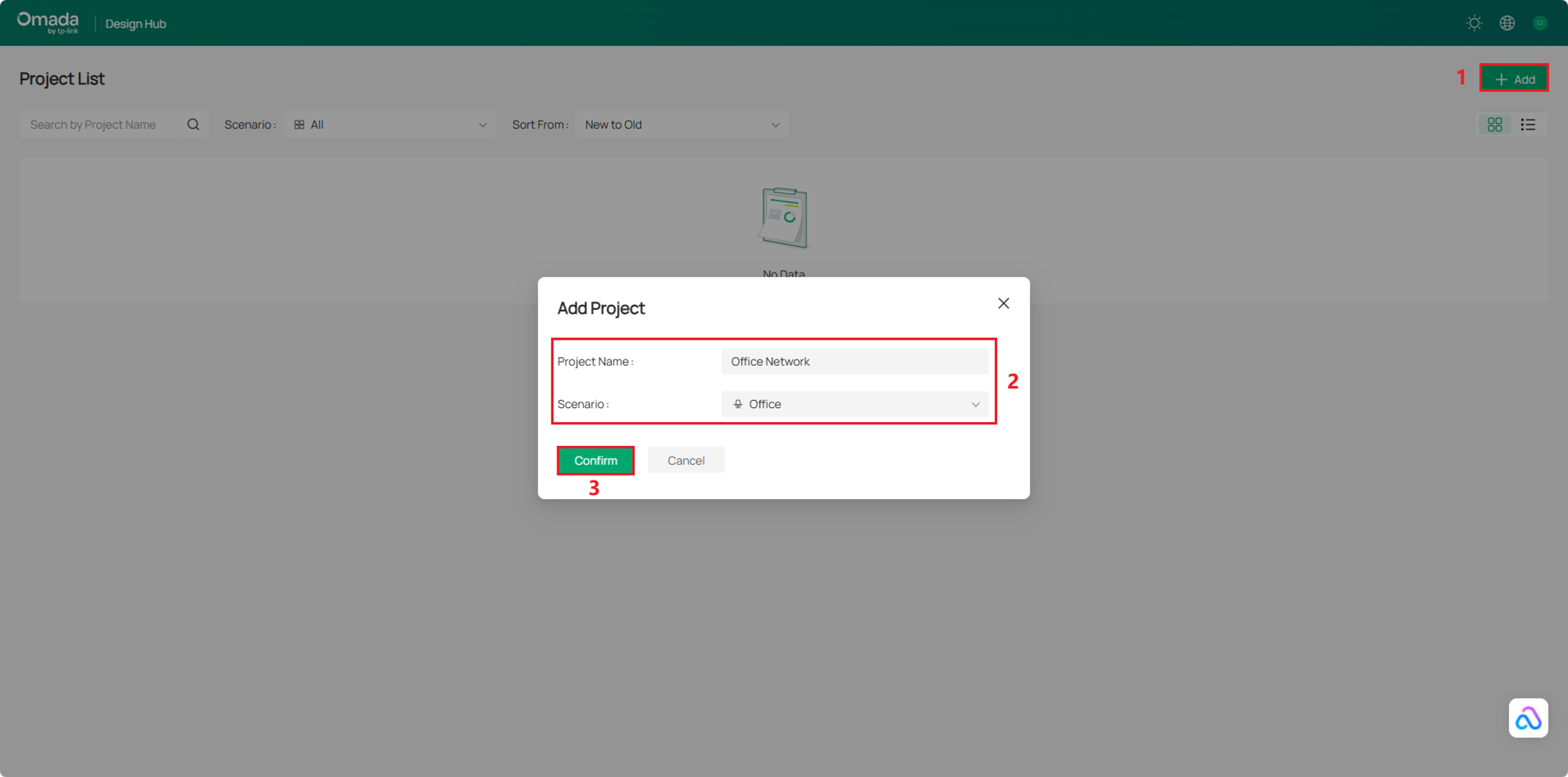
On the Project List page, click +Add to create a new project. Enter the Project Name, select a Scenario, and then click Confirm.
Step 3. Create a New Floor
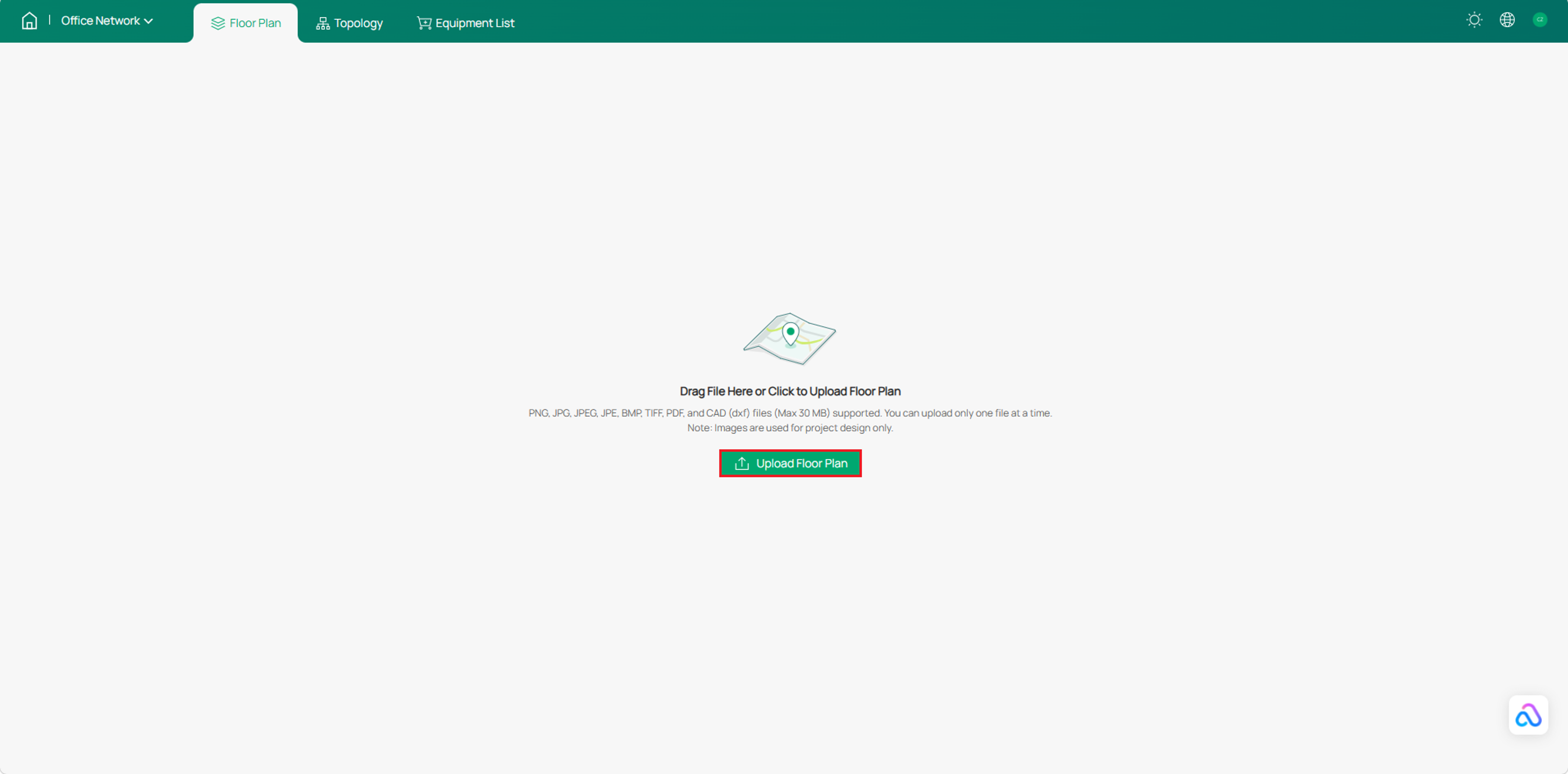
Click Upload Floor Plan to upload a floor plan.
Note: Multiple file formats are supported, but only one file can be uploaded at a time.
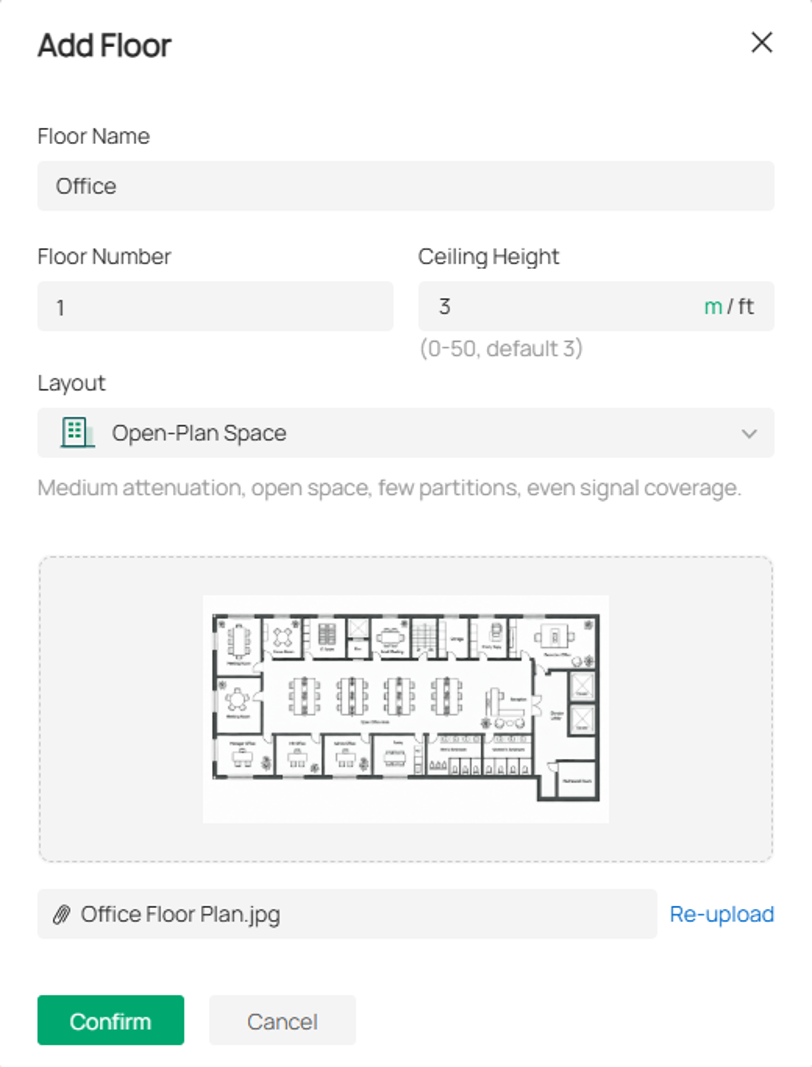
Specify the Floor Name, Floor Number, Ceiling Height, and select the Layout that best matches your environment for more accurate simulation results. Then click Confirm.
Note:
- You can switch the unit for the ceiling height between meters and feet.
- You can click the image to preview it and re-upload another file if you want to change it.
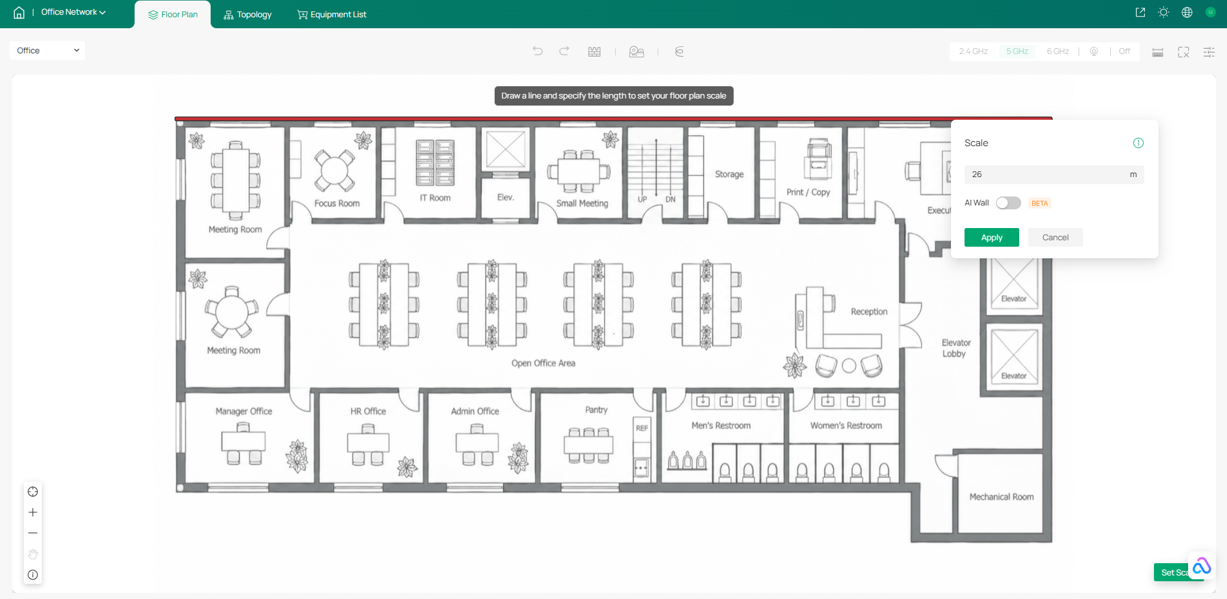
Set the scale for your floor plan. Left-click on the starting point to draw a line, then left-click again to mark the endpoint. Enter the actual distance represented by the line, and click Apply.
Note:
- Make sure the floor plan scale matches the actual site dimensions, as the scale affects wall simulation, cable length estimation, and wireless coverage simulation.
- To reset the scale, click the scale icon in the bottom right.
Step 4. Draw Walls
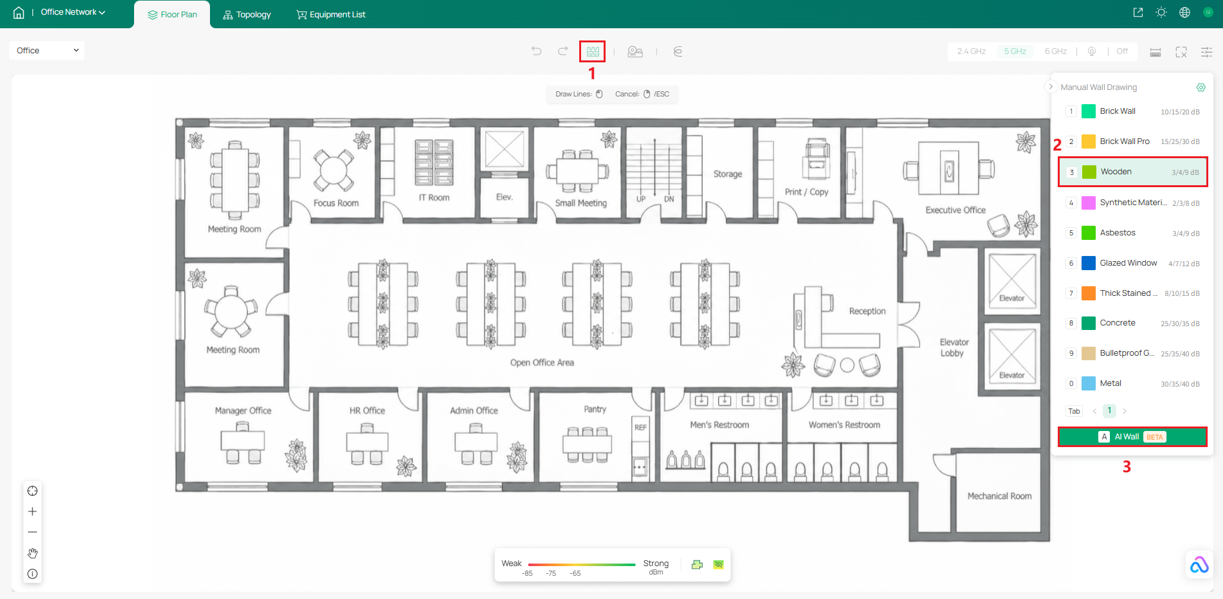
Click the wall icon, select a Wall type, and click AI Wall.
Note: AI Wall can automatically identify and generate walls to reduce the time required for manual drawing. After the walls are generated, you can manually add, move, split, or delete walls, or change their wall types.
Step 5. Deploy Devices
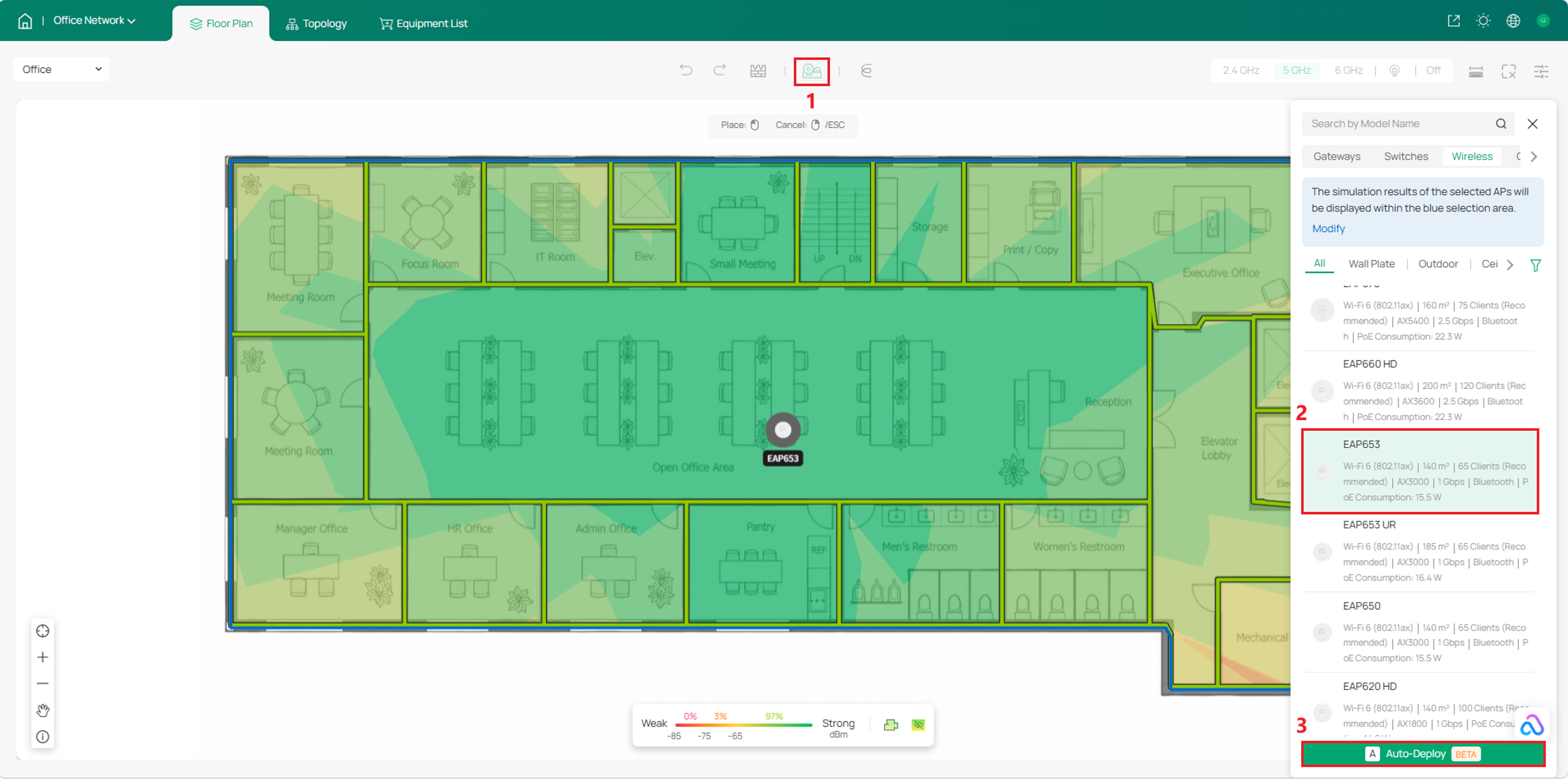
Click the device icon, select an access point model, and click Auto-Deploy to automatically generate an AP deployment plan.
Note: Only Omada access points are currently available for Auto-Deploy.
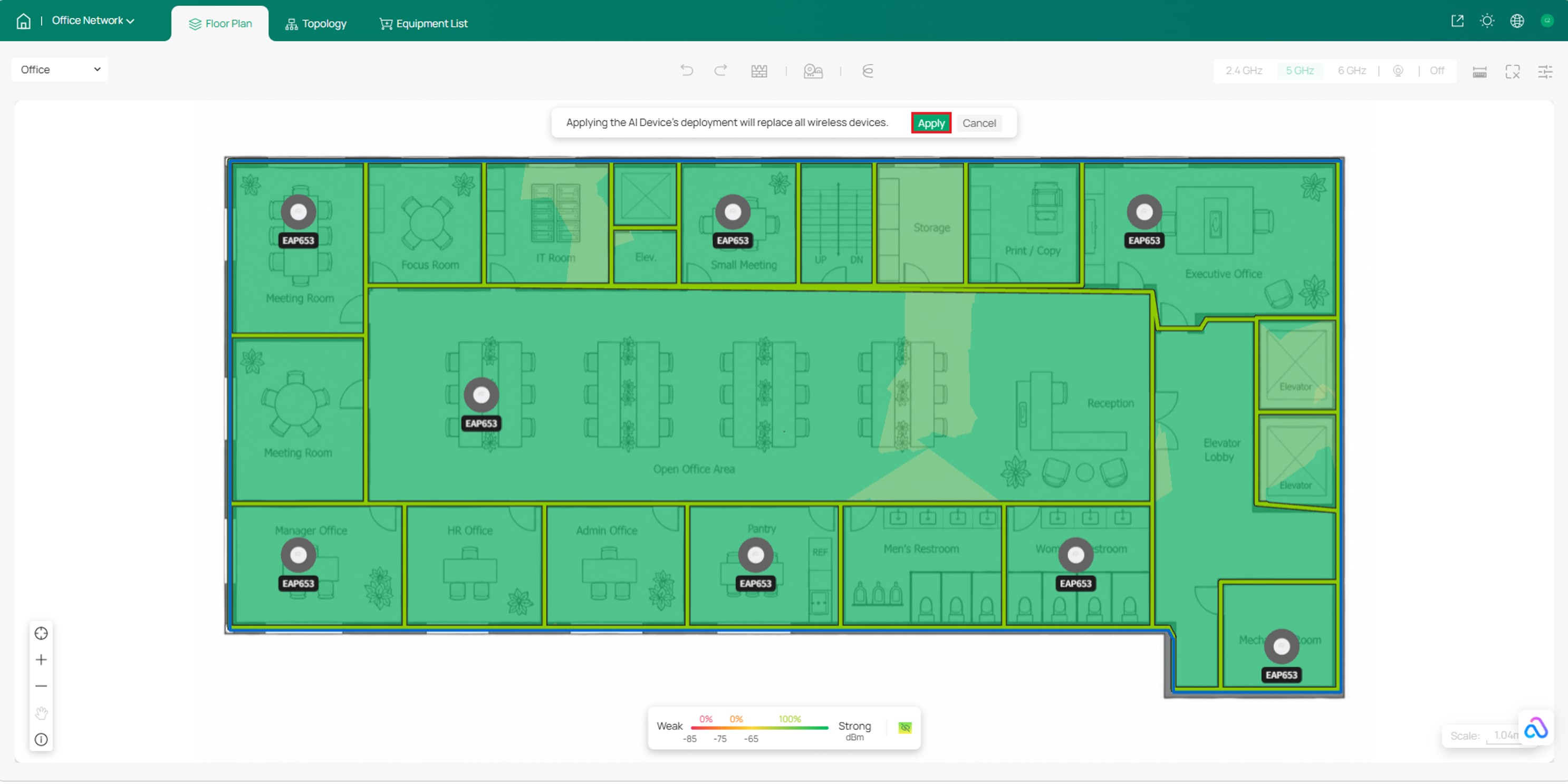
If the Auto-Deploy result meets your deployment requirements, click Apply. If not, you can also apply it and then manually adjust the deployment locations of the APs or deploy additional APs.
Based on the Auto-Deploy result, manually add other devices such as gateways, switches, controllers, cameras, and NVRs as needed, and place them at the appropriate locations.
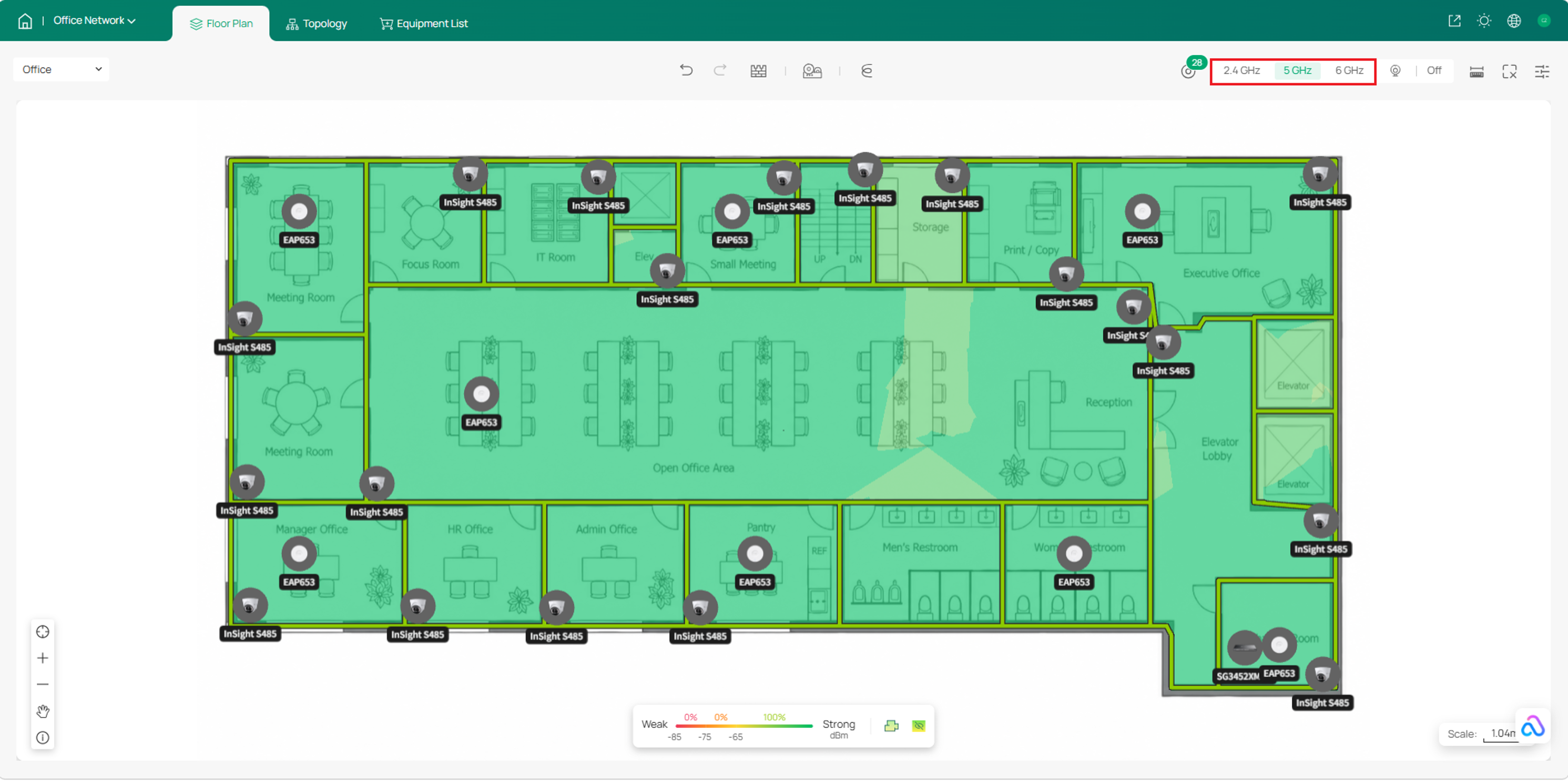
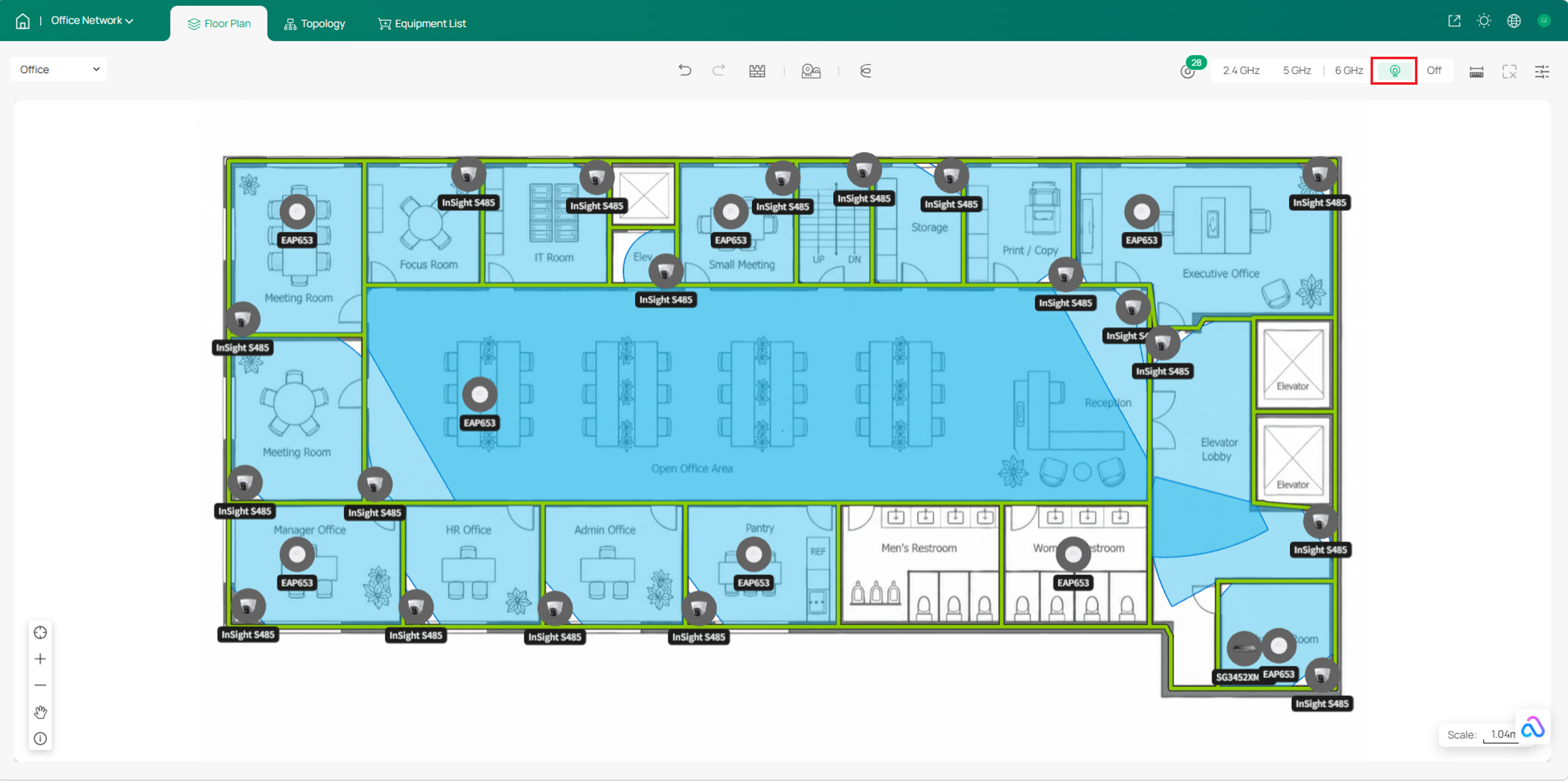
Adjust the device placement, installation method, and orientation as needed. Then verify the wireless coverage for each band and the cameras’ fields of view. If necessary, reposition the access points or cameras to improve coverage.
Step 6. Add Additional Floors (Optional)
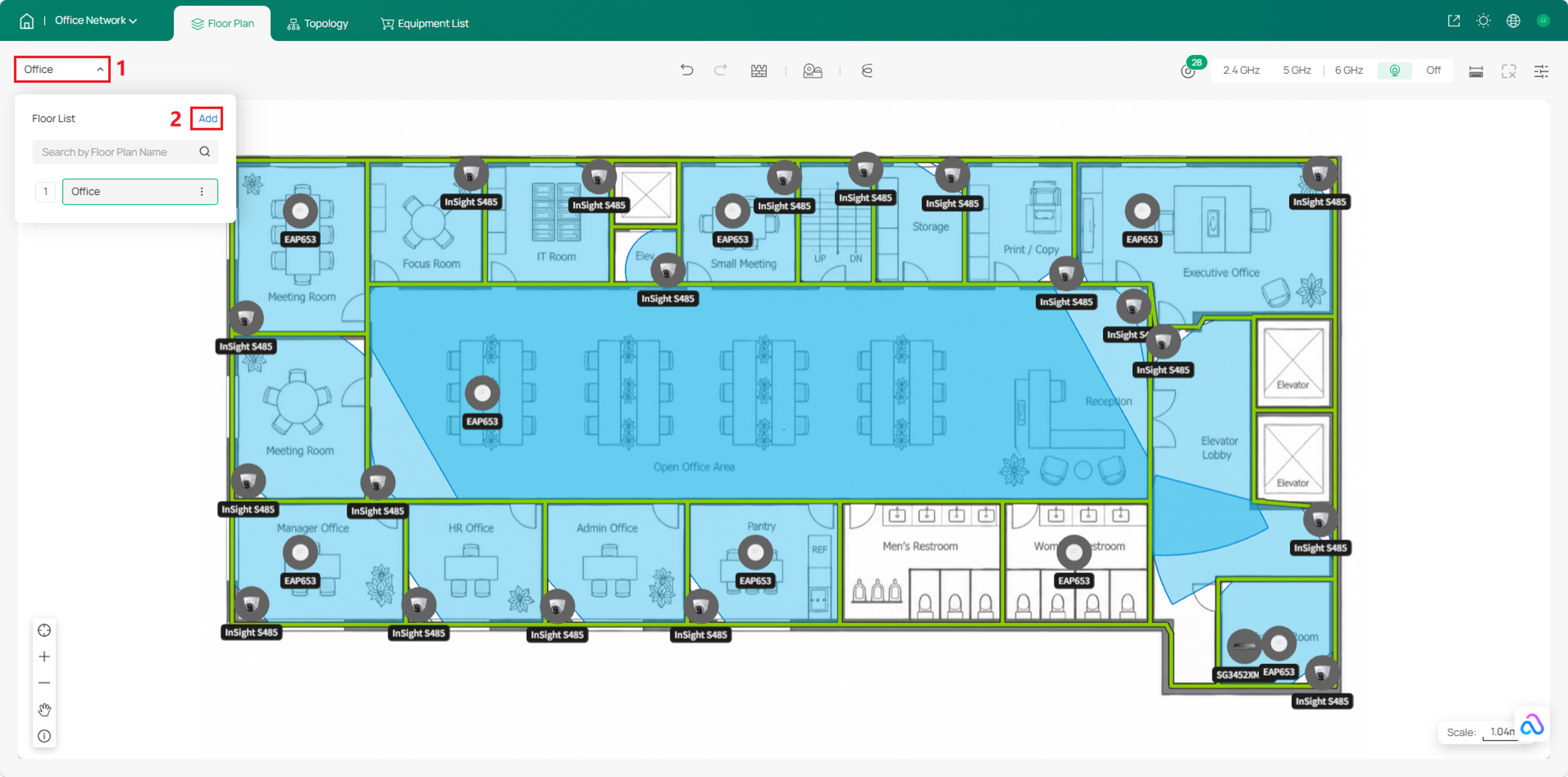
Use the floor selector in the upper-left corner to add another floor, and repeat the previous steps to configure the floor plan, draw walls, and deploy devices.
Step 7. Plan Cabling
For multi-floor projects, place an ELV (Extra-Low Voltage) Riser on each floor to represent the vertical pathway used for cross-floor cabling. ELV risers allow Omada Design Hub to generate cable routes between devices located on different floors.
Place each ELV riser at a location that corresponds to the building's actual wiring shaft, riser room, or vertical cable pathway.
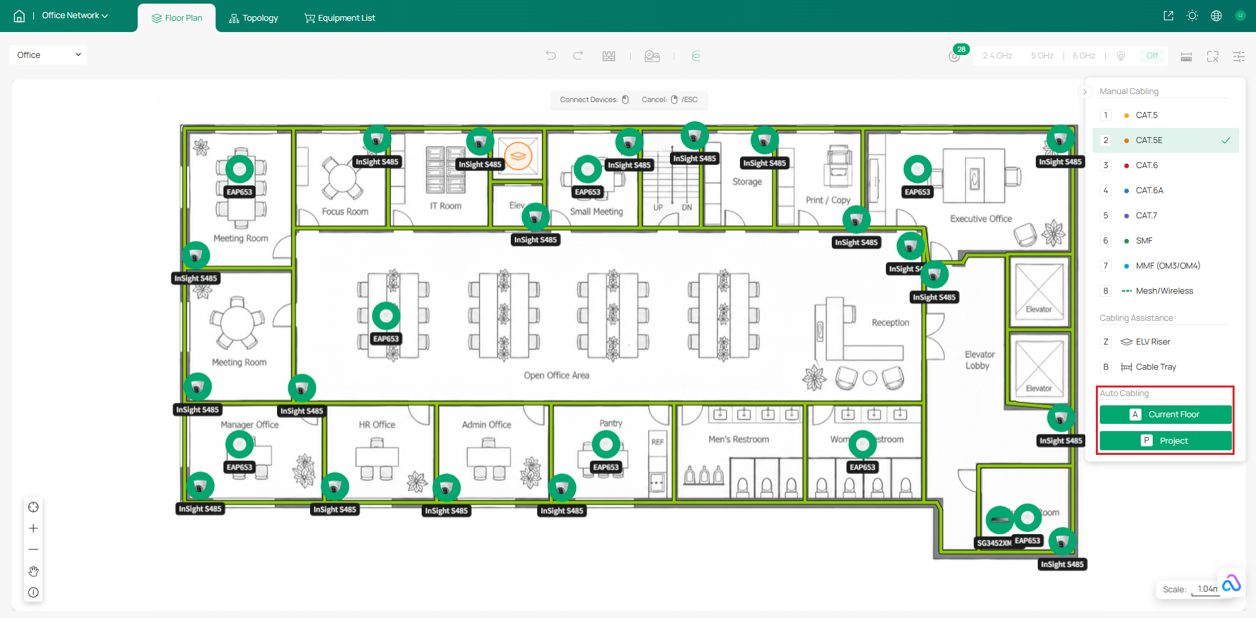
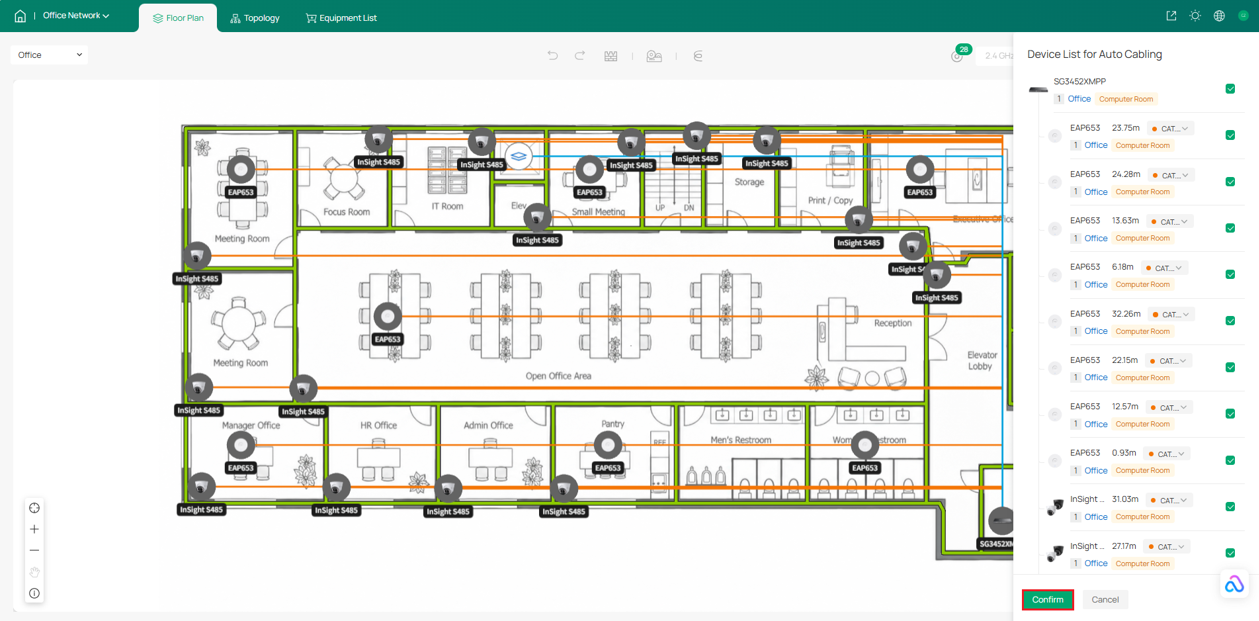
Click the cable icon, select the cable type, and then click Auto Cabling to automatically generate cable connections. Auto Cabling can be performed for either the current floor or the entire project.
Note: Devices on different floors must be connected through ELV risers. Configure the floor type as follows:
- Regular Floor – Cannot serve as the uplink floor for other floors. It can use a Convergence Floor or the Computer Room as its uplink floor.
- Convergence Floor – Can serve as the uplink floor for Regular Floors. It can use only the Computer Room as its uplink floor.
- Computer Room – Can serve as the uplink floor for all other floors. Only one floor in a project can be designated as the Computer Room.
Click Confirm to apply the generated cabling plan.
The generated cable routes can be adjusted manually. Cable paths can also be created manually without using Auto Cabling if preferred.
Step 8. View Topology
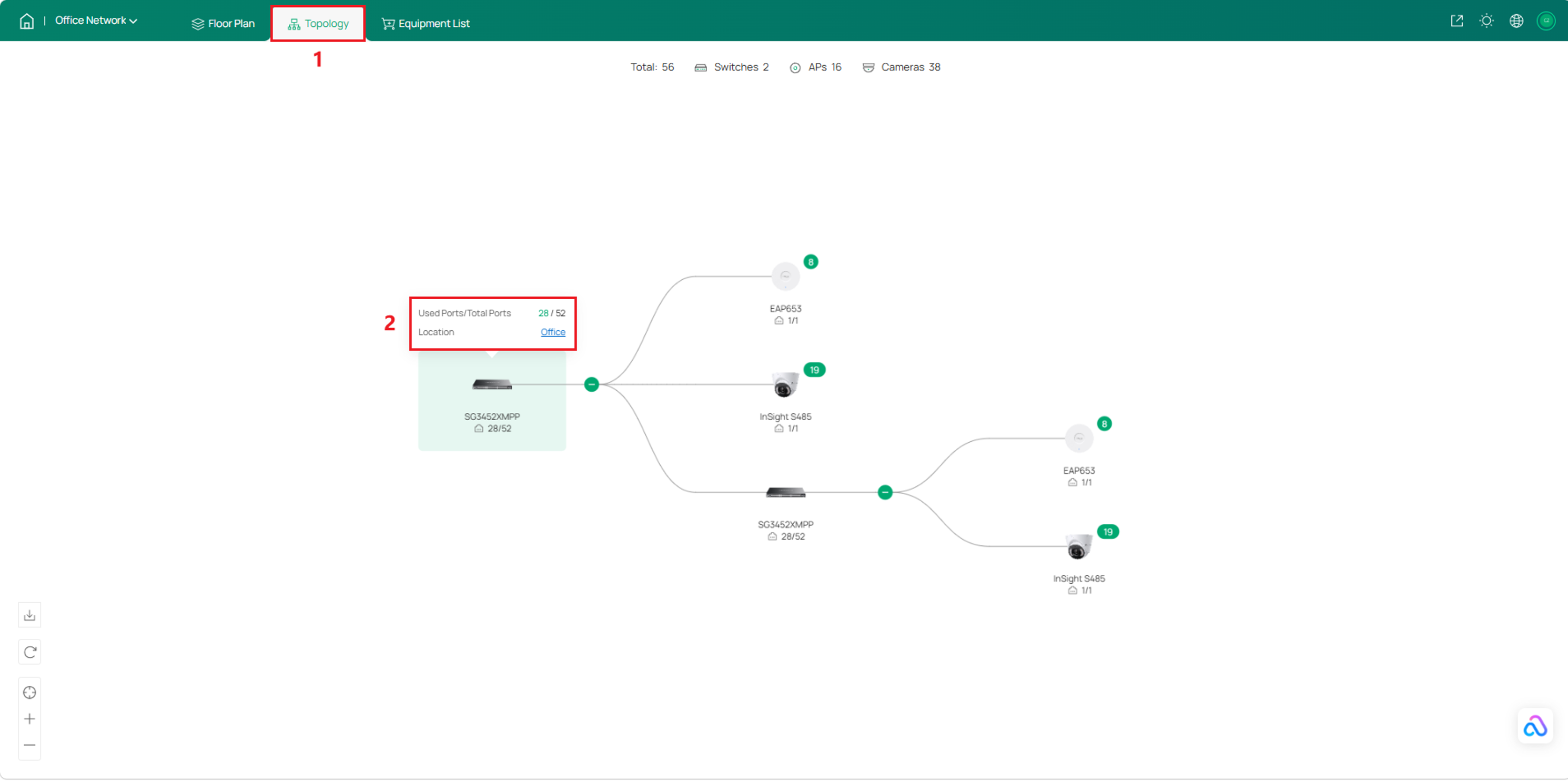
Click Topology at the top of the page to view the network topology of the entire project. Hover over a device to view its port usage and locate it on the floor plan.
Step 9. Review the Equipment List and Estimate Costs
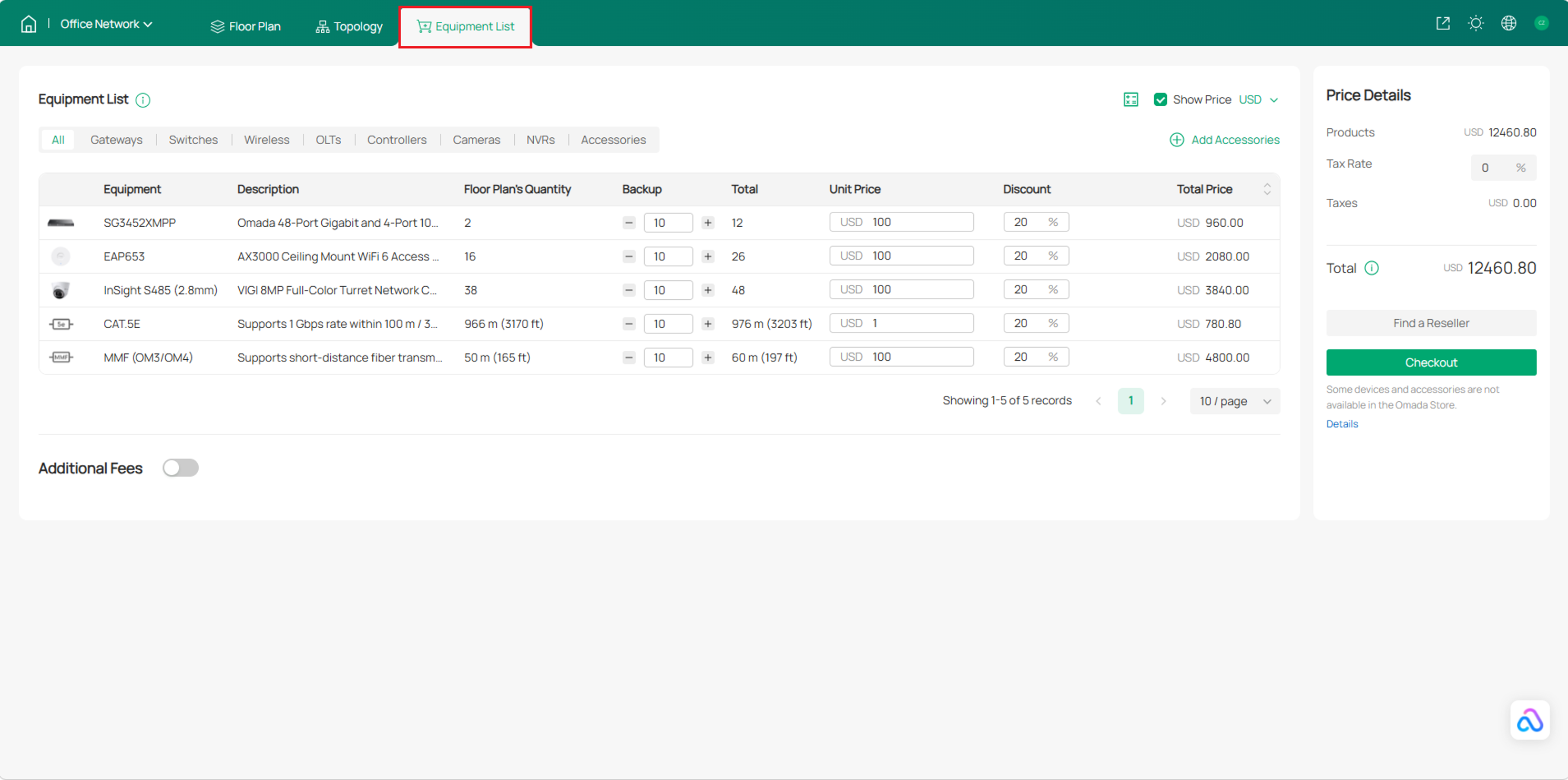
Click Equipment List at the top of the page to review the devices and cables included in your design.
Add spare quantities in the Backup column and specify unit prices and discounts as needed. Select the currency and enter the applicable tax rate to estimate the total project cost.
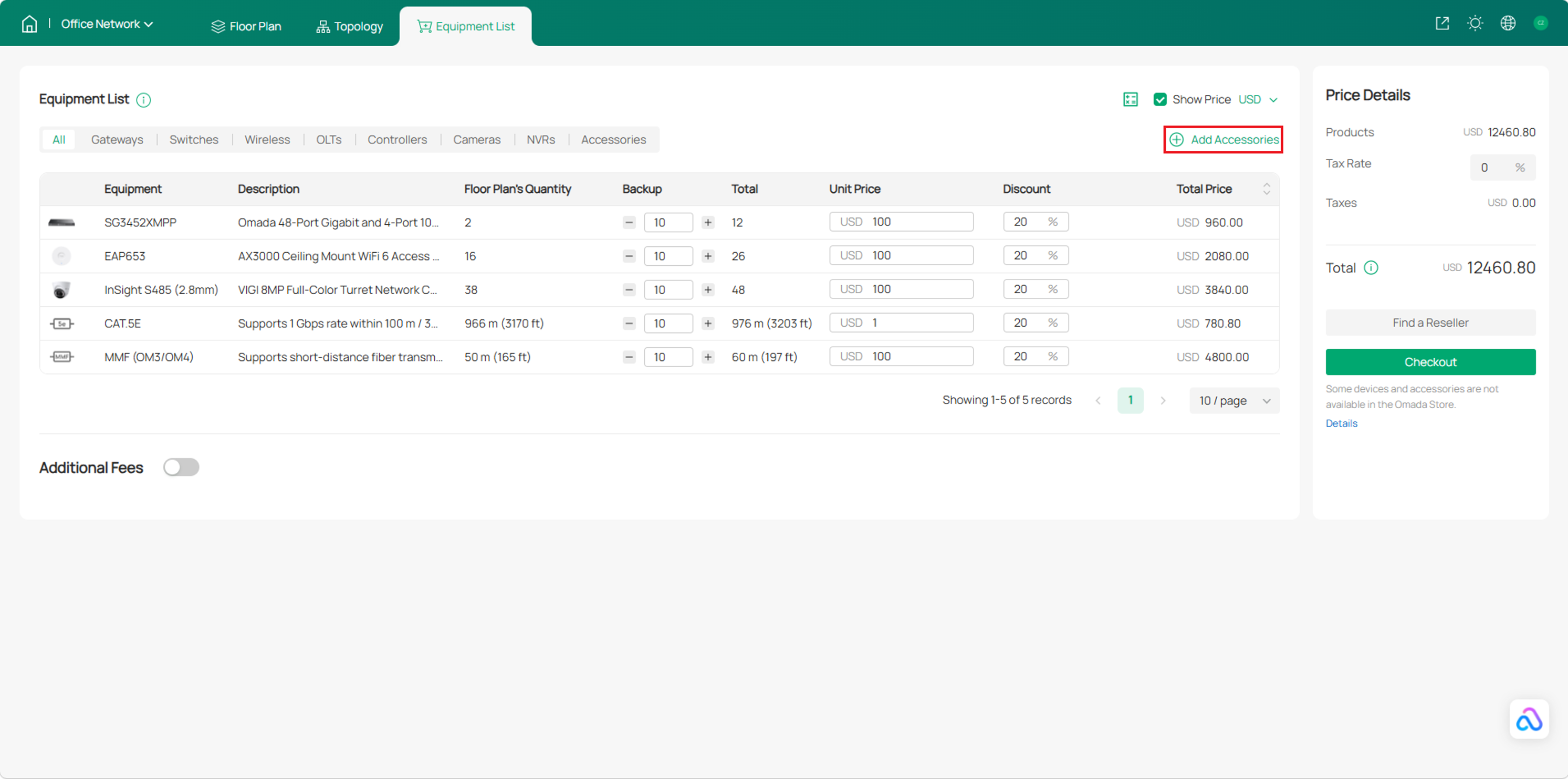
Click Add Accessories to include additional deployment components such as media converters, optical modules, PoE adapters, and solar systems.
Specify the quantity, unit price, and discount for each accessory as needed.
To include service costs, enable Additional Fees and click Add Additional Fee. Add the required services, such as remote maintenance or health check reports, and specify their quantities, unit prices, and discounts.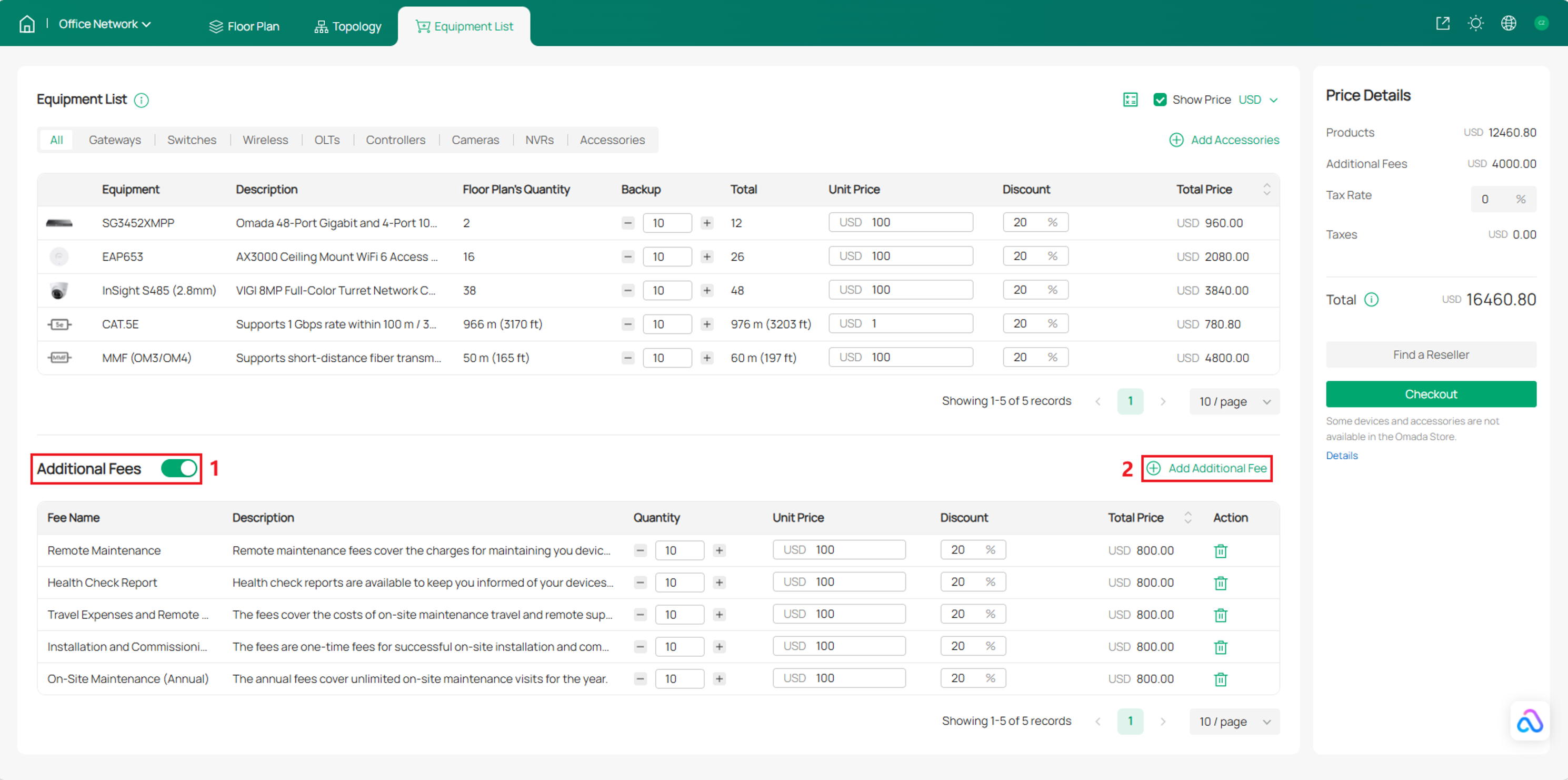
Step 10. Export Network Design Report
After completing the network design, click the export icon in the upper-right corner. Select the content to include and the file type, enter the required project information, and click Confirm to export the report.
Conclusion
You have now completed an integrated network and video surveillance design in Omada Design Hub, including device placement, wireless coverage and camera field-of-view simulation, cabling, topology, and cost estimation. Export the design report to support deployment and future maintenance.
To learn more about each function and configuration, please visit Support Home to download or check the manual for your product.
QA
Q1: Can I design a multi-floor network in Omada Design Hub?
A1: Yes. Omada Design Hub supports multi-floor projects. You can create multiple floors, deploy devices on each floor, and use ELV risers for cross-floor cabling.
Q2: How can I estimate the cost of my network deployment?
A2: Use the Equipment List to specify device quantities, unit prices, discounts, and additional fees. Omada Design Hub automatically calculates the estimated total deployment cost.
Q3: Is Omada Design Hub a free tool?
A3: Yes, Omada Design Hub is currently available for use at no additional charge.
Q4: What is included in the exported network design report?
A4: The exported report can include the floor plan, device deployment, cabling layout, ELV riser connections, network topology, equipment list, quantities, and estimated costs, depending on the selected export options.
