


A TP-Link ID is a free account that lets you sign in to all TP-Link apps and services with a single email address and password. Instead of managing separate credentials for each app, one TP-Link account gives you access to everything, from device setup to cloud features, across the full range of TP-Link products.
Key Takeaways
- A TP-Link ID is a free account that uses your email address to manage TP-Link devices and services.
- One account works across Tapo, Kasa, Deco, Tether, Omada, VIGI, and Aginet apps.
- You can create a TP-Link ID directly in any TP-Link app or through the TP-Link community website.
- After registering, you must confirm your account via an activation email before you can sign in.
- A TP-Link ID is required to access cloud features on most TP-Link smart home devices and routers.
What Is a TP-Link ID?
A TP-Link ID is your single sign-on for the TP-Link ecosystem. It replaces the need to remember separate usernames and passwords for each app or service.
With a TP-Link account, you can access remote device management, receive firmware update notifications, share devices with family members, and subscribe to services such as Tapo Care and HomeShield. It also lets you sign in to the TP-Link Community, Omada Cloud, and the TP-Link training system.
A note on account security: Use a strong, unique password when creating your TP-Link ID. Two-step verification (2FA) is also available to add an extra layer of protection to your account. For setup instructions, see how to enable two-step verification for the Tapo app.
How to Create a TP-Link ID
You can register for a TP-Link account in two ways: through a TP-Link app on your phone, or through a web browser on any device.
Create via App
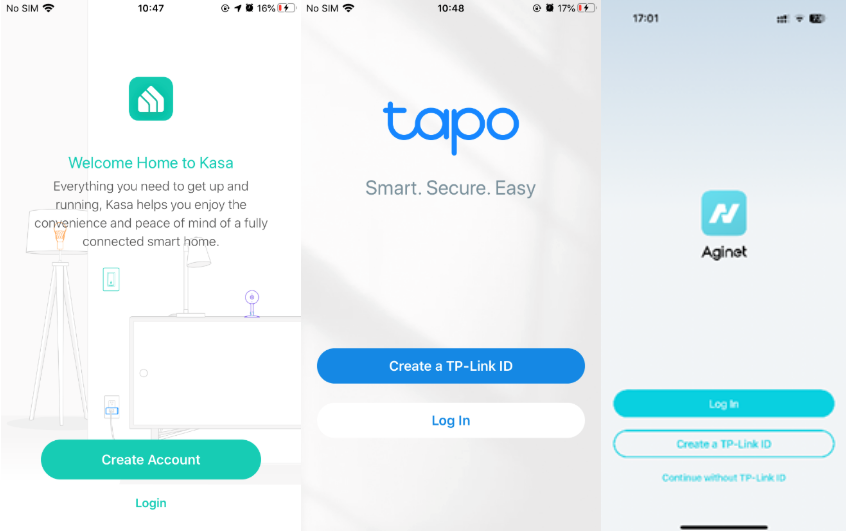
- Open any TP-Link app, such as Tapo, Kasa, Deco, Tether, VIGI, Omada, or Aginet.
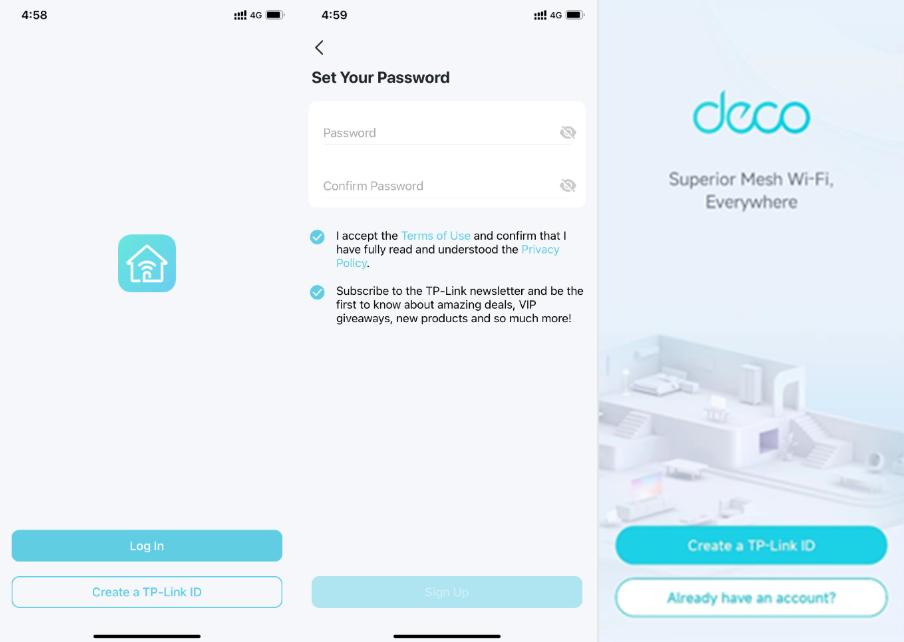
- Tap Create Account or Create a TP-Link ID on the sign-in screen.
- Enter your email address and set a password.
- Check the box to accept the Terms of Use and Privacy Policy. The Sign Up button will remain grayed out until this step is completed.
- Tap Sign Up to submit your registration.
- Check your inbox for an activation email and click the link inside to activate your TP-Link ID.
Create via Web Browser
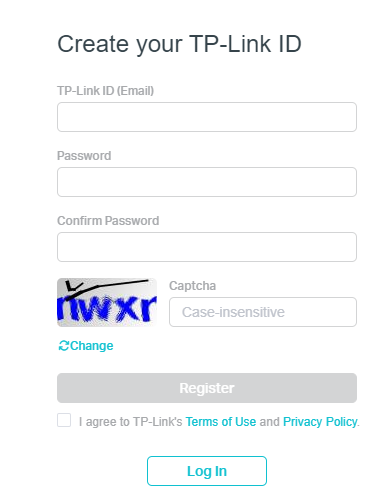
- Visit https://community.tp-link.com/register in your browser.
- Fill in your email address, set a password, complete the CAPTCHA, and agree to the Terms of Use and Privacy Policy.
- Click Register to submit your information.
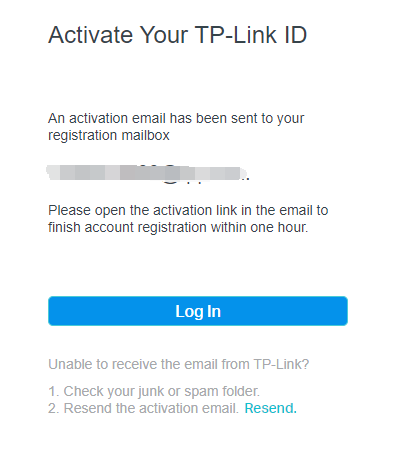
- Check your inbox for an activation email and click the link inside to complete registration. Note that the activation link expires after one hour.
Once activated, you can use your TP-Link ID to sign in across all supported apps and services.
Troubleshooting
Activation email not received: Check your junk or spam folder first. If the email still doesn't appear, you can request a resend from the activation screen. For more help, see what to do if you don't receive the verification email for TP-Link ID registration.
Sign-up or activation failures: Make sure you have an active Internet connection when registering. Also, confirm your email address is valid and that your password does not include special characters such as &, ~, %, or spaces. If the email address you entered is already registered, try signing in directly. For additional troubleshooting, see what to do if you fail to sign up or activate your TP-Link ID.
For information on why TP-Link requires an email address to create an account, see why TP-Link requires your email address.
