


Contents
Configuration for Controller Mode
Configuration for Normal DNS Proxy
Configuration for Secure DNS Proxy
Configuration for Standalone Mode
Configuration for Normal DNS Proxy
Configuration for Secure DNS Proxy
Introduction
The DNS Proxy feature allows the gateway to receive DNS requests from clients and forward them to a configured DNS server. DNS Proxy supports two operating modes: Normal DNS Proxy and Secure DNS Proxy.
Normal DNS Proxy: The gateway forwards DNS requests from clients to the DNS server configured on the WAN interface. The DNS responses received from the server are then forwarded back to the clients.
Secure DNS Proxy: The gateway enhances DNS requests with additional security by using DNSSEC or encrypting DNS traffic through DNS over TLS (DoT) or DNS over HTTPS (DoH). These requests are sent to a configured secure DNS server, and the gateway verifies or decrypts the returned DNS responses before forwarding them to the clients.
Requirements
- Omada Gateway
- Omada Controller
Configuration for Controller Mode
This section explains how to configure DNS Proxy on the Omada Controller, including both Normal DNS Proxy and Secure DNS Proxy modes.
Configuration for Normal DNS Proxy
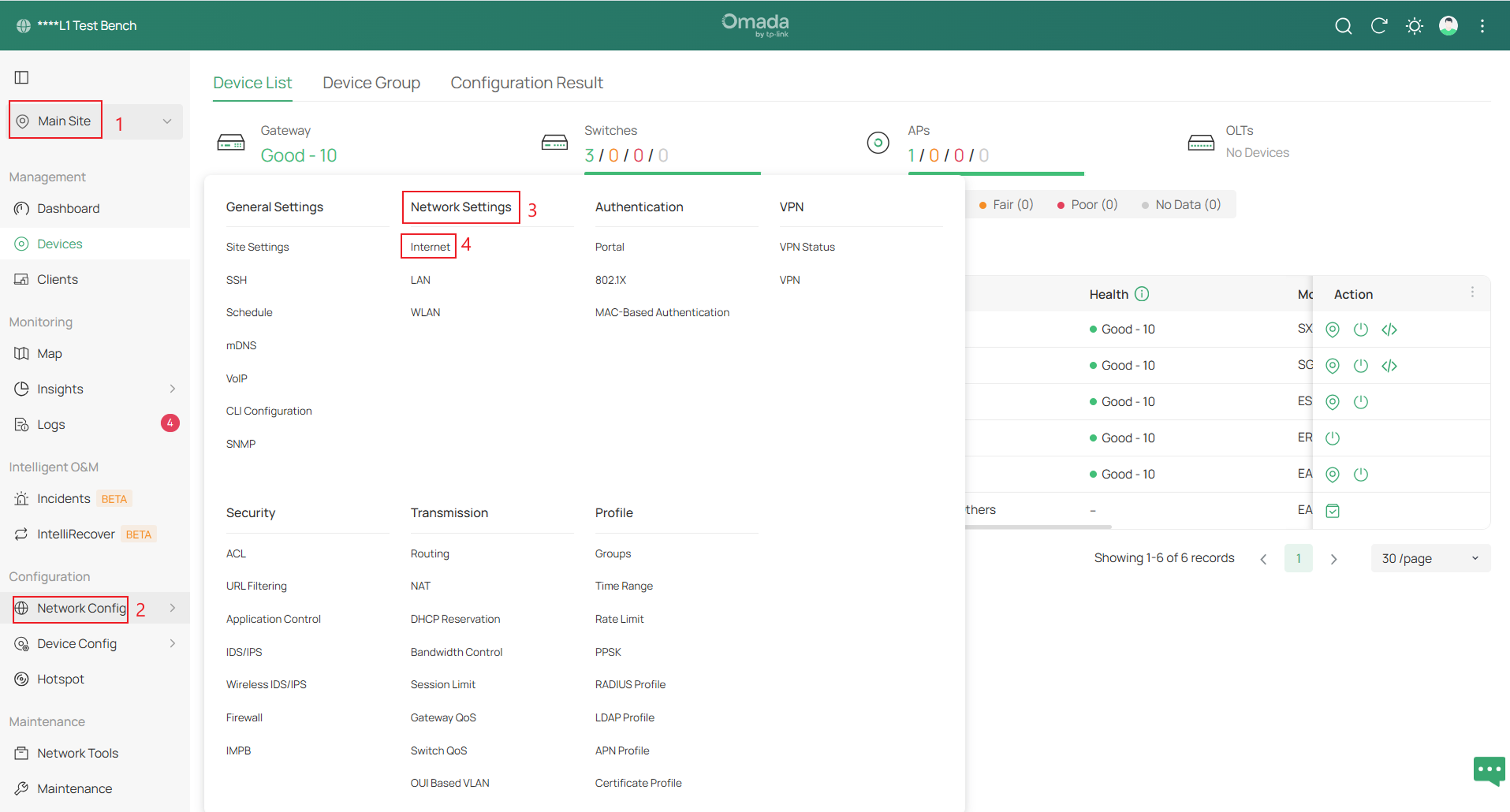
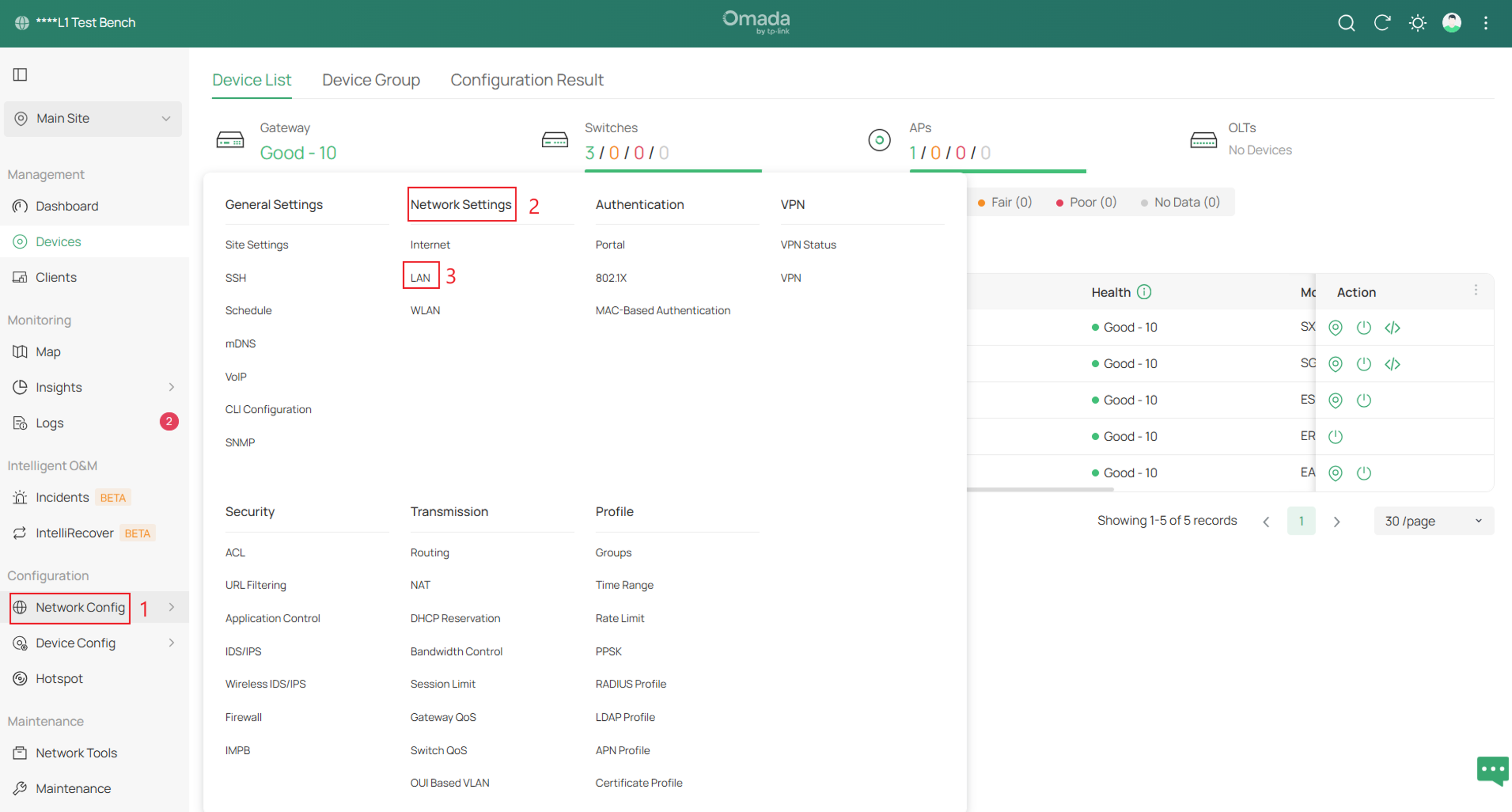
Step 1. Log in to the controller and navigate to Site > Network Config > Network Settings > Internet.
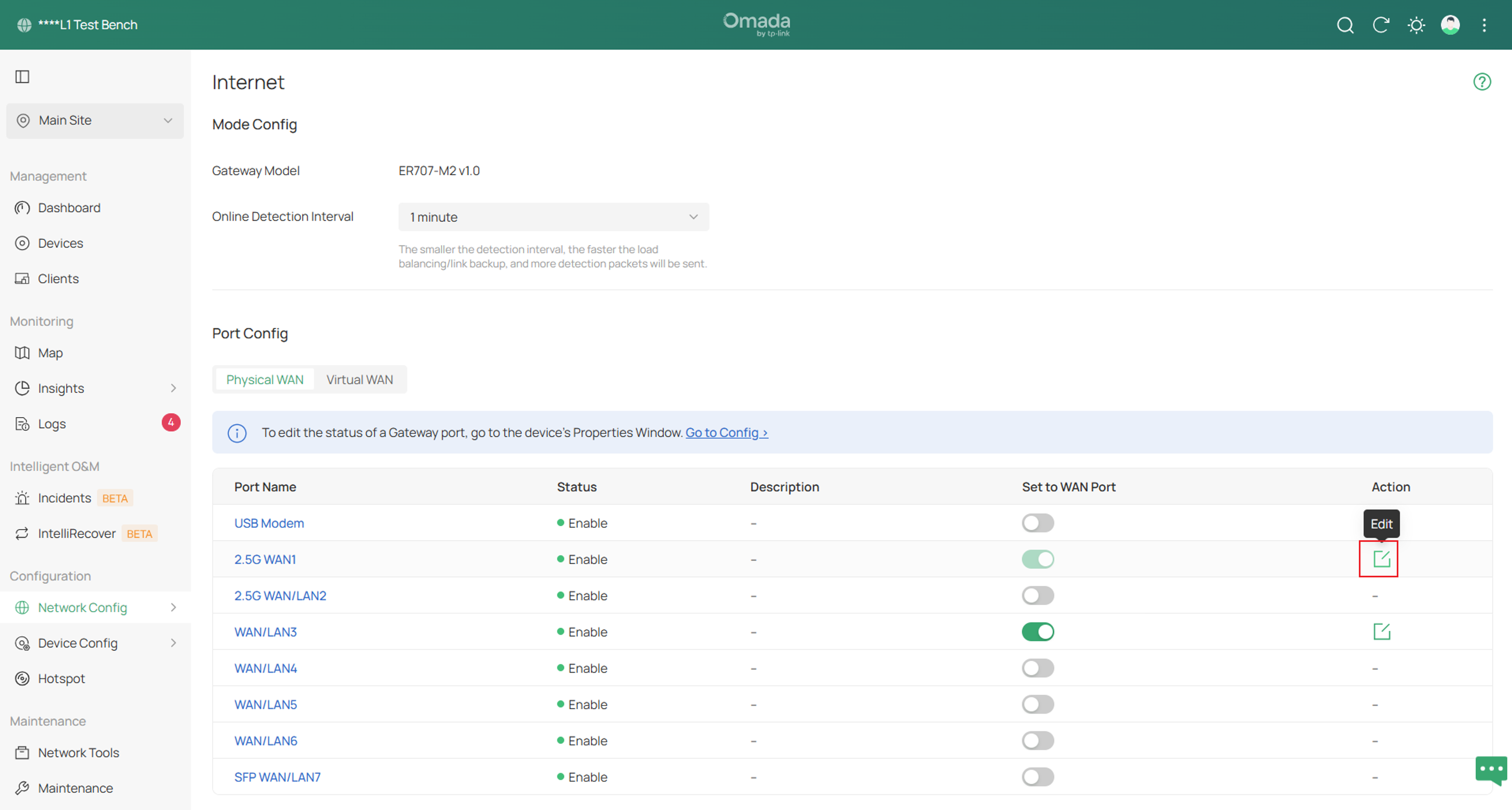
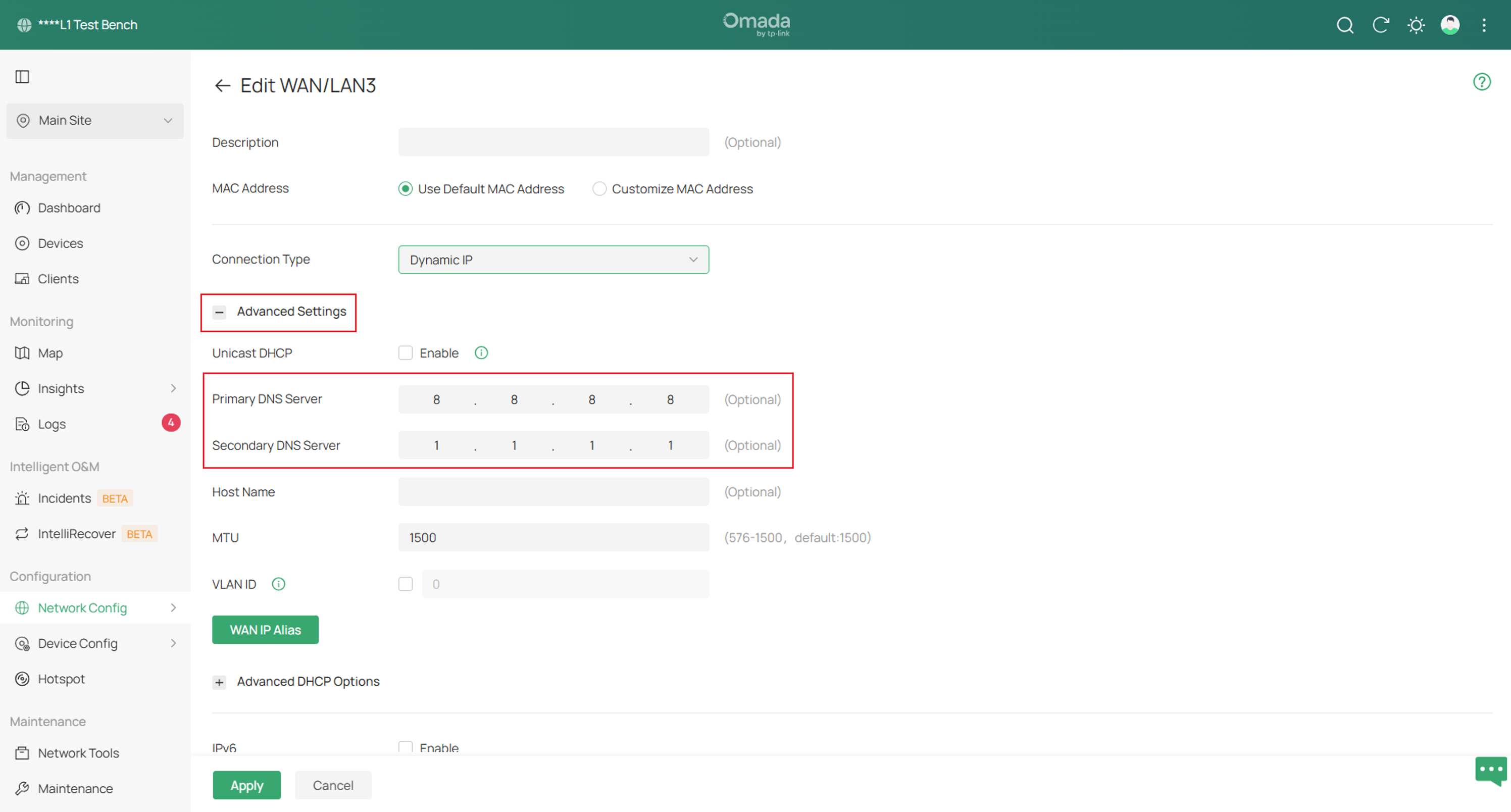
Step 2. Next, select Edit on the WAN port being used > expand Advanced Settings > and then fill in the DNS servers under the Primary and Secondary DNS Server.
Click Apply once complete.
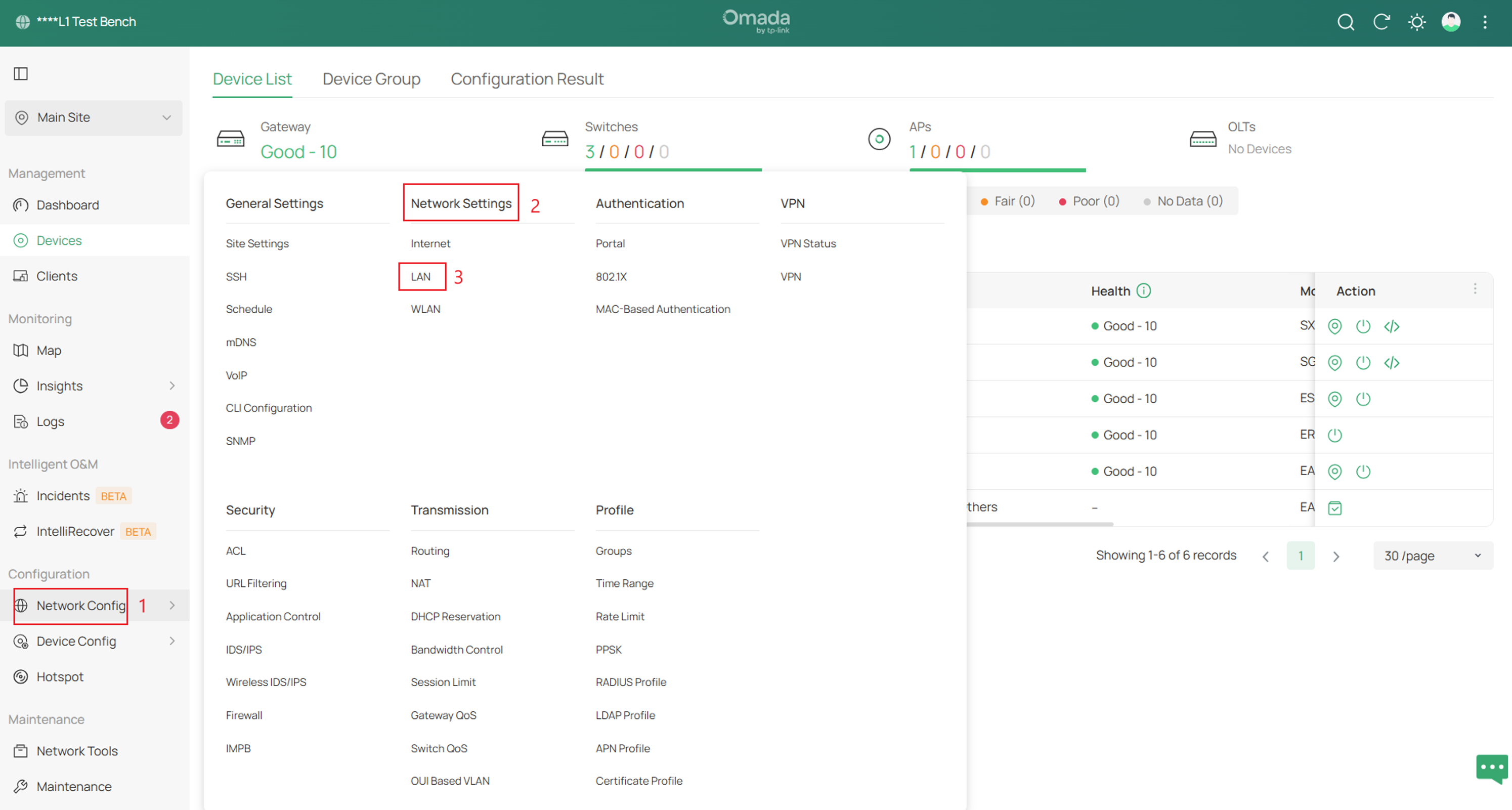
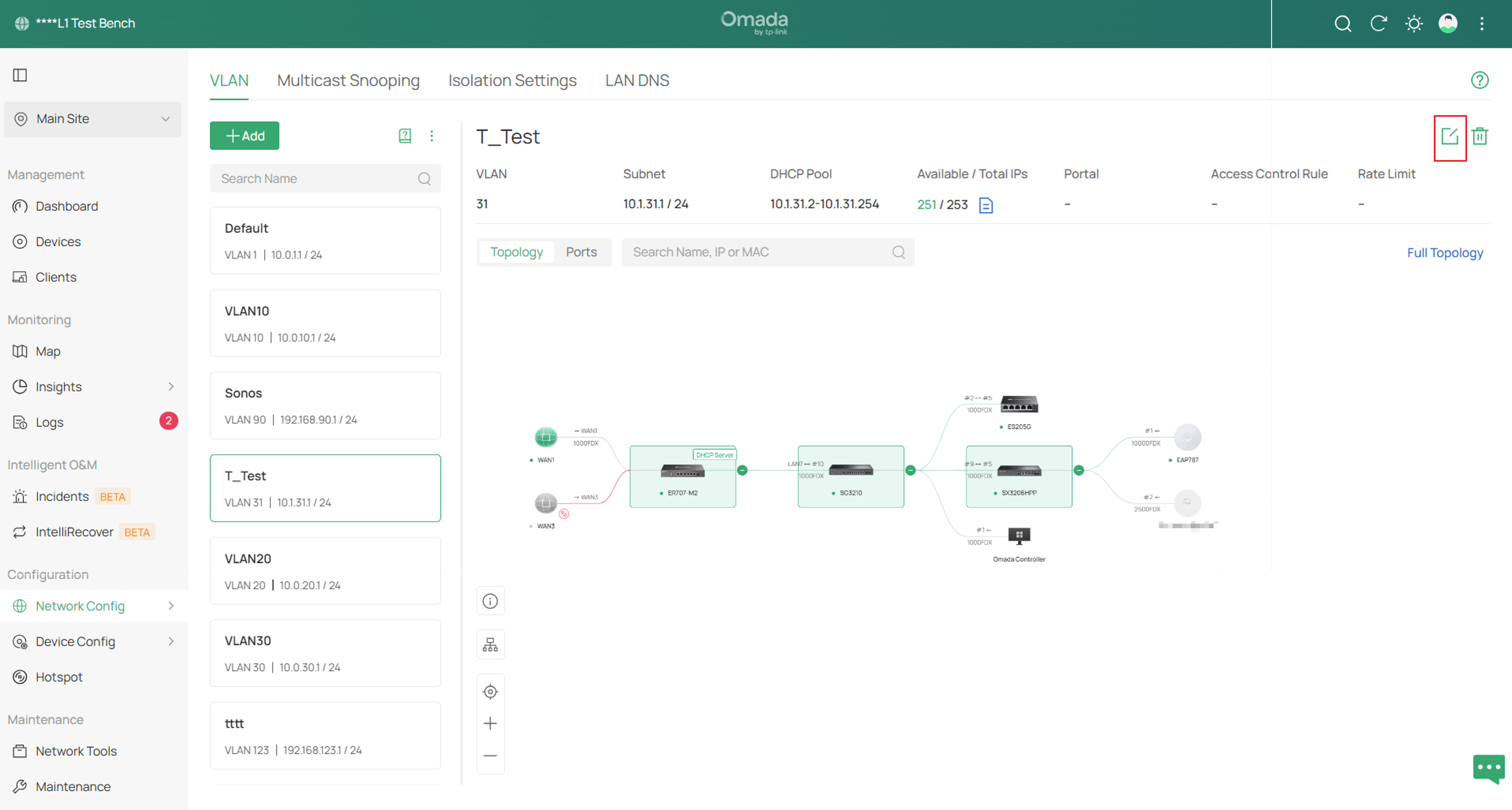
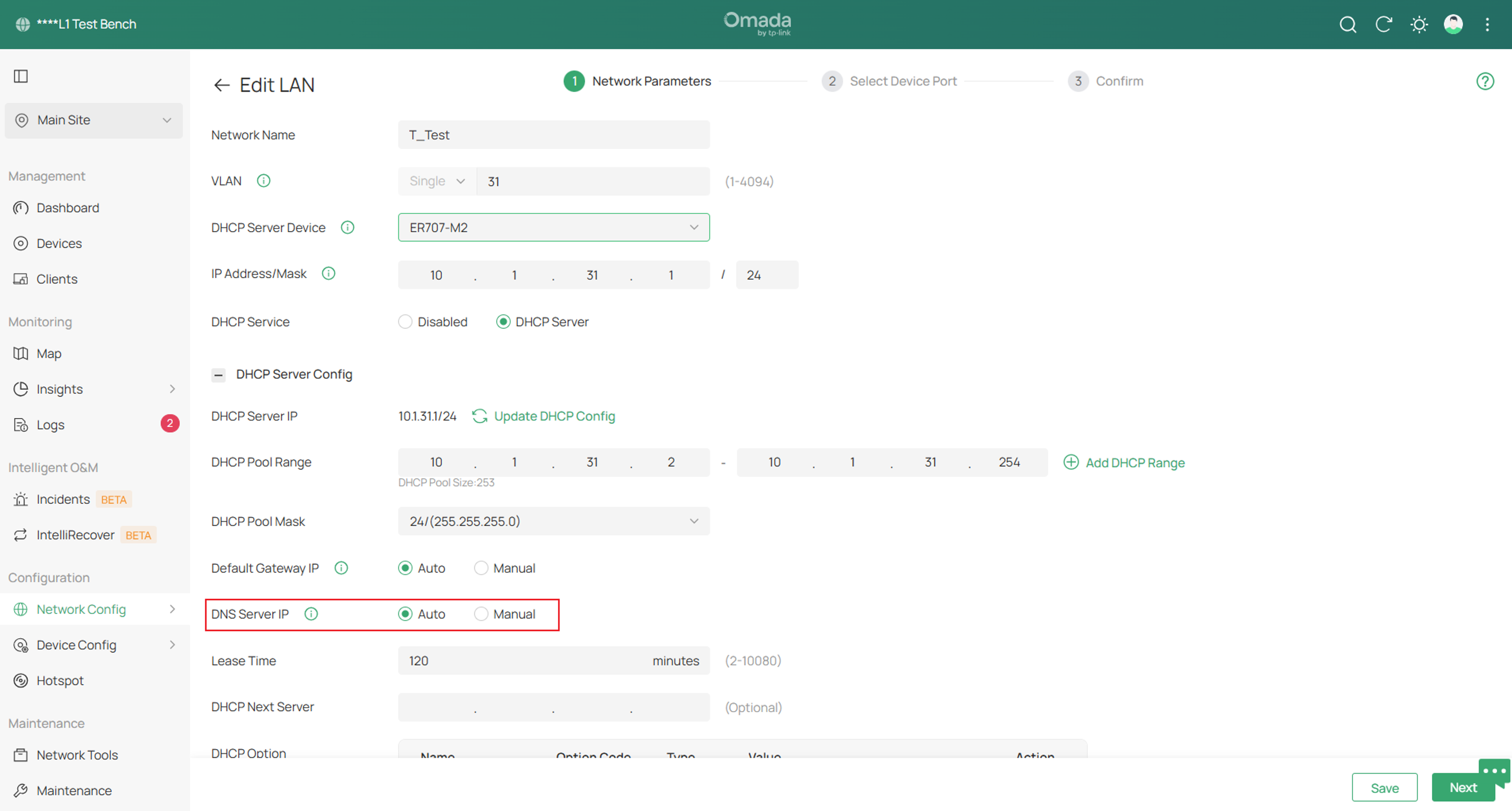
Step 3. Ensure that the LAN network is not manually configured with a DNS server.
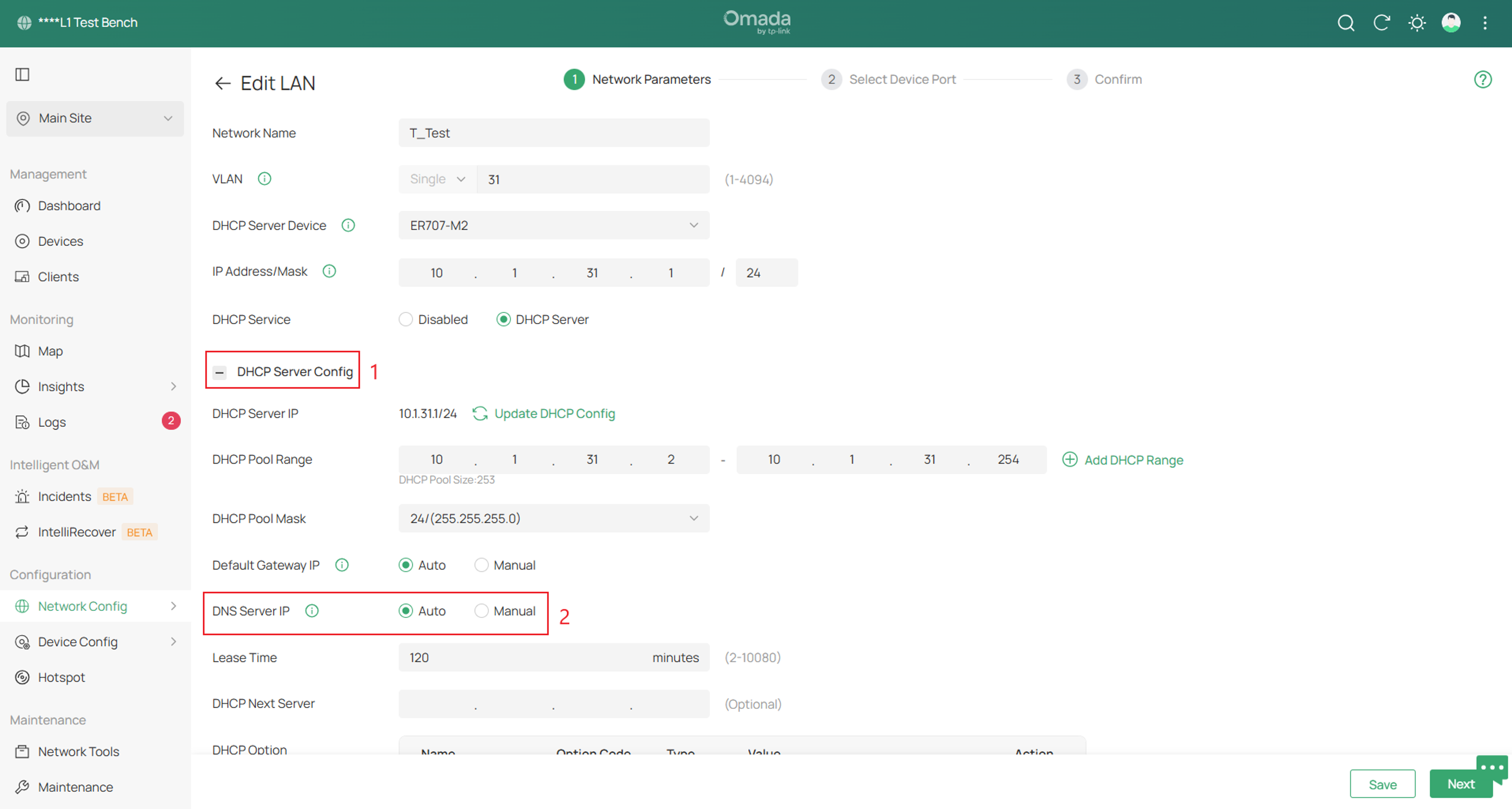
To confirm, navigate to Network Config > Network Settings > LAN and edit the network to make sure that the DNS Server IP is set to Auto,
Configuration for Secure DNS Proxy
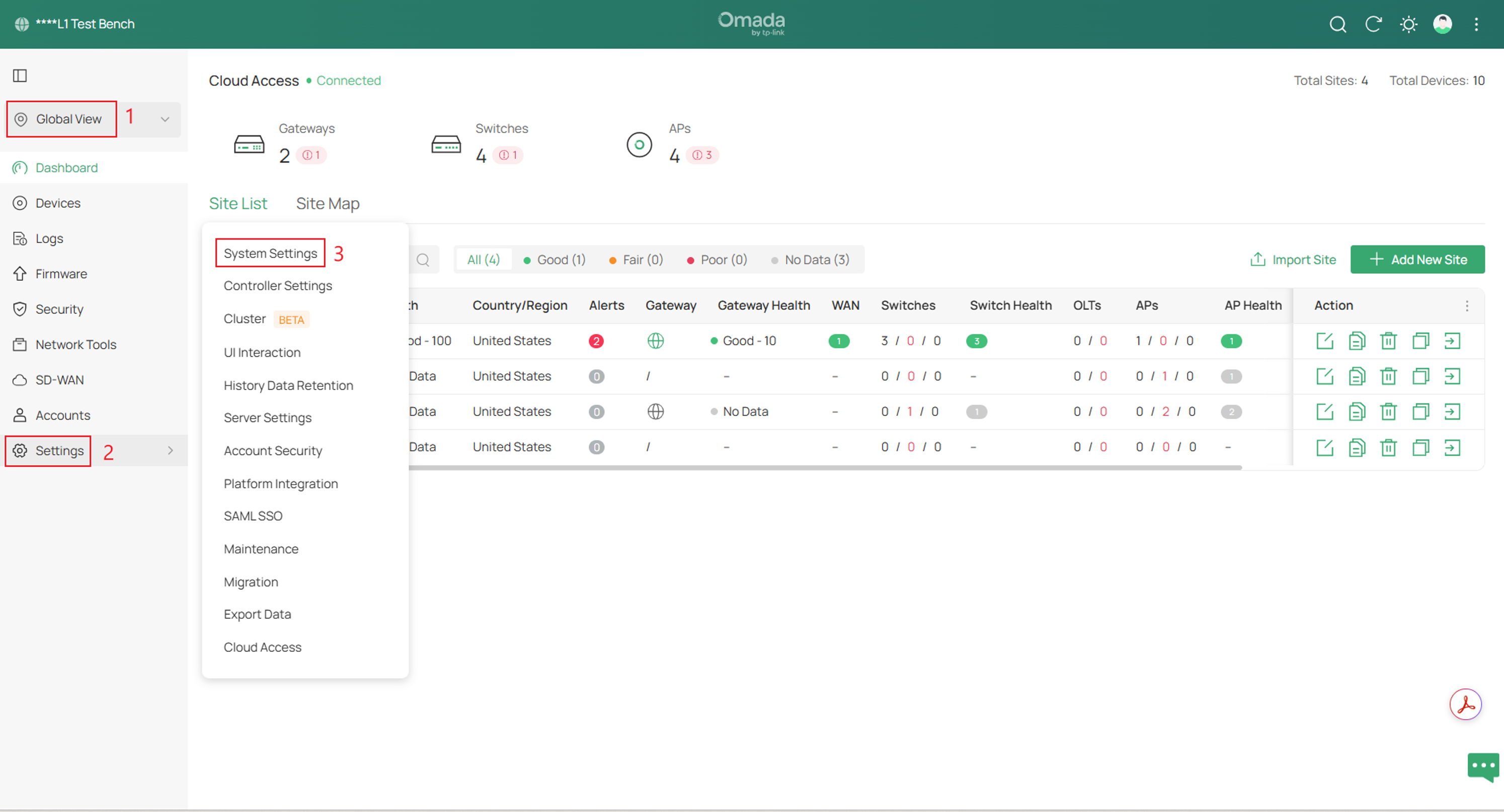
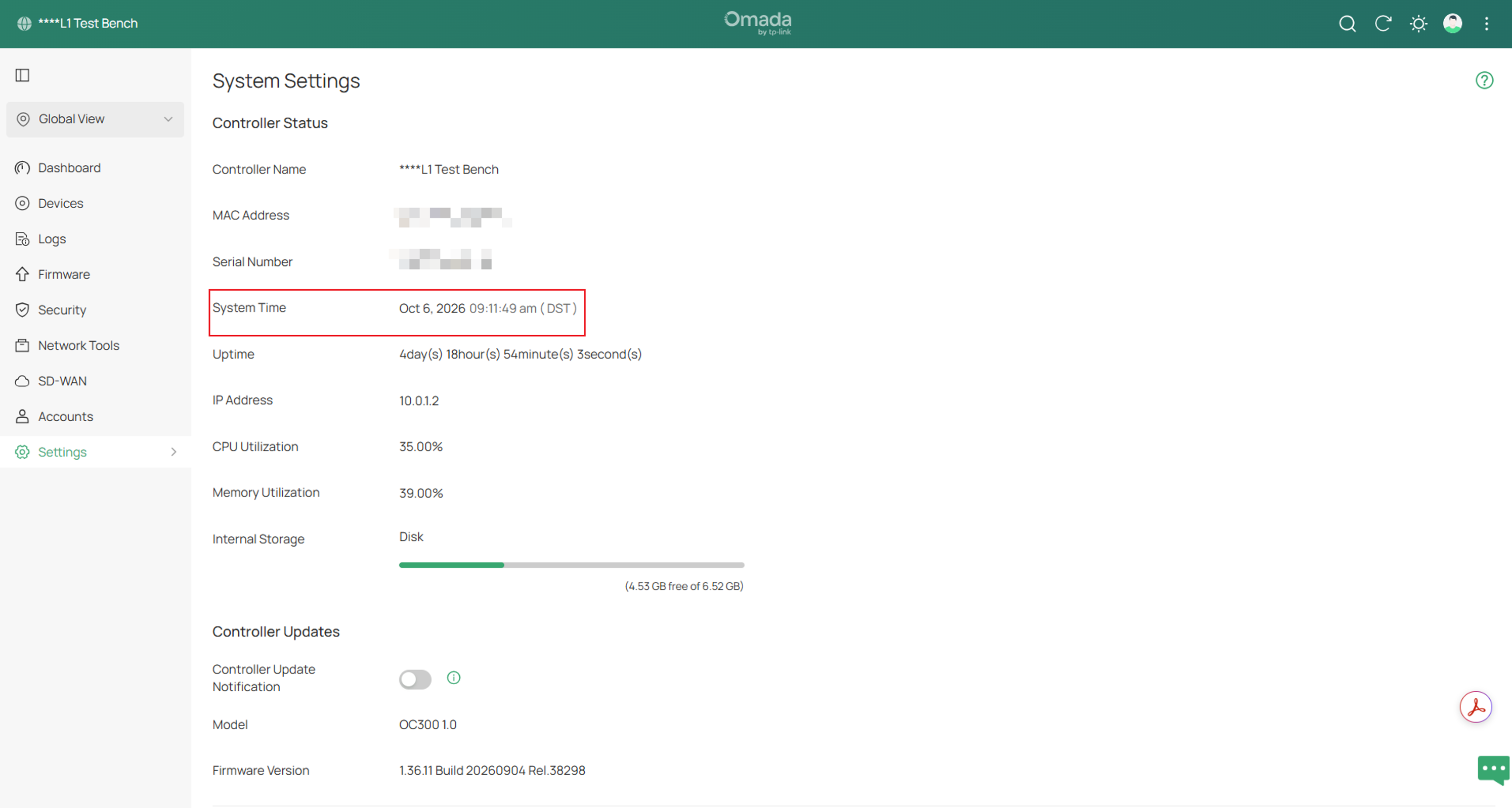
Note: The secure DNS proxy performs security verification based on real time. Ensure that the controller’s system time is synchronized with the NTP server.
Step 1. In Global View go to Settings > System Settings to confirm the controller System Time is correct.
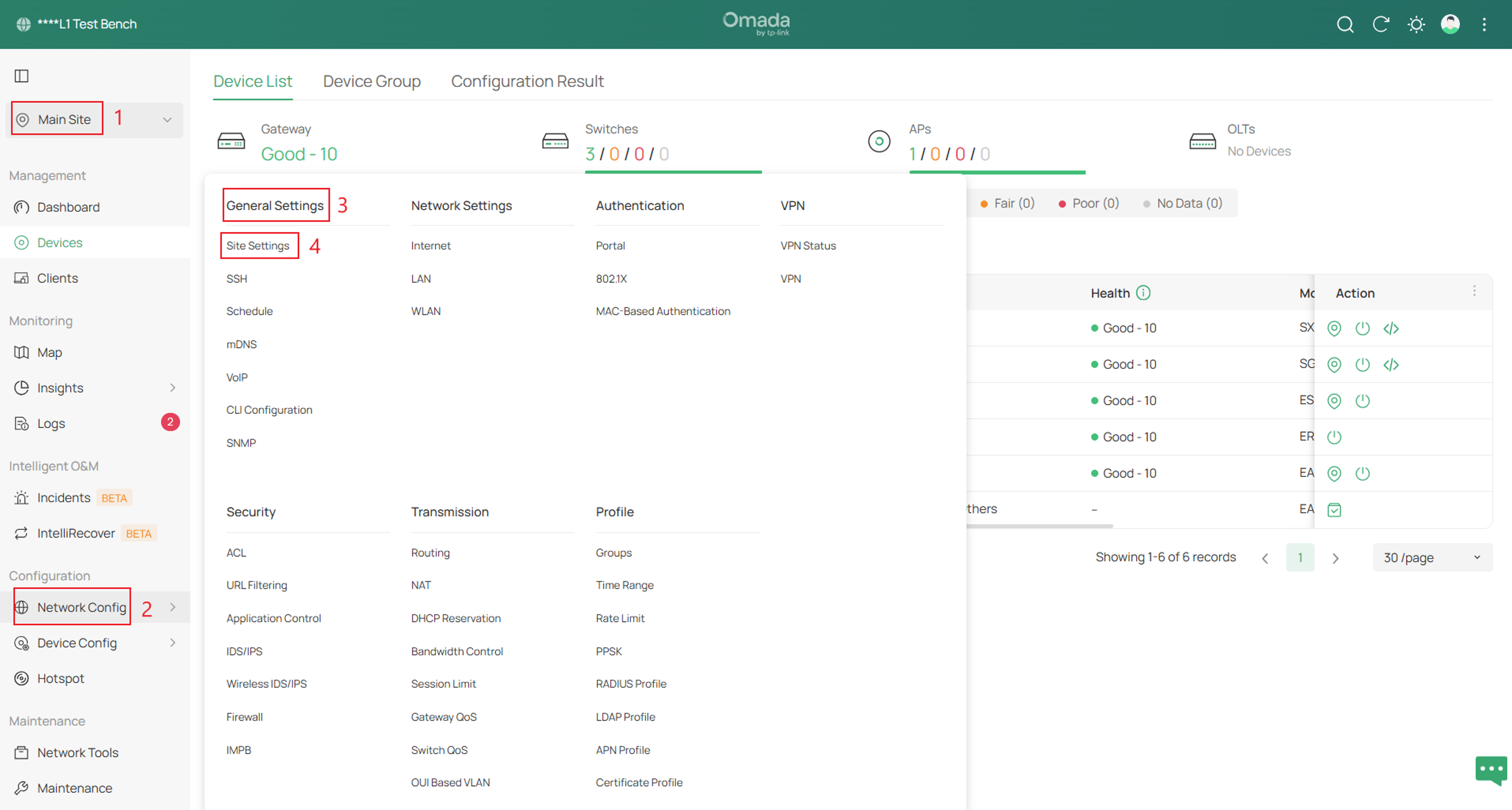
Step 2. In the Site navigate to Network Config > General Settings > Site Settings > Time Settings to confirm that the time zone is correct.
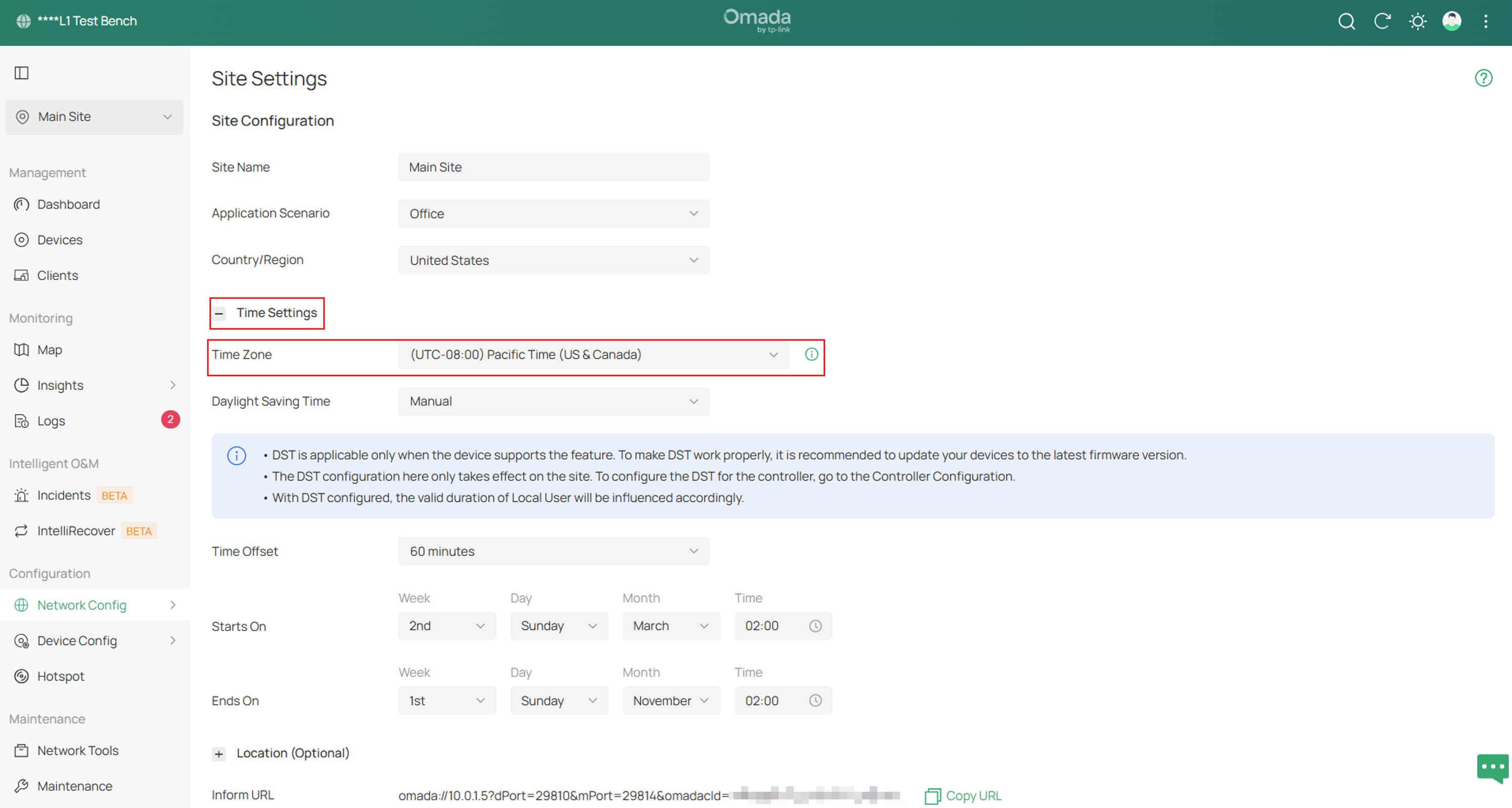
Step 3. Next, go to Device Config > Gateway > DNS.
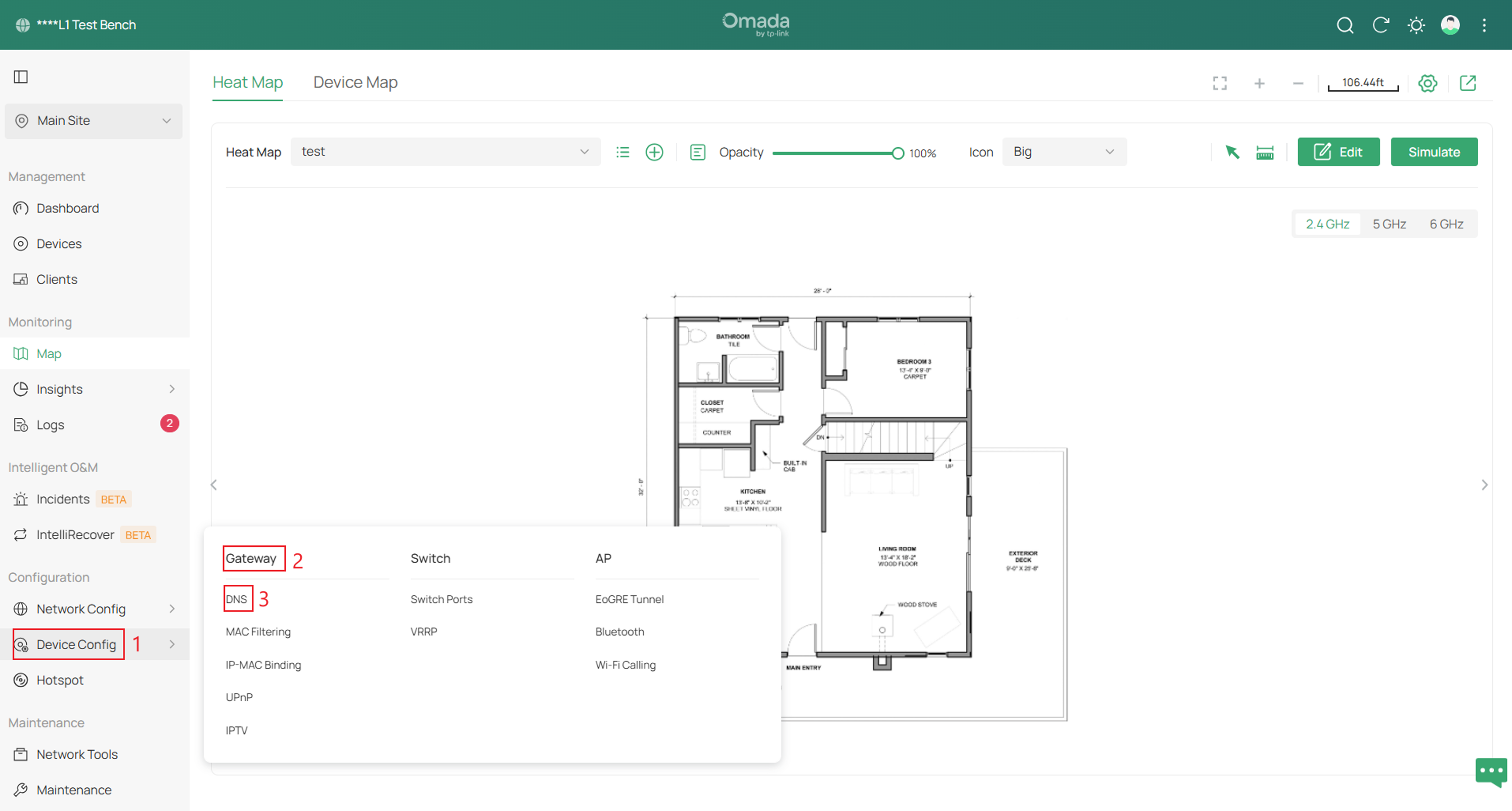
Step 4. Navigate to DNS Proxy > enable DNS Proxy > and select your Proxy Type.
DNS Proxy provides three security options: DNSSEC (DNS Security Extensions), DoT (DNS over TLS), and DoH (DNS over HTTPS). It also provides DNS Override, which redirects DNS requests from a selected LAN network to the configured DNS server.
DNSSEC verifies the integrity of DNS responses. DoT and DoH encrypt DNS traffic between the gateway and the upstream DNS server. DNS Override enforces DNS redirection even when a client is configured to use a different DNS server.
Below is an example of DNSSEC.
DNS Server: Specify the upstream DNS server to which DNS requests will be forwarded. For DoT and DoH, the system provides some known public DNS servers that support these security options. For DoH, the upstream DNS servers are usually websites with HTTPS URLs. For DNSSEC and DoT, servers are usually IP addresses.
Bogus DNS Reply: This is a special option for DNSSEC. Choose to drop/accept the bogus reply if the integrity of DNS records failed to be verified (which means the DNS record may be modified and is not trustworthy).
Primary DNS Server: Specify the primary upstream DNS server.
Secondary DNS Server: Specify the secondary upstream DNS server.
Apply Network: Specify the effective LAN network to apply DNS Override.
Step 5. Ensure that the LAN DNS settings are set to Auto if an Omada Gateway or Switch is acting as the DHCP server.
Note: For a client that uses a static IP address, manually set its DNS server to the IP address of the corresponding LAN interface on the Omada Gateway. If that LAN interface is also the client’s default gateway, use the default gateway IP address as the DNS server.
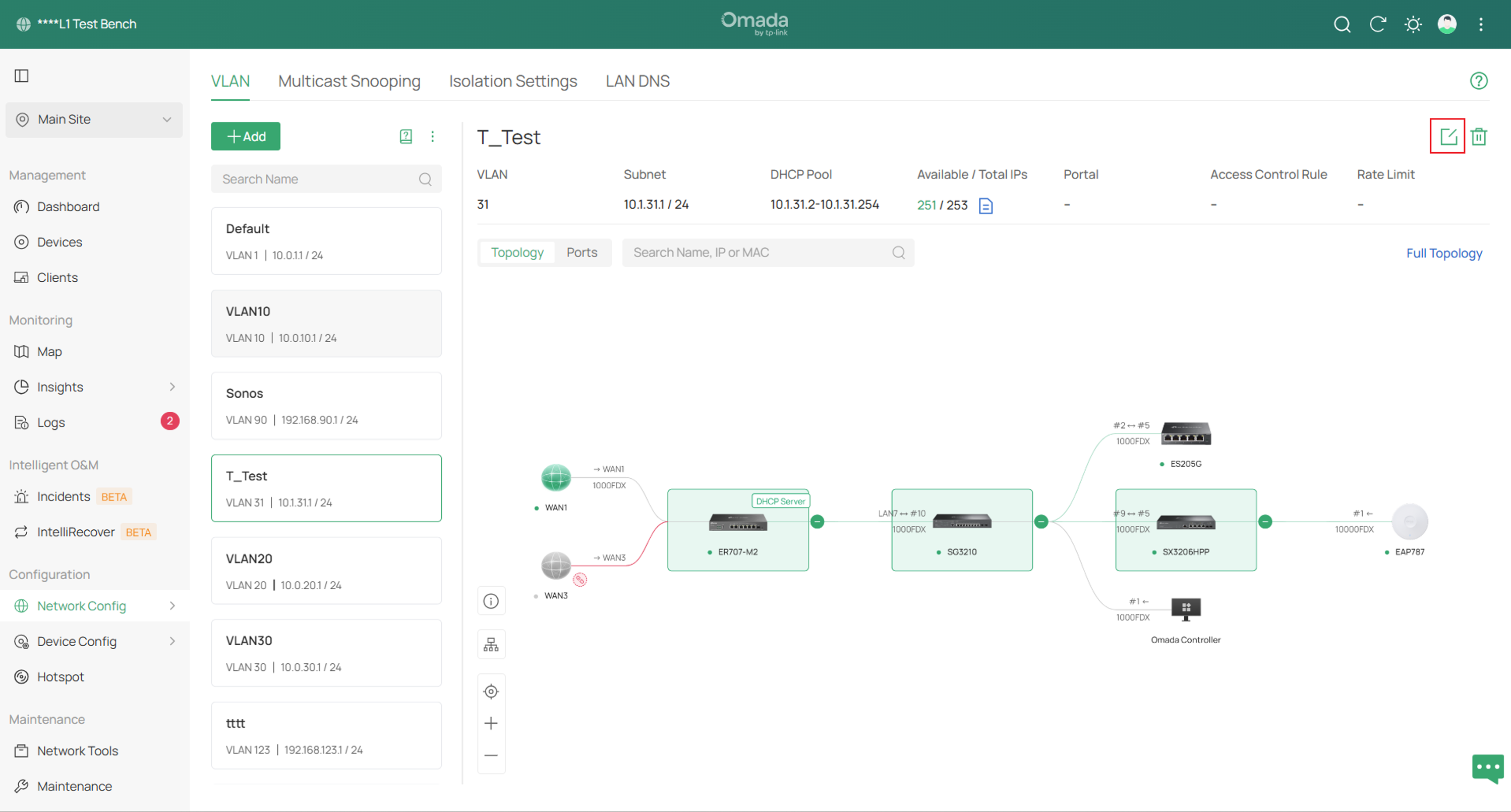
To check, please navigate to Network Config > Network Settings > LAN > select and Edit the network.
Step 6. Expand Server Config, set DNS Server IP to Auto, and click Save instead of Next to apply the setting.
Configuration for Standalone Mode
Configuration for Normal DNS Proxy
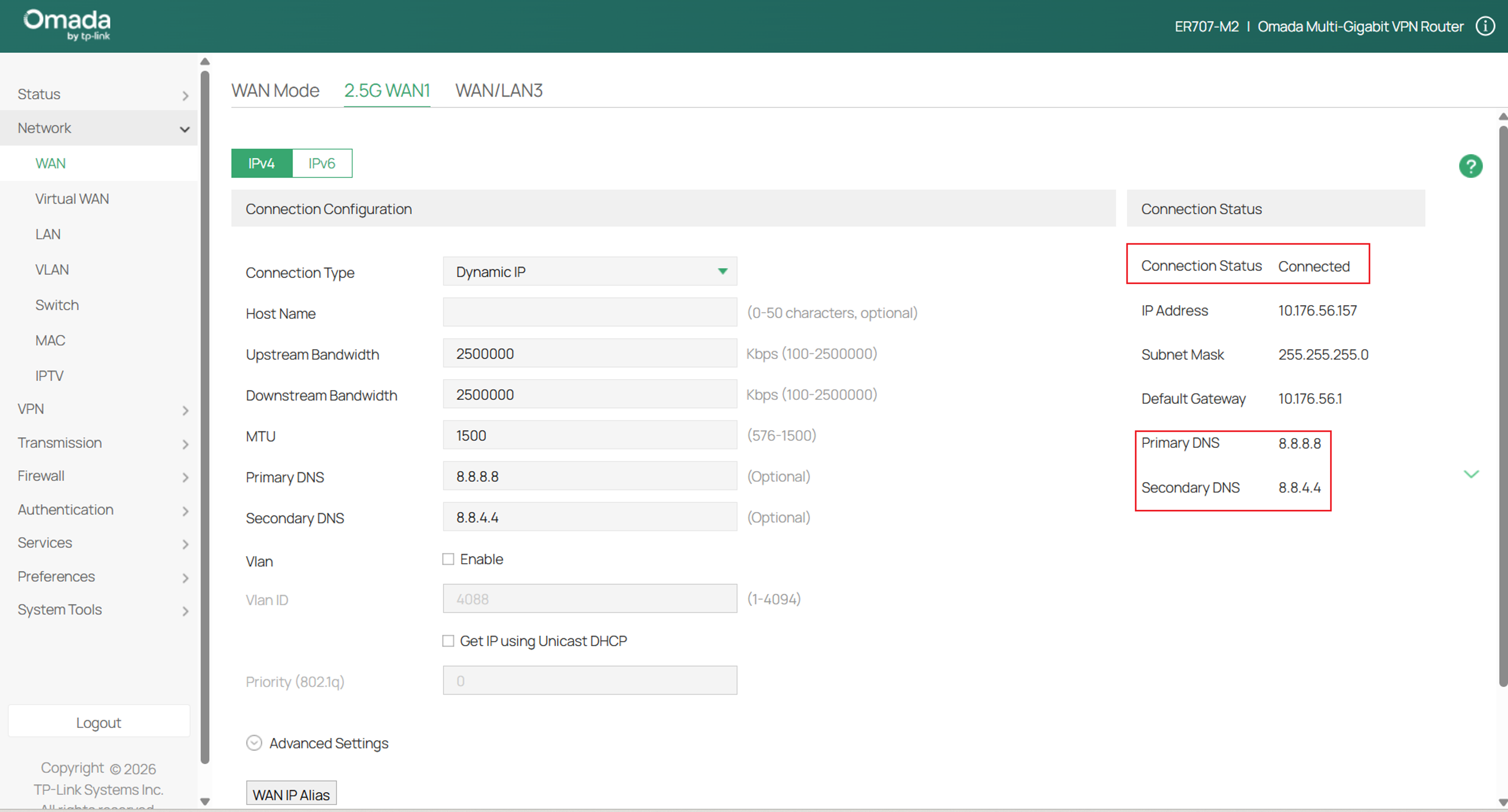
Step 1. Login to your Omada Gateway and navigate to Network > WAN > the WAN port that needs to be configured > and fill in the Primary and Secondary DNS.
Click Save once complete.
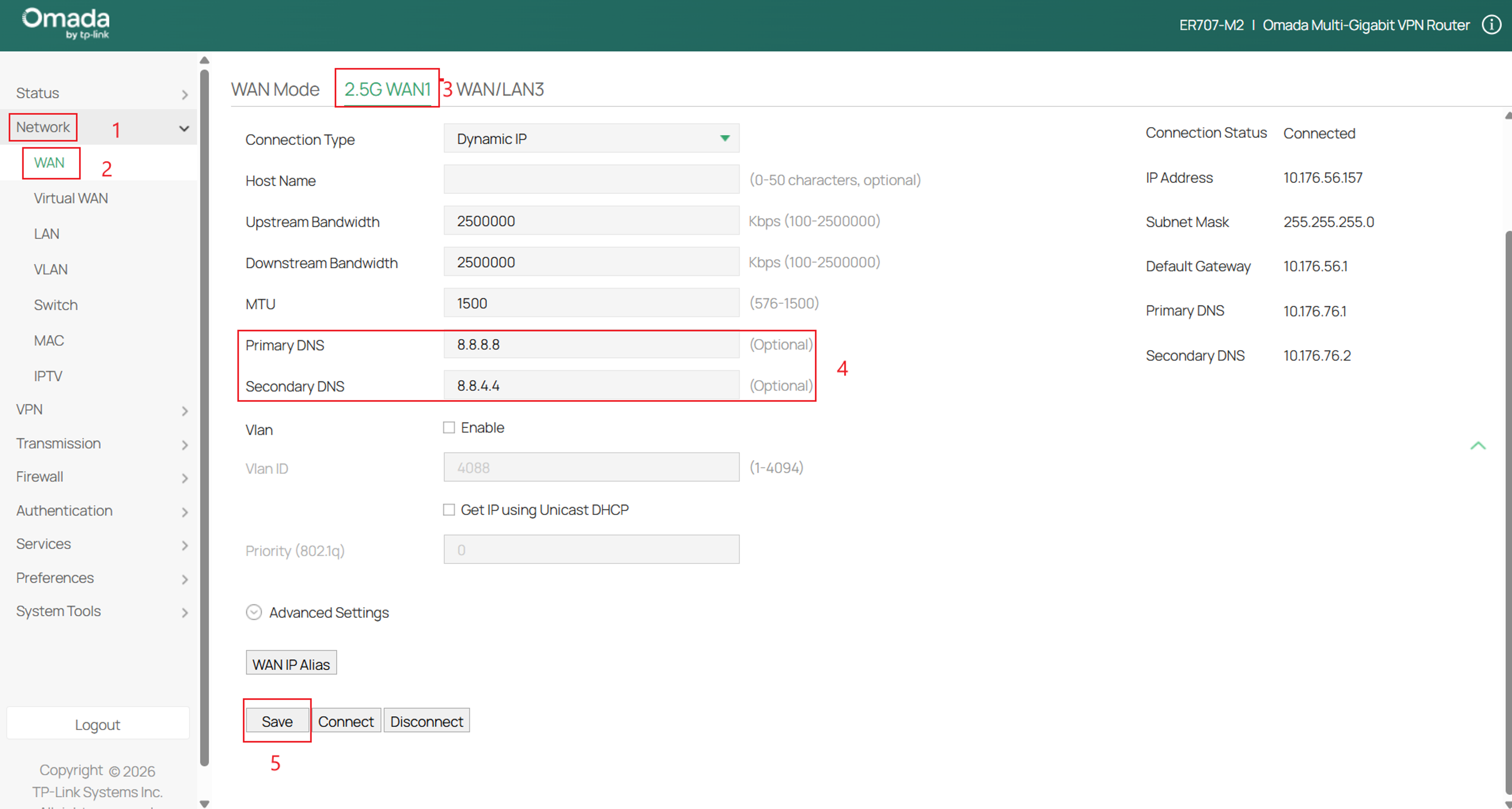
Step 2. After you click Save, the Connection Status on the right-hand side of the screen will change to Connecting, then to Connected, with the specified DNS servers populated.
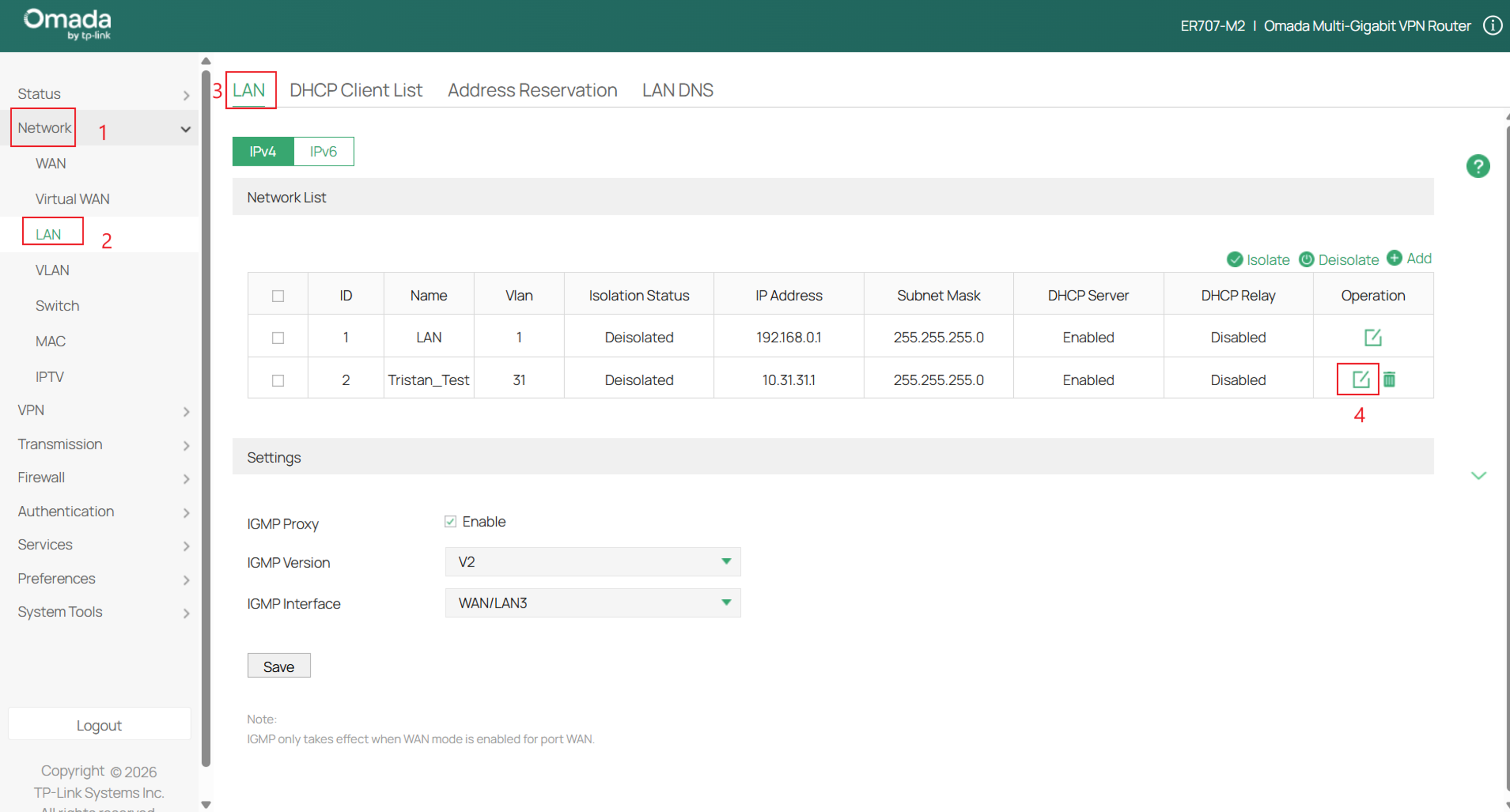
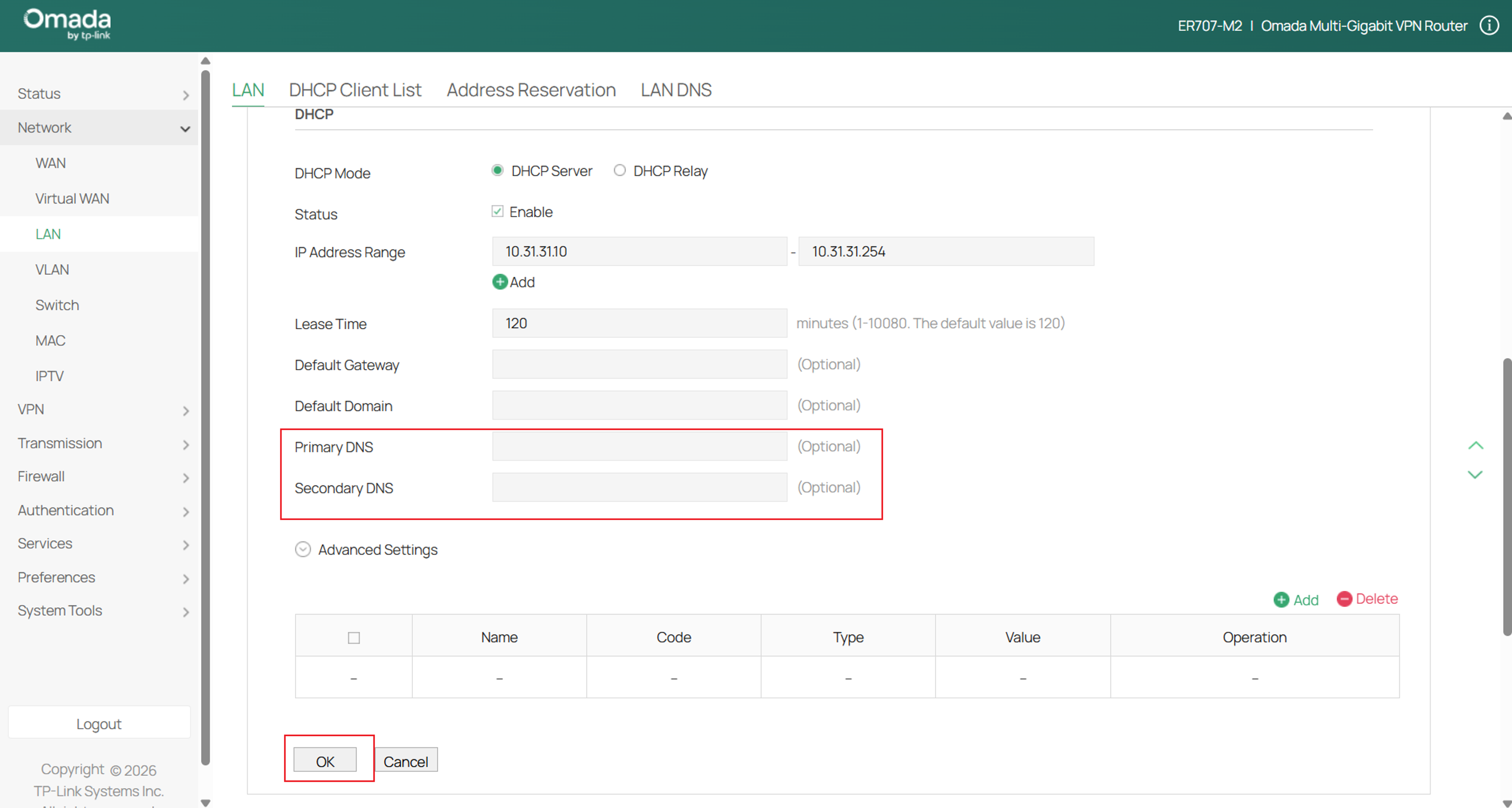
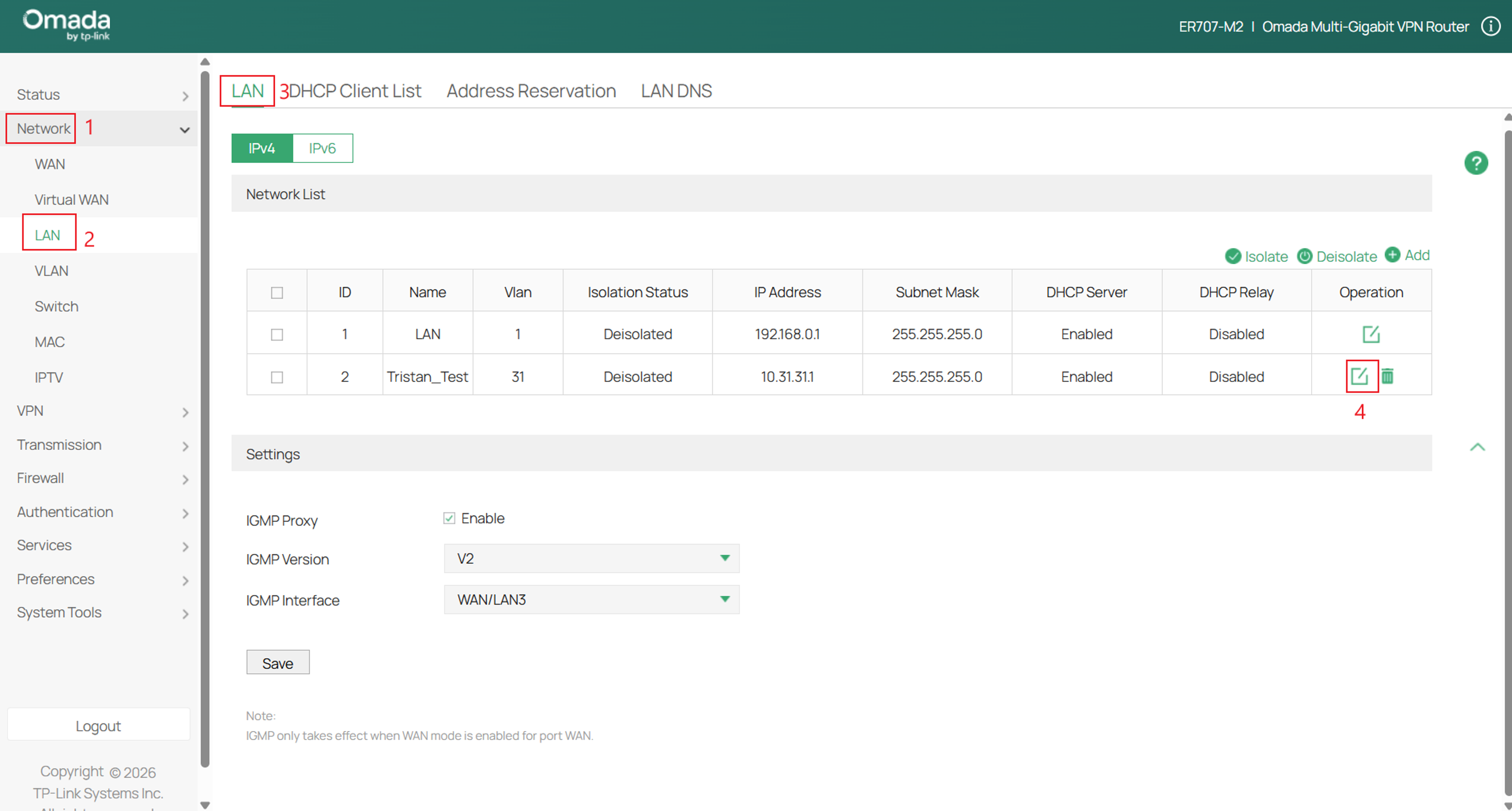
Step 3. Next go to Network > LAN > LAN > and edit a network to verify its DNS settings.
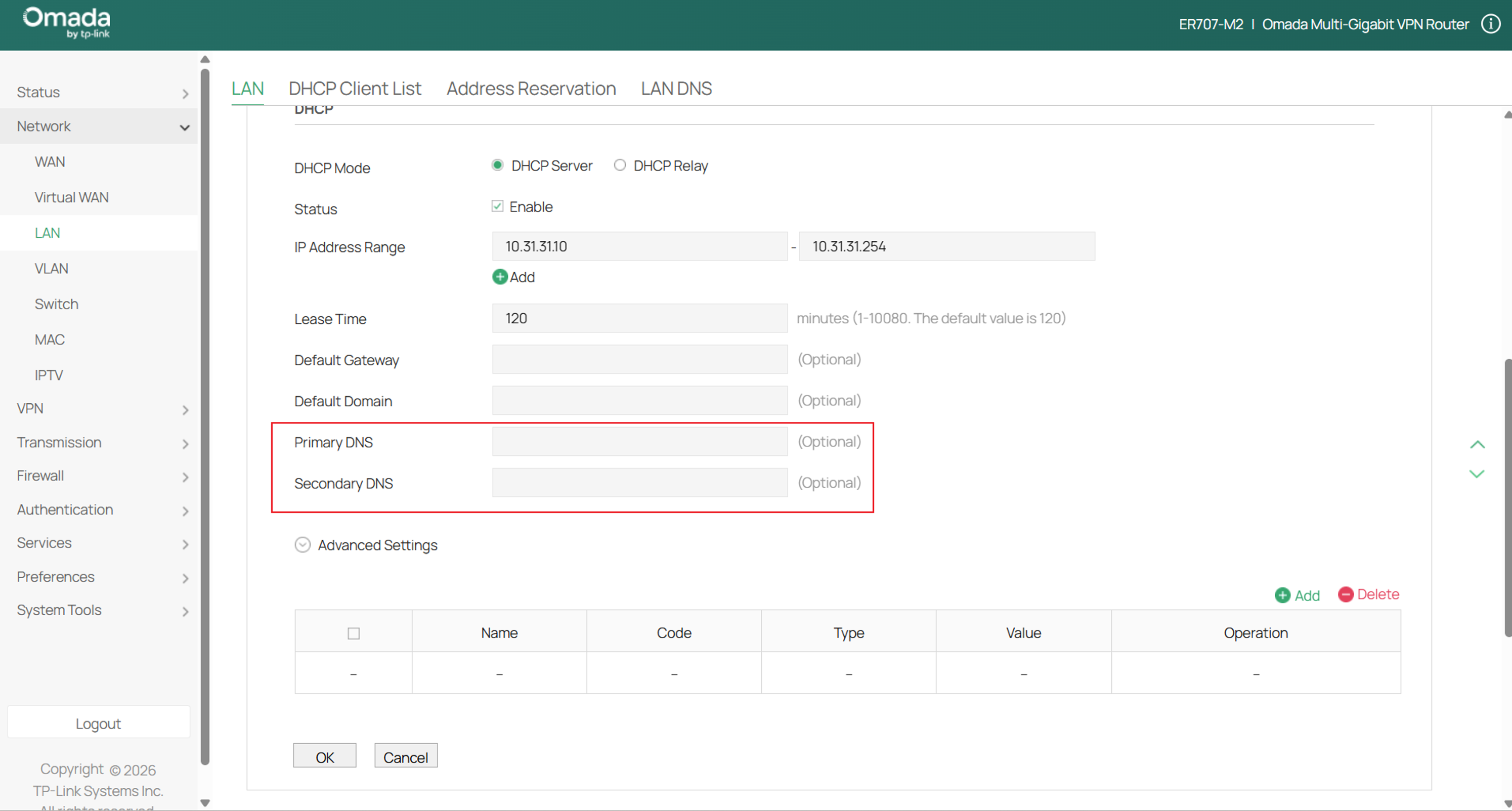
Leave Primary DNS and Secondary DNS blank to set the DNS automatically.
Click OK once complete.
Configuration for Secure DNS Proxy
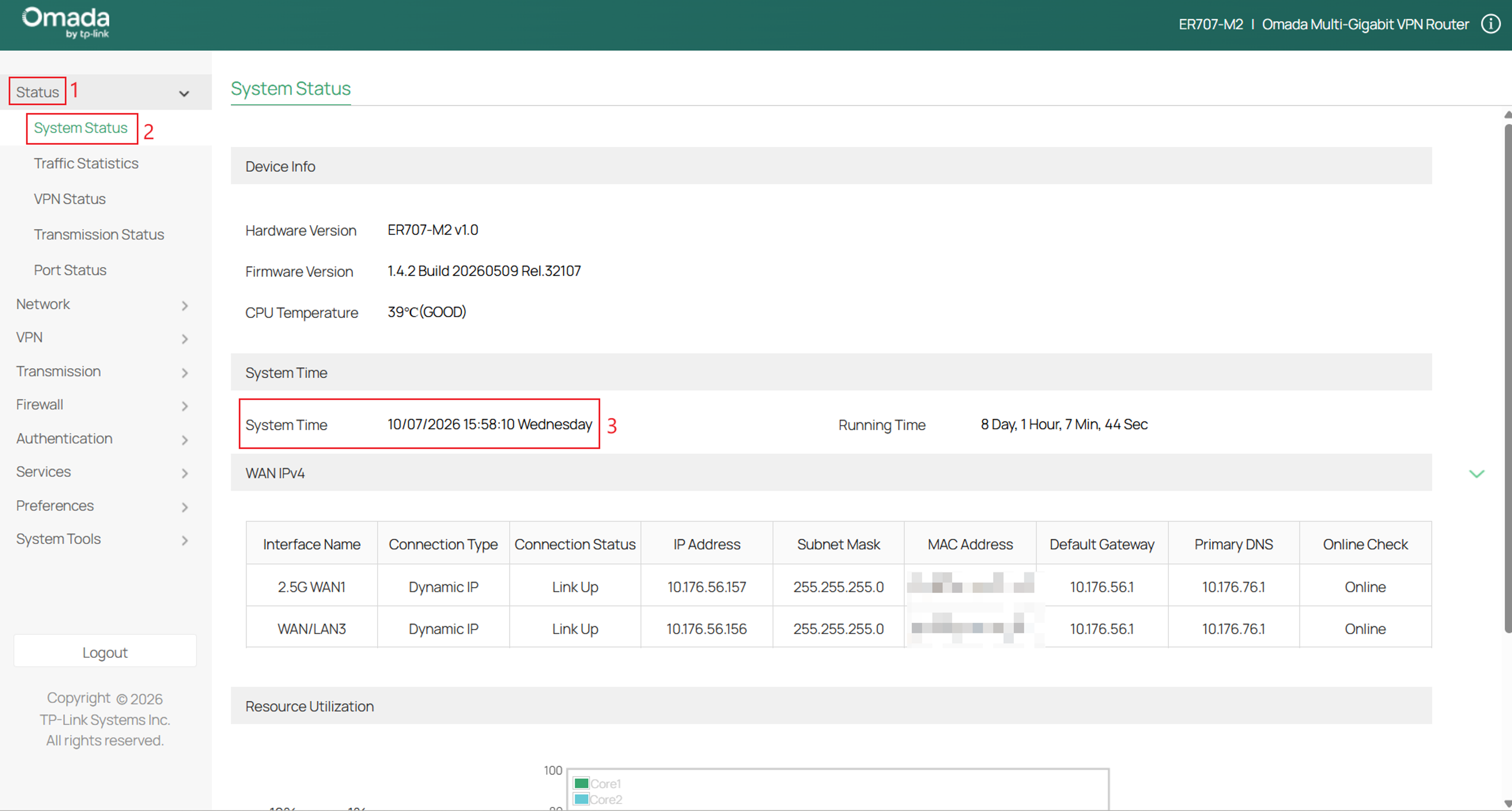
Note: Ensure that the router system time is correct. Accurate global time stamps are necessary for cryptographic algorithms of DNS with security options.
Step 1. Log in to the router and navigate to Status >System Status and ensure the System Time is correct.
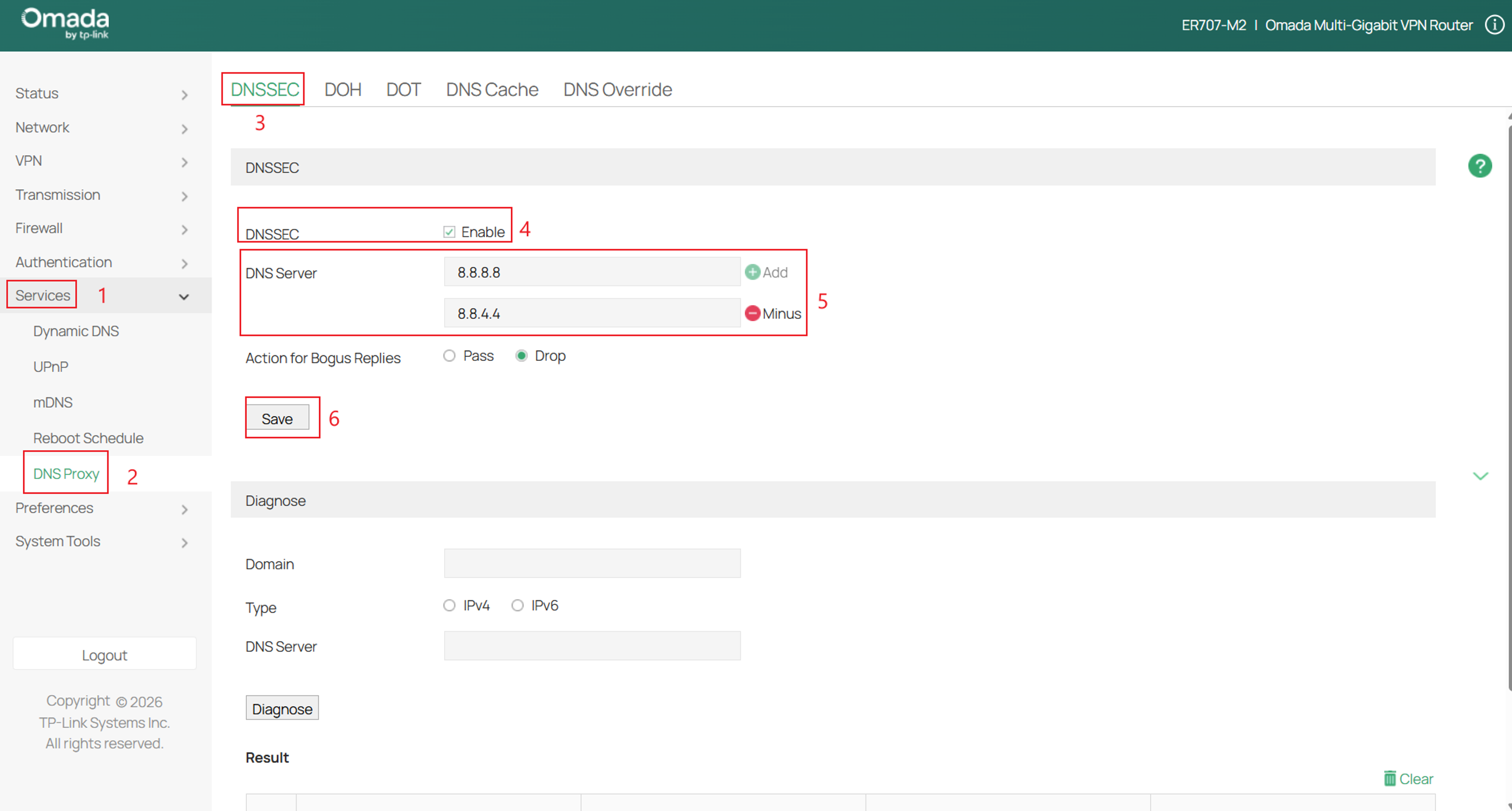
Step 2. Next navigate to Services > DNS Proxy > and select the desired DNS Proxy.
DNS Proxy provides four security options: DNSSEC (DNS Security Extensions), DoT (DNS over TLS), DoH (DNS over HTTPS), and DNS Override.
DNSSEC verifies the integrity of DNS records to help ensure the response has not been modified. DoT and DoH encrypt DNS queries to improve privacy and security.
When DNS Override is enabled, DNS requests from the selected LAN network are intercepted and redirected to a specified DNS server, even if the client is configured to use a different DNS server.
Optional: DNS Cache is available next to DNS Proxy in both Controller Mode and Standalone Mode and can be enabled separately in either mode. When enabled, the gateway stores recent DNS responses locally to speed up repeated DNS queries. To remove the stored entries, open DNS Cache and click Clear.
The example below will utilize DNSSEC.
Step 3. Verify the LAN DNS settings are automatically set.
Navigate to Network > LAN > LAN > edit the specific LAN and verify the Primary and Secondary DNS are blank.
Conclusion
DNS Proxy has now been configured on the Omada Gateway using either Normal DNS Proxy or Secure DNS Proxy in Controller or Standalone mode. DNS Proxy can help centralize DNS resolution while providing additional security options such as DNSSEC, DoT, and DoH.
To learn more about each function and configuration, please visit Support Home to download or check the manual for your product.
QA
Q1: Why is Secure DNS Proxy not resolving DNS requests after configuration?
A1: Confirm that the gateway system time is correct and synchronized.
If a custom DNS server is configured, verify that it supports the selected DNSSEC, DoT, or DoH option. Also, make sure the LAN DNS settings are configured to Auto so clients use the Omada Gateway for DNS resolution.
If the issue continues, test with one of the default supported DNS servers.
