


Contents
Introduction
Access Control Lists (ACLs) on Omada EAPs provide a way to control wireless client traffic by defining rules that permit or deny access to specific networks, resources, or services. ACL policies can help strengthen network security, reduce unauthorized access, and enforce network segmentation requirements across wireless environments.
Common use cases for EAP ACLs include:
- Preventing wireless clients from accessing sensitive internal resources.
- Restricting access between SSIDs, VLANs, or network segments.
- Limiting access to specific devices, IP addresses, or services.
- Enforcing security policies for guest and employee wireless networks.
This guide demonstrates how to configure an EAP ACL on the Omada Controller and explains the available rule parameters.
Requirements
- Omada Controller (Software Controller / Hardware Controller / Cloud-Based Controller)
- Omada EAP
Configuration
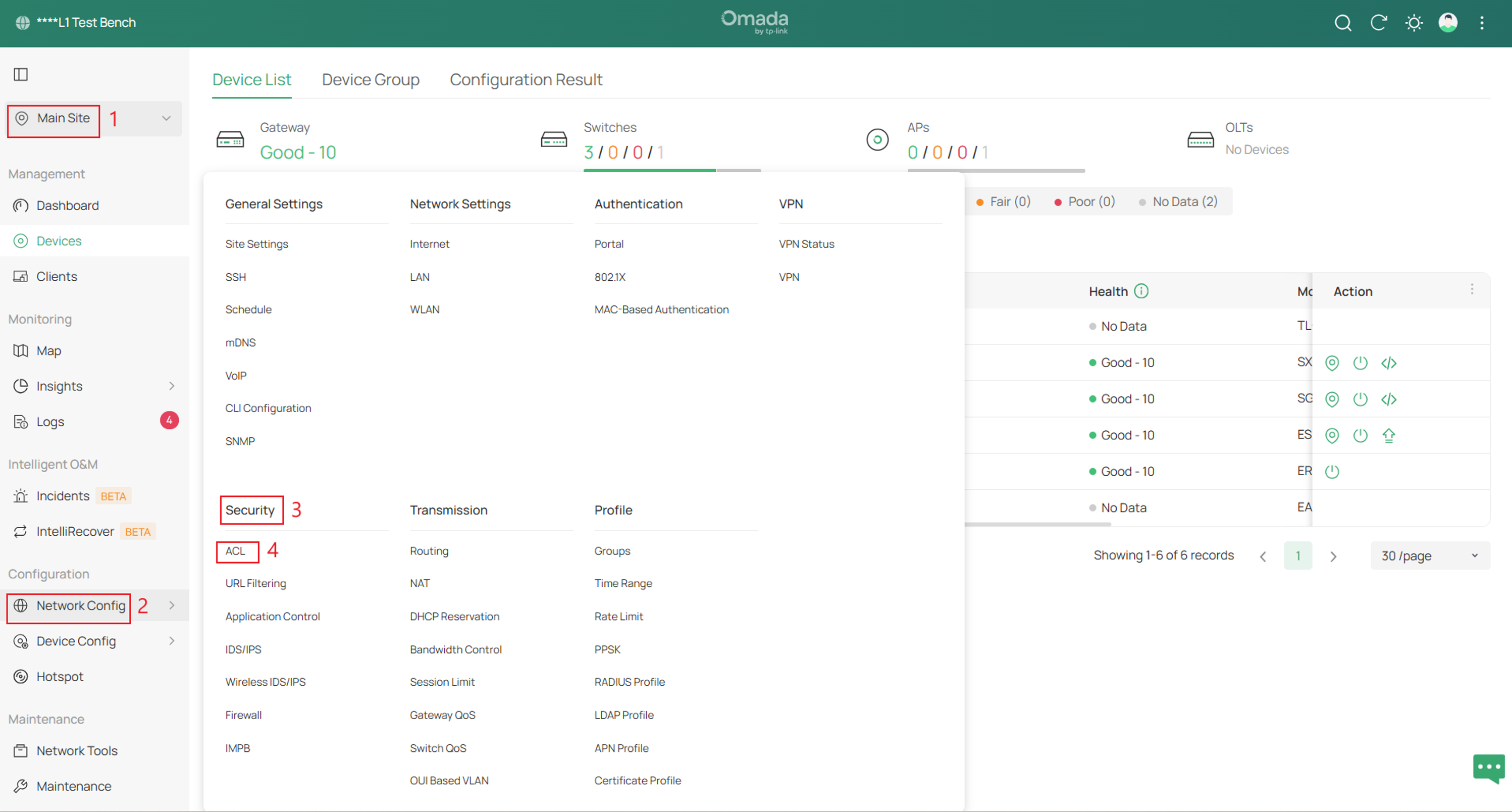
Step 1. Log in to the controller and navigate to Site > Network Config > Security > ACL.
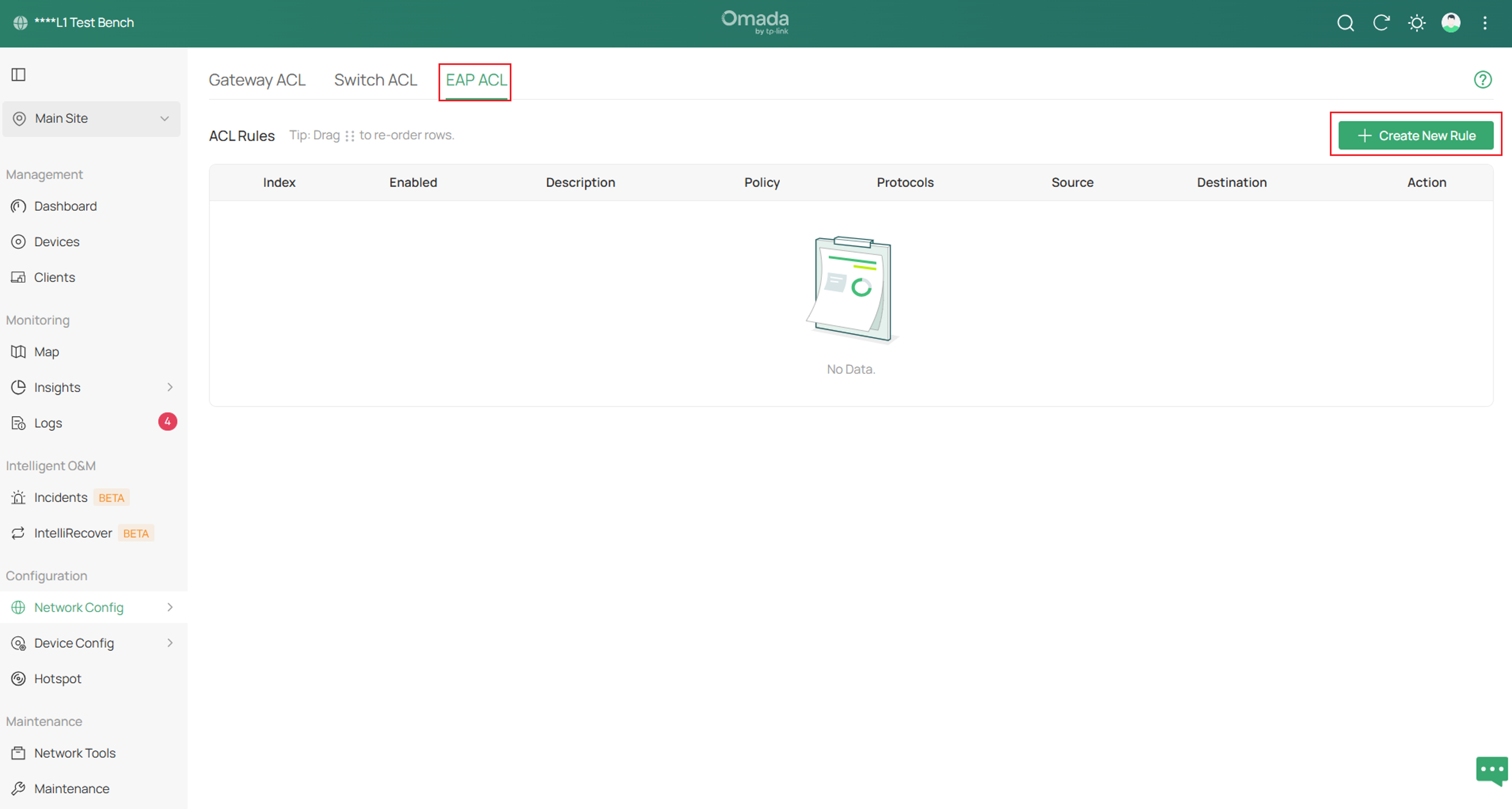
Step 2. Next, navigate to EAP ACL and click + Create New Rule.
Step 3. Fill in the parameters and click Create once complete.
The example below is of an SSID being blocked from accessing the Default VLAN.
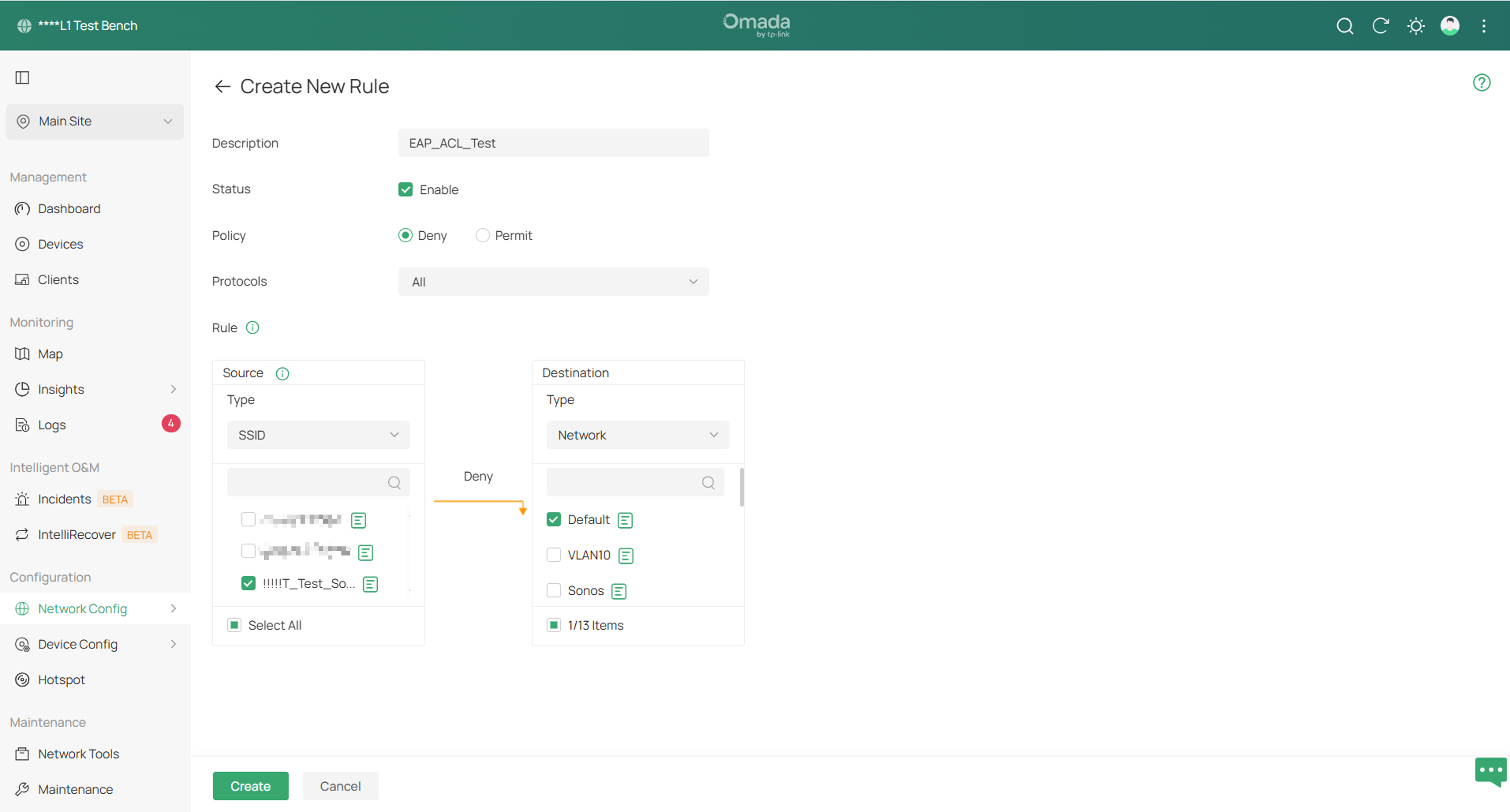
Note: EAP ACL rules apply only to wireless client traffic.
Description: Enter a description to identify the ACL.
Status: Click the checkbox to enable the ACL.
Policy: Select the action to be taken when a packet matches the rule.
- Deny: Discard the matched packet.
- Permit: Forward the matched packet.
Note: Packets that do not match any EAP ACL rule are permitted by default.
Protocols: Select one or more protocol types to which the rule applies from the drop-down list. The default is All, indicating that packets of all protocols will be matched. With one of TCP, UDP or both are selected, you can set the IP address and port number of a packet as packet-filtering criteria in the rule.
Rule:
Source: Source: Specifies the source address in IP or CIDR format. An empty value matches any address
- Network: Select the network you have created. If no networks have been created, you can select the default network (LAN), or go to Network Config > Network Settings > LAN to create one.
- IP Group: Select the IP Group you have created. If no IP Groups have been created, click + Create on this page or go to Network Config > Profile > Groups to create one. The system will examine whether the source IP address of the packet is in the IP Group.
- IP-Port Group: Select the IP-Port Group you have created. If no IP-Port Groups have been created, click + Create on this page or go to Network Config > Profile > Groups to create one. The system will examine whether the source IP address and port number of the packet are in the IP-Port Group.
- SSID: Select the SSID you have created. If no SSIDs have been created, go to Network Config > Network Settings > WLAN to create one. The system will examine whether the SSID of the packet is the SSID selected here.
- IPv6 Group: Select the IPv6 Group you have created. If no IPv6 Groups have been created, click + Create on this page or go to Network Config > Profile > Groups to create one. The system will examine whether the destination IPv6 address of the packet is in the IPv6 Group.
- IPv6-Port Group: Select the IPv6-Port Group you have created. If no IPv6-Port Groups have been created, click + Create on this page or go to Network Config > Profile > Groups to create one. The system will examine whether the destination IPv6 address and port number of the packet are in the IPv6-Port Group.
Destination: Select the destination criteria from the drop-down list to compare against a packet.
- Network: Select the network you have created. If no networks have been created, you can select the default network (LAN), or go to Network Config > Network Settings > LAN to create one.
- IP Group: Select the IP Group you have created. If no IP Groups have been created, click + Create on this page or go to Network Config > Profile > Groups to create one. The system will examine whether the destination IP address of the packet is in the IP Group.
- IP-Port Group: Select the IP-Port Group you have created. If no IP-Port Groups have been created, click + Create on this page or go to Network Config > Profile > Groups to create one. The system will examine whether the destination IP address and port number of the packet are in the IP-Port Group.
- MAC Group: Select the MAC Group you have created. If no MAC Groups have been created, click + Create on this page or go to Network Config > Profile > Groups to create one. The system will examine whether the destination MAC address of the packet is in the MAC Group.
- IPv6 Group: Select the IPv6 Group you have created. If no IPv6 Groups have been created, click + Create on this page or go to Network Config > Profile > Groups to create one. The system will examine whether the destination IPv6 address of the packet is in the IPv6 Group.
- IPv6-Port Group: Select the IPv6-Port Group you have created. If no IPv6-Port Groups have been created, click + Create on this page or go to Network Config > Profile > Groups to create one. The system will examine whether the destination IPv6 address and port number of the packet are in the IPv6-Port Group.
Conclusion
An EAP ACL rule has now been configured on the Omada Controller. By defining source, destination, protocol, and action criteria, EAP ACLs can be used to permit or deny wireless client access to specific network resources and services.
Properly configured ACL policies help improve wireless network security, enforce access control requirements, and support network segmentation strategies. Additional ACL rules can be created as needed to meet different security and traffic-management requirements within the deployment.
To learn more about each function and configuration, please visit Support Home to download or check the manual for your product.
QA
Q1: What should be checked if the EAP ACL rule is not working as expected?
A1: Verify that the ACL rule is enabled and that the configured Policy, Protocol, Source, and Destination match the intended traffic. Confirm that any selected Network, SSID, IP Group, IP-Port Group, MAC Group, IPv6 Group, or IPv6-Port Group contains the correct clients, addresses, or ports. If multiple ACL rules are configured, also check whether another rule may be matching the traffic first or affecting the expected result.
