


Contents
For Local User Accounts of Software and Hardware Controller
For Cloud User Accounts and Cloud Based Controller
Introduction
To ensure flexible management, the Omada Controller supports various account types (such as Local User and Cloud User) and permission levels (Owner, Super Admin, Admin, and Viewer). If you have lost access to your account or forgotten your password, please follow the troubleshooting steps below.
Requirements
- Omada Controller (v6.2.0 and above)
- Internet-enabled PC with email access
Configuration
For Local User Accounts of Software and Hardware Controller
- Regular Local User Accounts
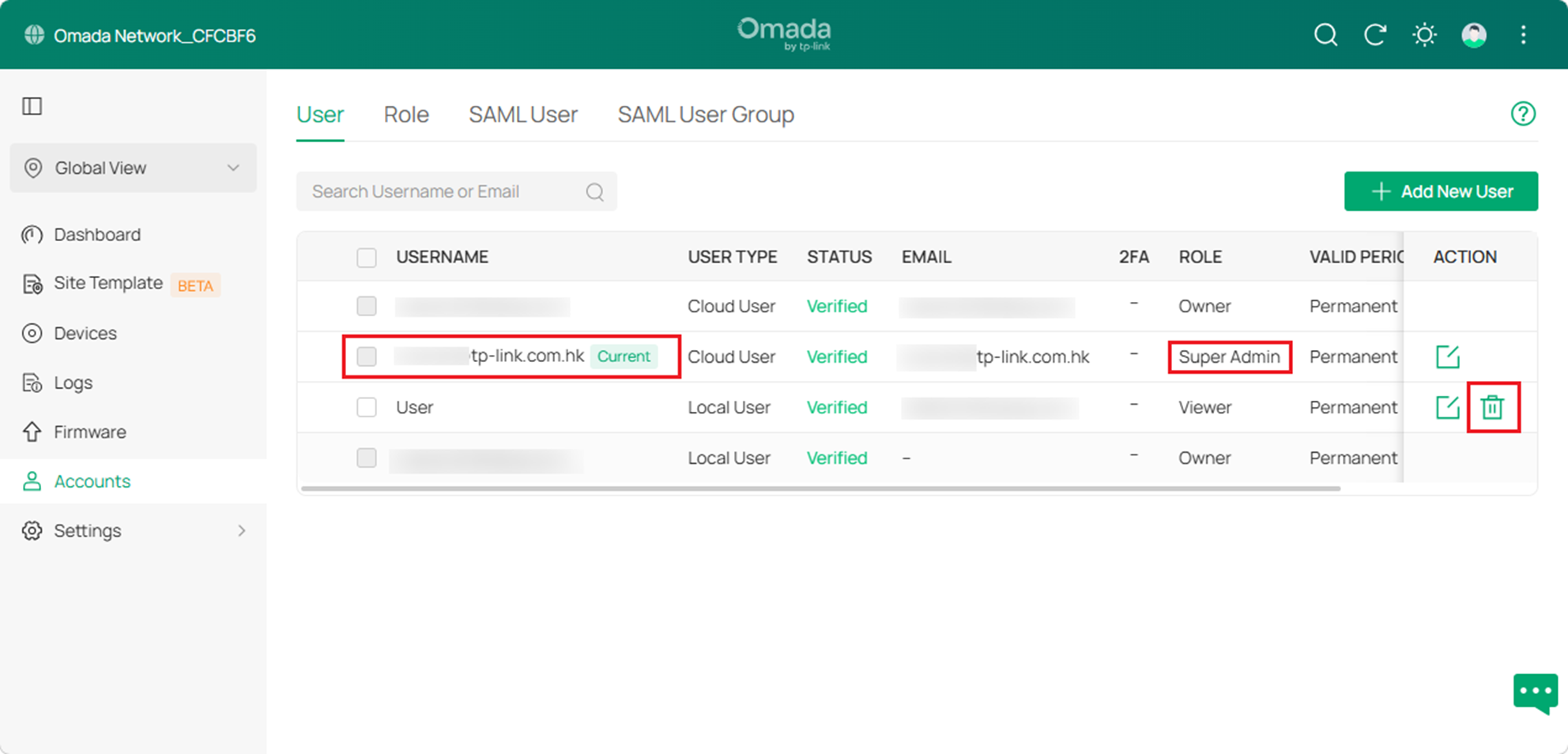
If your account is a non-Owner local account, it can be easily resolved. You can contact the Owner, Super Admin or any role with Account Management permissions to recreate an account for you.
Step 1. Navigate to Global View > Accounts.
Step 2. As shown in the image, contact the administrator for assistance in registering a new Local account and deleting the original account.
- Email-Linked Local User Accounts
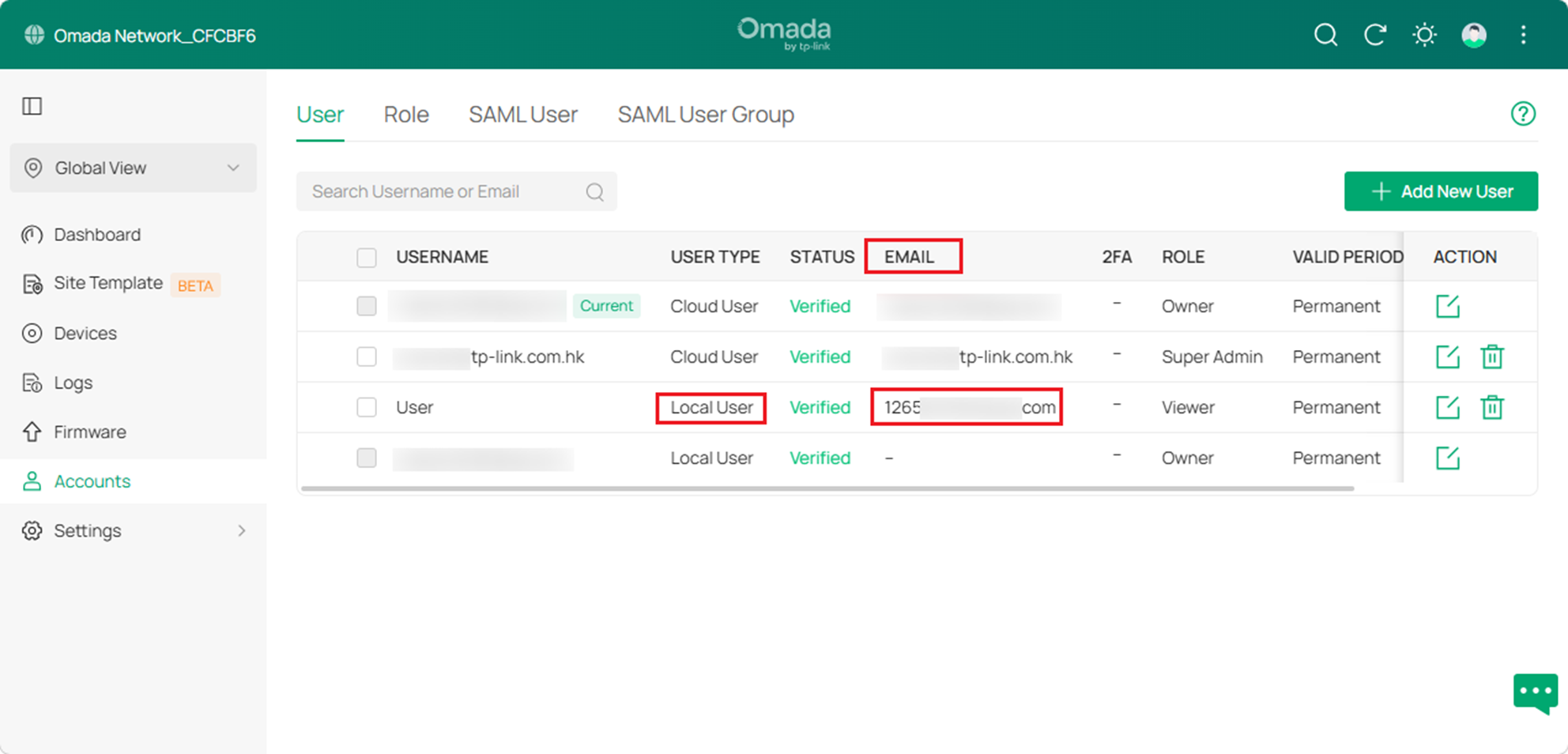
If your local account is linked to an email address, you can reset your password using that email address. For example, the account named "User" in the image is linked to an email address of 1265***.com.
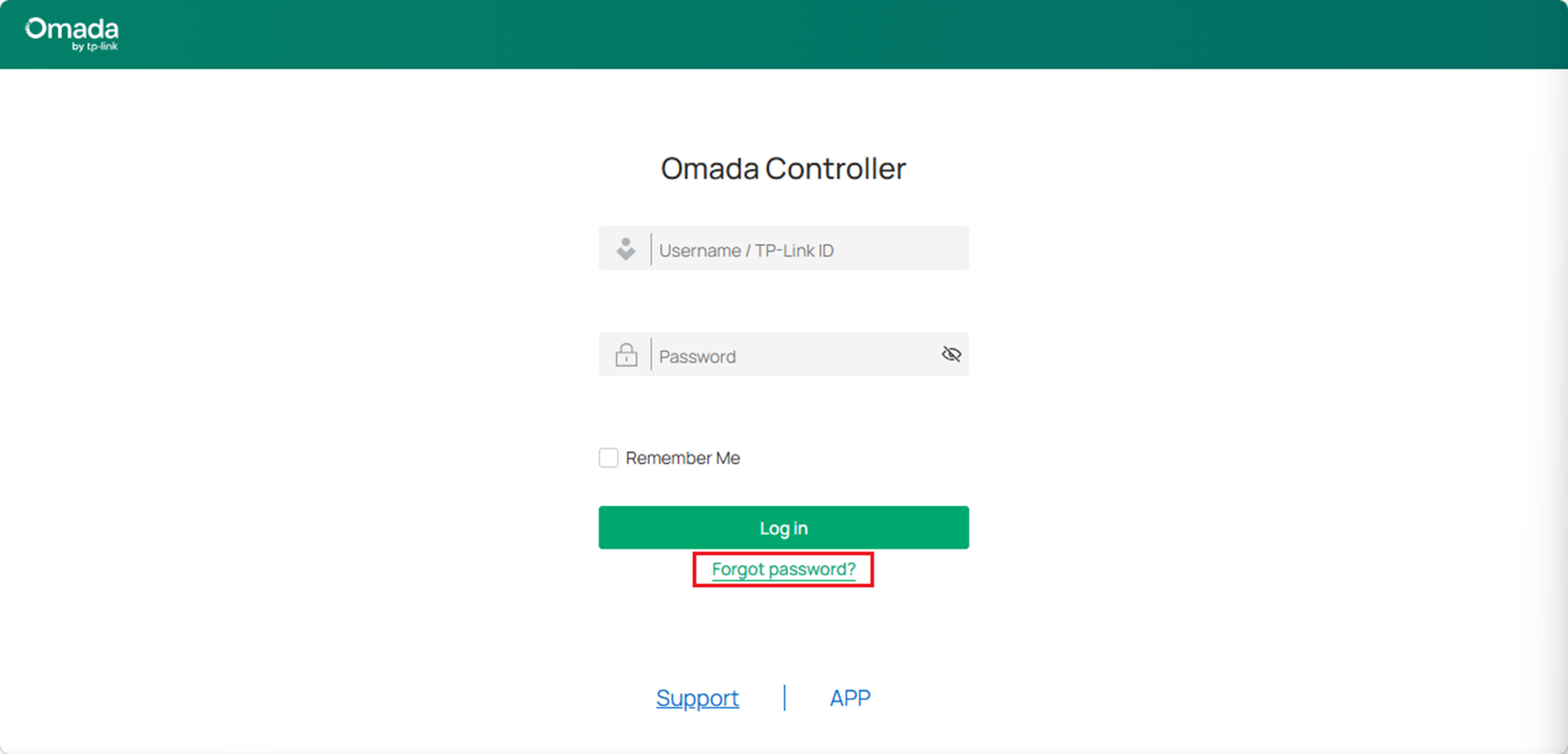
Step 1. Access your Controller's login page and click the "Forgot password" button.
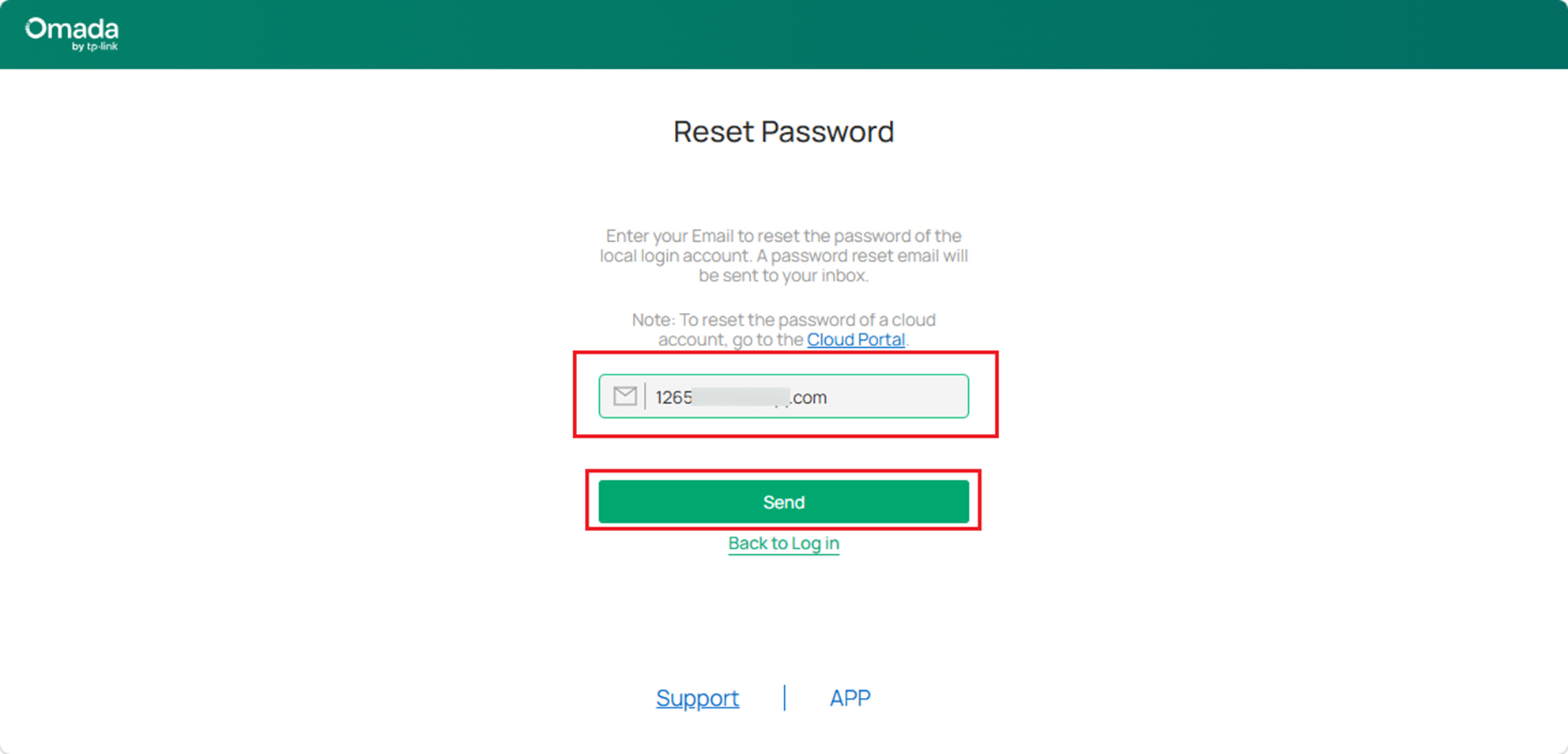
Step 2. Enter the email address linked to your Local Account. Here, I want to retrieve the password for this “User” account, so I entered 1265***.com.
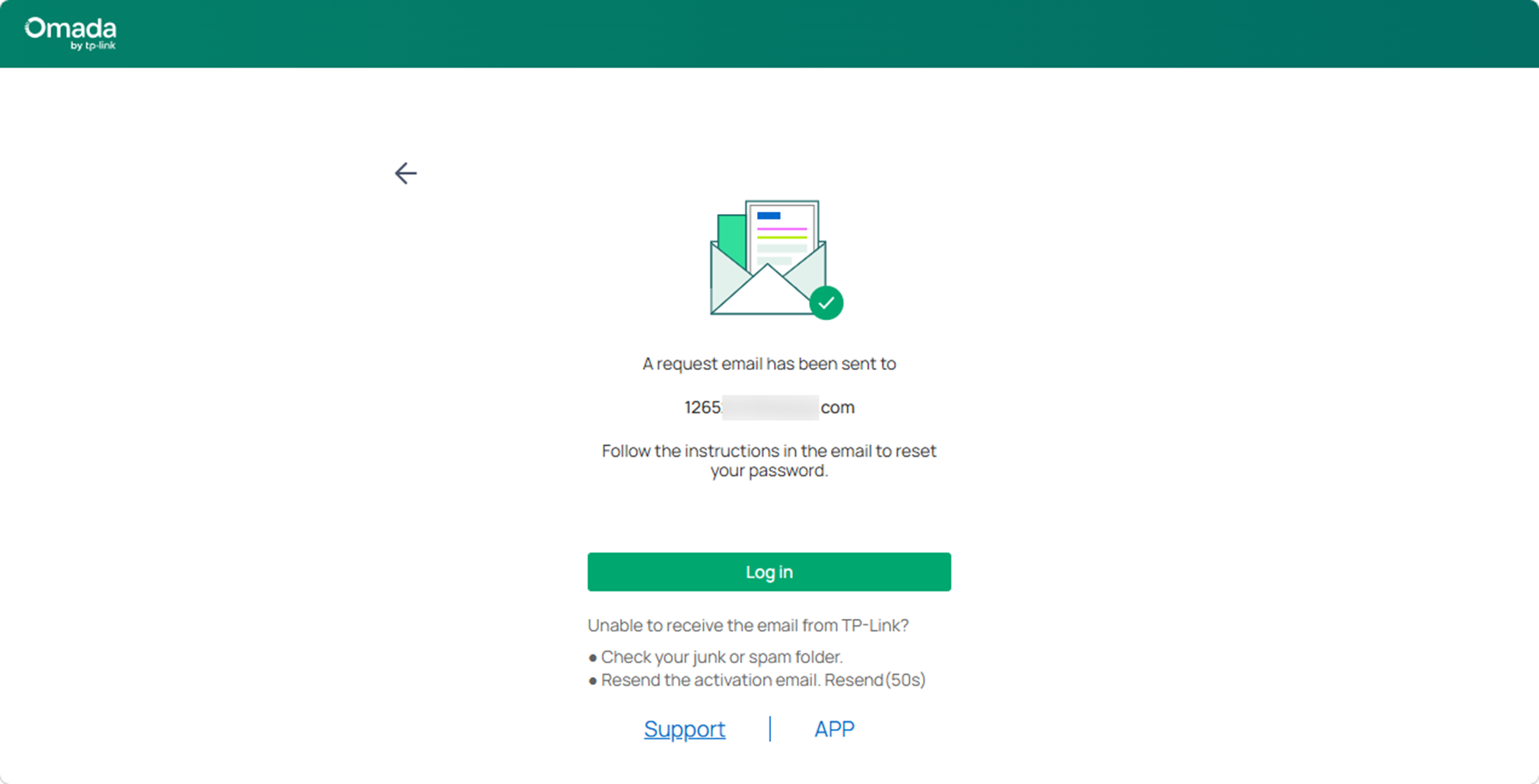
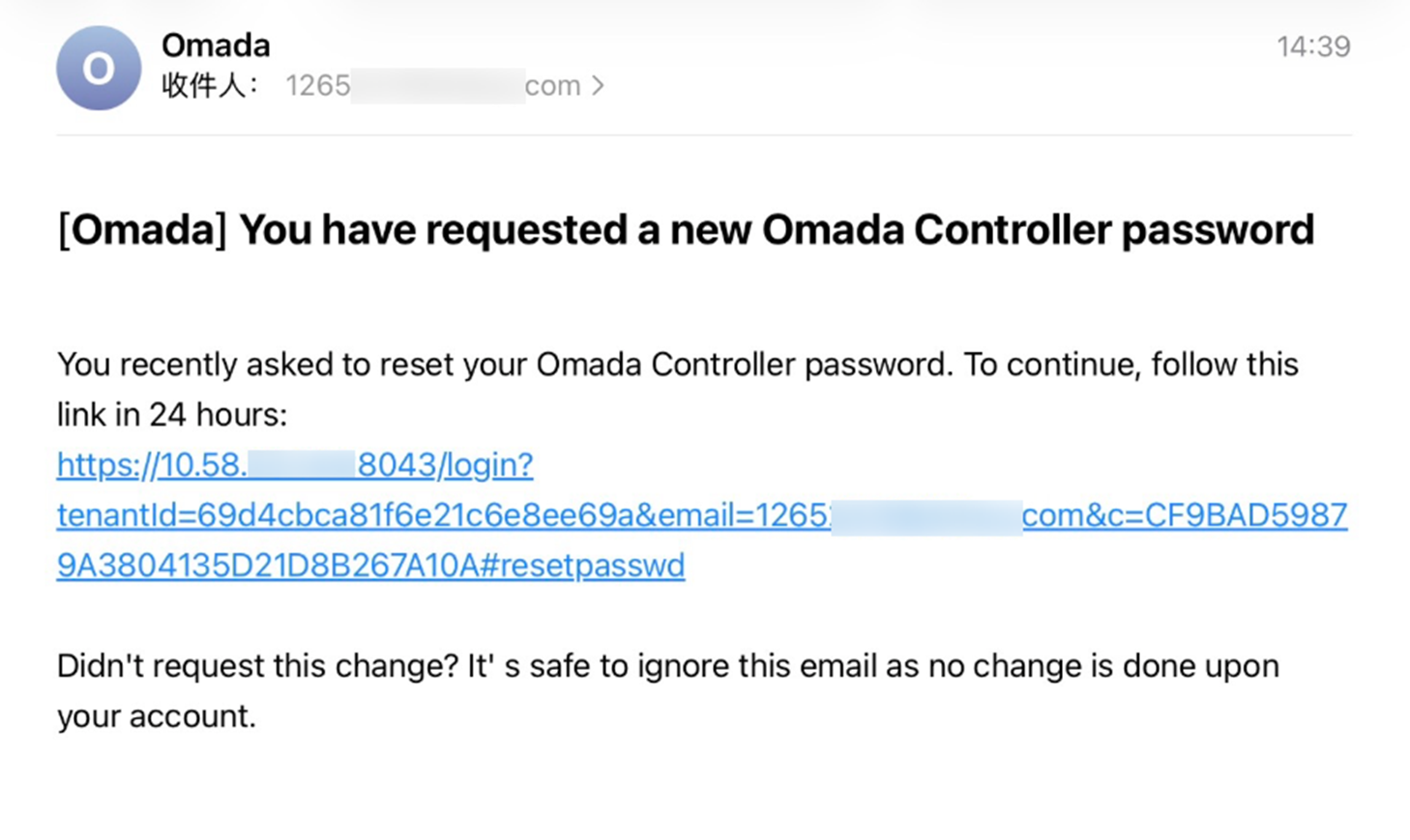
Step 3. You will receive an email with a link to reset your password.
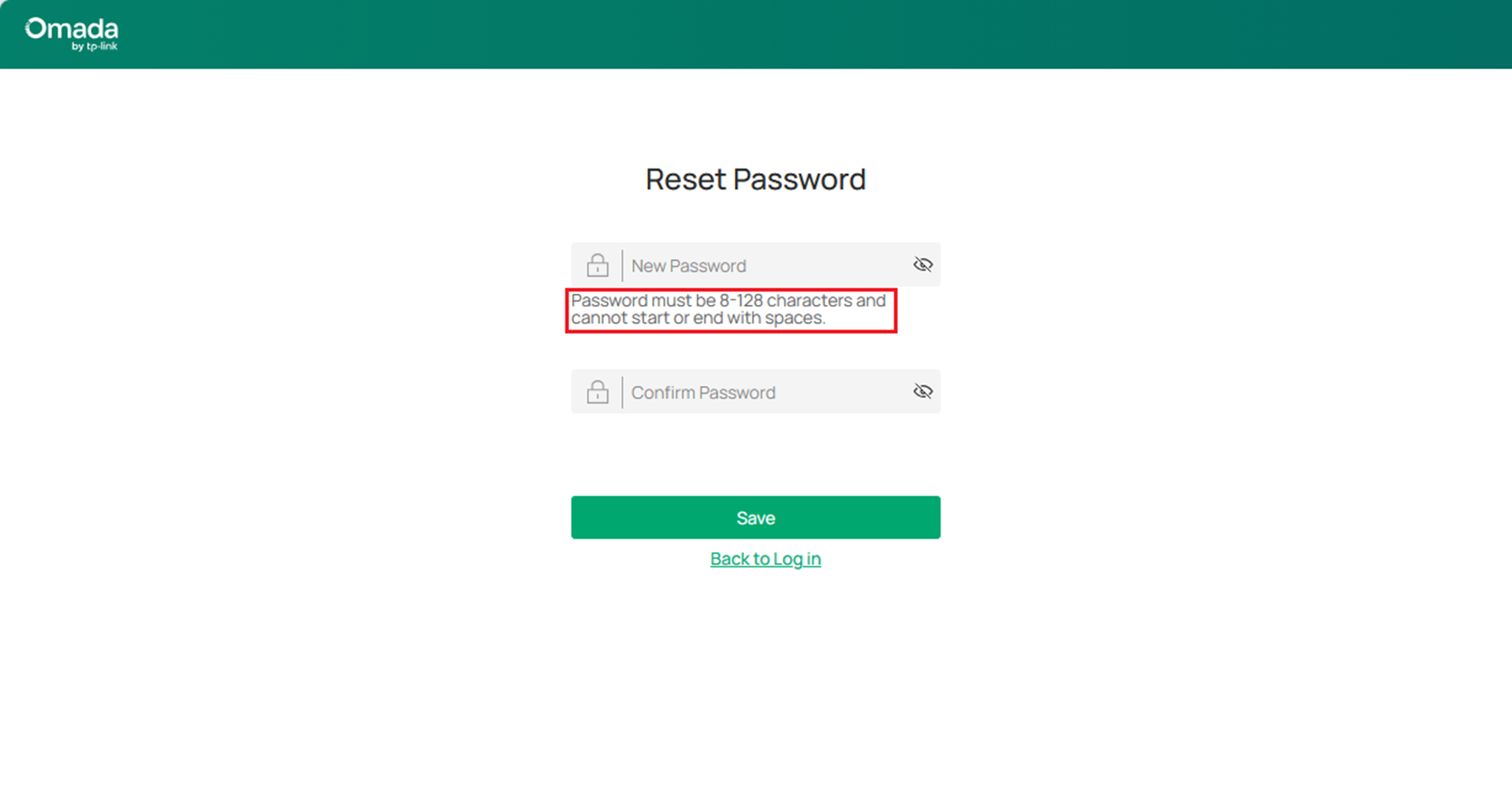
Access this link in your browser to reset your password. You'll find that the IP address in this link is the controller's IP address. Therefore, you need to access this link on a computer that has access to the Controller.
Note: In the image below, the IP address in this link is 10.58.*.*. Sometimes the IP address of the machine where you install the Software Controller changes frequently, and this IP address may not be updated in time. You may need to change this IP address to the actual IP address, as mentioned above, to ensure that this IP address is reachable.
- Owner Local Account.
The Owner account is typically configured the first time you open the Controller for Quick Setup. Prior to version 6.2.10, the Local Owner account required the user to manually enter a username, password, and optionally link an email address. In versions 6.2.10 and later, Quick Setup has been optimized; if you are using a TP-Link ID for Quick Setup, Cloud Access will enable by default and a Local Owner account is automatically created. The account status is roughly as shown in the image below.
The Controller will automatically register a Local account with the same username and password as your TP-Link ID for login authentication when there is no network connection.
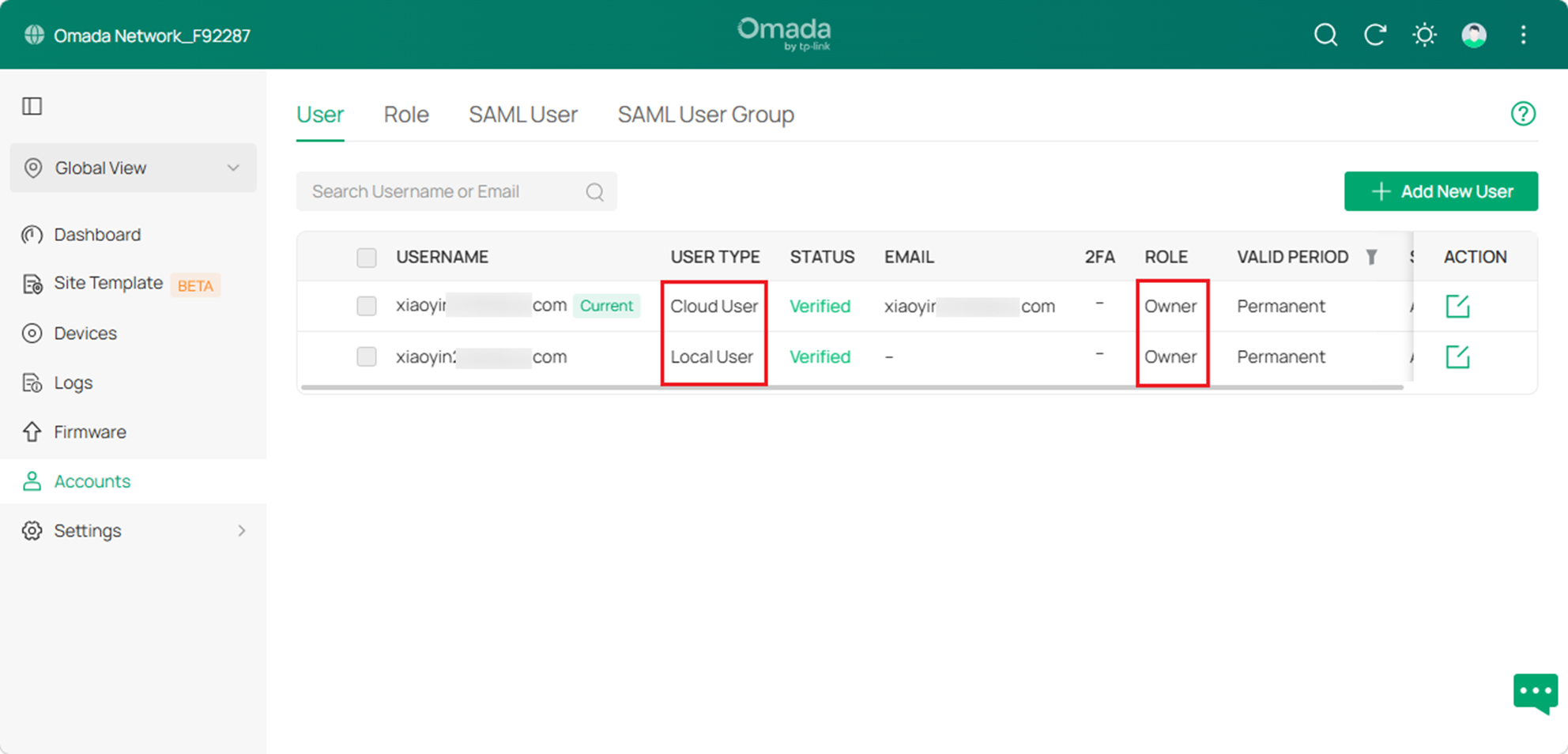
If you forget your Local Owner account, and that account is not linked to an email address as shown in the image, you will not be able to retrieve the password. If you still have an account that can access the Controller, you can export a backup file, reinstall/Reset the Controller, and then restore the configuration using the backup file.
For Cloud User Accounts and Cloud Based Controller
Cloud User and Cloud Based Controller access the Controller at Omada Cloud Management Platform using TP-Link ID. If you forget your TP-Link ID password, you can retrieve it via email.
Step 1. Access the Omada Cloud Management Platform and click the Forgot Password button.
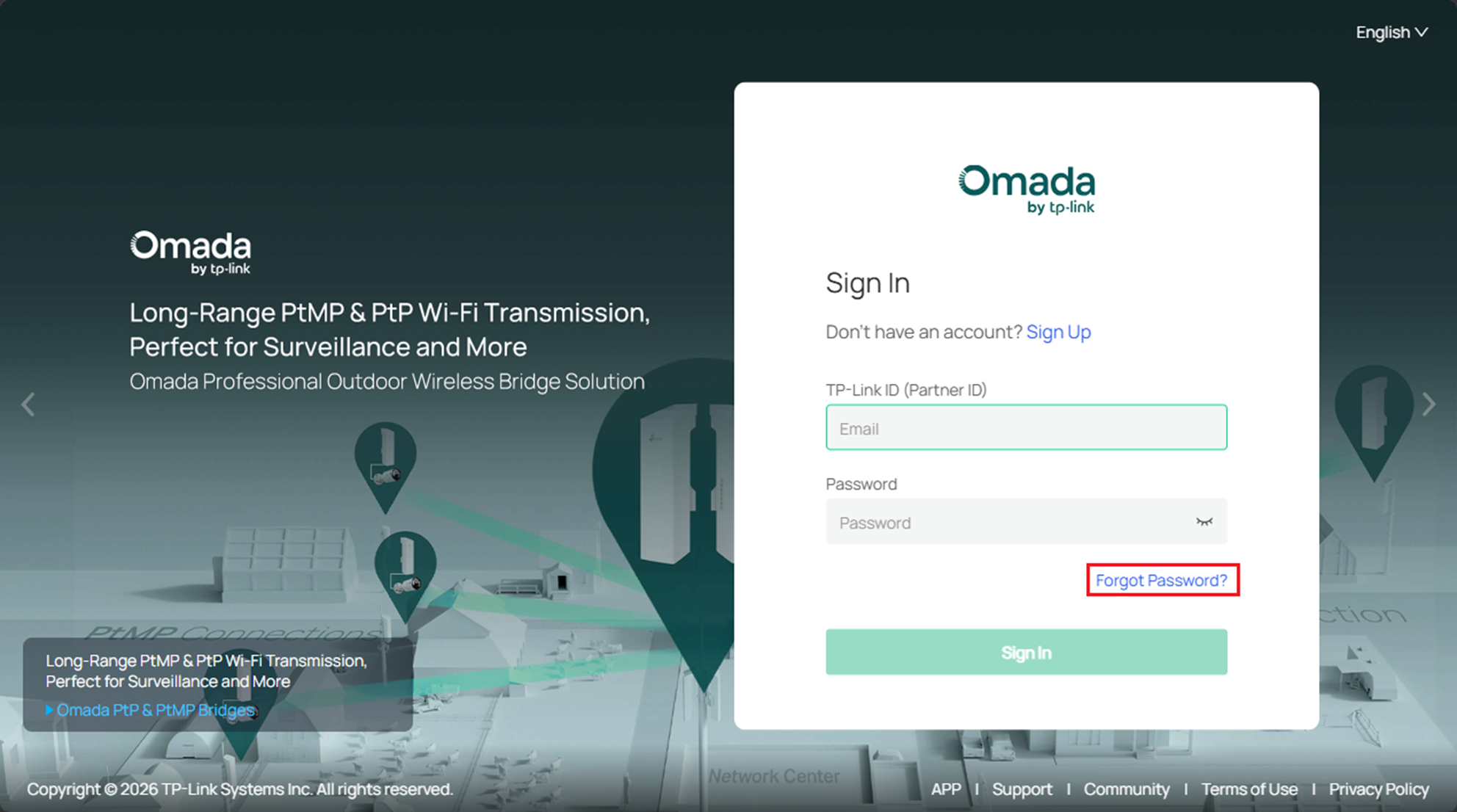
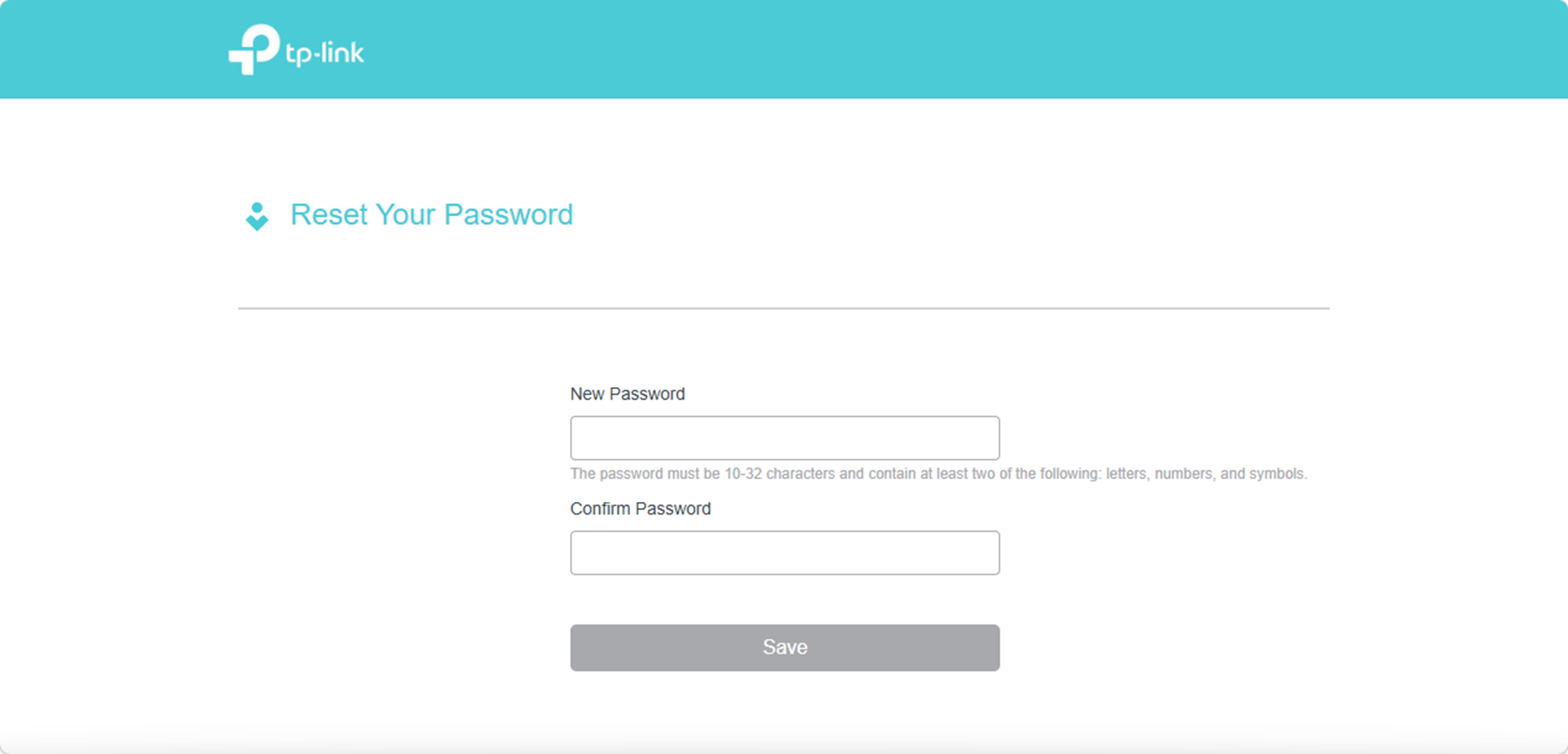
Step 2. Enter your TP-Link ID (usually your email address) and click Send. You will receive an email with a password reset message, roughly as shown in the image below. 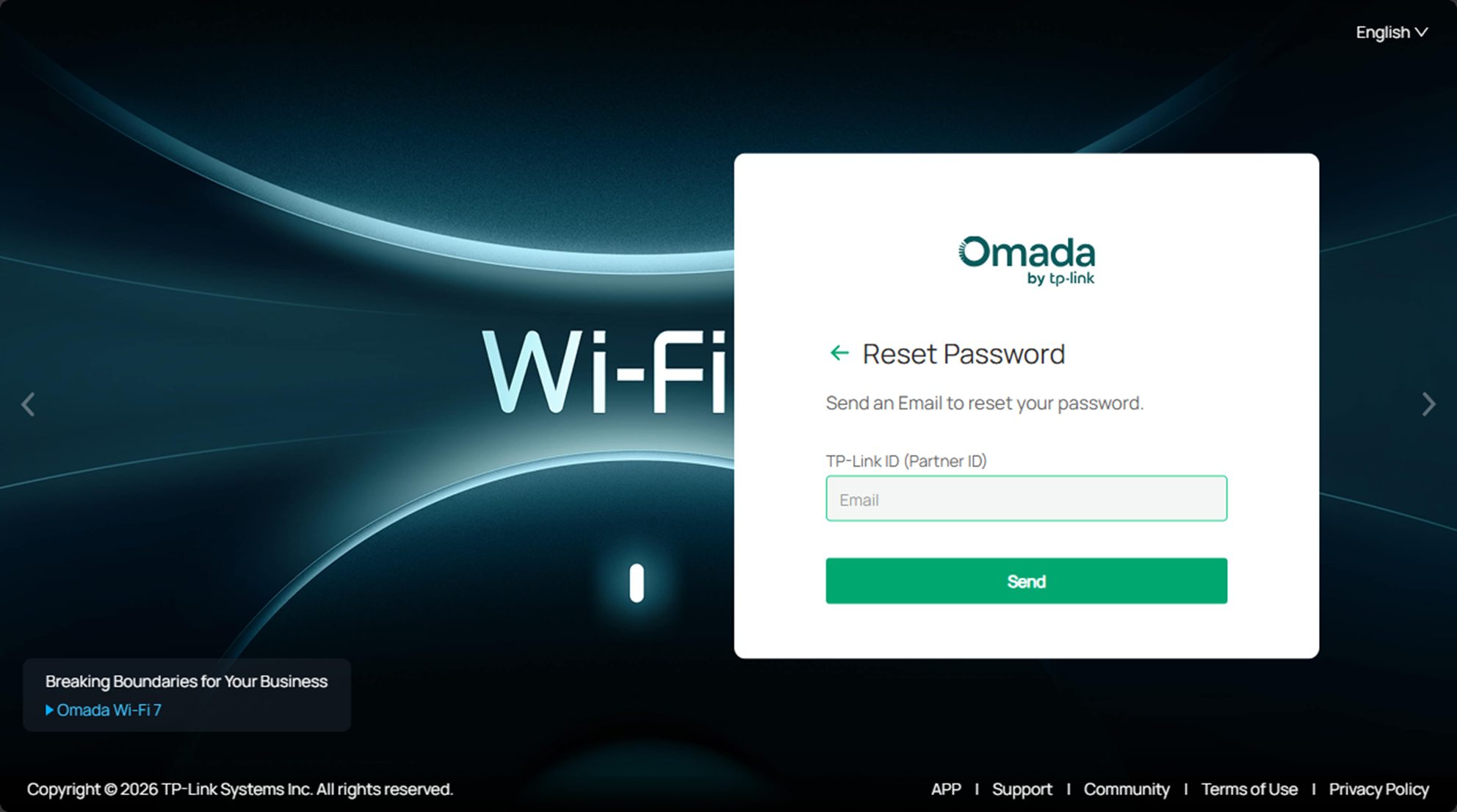
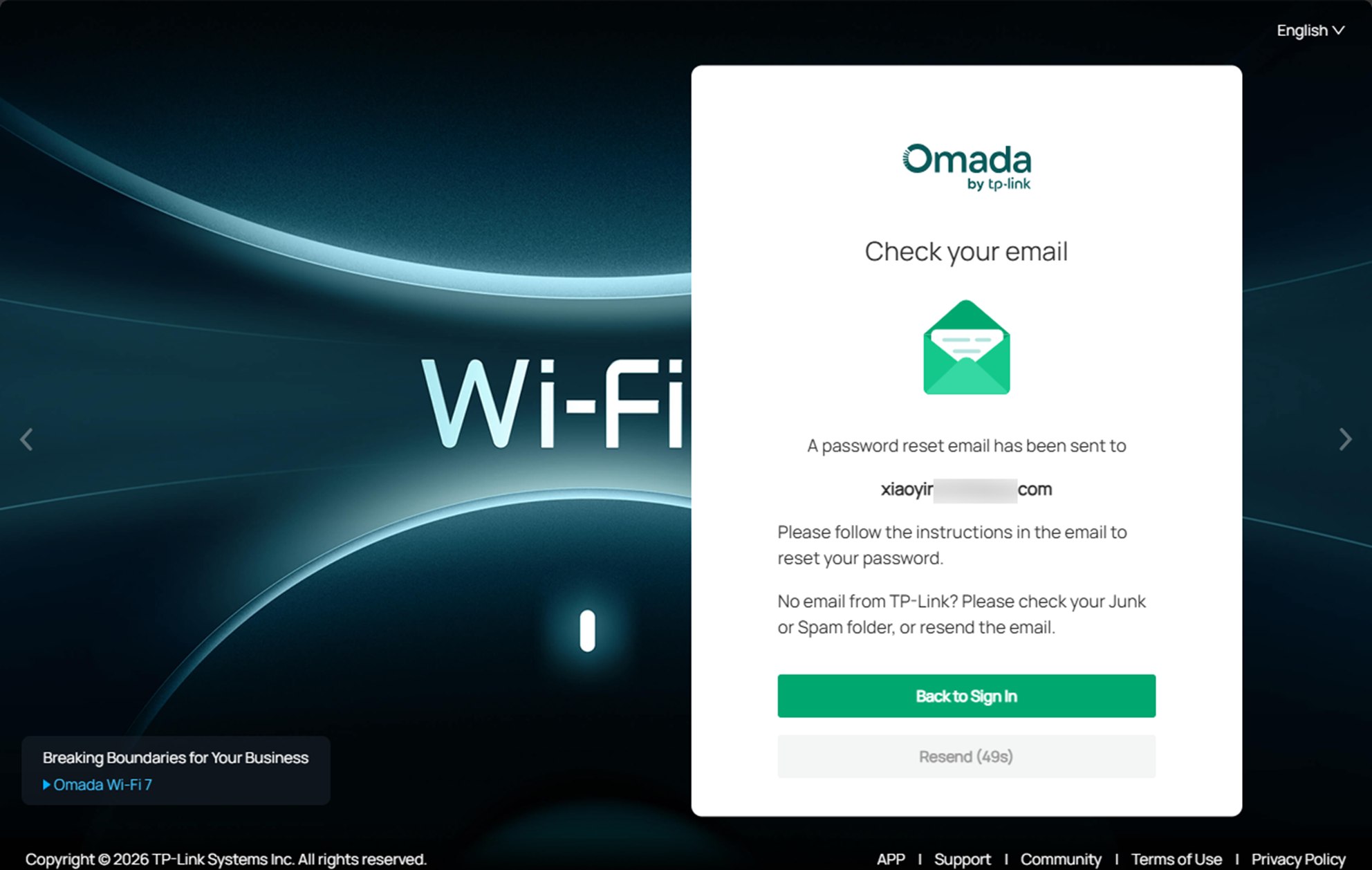
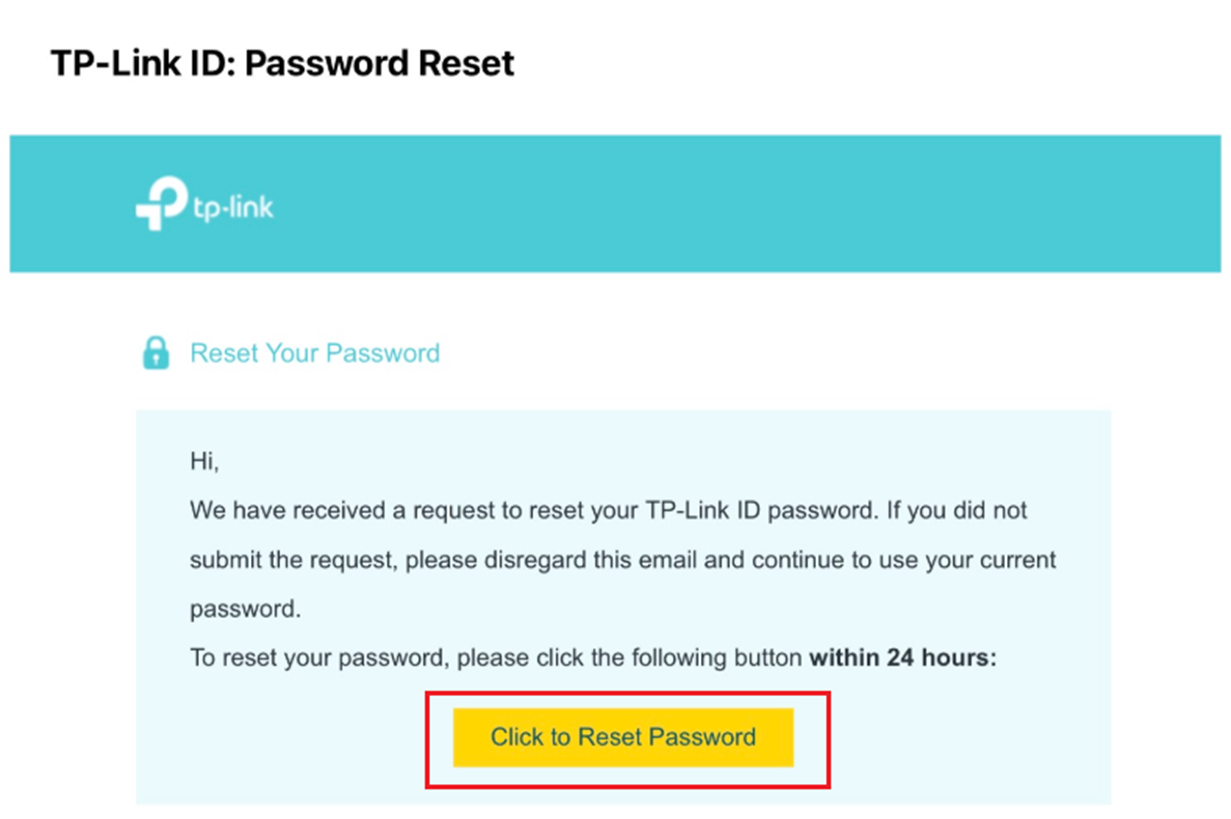
Step 3. Reset your TP-Link ID using the instructions in the email.
Conclusion
The above are some methods for dealing with forgotten Controller account passwords.
To learn more about each function and configuration, please visit Support Home to download or check the manual for your product.
