


Contents
Introduction
Omada gateways support multiple WAN connections with load balancing to improve overall Internet capacity and reliability. However, you may notice that a Speedtest® result does not match the combined bandwidth of all WAN links.
In most cases, this is expected behavior. Multi-WAN load balancing distributes network sessions across multiple WAN connections rather than combining them into a single high-speed connection. As a result, a single Speedtest may not fully utilize all available WAN bandwidth.
This article explains why this happens and how to verify that multiple WAN connections are working correctly.
Requirements
- Omada Gateway
- Omada Controller (optional)
Troubleshooting
The following tests are based on Speedtest and explain why a speed test may not accurately reflect the combined bandwidth of multiple WAN connections.
Step 1. Verify the recommended configuration
To ensure that all WAN connections can participate in the speed test, configure the load balancing settings as follows.
Standalone mode
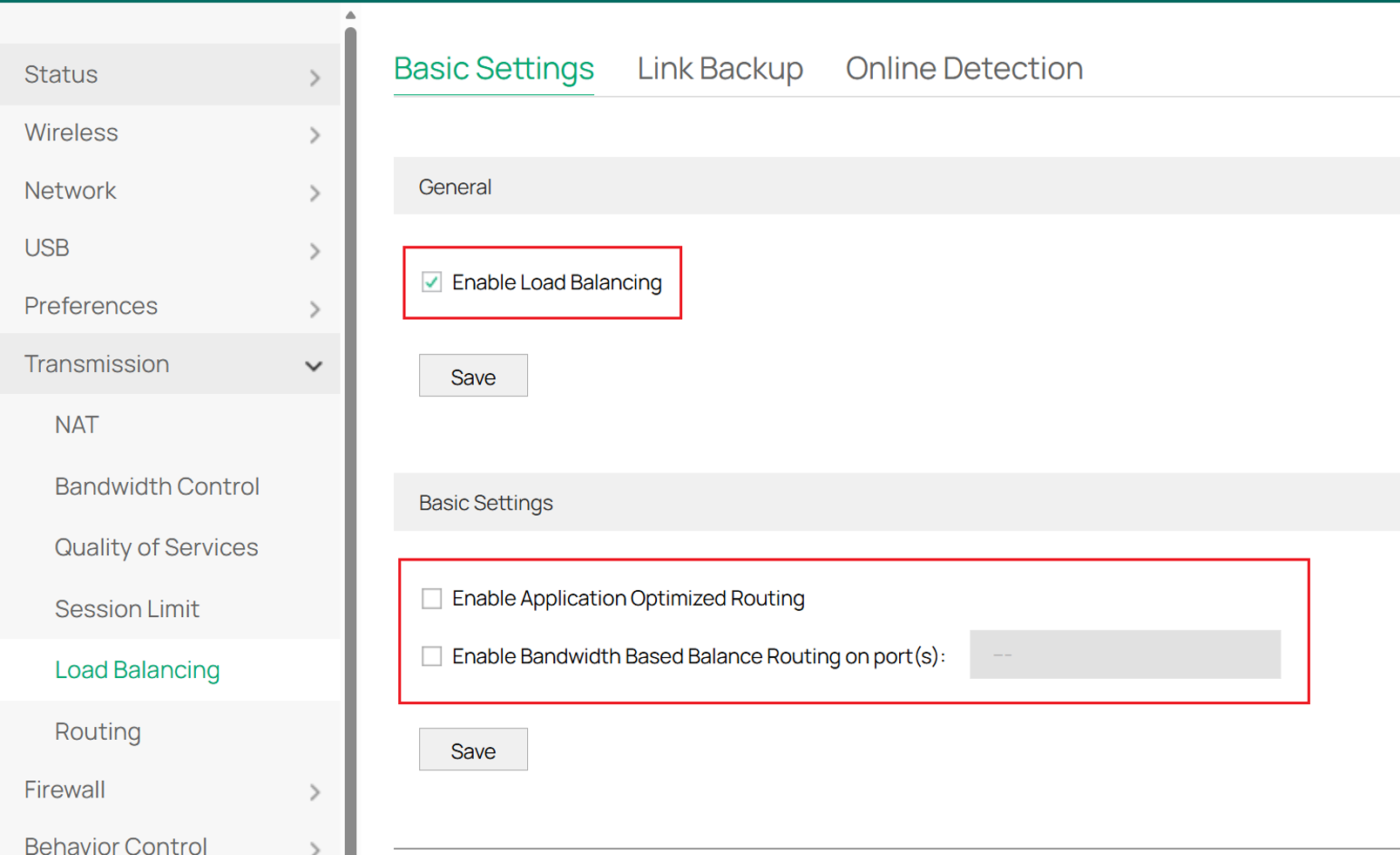
Go to Gateway > Transmission > Load Balancing and make sure Enable Load Balancing is enabled.
Make sure the following options are disabled:
- Enable Application Optimized Routing — When enabled, all speed test traffic may be forwarded through the same WAN port.
- Enable Bandwidth Based Balance Routing on port(s) — When enabled, only some WAN ports may be used during the speed test.
Controller mode
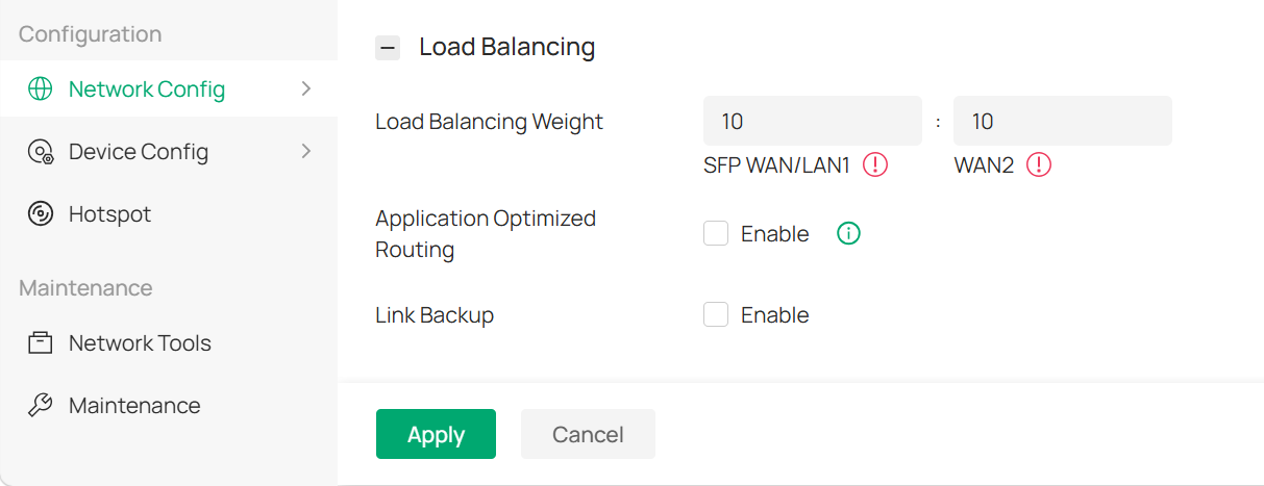
If the gateway is managed by an Omada Controller, go to Network Config > Network Settings > Internet, scroll down to the Load Balance section, and make sure Application Optimized Routing is disabled.
In addition, features such as Link Backup, Policy Routing, and Static Route may cause traffic to use only some of the available WAN connections during the speed test. Make sure these features are disabled or configured so that they do not affect the test.
Step 2. Possible test results and causes.
If the total bandwidth of the WAN connections is relatively low, for example, below 100 Mbps, the Speedtest result may sometimes be close to the combined bandwidth.
As the total bandwidth increases, however, the probability that a single Speedtest will fully reflect the combined bandwidth generally decreases. This is related to both the Speedtest testing mechanism and the gateway's load balancing algorithm.
During a Speedtest, the client establishes multiple sessions with the Speedtest servers for downstream and upstream testing. When the gateway receives these session requests, its load balancing algorithm determines which WAN port should be used for each session.
Omada gateways use a probability-based load balancing algorithm. For example, with two WAN ports, each new session has a 1/2 probability of being forwarded through WAN1 or WAN2.
However, the number of sessions established by a single client during a Speedtest is relatively small, often only a few dozen. From a statistical perspective, this is a small sample size. Therefore, the sessions may not be distributed evenly between the WAN ports.
For example, assume the following:
- The Speedtest establishes 10 sessions.
- Each session can use up to 10 Mbps.
- WAN1 provides 50 Mbps.
- WAN2 provides 50 Mbps.
- The combined bandwidth is therefore 100 Mbps.
If 5 sessions are forwarded through WAN1 and the other 5 through WAN2, the theoretical result can reach:
50 Mbps + 50 Mbps = 100 Mbps
However, if 8 sessions are forwarded through WAN1 and only 2 through WAN2, the result may be:
50 Mbps + 20 Mbps = 70 Mbps
In this case, the Speedtest result is significantly lower than the combined bandwidth, even though both WAN connections function normally.
Therefore, a Speedtest result that is lower than the combined WAN bandwidth does not necessarily indicate a problem with the gateway or its load balancing function.
Step 3. Omada gateways can fully utilize the WAN ports.
An inaccurate Speedtest result does not mean that the gateway is unable to effectively utilize multiple WAN connections.
Omada gateways can maintain a large number of concurrent sessions. In a Speedtest scenario, however, a single client may establish only a limited number of sessions with the test servers. This is very different from normal Internet usage.
For example, a typical web page may require dozens of concurrent sessions, while online video streaming or large file downloads may involve hundreds or more sessions.
With a larger number of sessions and clients, the probability-based load balancing algorithm can distribute traffic more effectively across the available WAN connections. As a result, the gateway can make better use of the combined capacity of multiple Internet lines during normal network usage.
Therefore, while a single Speedtest may not accurately demonstrate bandwidth aggregation, you can monitor Traffic Statistics on the gateway to verify that traffic is being distributed across multiple WAN connections.
Step 4. How can I verify combined WAN bandwidth utilization?
Verifying bandwidth aggregation requires additional testing because a single Speedtest session typically uses only one WAN connection and therefore cannot fully reflect the combined bandwidth of multiple WAN ports.
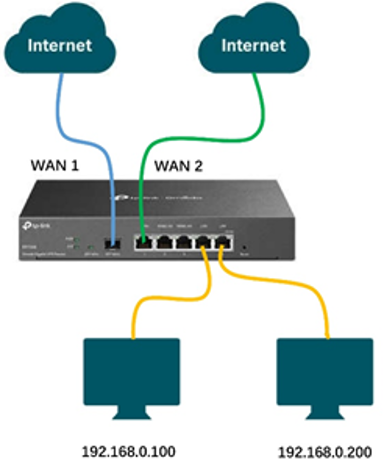
To demonstrate combined WAN bandwidth utilization, prepare the same number of client PCs as active WAN ports. In this example, we assume that the gateway is connected to two WAN ports, so two PCs are required. Connect both PCs to the LAN side of the gateway, as shown in the following topology.
Standalone Mode
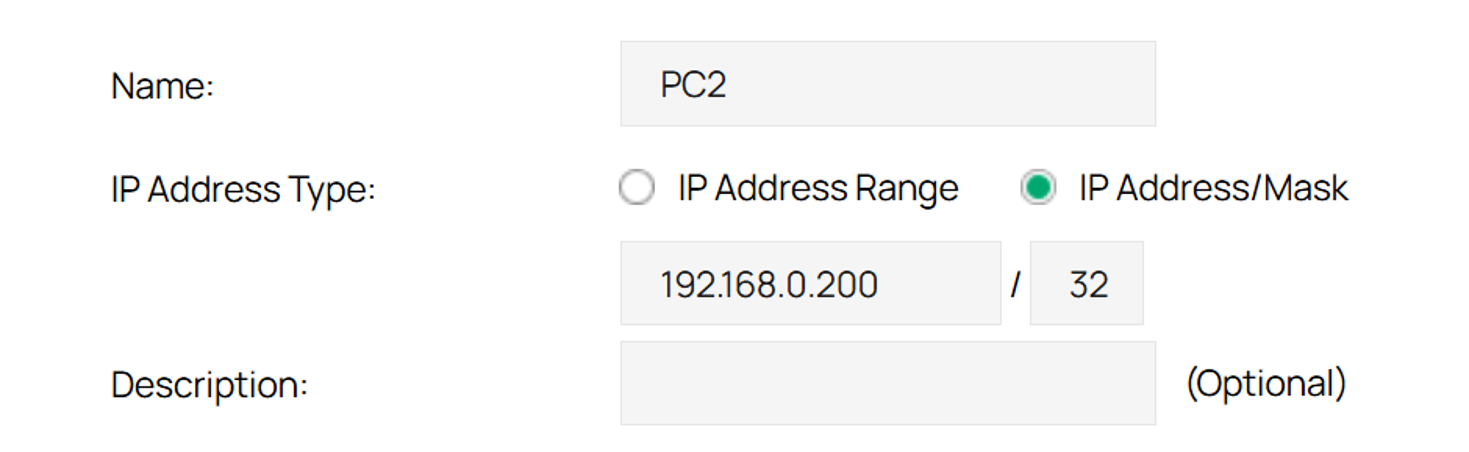
Step 1. Create IP address entries.
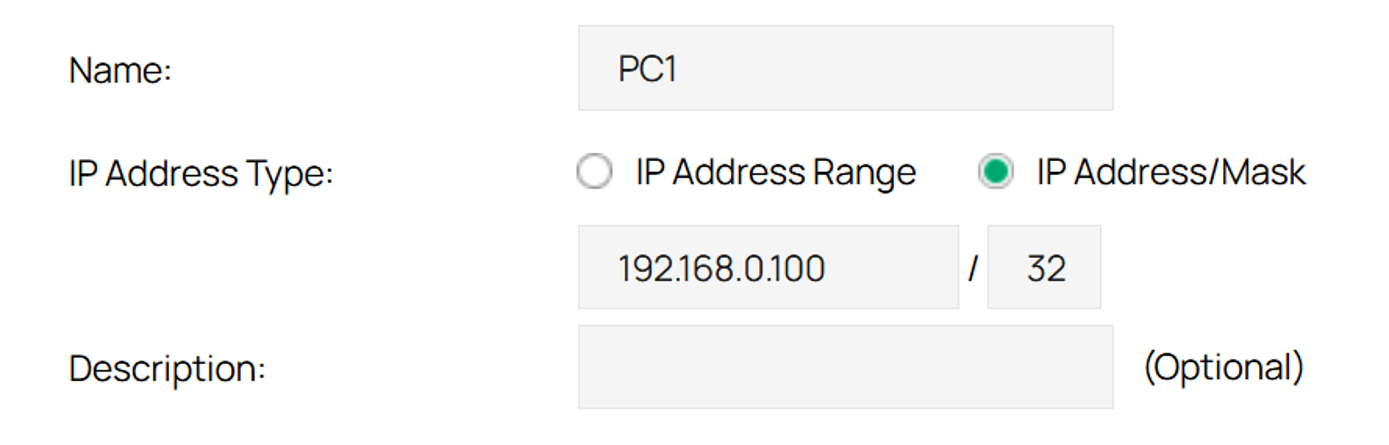
Go to Preferences > IP Group > IP Address, and create the following address entries:
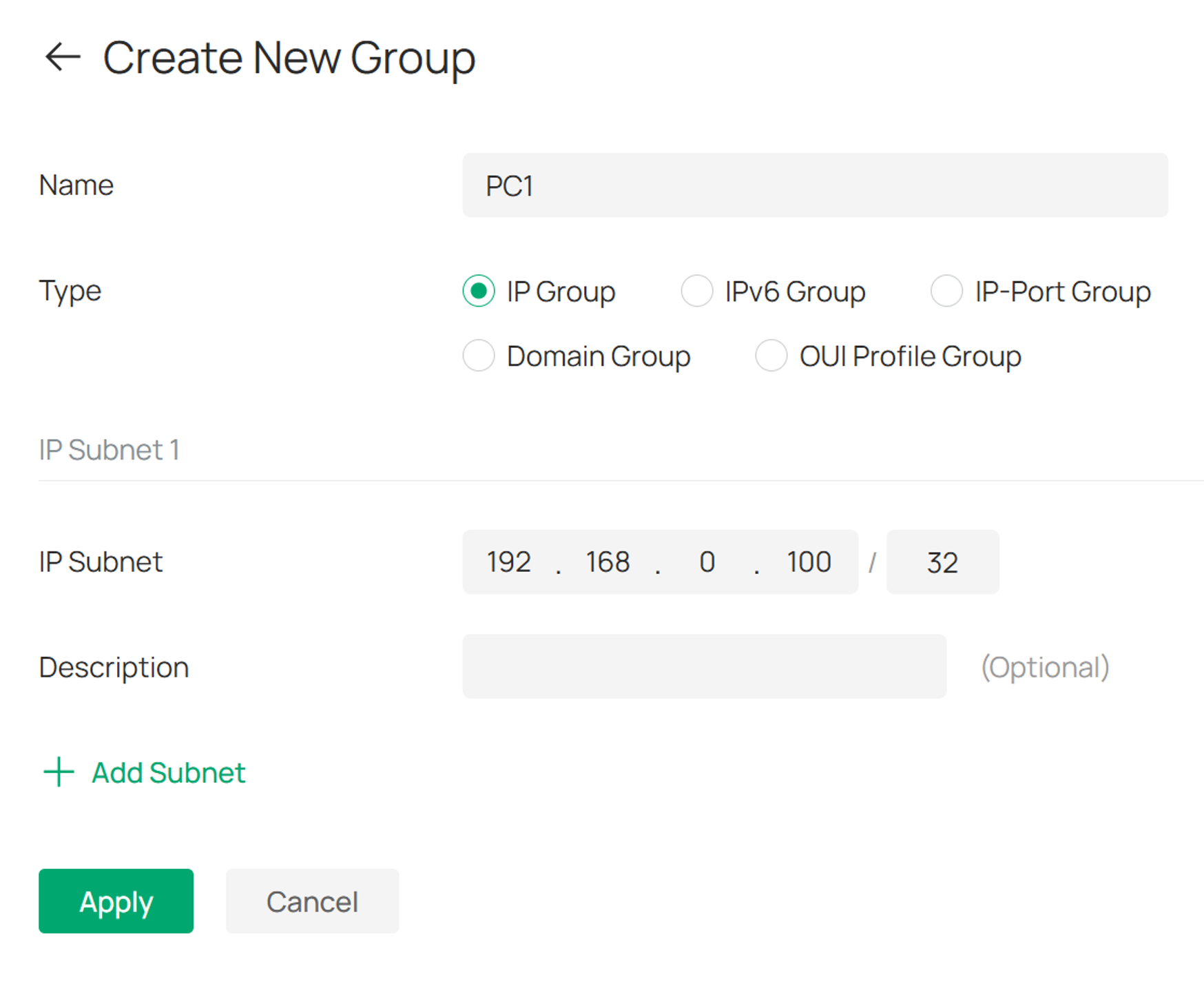
- PC1: 192.168.0.100/32
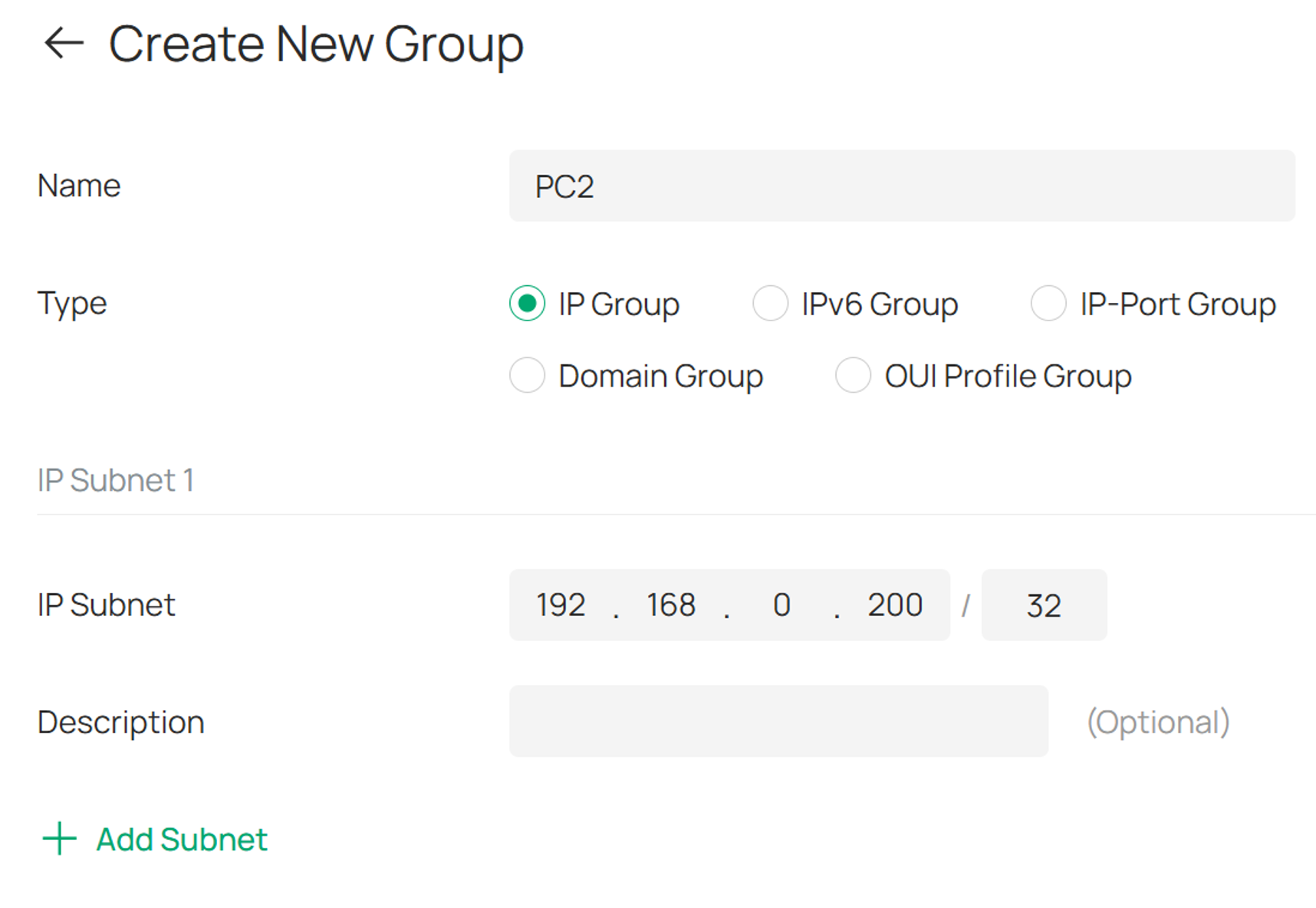
- PC2: 192.168.0.200/32
Step 2. Create IP groups.
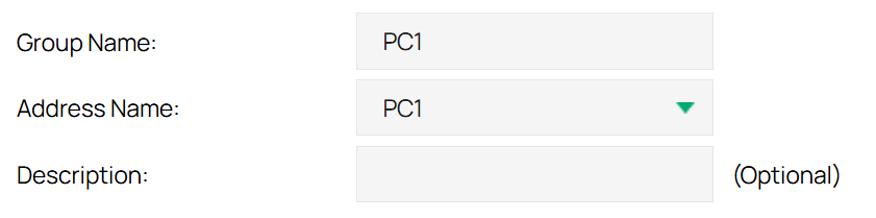
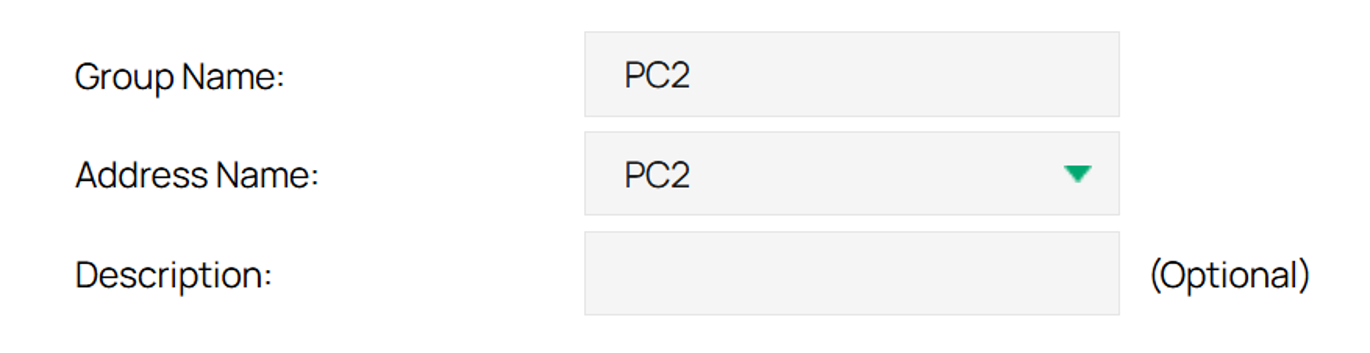
Go to IP Group, and create two group entries:
- PC1 Group: Include the address entry PC1 (192.168.0.100/32)
- PC2 Group: Include the address entry PC2 (192.168.0.200/32)
Step 3. Configure Policy Routing.
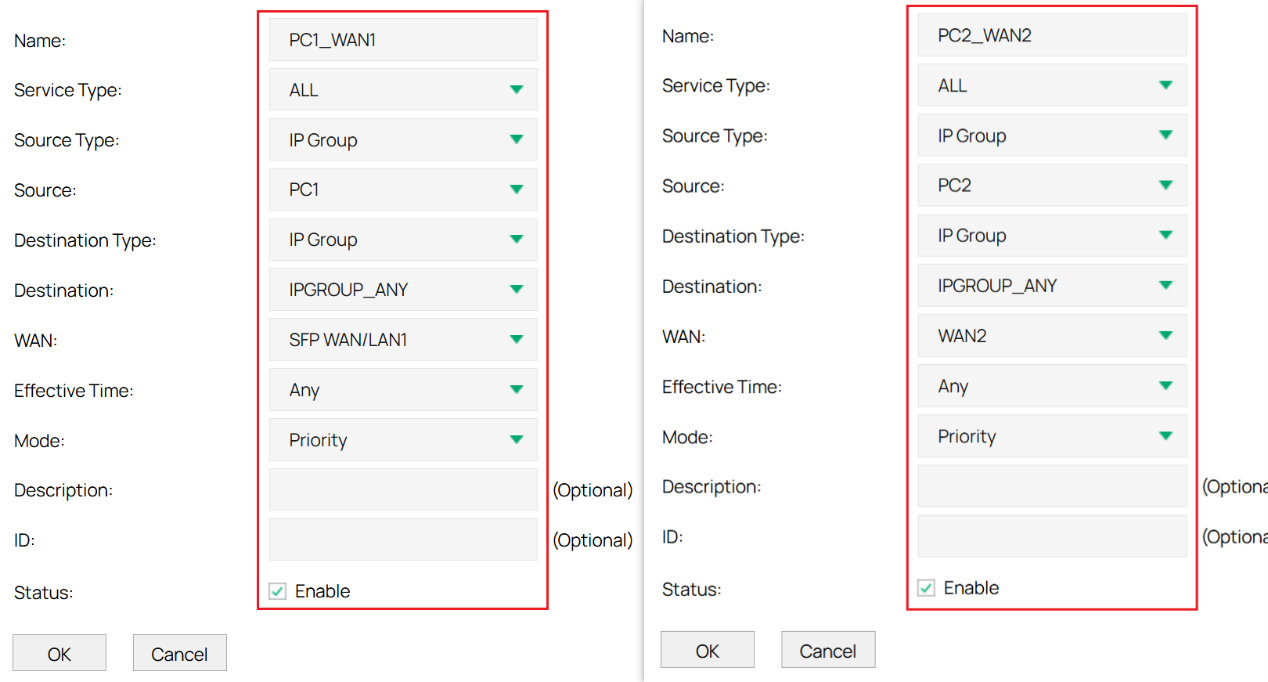
Go to Transmission > Routing > Policy Routing and create routing policies for each PC, as shown below.
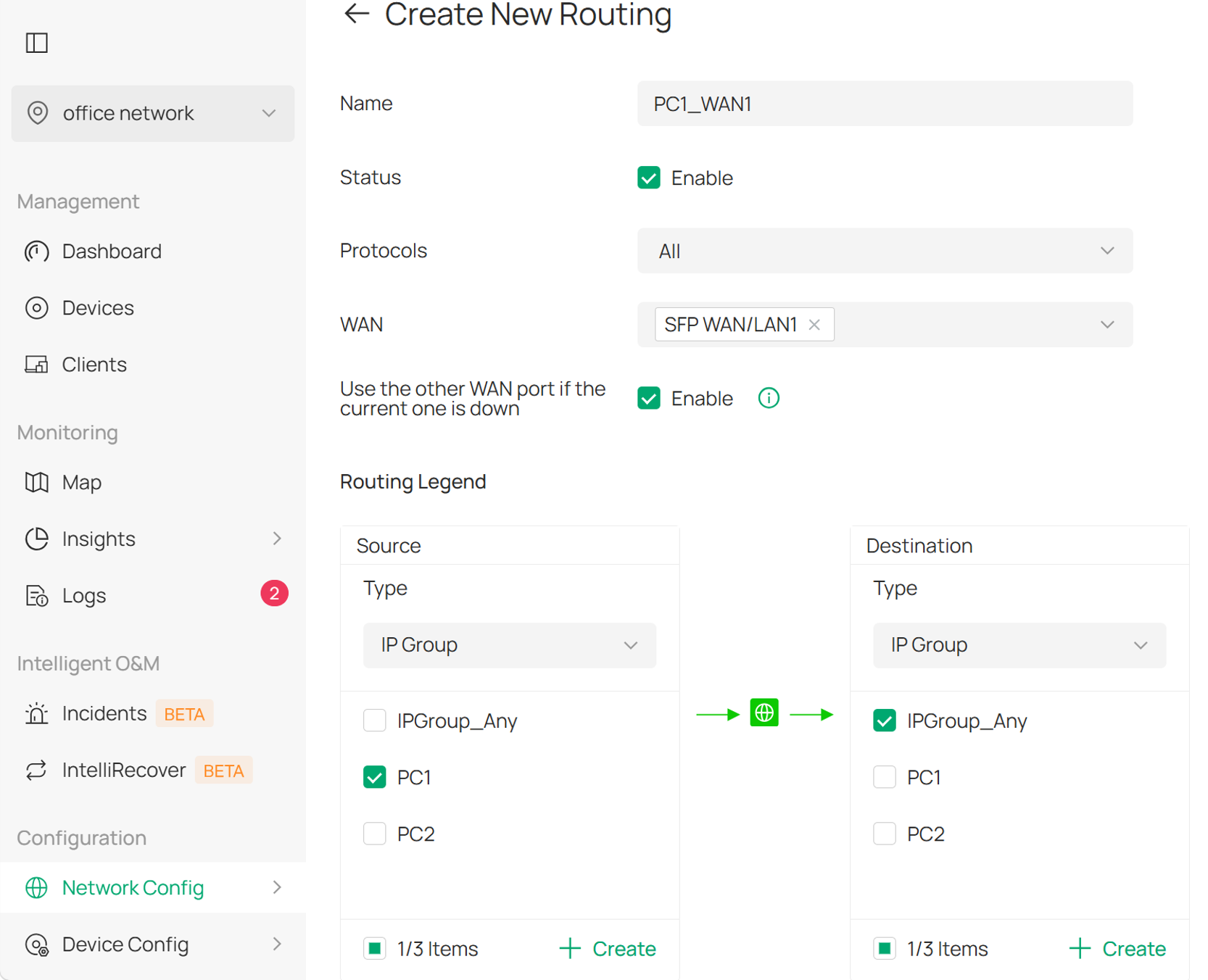
- Route traffic from PC1 through WAN1
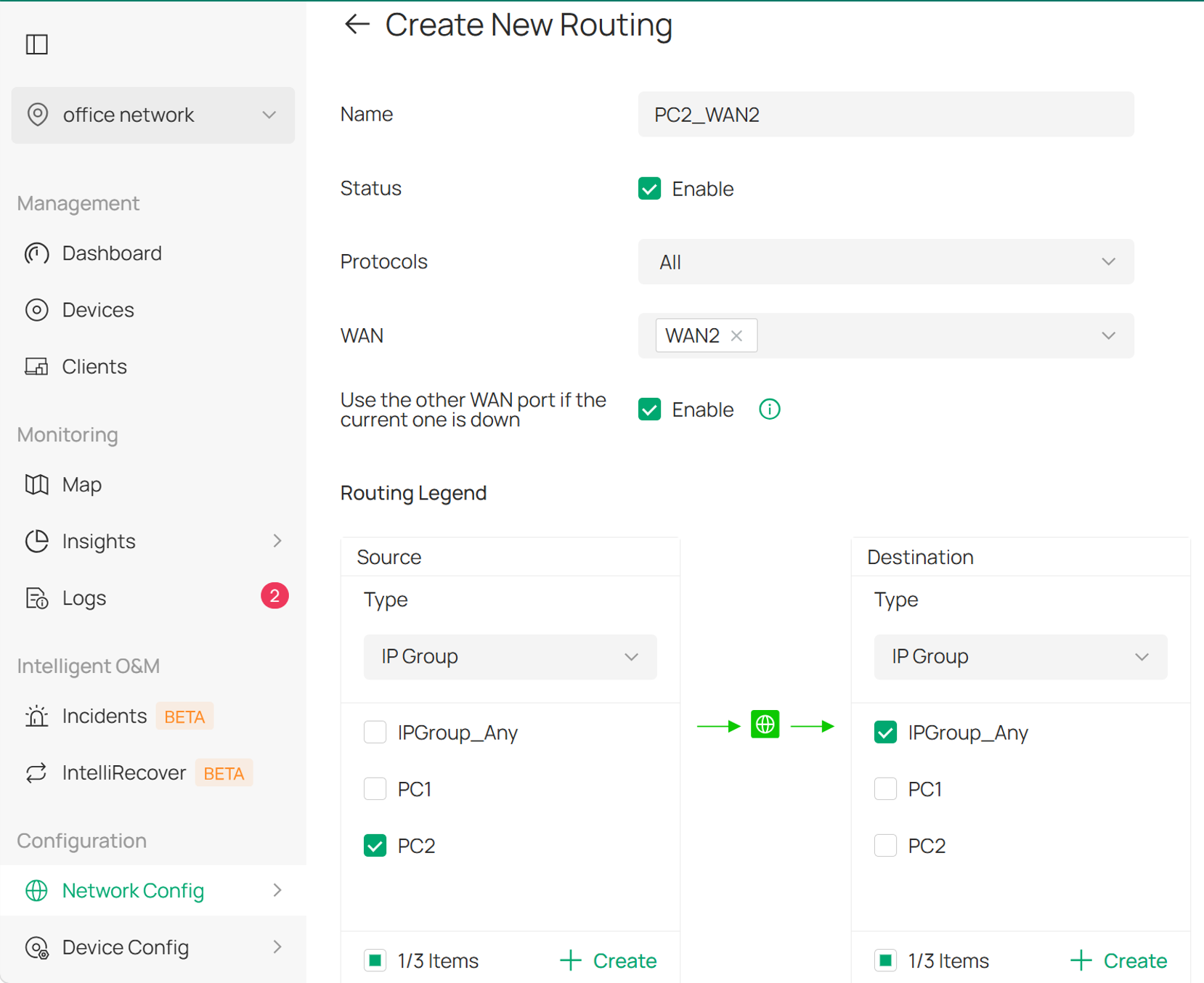
- Route traffic from PC2 through WAN2
Omada Controller Mode
If the gateway is managed by an Omada Controller, perform the equivalent configuration as follows.
Step 1. Create IP groups.
Go to Network Config > Profiles > Groups, then click Create New Group.
Create the same IP groups used in standalone mode.
Step 2. Configure Policy Routing.
Go to Network Config > Transmission > Routing and create the corresponding policy routing entries.
After the configuration is complete:
- Traffic from PC1 will be forwarded through WAN1.
- Traffic from PC2 will be forwarded through WAN2.
Open Speedtest on both PCs and start the tests simultaneously. The measured bandwidth on each PC should correspond to the bandwidth of its assigned WAN connection. The combined throughput demonstrates that the gateway can utilize both WAN links concurrently and achieve bandwidth aggregation across multiple WAN ports.
Note: A single Speedtest session cannot accurately demonstrate bandwidth aggregation because its traffic is typically routed through only one WAN connection. Simultaneous traffic flows from multiple clients are required to verify that multiple WAN links are being utilized at the same time.
Conclusion
We have now covered the basic troubleshooting steps for situations where Speedtest does not reflect the combined bandwidth of multiple WAN connections on an Omada Gateway. If the issue persists after completing the steps above, please contact Omada Technical Support for further assistance.
To learn more about each function and configuration, please visit Support Home to download or check the manual for your product.
