


Contents
Step 1. Confirm the supported link speeds of connected devices
Step 2. Verify the negotiated link speed of the connected device
Step 3. Check the Ethernet cable
Step 4. Test another switch port
Step 6. Verify the uplink connection
Step 7. Verify bandwidth limits and QoS settings
Step 8. Test with another device
Introduction
Slow network speeds on an Omada switch can be caused by link speed negotiation issues, damaged Ethernet cables, port configuration settings, uplink bottlenecks, or network device limitations. This guide provides a step-by-step troubleshooting process to help identify the source of slow wired network performance and determine whether the issue originates from the connected device, the switch, or the upstream network connection.
Requirements
- Wired PC or Laptop
- Omada Switch
- Omada Controller (if applicable)
Troubleshooting
Step 1. Confirm the supported link speeds of connected devices
Verify the maximum supported link speeds of all devices in the network path, including:
- The PC's network adapter
- The switch port connected to the PC
- The switch uplink port
- The router or gateway LAN port
For example, if any device in the connection path only supports 100 Mbps, Gigabit (1000 Mbps) speeds cannot be achieved.
Step 2. Verify the negotiated link speed of the connected device
Confirm that the wired device has negotiated at its expected link speed.
On Windows:
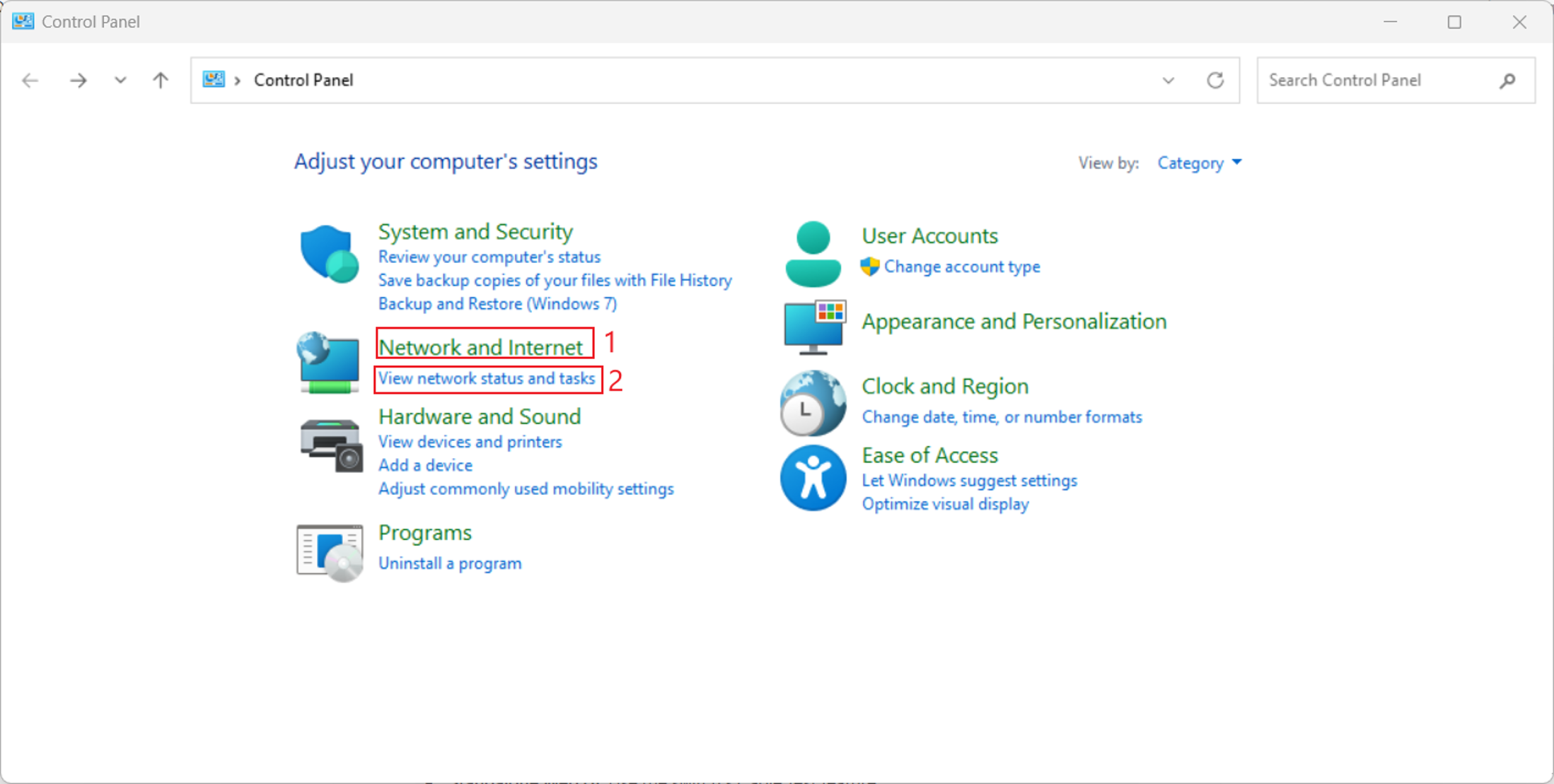
Control Panel > Network and Internet > View Network Status and Tasks
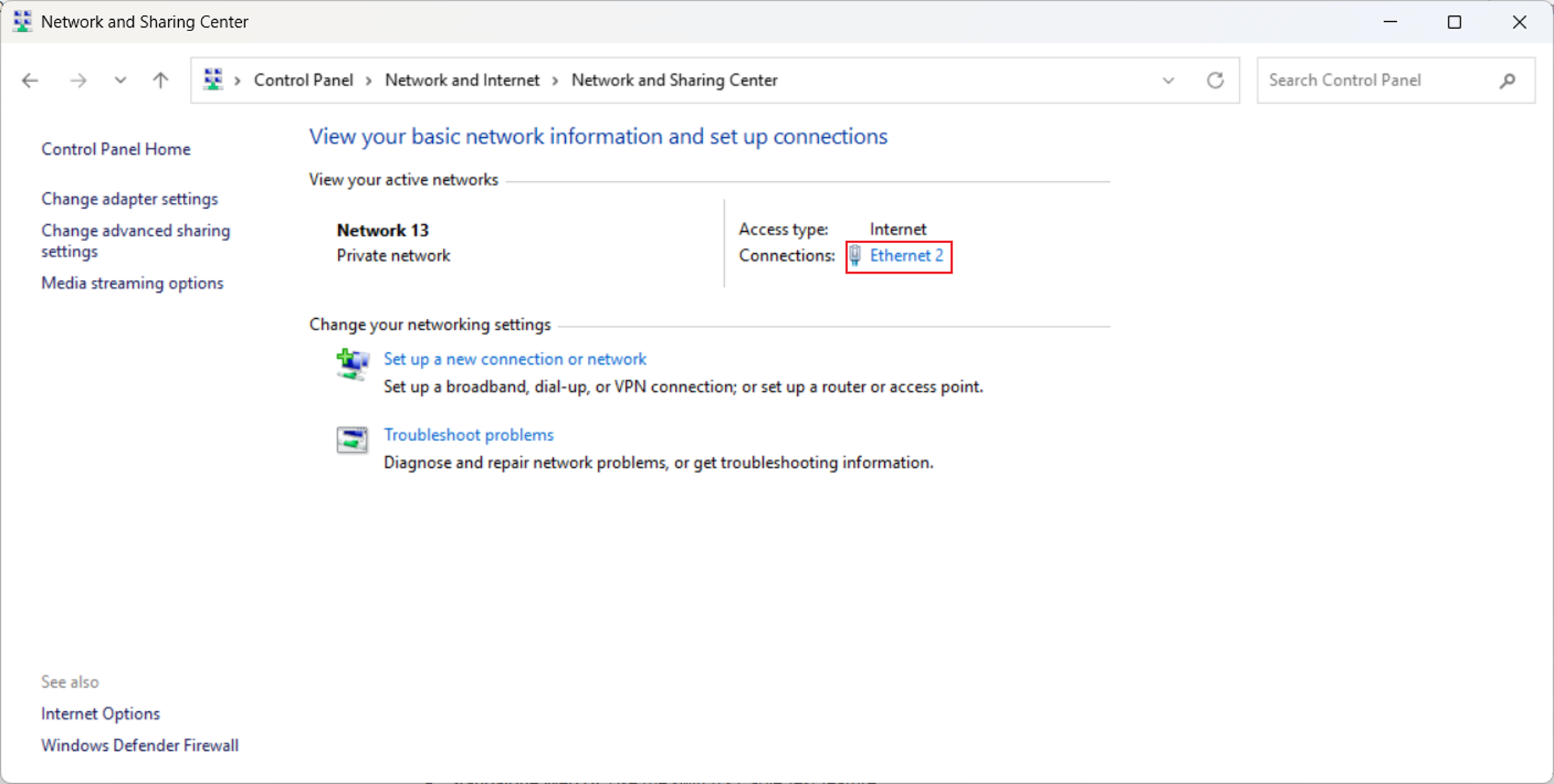
Select the active Ethernet connection to open the connection status window.
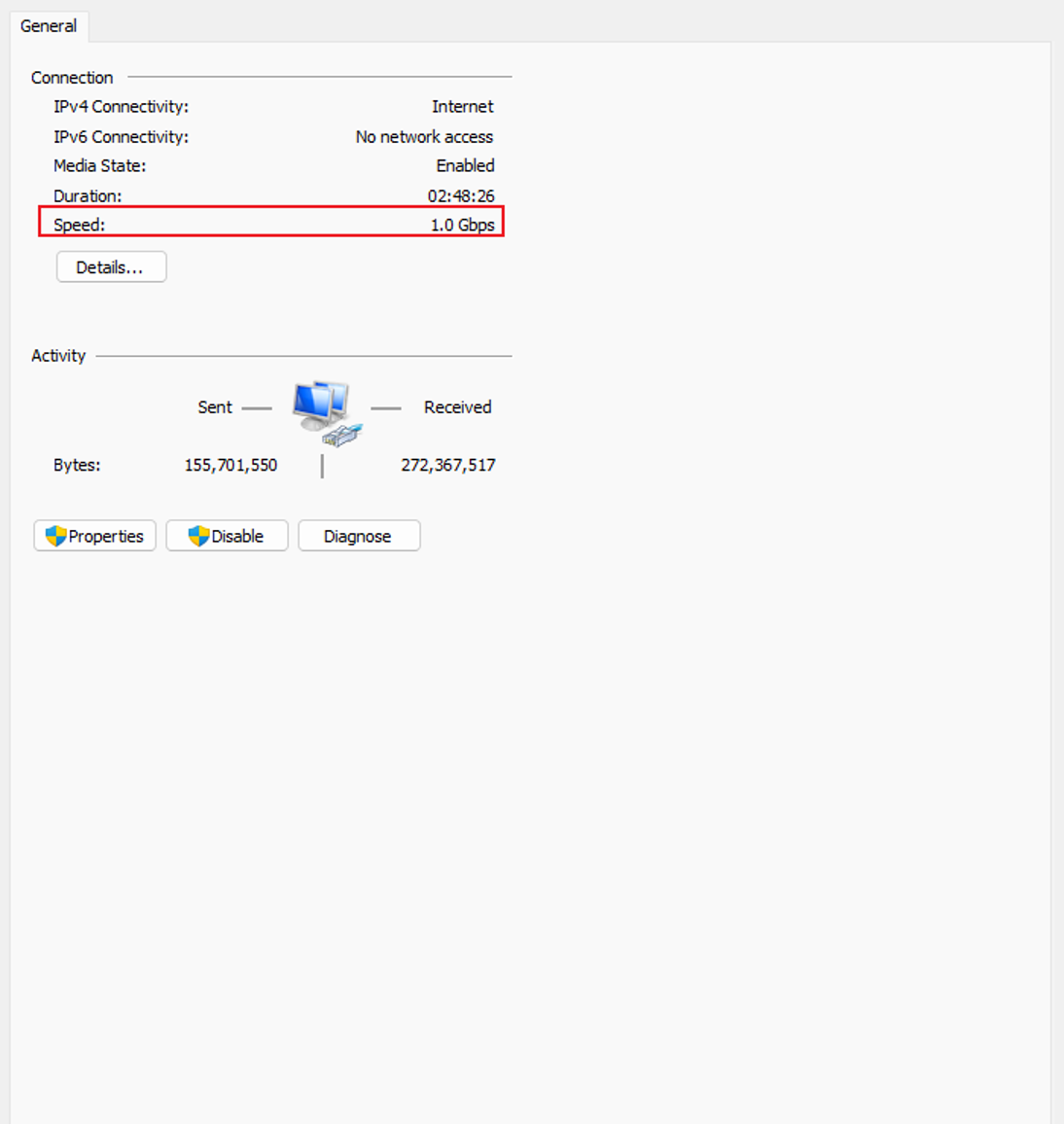
The negotiated link speed will be displayed.
If the device has negotiated a speed lower than its supported capability, continue with the following troubleshooting steps.
Step 3. Check the Ethernet cable
Replace the Ethernet cable with a known-good cable and retest the connection.
Note: Cable Test results can help identify potential cable faults; however, test accuracy may vary depending on the switch model and should be used as a reference.
Controller Mode:
If the switch is managed by an Omada Controller, run a cable test by following the instructions in: How to Run a Cable Test in Omada Network
Standalone Mode
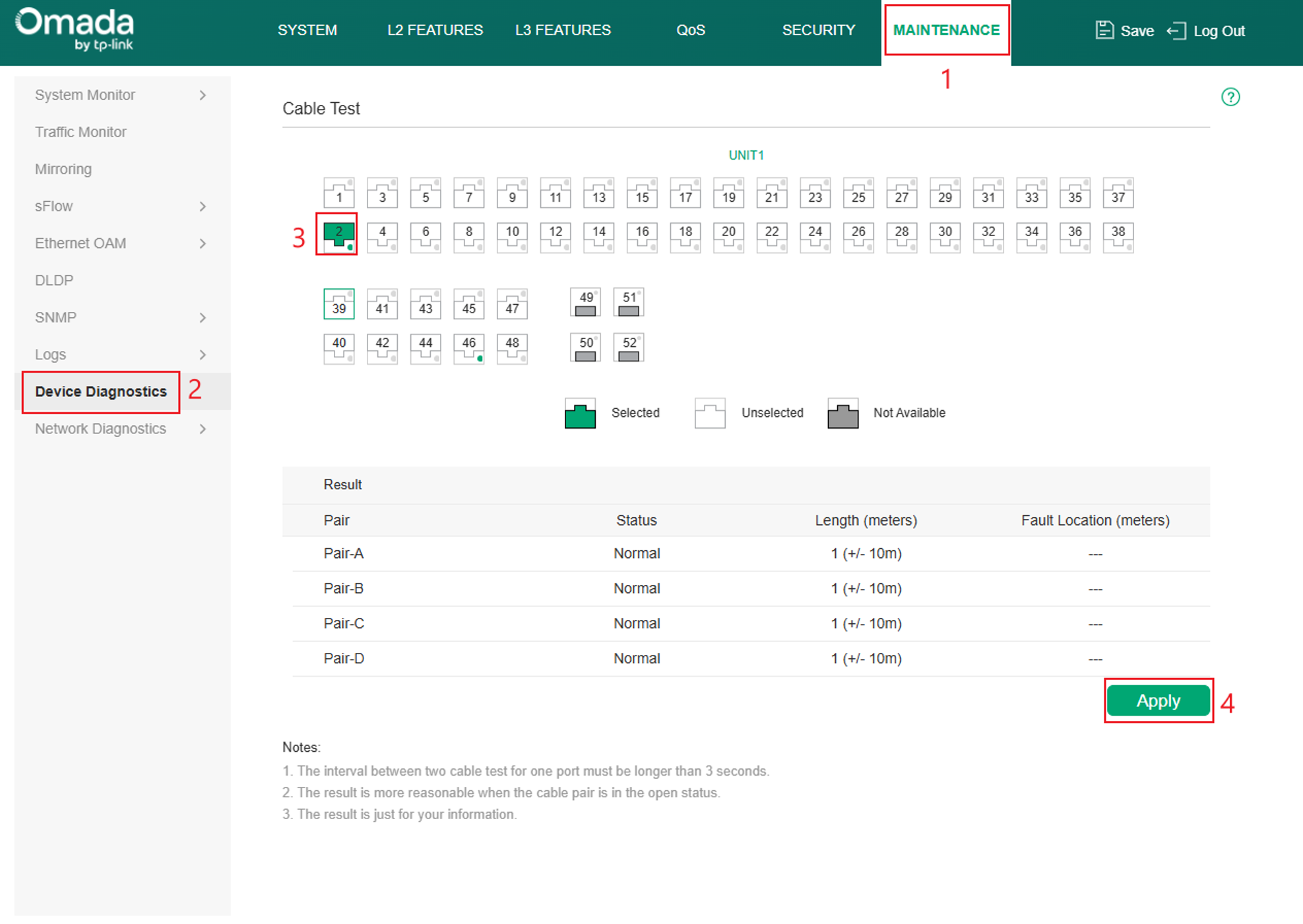
If the switch is operating in Standalone Mode, navigate to Maintenance > Device Diagnostics. Select the affected port and click Apply to start the cable test.
CLI-Based
Access the switch CLI using an SSH client or console connection.
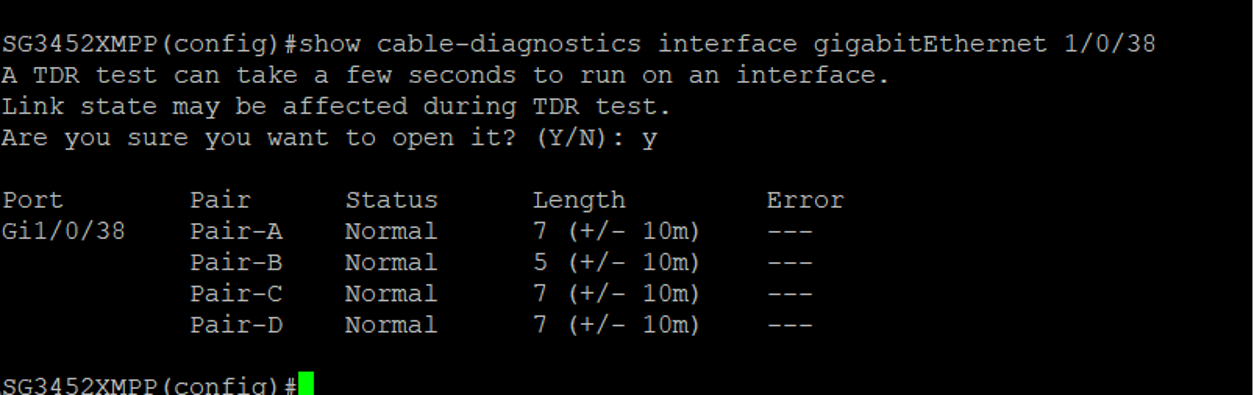
Use the following command to run a cable diagnostic test on the affected port:
show cable-diagnostics interface <interface-type> <interface-number>
For example:
show cable-diagnostics interface gigabitEthernet 1/0/38
Step 4. Test another switch port
Connect the affected device to a different switch port and retest the connection.
If performance improves, the original port may be experiencing a hardware or configuration issue.
Step 5. Check Port Statistics
Check the affected switch port statistics to see whether any errors are detected while traffic passes through the port.
If possible, note the current error counters, reproduce the slow-speed issue, then check the statistics again. If the counters continue to increase, this may indicate an issue with the Ethernet cable, connected device, or switch port.
Controller Mode:
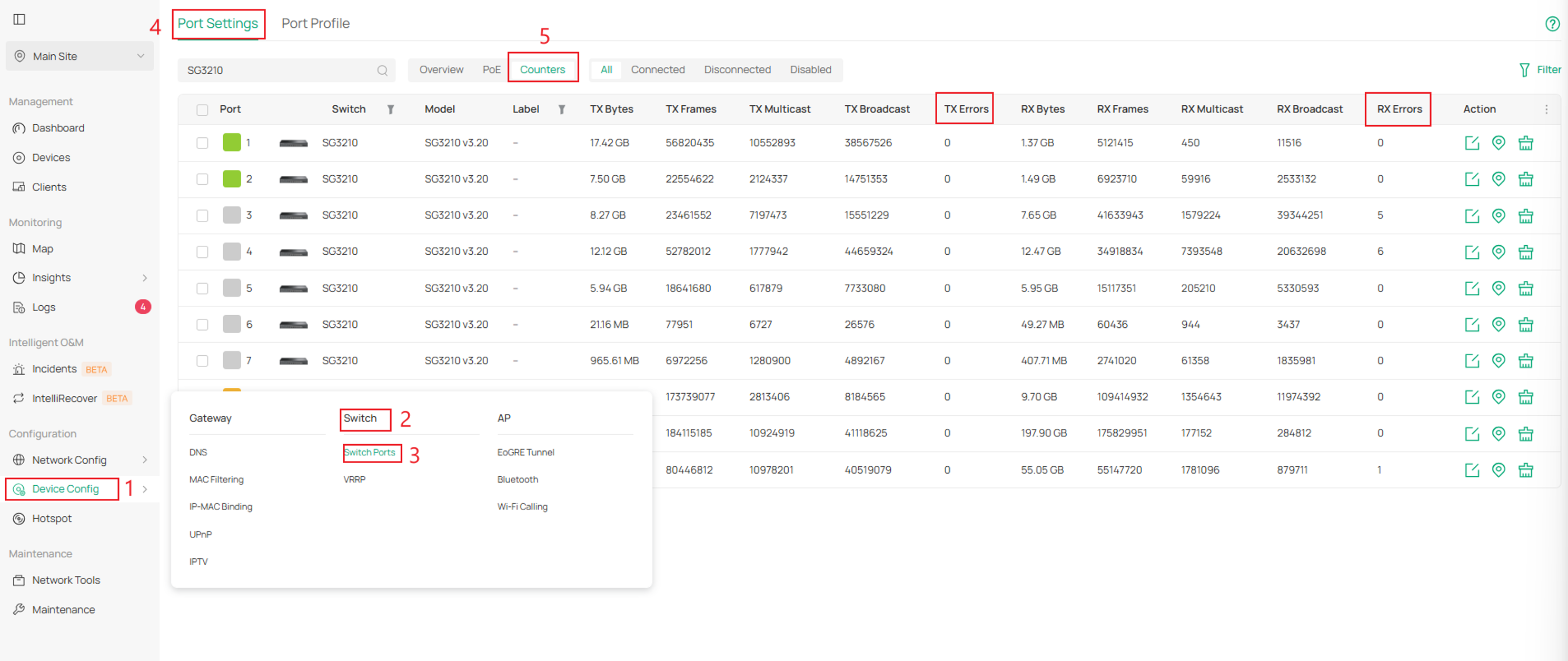
Check the TX Errors and RX Errors counters for the affected port. If either counter continues to increase while reproducing the slow-speed issue, check the Ethernet cable, connected device, and switch port for possible problems.
Navigate to Device Config > Switch > Switch Ports > Port Settings > Counters. Locate the affected switch and port in the list.
Standalone Mode:
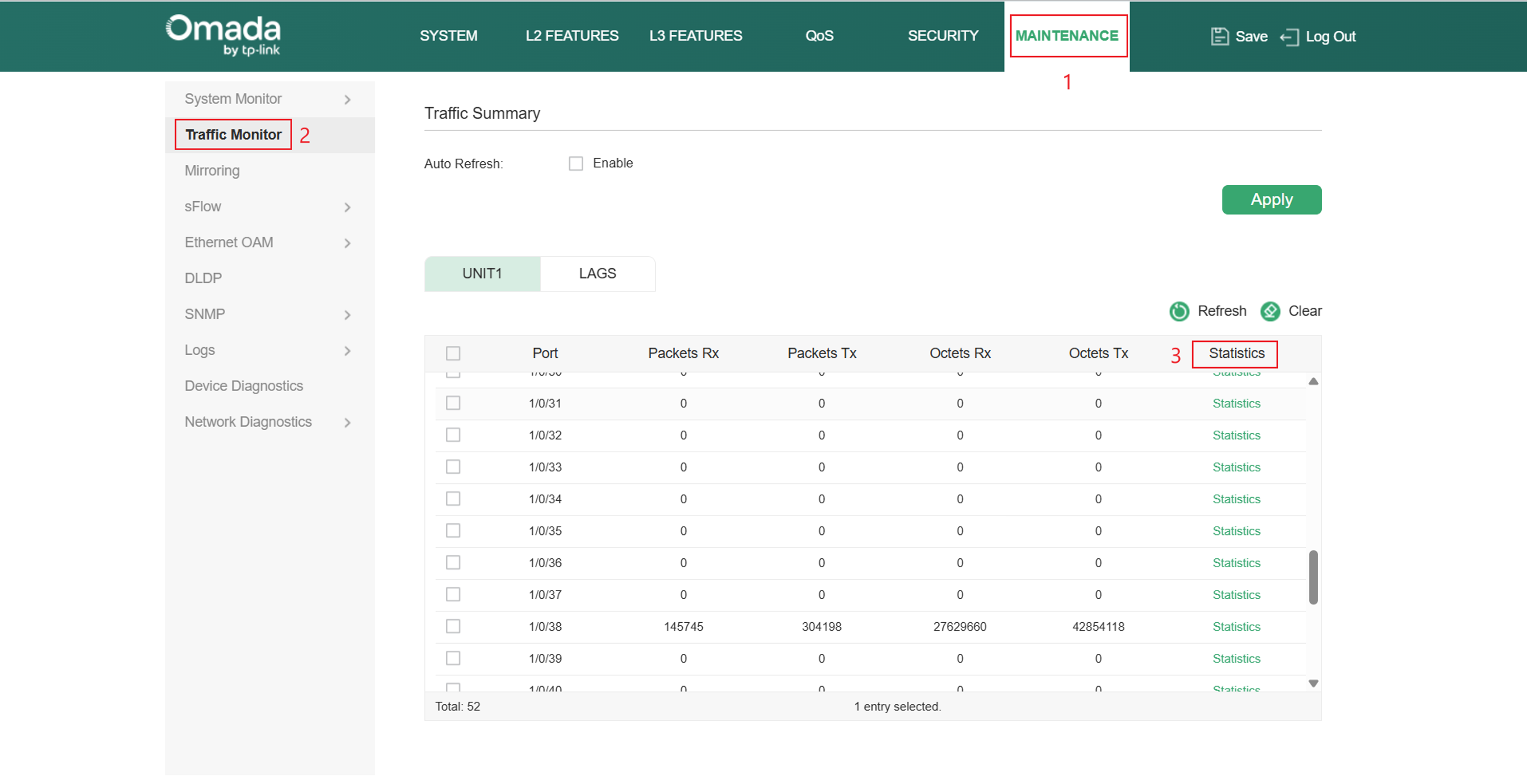
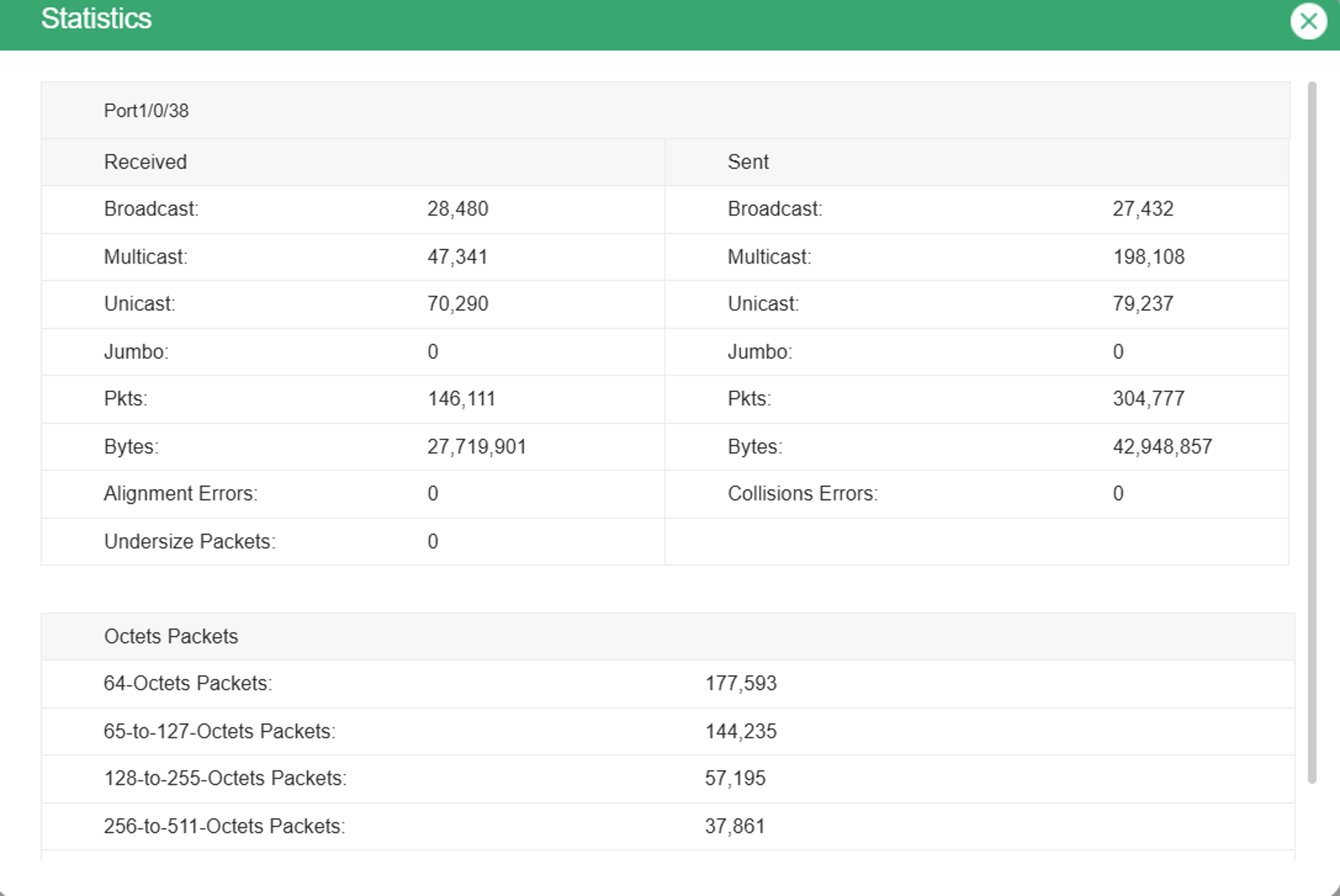
Navigate to Maintenance > Traffic Monitor and locate the affected port. Click Statistics for that port to view the detailed traffic and error counters.
Review counters such as Alignment Errors, Collision Errors, and other available error counters. If possible, clear the statistics, reproduce the slow-speed issue, and check whether the error counters begin increasing again.
CLI-Based:
Access the switch CLI using an SSH client or console connection.
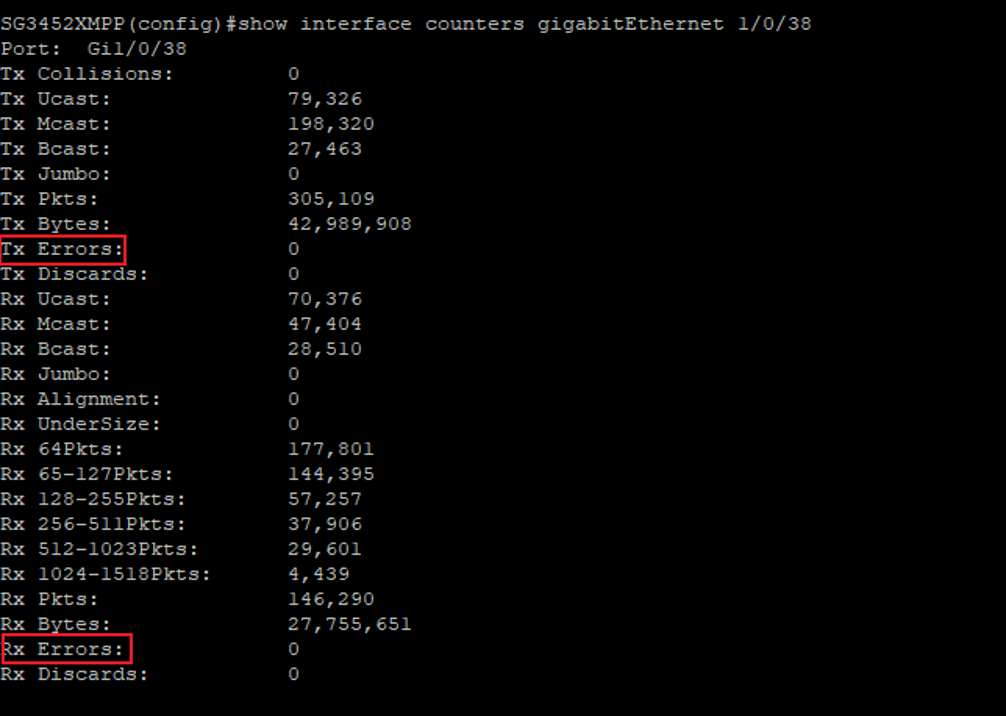
Review the Tx Errors and Rx Errors counters. If either counter continues to increase while reproducing the slow-speed issue, check the Ethernet cable, connected device, and switch port for possible problems.
Use the following command to check the traffic and error counters for the affected port:
show interface counters <interface-type> <interface-number>
For example:
show interface counters gigabitEthernet 1/0/38
Step 6. Verify the uplink connection
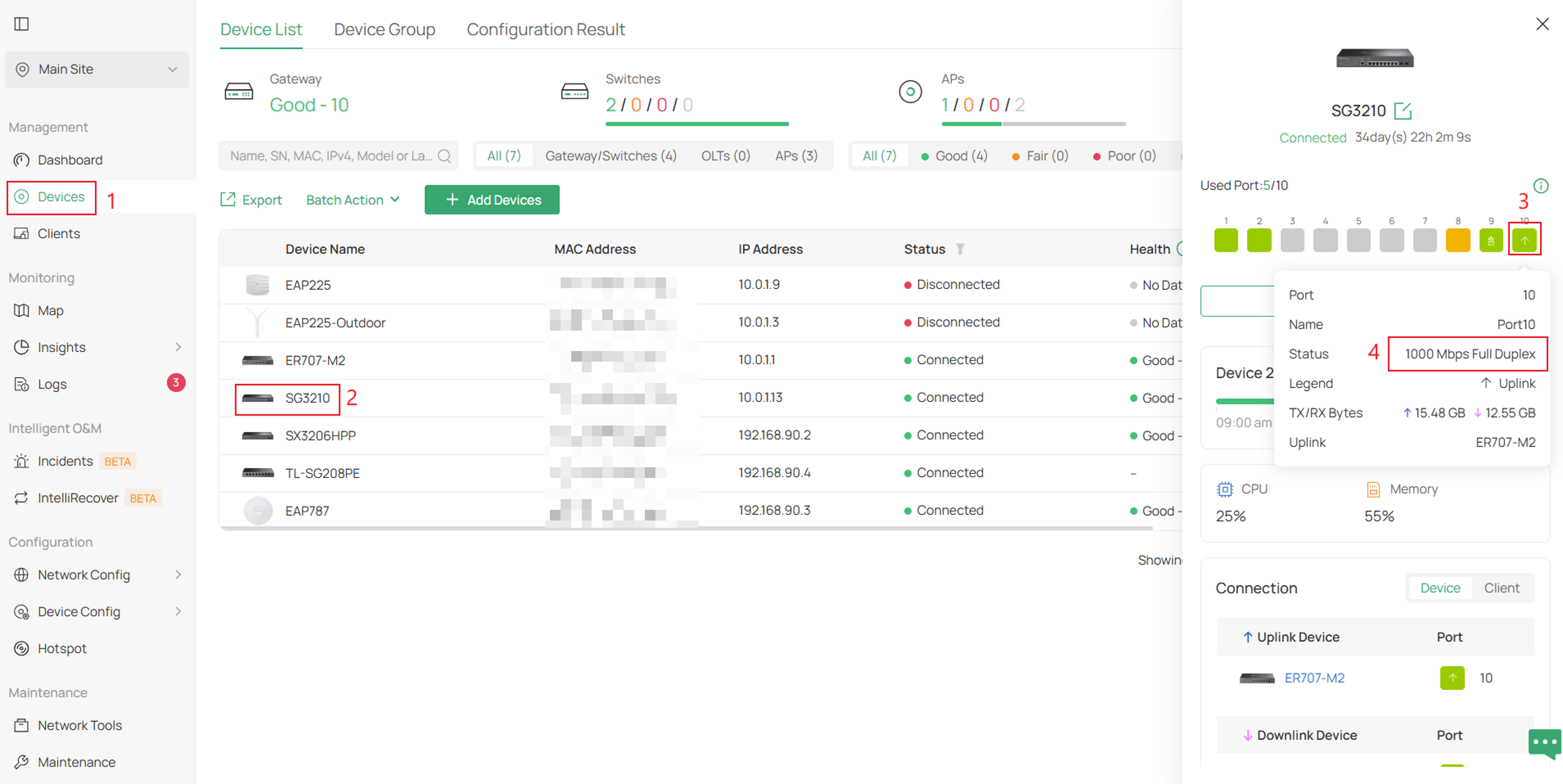
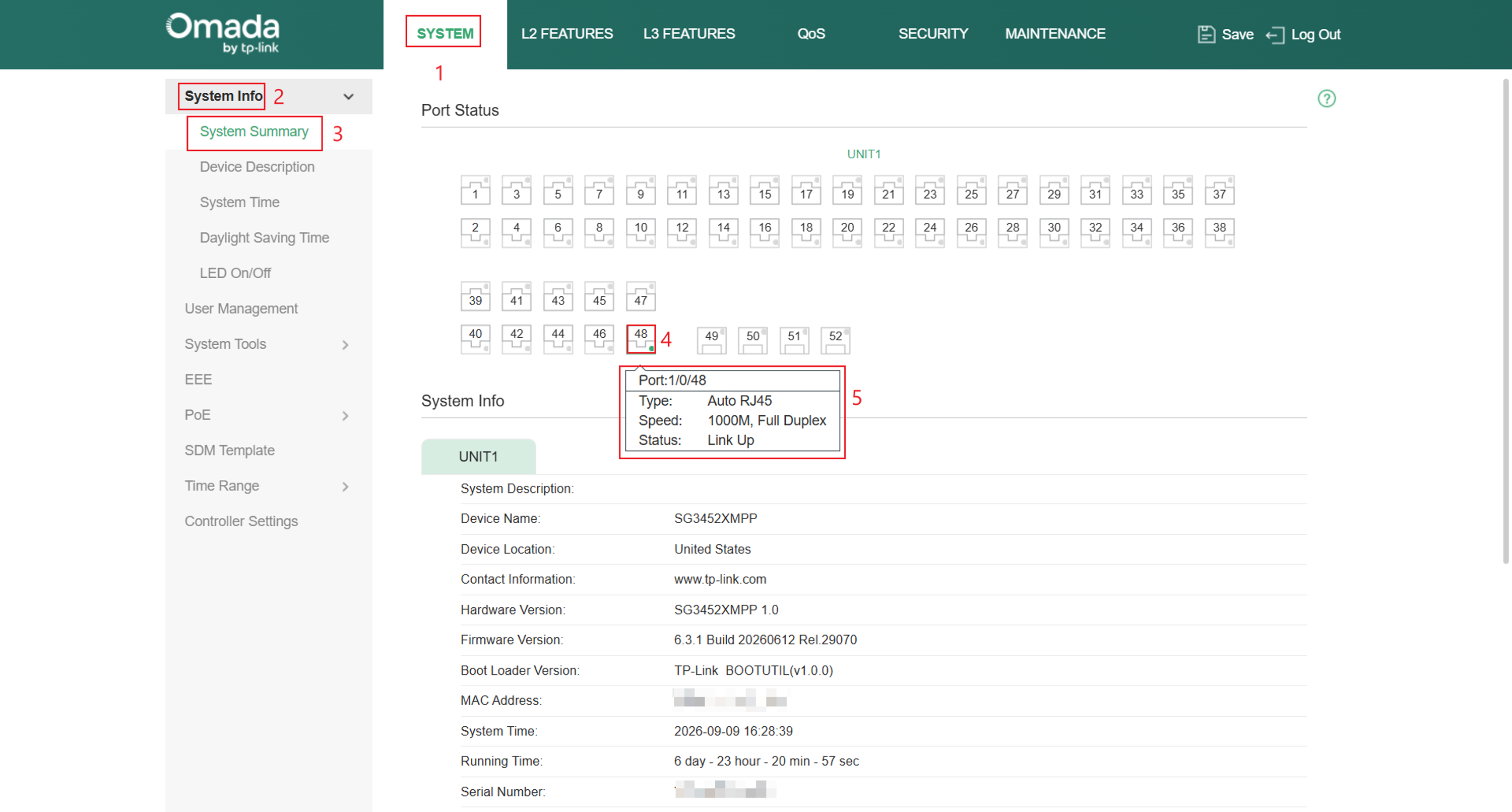
Verify the connection speed and duplex status between the switch and the upstream router or switch.
A client device may successfully negotiate at its maximum speed, but an uplink operating at a lower speed can create a bottleneck for all downstream devices.
Controller Mode:
If the switch is adopted by a controller, navigate to Devices, select the switch and the corresponding uplink port, and then view the negotiated speed and duplex settings.
Standalone Mode:
If the switch is managed in standalone mode, navigate to System > System Info > System Summary, then hover over the uplink port to view its current link speed and duplex status.
Step 7. Verify bandwidth limits and QoS settings
For managed switches, verify that bandwidth control and QoS settings are not restricting throughput.
Review:
- Ingress Rate Limits
- Egress Rate Limits
- Switch QoS policies
These settings can intentionally limit available bandwidth.
Controller Mode:
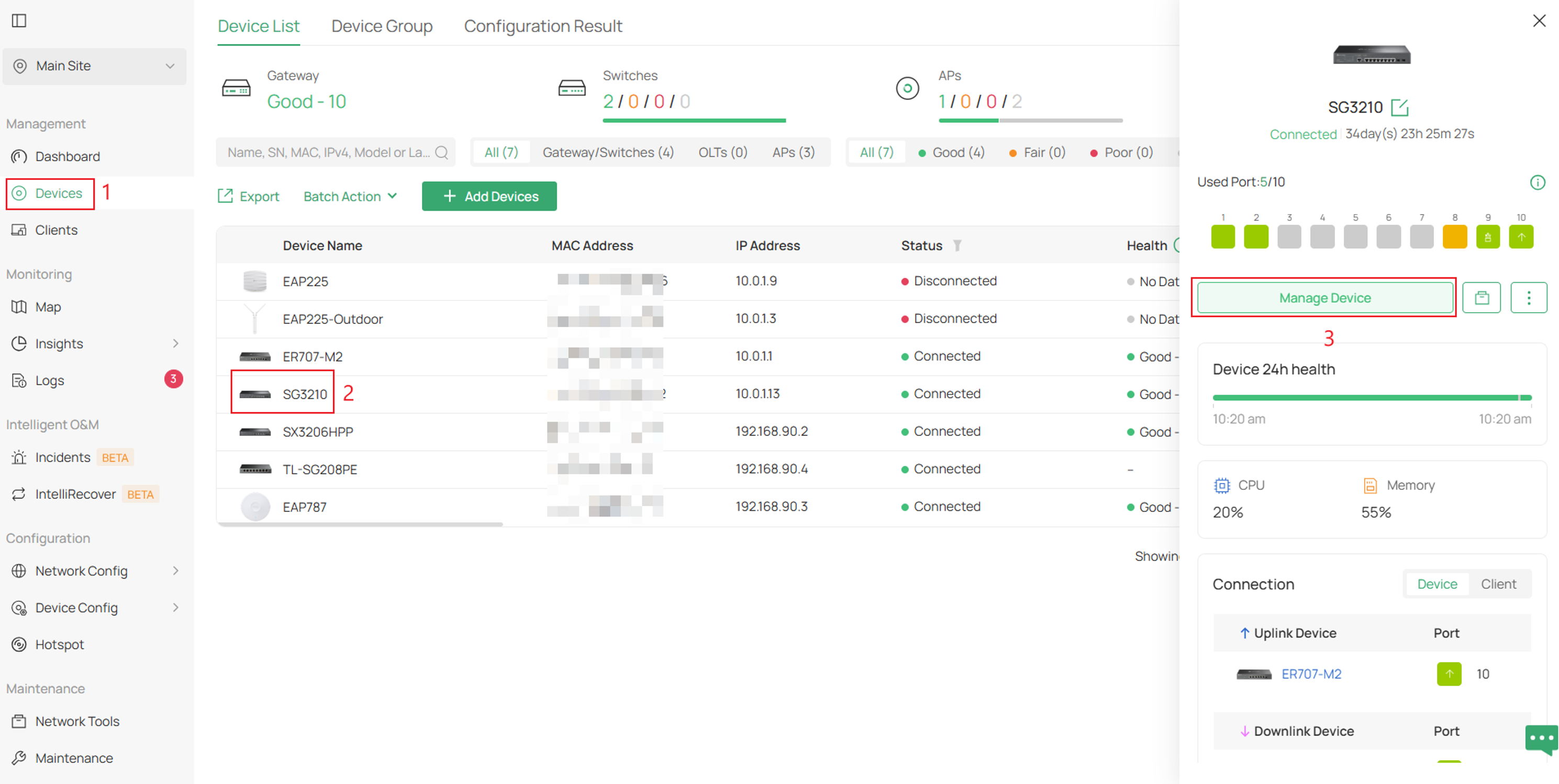
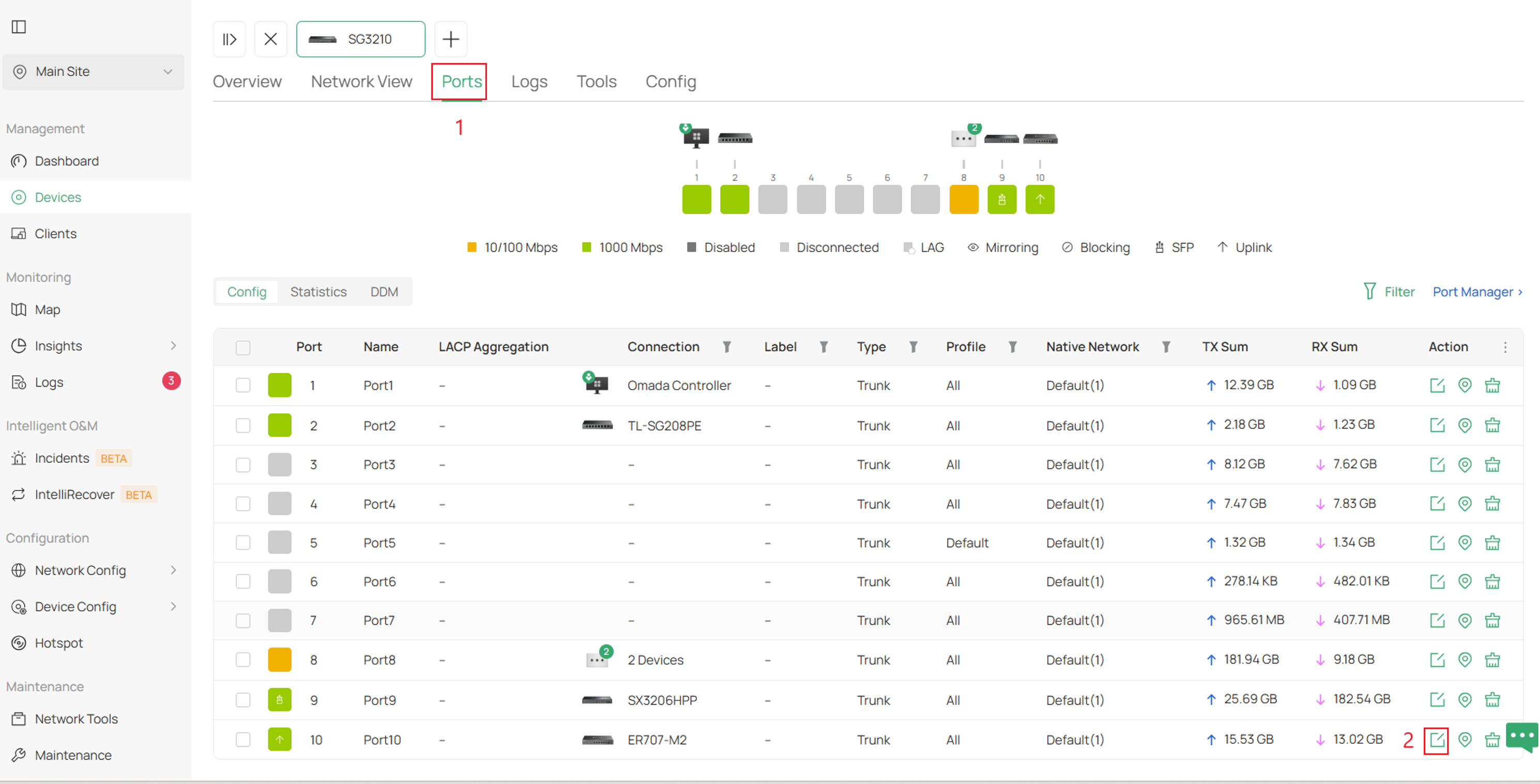
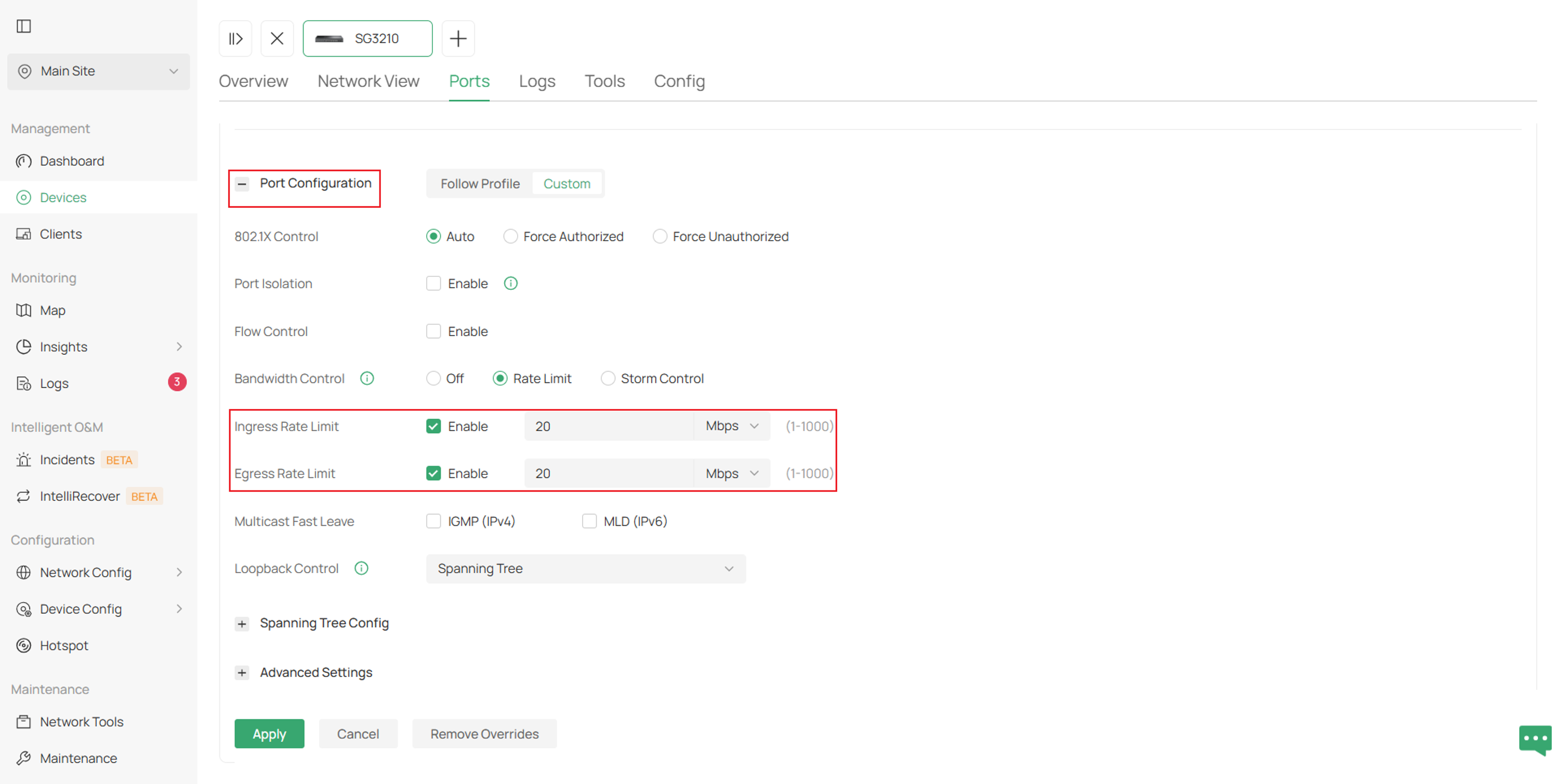
To review switch port settings in the controller, navigate to Devices > Select the Switch > Manage Device > Ports > Edit. Expand Port Configuration to check whether any Ingress Rate Limit or Egress Rate Limit settings are configured.
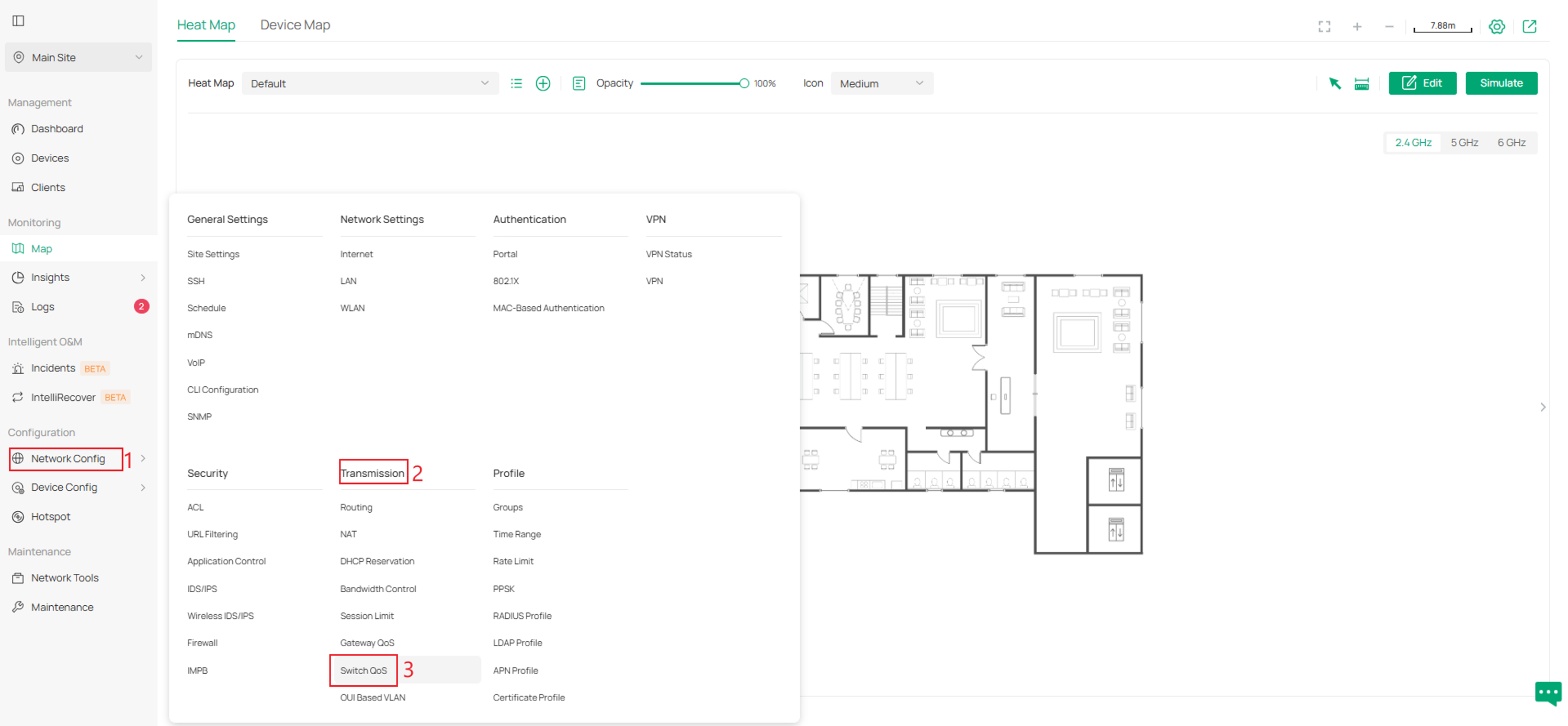
To review switch QoS settings, navigate to Network Configuration > Transmission > Switch QoS.
Standalone Mode:
To review port rate limiting settings, navigate to QoS > Bandwidth Control > Rate Limit and inspect whether any Ingress Rate Limit or Egress Rate Limit values are configured.
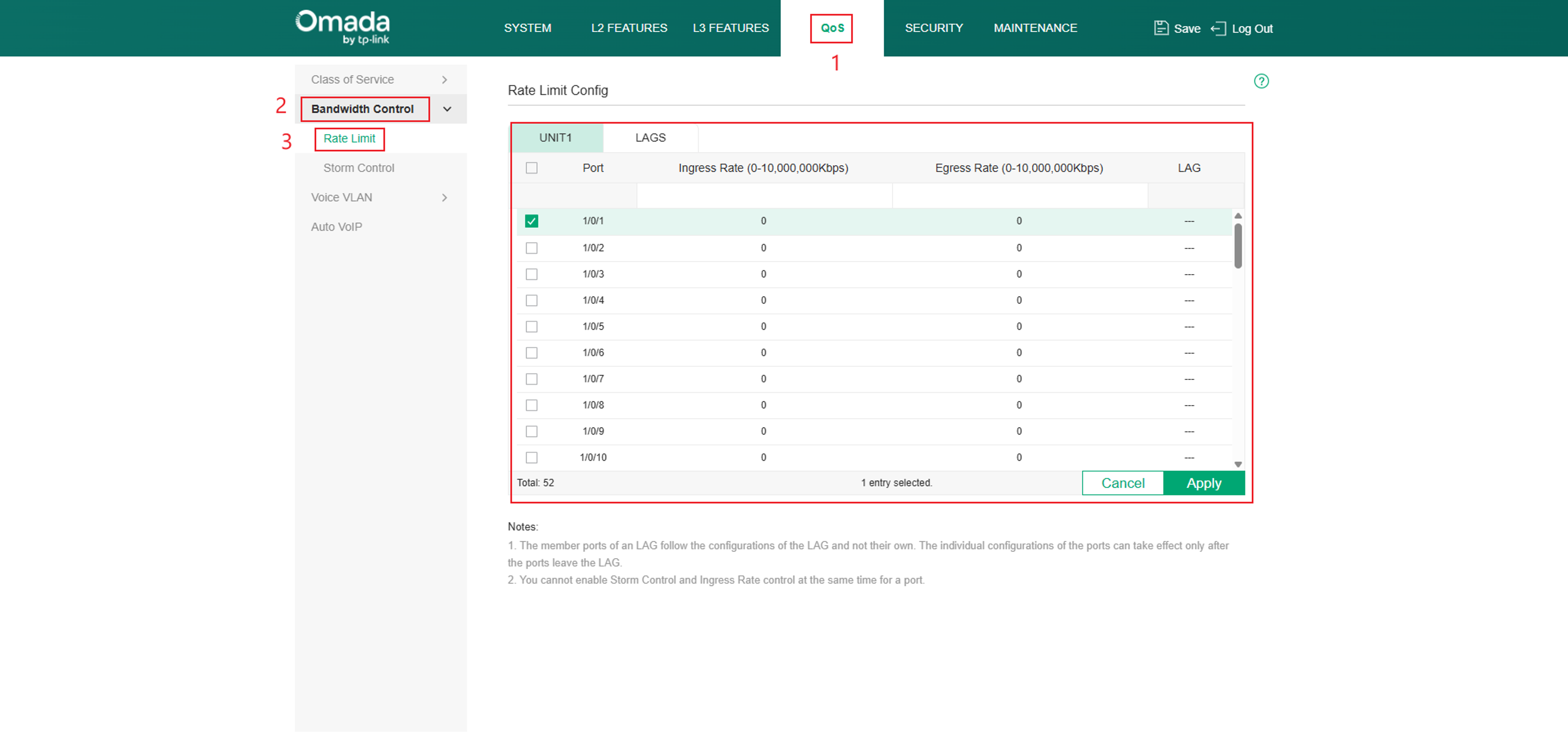
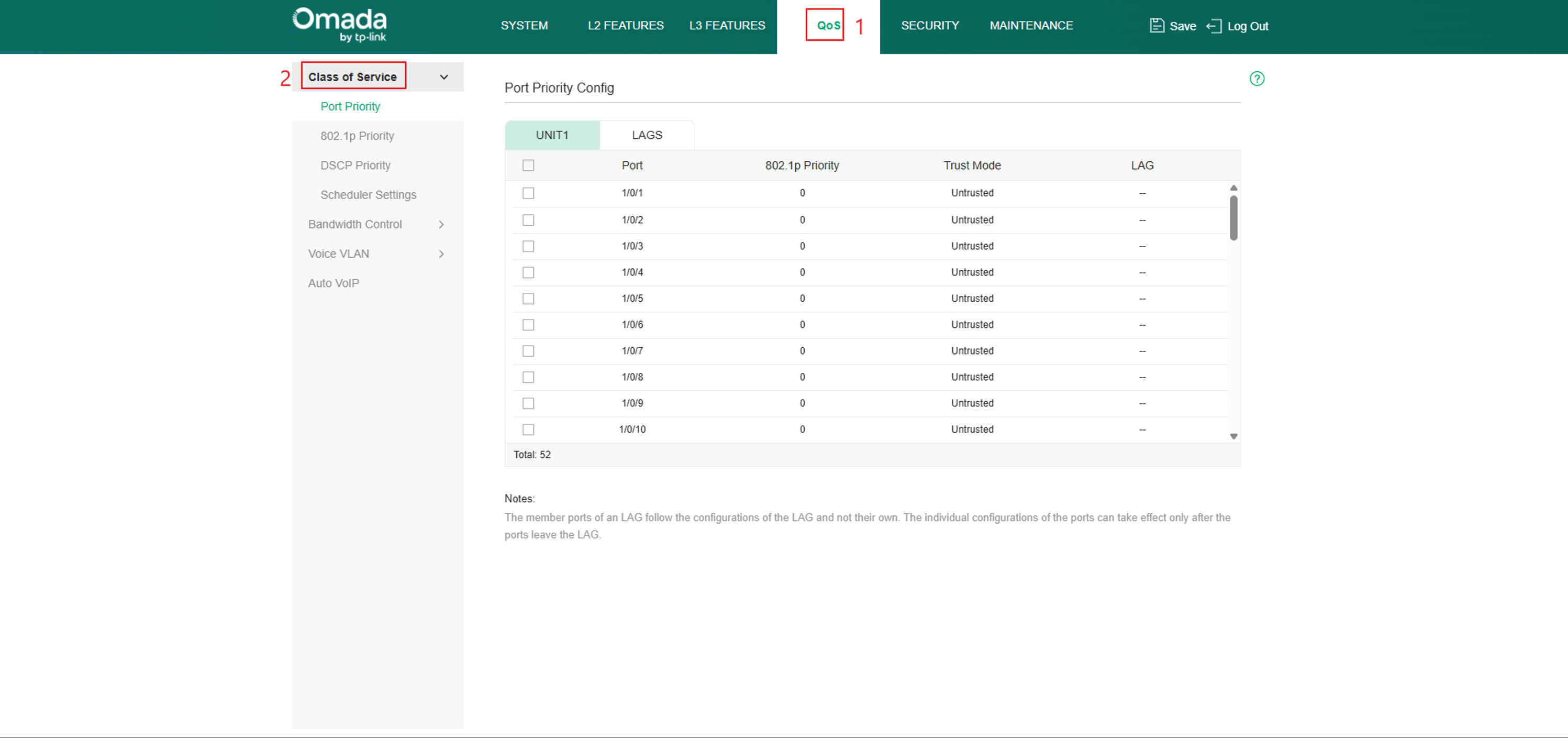
To review QoS priority settings, navigate to QoS > Class of Service and verify the current traffic priority configuration.
Step 8. Test with another device
Connect a known-good wired device to the same switch port and compare performance.
This helps determine whether the issue is isolated to a specific device or exists elsewhere within the network path.
Step 9. Bypass the switch
Connect the wired device directly to the upstream router or switch, bypassing the Omada switch.
- If performance improves, the issue may be related to the switch, its configuration, or the uplink connection.
- If performance remains unchanged, continue troubleshooting the upstream network, gateway, WAN connection, or ISP service.
Conclusion
Following these troubleshooting steps helps isolate the cause of slow network speeds on an Omada switch by verifying link speeds, Ethernet cabling, switch ports, uplink connections, bandwidth control settings, and QoS policies. Once the affected network segment has been identified, corrective actions can be applied more efficiently. If all switch-related checks pass and performance remains below expectations, continue troubleshooting the router, gateway, WAN connection, or ISP service.
To learn more about each function and configuration, please visit Support Home to download or check the manual for your product.
QA
Q1: Why is my wired device only getting around 100 Mbps from a Gigabit switch?
A1: Common causes include:
- Damaged Ethernet cables
- Faulty cable terminations
- Network adapters that only support Fast Ethernet
- Ports configured for lower link speeds
- Upstream devices that only support 100 Mbps
- If the affected device is powered through PoE, verify that the switch provides sufficient PoE power for the device.
Try replacing the Ethernet cable, testing another switch port, and verifying that all devices in the connection path support Gigabit Ethernet.
Q2: Can QoS settings affect network speed?
A2: Yes. QoS policies, Ingress Rate Limits, Egress Rate Limits, and Bandwidth Control settings can intentionally limit the available bandwidth on a port or for specific traffic types.
Q3: How can the switch be identified as the source of the slowdown?
A3: Bypass the switch and connect the device directly to the upstream router or switch. If network performance improves, further investigation of the switch, uplink, cabling, or switch configuration is recommended.
Q4: Why is my device negotiating at 100 Mbps instead of 1 Gbps?
A4: This is commonly caused by:
- Damaged Ethernet cables
- Improperly terminated connectors
- Hardware issues on the switch port or network adapter
- Devices that do not support Gigabit Ethernet
- Port being limited to 100mbps
Replacing the cable and testing another switch port are recommended first steps.
