


Contents
Configure a Storage Provider for Archiving
Scenario 1. Configure Google Drive
Archive Recordings to External Storage
Scenario 1. Archiving from Playback
Scenario 2. Archiving from Events
Scenario 3. Archiving from Smart Search
Introduction
The Archive feature in Omada Guard allows recordings stored on an Omada Fusion Pro Gateway or managed NVRs to be archived to external storage for long-term retention and backup. Supported destinations include Google Drive, OneDrive, Dropbox, and NAS (SMB-based network storage).
This article explains how to configure storage providers and archive recordings from Playback, Events, and Smart Search to cloud drive or NAS.
Requirements
- Omada Fusion Pro Gateway
- Local Storage (SSD on Fusion Pro Gateway / HDDs on NVRs)
- External Storage (Google Drive / OneDrive / Dropbox / NAS)
Configure a Storage Provider for Archiving
Archiving recordings requires a Storage Provider as the destination. A Storage Provider can be configured in advance or added during the archiving process.
Step 1. Open archiving management
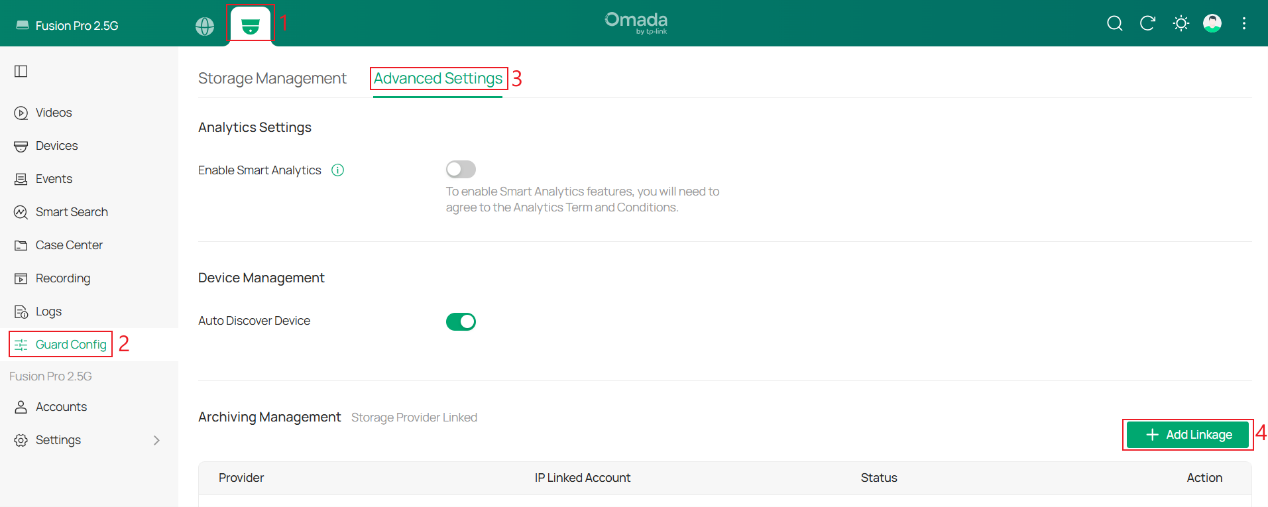
Log in to the Fusion Pro Gateway and go to Omada Guard > Guard Config > Advanced Settings > Archiving Management, then click + Add Linkage.
Step 2. Add a storage provider
Select a Provider and click Confirm to configure it.
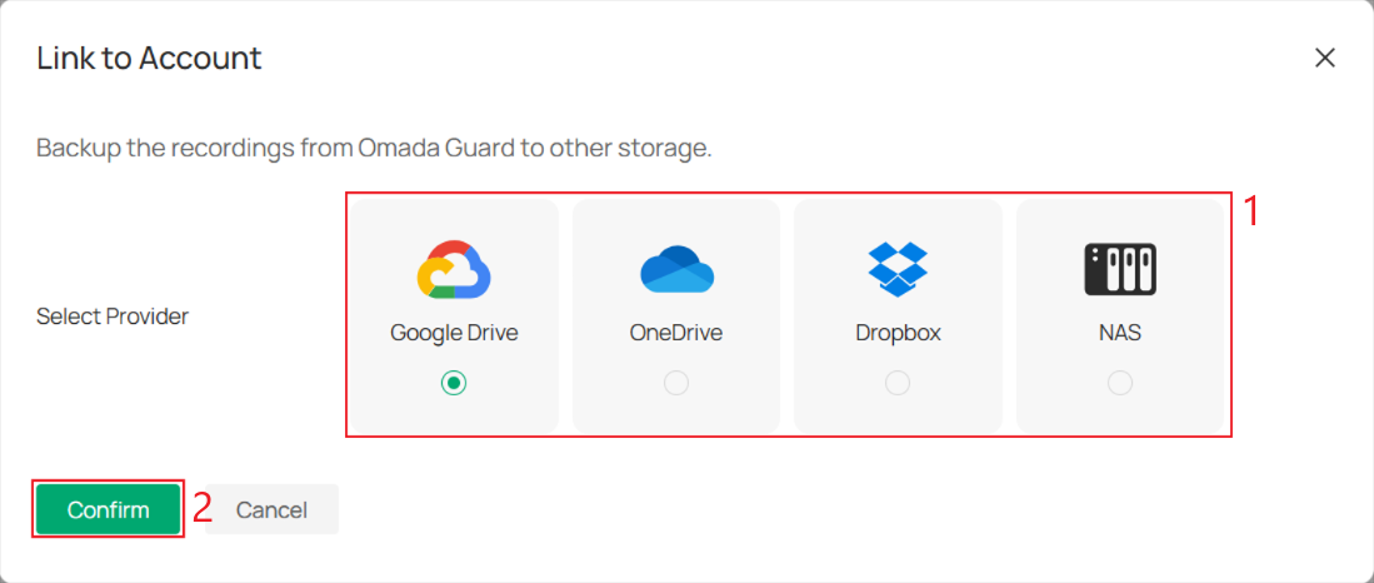
The following examples show how to configure a third-party cloud drive service using Google Drive and SMB-based network storage using NAS.
Scenario 1. Configure Google Drive
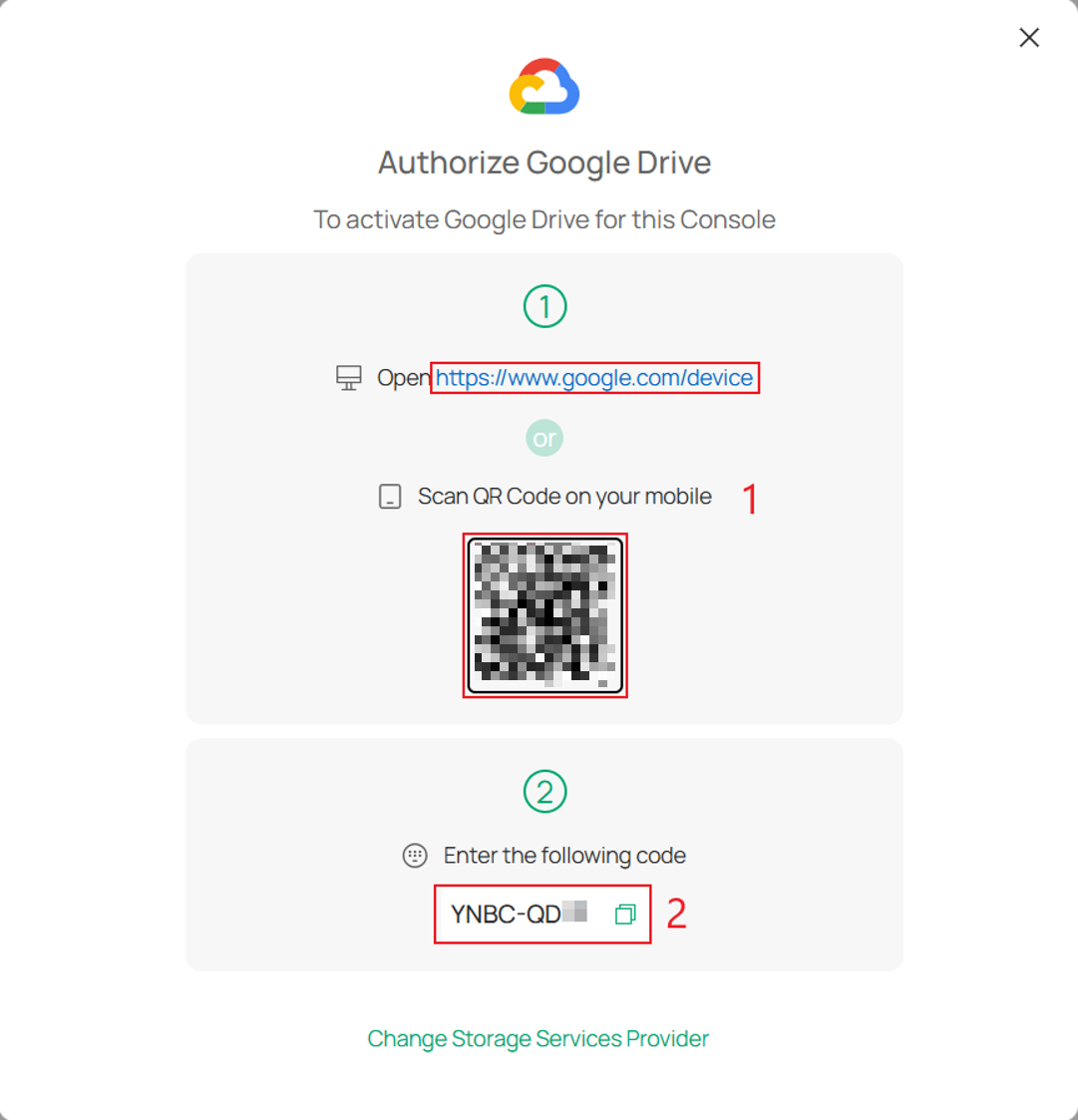
On the Authorize Google Drive page, click the link marked ① or scan the QR code, and then enter the code shown in ② on the webpage that opens.
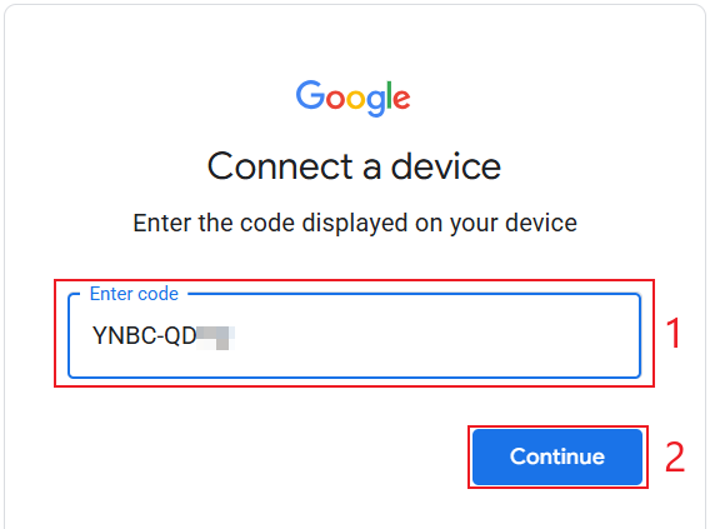
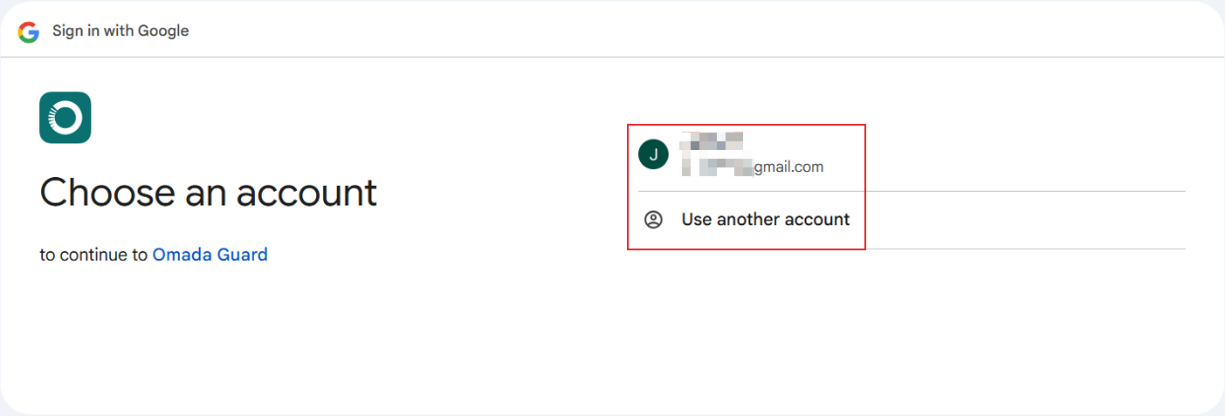
Sign in to a Google Account. If already signed in, select the account to be linked.
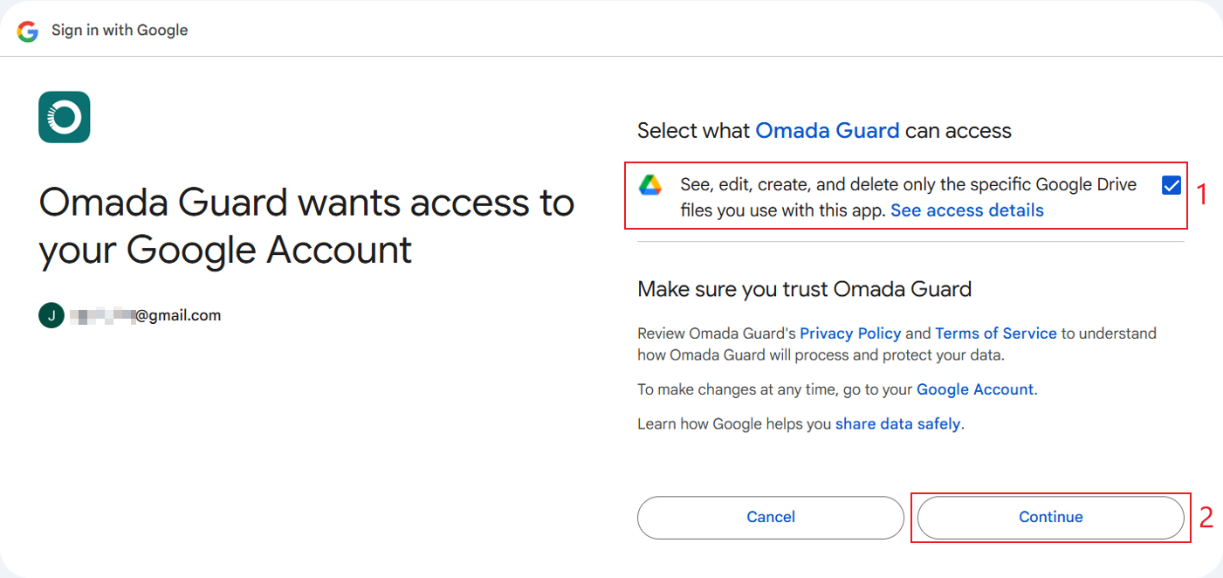
Click Continue to allow Omada Guard to access Google Drive, then click Continue.
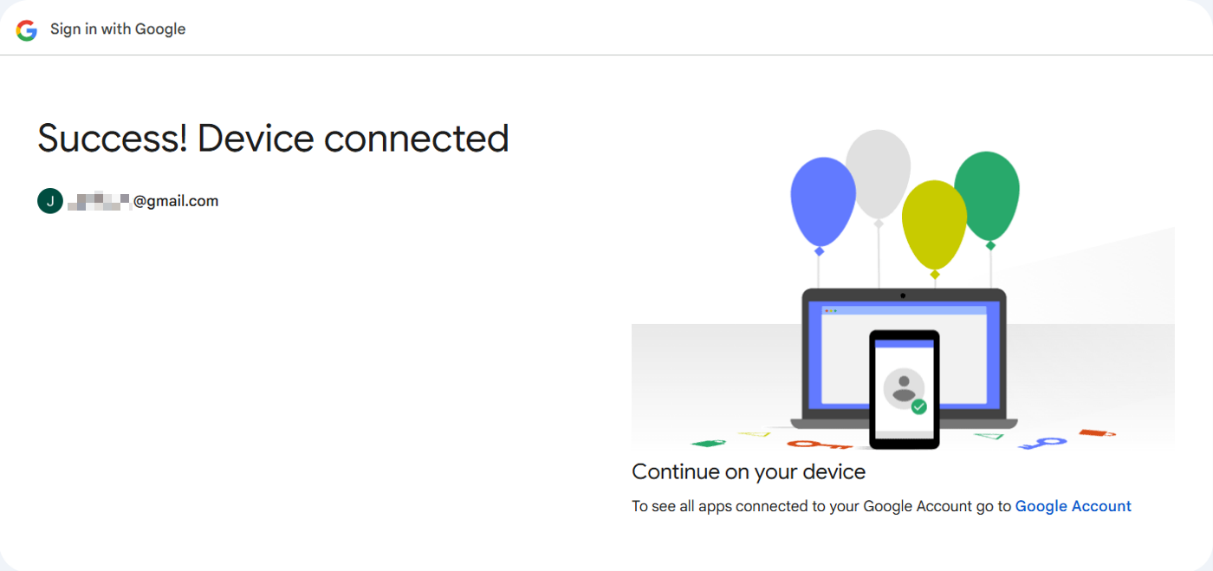
After Google Drive indicates that the authorization is complete, return to the management interface of the Fusion Pro Gateway.
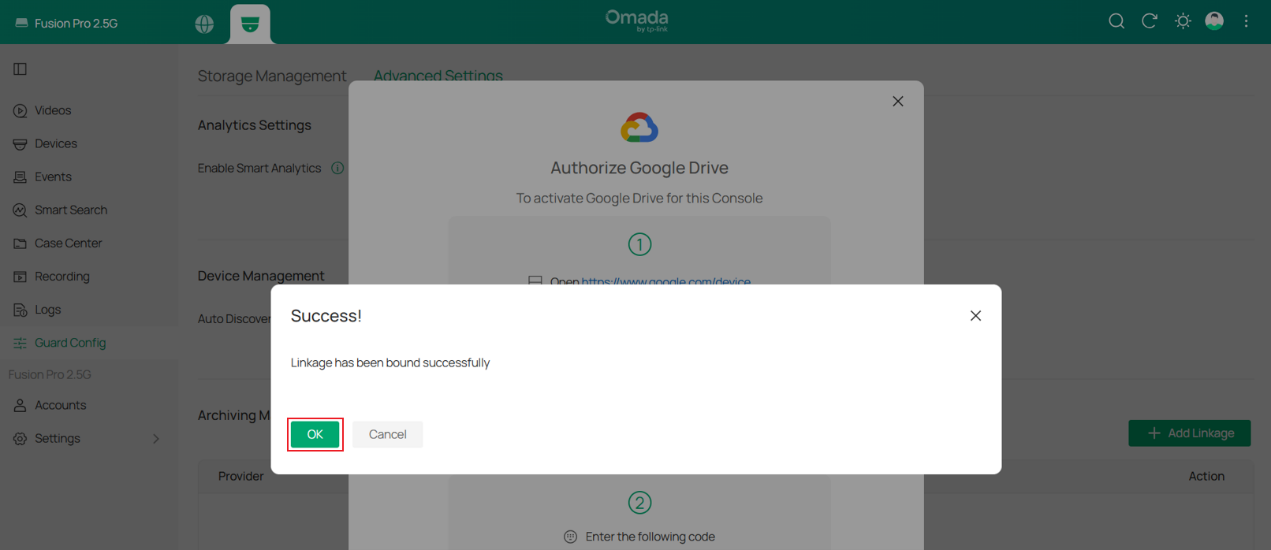
Click OK to confirm that the Storage Provider has been added successfully.
Scenario 2. Configure NAS
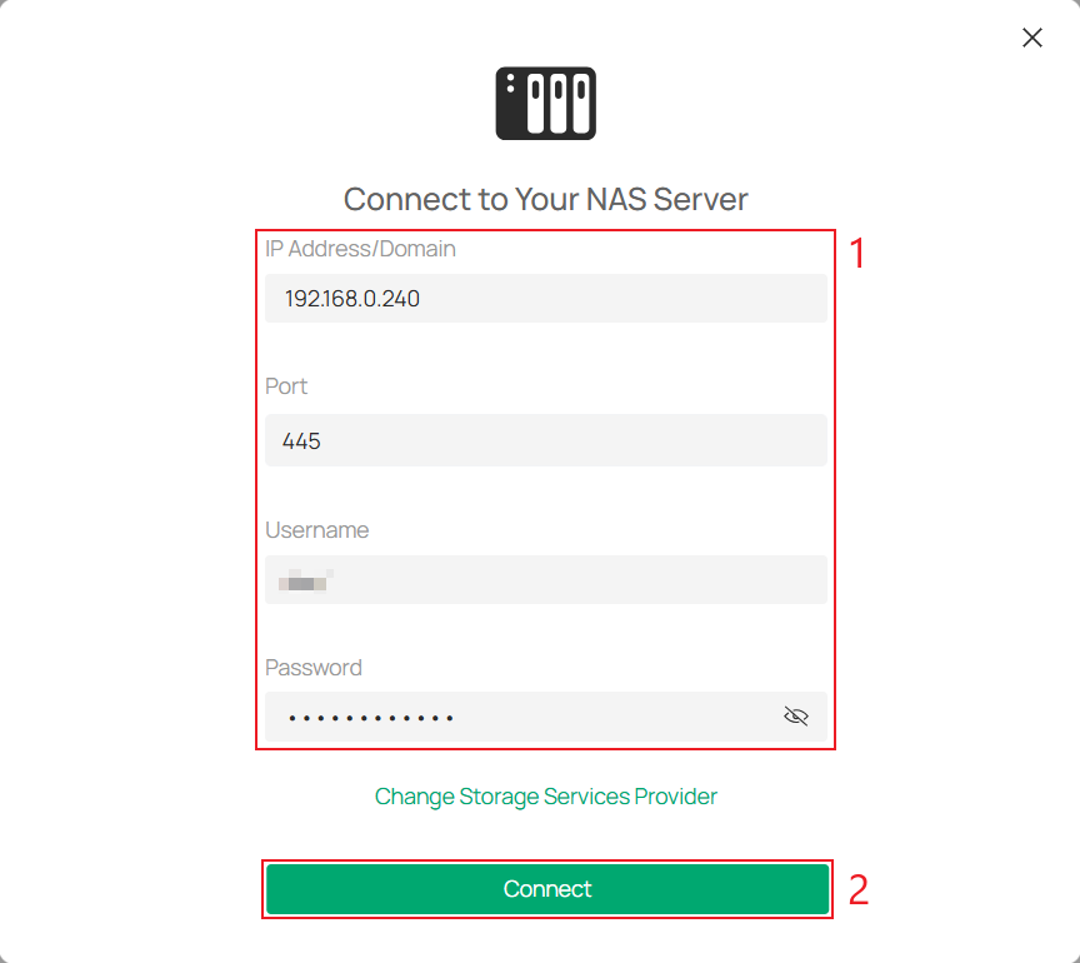
On the Connect to Your NAS Server page, enter the NAS server IP Address/Domain, SMB Service Port, Username, and Password, then click Connect.
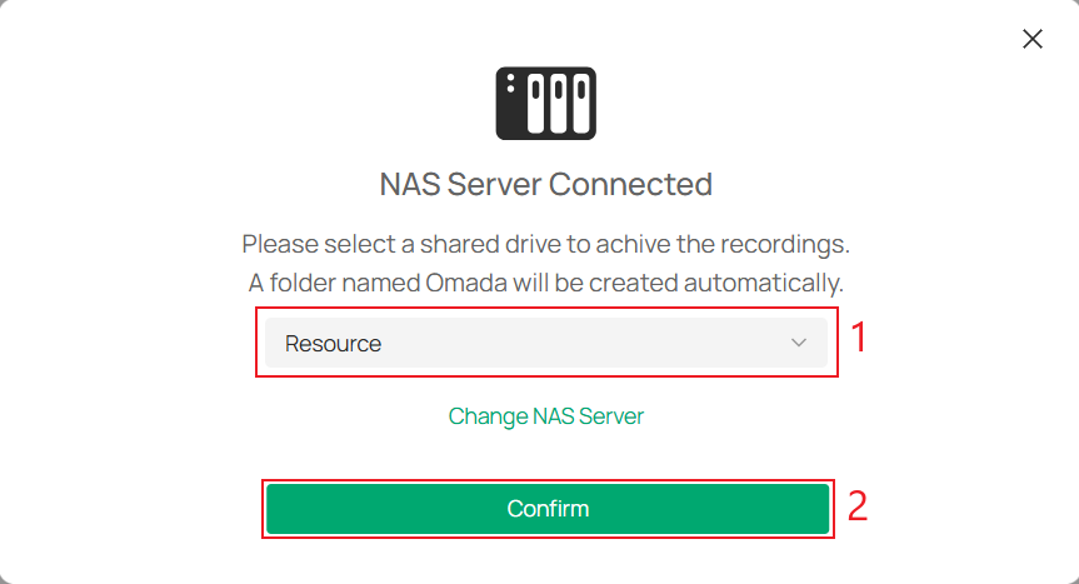
Select the SMB shared drive where the archived recordings will be stored, and click Confirm.
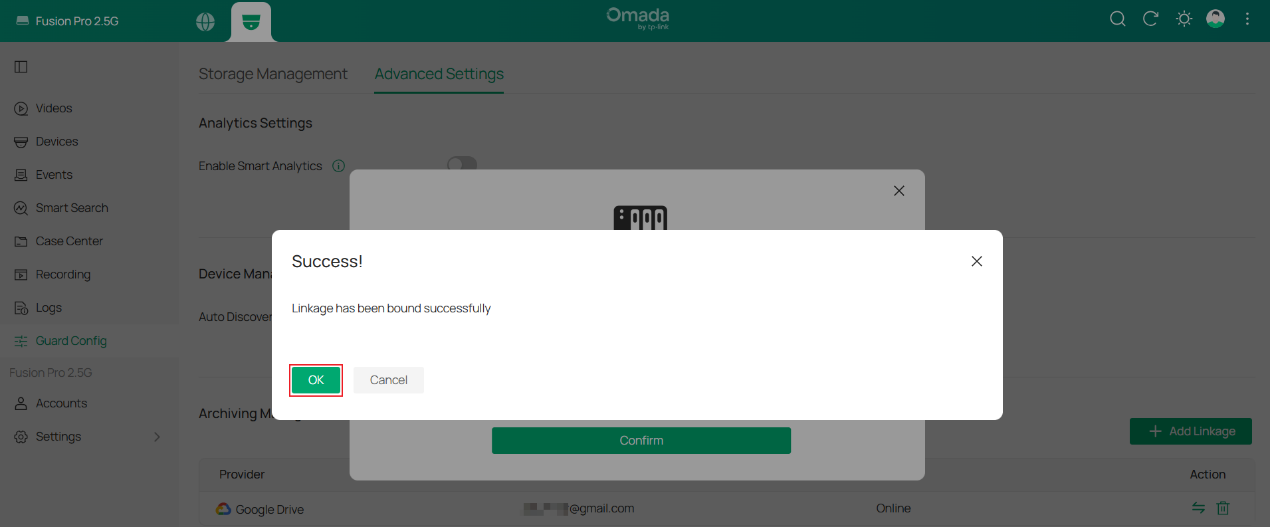
Click OK to confirm that the Storage Provider has been added successfully.
Step 3. Verify the storage provider status (optional)
Go to Omada Guard > Guard Config > Advanced Settings > Archiving Management and verify that the Storage Provider status is Online.

Archive Recordings to External Storage
Recordings can be archived directly from Playback, Events, or Smart Search. During the archiving process, select an existing Storage Provider or click + Add Account to create a new one.
Note: If no Storage Provider has been configured, refer to Configure a Storage Provider for Archiving before proceeding.
Scenario 1. Archiving from Playback
Go to Omada Guard > Video > Playback, select the camera and date, and click Save > Archive.
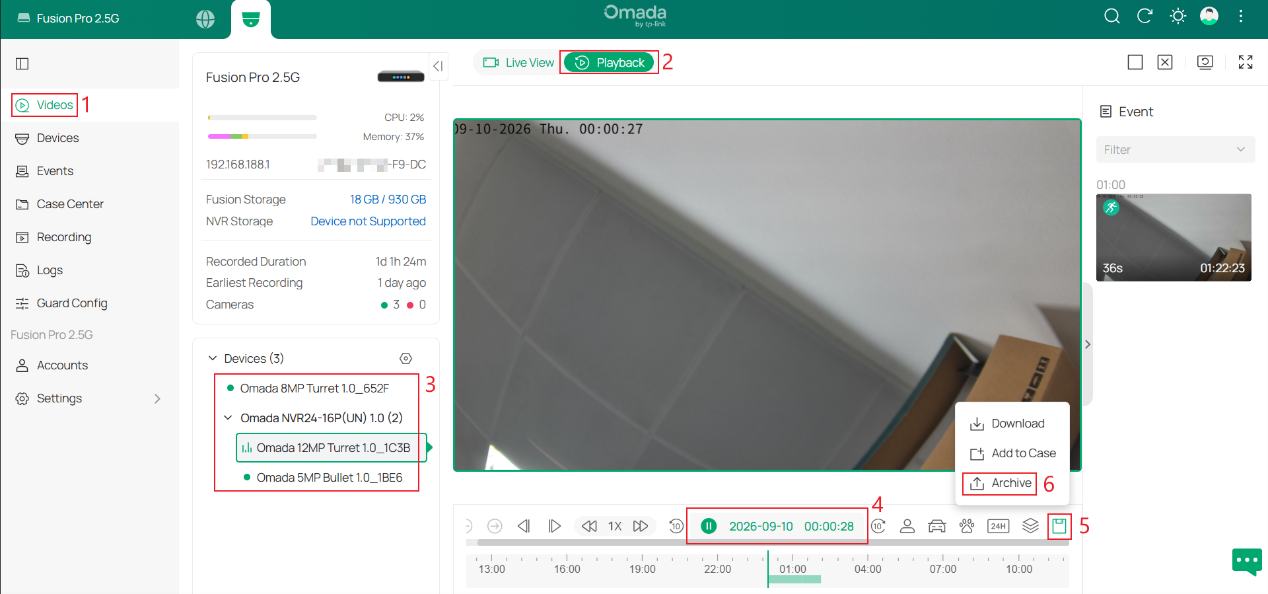
Select the time range of the recordings to be archived, then select an existing Storage Provider or click + Add Account to configure a new one and archive the recordings to it.
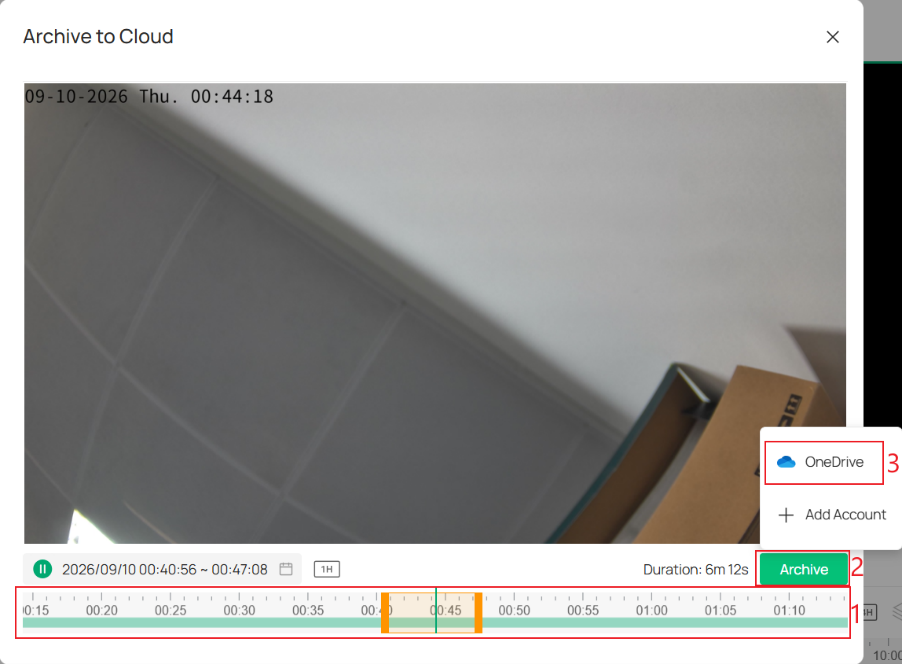
Note: For continuous recordings archived from Playback, a single archiving task can include a maximum recording period of 24 hours.
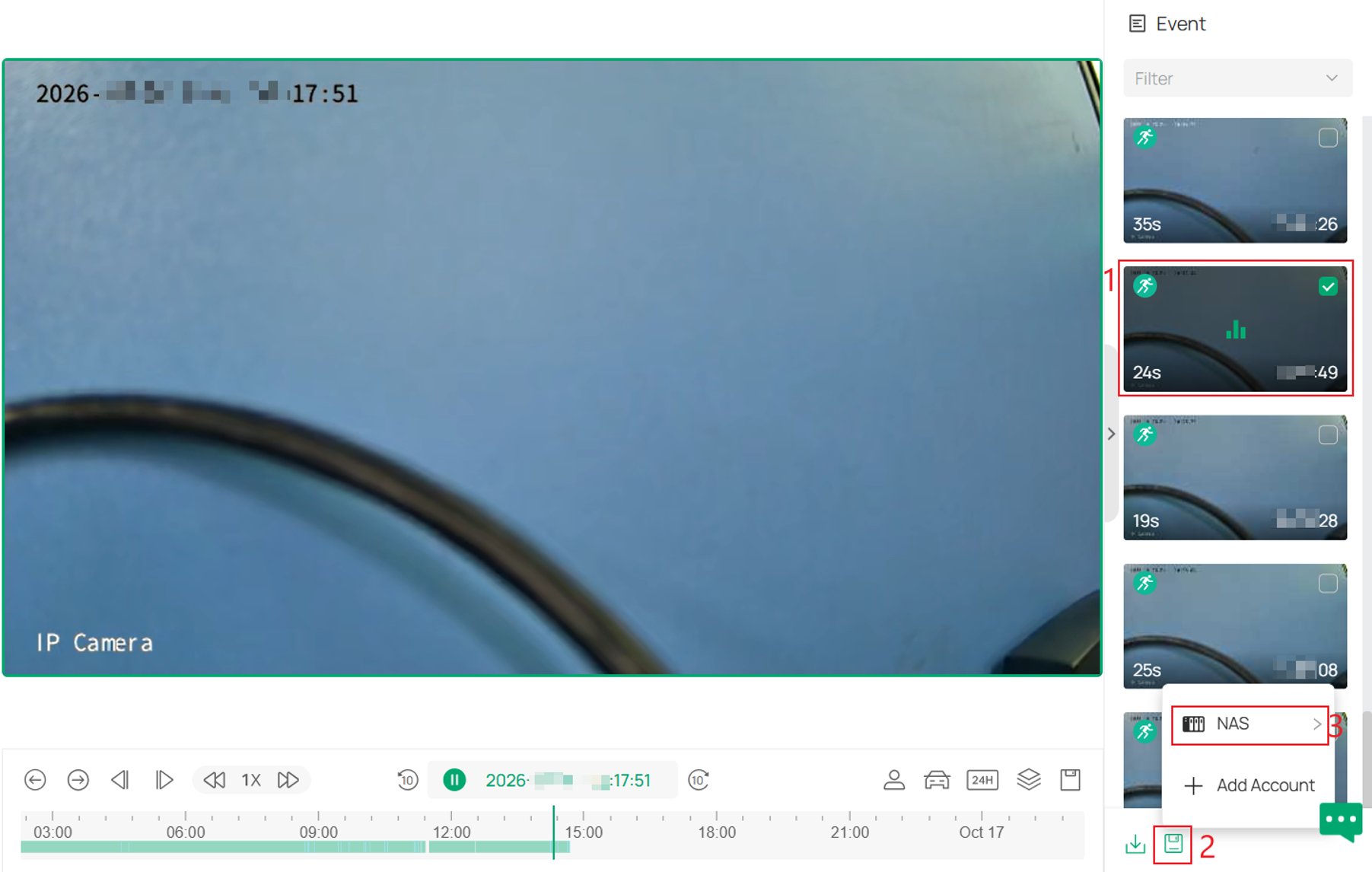
Event recordings can also be archived from Playback. Select the desired events from the Event panel on the right, click the Archive icon, and then select an existing Storage Provider or click + Add Account to add a new one.
Scenario 2. Archiving from Events
Go to Omada Guard > Events and specify the search criteria. Select the event recordings to be archived from the filtered results, then click Archive. Choose an existing Storage Provider or click + Add Account to add a new one, and archive the recordings to the selected storage destination.
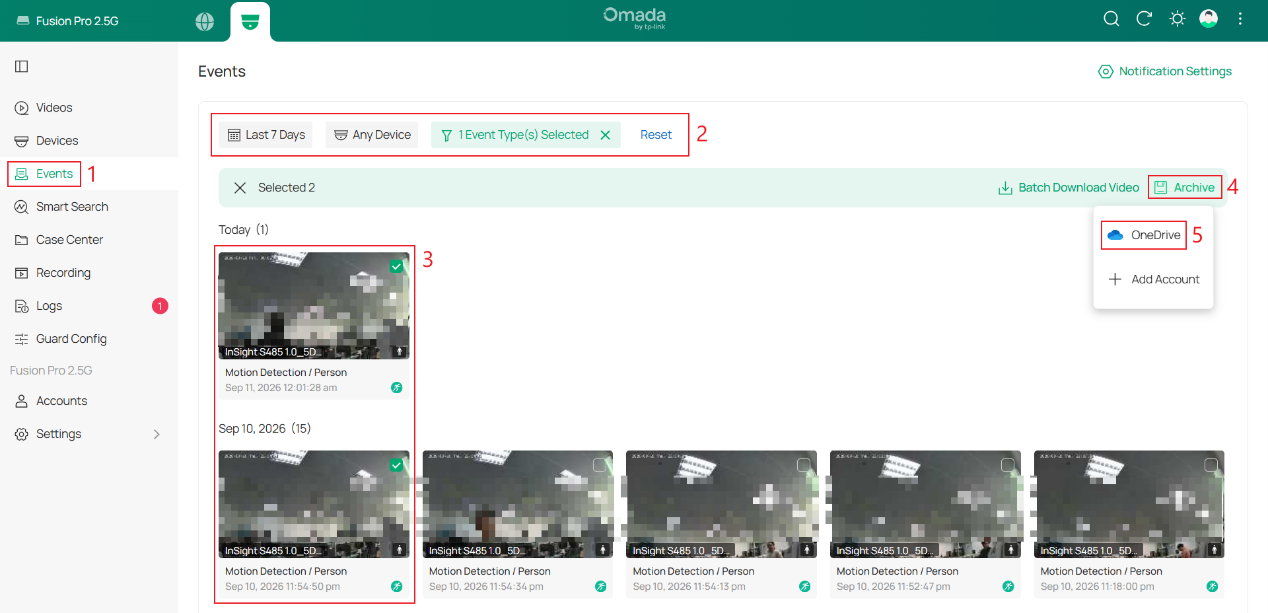
Note: When multiple recordings are selected from Events for archiving, each recording is created as a separate archiving entry. A maximum of 500 archiving entries can be processed at the same time.
Scenario 3. Archiving from Smart Search
Go to Omada Guard > Smart Search and specify the search criteria. From the search results, select the recordings to be archived and click Archive. Then select an existing Storage Provider or click + Add Account to add a new one. The selected recordings will be archived to the chosen Storage Provider.
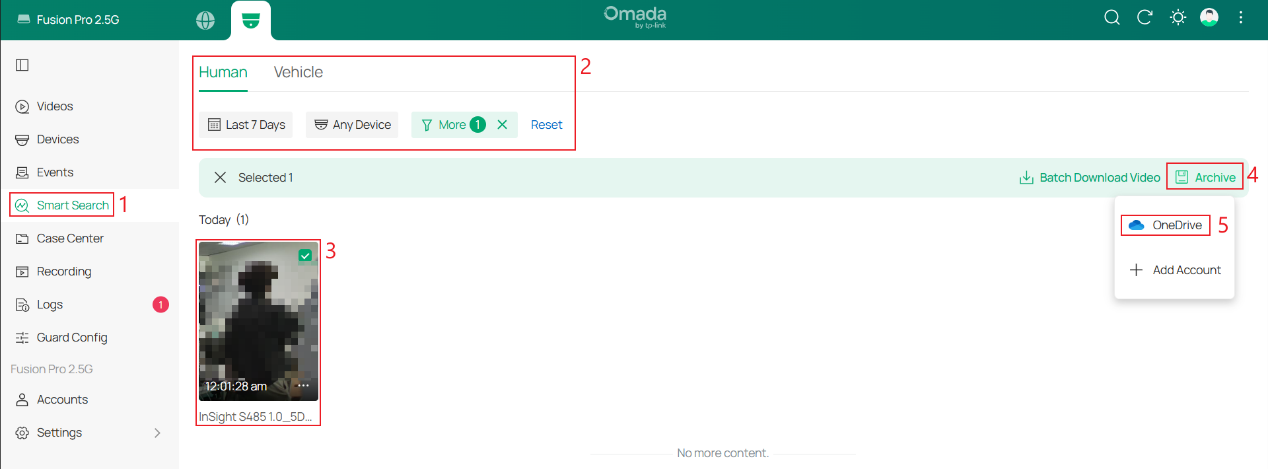
Note:
- Smart Search is available when at least one device that supports Object Attribute Analysis has been added to the Fusion Pro Gateway.
- When multiple recordings are selected from Smart Search for archiving, each recording is created as a separate archiving entry. A maximum of 500 archiving entries can be processed at the same time.
Verification
After the archive task starts, an archiving notification appears in the upper-right corner, and the progress bar shows the current archiving progress.
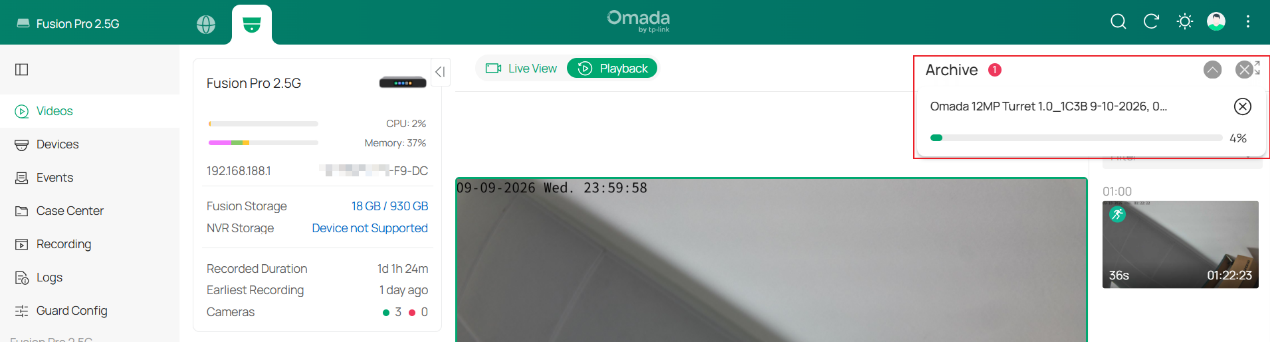
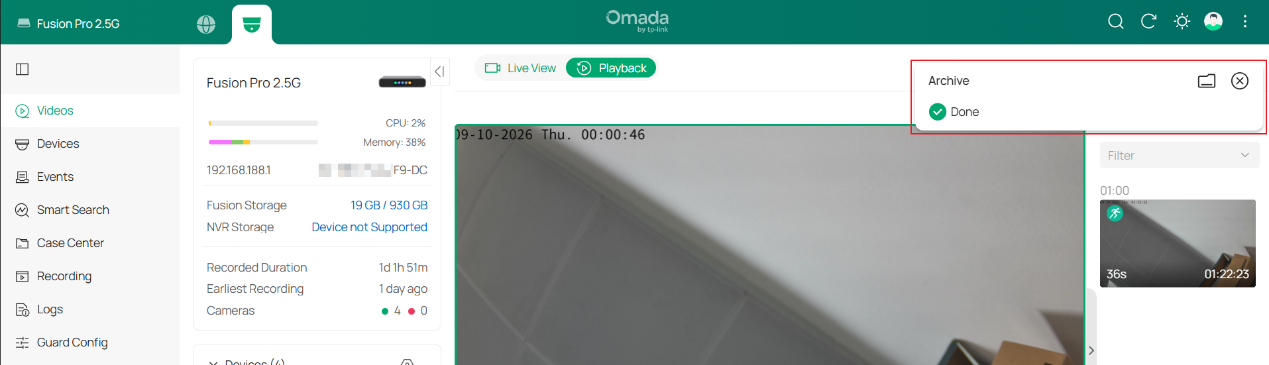
When the archive task is completed, a Done notification appears in the upper-right corner.
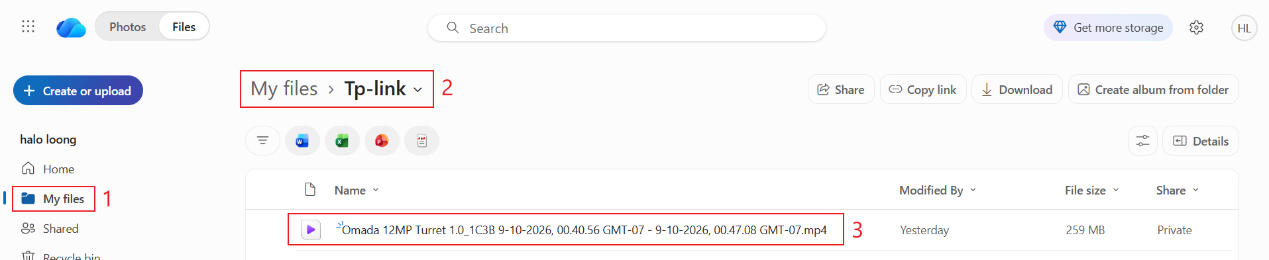
The archived recording is then available in the configured Storage Provider.
Conclusion
With archiving configured, recordings can be securely preserved outside the Fusion Pro Gateway and managed NVRs for long-term retention, evidence preservation, and backup purposes. By connecting a supported cloud storage service or NAS, important video recordings can be archived directly from Playback, Events, or Smart Search whenever they are needed.
To learn more about each function and configuration, please visit Support Home to download or check the manual for your product.
QA
Q1: Why does the third-party storage service indicate that the account is connected, but Omada Guard does not immediately display a success message?
A1: The account linkage is confirmed only after Omada Guard receives the authorization result from the third-party storage service. If the success message does not appear immediately, wait 3-10 seconds and check again. Authorization is typically completed within about 3 seconds, although the actual time may vary depending on the third-party service and network conditions.
Q2: Is a Storage Provider required before starting an archive task?
A2: No. Configuring a Storage Provider in advance is optional. If no Storage Provider is available, click + Add Account during the archiving process to add one and use it as the archive destination.
Q3: What limits apply when archiving recordings from Playback, Events, or Smart Search?
A3: A continuous recording archived from Playback can cover up to 24 hours in one task. For Events and Smart Search, each selected recording creates a separate archiving entry, and up to 500 archiving entries can be processed at the same time.
Q4: What should I check if Omada Guard cannot connect to a NAS or the NAS becomes Offline?
A4: Check the following:
- Network connectivity: Make sure the NAS is powered on and reachable from the Fusion Pro Gateway. If they are on different networks, check routing, firewall rules, and other network policies between them.
- Server address and shared folder: Verify that the configured NAS address and shared folder are correct and that the folder still exists. If the NAS uses a dynamically assigned IP address, consider using a fixed IP address or DHCP reservation.
- SMB service: Confirm that SMB file sharing is enabled and running on the NAS.
- Account and permissions: Verify the username and password, and make sure the account is enabled and has permission to access and write to the shared folder.
If the NAS was previously available, check whether any of these settings changed before the issue occurred. After correcting the issue, allow time for Omada Guard to update the Storage Provider status.
Q5: What should I check if a cloud drive account cannot be linked or becomes Offline?
A5: Check both account authorization and the Fusion Pro Gateway’s connection to the cloud drive service:
- Account authorization: Sign in to the cloud drive service directly to confirm that the account is accessible. When linking it, select the intended account and grant the requested permissions. For an organization-managed account, ask the administrator whether policies restrict third-party application access.
- Existing authorization: If a previously linked account becomes Offline, check whether its authorization has been revoked or its access policies have changed. Complete the authorization process again if required.
- Internet access and DNS: Make sure the Fusion Pro Gateway has Internet access and can resolve and reach the service domains below. Check whether firewall rules, DNS filtering, or other network policies block access.
|
Service |
Domains |
|
Google Drive |
oauth2.googleapis.com, www.googleapis.com |
|
OneDrive |
login.microsoftonline.com, graph.microsoft.com |
|
Dropbox |
www.dropbox.com, api.dropboxapi.com, content.dropboxapi.com |
After resolving the issue, allow time for Omada Guard to update the Storage Provider status.
Q6: Why can’t an archiving task start even though the Storage Provider is Online?
A6: An Online status indicates that the storage destination is accessible, but a task also requires available source recordings and sufficient storage capacity. Check the following:
- Source recordings: Confirm that the selected recordings still exist and can be played in Omada Guard. They may have been overwritten or deleted since the search results were displayed.
- Recording source: If the recordings are stored on a managed NVR, make sure the NVR is online and accessible from the Fusion Pro Gateway.
- Available storage: Check the destination’s free space and any account or shared-folder quotas. A NAS may have free disk space while the specified account has already reached its quota.
- Write restrictions: Check whether the destination has become read-only or the cloud service is rejecting uploads because of storage or upload limits.
- Task settings: Follow any message displayed when creating the task and confirm that the selection meets the applicable archiving limits.
Try archiving a short recording from one camera. If this succeeds, retry the original selection in smaller batches to help identify whether the issue is related to a particular recording or task size.
Q7: What should I check if an archiving task fails, stops progressing, or takes unusually long after it starts?
A7: A task can encounter problems during transfer even if the Storage Provider remains Online. Check the task status and any displayed message, then investigate the following:
- Connection stability: Check for intermittent disconnections, packet loss, or network changes between the Fusion Pro Gateway and the destination. For cloud drive, check the Internet upload connection.
- Device or service interruptions: Check whether the Fusion Pro Gateway, source NVR, NAS, or SMB service restarted or became unavailable while the task was running.
- Transfer performance: Large recordings, limited upload bandwidth, competing traffic, or heavy NAS activity can increase completion time. Compare a short recording with a longer one to help distinguish slow transfer from a task that is no longer progressing.
- Cloud service restrictions: Temporary service problems or upload throttling may interrupt or delay transfers. If the service reports a temporary restriction, wait before retrying and reduce the number of simultaneous uploads where possible.
After correcting the issue, check the affected task’s status and retry failed recordings as needed. Confirm that the source recordings are still available before retrying.
