


Contents
Symptom 1: The video freezes or turns black or white
Symptom 2: A graphics processing error appears
Step 1. Restart Google Chrome using the address bar (recommended)
Step 2. Close and reopen the browser manually
Step 3. Check and update the graphics driver
Step 4. Contact Omada Technical Support
Introduction
During live view and playback on Omada Fusion Pro, the video may suddenly freeze or the entire video window may turn black or white after working normally. In some cases, a graphics processing error message appears in the center of the video window, indicating that the video is unavailable.
These symptoms may occur when the browser temporarily disables graphics acceleration due to a sudden increase in graphics load or a system protection mechanism. Restarting the browser may restore the video. If the issue repeatedly returns after several hours of monitoring, a graphics driver compatibility issue may be involved. This article explains the symptoms and how to restore the video by restarting the browser or updating the graphics driver.
Requirements
- Fusion Pro Series
- Omada Cameras
Symptoms
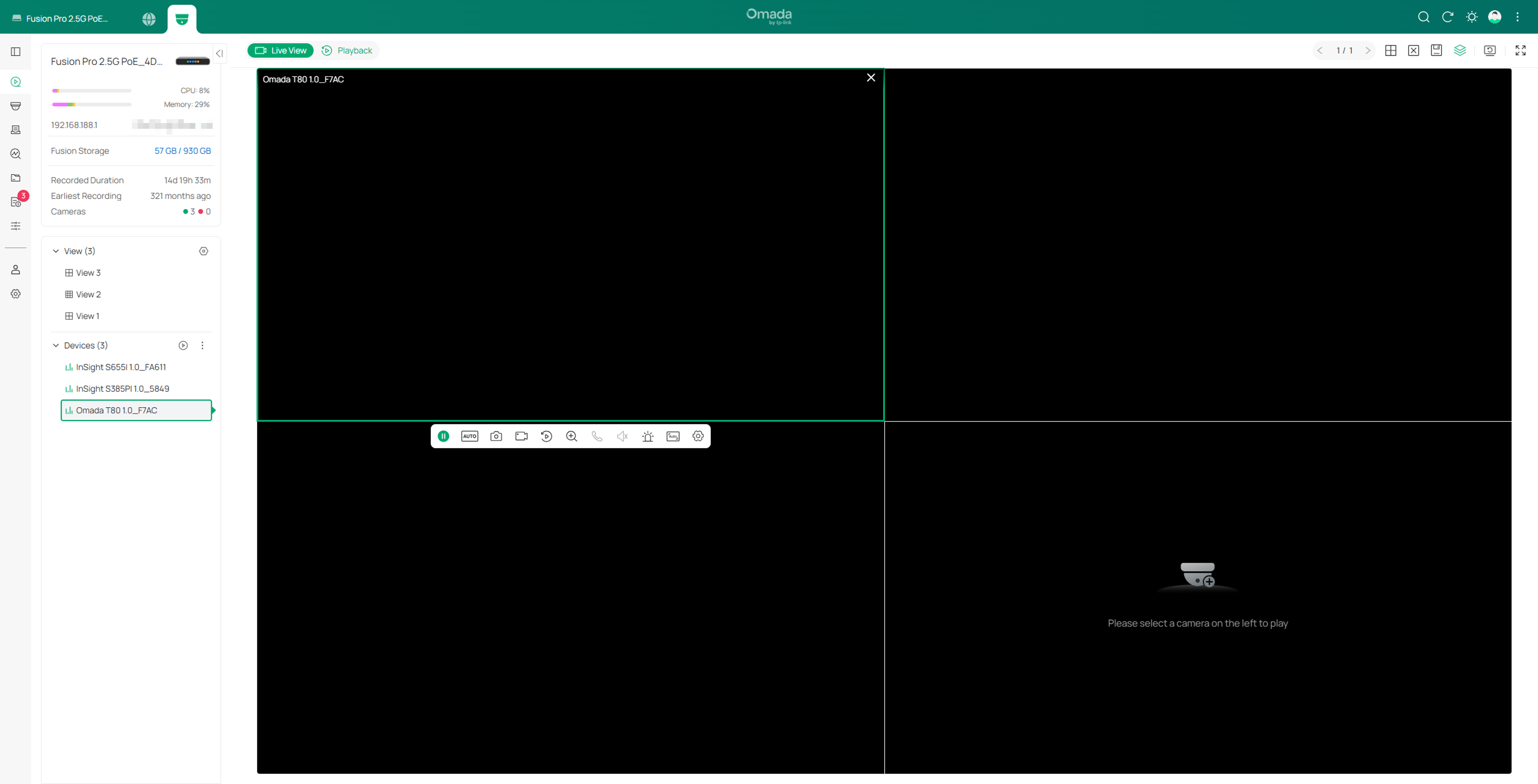
Symptom 1: The video freezes or turns black or white
The video stops updating during live view or playback, or the video window becomes completely black or white.
Symptom 2: A graphics processing error appears
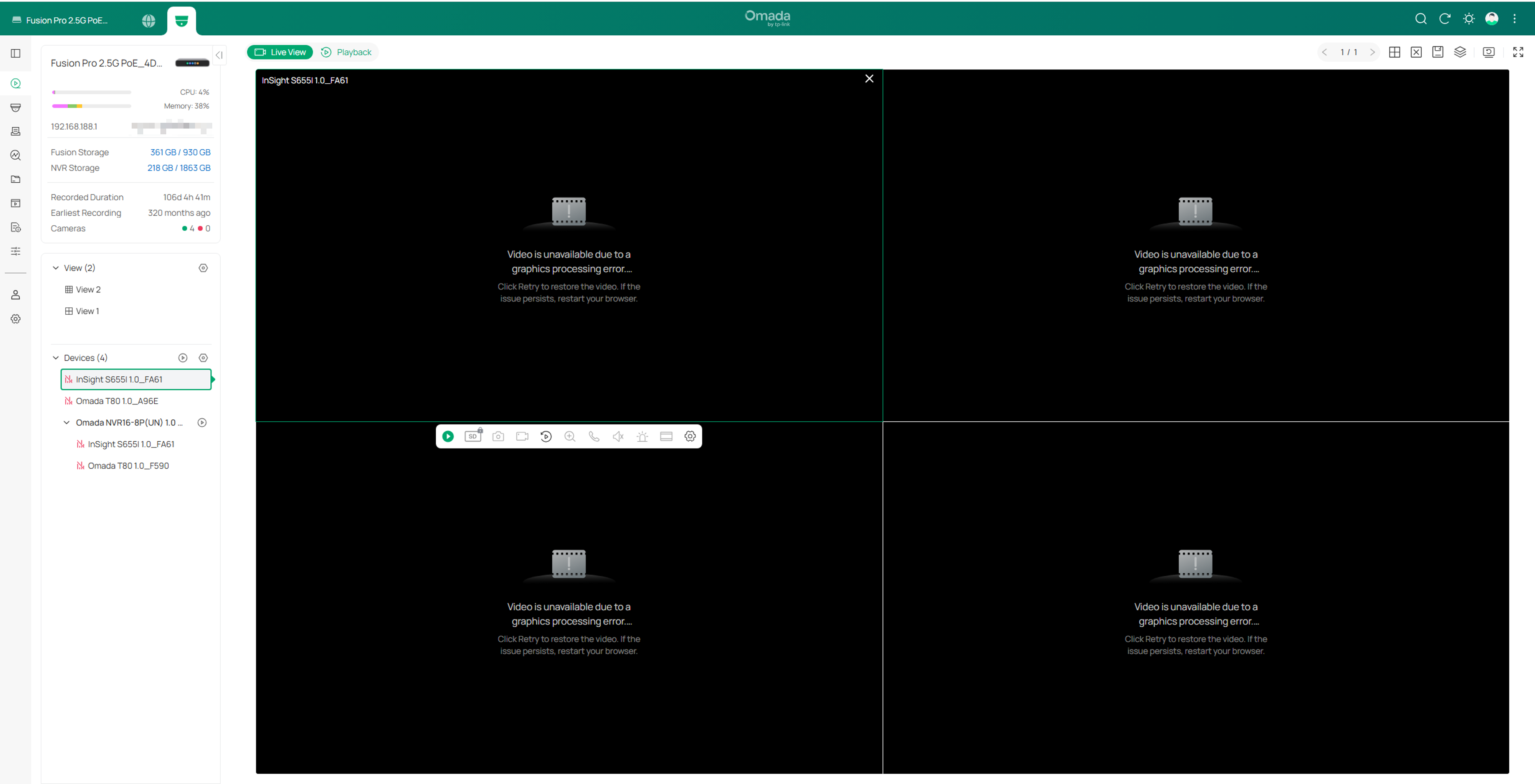
The following message appears in the video window:
“Video is unavailable due to a graphics processing error. Click Retry to restore the video. If the issue persists, restart your browser.”
Troubleshooting
The browser may temporarily disable the computer’s graphics acceleration components due to a sudden increase in graphics load or a system protection mechanism. If this occurs, follow the steps below to restore the video.
Step 1. Restart Google Chrome using the address bar (recommended)
- In the address bar at the top of Google Chrome, enter chrome://restart and press Enter.
- Chrome will automatically close and reopen, normally restoring your previously opened monitoring tabs.
- Return to the monitoring page and check whether the video resumes.
Note: Save any unfinished work before restarting. The previous monitoring layout and login state may need to be restored manually.
Step 2. Close and reopen the browser manually
If the video remains unavailable after Step 1, manually close and reopen the browser.
- Click the × button in the upper-right corner of each browser window to close all browser windows.
- Click the browser icon on your desktop to reopen it.
- Sign in to the monitoring system and check whether the video resumes.
Step 3. Check and update the graphics driver
If restarting the browser restores the video, but the video repeatedly turns black or freezes again after several hours of monitoring, the graphics driver may have a compatibility issue.
- Check the graphics adapter used by your computer, especially whether it uses Intel integrated graphics.
- Download and install the latest compatible graphics driver from the computer manufacturer’s or graphics vendor’s official website.
- Restart the computer after the update.
- Check whether the video remains stable during live view and playback.
Note: Graphics compatibility issues can cause the video to freeze or the video window to turn black or white during live view and playback. However, these symptoms do not necessarily indicate a graphics compatibility issue, as they can also have other causes.
Step 4. Contact Omada Technical Support
If the issue persists after completing the steps above, please contact Omada Technical Support for further assistance.
Conclusion
If the video freezes or turns black or white during live view and playback, restart the browser. If the issue repeatedly returns after extended monitoring, update the compatible graphics driver and restart the computer.
To learn more about each function and configuration, please visit Support Home to download or check the manual for your product.
