


Contents
Install Omada Software Controller
Install Chromium browser (optional)
Introduction
Omada Software Controller can be installed on Windows and Linux systems. This guide introduces how to install Omada Software Controller on Linux, using Ubuntu 22.04 as an example. The installation process for Debian is similar to that for Ubuntu.
Requirements
Before installation, prepare the following:
- Omada Software Controller installation package
- A supported Linux distribution:
- Ubuntu 16.04, 18.04, 20.04, 22.04, or 24.04
- Debian 8, 9, 10, 11, or 12
- Required dependencies, including OpenJDK, MongoDB, and JSVC
Note: Ubuntu 24.04 requires Omada Software Controller v5.15.20 or later.
Installation on Ubuntu 22.04
The following sections use Ubuntu 22.04 as an example. Before installing Omada Software Controller, install the required OpenJDK, MongoDB, and JSVC dependencies.
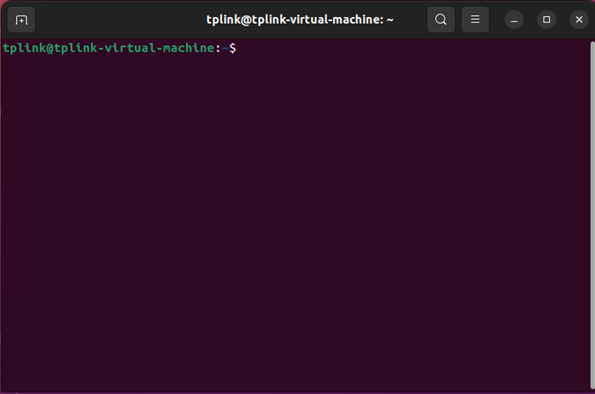
For Ubuntu or Debian, press Ctrl + Alt + T to open a terminal. Run the commands provided in the following sections to complete the installation.
Install OpenJDK
Omada Software Controller for Linux requires a 64-bit Java runtime. The minimum required OpenJDK version depends on the Controller version.
|
Omada Software Controller Version |
Minimum Required OpenJDK Version |
Installation Options Covered in This Guide |
|
v6.4.0 and later |
64-bit OpenJDK 21 |
OpenJDK 21 |
|
v5.15.20 to earlier than v6.4.0 |
64-bit OpenJDK 17 |
OpenJDK 17 or OpenJDK 21 |
|
Earlier than v5.15.20 |
64-bit OpenJDK 8 |
OpenJDK 8 or OpenJDK 11 |
Select the appropriate OpenJDK version based on the Controller version and system requirements.
OpenJDK 21
Omada Software Controller v6.4.0 and later for Linux requires 64-bit Java 21 or later. Follow the steps below to install OpenJDK 21 and JSVC.
Step 1. Update apt sources.
sudo apt update
Step 2. Install openJDK-21 with the command.
sudo apt install -y openjdk-21-jre-headless
Step 3. Verify Java version after installation.
java -version
Step 4. Install dependencies for JSVC.
sudo apt install -y jsvc
Step 5. Verify the JSVC version after installation.
jsvc -version
Note: JSVC v1.0.15 is recommended.
OpenJDK 17
For Omada Software Controller v5.15.20 to versions earlier than v6.4.0, follow the steps below to install OpenJDK 17 and JSVC.
Step 1. Update apt sources.
sudo apt update
Step 2. Install openJDK-17 with the command.
sudo apt install -y openjdk-17-jre-headless
Step 3. Verify Java version after installation.
java -version
Step 4. Install dependencies for JSVC.
sudo apt install -y jsvc
Step 5. Verify JSVC version after installation.
jsvc –version
Note: JSVC v1.0.15 is recommended.
OpenJDK 8
For Omada Software Controller versions earlier than v5.15.20, OpenJDK 8 or OpenJDK 11 can be used.
Follow the steps below to install OpenJDK 8 and JSVC.
Step 1. Install OpenJDK-8 with the command.
sudo apt install –y openjdk-8-jre-headless
Step 2. Install JSVC for OpenJDK 8 with the command.
sudo apt install jsvc
OpenJDK 11
Follow the steps below to install OpenJDK 11 and JSVC.
Step 1. Install OpenJDK-11 with the command.
sudo apt install –y openjdk-11-jre-headless
Step 2. Install dependencies for JSVC.
sudo apt install autoconf make gcc
Step 3. Download the source codes from the official website.
The following example uses JSVC 1.2.4.
wget https://archive.apache.org/dist/commons/daemon/source/commons-daemon-1.2.4-src.tar.gz
tar zxvf commons-daemon-x.y.z-src.tar.gz
cd commons-daemon-x.y.z-src/src/native/unix
Step 4. Compile and install.
sh support/buildconf.sh./configure --with-java=/usr/lib/jvm/java-11-openjdk-amd64 (default path of OpenJDK-11-JDK)
make
Step 5. Create a symbolic link to JSVC.
ln –s /YOUR_ABSOLUTE_PATH/commons-daemon-1.2.4-src/src/native/unix/jsvc /usr/bin/
Note:JSVC 1.1.0 or later is required. Refer to the Apache Commons Daemon source archive to select an appropriate version.
Install MongoDB
Select a supported MongoDB version based on the Omada Software Controller version.
- For Controller versions earlier than v5.14.20: MongoDB v3.4 or v4.4
- For Controller versions after v5.14.20: supports up to MongoDB v7
- For Controller v5.15.20 and later: supports up to MongoDB v8
The following sections provide installation examples for MongoDB v4.4, v7, and v8.
MongoDB v4.4
Follow the steps below to install MongoDB v4.4.
Step 1. Download Libssl dependency.
libssl is a required dependency for MongoDB v4.4 on Ubuntu 22.04. For Ubuntu versions earlier than 22.04, skip Steps 1 and 2.
wget http://archive.ubuntu.com/ubuntu/pool/main/o/openssl/libssl1.1_1.1.1-1ubuntu2.1~18.04.23_amd64.deb
Step 2. Install libssl.
sudo dpkg -i libssl1.1_1.1.1-1ubuntu2.1~18.04.23_amd64.deb
Note: Available package versions may change over time. Refer to the Ubuntu OpenSSL package archive for available packages.
Step 3. Import the public key.
wget -qO - https://www.mongodb.org/static/pgp/server-4.4.asc | sudo apt-key add –
Step 4. Create /etc/apt/sources.list.d/mongodb-org-4.4.list with the appropriate version of command.
- For Ubuntu 16.04
echo "deb [ arch=amd64,arm64 ] https://repo.mongodb.org/apt/ubuntu xenial/mongodb-org/4.4 multiverse" | sudo tee /etc/apt/sources.list.d/mongodb-org-4.4.list
- For Ubuntu 18.04
echo "deb [ arch=amd64,arm64 ] https://repo.mongodb.org/apt/ubuntu bionic/mongodb-org/4.4 multiverse" | sudo tee /etc/apt/sources.list.d/mongodb-org-4.4.list
- For Ubuntu 20.04
echo "deb [ arch=amd64,arm64 ] https://repo.mongodb.org/apt/ubuntu focal/mongodb-org/4.4 multiverse" | sudo tee /etc/apt/sources.list.d/mongodb-org-4.4.list
- For Ubuntu 22.04
echo "deb [ arch=amd64,arm64 ] https://repo.mongodb.org/apt/ubuntu jammy/mongodb-org/4.4 multiverse" | sudo tee /etc/apt/sources.list.d/mongodb-org-4.4.list
Step 5. Reload the local package database.
sudo apt update
Step 6. Install MongoDB.
sudo apt install -y mongodb-org
For more information, refer to the following MongoDB installation guides:
MongoDB v7
Follow the steps below to install MongoDB v7.
Step 1. Import the public key used by the package management system. From a terminal, install gnupg and curl if they are not already available:
sudo apt-get install gnupg curl
Step 2. Import the MongoDB public GPG key
curl -fsSL https://www.mongodb.org/static/pgp/server-7.0.asc | \
sudo gpg -o /usr/share/keyrings/mongodb-server-7.0.gpg \
--dearmor
Step 3. Create the list file /etc/apt/sources.list.d/mongodb-org-7.0.list.
For Ubuntu 22.04:
echo "deb [ arch=amd64,arm64 signed-by=/usr/share/keyrings/mongodb-server-7.0.gpg ] https://repo.mongodb.org/apt/ubuntu jammy/mongodb-org/7.0 multiverse" | sudo tee /etc/apt/sources.list.d/mongodb-org-7.0.list
Step 4. Reload local package database:
sudo apt-get update
Step 5. Install the MongoDB v7.0.7 packages:
sudo apt-get install -y mongodb-org=7.0.7 mongodb-org-database=7.0.7 mongodb-org-server=7.0.7 mongodb-mongosh=7.0.7 mongodb-org-mongos=7.0.7 mongodb-org-tools=7.0.7
For more information, refer to the MongoDB installation guide.
MongoDB v8
MongoDB v8 can be used with Omada Software Controller v5.15.20 and later.
Step 1. Import the public key used by the package management system. From a terminal, install gnupg and curl if they are not already available:
sudo apt-get install gnupg curl
Step 2. To import the MongoDB public GPG key, run the following command:
curl -fsSL https://www.mongodb.org/static/pgp/server-8.0.asc | \
sudo gpg -o /usr/share/keyrings/mongodb-server-8.0.gpg \
--dearmor
Step 3. Create the list file. Create the list file /etc/apt/sources.list.d/mongodb-org-8.0.list for the corresponding Ubuntu version.
- For Ubuntu 20.04 (Focal):
echo "deb [ arch=amd64,arm64 signed-by=/usr/share/keyrings/mongodb-server-8.0.gpg ] https://repo.mongodb.org/apt/ubuntu focal/mongodb-org/8.0 multiverse" | sudo tee /etc/apt/sources.list.d/mongodb-org-8.0.list
- For Ubuntu 22.04 (Jammy):
echo "deb [ arch=amd64,arm64 signed-by=/usr/share/keyrings/mongodb-server-8.0.gpg ] https://repo.mongodb.org/apt/ubuntu jammy/mongodb-org/8.0 multiverse" | sudo tee /etc/apt/sources.list.d/mongodb-org-8.0.list
- For Ubuntu 24.04 (Noble):
echo "deb [ arch=amd64,arm64 signed-by=/usr/share/keyrings/mongodb-server-8.0.gpg ] https://repo.mongodb.org/apt/ubuntu jammy/mongodb-org/8.0 multiverse" | sudo tee /etc/apt/sources.list.d/mongodb-org-8.0.list
Step 4. Reload the package database. Issue the following command to reload the local package database:
sudo apt-get update
Step 5. Install MongoDB Community Server. Install either the latest stable version or a specific version of MongoDB Community Server.
- To install the latest stable version, issue the following
sudo apt-get install -y mongodb-org
- To install a specific release, specify each component package together with its version number. For example:
sudo apt-get install -y \
mongodb-org=8.0.12 \
mongodb-org-database=8.0.12 \
mongodb-org-server=8.0.12 \
mongodb-mongosh \
mongodb-org-shell=8.0.12 \
mongodb-org-mongos=8.0.12 \
mongodb-org-tools=8.0.12 \
mongodb-org-database-tools-extra=8.0.12
If only mongodb-org=8.0.12 is specified without specifying the component package versions, the latest version of each MongoDB component package may be installed.
For more information, refer to Install MongoDB Community Edition - Database Manual - MongoDB Docs
Install Omada Software Controller
Go to the official website, download the installation package of Omada SDN Controller, and install it with the following command.
sudo dpkg –i Omada_SDN_Controller_v5.x.y.z_Linux_x64.deb
Note: When OpenJDK 11 or later and JSVC 1.1.0 or later are used, install Omada Software Controller using the following command:
sudo dpkg --ignore-depends=jsvc –i Omada_SDN_Controller_v5.x.y.z_Linux_x64.deb
Install Chromium browser (optional)
Chromium is an optional dependency for exporting reports in PDF format. Skip this section if PDF report export is not required.
Different Controller versions support different Chromium versions:
|
Controller version |
Chromium version |
|
Under 6.0.0 |
90-128 |
|
6.0.0 and above |
120-140 |
Note: Refer to the Linux Mint download page and Linux Mint Chromium package pool to locate the appropriate Chromium package.
Step 1. Download Chromium debian package from Linuxmint.
Wget http://packages.linuxmint.com/pool/upstream/c/chromium/chromium_x.y.z~linuxmint1+xxx_amd64.deb
Step 2. Install Chromium.
sudo dpkg -i chromium_x.y.z~linuxmint1+xxx_amd64.deb
Step 3. Verify installation by returning version.
chromium –version
Verification
Use the following commands to start, check the status of, or stop Omada Software Controller.
Step 1. Start the Omada Controller.
tpeap start
Step 2. Check the Controller status.
tpeap status
Step 3. Stop running the Omada Controller.
tpeap stop
Conclusion
Following the steps above completes the installation of Omada Software Controller on a supported Linux system such as Ubuntu or Debian. Before installing the Controller, make sure the required dependencies, including OpenJDK, MongoDB, and JSVC, are properly installed. After installation, verify that the Controller service is running normally before proceeding with device management.
To learn more about each function and configuration, please visit Support Home to download or check the manual for your product.
